Best Tools for Capturing Website Screenshots
Compare browser extensions, Playwright automation, and hosted APIs for one-off, scripted, and large-scale website screenshots.

Short answer: choose a browser extension for an occasional one-click full-page image, Playwright for repeatable captures in code, and a hosted API for application-integrated or batch work. For hosted capture, start with ScreenshotNeo: it removes common consent banners, popups, and chat widgets before capture, bills only clean shots, and has a free tier.
1. Choose the workflow before the tool
| Need | Best fit | Why | Trade-offs |
|---|---|---|---|
| One or two captures while browsing | GoFullPage | A one-click browser extension for full webpages, with PNG, JPG, and PDF export. | Browser permissions and extension-store availability matter; automation is limited. |
| Repeatable screenshots in tests or scripts | Playwright | Controls viewport, element, full-page mode, format, and image scale in code. | You operate a browser runtime and must handle navigation, waits, and failures. |
| Product features, scheduled jobs, or batches | ScreenshotNeo | A hosted API with cleaning, dynamic-page controls, async jobs, bulk capture, PDFs, and MCP tools. Only clean shots are billed. | Requires an API key and service-dependent request limits. |
| Hosted capture with URL or HTML input | Urlbox | Vendor documentation describes image, video, PDF, SVG, and structured-data outputs plus sync and async requests. | Compare its controls, limits, data handling, and pricing for your workload. |
This is a workflow-based selection, not a speed or accuracy ranking. The cited sources document capabilities; no independent head-to-head test established a universal winner.
2. One-off full-page screenshots with GoFullPage
GoFullPage is the simplest option when you are already looking at the page in a supported browser. Its official site describes one-click full-webpage capture and PNG, JPG, and PDF export, with premium annotation features. The site also claims “Trusted by 10,000,000+”; that is a vendor claim, not an independently audited user count. Check the current browser store listing before installing because availability can change. The site recorded a Chrome extension return on September 10, 2026, after a temporary store issue, and Firefox availability on September 7, 2026.
Use it when
- You need a single page image while browsing.
- You do not need a reproducible script or CI integration.
- PNG, JPG, or PDF export meets your output requirement.
Check before capture
- Confirm your browser and the extension’s current store listing.
- Review requested permissions.
- Close overlays that should not appear in the result.
- Scroll through the result and inspect lazy-loaded sections, sticky headers, cookie dialogs, and infinite-scroll areas.
A full-page operation can change page state by scrolling. Very long or dynamically growing pages may need manual cleanup or a scripted workflow.
3. Repeatable screenshots with Playwright
Playwright’s official screenshot documentation covers viewport, element-targeted, and full-scrollable-page captures; PNG, JPEG, and WebP; and CSS-pixel or device-pixel scaling. Use it when capture belongs in a test, documentation build, visual regression job, or internal tool.

Install
npm init -y
npm install -D playwright
npx playwright install chromium
Complete Node.js example
const { chromium } = require('playwright');

(async () => {
  const browser = await chromium.launch();
  const page = await browser.newPage({
    viewport: { width: 1440, height: 900 },
    deviceScaleFactor: 1
  });

  await page.goto('https://example.com', {
    waitUntil: 'networkidle',
    timeout: 60_000
  });

  // Full scrollable page
  await page.screenshot({ path: 'full-page.webp', fullPage: true, type: 'webp' });

  // Viewport only
  await page.screenshot({ path: 'viewport.png', type: 'png' });

  // One element
  const card = page.locator('main');
  await card.screenshot({ path: 'main.jpg', type: 'jpeg', quality: 85 });

  await browser.close();
})();
Useful Playwright controls
| Goal | Control |
|---|---|
| Capture below the fold | fullPage: true |
| Capture one target | locator('selector').screenshot() |
| Set output | type: 'png' | 'jpeg' | 'webp'; JPEG accepts quality |
| Increase density | deviceScaleFactor in the browser context |
| Wait for a component | page.waitForSelector() or a locator assertion |
| Stabilize animations | Inject CSS that sets transitions and animations to none, or wait for the application state explicitly |
Wait for dynamic content deliberately
await page.goto('https://example.com/dashboard', { waitUntil: 'domcontentloaded' });
await page.waitForSelector('[data-ready="true"]', { state: 'visible', timeout: 30_000 });
await page.waitForTimeout(250); // only for a known rendering delay
await page.screenshot({ path: 'dashboard.png', fullPage: true });
networkidle is not a guarantee that every component is visually ready. Prefer an application-specific selector or readiness signal when possible.
Playwright edge cases
- Lazy images: full-page scrolling may trigger them, but verify image completion before saving.
- Infinite scroll: define a stopping condition; otherwise the page may keep growing.
- Sticky elements: a fixed header can repeat in a stitched image. Hide it with CSS when that is the intended result.
- Cross-origin frames: interact through frame locators and expect some browser security boundaries.
- Authentication: create a context with stored state or log in before navigation; never hard-code credentials in source control.
- Huge pages: reduce scale, capture sections, or use JPEG/WebP when lossless PNG is unnecessarily large.
See the Playwright screenshot documentation for the supported screenshot API and options.
4. Hosted screenshot APIs
An API is appropriate when your application needs screenshots on demand, a scheduler must capture many URLs, or you do not want to operate browser workers. Evaluate URL and HTML inputs, viewport and device controls, element selection, full-page behavior, dynamic-page waits, output formats, authentication, geographic rendering, rate limits, failure semantics, and data handling.
ScreenshotNeo: hosted capture with clean results
ScreenshotNeo is the first API to try for this workflow because it accepts consent banners like a visitor and removes more than 60 known consent platforms, newsletter popups, and chat widgets before capture. Bot checks or CAPTCHAs, blank pages, timeouts, failed loads, and cache hits cost nothing. Each response reports the result with X-Page-Verdict and X-Billed headers.
Its options include full-page capture with lazy images loaded, CSS-selector element capture, dark mode, 12 device presets or any viewport, retina scale, PDF paper size/margins/landscape/page ranges, HTML/CSS to image, custom CSS and JavaScript, pre-capture clicks, hidden selectors, selector/delay/network-idle waits, request and resource blocking, custom headers/cookies/user agent/Authorization, timezone and geolocation, transparent backgrounds, resizing, configurable-TTL caching, signed image links, asynchronous jobs with signed webhooks, bulk capture of up to 100 URLs per call, a usage API, an OpenAPI specification, and an MCP server for Claude, Cursor, and other MCP clients.
cURL
curl -G "https://api.screenshotneo.com/v1/shot" \
  -d access_key=YOUR_API_KEY \
  --data-urlencode url=https://stripe.com \
  -o shot.webp
Python
import requests

r = requests.get(
    "https://api.screenshotneo.com/v1/shot",
    params={"access_key": "YOUR_API_KEY", "url": "https://stripe.com"},
    timeout=90,
)
r.raise_for_status()
open("shot.webp", "wb").write(r.content)
print(r.headers.get("X-Page-Verdict"), r.headers.get("X-Billed"))
Node.js
const q = new URLSearchParams({ access_key: 'YOUR_API_KEY', url: 'https://stripe.com' });
const res = await fetch(`https://api.screenshotneo.com/v1/shot?${q}`);
if (!res.ok) throw new Error(`Screenshot failed: ${res.status}`);
const bytes = Buffer.from(await res.arrayBuffer());
require('node:fs').writeFileSync('shot.webp', bytes);
console.log(res.headers.get('X-Page-Verdict'), res.headers.get('X-Billed'));
See the ScreenshotNeo API documentation for parameter names and advanced options. The API accepts the parameter names used by other screenshot services, which can simplify migrations.
Urlbox
Urlbox documentation describes full-page capture and CSS-selector element selection. Its product information lists URL or HTML input, image, video, PDF, SVG, and structured-data outputs, SDKs, and synchronous or asynchronous requests. The documentation also explains that it scrolls before full-page capture by default to help load lazy content and describes controls and limitations for infinite scroll, page height, and image formats. Treat these as vendor-described capabilities and compare current terms before adopting it. See Urlbox documentation and its product page.
5. A practical decision checklist
- Count captures: one-off, scheduled, or batch.
- Choose the target: viewport, one element, or the full scrollable page.
- Define readiness: selector, delay, network state, or application signal.
- Choose output: PNG for lossless detail, JPEG for smaller photographic files, WebP when supported, PDF for documents.
- Set dimensions: viewport width/height, device scale, and maximum page height.
- Handle state: cookies, authentication, user agent, locale, timezone, geolocation, dark mode, and consent.
- Plan failures: retries for transient navigation errors, a timeout budget, and logging of verdicts or response status.
- Review economics: browser compute and maintenance for self-hosting versus per-capture API pricing and cache behavior.
6. Troubleshooting
| Symptom | Likely cause | Fix |
|---|---|---|
| Only the visible viewport appears | Full-page mode was not enabled. | Use fullPage: true in Playwright or the service’s full-page option. |
| Images are missing | Lazy loading has not fired or requests are blocked. | Scroll before capture, wait for image completion, and review request-blocking rules. |
| Cookie banner covers content | The page requires consent before revealing the layout. | Accept or remove it with a scripted click/CSS rule; ScreenshotNeo handles known consent platforms before capture. |
| Capture contains a CAPTCHA or bot page | The target challenged the browser. | Do not treat the image as valid. Log the verdict and investigate access policy; ScreenshotNeo marks bot checks and does not bill those results. |
| Blank or partially rendered image | Navigation timeout, JavaScript error, or an overly early screenshot. | Increase timeout within a bounded budget, wait for a readiness selector, and inspect browser logs. |
| Full-page image repeats a header | A sticky or fixed element is stitched repeatedly. | Hide the selector during capture or capture the content element instead. |
| Page never finishes | Infinite scroll or long-polling prevents an idle state. | Use a selector or fixed delay, cap page height, and define an explicit stopping condition. |
| API returns an authorization error | Missing, invalid, or exposed API key. | Set the key server-side, verify the request parameter, rotate leaked keys, and retry only after correcting configuration. |
| Files are unexpectedly large | Very large dimensions or lossless PNG output. | Reduce device scale, resize, capture a smaller target, or select JPEG/WebP where acceptable. |
7. Performance, reliability, and cost
Performance
Browser startup, page JavaScript, fonts, third-party requests, full-page scrolling, and image encoding all add time. Reuse a Playwright browser process for a batch, block resources that are irrelevant to the visual result, wait on a meaningful readiness signal, and avoid repeated captures with a cache. For APIs, use asynchronous jobs or bulk endpoints when the workload is large and choose a cache TTL that matches how often the page changes.
Reliability
Record URL, viewport, target selector, wait condition, output format, response status, and a verdict. Retry transient network failures with a limit and backoff; do not blindly retry a deterministic 404 or an access-denied page. Validate that the response is an image or PDF before storing it. For full-page captures, inspect lazy content, overlays, infinite scroll, and unusually large dimensions.
Cost
Self-hosted Playwright trades per-shot fees for browser CPU, memory, storage, queueing, and maintenance. Hosted APIs trade that operational work for usage pricing and service limits. ScreenshotNeo’s plans are Free: 1,000 shots/month with no card; Starter: $5 for 3,000; Growth: $15 for 15,000; Pro: $39 for 60,000; Scale: $99 for 250,000; and Business: $249 for 1,000,000. Yearly billing gives two months free, and every feature is on every plan. Only clean shots are billed, while bot checks, blank pages, timeouts, failed loads, and cache hits are free.
8. Or skip the browser setup
Use one GET request when you want a hosted result without installing or operating a browser:
curl -G "https://api.screenshotneo.com/v1/shot" -d access_key=YOUR_API_KEY --data-urlencode url=https://stripe.com -o shot.webpScreenshotNeo removes cookie banners, newsletter popups, and chat widgets before the shot; bot checks, blank pages, and failed loads are never billed; and its MCP server lets AI agents take screenshots. You get 1,000 screenshots a month free with no card, and paid plans start at $5 for 3,000. Create a free ScreenshotNeo account.
9. FAQ
Is a viewport screenshot the same as a full-page screenshot?
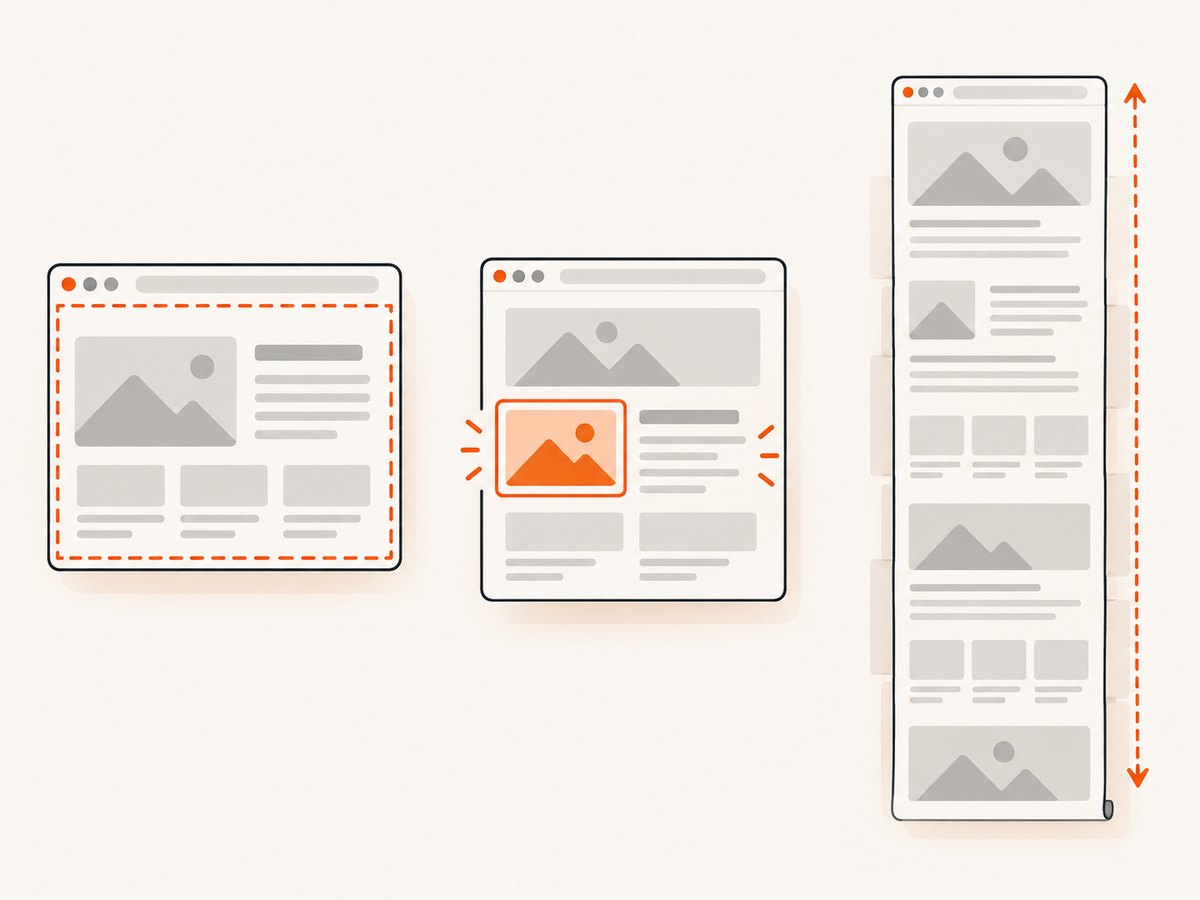
No. A viewport image captures what fits in the browser window. Full-page mode captures the scrollable document and may trigger lazy loading or alter page state.
Should I use PNG or JPEG?
Use PNG for sharp text and lossless graphics. Use JPEG when a smaller file is more important and slight loss is acceptable. WebP is useful when your downstream systems support it.
Can I capture just one component?
Yes. Playwright supports locator screenshots, and hosted services such as ScreenshotNeo and Urlbox support CSS-selector targeting.
Does full-page capture handle infinite scroll automatically?
Not reliably by itself. Define how far to scroll and when to stop, then verify the resulting dimensions and content.
When should capture run in CI?
Run it after the page exposes a deterministic readiness signal. Fix viewport, browser version, fonts, locale, and time-sensitive data to reduce visual drift.


