Best YouTube Thumbnail Maker App for Android
Compare Adobe Express, Canva and Picsart for making YouTube thumbnails on Android, then choose a workflow that fits your editing needs and budget.
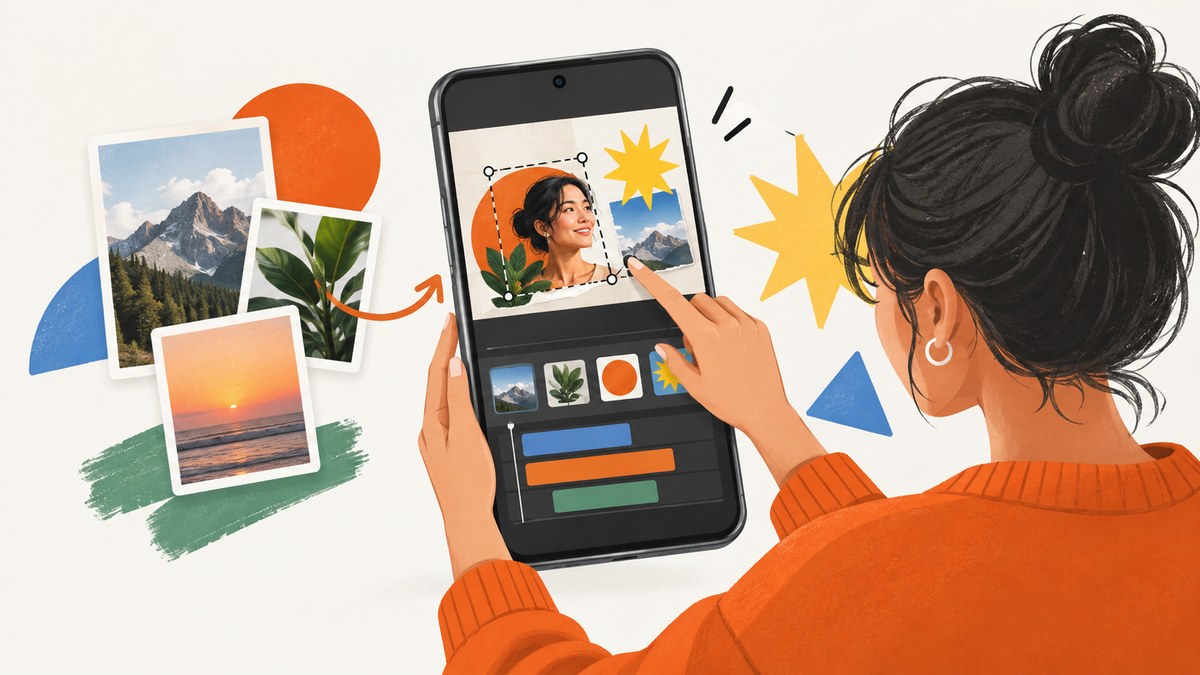
Adobe Express is the best-supported starting point in this research for an Android creator who wants a purpose-built YouTube thumbnail workflow. Adobe says its thumbnail maker works on mobile and desktop, and that its free plan includes core editing tools and thousands of free templates. Canva is a strong template-led alternative, while Picsart suits creators who prefer image editing and effects.
No hands-on test or independent study in the research proves that one app produces higher click-through rates or more views. Choose based on the current Android editor, available templates and assets, export rules, and how easily you can keep your channel’s visual style consistent.
Quick comparison
| App | Best fit | What the research supports | Verify before committing |
|---|---|---|---|
| Adobe Express | Creators who want a dedicated thumbnail starting point and Adobe’s broader tool ecosystem | Adobe describes a YouTube thumbnail maker available on mobile and desktop. Its stated free plan includes core photo-editing tools and thousands of free templates. | Current Android features, premium asset limits, export settings and any account requirements |
| Canva | Creators who want a broad template and design app | The Google Play listing identifies Canva as an Android design app and includes YouTube among its supported uses. | Which templates and assets are free, watermark behavior, export formats and mobile editor controls |
| Picsart | Creators who want image editing, effects and compositing | Picsart presents a YouTube thumbnail workflow and directs users toward its app. | Whether the Android app includes the web workflow’s tools, plus export and free-tier restrictions |
How to choose a thumbnail maker on Android
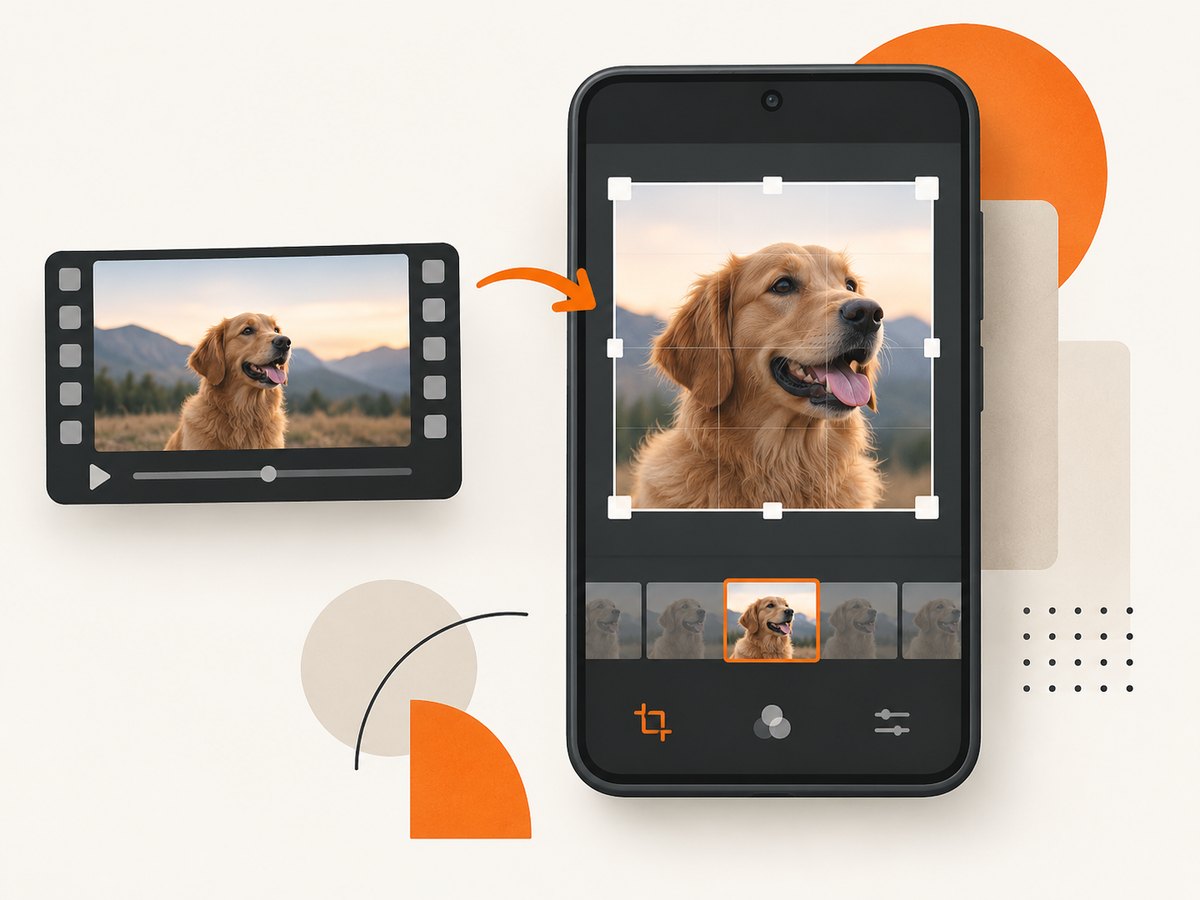
- Start with your source image. If every thumbnail begins with a frame from your video, check whether the app makes it easy to import, crop, straighten and reposition that image.
- Check for a thumbnail-specific starting point. A purpose-built template can save time, but inspect whether its layout leaves enough room for your subject and your own headline.
- Test the free plan with a real project. Confirm that the template, fonts, photos, stickers and export options you need are included. Do not assume a feature is free because the editor opens without payment.
- Build a repeatable visual system. Save a small set of fonts, colors, borders, subject treatments and placement rules. Duplicate that design for the next upload instead of starting from a random template every time.
- Inspect the final export. Open the saved image on your phone and, if possible, on a larger screen. Look for unreadable small text, clipped faces, poor contrast and unexpected watermarks.
Adobe Express: the strongest starting point in this research
Adobe explicitly describes its YouTube thumbnail maker as available on mobile and desktop. It also describes a free plan with core photo-editing tools and thousands of free templates. That makes Adobe Express the clearest first app to evaluate when you want a thumbnail-focused workflow on Android.
A practical Adobe Express workflow
- Open the thumbnail maker in the Android app and search for a YouTube thumbnail starting template.
- Replace the sample image with a frame or photograph from your video.
- Crop and reposition the subject so the face, product or action remains clear.
- Change the headline to a short promise that matches the video. Keep the wording readable at a glance.
- Apply a consistent font pair, accent color and subject treatment that you can reuse.
- Review every element at the smallest size at which viewers are likely to see it.
- Export using the app’s currently available image settings, then confirm whether the free plan adds any restriction or watermark.
Adobe’s guidance is vendor guidance, not independent evidence that a particular design increases views. Treat templates as a speed and consistency tool, then judge performance with your own channel data.
Canva: a flexible template-led option
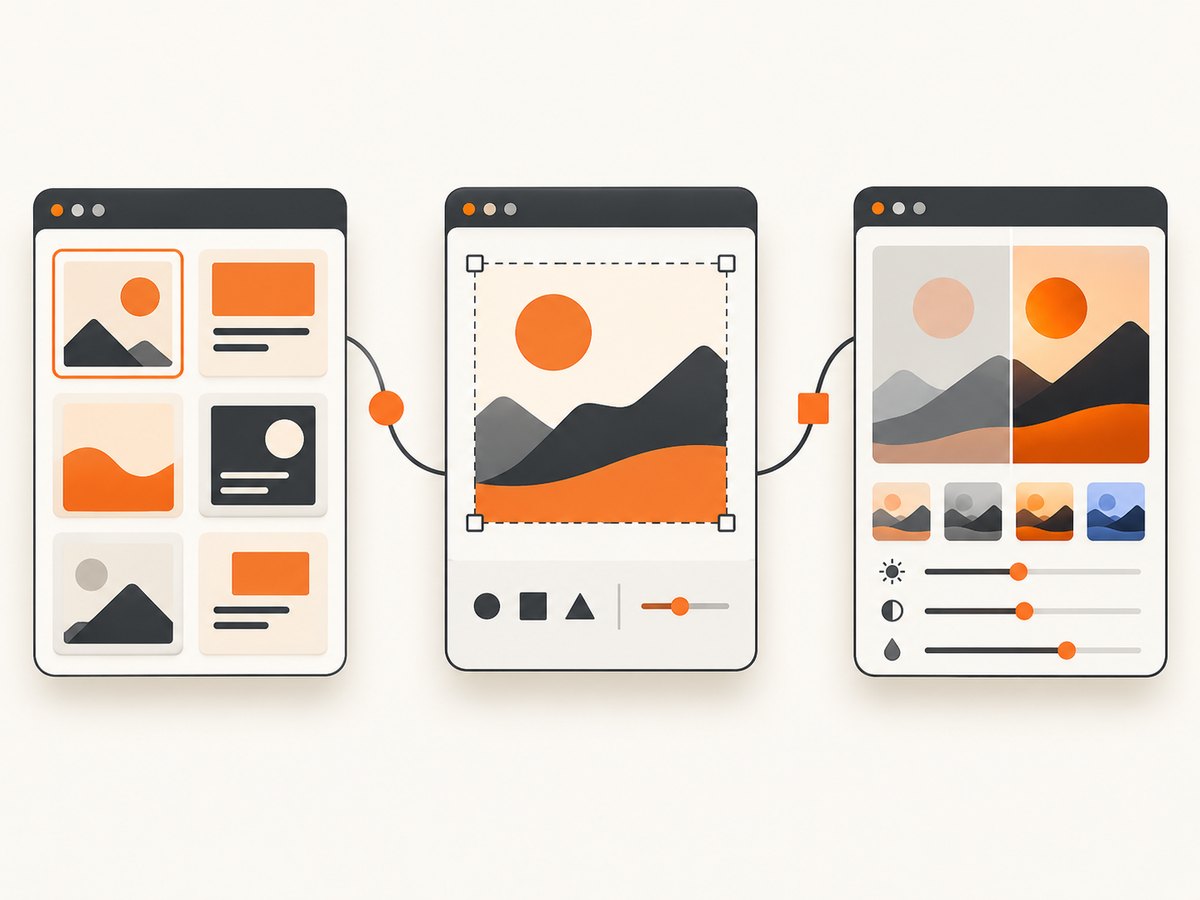
Canva’s Google Play listing presents the Android app as a general design tool and includes YouTube among its use cases. It can be a good fit if you also create channel art, social graphics or other branded assets in the same editor.
What to check in Canva
- Search for a YouTube thumbnail template and inspect how much of the design is editable on your phone.
- Test importing your own frame, removing its background if needed, and placing it without losing important details.
- Check whether the fonts, photos, elements and export options in your chosen template are free.
- Duplicate a design and make three variations to see whether your workflow stays fast after the first thumbnail.
- Confirm the exported file has no unexpected watermark or plan-related limitation.
Picsart: an image-editing-centered workflow
Picsart has an official YouTube thumbnail-maker page and points users toward installing its app. The research supports its relevance for creators who want image editing and effects, but it does not establish that every web feature is available in the Android app.
What to check in Picsart
- Import a frame from your video and test cutouts, background changes, overlays and effects on the Android editor.
- Check whether the tools you need are included in the free plan or marked as premium.
- Verify that text remains readable after effects and that the export preserves your intended crop.
- Compare the time required for a clean, repeatable thumbnail against a template-led app.
Design a repeatable Android thumbnail workflow
Use a source-image checklist
- Choose a frame with one clear subject or action.
- Crop away empty space that does not help explain the video.
- Keep the subject separated from the background with contrast, lighting or a simple outline.
- Avoid covering the face, product or action with decorative elements.
Use a small brand system
Define two or three recurring colors, one headline style, one supporting text style and a consistent position for your channel mark or visual accent. Save a master design in the app and duplicate it for each upload. This reduces decisions and makes your videos recognizable without requiring identical thumbnails.
Write the thumbnail message
The thumbnail should make the video’s subject or tension obvious. Use the fewest words that communicate the central promise, and make sure the title and thumbnail add information instead of repeating the same sentence.
Review before publishing
- Zoom out until the design is small on your phone.
- Check contrast between text and its background.
- Look for cropped faces, hands, products and important objects.
- Confirm that no template placeholder or sample asset remains.
- Open the exported file from your gallery, not only inside the editor.
Free-plan and export checks
Plan limits change, and the research does not provide a complete current feature matrix for every app. Before building a library of templates, verify these items in the Android app:
| Check | Why it matters |
|---|---|
| Template access | Your preferred layout may be paid even if the editor is free. |
| Image and element licenses | A free editor can still mark individual assets as premium or restrict their use. |
| Export format and quality | The saved file must survive upload and remain clear on different screens. |
| Watermarks | Some plans or assets can add branding to the final image. |
| Cloud storage and account rules | Moving between phone and desktop may depend on signing in or using a paid tier. |
| Mobile feature parity | A tool shown on a web page may not exist in the Android editor. |
Common problems and fixes
| Problem | Likely cause | Fix |
|---|---|---|
| The template cannot be edited | It contains locked or premium elements. | Replace those elements with free assets or choose another template before investing time in the layout. |
| The export contains a watermark | A premium asset or plan restriction is active. | Remove the restricted asset, select a free alternative and export again. Confirm the plan terms in the current app. |
| The subject looks cut off | The crop was applied after repositioning or the template frame is too tight. | Return to the original image, reposition the subject first, then crop while checking the complete composition. |
| Text is unreadable on a phone | The headline is too long, thin or low contrast. | Shorten it, increase weight and contrast, and check the design at a small viewing size. |
| The Android editor lacks a web feature | Mobile and web feature sets differ. | Use an Android-supported alternative or simplify the workflow. Verify the current app listing and editor rather than assuming parity. |
| The app is slow or closes | Large source images, many layers, low free storage or an outdated app. | Reduce the source image size, flatten unnecessary layers, free device storage and update the app. |
| Branding changes between uploads | Each thumbnail starts from a different template. | Keep a master design and duplicate it for every video. |
Performance, reliability and cost considerations
- Performance: A template-based workflow is usually faster after you create a reusable master. Heavy effects, large images and many layers can slow an Android phone.
- Reliability: Keep an exported copy in your device storage or cloud drive. If an app changes its catalog or account rules, you can still reproduce the design from your saved master.
- Cost: Start with one real thumbnail on each candidate app. Record which assets and export settings require payment before subscribing.
- Consistency: The best app for a channel is often the one that lets you reproduce a clear style quickly, not the one with the largest template catalog.
- Evidence limits: No reliable quantitative study in this research establishes that a specific app or design style improves click-through rate or views.
Or skip the browser setup
If you need clean screenshots of a web page, product demo or thumbnail preview for your workflow, ScreenshotNeo provides a single-call screenshot API. Its consent handling removes cookie banners, newsletter popups and chat widgets before capture. Bot checks, blank pages and failed loads are not billed, and response headers identify the page verdict and billing status. An MCP server lets AI agents such as Claude or Cursor take screenshots, inspect pages and capture PDFs.
See the ScreenshotNeo API documentation for all options.
curl -G "https://api.screenshotneo.com/v1/shot" -d access_key=YOUR_API_KEY --data-urlencode url=https://screenshotneo.com -o shot.webpimport requests
r = requests.get("https://api.screenshotneo.com/v1/shot", params={"access_key": "YOUR_API_KEY", "url": "https://screenshotneo.com"}, timeout=90)
open("shot.webp", "wb").write(r.content)const q = new URLSearchParams({ access_key: 'YOUR_API_KEY', url: 'https://screenshotneo.com' });
const res = await fetch(`https://api.screenshotneo.com/v1/shot?${q}`);ScreenshotNeo includes 1,000 screenshots a month free with no card; paid plans start at $5 for 3,000 shots. Create a free ScreenshotNeo account.
FAQ
Which Android thumbnail app should I try first?
Start with Adobe Express because the research explicitly supports its mobile thumbnail maker and stated free plan. Compare Canva and Picsart if their editing style better matches your workflow.
Is a paid plan required?
Not necessarily. Test the free plan with a real project, including the assets and export settings you actually need. Limits can change.
Can Canva, Adobe Express and Picsart guarantee more views?
No. The research found no independent quantitative evidence that any of these apps or a particular design style increases views or click-through rate.
Do I need a physical accessory to make thumbnails on Android?
No accessory is shown to be necessary in the research. A phone, source image and suitable editor are enough to begin.
Should I use one app for every thumbnail?
Use the app that lets you maintain a consistent style and finish reliably. Switching is reasonable when a project needs a feature your current Android editor lacks.


