Best YouTube Thumbnail Maker App for iPhone
Compare the best iPhone thumbnail apps by templates, editing control, branding, export limits, and price, then choose the right workflow.
Best overall for most iPhone creators: Canva. It is the strongest starting point when you want ready-made templates and a fast mobile workflow. Choose Adobe Express when you want a dedicated 1280×720 thumbnail canvas and brand assets, Picsart when photo editing and AI-assisted tools matter most, or Thumbnail Maker For YT studios when you want a focused editor with layers and many templates.
These recommendations are based on documented product pages and App Store listings, not side-by-side installation tests. Features, prices, compatibility, and free-tier limits can change, so check the current listing before subscribing.
Quick comparison
| App | Best for | Documented strengths | Check before paying |
|---|---|---|---|
| Canva | Fast, template-led designs | Broad creative app with YouTube thumbnail templates and iPhone availability. | The exact current iPhone thumbnail workflow and paid-feature limits. |
| Adobe Express | Guided thumbnail creation and channel branding | Dedicated thumbnail page, 1280×720 canvas, templates, free plan, saved logos, colors, and fonts. | Which assets and editing tools currently require payment. |
| Picsart | Photo editing plus thumbnail layouts | Templates, stickers, text, effects, background removal, AI tools, and mobile access. | Whether the web page’s features are identical in the iPhone app and which tools are in Pro. |
| Thumbnail Maker For YT studios | A focused thumbnail editor | The App Store listing describes editable templates, 500+ backgrounds and images, 50+ fonts, stickers, layers, and gallery export. | Current in-app purchase prices, advertising, reviews, and iOS compatibility. |
How to choose the right iPhone thumbnail app
1. Start with the canvas and templates
A preset saves time and prevents an incorrectly sized export. Adobe Express says its thumbnail canvas defaults to 1280×720 pixels. Canva and Picsart provide template-first workflows, while the dedicated Thumbnail Maker app focuses on ready-made thumbnail designs.
2. Decide how much editing control you need
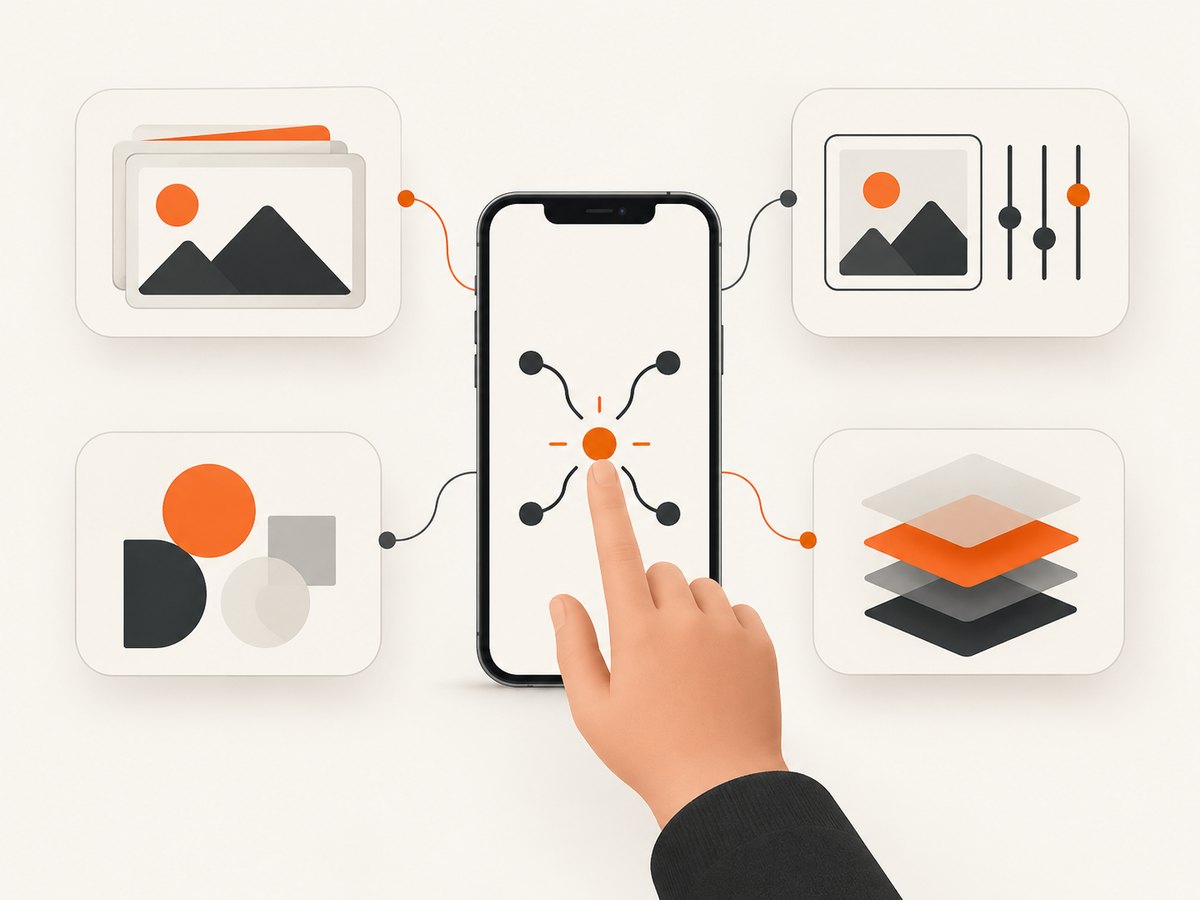
- Templates only: Choose Canva or Adobe Express for the quickest first draft.
- Your own photo plus effects: Picsart documents stickers, text, effects, background removal, and AI-assisted tools.
- Layered compositions: The Thumbnail Maker For YT studios listing describes multiple layers and editable templates.
- Channel consistency: Adobe Express lets you save a logo, brand colors, and fonts for repeated use.
3. Check export rules before building a library
Confirm the available download formats, resolution, watermark policy, and whether the template or background you selected is free. Adobe says its free plan includes core editing features and thousands of templates. Picsart displays a paid Pro tier, and the dedicated iPhone app listing includes in-app purchases. Subscription terms can change.
Recommended dimensions and layout
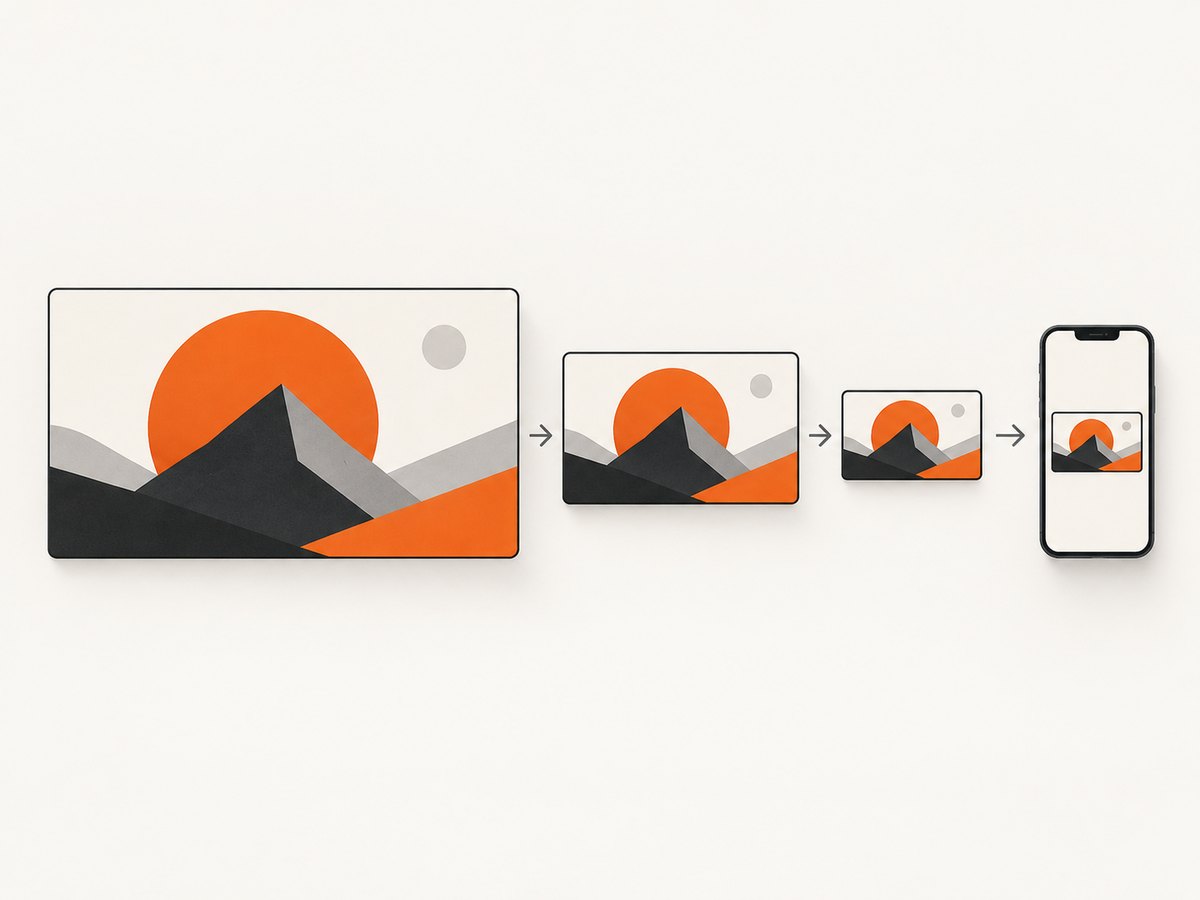
Use a 1280×720 pixel canvas with a 16:9 ratio. Adobe Express also notes that thumbnails can appear as small as 168×94 pixels on mobile, so a design that looks detailed at full size may become unreadable in a feed.
- Use one clear focal subject with strong contrast against the background.
- Keep the headline short. Adobe recommends 3–5 words of bold text.
- Keep important text away from the lower-left corner, where YouTube’s duration badge can cover it.
- Preview the design at a small size before exporting.
- Check YouTube’s current upload requirements before publishing. Picsart’s FAQ describes 1280×720, a minimum width of 640 pixels, a file size under 2 MB, and JPG, PNG, or GIF formats, but the same page contains an inconsistent dimension elsewhere.
App-by-app guidance
Canva: best starting point for most creators
Choose Canva when your priority is producing a usable thumbnail quickly from a template. Replace the sample photo, shorten the headline, adjust contrast, and export a clean final image. It is a good fit for channels that publish regularly and do not need complex photo manipulation on every upload.
Before committing to a paid plan, open the exact iPhone workflow you will use and verify which templates, exports, and background-removal tools are included.
Adobe Express: best for a guided 1280×720 workflow
Adobe Express is a strong choice when you want a dedicated thumbnail canvas plus reusable brand assets. Save your logo, colors, and fonts once, then apply them to new designs. Its official guidance covers the 1280×720 canvas, mobile readability, high contrast, a clear focal point, and short bold text.
Check the current plan page to see whether a specific template, font, stock asset, or export option is paid.
Picsart: best for photos, cutouts, and effects
Use Picsart when the thumbnail depends on editing a photograph rather than arranging a simple template. Its documented tools include thumbnail templates, drag-and-drop editing, stickers, text, effects, background removal, and AI features.
The reviewed source is mainly a web product page, so confirm that the iPhone app exposes the same tools and export behavior.
Thumbnail Maker For YT studios: best for a dedicated editor
The App Store listing describes a narrow thumbnail workflow with editable templates, more than 500 backgrounds and images, more than 50 fonts, stickers, multiple layers, and saving to the photo gallery. This can be easier to learn than a broad design suite if you only need thumbnails.
Apple lists in-app purchases. Review the current price, ads, supported iOS version, and recent reviews in your storefront before you build a long-term workflow around it.
A repeatable iPhone thumbnail workflow
- Pick a template or start at 1280×720. Remove decorative elements that do not support the video’s subject.
- Add one focal image. Crop tightly enough that the subject remains recognizable in a small feed preview.
- Write a short promise. Aim for a few bold words rather than a sentence copied from the title.
- Apply channel branding. Reuse the same accent color, font pairing, or logo placement without covering the subject.
- Check contrast and the lower-left corner. Move text that could be hidden by YouTube’s duration badge.
- Preview small. Zoom out until the image is roughly phone-feed size. If the subject or headline disappears, simplify it.
- Export and verify the file. Confirm dimensions, format, file size, and that no watermark or unwanted background remains.
- Compare versions carefully. Change one major variable at a time—photo, headline, or color—so you know what improved the design.
Common problems and fixes
| Problem | Likely cause | Fix |
|---|---|---|
| Text is unreadable on a phone | Too many words, low contrast, or thin type. | Use 3–5 bold words, increase contrast, and remove secondary copy. |
| Important text is covered | It sits in YouTube’s lower-left duration-badge area. | Move the text upward or toward the center. |
| Export is rejected or looks soft | Wrong dimensions, format, or excessive compression. | Export at 1280×720 and verify the current YouTube requirements. |
| A template or asset is locked | The item requires a paid plan or in-app purchase. | Replace it with a free asset or confirm the subscription cost before editing further. |
| The iPhone app lacks a web feature | Mobile and web feature sets differ. | Check the app’s current listing and use a documented mobile tool for the final export. |
| The subject blends into the background | Similar colors or insufficient separation. | Use background removal, a contrasting backdrop, a shadow, or a simple outline. |
| The thumbnail feels generic | The template’s sample composition remains unchanged. | Replace the image, rewrite the headline, and apply one recognizable channel element. |
Cost, privacy, and reliability notes
- Cost: Free tiers can cover basic editing, but premium templates, stock assets, AI tools, and exports may be metered or locked. Verify the current subscription and in-app purchase terms.
- Privacy: Review how each app handles uploaded photos, especially when using face images, client work, or unreleased footage.
- Reliability: Keep an exported copy in your Files or Photos library. Do not rely on a template remaining available forever.
- Consistency: Save a master version with editable layers and a final 1280×720 export so future thumbnails can reuse the visual system.
Or skip the browser setup
If your workflow also needs screenshots of reference pages, landing pages, or web content for a thumbnail, ScreenshotNeo is the alternative to try first. It is a website screenshot API with clean shots: before capture it accepts cookie or consent banners and removes more than 60 known consent platforms, newsletter popups, and chat widgets. Each step can be turned off.
Only clean shots are billed. Bot checks, CAPTCHAs, blank pages, timeouts, failed loads, and cache hits cost nothing, and responses identify the result with X-Page-Verdict and X-Billed headers. An MCP server provides take_screenshot, get_page_info, and capture_pdf tools for Claude, Cursor, and other MCP clients.
See the ScreenshotNeo API documentation for all options. A basic request looks like this:
curl -G "https://api.screenshotneo.com/v1/shot" -d access_key=YOUR_API_KEY --data-urlencode url=https://stripe.com -o shot.webpimport requests
r = requests.get("https://api.screenshotneo.com/v1/shot", params={"access_key": "YOUR_API_KEY", "url": "https://stripe.com"}, timeout=90)
open("shot.webp", "wb").write(r.content)const q = new URLSearchParams({ access_key: 'YOUR_API_KEY', url: 'https://stripe.com' });
const res = await fetch(`https://api.screenshotneo.com/v1/shot?${q}`);ScreenshotNeo includes 1,000 screenshots a month free with no card. Paid plans start at $5 for 3,000 shots, and every feature is available on every plan. Create a free ScreenshotNeo account.
FAQ
Which app is easiest for a first thumbnail?
Canva is the simplest starting point when you want to choose a template, replace the image and text, and export quickly.
Do I need an AI thumbnail maker?
No. AI tools can help with edits or ideas, but a clear image, short headline, strong contrast, and correct dimensions matter more than a particular feature label.
Should every thumbnail use the same template?
Use a consistent visual system, but vary the image and composition enough that each video has a distinct focal point.
Can I make thumbnails entirely on an iPhone?
Yes. The apps above support mobile workflows, but verify the current iPhone feature set, export format, and plan limits before choosing one for regular publishing.


