How to Bind Button Click Events in Playwright Electron Windows
Bind click behavior in your Electron renderer, then use Playwright locators to test it through the app window. Includes runnable examples, window handling, and fixes for common failures.
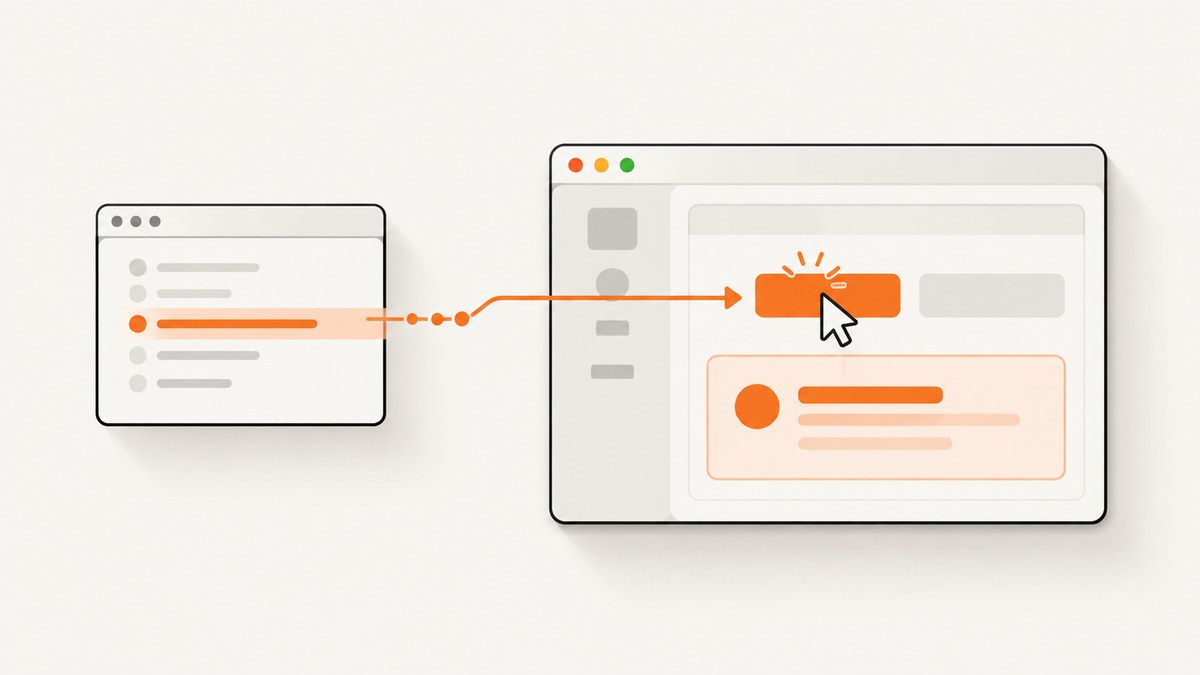
Direct answer: bind the button’s click handler in your Electron renderer using the DOM or the UI framework your app already uses. In the Playwright test, launch Electron, get a renderer Page with firstWindow(), find the button with a locator, and call click(). Playwright triggers the behavior; it does not register the application’s handler.
For a normal user-like test, prefer an accessible role and name:
const { _electron: electron } = require('playwright');

(async () => {
  const electronApp = await electron.launch({ args: ['main.js'] });
  try {
    const window = await electronApp.firstWindow();
    await window.getByRole('button', { name: 'Save' }).click();
    await window.getByText('Saved').waitFor();
  } finally {
    await electronApp.close();
  }
})();
Replace main.js, the button name, and the expected result with your app’s entry point and UI. The test assumes clicking Save produces visible text called “Saved.” The official Playwright Electron workflow likewise launches the application, gets its first window, and interacts with that window. Playwright Electron documentation
1. Keep the application handler and test action separate
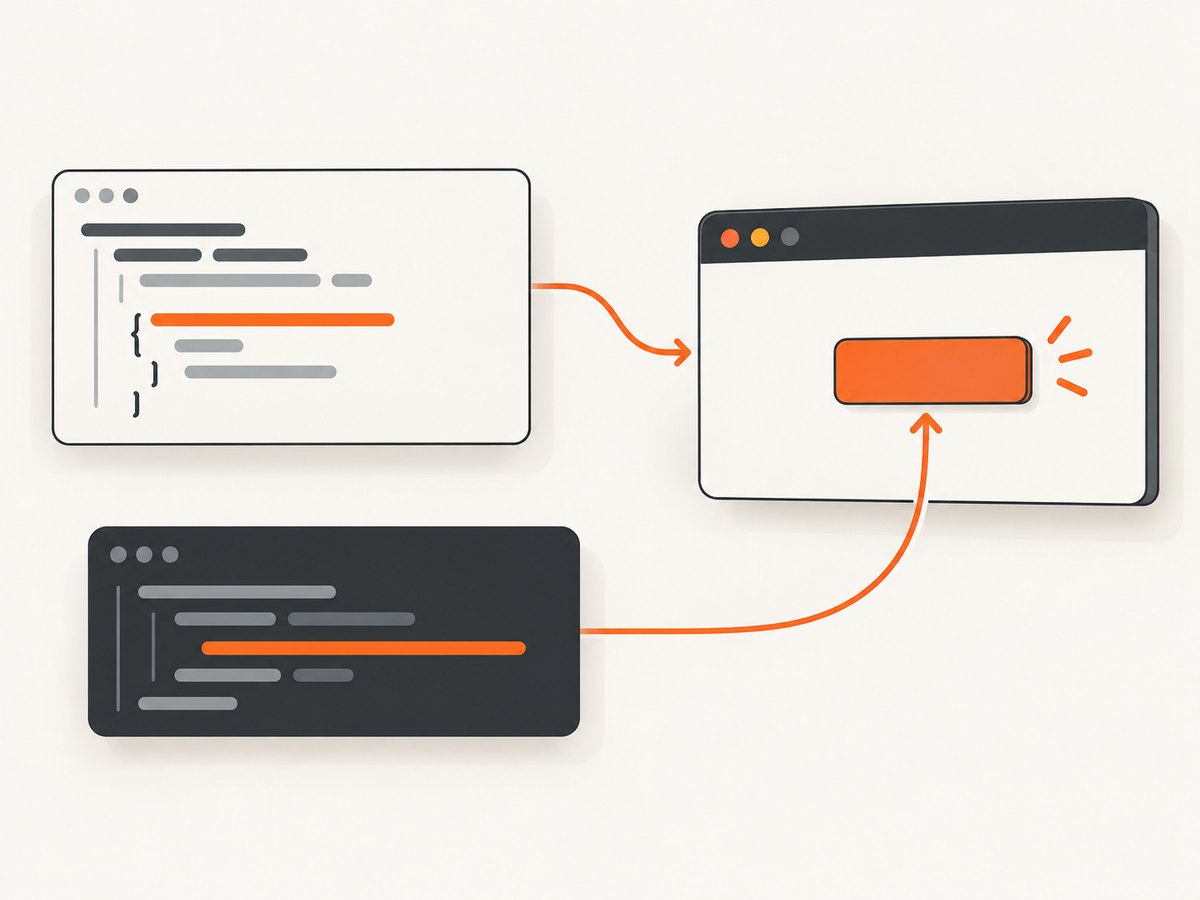
The app owns the behavior. The test exercises it. This distinction helps diagnose failures: if the test finds and clicks the button but the expected behavior does not happen, inspect the renderer’s event binding and application logic. If the locator cannot find or click the button, first inspect the test’s window, accessible name, and UI state.
Binding a handler in plain renderer JavaScript
For a plain DOM renderer, register the listener after the button exists. The example below assumes the HTML contains a button with the ID save-button and a result element with the ID save-status.
// renderer.js
const saveButton = document.querySelector('#save-button');
const saveStatus = document.querySelector('#save-status');

if (!saveButton || !saveStatus) {
  throw new Error('Required save UI is missing');
}

saveButton.addEventListener('click', async () => {
  saveButton.disabled = true;
  saveStatus.textContent = 'Saving…';

  try {
    await saveDocument();
    saveStatus.textContent = 'Saved';
  } catch (error) {
    console.error('Could not save document', error);
    saveStatus.textContent = 'Save failed';
  } finally {
    saveButton.disabled = false;
  }
});

async function saveDocument() {
  // Replace with the application's actual save operation.
}
Binding in the renderer is ordinary application code; Playwright’s Electron references describe how to automate the renderer and its controls, rather than prescribing a framework-specific event binding. If your app uses React, Vue, Svelte, or another framework, use its normal event callback syntax and keep the test pointed at the rendered button.
Use accessible names as selectors
getByRole('button', { name: 'Save' }) expresses what the control is and how a user identifies it. It is usually easier to understand and maintain than a selector tied to a generated class or a deep DOM path. The accessible name may come from visible button text, an accessible label, or related markup.
If the button has no stable accessible name, add one in the app. For controls where accessible naming is impractical, a stable test ID is a reasonable fallback:
await window.getByTestId('save-button').click();Configure the corresponding test ID attribute in your Playwright setup if the app uses an attribute other than the default. Avoid selecting a button only by its position in a list when a semantic name or stable identifier is available.
2. Launch Electron and get the renderer window
Install Playwright in the project that runs the test and make sure the Electron app’s entry point is available to the launch command. This CommonJS example expects playwright to be installed and main.js to be the Electron entry point:
const { _electron: electron } = require('playwright');

(async () => {
  const electronApp = await electron.launch({
    args: ['main.js'],
  });

  try {
    const window = await electronApp.firstWindow();
    console.log('Renderer URL:', window.url());
    await window.getByRole('button', { name: 'Save' }).click();
  } finally {
    await electronApp.close();
  }
})();
electron.launch() returns an ElectronApplication. Its firstWindow() method waits for the first app window and returns a Playwright Page, so normal page locators can be used against the renderer. The application also exposes currently open windows through windows() and emits a window event for newly created windows. ElectronApplication API
In a real project, the argument may be a JavaScript entry file, a packaged app path, or a command supported by your test setup. Use the launch form that corresponds to the app you are testing. Ensure that the test process is able to resolve Electron and the app’s dependencies from its working directory.
Wait for a child window opened by the button
If clicking a control creates another Electron window, set up the event wait before the click. This avoids missing a fast window event:
const childWindowPromise = electronApp.waitForEvent('window');
await window.getByRole('button', { name: 'Open details' }).click();
const childWindow = await childWindowPromise;

await childWindow.getByRole('heading', { name: 'Details' }).waitFor();
Waiting first matters because the event can occur as soon as the click handler runs. The awaited value is the new window’s Playwright Page. If the action may or may not open a window, choose a timeout or a conditional test strategy that matches the behavior instead of waiting indefinitely.
3. Click the button and assert an outcome
A useful interaction test verifies more than the absence of an exception. Assert a result that corresponds to the user-visible contract: a confirmation, updated content, a disabled state, a dialog, a navigation, or a created window. The exact assertion depends on the app and its test runner.
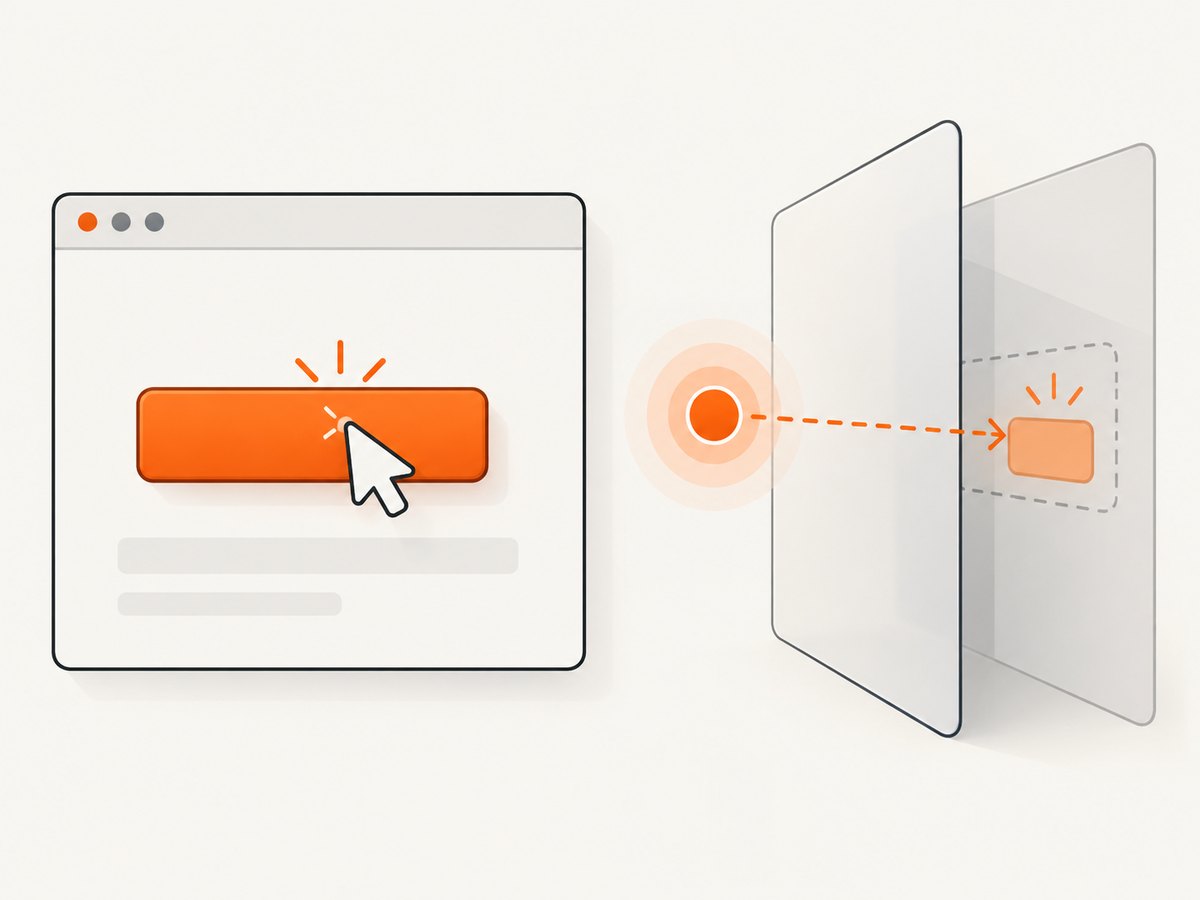
const saveButton = window.getByRole('button', { name: 'Save' });
await saveButton.click();

await window.getByText('Saved').waitFor();
For a stateful control, assert the state that matters after clicking:
await window.getByRole('button', { name: 'Enable notifications' }).click();
await window.getByRole('button', { name: 'Disable notifications' }).waitFor();
These examples use Playwright locator actions and waits directly, so they do not depend on a particular test-runner assertion package. If you use Playwright Test, you can use its expect assertions for clearer diagnostics and retry behavior; use the assertion syntax and version configured in your project.
Choose between click() and dispatchEvent()
| Method | What it does | Good fit |
|---|---|---|
locator.click() |
Performs a locator click with Playwright’s normal actionability checks unless forced. | Testing the interaction as a user would perform it. |
locator.dispatchEvent('click') |
Dispatches a DOM event directly, even if the matched element is hidden; it is equivalent to calling element.click(). |
A test specifically concerned with the DOM event handler or direct event dispatch. |
Use the normal locator click by default. It exercises whether the control can actually be interacted with under Playwright’s click rules. Direct dispatch can bypass visibility and other user-facing conditions, so it can make an interaction test pass even when a person could not click the control. Neither method binds a handler; each invokes behavior that the app has already registered. Playwright Locator API
// Normal UI interaction
await window.getByRole('button', { name: 'Save' }).click();

// Intentional direct DOM event dispatch
await window.getByRole('button', { name: 'Save' }).dispatchEvent('click');
4. Handle timing, repeated clicks, and app state
Electron renderers load asynchronously. A page existing does not always mean the particular control is ready for the action. Locators are evaluated when used, which helps with changing DOM content, but the app still needs to reach the state in which the button exists and is actionable.
- Wait for a meaningful UI condition. If a route, dialog, or loading state controls when the button appears, wait for a heading, status element, or the button itself before proceeding.
- Prefer locator waits over fixed sleeps. A fixed delay can be too short on a slow run and waste time on a fast one. Use a condition tied to the interface whenever possible.
- Model duplicate-click behavior. If a save operation should only start once, disable the button while saving or make the operation idempotent. In the test, assert the intended disabled or completion state.
- Check whether the click opens a dialog or another window. Arrange the corresponding wait before the click.
- Clean up the app. Close the Electron application in a
finallyblock so a failed assertion does not leave a process running.
If the app has several windows, use windows() to inspect those currently open, or capture the window event when a new one is created. A locator on the wrong renderer page can look like a missing button even though the control exists elsewhere.
5. Troubleshooting common failures
| Symptom | Likely cause | Fix |
|---|---|---|
| Electron launch times out | The app did not start as expected, or a launch compatibility condition is not met. | Check the entry point and launch arguments first. Playwright’s Electron documentation calls out the nodeCliInspect Electron fuse (FuseV1Options.EnableNodeCliInspectArguments) as a launch-timeout diagnostic; verify the fuse configuration when applicable. |
firstWindow() does not return |
The application did not create a window, crashed during startup, or opened under a different launch configuration. | Inspect app startup output and confirm the Electron main process creates a BrowserWindow. Confirm the launch target points at the intended app. |
| Locator finds no button | The test is using the wrong window, the accessible name differs, the control has not rendered, or the button is inside a different UI state. | Log window.url(), inspect the accessible name and current view, then wait for the relevant page condition. Use a stable test ID if accessible naming is not practical. |
| Click times out or reports the button is not actionable | The button may be hidden, covered, disabled, moving, or outside the expected visible state. | Wait for the actual UI state, remove unintended overlays, and check whether the app intentionally disables the control. Keep the normal click for user-flow coverage; use dispatch only when direct event dispatch is the explicit test goal. |
| Click succeeds but nothing changes | The renderer handler may not be bound, an exception may interrupt it, or the test expects the wrong outcome. | Inspect renderer console output and the handler path. Assert the application’s actual visible result, and make asynchronous work observable through a status or completed state. |
| Child-window test hangs | The listener was installed after the click, the button did not create a window, or the app uses a different navigation flow. | Create the waitForEvent('window') promise before clicking. Confirm the click’s expected behavior and account for cases where no child window should appear. |
| Direct dispatch passes while a real click fails | Dispatch bypassed user-facing actionability checks, such as visibility. | Use click() for the user interaction test and fix the hidden or obstructed UI. Retain dispatch only for a test intentionally focused on the event handler. |
Playwright describes Electron automation support as experimental. The Electron documentation lists Electron v12.2.0+, v13.4.0+, and v14+ in its support notes; these details are version dependent, so check the current page against the exact Playwright and Electron versions in your project. Playwright Electron documentation
6. Reliability, performance, and maintenance
There is no universal performance figure for a button-click test: startup, renderer loading, app work, machine load, and the test’s waits all affect elapsed time. Keep tests reliable by waiting for observable conditions rather than choosing arbitrary delays, and avoid repeating expensive app startup when your test-runner design can safely reuse a process. If you do reuse it, isolate test state so one test’s window or data does not affect another.
Make failure output actionable. Record the app version and launch configuration in your CI logs, keep renderer errors visible, and identify which window the test is using. Use semantic locators so UI changes that preserve the user-facing control are less likely to break the test. Avoid forced clicks as a routine workaround: they can hide real interaction problems.
For reliability, also decide what the test should do when the app reports a failed save, when the user double-clicks, or when a child window is delayed. Those are application behavior decisions, not special Electron click APIs. The test should state the intended outcome and verify it.
7. ScreenshotNeo option for capturing the result
Playwright Electron is appropriate when you need to test button behavior inside a running desktop app. If the task after that is capturing a website for documentation, visual review, or an agent workflow, ScreenshotNeo is a website screenshot API and MCP server. Its GET endpoint returns a screenshot or PDF from a URL; it does not automate an Electron desktop window.
Or skip the browser setup
For a website URL, make one request. See the ScreenshotNeo API documentation for the request options and response details.
curl -G "https://api.screenshotneo.com/v1/shot" -d access_key=YOUR_API_KEY --data-urlencode url=https://stripe.com -o shot.webpimport requests
r = requests.get("https://api.screenshotneo.com/v1/shot", params={"access_key": "YOUR_API_KEY", "url": "https://stripe.com"}, timeout=90)
open("shot.webp", "wb").write(r.content)const q = new URLSearchParams({ access_key: 'YOUR_API_KEY', url: 'https://stripe.com' });
const res = await fetch(`https://api.screenshotneo.com/v1/shot?${q}`);- Cookie banners are accepted and removed before capture; ScreenshotNeo also removes known consent platforms, newsletter popups, and chat widgets. Each cleanup step can be turned off.
- Bot checks and CAPTCHAs, blank pages, timeouts, failed loads, and cache hits are not billed. Response headers identify the page verdict and whether the request was billed.
- An MCP server provides
take_screenshot,get_page_info, andcapture_pdftools for Claude, Cursor, and other MCP clients. - The free plan includes 1,000 shots per month with no card. Paid plans start at $5 for 3,000 shots; every feature is available on every plan.
Sign up free for 1,000 screenshots a month, no card required.
8. FAQ
Does Playwright bind the button’s click handler?
No. The renderer or its UI framework registers the handler. Playwright locates the rendered control and triggers it in the running app.
Can I use dispatchEvent('click') for every button?
You can dispatch the event, but it does not test the same user-facing conditions as a normal locator click. Use it when direct DOM event dispatch is specifically what you want to verify.
Can ScreenshotNeo capture an Electron window?
ScreenshotNeo captures website URLs through its API. Use Playwright’s Electron support to interact with and inspect the desktop app’s renderer window.
What should the test assert after clicking?
Assert the user-visible result that defines success for the action, such as confirmation text, a changed control state, a dialog, or a newly opened window.


