How to Block Cookie Banners in Website Screenshots
Hide cookie banners cleanly in screenshots with Playwright selectors, iframe-aware consent handling, validation steps, and a simpler API option.

Direct answer: For a screenshot that only needs to look clean, hide the banner’s outer element at capture time with a narrow CSS selector. In Playwright, use the screenshot style option so the rule applies only while the image is being taken. If the banner is inside a cross-origin iframe or consent changes what content is available, interact with the real control instead of deleting the widget. Always test one page first, inspect the resulting image, then expand the run.
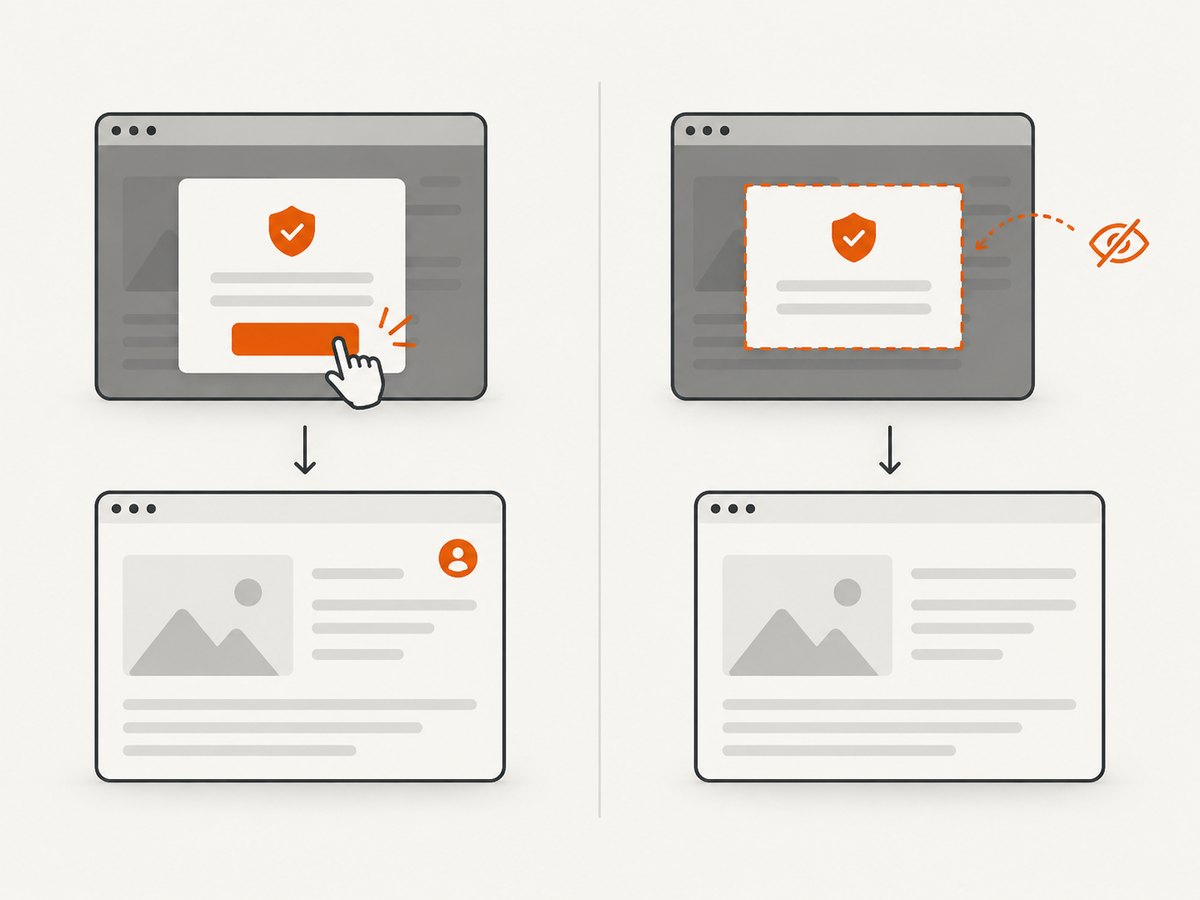
This distinction matters: hiding a banner changes presentation; it does not accept, reject, or store consent. A consent wall can also gate the page behind it, leaving you with a clean but incomplete screenshot. The workflow below covers both visual cleanup and genuine consent interaction.
1. Choose visual cleanup or behavioral consent
| Goal | Recommended method | What it changes |
|---|---|---|
| Readable image for documentation, previews, or regression diffs | Capture-time CSS or a selector filter | Only the rendered appearance of that capture |
| Test the page after a visitor makes a consent choice | Click the actual accept/reject control and preserve browser state | Cookies, storage, and potentially gated content |
| Banner appears unpredictably during tests | Playwright locator handler, used carefully | Dismisses an overlay when it appears; may affect focus or pointer state |
| Banner is in a cross-origin iframe | Locate the frame, then interact inside it | The control in the embedded document |
Playwright recommends explicitly waiting for a predictable overlay and dismissing it in the normal test flow instead of using page.addLocatorHandler(). Handlers are useful for blockers that appear unpredictably, but subsequent actions should be self-contained because a handler can change focus or mouse state. See the Page API and screenshot documentation.
2. Find the banner’s real container
- Open the page in your browser’s inspector.
- Use the element picker on the visible banner, not on an individual button or text node.
- Walk up the DOM until you find the outer element that controls the complete overlay, including its backdrop and reserved space.
- Temporarily set
display: noneorvisibility: hiddenin DevTools. Confirm that the page is still complete and that you did not hide navigation, content, or a required modal. - Use the narrowest stable selector you can find and verify it on a fresh browser context.
Common implementation-specific examples include #onetrust-banner-sdk (OneTrust), #CybotCookiebotDialog (Cookiebot), .fs-cc-banner_component (Finsweet Cookie Consent), and site-specific selectors such as .cookie-banner or #cookie-notice. These are examples, not universal selectors. Sitepager’s guide recommends confirming the selector on one page before running a larger scan: Hide Cookie Banners Before Visual Checks.
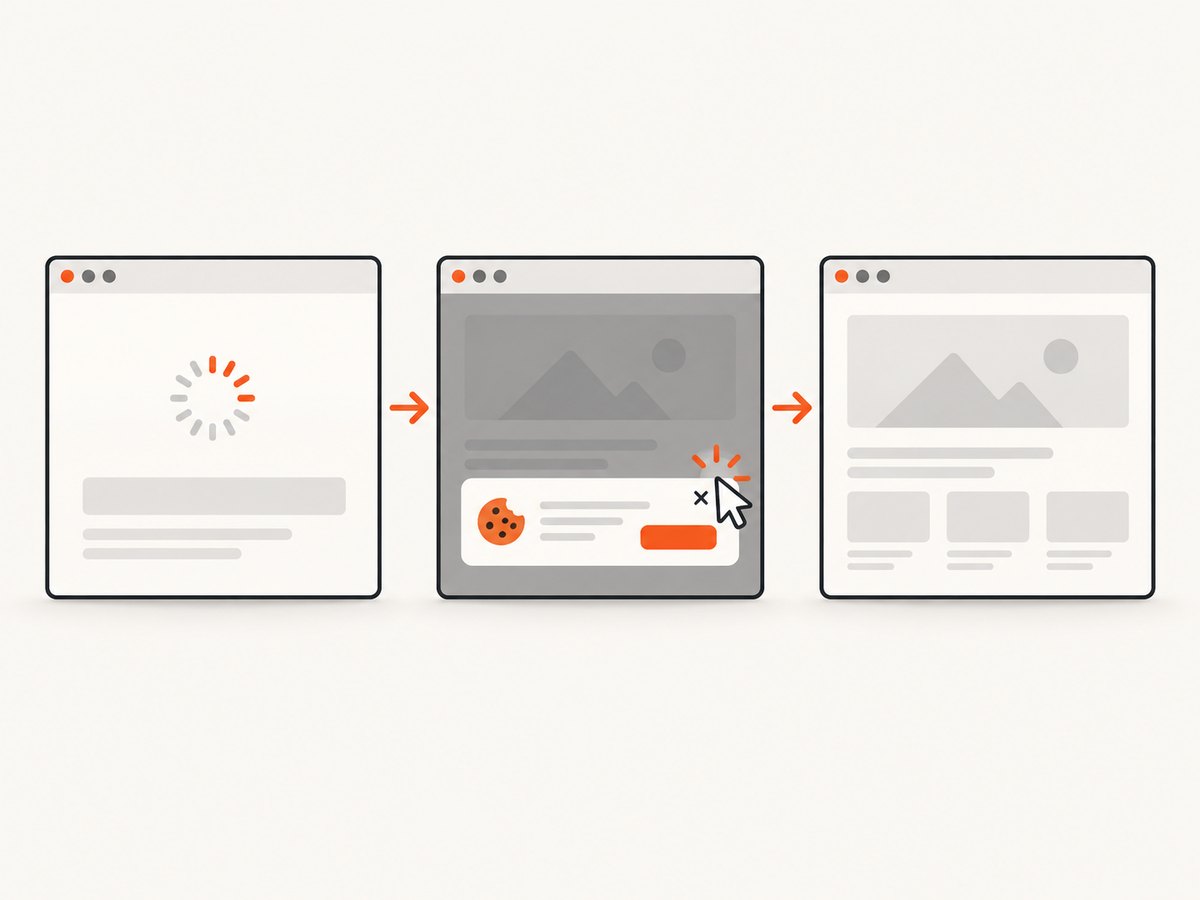
3. Hide a banner only during a Playwright screenshot
The style option injects CSS for the screenshot operation. It avoids mutating your application and keeps the rule scoped to the capture.
JavaScript (Node.js)
import { chromium } from 'playwright';

const browser = await chromium.launch();
const page = await browser.newPage({
  viewport: { width: 1440, height: 900 },
  deviceScaleFactor: 1
});

await page.goto('https://example.com', { waitUntil: 'networkidle' });

await page.screenshot({
  path: 'example-clean.png',
  fullPage: true,
  style: `
    #onetrust-banner-sdk,
    #CybotCookiebotDialog,
    .fs-cc-banner_component,
    .cookie-banner,
    #cookie-notice {
      display: none !important;
    }
  `
});

await browser.close();
Replace the example selectors with the one you confirmed in the inspector. Avoid a rule such as [class*="cookie"]; it can match legitimate content, preferences pages, or scripts that happen to include that word.
Python (Playwright)
from playwright.sync_api import sync_playwright

with sync_playwright() as p:
    browser = p.chromium.launch()
    page = browser.new_page(
        viewport={"width": 1440, "height": 900},
        device_scale_factor=1
    )
    page.goto("https://example.com", wait_until="networkidle")
    page.screenshot(
        path="example-clean.png",
        full_page=True,
        style="""
          #onetrust-banner-sdk,
          #CybotCookiebotDialog,
          .fs-cc-banner_component,
          .cookie-banner,
          #cookie-notice {
            display: none !important;
          }
        """
    )
    browser.close()
When the banner appears after the page load
Wait for the page to settle, then check that the selector exists before taking the image. If the banner is optional, do not fail the whole capture when it is absent:
const banner = page.locator('#onetrust-banner-sdk');
if (await banner.count()) {
  await page.screenshot({
    path: 'clean.png',
    fullPage: true,
    style: '#onetrust-banner-sdk { display: none !important; }'
  });
} else {
  await page.screenshot({ path: 'clean.png', fullPage: true });
}
For a predictable banner in a behavioral test, use the normal flow instead:
const accept = page.getByRole('button', { name: /accept|allow all/i });
await accept.waitFor({ state: 'visible' });
await accept.click();
await page.screenshot({ path: 'after-consent.png', fullPage: true });
4. Handle cookie controls inside an iframe
A main-frame selector or page script cannot automatically reach into a cross-origin iframe. Inspect the frame tree, identify the frame URL or name, and then locate the control inside that frame.
const consentFrame = page.frames().find(frame =>
  frame.url().includes('consent') || frame.url().includes('cookie')
);

if (!consentFrame) throw new Error('Consent iframe was not found');

const reject = consentFrame.getByRole('button', {
  name: /reject|decline|necessary only/i
});
await reject.waitFor({ state: 'visible' });
await reject.click();
await page.screenshot({ path: 'after-reject.png', fullPage: true });
Frame URLs and accessible names vary, so inspect them at runtime when diagnosing a failure:
for (const frame of page.frames()) {
  console.log({ url: frame.url(), name: frame.name() });
}
Deleting an iframe or hiding its visible surface is not equivalent to recording a consent decision. The community’s iframe guidance explains why consent-gated content may remain unavailable and why a banner can return in a new context: How to handle cookie consent banners in Playwright.
5. Select the right screenshot scope and pixel scale
| Capture | Use it for | Watch for |
|---|---|---|
| Viewport | What a user sees without scrolling | Below-the-fold content is excluded |
| Element | A component, card, or article body | Ensure the element is visible and fully laid out |
| Full page | Documentation, audits, and page-wide visual diffs | Lazy content may need scrolling or an explicit wait |
CSS scale produces one image pixel per CSS pixel. Device scale produces device-pixel output and can make images much larger on high-density settings. Keep viewport and scale fixed when comparing screenshots. If images load lazily, wait for the relevant content or scroll through the page before capture.
await page.setViewportSize({ width: 1366, height: 768 });
await page.emulateMedia({ colorScheme: 'light' });
await page.screenshot({
  path: 'component@1x.png',
  clip: await page.locator('.article').boundingBox(),
  scale: 'css'
});
6. Make the workflow repeatable
- Use a fresh context for validation. Cached consent cookies can make a selector appear to work when the banner is merely suppressed by previous state.
- Keep selectors per site. Store them in configuration next to the URL and owner, rather than maintaining one global guess.
- Capture one page first. Check that the banner, backdrop, and reserved gap are gone and that the page’s main content remains.
- Record the state. Save the URL, viewport, color scheme, selector, timestamp, and whether consent was clicked or only hidden.
- Retry transient loads. Use bounded retries for navigation timeouts, while treating a persistent bot check or blank page as a failed capture that needs investigation.
Do not describe a banner-hiding extension as a privacy guarantee. A 2024 measurement study found that extension coverage varied substantially across its sampled sites; it also observed different tracking behavior after banner interaction. Those results support testing the exact tool and site combination, not a universal claim. Read the study in Proceedings on Privacy Enhancing Technologies.
7. Troubleshooting: common failures and fixes
| Symptom | Likely cause | Fix |
|---|---|---|
| Banner still appears | Selector is wrong, injected too early, or the banner is in an iframe | Confirm the outer container, apply screenshot-time CSS, inspect page.frames(), and handle the correct frame |
| Only the buttons disappear | You selected a child element | Move up to the wrapper containing the backdrop and layout space |
| Page content is missing | The consent wall gates content | Perform the real consent action and preserve storage state; do not merely hide the wall |
| Screenshot has a blank strip | Hidden element left margin, padding, or a fixed spacer | Inspect parent layout and hide the wrapper or reset the relevant spacing in the capture style |
| Click times out | Button is in a different frame, covered, or text differs by locale | Locate the frame, use role or test identifiers, and wait for visibility and enabled state |
| Works locally but not in CI | Different viewport, locale, browser, or persisted cookies | Pin those settings, start a fresh context, and log frame URLs and matched counts |
| Full-page image misses lower content | Lazy loading or an unfinished network request | Scroll progressively, wait for a content selector, then capture |
| Visual diff is noisy | Device scale, animations, ads, or rotating content vary | Use fixed CSS scale, disable animations in capture CSS, and block nonessential resources where appropriate |
8. Performance, reliability, and cost considerations
Full-page captures cost more time than viewport captures because the browser must lay out and often load content below the fold. Waiting for networkidle can also delay pages with analytics or long polling. Prefer a specific readiness selector and a short, documented delay when that is sufficient. Block ads, trackers, or heavy resource types only when doing so cannot change the page you intend to test.
For large scans, limit concurrency to what your machine and target sites can sustain, use bounded retries with backoff, and write each result independently so one timeout does not discard the batch. Keep the browser version and viewport stable for visual comparisons. If the purpose is behavioral testing, separate consent state from visual cleanup in your test reports.
Or skip the browser setup
ScreenshotNeo provides a website screenshot API and MCP server. It accepts a URL in one GET request and returns PNG, JPEG, WebP, or PDF. Its capture flow accepts cookie and consent banners like a visitor, then removes more than 60 known consent platforms, newsletter popups, and chat widgets; each step can be turned off. Only clean shots are billed: bot checks, CAPTCHAs, blank pages, timeouts, failed loads, and cache hits cost nothing, and the response reports the result in X-Page-Verdict and X-Billed headers.
See the ScreenshotNeo API documentation for all options. This minimal call captures Stripe as WebP:
cURL
curl -G "https://api.screenshotneo.com/v1/shot" -d access_key=YOUR_API_KEY --data-urlencode url=https://stripe.com -o shot.webpPython
import requests
r = requests.get("https://api.screenshotneo.com/v1/shot", params={"access_key": "YOUR_API_KEY", "url": "https://stripe.com"}, timeout=90)
open("shot.webp", "wb").write(r.content)
Node.js
const q = new URLSearchParams({ access_key: 'YOUR_API_KEY', url: 'https://stripe.com' });
const res = await fetch(`https://api.screenshotneo.com/v1/shot?${q}`);
For production captures, ScreenshotNeo also supports full-page shots with lazy images loaded, element selectors, dark mode, device presets or custom viewports, retina scale, custom CSS and JavaScript, click actions, waits, request blocking, headers, cookies, user agents, authorization, timezone, geolocation, transparent backgrounds, resizing, chosen cache TTLs, signed links, asynchronous jobs with signed webhooks, bulk capture of up to 100 URLs per call, a usage API, and an OpenAPI specification. An MCP server exposes take_screenshot, get_page_info, and capture_pdf to Claude, Cursor, and other MCP clients.
Plans include 1,000 shots per month free with no card; paid plans start at $5 for 3,000 shots. Growth is $15 for 15,000, Pro $39 for 60,000, Scale $99 for 250,000, and Business $249 for 1,000,000; yearly billing provides two months free, and every feature is on every plan. Create a free ScreenshotNeo account and start with 1,000 screenshots a month at no charge.
FAQ
Does hiding a cookie banner prove consent was given?
No. It changes the pixels in that capture only. Use the actual control and save browser state when your test needs consent behavior.
Can one selector work on every website?
No. Consent platforms and custom implementations use different markup. Inspect each site and verify the outer container.
Why does a banner return in a new browser context?
Consent cookies and storage are context-specific. A fresh context has no prior decision, and hiding the widget never stored one.
Should I use a browser extension for automated screenshots?
Only after evaluating its coverage and side effects for your sites. Extension behavior varies, so a controlled selector or explicit consent flow is easier to audit.
What if the banner blocks all page content?
Interact with the consent control, including inside its iframe when necessary. A visually hidden wall can leave an incomplete page behind it.


