Blocking Banners on Specific Websites During Capture
Remove unwanted banners from screenshots with targeted CSS, browser filters, or automated capture rules. Learn the tradeoffs and how to verify each result.
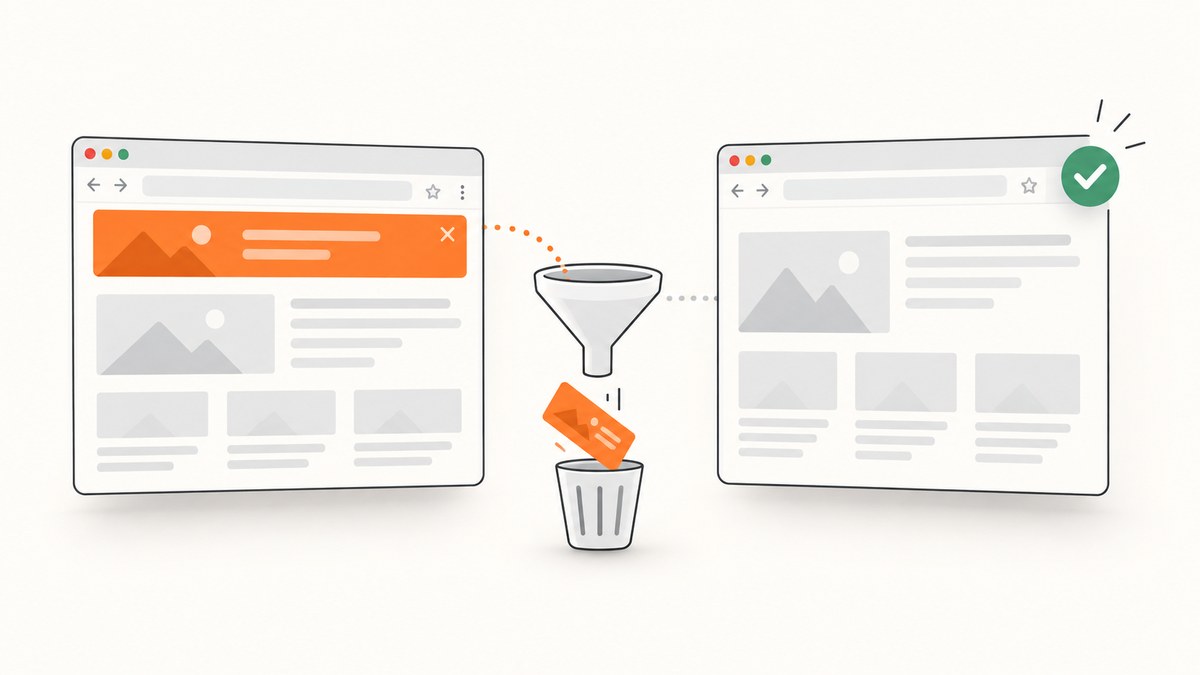
To block a banner on one website during screenshot capture, target the banner’s actual CSS selector in an automated capture tool, or apply a browser-side filter before taking a manual screenshot. For a repeatable workflow, use the narrowest rule that removes the unwanted element, then inspect the rendered page: a banner rule can also affect layout or page behavior.
Common ad and consent filters can remove known banner platforms, but a custom newsletter popup or promotional strip usually needs a site-specific selector. Chrome’s built-in intrusive-ad control is limited to its defined poor-ad experiences; it is not a general custom-banner remover. Screenshot prevention policies control whether capture is allowed, not what appears in the captured image.
1. Choose where to apply the rule
There are three distinct points in the capture process where you might deal with a banner:
| Method | When it acts | Good fit | Limit |
|---|---|---|---|
| Automated capture filtering | Before or during page rendering | Repeated, scheduled, or batch screenshots | Filter lists can miss custom banners; aggressive blocking may break a page. |
| Browser-side filtering | As the browser loads the site, before you take the screenshot | One-off manual capture on a chosen site | Results depend on the browser extension, filters, and current page markup. |
| Post-capture editing | After the screenshot exists | Redacting sensitive content or annotating an image | The page itself still rendered the banner; editing does not change the capture process. |
First decide whether the banner is a known cookie or ad overlay, or a custom element unique to the website. Try a common content filter for the former. For the latter, inspect the page and target only the relevant element.
2. Identify the banner selector
A CSS selector is a pattern that identifies an element in the page. A stable ID or a distinctive data attribute is usually a better target than a generic class such as .modal, which may match unrelated dialogs.
- Open the target page in a browser and right-click the banner, then choose Inspect (the exact label varies by browser).
- In the Elements or Inspector panel, find the outermost element that contains the banner and note a stable ID, class, or attribute.
- Check that the selector matches just the unwanted banner. A selector such as
#consent-banneris narrower thandivor.overlay. - Test the selector on the live page. Confirm it does not hide navigation, a necessary dialog, or the content behind the banner.
For example, a capture service may accept a selector list like this:
[".newsletter-popup", "#chat-widget", "[data-testid='promo-banner']", ".sticky-footer-ad"]These are examples only; they work only if the target page actually uses matching markup. A site redesign can change its DOM and make a previously correct selector ineffective or too broad. Verify captures after material page updates.
3. Automated capture with targeted hiding
Automated screenshot tools can apply content rules consistently across repeat runs. Allscreenshots documents ad and cookie-banner blocking as enabled by default for several capture types and supports selector-based hiding through hideSelectors. It also documents blocking levels from none to ultimate and cautions that more aggressive levels may break sites that depend on blocked resources. Those are vendor-documented capabilities, not independent test results. See its documentation for the current parameter details. [c001]
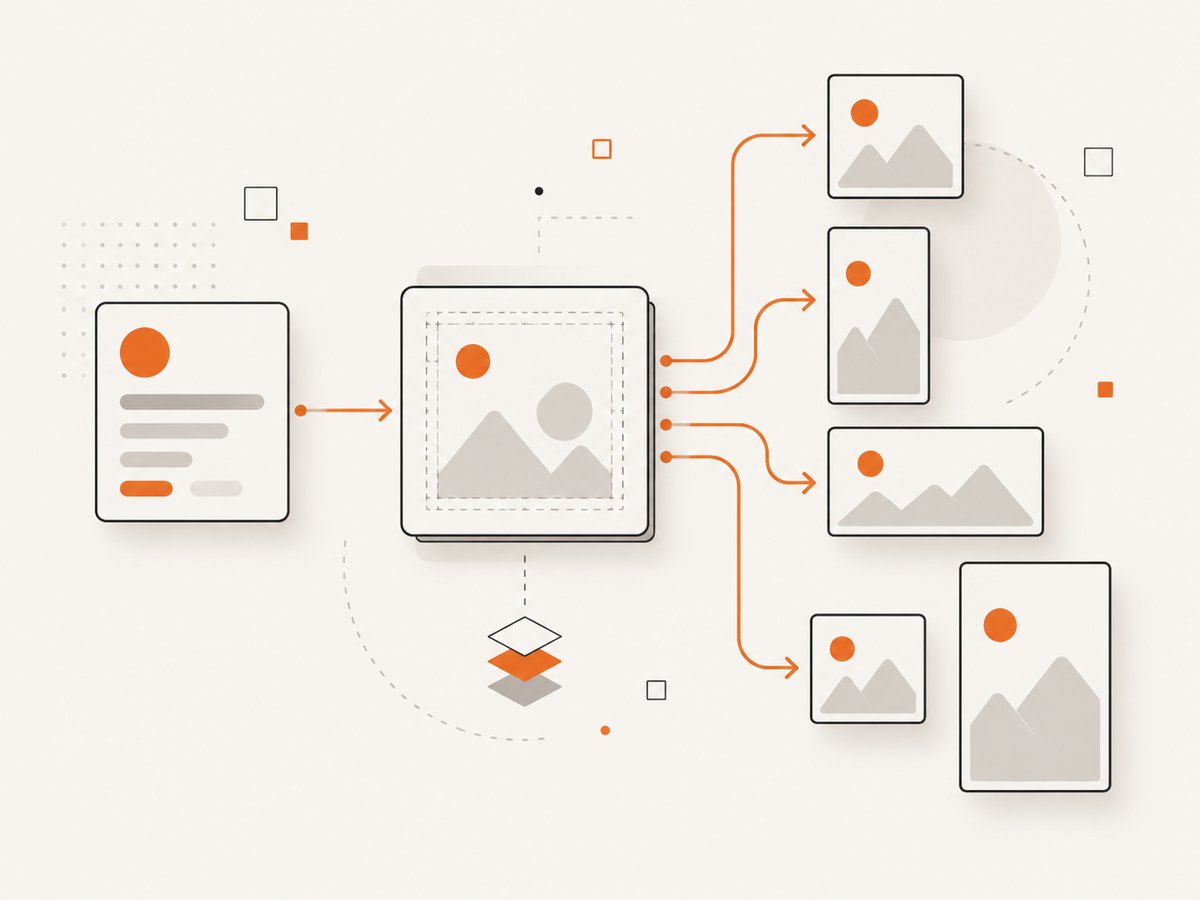
When the service supports selectors, apply a targeted rule to the specific page rather than broadly blocking domains for every capture. If the banner uses a stable ID, a conceptual request configuration might look like:
{
  "url": "https://example.com/page",
  "hideSelectors": ["#consent-banner"]
}
That example illustrates the configuration shape described in the vendor documentation; use the exact endpoint, authentication, and request format from your provider. Do not assume every screenshot API implements the same parameter. If a tool has a block-level setting, begin with the least aggressive level that addresses the banner. Capture and inspect the result before relying on the setting in a schedule or bulk job.
4. Manual capture with browser-side filtering
A browser filter changes what the browser renders. You then capture that rendered page using the browser’s normal screenshot function. AdGuard’s Windows support guidance describes enabling its base, tracking-protection, cookie-notice, popup, mobile-app-banner, widget, and other-annoyance filters. It also explains a Browser Assistant action labeled “Block ads on this site.” Interface names may differ by version or platform, and this guidance does not promise that every custom banner will disappear. [c002]
- Open the filtering app’s settings and make sure the relevant filter lists are enabled for your platform.
- Load the specific website and use the app’s site-specific blocking control if a banner remains.
- Refresh the page and check its behavior, including menus and controls near the banner.
- Take the screenshot only after confirming the rendered page is in the desired state.
If filtering breaks page functionality, disable the site rule or adjust it. A cookie notice disappearing does not mean consent was recorded; follow the site’s consent flow where required. Filtering is a display change, not a consent decision.
5. What Chrome’s built-in ad setting can and cannot do
Chrome documents automatic blocking for ads on sites with poor ad experiences, such as sites with too many ads, flashing or autoplaying ads, or ad walls. Its site-specific instructions explain how to allow ads on a trusted site after Chrome blocks them. That is not a general workflow for hiding any custom cookie banner, newsletter popup, or promotional strip. [c003]
If a banner is not part of the poor-ad experience Chrome handles, use an appropriate browser filter or a capture tool with selector hiding. Do not rely on Chrome’s built-in control as a selector-based cleanup feature.
6. Or skip the browser setup
ScreenshotNeo is a website screenshot API and MCP server. Make one GET request to capture a URL as an image or PDF; its content cleanup can accept cookie or consent banners like a visitor and remove 60+ known consent platforms, newsletter popups, and chat widgets before capture. Each cleanup step can be turned off. For a custom element, it also supports hiding CSS selectors. The API options and request details are in the ScreenshotNeo documentation.
curl -G "https://api.screenshotneo.com/v1/shot" -d access_key=YOUR_API_KEY --data-urlencode url=https://stripe.com -o shot.webpPython:
import requests

r = requests.get(
    "https://api.screenshotneo.com/v1/shot",
    params={"access_key": "YOUR_API_KEY", "url": "https://stripe.com"},
    timeout=90,
)
r.raise_for_status()
open("shot.webp", "wb").write(r.content)
Node.js:
const q = new URLSearchParams({ access_key: 'YOUR_API_KEY', url: 'https://stripe.com' });
const res = await fetch(`https://api.screenshotneo.com/v1/shot?${q}`);
if (!res.ok) throw new Error(`Screenshot request failed: ${res.status}`);
await import('node:fs/promises').then(fs => fs.writeFile('shot.webp', Buffer.from(await res.arrayBuffer())));
Replace the sample URL with the target page and keep the API key private. The same request can be made from a backend service; avoid putting a secret key in a public webpage. ScreenshotNeo reports the page verdict and billing status in X-Page-Verdict and X-Billed response headers. Bot checks, blank pages, timeouts, failed loads, and cache hits are not billed; only clean shots are billed. It also has an MCP server with take_screenshot, get_page_info, and capture_pdf tools for AI agents.
Free includes 1,000 screenshots per month with no card. Paid plans start at $5 for 3,000; Growth is $15 for 15,000, Pro $39 for 60,000, Scale $99 for 250,000, and Business $249 for 1,000,000. Yearly billing gives two months free, and every feature is on every plan. Sign up for 1,000 free screenshots a month with no card.
7. Verify the result and keep captures reliable
Filtering is a change to the page’s rendering environment. A screenshot that looks clean can still be wrong if a rule removed a needed script or covered content with a broken layout. Use a small verification checklist:
- Check the target only: confirm the intended banner is gone and unrelated content remains.
- Check page behavior: try key controls, navigation, and any content that loads after the initial view.
- Check full-page captures: sticky banners can appear at multiple scroll positions; inspect more than the first viewport.
- Recheck selectors: page changes can invalidate a selector. Keep rules scoped to the relevant page when the tool allows it.
- Recheck block intensity: if resources disappear or the page fails to load, reduce the blocking level or use a narrower selector.
- Record settings: for repeatable jobs, store the URL and capture rules together so a later run uses the intended configuration.
For bulk or scheduled work, validate a representative page before running the full set. Aggressive domain-level blocking can save repeated cleanup effort, but it may also remove resources the site needs. Targeted hiding generally has a smaller scope, though it can still alter layout if the removed element occupies space.
8. Troubleshooting
| Symptom | Likely cause | What to do |
|---|---|---|
| The banner still appears. | The filter list does not know this banner, the selector does not match, or the page creates it after load. | Inspect the actual element and selector; confirm the capture tool applies the rule at the right stage. Try a browser filter for known categories or a selector rule for the custom element. |
| The wrong content disappears. | The selector is too broad or matches repeated elements. | Use a more specific ID or attribute and inspect every match before capturing. |
| The page is blank or partly broken. | An aggressive blocking level removed a resource the site depends on. | Reduce blocking intensity, remove broad domain rules, or target only the banner. Test again before production use. [c001] |
| The banner vanishes but leaves a large gap. | Hiding removed visibility while the layout container still reserves space, or a wrapper remains. | Inspect the DOM and target the correct outer container. Avoid hiding a shared layout wrapper that contains page content. |
| A manual capture differs from an automated one. | The browser and capture service have different filters, cookies, timing, or viewport settings. | Align viewport and page state, and check whether each environment applies its own blocking rules. |
| A cookie prompt returns on the next visit. | Consent state was not saved, or the page treats the visit as new. | Do not treat hiding as consent. Use the site’s actual consent controls if a lasting choice is needed. |
| The screenshot is blocked entirely. | A site policy or managed-browser rule may prevent capture. | Distinguish capture restrictions from content filters. Chrome Enterprise screenshot prevention applies to managed environments under relevant licensing and platform conditions; it does not clean an allowed screenshot. [c004] |
9. Performance, reliability, and cost
For one manual screenshot, a browser filter is often the shortest path because it acts on the page you already have open. For repeat capture, a service parameter or selector rule is easier to reuse consistently. A more aggressive block list can require less per-site configuration, but increases the chance of breaking dependencies. No general speed or success-rate claim follows from these approaches; page complexity, network conditions, and the selected rules determine the result.
When choosing a paid capture API, compare the billing model as well as the feature list: whether failed, blank, blocked, or cached responses count; whether selector hiding is supported; and whether repeated calls can reuse cached results. ScreenshotNeo states that only clean shots are billed and exposes verdict and billing headers, which makes it possible to distinguish a clean capture from bot checks, blank pages, timeouts, failed loads, and cache hits in application logs.
After-capture editing can conceal a banner in an image, but it adds a separate processing step and should be labeled as edited if that matters to your workflow. A screenshot editor listing, for example, describes blur, pixelation, and redaction functions; those are post-capture operations rather than proof the page rendered without the element. [c005]
10. Frequently asked questions
Can I block banners on just one website?
Yes. Use a site-specific browser rule or pass a selector scoped to that capture, where supported. Confirm the rule is limited to the intended element and site.
Does hiding a cookie banner mean the site recorded my consent?
No. Hiding changes what is rendered or captured. It does not submit a consent choice or guarantee that the site saved one.
Can Chrome remove a custom newsletter popup?
Chrome’s documented intrusive-ad behavior is narrower than a general popup or banner filter. Use a browser filtering tool or selector-based capture option for a custom element.
Should I edit the screenshot afterward?
Use editing for annotation or redaction when appropriate. If the goal is to capture the page without the banner, remove it before capture and verify the rendered result.


