Blocking Banners and Using Stealth Mode for Website Capture
Handle consent banners predictably with Playwright, understand what stealth changes, and choose the right approach when a site blocks capture.
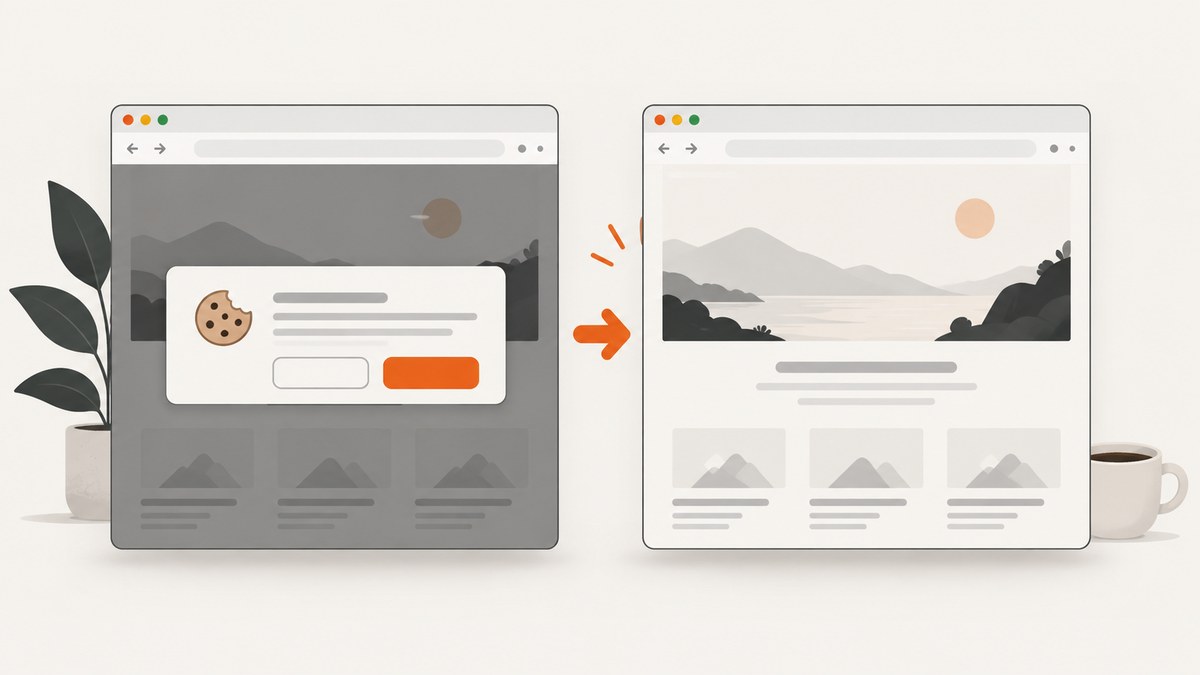
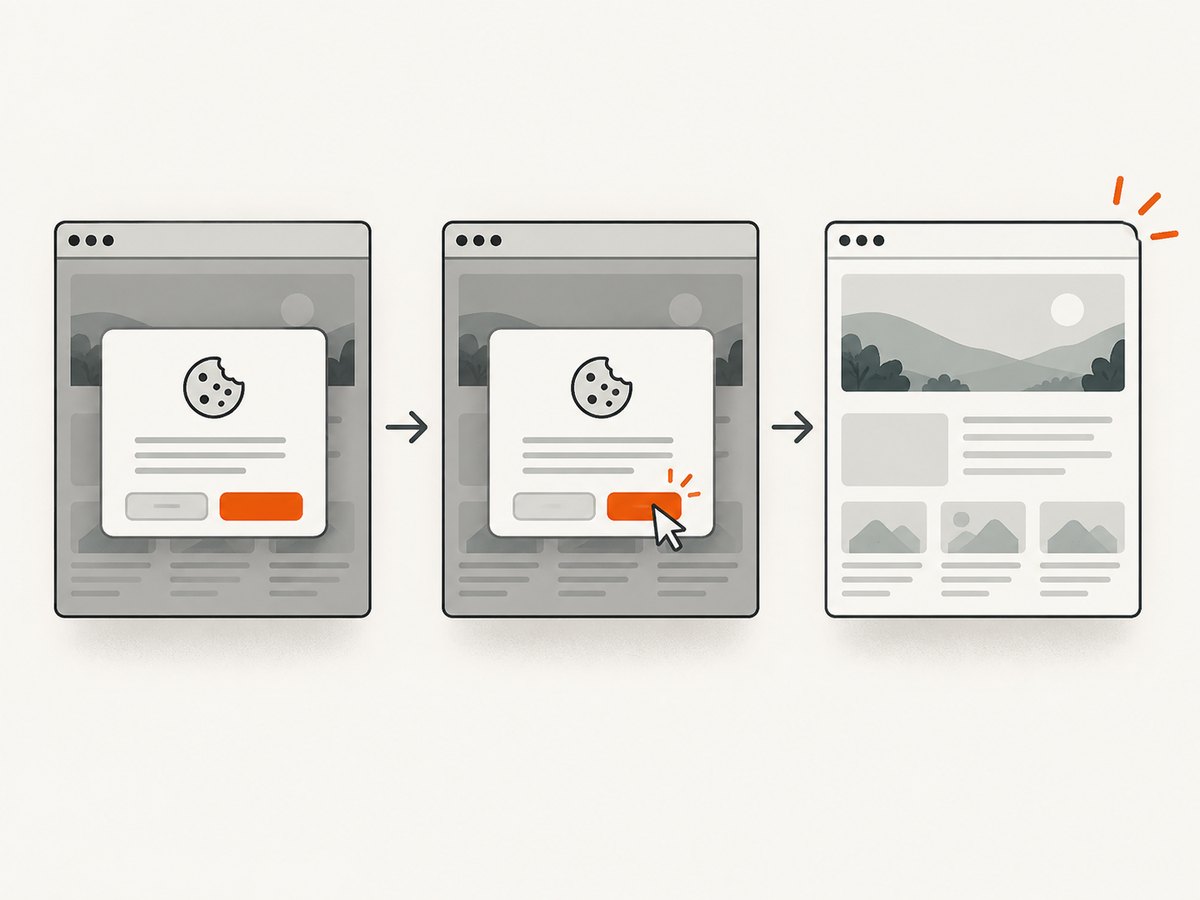
To stop a consent banner from blocking a screenshot, handle it as part of the page state: use a fresh Playwright browser context, identify the specific consent control, make the intended choice, wait for the page content to settle, and then capture. For a predictable banner, click its documented “Reject,” “Accept,” or preferences control. For an intermittent overlay that blocks an action, Playwright’s addLocatorHandler() can handle it. Use request blocking only for known, irrelevant network requests; it is separate from removing an overlay already displayed in the page.
Stealth mode can reduce automation detection signals when a browser provider offers it, but it does not guarantee access. Start with a normal, repeatable browser flow; use a provider’s documented stealth option if appropriate, and consider a managed unblocking service only when ordinary navigation remains blocked and you are authorized to capture the page.
1. Choose the right banner-handling approach
First identify what is actually stopping the capture. A consent dialog is usually a DOM and page-state issue. A missing image may instead be caused by a blocked request, a failed load, or content that has not appeared yet. A bot challenge is a different problem again. Treating all three as “cookie banners” leads to fragile scripts and misleading screenshots.
| Situation | Recommended response | Trade-off |
|---|---|---|
| A stable consent banner with a known choice | Locate and click the intended consent control. | Most explicit and easiest to audit; selectors are site-specific. |
| An unexpected overlay intermittently blocks an action | Use a narrowly scoped addLocatorHandler(). |
Convenient across a test flow, but the handler can affect focus and mouse state. |
| A known ad or tracking request is irrelevant to this capture | Intercept only that request and record the decision. | Reduces unwanted requests but can also remove something the page needs. |
| A challenge or automation block prevents ordinary navigation | Check site permission and provider options; use documented stealth or managed unblocking if justified. | More operationally managed and not a guarantee of access. |
Playwright describes locator handlers for unexpected overlays that block actions. Its handlers can change focus and mouse state, so make later actions self-contained: locate the target and perform its action together instead of depending on a previously focused element. [Playwright Page API]
2. Set up a repeatable Playwright capture
The example below uses Playwright’s JavaScript API and Chromium. It creates an isolated context, visits a page, clicks a consent button when present, checks for meaningful content, saves a full-page screenshot, and closes the context. Replace the URL and button locator with selectors appropriate to the site you are authorized to capture.
import { chromium } from 'playwright';

const url = 'https://example.com/article';
const browser = await chromium.launch({ headless: true });
const context = await browser.newContext({
  viewport: { width: 1440, height: 1000 },
  locale: 'en-US',
  timezoneId: 'UTC',
});

try {
  const page = await context.newPage();
  await page.goto(url, { waitUntil: 'domcontentloaded', timeout: 30_000 });

  // Prefer the choice that matches your capture policy.
  const rejectButton = page.getByRole('button', { name: /reject optional|reject all/i });
  if (await rejectButton.isVisible({ timeout: 3_000 }).catch(() => false)) {
    await rejectButton.click();
  }

  // Wait for a meaningful page element, not an arbitrary long delay.
  await page.locator('main').waitFor({ state: 'visible', timeout: 15_000 });
  await page.screenshot({ path: 'capture.png', fullPage: true });
} finally {
  await context.close();
  await browser.close();
}
Install the browser package and its browser binaries in the project environment before running the script. The chosen consent button is an example locator, not a universal selector: some sites use links, nested dialogs, localized text, or a preference panel. When a site documents an integration or consent API, prefer that over guessing at internal markup.
Why use a fresh context?
A Playwright browser context isolates cookies and cache from other contexts. That makes separate capture jobs less likely to inherit a previous job’s consent choice, login, or cached resources. If a repeat capture must use a known session, supply the intended storage state deliberately rather than reusing an uncontrolled context. Close the context after the capture so browser artifacts can flush cleanly. [Playwright Browser Contexts]
Set viewport, locale, timezone, user agent, and approved storage state before navigation. These affect layout, language, regional prompts, and session behavior. Keep them stable across runs if you need comparable output. Do not share one site’s state with another site’s capture.
3. Handle intermittent overlays with a locator handler
When a known overlay appears unpredictably and blocks a pending action, register a narrowly targeted handler before that action. Remove or dismiss only the known blocker. Do not broadly remove every fixed-position element: sticky headers, dialogs, and floating controls may be part of the page content you intend to preserve.
import { chromium } from 'playwright';

const browser = await chromium.launch();
const context = await browser.newContext();
try {
  const page = await context.newPage();
  await page.goto('https://example.com/article', { waitUntil: 'domcontentloaded' });

  const consentOverlay = page.locator('[data-testid="consent-overlay"]');
  await page.addLocatorHandler(consentOverlay, async overlay => {
    // Use the site's intended control when available.
    const close = overlay.getByRole('button', { name: /reject|close/i });
    if (await close.isVisible().catch(() => false)) {
      await close.click();
    }
  });

  await page.getByRole('heading', { name: 'Article title' }).waitFor({ state: 'visible' });
  await page.screenshot({ path: 'article.png', fullPage: true });
} finally {
  await context.close();
  await browser.close();
}
Use the exact selector or a uniquely identifying role and name that fits the site. If no dismiss action exists and you have a legitimate reason to remove an overlay from your own test page, a handler can remove that specific element. Keep that behavior explicit and scoped. A handler is not a substitute for making the consent choice required by the site or its policy.
Because a handler may run before the pending Playwright action, assume it can change pointer and focus state. After it runs, issue the next action with a complete locator call such as getByRole(...).click(); avoid low-level mouse steps that assume the pointer remained in a particular place.
4. Intercept requests only when there is a clear reason
Network interception and DOM cleanup solve different problems. Removing a consent element from the DOM does not prevent its scripts or other resources from loading. Aborting a request does not remove a banner already rendered. Playwright routes run before the network stack finishes processing a request: route.abort() fails it, route.fulfill() supplies a response without contacting the network, and route.continue() lets it proceed. [Playwright network documentation]
import { chromium } from 'playwright';

const browser = await chromium.launch();
const context = await browser.newContext();
try {
  const page = await context.newPage();
  const blocked = [];
  await page.route('**/*', async route => {
    const requestUrl = route.request().url();
    if (requestUrl.includes('known-tracker.example')) {
      blocked.push(requestUrl);
      await route.abort();
      return;
    }
    await route.continue();
  });

  await page.goto('https://example.com/article', { waitUntil: 'domcontentloaded' });
  await page.locator('main').waitFor({ state: 'visible' });
  await page.screenshot({ path: 'capture.png', fullPage: true });
  console.log('Aborted requests:', blocked);
} finally {
  await context.close();
  await browser.close();
}
Replace the example match with a known endpoint you have a reason to suppress. Log aborted URLs alongside the capture. A missing image, font, script, or consent interface may be explained by a request rule. There is no universal Playwright “cookie-banner URL” switch; each site’s banner and assets differ.
5. Wait for the intended page state
Navigation completion alone does not mean the screenshot is ready. A robust capture waits for the consent decision to take effect, the content that matters to become visible, and any required lazy-loaded region to appear. Prefer a meaningful locator, such as the article heading or product panel, over a fixed sleep. Use a short delay only when a specific animation or delayed layout needs time to settle.
For a long page, scrolling the relevant region into view may trigger lazy loading before a full-page screenshot. Confirm that the expected content is present before saving. Record the URL, UTC capture time, browser engine and version, viewport, locale, consent action, request rules, and any stealth or external unblocking option. Those details make visual differences easier to diagnose.
6. What stealth mode changes
Stealth is a compatibility setting that reduces some automation detection signals. It is not a promise that every site will permit automated capture. A site may still require a human consent choice, account authentication, a challenge response, or provider-specific permission. Avoid treating stealth as a way to override a site’s access rules.
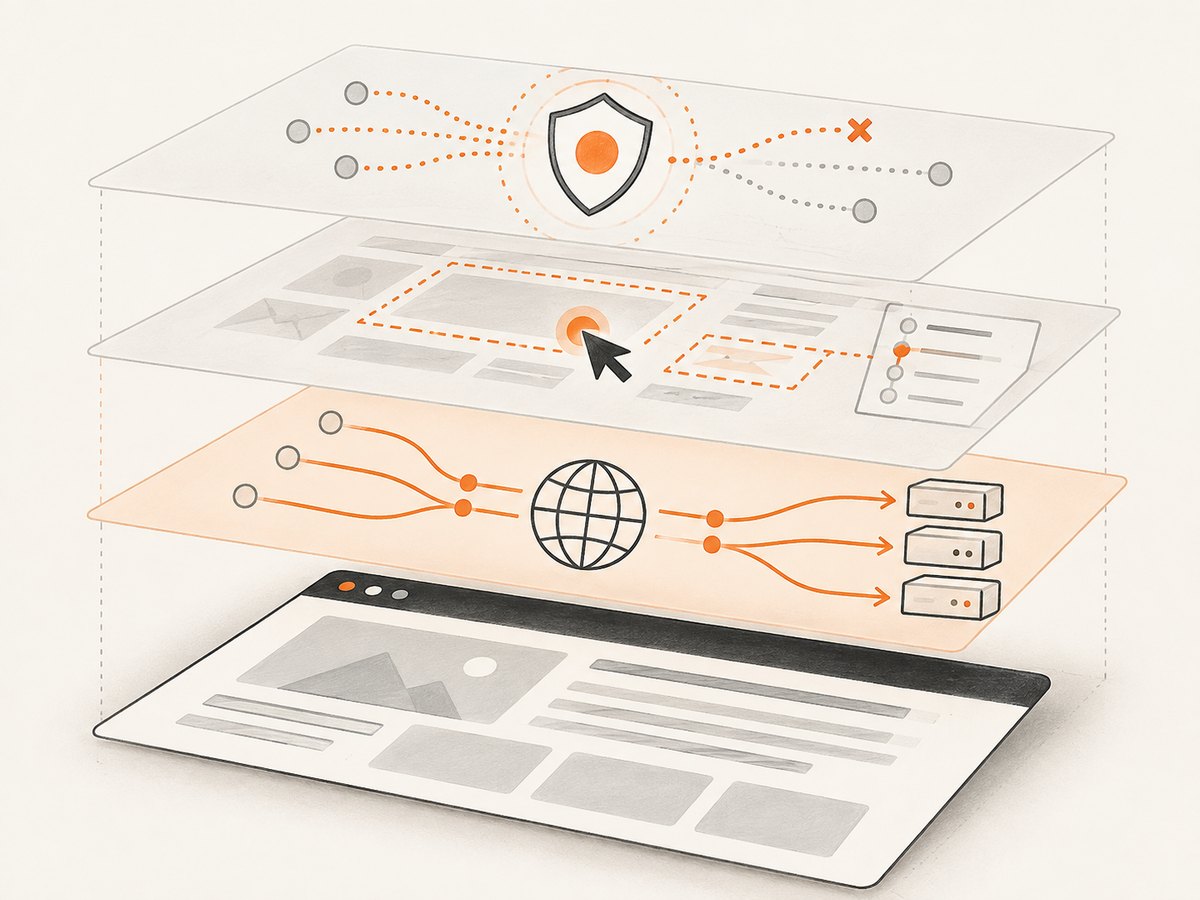
Browserless documents a stealth launch parameter to reduce automation detection. Its launch parameters also include humanlike and blockConsentModals. These are hosted Chromium controls; they do not give the same low-level control over local browser setup and routing as running Playwright yourself. See the [Browserless launch parameters] documentation for the current parameter details.
If stealth routes alone cannot get through a site’s defenses, Browserless describes its Unblock API as an escalation path. It can return rendered HTML, cookies, a full-page JPEG, or a live browser endpoint. This is useful when a team prefers managed browser handling for a high-friction, authorized capture; the provider manages more of the navigation and unblocking detail. It still does not establish permission to access a site or guarantee success. See [Browserless Site Unblocking].
7. Or skip the browser setup
ScreenshotNeo is a website screenshot API and MCP server for developers. For a single capture, one GET request returns an image or PDF. The API accepts screenshot parameters used by other screenshot APIs, which can make switching easier. See the ScreenshotNeo API docs for configuration and response details.
curl -G "https://api.screenshotneo.com/v1/shot" -d access_key=YOUR_API_KEY --data-urlencode url=https://stripe.com -o shot.webpimport requests
r = requests.get(
"https://api.screenshotneo.com/v1/shot",
params={"access_key": "YOUR_API_KEY", "url": "https://stripe.com"},
timeout=90,
)
r.raise_for_status()
open("shot.webp", "wb").write(r.content)const q = new URLSearchParams({ access_key: 'YOUR_API_KEY', url: 'https://stripe.com' });
const res = await fetch(`https://api.screenshotneo.com/v1/shot?${q}`);
if (!res.ok) throw new Error(`Screenshot request failed: ${res.status}`);
await Bun.write('shot.webp', res);ScreenshotNeo accepts cookie and consent banners like a visitor and removes more than 60 known consent platforms, newsletter popups, and chat widgets before capture; each step can be turned off. Bot checks and CAPTCHAs, blank pages, timeouts, failed loads, and cache hits cost nothing, and response headers report the page verdict and billing status. Its MCP server exposes take_screenshot, get_page_info, and capture_pdf for Claude, Cursor, and other MCP clients.
Plans include 1,000 screenshots a month free with no card, Starter at $5 for 3,000, Growth at $15 for 15,000, Pro at $39 for 60,000, Scale at $99 for 250,000, and Business at $249 for 1,000,000. Yearly billing gives two months free, and every feature is on every plan. Create a free ScreenshotNeo account for 1,000 screenshots a month, with no card.
8. Troubleshooting
| Symptom | Likely cause | Fix |
|---|---|---|
| The banner still covers the page. | The locator does not match this locale or banner variant, or the banner appeared after the check. | Inspect the accessible role and name; wait for the known dialog; use a narrowly scoped handler for genuinely intermittent display. |
| Clicking the consent button times out. | The button is hidden, covered, disabled, or inside a frame or shadow root. | Check visibility and enabled state, inspect the dialog, and use the correct frame or locator strategy. Do not force the click before confirming what it targets. |
| The screenshot has a blank content area. | Navigation failed, the page is still rendering, a request was aborted, or content requires authentication. | Check navigation errors and response state, inspect the aborted-request log, wait for the content locator, and use approved session state where required. |
| Images are missing in a full-page capture. | Images are lazy-loaded, blocked by a route, or not yet decoded. | Scroll relevant regions into view, remove overbroad blocking rules, and wait for the target image or section before capture. |
| A handler makes the next action hit the wrong place. | The handler changed mouse or focus state. | Make each action self-contained with a fresh locator call; avoid relying on previous pointer position or focus. |
| The site presents a challenge despite stealth. | Stealth reduces some signals but cannot satisfy every site defense. | Verify authorization, use a stable normal context and session, then evaluate a documented managed unblocking route if appropriate. Do not assume retries will solve a policy or authentication barrier. |
| Captures differ between runs. | Viewport, locale, session state, timing, or request handling changed. | Pin these inputs, isolate contexts, record capture conditions, and wait on the same content signal each time. |
9. Performance, reliability, and cost
For local Playwright, the most useful performance improvements are removing arbitrary long sleeps, reusing the browser process where appropriate while keeping capture contexts isolated, and waiting only for the content needed by the screenshot. Broad request blocking can make a page appear faster while silently damaging its output; measure correctness by checking expected page elements as well as capture completion.
Reliability comes from explicit state and observable outcomes. Keep consent handling site-specific, log failed or aborted requests, verify the target content before capture, and close contexts in a finally block. A fresh context trades some cache reuse for isolation. If a page requires a stable login, load a deliberately maintained storage state and protect it as a credential.
Managed browsers shift setup and some anti-bot operations to the provider, but the dossier provides no universal success rate, latency, or cost comparison. Evaluate them against your actual authorized pages and required output. For ScreenshotNeo, billing is per clean shot; bot challenges, blank pages, timeouts, failed loads, and cache hits are not billed. Check its published plan limits against your volume before choosing a plan.
10. FAQ
Should I accept or reject cookies before taking a screenshot?
Choose the action appropriate to the purpose and policy of your capture. Make that choice explicit and record it; do not silently assume that hiding the dialog is equivalent to consent.
Can I remove every fixed overlay with CSS?
That is brittle and can hide legitimate page content. Target a known consent or overlay element and verify the page after handling it.
Does stealth mode bypass CAPTCHA?
No general guarantee follows from enabling stealth. A CAPTCHA or challenge may still require a human response or an authorized managed service.
When should I use a fresh browser context?
Use one for isolated jobs or repeatable tests. Supply storage state explicitly only when the capture needs a known session.
Does request interception remove a banner?
Not necessarily. Interception controls requests before they complete; a banner already in the DOM needs page-level handling. The two techniques address different layers.


