How to Blur a CSS Selector in Website Screenshots
Use Playwright’s screenshot-time CSS to blur selected page content without editing the site. Learn when to use a solid mask, how to capture one element, and how to troubleshoot.
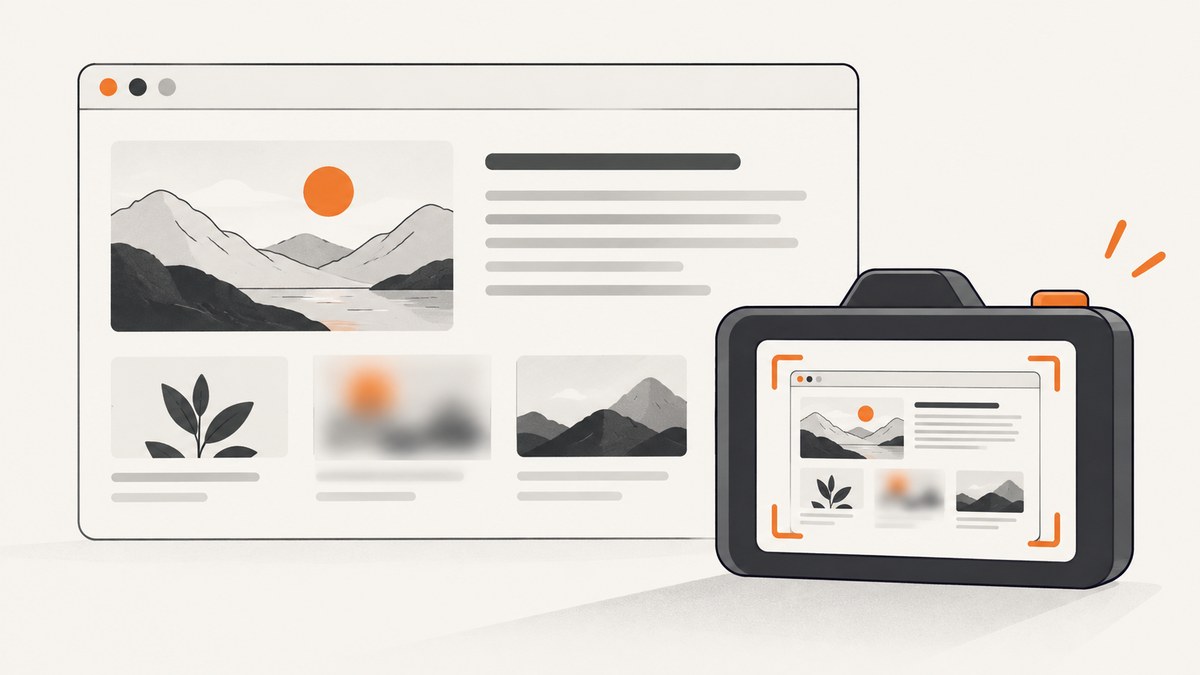
To blur a selected element in a Playwright screenshot, inject a CSS rule through the screenshot’s style option and target the element with a selector. For example, .private-data { filter: blur(6px) !important; } applies the blur only while the screenshot is made; it does not require changing the website’s stylesheet. Use page.screenshot() for a page or viewport capture, and locator.screenshot() to capture just the matching element. If you need reliable concealment rather than a soft visual effect, use Playwright’s solid-color mask option: blur is not secure redaction.
1. Blur a selector in a full-page screenshot
The example below launches Chromium, opens a page, waits for a target element, then captures the full page with a screenshot-only stylesheet. It assumes Playwright is installed and the site is reachable from the machine running the script.
const { chromium } = require('playwright');

(async () => {
  const browser = await chromium.launch();
  const page = await browser.newPage();

  try {
    await page.goto('https://example.com', { waitUntil: 'domcontentloaded' });
    await page.locator('.private-data').waitFor({ state: 'visible' });

    await page.screenshot({
      path: 'page.png',
      fullPage: true,
      style: '.private-data { filter: blur(6px) !important; }'
    });
  } finally {
    await browser.close();
  }
})();
The style value is CSS text applied while Playwright makes the screenshot. The exact blur rule is an implementation example, rather than a prescribed Playwright recipe. Screenshot styles pierce Shadow DOM and apply in inner frames, which can help when the targeted content is rendered in those contexts. [Playwright Page API: screenshot]
Install Playwright
For a new Node.js project, install the package and its browser binary:
npm init -y
npm install -D playwright
npx playwright install chromium
Save the capture script as screenshot.js and run node screenshot.js. In an existing Playwright project, use its current install and browser-management setup.
Choose the right wait
domcontentloaded is a practical starting point when the target is rendered with the initial document. If the content appears later, wait for the selector as shown. A visible selector wait confirms that a matching element became visible; it does not guarantee that every image, animation, or network request on the page has settled. For a page with delayed content, add a condition tied to the content you actually need, or a deliberate short delay when no better signal exists. Avoid relying on an arbitrary long sleep for every page: it increases capture time and still may not cover unpredictable loading.
2. Selectors, matching, and CSS details
Use a selector that identifies only the content you intend to blur. A class such as .private-data is often clearer than a broad selector such as span. Before capture, check whether the selector matches one element or many:
const count = await page.locator('.private-data').count();
console.log(`Matched ${count} elements`);
If the count is zero, verify the selector against the rendered DOM, wait for the content to appear, and check whether the target belongs to a frame or a component with Shadow DOM. If it is greater than one, decide whether all matches should be blurred or whether the rule needs to be more specific.
CSS filter: blur(...) softens rendered pixels around the selected element. The radius is a visual choice: the example uses 6px only as an illustration, not as a universal setting. Inspect the output at its final display size. A blur that looks adequate in a large source image may be weak after resizing, while a strong blur can make text or surrounding layout less readable.
The !important declaration helps when the site has competing CSS rules. It is defensive CSS advice, not a Playwright requirement. If the page uses inline styles or other effects, verify the result in the generated image rather than assuming the injected rule won.
Blur more than one selector
Provide multiple rules in the same stylesheet:
style: `
  .email, .phone { filter: blur(7px) !important; }
  [data-sensitive="true"] { filter: blur(8px) !important; }
`
Keep rules scoped to the intended elements. If a selector catches a parent container, its entire rendered subtree may appear blurred. Target the smallest element that contains the information you want softened.
3. Capture only the selected element
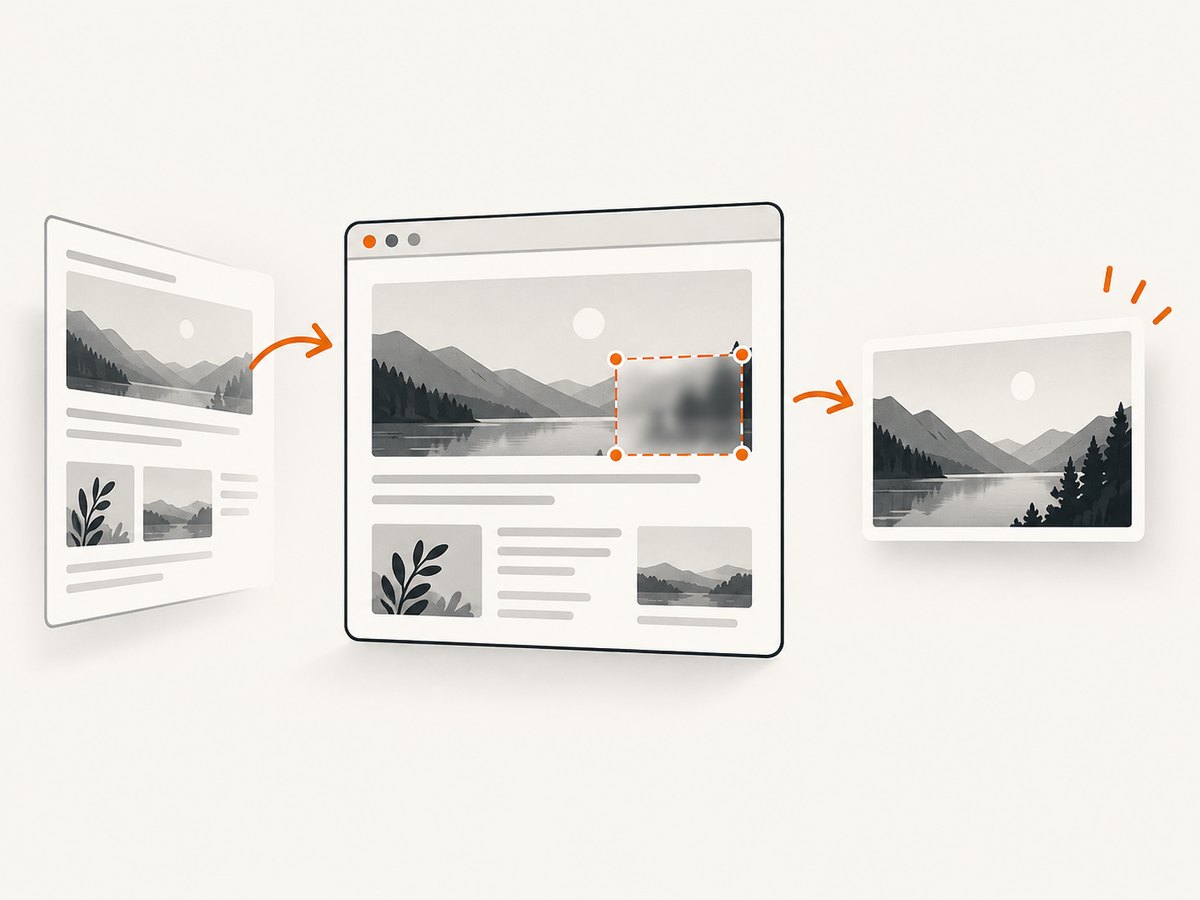
When the output should contain one component rather than the page, take a locator screenshot. Playwright scrolls the matching element into view before capturing it. Locator screenshots also support screenshot styles and masks. [Playwright Locator API: screenshot]
const card = page.locator('.profile-card');
await card.waitFor({ state: 'visible' });

await card.screenshot({
  path: 'profile-card.png',
  style: '.private-data { filter: blur(6px) !important; }'
});
The CSS selector in the injected style is evaluated against the rendered page, so it can blur a child of the captured card. The screenshot’s crop remains focused on the locator. If the target selector is outside that crop, it will not appear in the resulting image even if the page stylesheet rule applies.
4. Blur versus Playwright masking
Choose based on what the image needs to communicate:
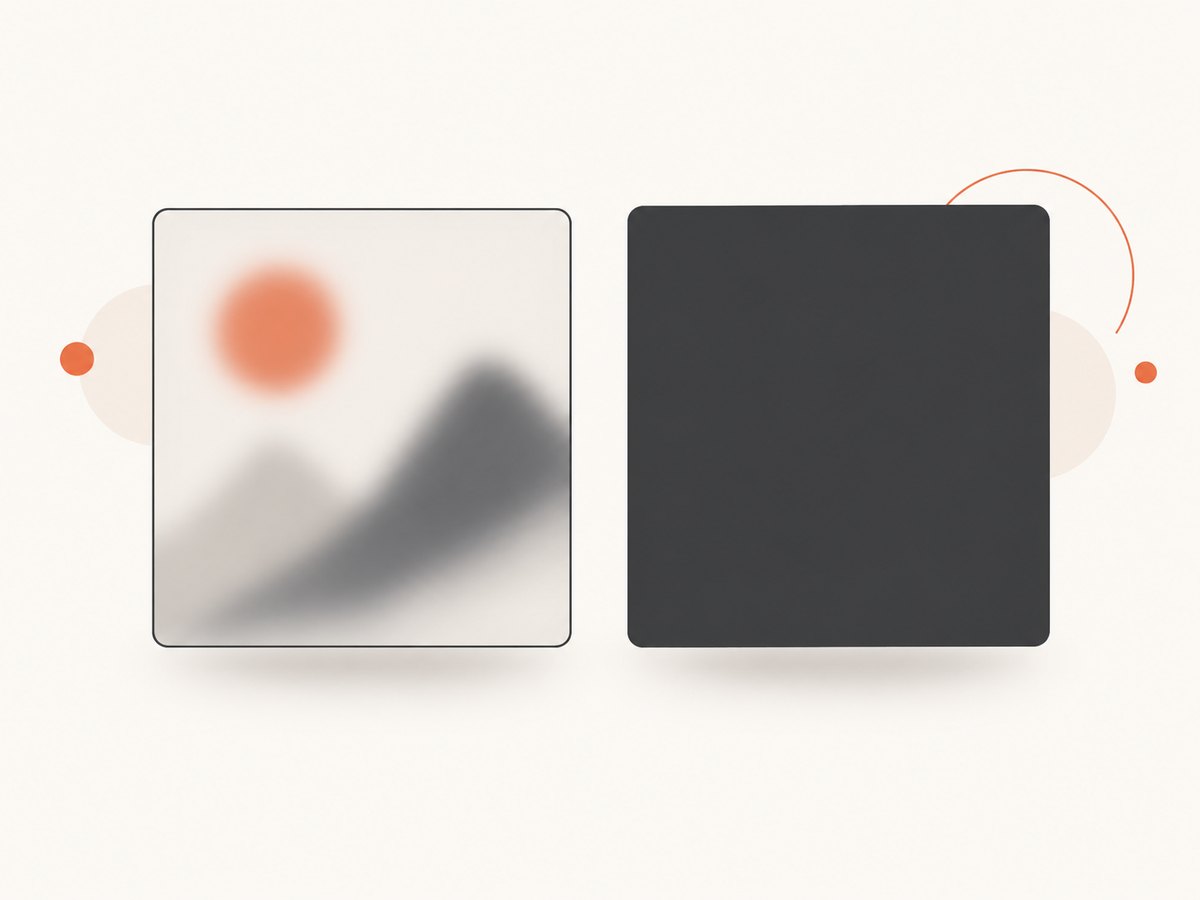
| Approach | Visual result | Good fit | Limitation |
|---|---|---|---|
| Screenshot-time CSS blur | Softened content remains visible as shapes and color | Reducing distraction while preserving the page’s general appearance | It is not a secure redaction technique |
Playwright mask |
A solid overlay covers the element’s bounding box; pink is the default and maskColor changes it |
Making the matched region visibly opaque | It does not blur the underlying content |
To mask a locator in a page screenshot:
await page.screenshot({
  path: 'masked.png',
  mask: [page.locator('.private-data')],
  maskColor: '#000000'
});
Playwright documents the mask as an overlay box that completely covers the matched element’s bounding box. This is a more explicit visual treatment when content should not be legible in the screenshot. Still inspect the output for other copies of the same data elsewhere on the page. [Playwright Page API: screenshot]
5. Practical capture options
Screenshot options can be combined with the injected stylesheet. The commonly useful choices include:
path: write the image to a file. If omitted, Playwright returns the screenshot as a buffer.fullPage: capture the full scrollable page rather than only the current viewport.type: select a supported output image type where appropriate; the output format affects file size and image characteristics.quality: set image quality for formats that support it.animations: control animation handling for a more repeatable image.maskandmaskColor: cover matched locator bounds with a solid overlay.style: apply screenshot-time CSS, including the blur rule.timeout: set how long Playwright waits for the screenshot operation.
Use fullPage: true only when content below the fold belongs in the result. Full-page screenshots can be much larger and slower to process than viewport captures. For repeatable captures, decide whether animations, timestamps, rotating banners, and dynamic content should be hidden, stabilized, or included. Keep the blur stylesheet small and specific so it changes only the intended output.
6. Troubleshooting
| Symptom | Likely cause | Fix |
|---|---|---|
| The element is sharp in the image | The selector matched nothing, the rule lost in the cascade, or the screenshot was captured before content appeared. | Check the locator count, wait for visibility, narrow or correct the selector, and try !important. Inspect the resulting image. |
| The whole card or page is blurred | The selector targets a container or a broad class used by many elements. | Use a selector on the smallest sensitive child and verify the match count. |
| The screenshot fails because an element is missing | A wait for a selector timed out because the page state differs, the selector is wrong, or content is blocked. | Confirm the page URL and rendered DOM; handle absent content explicitly if it is optional. |
| The blur looks too weak or too strong | The chosen radius does not suit the output size and display context. | Adjust the CSS radius and inspect at the size readers will see. Use a solid mask if concealment must be unmistakable. |
| The locator screenshot omits the expected area | The locator crop excludes the content, or the locator matched a different element. | Check the locator’s bounds and capture the parent element or the full page if needed. |
| Content in an embedded frame is unchanged | The frame may be cross-origin or the content may not be present when capture runs. | Check the rendered result and frame state. Playwright’s screenshot style is documented to apply in inner frames, but the target still needs to exist at capture time. |
7. Reliability, performance, and cost
For repeated or automated captures, treat the screenshot as an output to validate. A successful browser call alone does not prove the sensitive field was blurred. Check that the target existed, that the capture used the expected page state, and that the output file or buffer is non-empty. For sensitive content, prefer an opaque mask and review the final image before sharing it.
Capture time and image size depend on the page, capture scope, browser environment, and selected output settings. Full-page images generally contain more pixels than viewport screenshots; element screenshots can keep the output focused. Reuse a browser process for a batch of pages when your application architecture supports it, while creating appropriately isolated pages or contexts for independent work. Always close browser resources when a job ends, including on errors.
Playwright’s browser automation has no per-shot price in the cited screenshot API documentation. Your operational cost depends on where it runs and the compute, storage, and maintenance you provide. Keep an eye on browser process usage and avoid adding large fixed waits to every capture. There are no benchmark figures in the research used for this guide, so measure your own pages and runtime if throughput or latency targets matter.
8. Or skip the browser setup
ScreenshotNeo is a website screenshot API and MCP server. Make one request with the target URL to receive a PNG, JPEG, WebP, or PDF. The API parameter names used by other screenshot APIs also work, which can make switching easier. ScreenshotNeo’s API supports custom CSS, so you can apply a selector blur as part of a capture request; see the ScreenshotNeo documentation for request options.
curl -G "https://api.screenshotneo.com/v1/shot" \
  -d access_key=YOUR_API_KEY \
  --data-urlencode url=https://stripe.com \
  -o shot.webp
To use the CSS option, add the corresponding custom CSS parameter from the documentation, with a rule such as .private-data { filter: blur(6px) !important; }. Keep the selector narrow and inspect the returned image. The call above is the basic screenshot request; it does not itself include a custom CSS parameter.
ScreenshotNeo accepts cookie and consent banners like a visitor and removes more than 60 known consent platforms, as well as newsletter popups and chat widgets; each cleanup step can be turned off. Bot checks and CAPTCHAs, blank pages, timeouts, failed loads, and cache hits cost nothing. Responses identify the page verdict and billing status in X-Page-Verdict and X-Billed headers. Its MCP server gives AI agents tools for screenshots, page information, and PDF capture. The Free plan includes 1,000 screenshots a month without a card; paid plans start at $5 for 3,000 screenshots. Every feature is on every plan.
Create a free ScreenshotNeo account for 1,000 screenshots a month with no card.
9. FAQ
Can I blur text without changing the website?
Yes. Playwright applies the supplied stylesheet for the screenshot, so the rule can live in your capture script rather than the site’s CSS.
Does blur guarantee that private data cannot be recovered?
No. Treat blur as a visual effect, not secure redaction. Use a solid mask for a clearly covered region and inspect the exported image.
Does a mask create a blur effect?
No. A mask covers the locator’s bounding box with a solid overlay. Use screenshot-time CSS when you want softened content.
Should I use a page or locator screenshot?
Use a page screenshot for the viewport or full page. Use a locator screenshot when the output should be cropped to one matching element.


