How to Add a Border Around HTML-Generated PDF Pages
Use print CSS, @page margins, and a fixed frame to repeat a clean border on every HTML-generated PDF page.
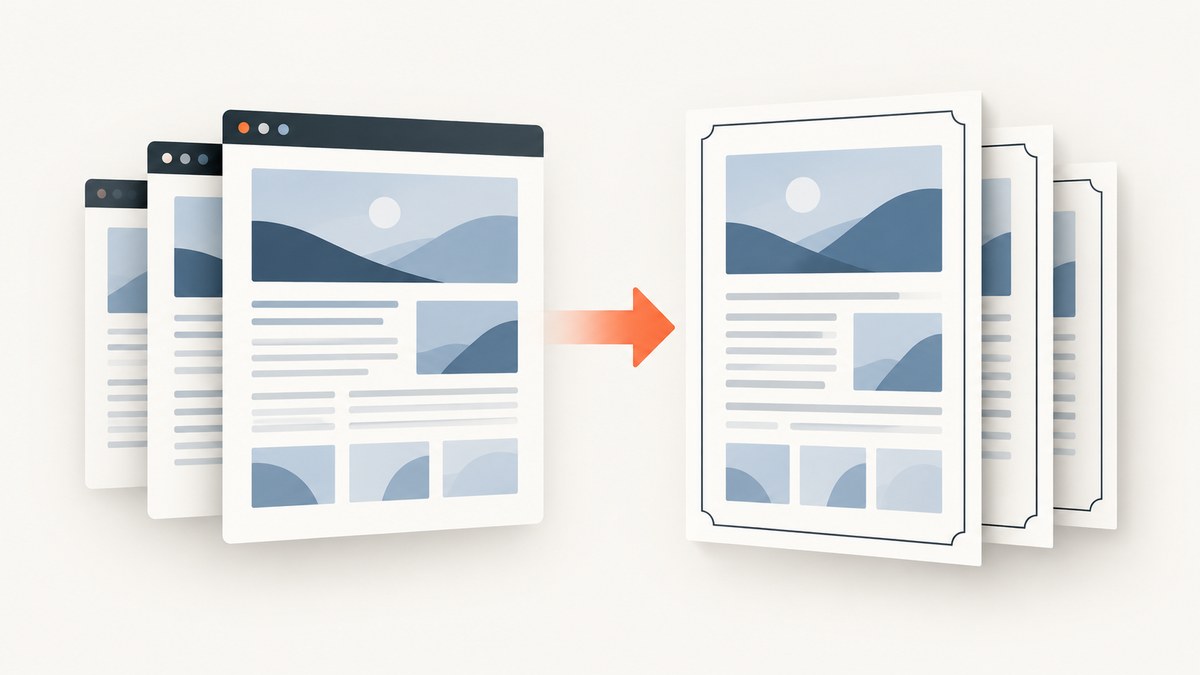
To add a border around every page of an HTML-generated PDF, put the page geometry in print CSS and draw the border with a fixed print-only frame. A normal flowing div border surrounds the document’s flow box, so it may appear once, break at page boundaries, or be clipped. A fixed pseudo-element is painted against each printed page by Chromium-based renderers.
The essential pattern is:
@media print {
  @page {
    size: A4;
    margin: 12mm;
  }

  html,
  body {
    margin: 0;
    padding: 0;
  }

  .pdf-page-frame::before {
    content: "";
    position: fixed;
    inset: 0;
    border: 1px solid #222;
    box-sizing: border-box;
    pointer-events: none;
  }
}
Wrap the printable document in <div class="pdf-page-frame">. The @page margin leaves room for content and defines the page geometry; the fixed pseudo-element supplies the repeating frame.
Why a regular border fails across PDF pages
HTML is laid out as a continuous flow and then fragmented into physical pages. A border on a normal container follows that continuous box. If the container spans three pages, its border is not automatically a page frame on each sheet. Depending on the engine, you can see one long border, a border only on the first page, or edges that disappear at a page break.
PDF generation also uses a print media context. Playwright’s page.pdf() generates a PDF with print CSS, and Puppeteer’s Page.pdf() does the same. That means rules inside @media print are the right place for the frame and print-only spacing. See the Playwright PDF API and Puppeteer PDF API references.
CSS paged media defines the page box and its margins through @page. The CSS 2.2 specification explains that authors can specify page-box margins inside an @page rule. Those margins determine how much room is available around the content and help keep a frame away from the physical edge.
Complete HTML and CSS example
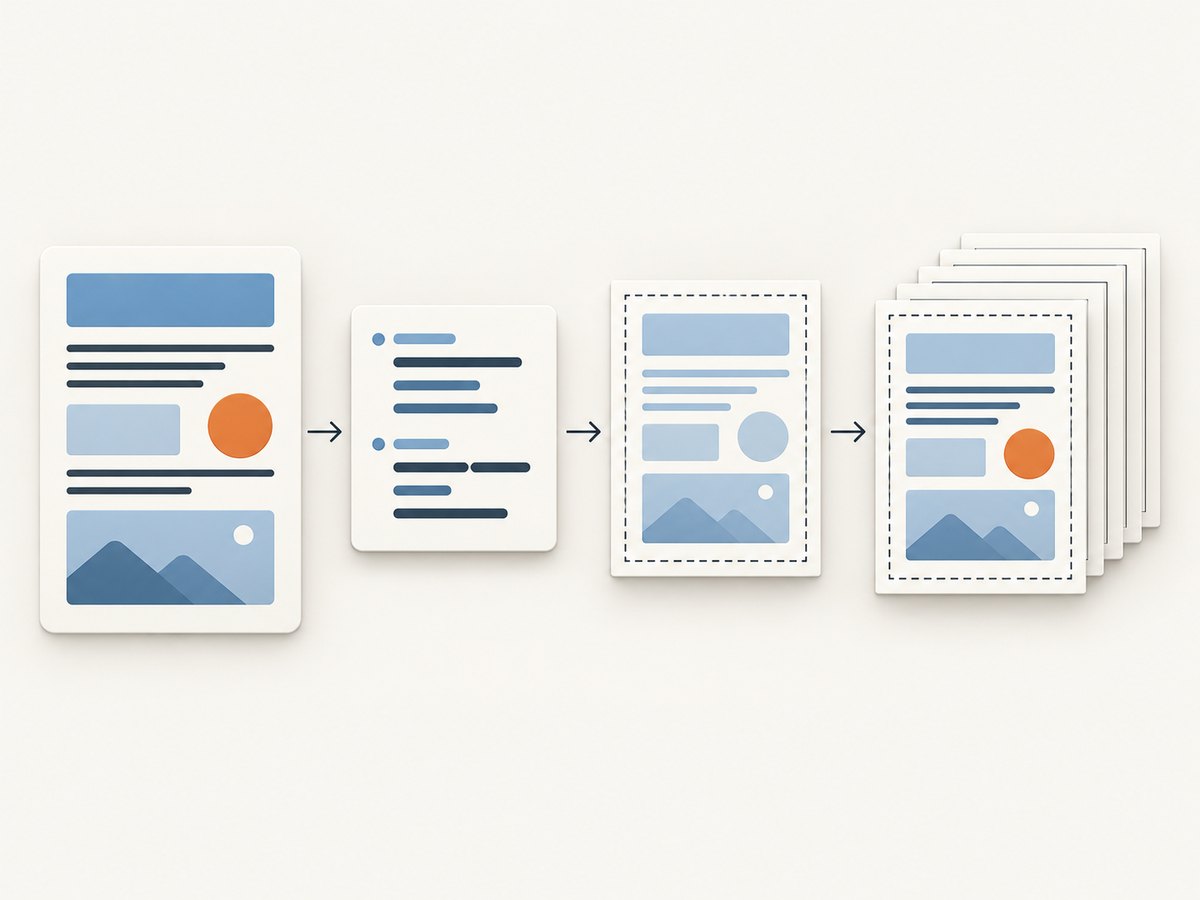
This file is self-contained. Save it as invoice.html and open it in a browser to inspect the screen version. The border is enabled only for printing or PDF generation.
<!doctype html>
<html lang="en">
<head>
  <meta charset="utf-8">
  <title>Invoice 1042</title>
  <style>
    :root {
      color: #222;
      font-family: Arial, sans-serif;
      line-height: 1.45;
    }

    body {
      margin: 0;
      background: #f2f4f7;
    }

    .document {
      max-width: 180mm;
      margin: 20mm auto;
      padding: 12mm;
      background: white;
    }

    h1, h2 { margin-top: 0; }

    table {
      width: 100%;
      border-collapse: collapse;
      margin: 12px 0 24px;
    }

    th, td {
      padding: 6px;
      border-bottom: 1px solid #ddd;
      text-align: left;
    }

    .avoid-break { break-inside: avoid; }

    @media print {
      @page {
        size: A4;
        margin: 12mm;
      }

      html,
      body {
        margin: 0;
        padding: 0;
        background: white;
      }

      .document {
        max-width: none;
        margin: 0;
        padding: 0;
      }

      .pdf-page-frame::before {
        content: "";
        position: fixed;
        inset: 0;
        border: 1px solid #222;
        box-sizing: border-box;
        pointer-events: none;
      }

      .avoid-break {
        break-inside: avoid;
      }
    }
  </style>
</head>
<body>
  <div class="pdf-page-frame">
    <main class="document">
      <h1>Invoice 1042</h1>
      <p>Issued 30 September 2026</p>

      <section class="avoid-break">
        <h2>Services</h2>
        <table>
          <thead>
            <tr><th>Description</th><th>Amount</th></tr>
          </thead>
          <tbody>
            <tr><td>Implementation</td><td>$1,200.00</td></tr>
            <tr><td>Support</td><td>$300.00</td></tr>
          </tbody>
        </table>
      </section>

      <p>Thank you for your business.</p>
    </main>
  </div>
</body>
</html>
The frame uses inset: 0, so it tracks the page viewport. The 12mm page margin gives the renderer space to place content inside the frame. If your frame is too close to the edge, increase the page margin or use a smaller inset such as inset: 2mm.
Generate the PDF with Playwright
Install Playwright, make sure its browser is available, and run this script from the directory containing invoice.html:
npm install playwright
npx playwright install chromium
// make-pdf.mjs
import { chromium } from 'playwright';
import { pathToFileURL } from 'node:url';
import path from 'node:path';
const browser = await chromium.launch();
const page = await browser.newPage();
const fileUrl = pathToFileURL(path.resolve('invoice.html')).href;
await page.goto(fileUrl, { waitUntil: 'networkidle' });
await page.pdf({
path: 'invoice.pdf',
format: 'A4',
printBackground: true,
preferCSSPageSize: true,
margin: { top: '0', right: '0', bottom: '0', left: '0' }
});
await browser.close();preferCSSPageSize: true lets the @page rule determine the paper size. The zero API margins avoid adding a second set of margins; the CSS owns the geometry. printBackground: true preserves backgrounds and is useful when your frame or page design relies on painted backgrounds. Playwright documents all of these options in its page.pdf reference.
Generate the PDF with Puppeteer
Puppeteer uses the same print CSS model and exposes equivalent controls:
npm install puppeteer// make-pdf-puppeteer.mjs
import puppeteer from 'puppeteer';
import { pathToFileURL } from 'node:url';
import path from 'node:path';
const browser = await puppeteer.launch();
const page = await browser.newPage();
const fileUrl = pathToFileURL(path.resolve('invoice.html')).href;
await page.goto(fileUrl, { waitUntil: 'networkidle0' });
await page.pdf({
path: 'invoice.pdf',
format: 'A4',
printBackground: true,
preferCSSPageSize: true,
margin: { top: '0', right: '0', bottom: '0', left: '0' }
});
await browser.close();If you omit preferCSSPageSize, the API’s format, width, or height can control the paper size instead. Choose one source of truth. Conflicting CSS and API geometry is a common cause of shifted or clipped frames. Puppeteer’s Page.pdf documentation describes the available settings.
Python option with Playwright
The Python API follows the same browser behavior. Install the package and browser:
pip install playwright
playwright install chromium
# make_pdf.py
from pathlib import Path
from playwright.sync_api import sync_playwright
html_url = Path("invoice.html").resolve().as_uri()
with sync_playwright() as p:
browser = p.chromium.launch()
page = browser.new_page()
page.goto(html_url, wait_until="networkidle")
page.pdf(
path="invoice.pdf",
format="A4",
print_background=True,
prefer_css_page_size=True,
margin={"top": "0", "right": "0", "bottom": "0", "left": "0"},
)
browser.close()Controlling page size, margins, and orientation
| Requirement | CSS or API setting | Practical guidance |
|---|---|---|
| Paper size | @page { size: A4; } or format: 'A4' |
Use preferCSSPageSize: true when CSS should win. |
| Content clearance | @page { margin: 12mm; } |
Increase this when content or the frame is clipped. |
| Landscape output | @page { size: A4 landscape; } or landscape: true |
Keep CSS and API orientation consistent. |
| Colored backgrounds | printBackground: true |
Required for background fills and designs that depend on them. |
| API margins | margin: { top, right, bottom, left } |
Set them to zero when @page owns the margins. |
Do not put a large padding value on the framed element unless you intend it to affect every page. Padding belongs to the content layout; @page margins describe the physical page. If you need a visible inset border, change the pseudo-element’s inset value and retain enough page margin for it.
Page breaks, tables, and long content
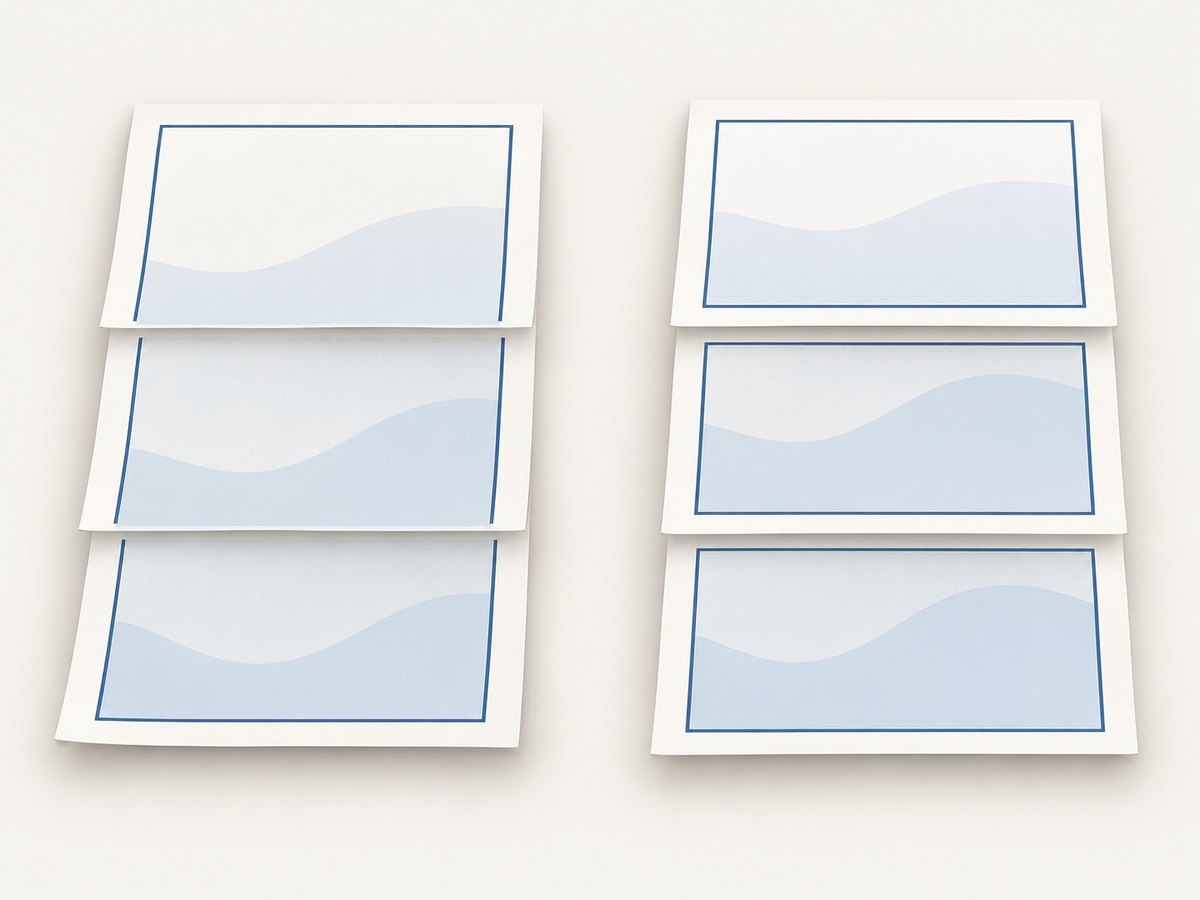
A repeating frame does not prevent content from splitting. Add break rules to sections that must remain together:
@media print {
  .keep-together,
  table,
  figure {
    break-inside: avoid;
  }

  h1, h2, h3 {
    break-after: avoid;
  }

  .new-page {
    break-before: page;
  }
}
Very large tables may still need to split. Keep table headers visible with thead { display: table-header-group; }, and avoid placing essential information in a footer that can be separated from the table. Test rows that land near the bottom edge because rounding differences between browser versions can move a break by a few pixels.
Images and web fonts can change the final height after the initial layout. Wait for network idle, then explicitly wait for images or fonts when they are loaded dynamically:
await page.goto(url, { waitUntil: 'networkidle' });
await page.evaluate(async () => {
  await Promise.all([
    ...Array.from(document.images)
      .filter(img => !img.complete)
      .map(img => new Promise(resolve => {
        img.addEventListener('load', resolve, { once: true });
        img.addEventListener('error', resolve, { once: true });
      })),
    document.fonts?.ready ?? Promise.resolve()
  ]);
});
Why the frame can be clipped
Clipping usually means the frame reaches outside the page box or the renderer applies margins you did not account for. Check these items in order:
- Reset
htmlandbodymargins and padding. - Define a nonzero
@pagemargin such as12mm. - Set API margins to zero if CSS controls the layout.
- Use
box-sizing: border-boxso the border stays inside the frame’s bounds. - Inspect the PDF at 100% zoom; a one-pixel line can look missing at fractional zoom levels.
If a printer trims the outermost edge, move the frame inward with inset: 2mm. A PDF can contain pixels at the page edge while a physical printer has a nonprintable area.
Troubleshooting common errors
| Symptom | Cause | Fix |
|---|---|---|
| Border appears only once | Border is on a flowing container. | Move it to a fixed print-only pseudo-element. |
| Border missing entirely | Rule is screen-only or selector does not match. | Put the rule inside @media print and verify the wrapper class. |
| Only part of the border is visible | Frame is outside the page box or clipped. | Reset margins, reserve @page margin, and reduce inset. |
| Background disappears | Background printing is disabled. | Set printBackground: true. |
| Content shifts between runs | Fonts, images, or JavaScript were still loading. | Wait for network idle, images, and document.fonts.ready. |
| Unexpected paper size | API format overrides CSS. | Enable preferCSSPageSize or remove the conflicting API size. |
| Table rows split awkwardly | Page fragmentation is occurring inside rows or sections. | Use break-inside: avoid on realistic groups and test long tables. |
| Border differs in production | Different Chromium version or PDF engine. | Pin the browser image/version and inspect generated PDFs in CI. |
Reliability, performance, and cost considerations
Pin the browser version used in development and production. Print layout is sensitive to Chromium updates, font availability, device scale, and operating-system font rendering. Keep a small set of representative PDFs as fixtures and inspect page count, paper size, and all four frame edges after upgrades.
Reuse a browser process when generating many PDFs, but create a fresh page for each document. Reusing the browser avoids startup cost while page isolation prevents cookies, styles, and application state from leaking between jobs. Limit concurrency to the CPU and memory available to your worker; rendering many full-page documents at once can increase memory pressure.
Wait only for the resources your document needs. networkidle is useful for pages that load assets, but applications with analytics or long polling may never become idle. In those cases, wait for a specific selector or application-ready signal, then generate the PDF. Set an overall job timeout and record the browser version, URL, and options with each failure so the output can be reproduced.
Self-hosted Playwright and Puppeteer have no per-shot API fee, but you pay for browser infrastructure, storage, bandwidth, maintenance, and failed jobs. A hosted capture service can be simpler when you need consistent rendering, retries, and a usage-based API.
Or skip the browser setup
ScreenshotNeo provides a website screenshot and PDF API. Its PDF endpoint accepts the URL and returns the generated file, so you do not have to package Chromium or maintain print workers. See the ScreenshotNeo documentation for the full option list.
curl -G "https://api.screenshotneo.com/v1/shot" -d access_key=YOUR_API_KEY --data-urlencode url=https://stripe.com -o shot.webpimport requests
r = requests.get("https://api.screenshotneo.com/v1/shot", params={"access_key": "YOUR_API_KEY", "url": "https://stripe.com"}, timeout=90)
open("shot.webp", "wb").write(r.content)const q = new URLSearchParams({ access_key: 'YOUR_API_KEY', url: 'https://stripe.com' });
const res = await fetch(`https://api.screenshotneo.com/v1/shot?${q}`);For PDF output, add the PDF options described in the documentation, including paper size, margins, landscape mode, and page ranges. ScreenshotNeo can also wait for a selector, delay, or network idle; provide custom CSS or JavaScript; set headers, cookies, a user agent, timezone, and geolocation; and run asynchronous jobs with signed webhooks.
It accepts cookie and consent banners as a visitor and removes more than 60 known consent platforms, newsletter popups, and chat widgets before capture. Bot checks, CAPTCHAs, blank pages, timeouts, failed loads, and cache hits cost nothing, and the response identifies the result with X-Page-Verdict and X-Billed headers. Its MCP server exposes take_screenshot, get_page_info, and capture_pdf for Claude, Cursor, and other MCP clients.
The Free plan includes 1,000 shots per month with no card. Paid plans start at $5 for 3,000 shots, and every feature is available on every plan. Create a free ScreenshotNeo account to start.
Verification checklist
- Open the generated PDF and confirm the frame appears on the first, middle, and last pages.
- Check all four corners at 100% zoom for clipping.
- Confirm the page count and paper size match the intended output.
- Test a document with a long paragraph, a multi-page table, images, and a forced page break.
- Generate the same fixture with the exact browser version used in production.
- Verify that backgrounds, fonts, and images are present before shipping.
FAQ
Can I use a fixed element instead of a pseudo-element?
Yes. A fixed element can work, but a pseudo-element keeps the frame out of the document’s semantic content and needs no extra markup. Verify repetition with your deployed engine.
Should the border be inside or outside the @page margin?
Keep the border inside the page box and reserve page margin for content clearance. If the visible line is too close to the edge, increase the margin or set a positive inset.
Does this work for landscape PDFs?
Yes. Set size: A4 landscape in @page, or use the API’s landscape option, and keep the CSS and API settings consistent.
Will this pattern work in every HTML-to-PDF engine?
The fixed-frame pattern is intended for Chromium-based renderers. Other engines may implement fixed print elements differently, so inspect output with the exact engine and version you deploy.
Can I add different borders to different pages?
A single fixed frame repeats the same border. Page-specific frames require engine-specific paged-media features or separate documents; test those features before relying on them for production output.


