Bot Checks and CAPTCHAs: What We Do and What You Can Do
Why bot checks appear, how to troubleshoot a CAPTCHA loop safely, and how to spot fake verification pages that ask you to run commands.
A bot check is a security challenge that helps a website decide whether a visit resembles a real person using a browser or automated traffic. Seeing one does not mean you have done anything wrong. If a check keeps repeating, start by allowing JavaScript and cookies for the site, temporarily testing without privacy extensions, checking your device’s clock, and retrying on a stable connection. If the page tells you to open Run or a terminal and paste or execute a command, close it: that is a malware warning sign, not a normal CAPTCHA step.
1. What a bot check is
Websites use bot checks to protect services from abusive automation, suspicious traffic, and attacks. Cloudflare describes its challenges as mechanisms for verifying whether a visitor is human rather than a bot or automated script. A challenge is a risk decision based on signals; it is not a verdict about the person at the keyboard.
Many checks happen in the background. If the system needs more information, it may show an interstitial page that pauses the requested visit while the browser is evaluated. Depending on the site and provider, you might see an automatic check, a checkbox, a button, or a CAPTCHA supplied by a different vendor. Cloudflare says its current Challenges product does not use visual CAPTCHA puzzles such as selecting objects or typing distorted characters. Other sites may use a different provider and offer visual or audio challenges.
2. Why a legitimate visitor may be challenged
Challenge systems combine browser, network, and behavioral signals. Site owners can trigger challenges through firewall rules, rate limits, bot-management settings, denial-of-service protections, or heightened security modes. A challenge therefore may reflect the site’s configuration or a signal that is unusual for that site, not malicious intent.
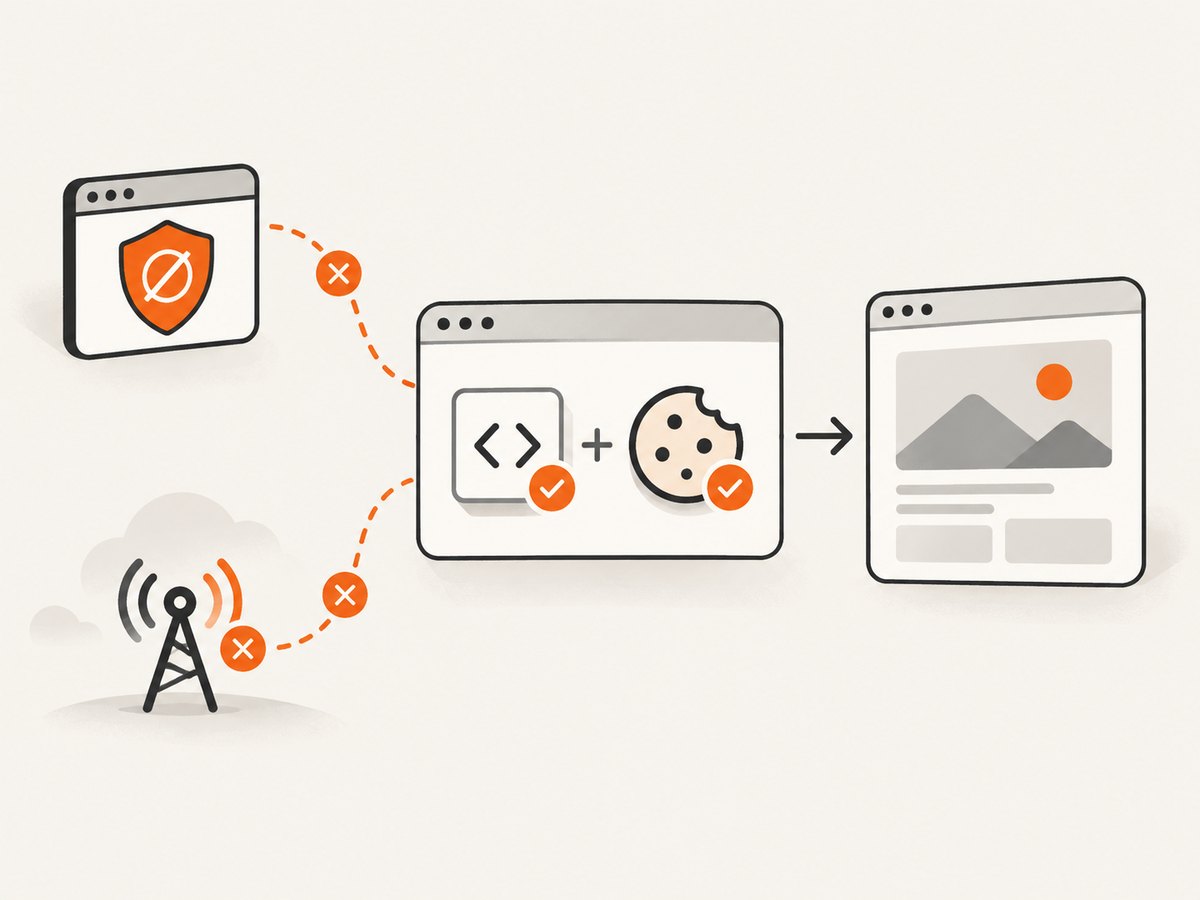
Browser changes can interfere with checks. Extensions that alter the User-Agent or browser APIs such as Canvas or WebGL may change the signals a system receives. Disabled JavaScript, blocked cookies, ad blockers, network interruptions, and some native mobile apps can prevent a browser-based check from completing. An incorrect device clock or an outdated browser can also cause repeated failures.
Some systems use session cookies to reduce repeat challenges and false positives. If the browser blocks the relevant cookie or clears it immediately, the site may not retain the result of a previous check. Private browsing settings, strict tracking protection, corporate filtering, VPNs, and shared networks can affect the environment or route seen by the site. Their effect varies; none alone proves that a visitor is a bot.
3. How to stop a CAPTCHA or verification loop
Try these steps in order. Change one thing at a time so you can identify what resolves the loop.
- Enable JavaScript and site cookies. Check the browser’s site-specific permissions. Allow the challenged site to run scripts and store the cookies needed for verification. If you use strict tracking protection, temporarily relax it for that site.
- Test without extensions that alter browser signals. Temporarily disable privacy or security extensions for the site, especially those that modify the User-Agent, Canvas, WebGL, script execution, or cookies. Then reload once. If the check passes, re-enable extensions one at a time and adjust the relevant site permission.
- Check your device’s date, time, and time zone. Turn on automatic time setting or correct them manually. Update an old browser to a current version supported by the site.
- Retry on a stable connection. If your connection dropped during the check, wait briefly and reload. Avoid rapidly repeating failed attempts; repeated requests may keep the session in a challenged state.
- Try a clean browser profile or another supported browser. This can help distinguish a profile setting or extension from a wider network issue. Do not install an extension suggested by a suspicious challenge page.
- Contact the website if the loop continues. The site operator controls its firewall and challenge rules and can investigate a false positive. Include the page URL, approximate time, browser and operating system, and a screenshot of the challenge if safe to do so. Never send passwords, one-time codes, or private cookies.
These are general troubleshooting steps based on documented browser and network failure factors. They cannot guarantee that every site’s challenge will pass: the provider, configuration, and available appeal path differ.
4. Tell a normal challenge from a fake one
A legitimate verification may ask you to wait, click a checkbox or button, or complete a provider’s browser-based check. Be cautious when the page asks you to perform actions outside the browser.
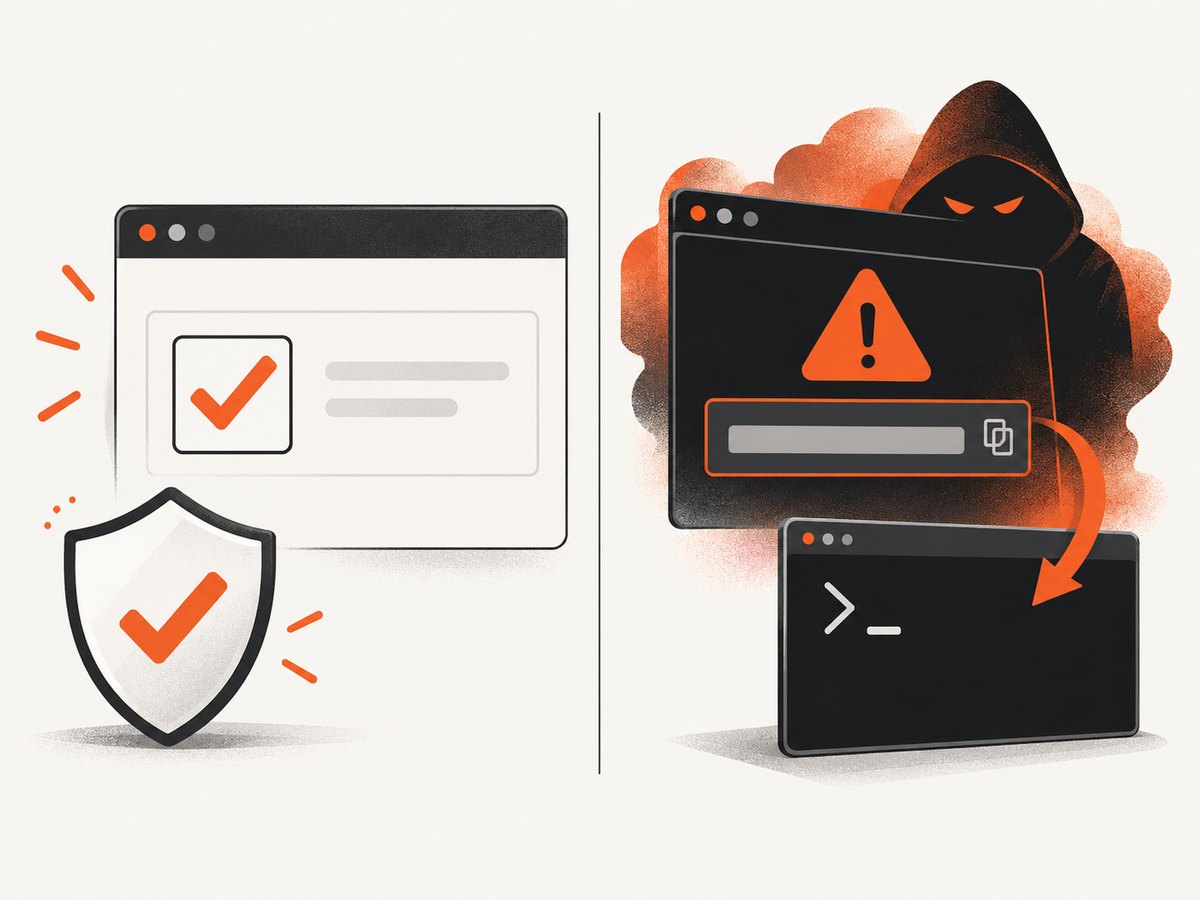
- Stop if it says to press Win+R, open a terminal, paste clipboard text, run PowerShell, or execute JavaScript. These are not normal CAPTCHA steps.
- Do not install an unsolicited extension or application to “prove” you are human.
- Do not paste commands from a website into a system prompt. A page can manipulate clipboard contents, so text you did not type yourself may not be what you think it is.
The Israel National Cyber Directorate has warned about fake Cloudflare-branded pages that direct people to press Win+R and paste a command. That pattern is a malware warning sign. If you encounter it, close the page. If you already ran a command, disconnect from sensitive accounts on that device, run your normal security scan, and contact your organization’s IT or security team if it is a work device. Report the suspicious URL to the site owner or relevant security provider.
5. Accessibility and different kinds of checks
Not every “verify you are human” page behaves the same way. Cloudflare’s current Challenges product is designed to avoid visual CAPTCHA puzzles; its redesign guidance describes support goals for screen readers, keyboard-only use, and people with color-vision differences. A site that embeds another provider may offer a visual, audio, or alternative challenge. Identify the provider named on the page before assuming what controls or accessibility options exist.
When comparing two checks, look at five things: who provides it, whether it runs automatically or requires a checkbox or puzzle, which browser features and cookies it needs, what accessible alternative it offers, and how to contact the site if it fails. If you cannot use the offered challenge, contact the site through its published support route and ask for an accessible way to reach the content.
6. If you operate the site
A challenge loop reported by a real visitor can point to a rule that is too broad, a rate limit that catches shared networks, a missing JavaScript signal, or a cookie policy that prevents session continuity. Review the rule and the provider’s event or security logs before asking users to weaken their browser protections. Challenge pages and embedded verification widgets can have different behavior, so identify which mechanism produced the page first.
- Check whether a custom firewall rule, rate limit, bot setting, or attack-protection mode is challenging the affected route.
- Compare affected requests with successful visits, including the browser, network, time, and relevant security event identifier where available.
- Confirm your page allows the challenge script and required cookies to load, and that your content security policy or proxy is not blocking them.
- Provide a support route and an accessible fallback for visitors who cannot complete the challenge.
- Do not tell users to run commands, paste scripts, or install software as a verification workaround.
For automated website capture, treat a challenge page as a failed or gated visit, not as the target page’s content. A screenshot can help a developer or site owner inspect what appeared, but it does not bypass the site’s security decision. Do not use capture automation to defeat access controls.
7. Troubleshooting table
| Symptom | Likely cause | What to try |
|---|---|---|
| The check reloads indefinitely | Cookies or JavaScript are blocked, a browser signal is altered, or the challenge result is not retained. | Allow scripts and cookies for the site, test with relevant extensions disabled, then reload once. |
| It fails immediately after the page loads | Network interruption, stale browser, incorrect device time, or blocked challenge resources. | Correct the clock, update the browser, check the connection, and try a supported browser profile. |
| It works on one network but not another | The site may evaluate network reputation or traffic patterns differently. | Retry later on a stable connection. If it persists, contact the site with the affected network context; do not make repeated rapid attempts. |
| A mobile app cannot pass a browser check | The app may not provide the browser features expected by a JavaScript-based check. | Open the site in a supported browser if the operator permits it, or contact the site for an app-compatible route. |
| The page asks for a command or paste action | Likely fake verification intended to run malicious code. | Close the page. Do not paste or execute anything; report the URL. |
| The challenge has no usable accessible option | The provider or site integration may not expose a suitable path for your needs. | Use the site’s support channel and request an accessible alternative. |
8. Developer note: capturing a challenged page safely
If you are documenting a bot check during debugging, capture only pages you are authorized to access. A screenshot records the response presented to the browser; it does not establish why a rule fired or grant permission to circumvent it. Preserve useful context such as the URL, timestamp, browser version, and whether the page reached the intended content. Avoid saving session cookies or other credentials in shared artifacts.
For a local browser workflow, open the authorized URL in your browser, wait for the page to finish loading, and use the browser’s built-in screenshot command or developer tools to capture the visible state. If a provider challenge is present, record that fact and investigate the site’s security configuration or support route. Do not automate repeated challenge attempts.
Or skip the browser setup
For authorized website screenshots, ScreenshotNeo is a screenshot API and MCP server for developers. One GET request returns an image or PDF; the full options and setup are in the ScreenshotNeo API documentation.
curl -G "https://api.screenshotneo.com/v1/shot" -d access_key=YOUR_API_KEY --data-urlencode url=https://stripe.com -o shot.webpimport requests
r = requests.get("https://api.screenshotneo.com/v1/shot", params={"access_key": "YOUR_API_KEY", "url": "https://stripe.com"}, timeout=90)
open("shot.webp", "wb").write(r.content)const q = new URLSearchParams({ access_key: 'YOUR_API_KEY', url: 'https://stripe.com' });
const res = await fetch(`https://api.screenshotneo.com/v1/shot?${q}`);ScreenshotNeo accepts cookie and consent banners and removes more than 60 known consent platforms, newsletter popups, and chat widgets before capture; each cleanup step can be turned off. Bot checks and CAPTCHAs, blank pages, timeouts, failed loads, and cache hits are not billed, and response headers identify the page verdict and billing status. Its MCP server lets AI agents use take_screenshot, get_page_info, and capture_pdf. The free plan includes 1,000 screenshots a month with no card; paid plans start at $5 for 3,000. These features do not authorize bypassing a site’s access controls.
Sign up for 1,000 free screenshots a month, with no card required.
9. FAQ
Does a bot check mean the site thinks I am a criminal?
No. It is a risk-based decision about a visit’s signals and the site’s security settings, not a statement about your identity or intent.
Why does Cloudflare keep verifying me?
Repeated checks can happen when browser scripts or cookies are blocked, extensions alter browser signals, the network is unstable, or the site’s rule continues to challenge the visit. Work through the troubleshooting sequence, then contact the site if it remains stuck.
Is every CAPTCHA page using Cloudflare?
No. Different sites can use different providers and challenge types. Check the provider named on the page, especially if it presents a visual or audio puzzle.
Can I make a site operator remove a challenge?
Only the operator controls that site’s security configuration. You can report a persistent false positive and ask for an accessible way to reach the content.
What should I do if I already pasted a command?
Do not run it again. Treat the device as potentially compromised: run your normal security scan and, for a work device, contact your organization’s IT or security team promptly.
Sources
- Cloudflare Challenges documentation — challenge purpose and current challenge experience.
- How Cloudflare challenges work — mechanisms and challenge flow.
- Challenge Pages — interstitial behavior.
- JavaScript Detections — client-side checks and factors affecting them.
- Cloudflare Turnstile and CAPTCHA alternative — browser signals and challenge design.
- Accessible Turnstile redesign — accessibility goals and user guidance.
- Israel National Cyber Directorate: ShadowCaptcha advisory — fake verification pages and command execution.


