Browser Automation API Use Cases and Patterns
Choose Selenium, Playwright, or Puppeteer for testing, screenshots, and browser workflows, then make automation more reliable in CI.

Browser automation APIs let code control a real browser: navigate to pages, click and type, submit forms, inspect the DOM, capture screenshots or PDFs, observe network activity, and check what a user would see. Choose Playwright for an integrated modern end-to-end testing workflow across Chromium, Firefox, and WebKit; Selenium WebDriver for broad language and vendor-driver ecosystems or remote execution with Selenium Grid; and Puppeteer for JavaScript automation centered on Chrome and Firefox, screenshots, PDFs, and browser scripting.
Use a browser only when browser behavior or the integration across frontend, backend, authentication, navigation, and third-party boundaries is part of the risk. If an API or component test can prove the behavior, that lighter test is often cheaper and less prone to timing problems. For screenshot-only jobs, a browser automation framework may be more machinery than the task needs; ScreenshotNeo is a website screenshot API and MCP server that returns image or PDF captures from one request.
1. What browser automation APIs do
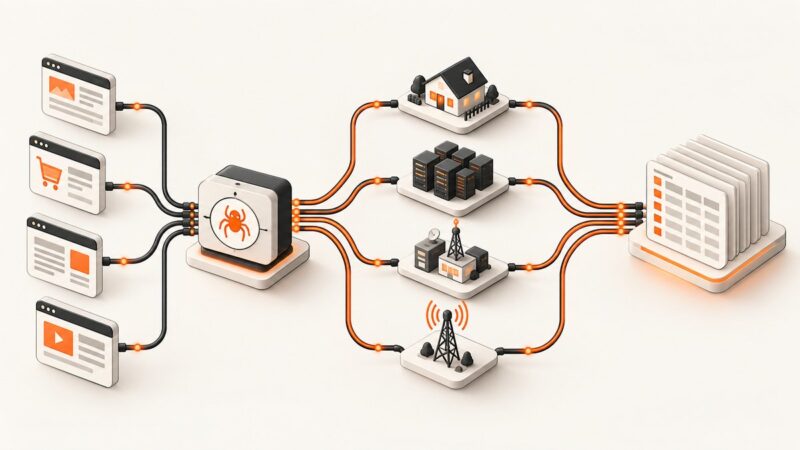
A browser automation library starts a browser process or connects to one, creates a page or context, and exposes browser actions through a programming API. A typical workflow is: start browser, open an isolated page, navigate, wait for a meaningful condition, act, verify the result, collect evidence, and close resources.

The API is useful for more than clicking through tests. Teams use it to exercise critical customer journeys, check browser compatibility, generate visual evidence, produce PDFs, run smoke checks, automate repeatable internal workflows, inspect network requests, and diagnose client-side errors. Puppeteer documents navigation, screenshots, PDF generation, UI tests, network interception, and performance analysis among its uses. WebDriver BiDi provides a bidirectional channel for browser events such as requests, console messages, and JavaScript errors.
2. Choose a framework for the job
| Framework | Strengths | Consider it when |
|---|---|---|
| Selenium WebDriver | W3C standard, native browser control, broad language and browser ecosystem, Selenium Grid for distributed sessions | Your organization uses WebDriver bindings, vendor browser drivers, or needs sessions distributed across machines and operating systems. |
| Playwright | One API for Chromium, Firefox, and WebKit; auto-waiting, assertions, tracing, isolated contexts, and parallel test features | You want a cohesive modern end-to-end test runner and cross-engine coverage. |
| Puppeteer | High-level JavaScript API for Chrome and Firefox over CDP and WebDriver BiDi; screenshots, PDFs, scripting, network inspection | Your work is JavaScript-centric and focused on browser scripting, capture, or Chrome-oriented workflows. |
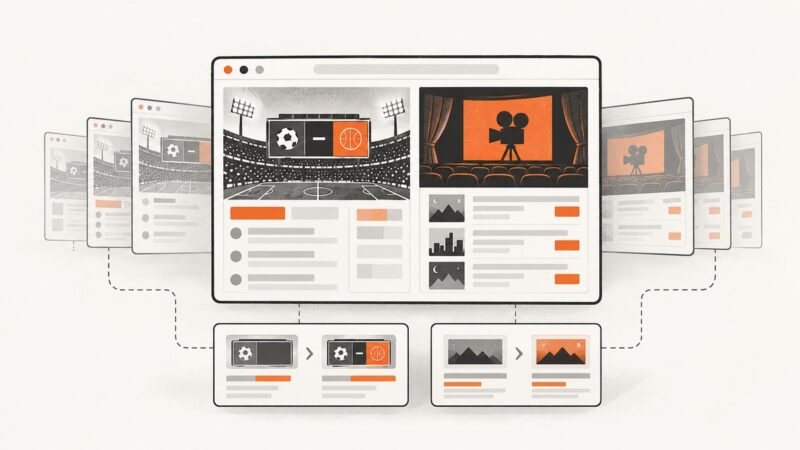
These tools overlap, so select based on practical constraints: language support, browser engines, standards and protocol needs, test-runner features, diagnostics, and where sessions will run. Playwright describes its API as supporting testing, scripting, and AI-agent workflows. An agent still uses the same primitives—navigation, locators, actions, and assertions—so it needs clear boundaries and evidence just like a scripted test.
3. Common use cases and implementation patterns
End-to-end and regression tests
Use browser tests for a small number of high-value paths where the user-visible integration matters: sign-in, checkout, a critical form, navigation, or a workflow crossing application and third-party boundaries. Set up known data, perform a short, discrete action sequence, and assert the visible outcome. Keep lower-level validation in API or unit tests when browser behavior adds no extra confidence.
Cross-browser compatibility
Run a focused set of user journeys against the engines your application supports. Playwright offers Chromium, Firefox, and WebKit from one API. Selenium provides standards-oriented control through vendor drivers and a broad ecosystem. Engine support alone does not determine fit: also consider language bindings, protocol maturity, browser contexts, session management, and the diagnostic output your team can use.
CI and distributed execution
Unattended pipelines need reproducible browser and driver versions, isolated data, and a headless environment. Chrome for Testing and a matching ChromeDriver help reduce version mismatches. When sessions need to run remotely or in parallel across machines and operating systems, Selenium Grid distributes those sessions. Playwright includes parallel test features and browser contexts; Puppeteer usually relies on the runner and infrastructure chosen by the team.
Screenshots, PDFs, and repeatable workflows
Browser APIs are useful when a capture depends on a real interaction: sign in, open a menu, reveal content, or inspect a rendered state. They can also generate PDFs and automate repeatable back-office work. For a capture pipeline, make the target state explicit and wait for a selector or other condition that means the content is ready; a page-load event alone may not mean a client-rendered page is complete.
Network and browser event inspection
Network interception and browser events help verify that a key API call occurred, investigate a failed request, or preserve console errors and JavaScript exceptions. Puppeteer supports network interception, and WebDriver BiDi exposes events through a bidirectional channel. Capture only the evidence needed to explain a failure, since network logs and screenshots can include sensitive page data.
4. Runnable examples
The examples below use Playwright’s JavaScript test runner. They demonstrate isolated page state, user-visible locators, condition-based waiting, assertions, and screenshot evidence. Install the Playwright test package and its supported browser binaries using the official setup instructions before running them. Save the first example as tests/checkout.spec.js, then invoke the test runner with npx playwright test.
const { test, expect } = require('@playwright/test');

test('customer can submit the contact form', async ({ page }) => {
  await page.goto('https://example.com/contact');
  await page.getByLabel('Email').fill('dev@example.com');
  await page.getByLabel('Message').fill('Please contact me.');
  await page.getByRole('button', { name: 'Send message' }).click();
  await expect(page.getByRole('status')).toContainText('Message sent');
});
Replace the example URL and labels with the actual form contract. Prefer roles and labels that reflect the user interface; if accessible names are missing, improve the application markup or use a stable test identifier rather than a generated CSS class. The fixture supplies a page with isolated context state for the test, reducing cookie and storage leakage across cases.
Capture a screenshot after a meaningful condition
const { test, expect } = require('@playwright/test');

test('capture the loaded report', async ({ page }) => {
  await page.goto('https://example.com/reports/monthly');
  await page.getByRole('heading', { name: 'Monthly report' }).waitFor();
  await expect(page.getByTestId('report-chart')).toBeVisible();
  await page.screenshot({ path: 'artifacts/monthly-report.png', fullPage: true });
});
Use a full-page capture for a long document, or omit fullPage to capture the current viewport. If an element is lazy-loaded below the fold, scroll it into view or use the application’s supported state before capturing. Keep screenshot paths unique for parallel jobs and upload the artifacts through the CI system’s normal artifact mechanism.
Wait for a specific network response
const { test, expect } = require('@playwright/test');

test('save action receives a successful response', async ({ page }) => {
  await page.goto('https://example.com/settings');
  await page.getByLabel('Display name').fill('Example User');
  const responsePromise = page.waitForResponse(response =>
    response.url().includes('/api/profile') && response.request().method() === 'PUT'
  );
  await page.getByRole('button', { name: 'Save changes' }).click();
  const response = await responsePromise;
  expect(response.ok()).toBeTruthy();
  await expect(page.getByRole('status')).toContainText('Saved');
});
Register the response wait before the click so a fast response is not missed. Match a specific endpoint and method rather than waiting for arbitrary network silence; analytics or long polling can keep a page active even when the user-visible task is complete.
Run a focused browser matrix
In Playwright Test, declare only the engines needed for the supported product surface. Install the matching browser binaries in the build image and keep the test list focused; multiplying every case across every engine increases runtime and maintenance.
// playwright.config.js
const { defineConfig, devices } = require('@playwright/test');
module.exports = defineConfig({
  testDir: './tests',
  fullyParallel: true,
  retries: process.env.CI ? 1 : 0,
  reporter: [['list'], ['html', { open: 'never' }]],
  use: { trace: 'retain-on-failure', screenshot: 'only-on-failure' },
  projects: [
    { name: 'chromium', use: { ...devices['Desktop Chrome'] } },
    { name: 'firefox', use: { ...devices['Desktop Firefox'] } },
    { name: 'webkit', use: { ...devices['Desktop Safari'] } },
  ],
});
Pin the package version in the project lockfile and install its corresponding browsers in CI. A retry can help reveal intermittent failures, but it does not repair a flaky test; retain trace evidence and fix the underlying synchronization or isolation problem. Consult the Playwright setup documentation for current installation commands and configuration details.
5. Make automation reliable in CI
- Pin the browser environment. Use a version-pinned browser binary and compatible driver or library. Chrome for Testing is intended to support reproducible automation and reduce browser/driver mismatch issues.
- Isolate state. Give each test its own cookies, storage, session, and data fixture. Clean up created records or use disposable test accounts so a prior test cannot change a later result.
- Use user-facing contracts. Locate controls by role, label, or visible name when possible. Avoid selectors tied to layout or generated implementation classes.
- Wait for conditions, not time. Use Playwright’s auto-waiting and web-first assertions or explicit condition waits in other frameworks. Fixed sleeps waste time when the page is fast and still fail when it is slow.
- Keep action sequences short. A test should have one clear purpose and a small number of meaningful actions. Short tests make failures easier to diagnose and reduce cascading errors.
- Preserve evidence. Save traces, DOM snapshots, screenshots, network logs, and console errors on failure where the framework supports them. A CI artifact can explain a failure without rerunning the job.
- Scale after stabilizing. Parallelize independent tests and use isolated data. Use Selenium Grid when browser sessions need remote distribution across machines, browsers, or operating systems; ensure the test environment has capacity before increasing concurrency.
6. Troubleshooting common failures
| Symptom | Likely cause | Fix |
|---|---|---|
| Browser or driver fails to start | Browser/driver version mismatch, missing binary, or CI image difference | Pin versions, install the matching browser and driver, and use the same reproducible headless image in local and CI runs. |
| Element not found intermittently | Test races rendering, targets an unstable selector, or assumes the page is ready too early | Use a role or label locator and wait for its actionable/visible state. Wait on the page-specific condition rather than adding a generic sleep. |
| Click times out | Element is covered, disabled, outside the actionable state, or matched ambiguously | Assert it is visible and enabled, use a unique locator, and inspect the trace or screenshot for overlays and unexpected page state. |
| Tests pass alone but fail in a suite | Shared cookies, storage, account state, or records leak across tests | Isolate browser contexts and test data; avoid order-dependent setup and clean up created state. |
| Navigation wait never completes | Application keeps connections open, uses long polling, or has client-side navigation without a full load | Wait for the destination URL, page heading, or target response that defines completion instead of a broad network-idle condition. |
| Screenshot is blank or incomplete | Capture ran before rendering, lazy content has not loaded, or the wrong viewport/state was captured | Wait for the content selector, verify it is visible, scroll lazy elements into view, and capture after the intended interaction. |
| CI test is flaky only under load | Shared resources or over-parallelization make timing and data contention worse | Reduce concurrency, use per-test data, collect traces, and remove hidden dependencies between jobs. |
| Unexpected JavaScript or request error | Client-side exception, blocked request, or backend response failure | Record console and page errors, inspect relevant network events, and assert the expected response explicitly. |
7. Screenshot-only capture without browser setup
If all you need is a website screenshot or PDF and no custom browser interaction, ScreenshotNeo can return the capture from one GET request. Its API also accepts the parameter names other screenshot APIs use, which can make a switch easier. See the ScreenshotNeo API documentation for the request options.
curl -G "https://api.screenshotneo.com/v1/shot" -d access_key=YOUR_API_KEY --data-urlencode url=https://stripe.com -o shot.webpimport requests
r = requests.get("https://api.screenshotneo.com/v1/shot", params={"access_key": "YOUR_API_KEY", "url": "https://stripe.com"}, timeout=90)
open("shot.webp", "wb").write(r.content)const q = new URLSearchParams({ access_key: 'YOUR_API_KEY', url: 'https://stripe.com' });
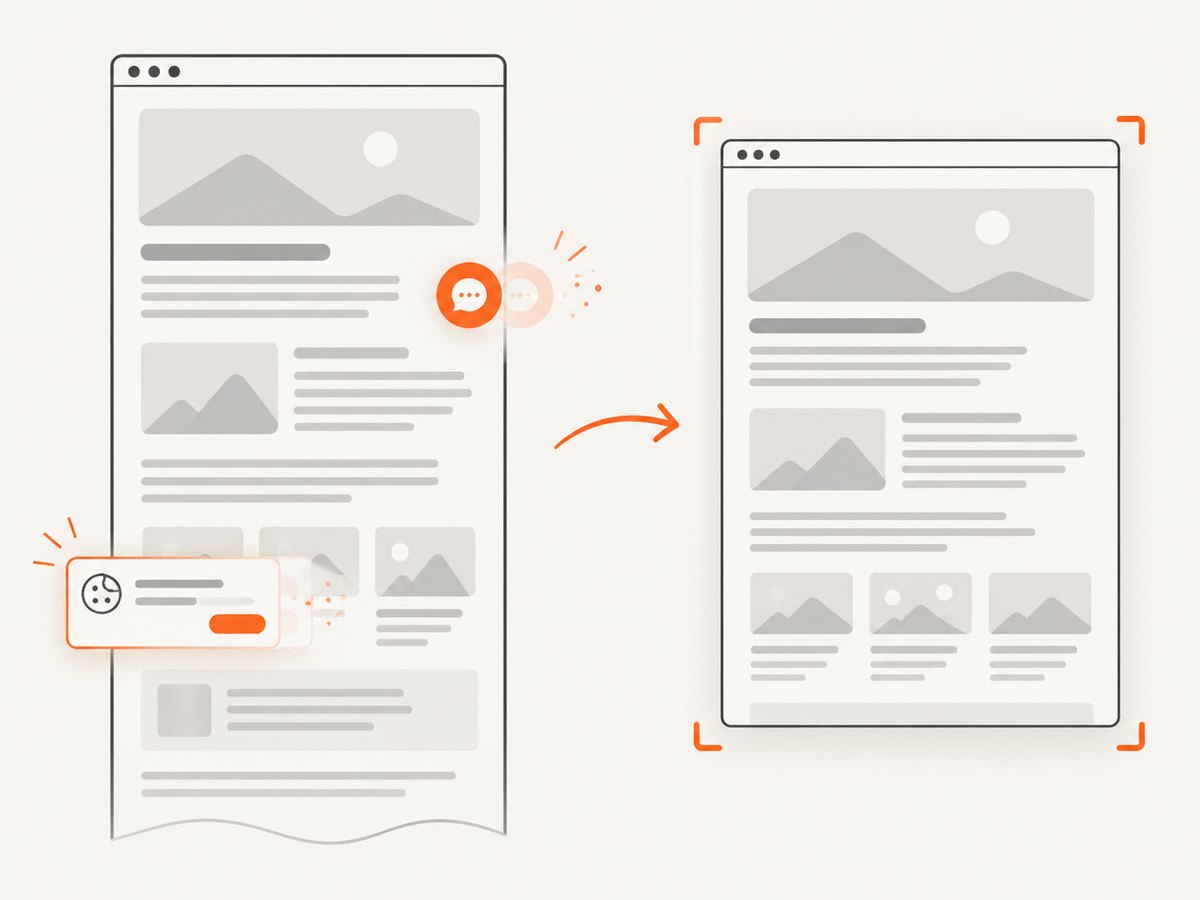
const res = await fetch(`https://api.screenshotneo.com/v1/shot?${q}`);ScreenshotNeo removes cookie and consent banners, newsletter popups, and chat widgets before the shot; each cleanup step can be turned off. Bot checks, blank pages, failed loads, timeouts, and cache hits cost nothing, and response headers report the page verdict and billing status. Its MCP server provides take_screenshot, get_page_info, and capture_pdf tools for Claude, Cursor, and other MCP clients. The free plan includes 1,000 screenshots a month with no card; paid plans start at $5 for 3,000. Sign up for 1,000 free screenshots a month with no card.
8. Performance, reliability, and cost tradeoffs
Browser tests cost more infrastructure and are more timing-sensitive than unit or API tests. Keep them for behavior that needs a real browser, choose a small set of critical paths, and run broader coverage at an appropriate cadence. Parallel execution can reduce elapsed time but consumes more browser and machine capacity and can expose shared test data problems. Measure your own pipeline rather than assuming a concurrency setting will always improve throughput.
Reliability comes from stable versions, isolated contexts and data, condition-based waits, short tests, and retained failure evidence. Retries should be a diagnostic aid, not a substitute for fixing a race. For screenshots and PDFs, factor in browser startup, page rendering, viewport size, image loading, and the amount of evidence saved. If a task only needs a rendered page capture, compare the operational cost of maintaining browser infrastructure with a screenshot API’s per-plan request allowance; ScreenshotNeo’s stated plans range from free 1,000 shots/month to paid tiers, with every feature available on every plan.
FAQ
What is WebDriver BiDi, and when should I care?
It is a bidirectional browser automation protocol direction that supports event communication as well as commands. It matters when automation needs browser events such as network requests, console messages, or JavaScript errors; Selenium WebDriver remains the standards-based control foundation.
Should every UI behavior have an end-to-end test?
No. Browser tests are valuable for user-visible integration risk, but a lower-level test is usually simpler when it proves the same behavior without a browser.
Can browser automation be used by an AI agent?
Yes. Playwright documents AI-agent workflows, and its CLI and MCP tooling provide an orchestration path. Treat agent actions as browser automation: constrain the task, use clear locators, and retain evidence of what happened.
When is a screenshot API a better fit?
When the deliverable is a page image or PDF and the task does not require custom interaction, stateful login steps, or assertions against an application workflow. A browser framework remains useful when those interactions are part of the capture.