How to Use a Browser-Based Screenshot API
Learn how browser-based screenshot APIs work with Playwright and Puppeteer, including full-page, element, reliable, and hosted captures.

A browser-based screenshot API takes a URL, renders it in a real browser, and returns an image (or image bytes) of the result. In practice, the phrase can mean two different things:
- A browser automation library such as Playwright or Puppeteer that you run in your own application.
- A hosted screenshot service that accepts an HTTP request and runs the browser for you.
This guide covers both. You will first build the do-it-yourself version with Playwright and Puppeteer, then see how to choose capture modes, make output repeatable, diagnose failures, and control cost. At the end, ScreenshotNeo provides the hosted option when you do not want to maintain browser binaries and page orchestration.
What the screenshot workflow does
Every browser screenshot implementation follows the same sequence:

- Choose a browser library and supported runtime.
- Launch a browser (or reuse one) and create a page or browser context.
- Navigate to the target URL and wait for the page state you need.
- Capture the viewport, the complete scrollable document, a selected element, or image bytes.
- Save the result or pass the bytes to another system such as object storage, a visual diff tool, or an HTTP response.
Playwright documents page.screenshot(), the fullPage option, element screenshots, and returning a buffer. Puppeteer documents the equivalent page.screenshot() API, including path, clipping, full-page capture, image type, quality where supported, and transparent backgrounds. Read the API reference for the exact version installed in your project: Playwright screenshots and Puppeteer Page.screenshot.
Playwright: a complete screenshot API example
Playwright supports JavaScript, TypeScript, Python, Java, and .NET. The following Node.js example is runnable and demonstrates a viewport screenshot, a full-page screenshot, an element screenshot, and in-memory bytes.
Install and run
npm install playwright
npx playwright install chromium
const { chromium } = require('playwright');
(async () => {
const browser = await chromium.launch({ headless: true });
const context = await browser.newContext({
viewport: { width: 1440, height: 900 },
deviceScaleFactor: 1
});
const page = await context.newPage();
await page.goto('https://example.com', { waitUntil: 'networkidle' });
// The visible viewport.
await page.screenshot({ path: 'viewport.png', type: 'png' });
// The complete scrollable document.
await page.screenshot({ path: 'full-page.png', fullPage: true });
// One component, selected with CSS.
const heading = page.locator('h1');
await heading.screenshot({ path: 'heading.png' });
// Keep image bytes in memory for an upload or HTTP response.
const bytes = await page.screenshot({ type: 'jpeg', quality: 85 });
console.log(`Captured ${bytes.length} bytes`);
await browser.close();
})();waitUntil: 'networkidle' can help with applications that make a short burst of requests, but it is not a guarantee that every visual element is ready. For an app with a known completion signal, wait for that signal explicitly:
await page.goto('https://example.com/dashboard');
await page.locator('[data-ready="true"]').waitFor();
await page.screenshot({ path: 'dashboard.png', fullPage: true });
Playwright options you will use most
| Need | Option or method | Practical note |
|---|---|---|
| Viewport only | page.screenshot() |
Captures the current viewport. |
| Entire document | fullPage: true |
Captures content below the fold. |
| One component | locator.screenshot() |
Waits for and captures the locator’s bounding box. |
| Memory output | Omit path |
Returns a buffer for later processing. |
| CSS or layout changes | page.addStyleTag() |
Inject print or masking styles before capture. |
Puppeteer: the equivalent implementation
Puppeteer is another JavaScript browser automation library. Its screenshot method returns image bytes by default, or a base64 string when configured for base64 encoding. Install a compatible browser during setup and check the installed version’s API for supported options.
npm install puppeteerconst puppeteer = require('puppeteer');
(async () => {
const browser = await puppeteer.launch({ headless: true });
const page = await browser.newPage();
await page.setViewport({ width: 1440, height: 900, deviceScaleFactor: 1 });
await page.goto('https://example.com', { waitUntil: 'networkidle2' });
await page.screenshot({ path: 'viewport.png', type: 'png' });
await page.screenshot({ path: 'full-page.png', fullPage: true });
const card = await page.$('.card');
if (card) await card.screenshot({ path: 'card.png' });
const jpegBytes = await page.screenshot({ type: 'jpeg', quality: 85 });
console.log(`Captured ${jpegBytes.length} bytes`);
await browser.close();
})();For a clipped region, provide a rectangle:
await page.screenshot({
  path: 'region.png',
  clip: { x: 100, y: 120, width: 800, height: 500 }
});
Puppeteer also documents transparent backgrounds and image quality for formats where quality applies. PNG is the documented default. Option names and accepted values can vary by version, so pin your dependency and consult the matching reference.
Choosing viewport, full-page, element, and bytes
Viewport screenshots
Use a viewport capture for responsive checks, social previews, and anything that represents what a visitor sees without scrolling. Set the viewport explicitly so a laptop, CI worker, and local machine produce the same dimensions.
Full-page screenshots
Use full-page mode for documentation, invoices, long landing pages, and archival captures. Long pages can be expensive in memory and may expose lazy-loading behavior: images that load only after scrolling might not exist when the browser measures the page. Scroll through the document or trigger the page’s loading mechanism before the final capture when necessary.
Element screenshots
Capture a locator or selector when the useful artifact is a card, form, chart, or component. Element capture avoids unrelated navigation and makes visual comparisons smaller. Wait for the element and its fonts, images, and data to finish rendering before taking the shot.
Image bytes instead of a file
Omit the output path when you need to upload directly to object storage, return an HTTP response, compute a hash, or run image processing. A buffer also avoids temporary files in serverless environments.
Controlling what the browser renders
Reliable captures depend on the page state as much as the screenshot call.
- Viewport and device scale: fix width, height, and scale. Retina-scale output changes pixel dimensions even when CSS dimensions stay constant.
- Color scheme: create a context with a light or dark preference when testing themes.
- Fonts: wait for
document.fonts.ready; missing fonts cause text reflow. - Animations: disable transitions and animations with injected CSS for stable baselines.
- Lazy content: scroll incrementally, wait for images, then return to the top or capture full page.
- Authentication: use a browser context with the required cookies or storage state rather than putting credentials in a URL.
- Network: block analytics and advertisements only when that matches the purpose of the capture. Blocking a required script can leave a blank or partial page.
await page.addStyleTag({ content: `
  *, *::before, *::after {
    animation-duration: 0s !important;
    animation-delay: 0s !important;
    transition: none !important;
    caret-color: transparent !important;
  }
` });
await page.evaluate(() => document.fonts.ready);
await page.screenshot({ path: 'stable.png', fullPage: true });
Repeatability for visual comparisons
A screenshot is a rendering result, not a pure representation of HTML. Playwright notes that output can vary with the operating system, browser version, browser settings, hardware, power source, and headless mode. Keep those variables stable for visual tests:
- Pin Playwright or Puppeteer and its browser revision.
- Run comparisons in the same container image or CI environment.
- Use a fixed viewport, device scale factor, locale, timezone, and color scheme.
- Freeze or mask timestamps, rotating content, ads, and user-specific data.
- Wait for a deterministic selector instead of relying only on a generic timeout.
When a diff appears, save the actual browser version and capture settings alongside the image. That turns an unexplained pixel change into a reproducible investigation.
Python example with Playwright
Python projects can use the synchronous API for scripts and the asynchronous API for services. Install the package and browser binaries:
pip install playwright
playwright install chromium
from playwright.sync_api import sync_playwright
with sync_playwright() as p:
browser = p.chromium.launch(headless=True)
page = browser.new_page(viewport={"width": 1440, "height": 900})
page.goto("https://example.com", wait_until="networkidle")
page.screenshot(path="page.png", full_page=True)
page.locator("h1").screenshot(path="heading.png")
browser.close()Common errors and fixes
| Error or symptom | Likely cause | Fix |
|---|---|---|
| Browser executable not found | The package is installed but its browser binary is not. | Run the library’s install command (for example, npx playwright install chromium) and include it in your build image. |
| Navigation timeout | The origin is slow, offline, blocked, or waiting on a request that never completes. | Set a realistic timeout, inspect network errors, and wait for a page-specific selector instead of an indefinite network-idle state. |
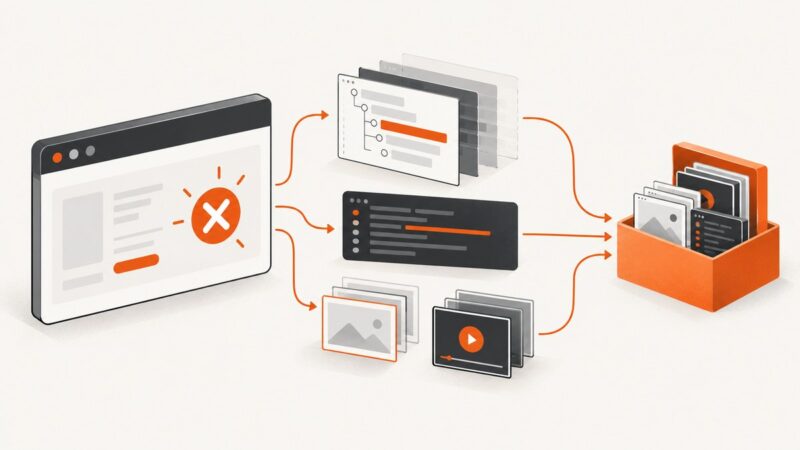
| Blank or half-rendered image | Capture happened before client-side rendering, fonts, or data loaded. | Wait for a readiness selector, document.fonts.ready, and required images; capture a diagnostic HTML or console log. |
| Element is not visible | The selector matches a hidden element, an iframe, or a component outside the current state. | Use a precise locator, wait for visibility, switch to the relevant frame, or capture its parent. |
| Full-page image is unexpectedly short | Content is virtualized or lazy-loaded and exists only after scrolling. | Scroll in steps, trigger loading, wait for image completion, then capture. |
| Text wraps differently in CI | Fonts, OS rendering, browser revision, or viewport differs. | Use a fixed container, install the same fonts, pin the browser, and standardize the viewport. |
| Out-of-memory process | Many large pages or huge full-page images are captured concurrently. | Limit concurrency, reuse a browser, capture elements where possible, and process or upload buffers promptly. |
| Certificate or login failure | The target requires trust configuration or authenticated state. | Configure the context deliberately, load storage state, and avoid disabling TLS checks in production unless required for a controlled test. |
Performance, reliability, and cost
Launching a browser is expensive compared with opening a normal HTTP connection. In a service, launch one browser process and create isolated contexts or pages per job. Bound concurrency so CPU, memory, and file descriptors remain available. Reuse contexts only when you can guarantee that cookies, local storage, and permissions do not leak between jobs.

Use navigation and readiness timeouts that match the page class. Retry transient navigation failures with a small limit and backoff, but do not blindly retry deterministic 404s, authentication failures, or bot challenges. Record the URL, browser revision, viewport, wait condition, elapsed time, and error category for each job.
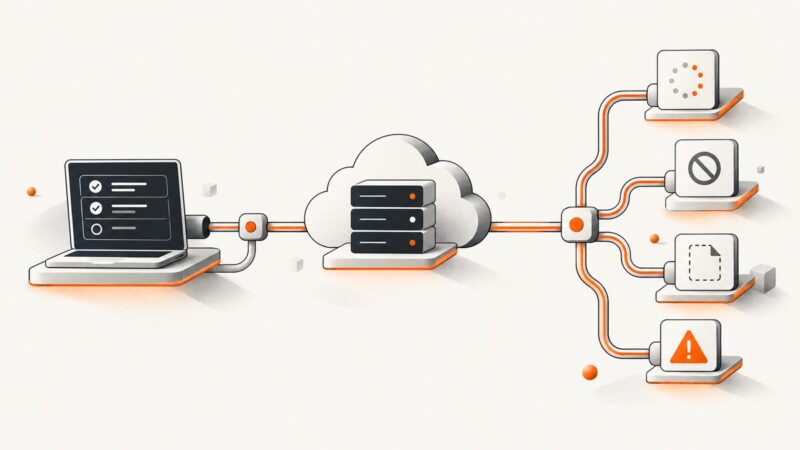
For cost control in a self-hosted system, measure browser minutes, memory, storage, and outbound bandwidth rather than only screenshot count. Full-page images and high device scale factors increase bytes and processing time. A hosted API shifts browser maintenance and scaling to the provider; confirm its documented billing, limits, and failure semantics before building a production workflow.
Or skip the browser setup
ScreenshotNeo is a hosted website screenshot API. One GET request returns a PNG, JPEG, WebP, or PDF. It accepts cookie and consent banners like a visitor and removes more than 60 known consent platforms, newsletter popups, and chat widgets before capture; each step can be turned off. Only clean shots are billed: bot checks or CAPTCHAs, blank pages, timeouts, failed loads, and cache hits cost nothing, and response headers identify the page verdict and billing result.
See the ScreenshotNeo API documentation for all options, including full-page capture with lazy images loaded, CSS element selection, dark mode, 12 device presets or custom viewports, retina scale, PDF paper and margin controls, custom CSS and JavaScript, click and wait actions, request blocking, headers, cookies, user agents, authorization, timezone, geolocation, transparent backgrounds, resizing, configurable caching TTL, signed image links, asynchronous jobs with signed webhooks, bulk capture of up to 100 URLs per call, usage reporting, and the OpenAPI specification.
cURL
curl -G "https://api.screenshotneo.com/v1/shot" \
  -d access_key=YOUR_API_KEY \
  --data-urlencode url=https://stripe.com \
  -o shot.webp
Python
import requests

r = requests.get(
    "https://api.screenshotneo.com/v1/shot",
    params={"access_key": "YOUR_API_KEY", "url": "https://stripe.com"},
    timeout=90,
)
r.raise_for_status()
open("shot.webp", "wb").write(r.content)
Node.js
const q = new URLSearchParams({ access_key: 'YOUR_API_KEY', url: 'https://stripe.com' });
const res = await fetch(`https://api.screenshotneo.com/v1/shot?${q}`);
if (!res.ok) throw new Error(`Screenshot failed: ${res.status}`);
const image = Buffer.from(await res.arrayBuffer());
require('fs').writeFileSync('shot.webp', image);
ScreenshotNeo also provides an MCP server with take_screenshot, get_page_info, and capture_pdf tools for Claude, Cursor, and other MCP clients. It has 1,000 free shots each month with no card; paid plans start at $5 for 3,000 shots. Create a free ScreenshotNeo account.
FAQ
Is a browser screenshot API the same as an image URL service?
No. A browser-based API renders HTML, CSS, fonts, and JavaScript before capture. A service that downloads an image file does not reproduce a page’s rendered state.
Should I choose Playwright or Puppeteer?
Match the library to your project’s existing language, browser setup, and required capture modes. The documentation does not establish a universal speed winner.
Can I capture a page that requires login?
Yes, when you provide authenticated cookies or storage state in a controlled browser context. Keep credentials out of URLs and logs.
Why does my screenshot differ between my laptop and CI?
Browser version, operating system, fonts, hardware, headless mode, viewport, and page data can all affect rendering. Standardize those inputs for comparisons.
When should I use a hosted service?
Use one when browser installation, scaling, consent cleanup, retries, billing, or AI-agent access would cost more engineering time than the capture feature itself.