Using Browser Extensions with Headless Browsers
Learn how to load and test Chrome extensions in Playwright and Chrome headlessly, diagnose failures, and choose a hosted screenshot workflow.
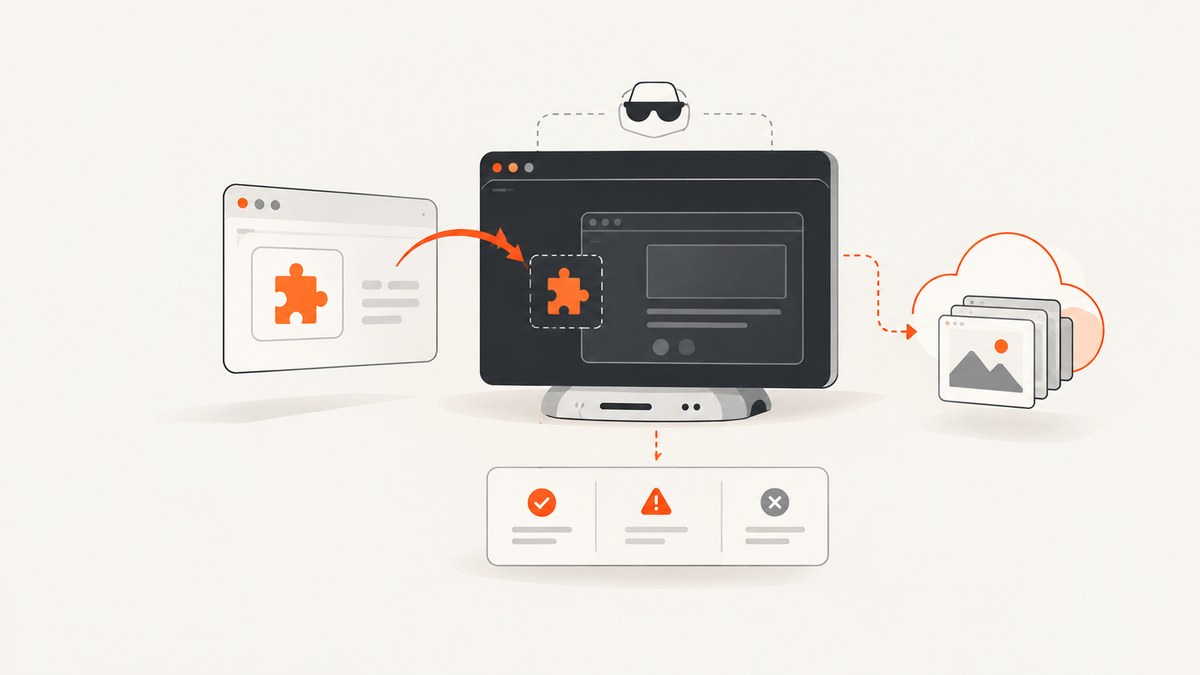
Yes. Browser extensions can run in headless automation, but only with the browser mode and launch profile that support extension loading. In Playwright, use Chromium with a persistent context and the chromium channel for the documented headless setup. In Chrome itself, use the new headless implementation (--headless=new); the old headless implementation cannot load extensions. Treat these as version-sensitive setup rules and verify the exact browser build in CI.
This guide explains the working configurations, provides complete code, covers Manifest V3 service-worker behavior, and shows how to diagnose failures. The examples use JavaScript because Playwright’s extension documentation is JavaScript-friendly, followed by equivalent launch ideas for Chrome-driven tools.
What headless extension support actually means
Headless is an execution mode, not a separate extension API. The browser still has to create an extension context, load the manifest, install background code, and expose extension APIs. Some automation frameworks start a special headless shell that is not the same binary as regular Chromium. That distinction matters: Playwright documents a default headless shell when no channel is selected, while its extension example uses bundled Chromium with the chromium channel.
There are four practical choices:
| Setup | Use when | Key constraint |
|---|---|---|
| Playwright default headless shell | You do not need an extension | Do not assume it can load extensions; it is a separate shell. |
| Playwright Chromium channel + persistent context | Headless extension tests in Playwright | Provide an extension directory and a persistent user-data directory. |
| Chrome new headless | Testing the Chrome build your users run | Launch with --headless=new; old headless does not load extensions. |
| Headed Playwright | Visual debugging or extension development | Requires a display unless your CI supplies a virtual display. |
Playwright recommends its bundled Chromium for extension work because Chrome and Edge removed the command-line flags needed to side-load unpacked extensions. Follow the current Playwright extension guide and browser-mode documentation for the release you install.
Prepare an unpacked Manifest V3 extension
Headless automation loads an unpacked extension directory. The directory must contain a valid manifest.json. This minimal Manifest V3 example adds a service worker and a content script:
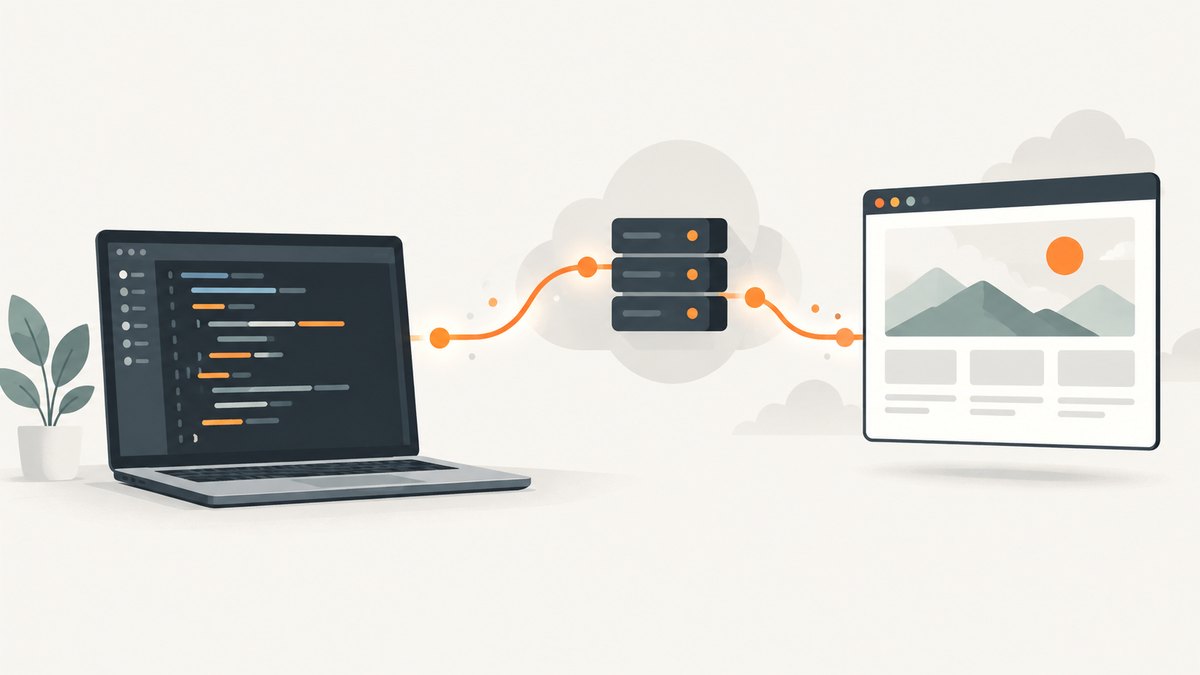
{"manifest_version":3,"name":"Headless test extension","version":"1.0.0","permissions":["storage"],"host_permissions":["https://example.com/*"],"background":{"service_worker":"background.js"},"content_scripts":[{"matches":["https://example.com/*"],"js":["content.js"],"run_at":"document_idle"}]}// background.js
chrome.runtime.onInstalled.addListener(() => {
chrome.storage.local.set({ installedAt: Date.now() });
});
// content.js
chrome.storage.local.get('installedAt').then(({ installedAt }) => {
document.documentElement.dataset.extensionLoaded = installedAt ? 'true' : 'false';
});Keep the extension directory readable by the process running the browser. Use absolute paths so a CI working-directory change cannot silently point at the wrong folder. If your extension has a popup, options page, or web-accessible resources, include those files in the same directory and test their URLs separately.
Run an extension in Playwright headlessly
The documented shape is a persistent context, an extension path, and the chromium channel. A persistent context gives Chromium a user-data directory where the extension can be installed and where its storage survives across pages in that run.
import { chromium } from 'playwright';
import path from 'node:path';

const extensionPath = path.resolve('extension');
const userDataDir = path.resolve('.pw-user-data');

const context = await chromium.launchPersistentContext(userDataDir, {
  channel: 'chromium',
  headless: true,
  args: [
    `--disable-extensions-except=${extensionPath}`,
    `--load-extension=${extensionPath}`
  ]
});

try {
  const page = await context.newPage();
  await page.goto('https://example.com', { waitUntil: 'networkidle' });
  const loaded = await page.locator('html').getAttribute('data-extension-loaded');
  console.log({ loaded });
} finally {
  await context.close();
}
Run it with a current Playwright installation and the bundled browser available in the environment. The extension guide’s exact sample should be your reference if option names change. For headed debugging, set headless: false; the persistent context and extension arguments stay the same.
Find the extension service-worker target
When you need to call background code directly, inspect the context’s service-worker list. The worker may not exist until the extension starts, so wait for it with a timeout and log its URL:
const worker = context.serviceWorkers()[0] ??
  await context.waitForEvent('serviceworker', { timeout: 10000 });
console.log(worker.url());
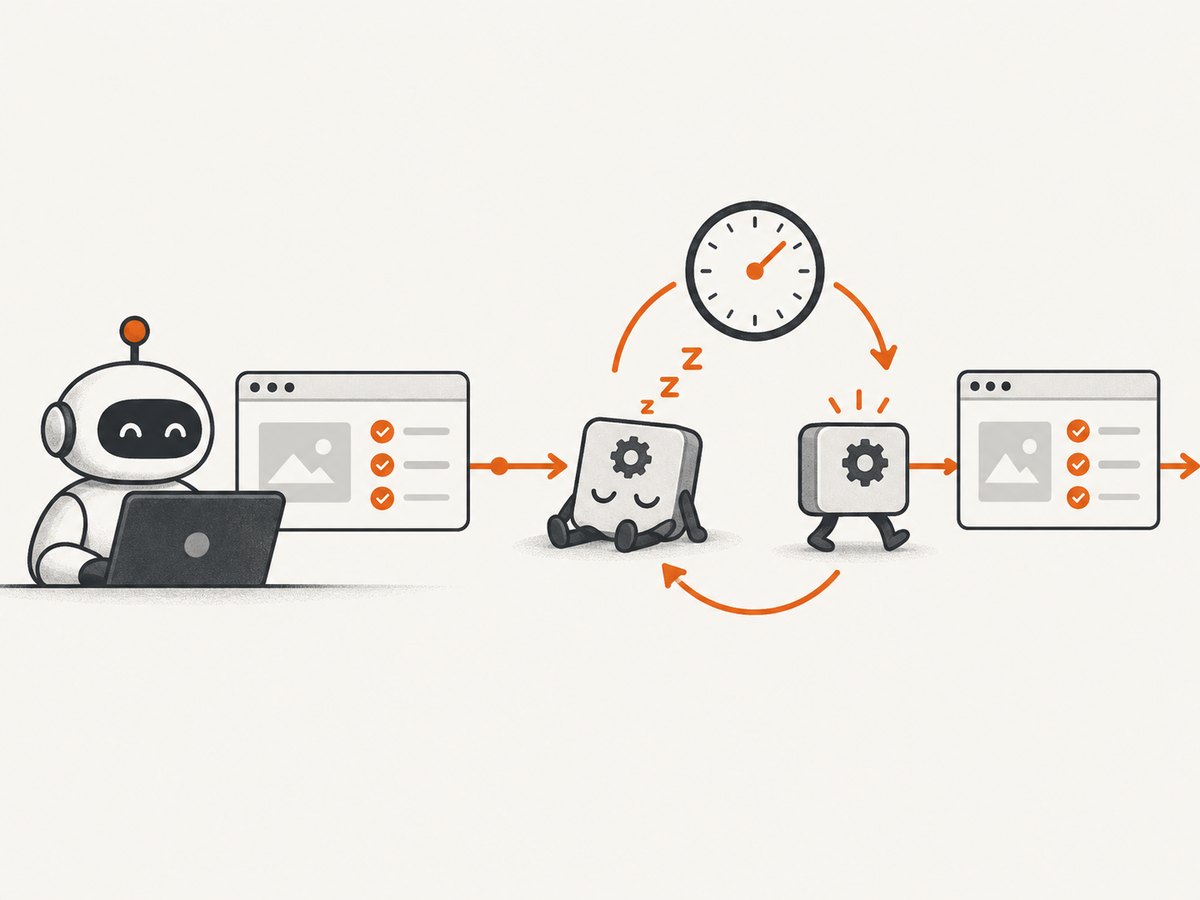
Do not treat a worker restart as an extension installation failure. Playwright documents that Manifest V3 service workers suspend after 30 seconds of inactivity and can restart. An in-flight evaluate() can fail if suspension happens at that moment; design the test to reacquire the worker and retry the operation that is safe to retry.
Use Chrome’s new headless mode
When driving Chrome directly, Chrome for Developers instructs extension testers to use the new headless mode. The important flag is:
google-chrome \
  --headless=new \
  --no-sandbox \
  --disable-extensions-except=/abs/path/extension \
  --load-extension=/abs/path/extension \
  --user-data-dir=/tmp/chrome-extension-profile \
  https://example.com
Only add --no-sandbox when your container policy requires it; running with the sandbox enabled is preferable when possible. Chrome’s end-to-end testing guidance says old headless cannot load extensions and describes new headless as suitable for unattended environments. Re-check the current Chrome documentation and the installed version before pinning flags in CI.
Selenium is listed by Chrome’s documentation as an extension-testing option, but the cited guidance does not define a complete Selenium capability object. Configure the Chrome binary and arguments through the Selenium version you use, then verify that the resulting session is using new headless and a writable profile.
Validate that the extension, not the page, did the work
A passing page navigation does not prove that the extension loaded. Add an observable signal that your test owns:
- A data attribute written by a content script.
- A DOM change that only the extension can create.
- A message exchanged with the background service worker.
- A storage value read through the extension’s own API.
Also capture browser console output and page errors. A missing host permission, a syntax error in the worker, or a content-script match pattern that excludes the target URL can otherwise look like a normal page.
page.on('console', message => console.log('[browser]', message.type(), message.text()));
page.on('pageerror', error => console.error('[pageerror]', error));

await page.goto('https://example.com');
await page.waitForFunction(() =>
  document.documentElement.dataset.extensionLoaded === 'true'
);
Common failure modes and fixes
| Symptom | Likely cause | Fix |
|---|---|---|
| Extension is absent in headless mode | Playwright launched its default headless shell or Chrome used old headless. | Use a persistent context with the chromium channel, or launch Chrome with --headless=new. |
| Could not load extension | Path is relative, unreadable, or missing manifest.json. |
Resolve an absolute path, check permissions, and validate the manifest before launch. |
| Content script never runs | The URL does not match matches, or host permissions are missing. |
Adjust match patterns and host permissions; verify the final URL after redirects. |
| Service worker target disappears | Manifest V3 idle suspension. | Wait for a new service-worker event and retry safe operations; do not assume installation failed. |
| Evaluate call fails intermittently | The worker suspended during the call. | Shorten the operation, reacquire the worker, and retry with bounded backoff. |
| Works headed but not in CI | Different browser build, missing bundled browser, profile permissions, or sandbox policy. | Pin the Playwright/browser versions, install dependencies in the image, use a writable profile, and log launch details. |
| State leaks between tests | Reusing one persistent profile. | Give each test or suite an isolated user-data directory and remove it after the run. |
CI, performance, and reliability practices
Pin the moving parts
Extension support depends on the automation library, browser channel, browser build, and extension manifest. Record all four in CI artifacts. Run a small smoke test that checks the extension signal before the full suite. When upgrading Playwright or Chrome, run the smoke test in the same image used for production tests.
Keep profiles isolated and disposable
A persistent context is required for the Playwright extension workflow, but persistence does not mean a profile must live forever. Use a unique temporary directory per worker. This prevents cookies, service-worker state, and extension storage from making tests order-dependent. If you intentionally test retained state, make that a separate scenario with an explicitly retained profile.
Control waits
Prefer a specific readiness condition: a locator, a service-worker event, or a network response your extension needs. A long fixed delay increases runtime and still fails when a slow CI host needs more time. Use navigation timeouts and bounded retries so a suspended worker or transient page load cannot hang the job indefinitely.
Measure the right thing
The cited documentation provides no comparative benchmarks. Measure your own pipeline: browser startup time, extension installation time, navigation time, worker restart count, and failure rate by browser version. Compare headed and headless runs only after holding the browser build, page, network conditions, and extension version constant.
Security and permissions checklist
- Grant only the host permissions and API permissions the extension needs.
- Keep test credentials and cookies out of committed profiles.
- Use a dedicated profile directory; never point automation at a developer’s real Chrome profile.
- Review
--load-extensionpaths in CI logs so an untrusted checkout cannot load an unexpected directory. - Run with the browser sandbox enabled unless your execution environment requires a documented exception.
Or skip the browser setup
If your goal is a clean image or PDF of a web page rather than testing extension behavior, ScreenshotNeo provides a hosted screenshot API. One GET request returns PNG, JPEG, WebP, or PDF. It handles the browser launch for you:
curl -G "https://api.screenshotneo.com/v1/shot" -d access_key=YOUR_API_KEY --data-urlencode url=https://stripe.com -o shot.webpimport requests
r = requests.get("https://api.screenshotneo.com/v1/shot", params={"access_key": "YOUR_API_KEY", "url": "https://stripe.com"}, timeout=90)
open("shot.webp", "wb").write(r.content)const q = new URLSearchParams({ access_key: 'YOUR_API_KEY', url: 'https://stripe.com' });
const res = await fetch(`https://api.screenshotneo.com/v1/shot?${q}`);See the ScreenshotNeo API documentation for response formats and options. Before capture it accepts cookie or consent banners and removes more than 60 known consent platforms, newsletter popups, and chat widgets; each step can be turned off. Bot checks or CAPTCHAs, blank pages, timeouts, failed loads, and cache hits cost nothing, and the response identifies the result with X-Page-Verdict and X-Billed headers. An MCP server exposes take_screenshot, get_page_info, and capture_pdf to Claude, Cursor, and other MCP clients.
For extension-free capture workflows, you can also select an element by CSS selector, load lazy images in full-page shots, set dark mode, choose one of 12 device presets or any viewport, set retina scale, add custom CSS or JavaScript, click an element, wait for a selector, delay, or network idle, block ads, trackers, requests, or resource types, provide headers, cookies, user-agent, Authorization, timezone, and geolocation, use transparent backgrounds, resize images, choose a cache TTL, create signed public-image links, run async jobs with signed webhooks, capture up to 100 URLs per call, query usage, and use the OpenAPI spec. PDF options include paper size, margins, landscape, and page ranges. The parameter names used by other screenshot APIs also work to ease migration.
The Free plan includes 1,000 shots each month with no card. Paid plans start at $5 for 3,000 shots; yearly billing gives two months free, and every feature is on every plan. Create a free ScreenshotNeo account and start with the 1,000 monthly shots.
FAQ
Can every Chrome extension run headlessly?
No. The documented setup enables loading, but extension APIs, permissions, browser versions, and CI images still differ. Validate the exact extension workflow you depend on.
Why is a persistent context required in Playwright?
Playwright’s extension guide uses a persistent context so Chromium has a user-data directory for the unpacked extension and its state.
Should I use the default Playwright headless mode?
Use it only when you do not need extension loading. For extensions, follow the guide’s bundled Chromium plus chromium channel setup.
Does a service-worker restart mean the extension crashed?
Not necessarily. Manifest V3 workers suspend after inactivity and restart. Observe the lifecycle and reacquire the worker when needed.
When is a hosted screenshot API a better fit?
Use one when you need repeatable page images or PDFs and do not need to exercise extension code, browser permissions, or extension UI. ScreenshotNeo removes common consent and overlay clutter and bills only clean shots.


