How to Take a Browser Screenshot With JavaScript
Learn when to use html2canvas, Playwright, Puppeteer, or CDP, with runnable JavaScript code, troubleshooting, and a hosted API option.
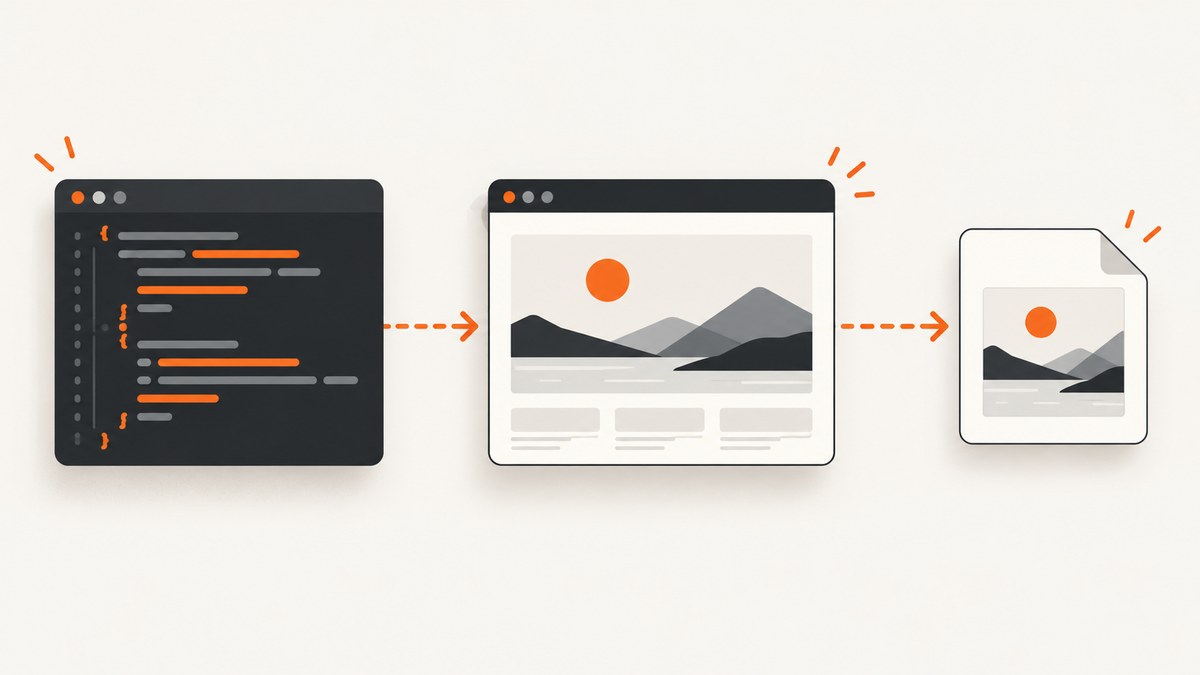
There are two different ways to take a browser screenshot with JavaScript:
- Run code in the page and render a DOM element with
html2canvas. This creates a canvas reconstruction, not a pixel-perfect capture of the browser surface. - Control a browser from Node.js with Playwright, Puppeteer, or the Chrome DevTools Protocol (CDP). These tools capture the rendered page, a viewport, a full page, or a selected element.
Use html2canvas for a user-triggered export inside a web app. Use Playwright or Puppeteer for tests, build jobs, server-side automation, and reliable page captures.
Choose the right JavaScript screenshot method
| Method | Runs where | Captures | Best fit | Main limitation |
|---|---|---|---|---|
| html2canvas | Inside the page | DOM-based canvas rendering | Exporting an element from a web app | Not an actual browser pixel screenshot; CSS and origin restrictions apply |
| Playwright | Node.js controlling a browser | Viewport, full page, or locator | Tests and server workflows | Requires browser automation setup |
| Puppeteer | Node.js controlling Chrome | Browser screenshots and PDFs | Chrome-oriented automation | Also requires a managed browser process |
| Chrome DevTools Protocol | Browser automation client | Encoded screenshot bytes with format and clip options | Lower-level Chrome control | Protocol integration is version-sensitive |
For browser extensions, use the browser’s native tab screenshot API rather than html2canvas: chrome.tabs.captureVisibleTab() in Chromium browsers or browser.tabs.captureVisibleTab() in Firefox.
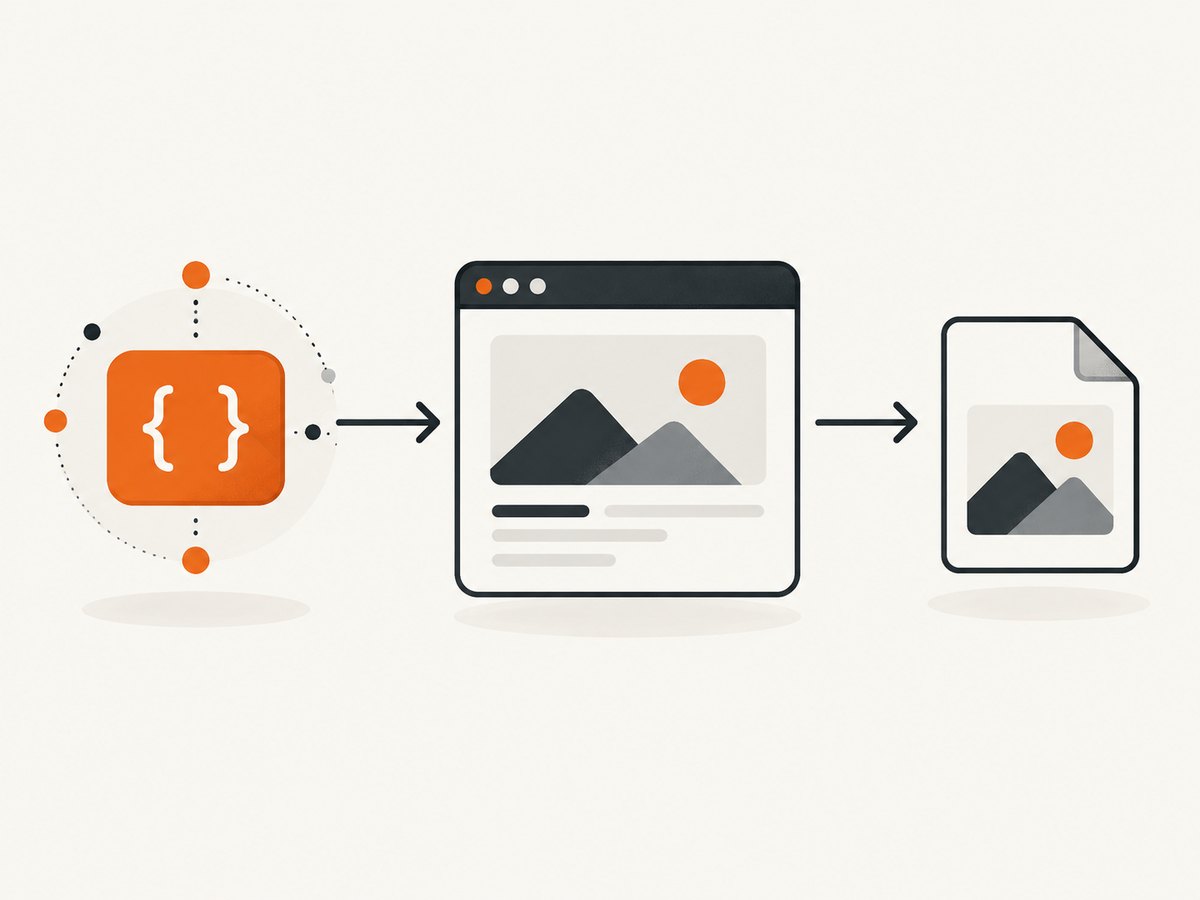
Take an in-page screenshot with html2canvas
Install the package:
npm install @html2canvas/html2canvasThen pass a DOM element to html2canvas(). The promise resolves to a canvas.
import html2canvas from '@html2canvas/html2canvas';

const element = document.querySelector('#capture');
if (!element) throw new Error('Missing #capture element');

const canvas = await html2canvas(element);
document.body.appendChild(canvas);
To download a PNG, convert the canvas to a data URL and click a temporary link:
import html2canvas from '@html2canvas/html2canvas';

async function downloadElement() {
  const element = document.querySelector('#capture');
  if (!element) throw new Error('Missing #capture element');

  const canvas = await html2canvas(element);
  const link = document.createElement('a');
  link.download = 'capture.png';
  link.href = canvas.toDataURL('image/png');
  link.click();
}

document.querySelector('#download')?.addEventListener('click', downloadElement);
This follows the html2canvas project flow: element, promise, canvas, then an export such as toDataURL(). See the html2canvas getting-started documentation and its FAQ.
What html2canvas can and cannot capture
html2canvas walks the DOM and reconstructs a representation from properties it can read. It does not copy the browser’s already-rasterized pixels, so unsupported CSS, complex effects, and browser rendering differences can change the result.
- Use it when an approximation of a selected element is acceptable.
- Wait until fonts, images, and application data are present before calling it.
- Same-origin images are the straightforward case. Cross-origin images can taint the canvas or be unavailable.
- Cross-origin iframes remain protected by browser security rules. A library cannot bypass those rules.
- A proxy can be part of a separately secured architecture, but it is not a way to bypass access controls.
- Canvas size limits vary by browser and platform, so very large elements may fail or be truncated.
Capture a page with Playwright
Playwright controls a real browser from Node.js. Install the package and its browsers:
npm install -D playwright
npx playwright install chromium
Create screenshot.mjs:
import { chromium } from 'playwright';

const browser = await chromium.launch();
const page = await browser.newPage({
  viewport: { width: 1440, height: 900 },
  deviceScaleFactor: 1
});

await page.goto('https://example.com', { waitUntil: 'networkidle' });
await page.screenshot({ path: 'page.png' });

await browser.close();
Run it with node screenshot.mjs. Playwright documents page.screenshot(), full-page capture, locator screenshots, and returning bytes when no path is supplied.
Viewport, full-page, and element screenshots
// Visible viewport only
await page.screenshot({ path: 'viewport.png' });

// Entire scrollable page
await page.screenshot({ path: 'full-page.png', fullPage: true });

// One element selected by a locator
await page.locator('.header').screenshot({ path: 'header.png' });

// Keep the bytes in memory instead of writing a file
const pngBytes = await page.screenshot();
Choose the capture scope deliberately. A viewport screenshot matches what a user sees at one scroll position. A full-page screenshot stitches the page’s scrollable content. A locator screenshot isolates one component.
Wait for the state you need
await page.goto('https://example.com/dashboard', { waitUntil: 'domcontentloaded' });
await page.locator('[data-ready="true"]').waitFor();
await page.screenshot({ path: 'dashboard.png', fullPage: true });
Use a selector that represents the finished state instead of relying only on a fixed delay. If a page has animations, disable or finish them before capture so repeated runs are more stable.
Capture with Puppeteer
Puppeteer is a JavaScript browser automation library focused on Chrome. Install it with:
npm install puppeteerimport puppeteer from 'puppeteer';
const browser = await puppeteer.launch();
const page = await browser.newPage();
await page.setViewport({ width: 1440, height: 900 });
await page.goto('https://example.com', { waitUntil: 'networkidle0' });
await page.screenshot({ path: 'page.png', fullPage: true });
await browser.close();The html2canvas FAQ points to Puppeteer or Playwright when screenshot generation must happen server-side. Puppeteer automates a browser; it is not a drop-in replacement for an in-page DOM library.
Use Chrome DevTools Protocol for lower-level capture
CDP’s Page.captureScreenshot method returns base64-encoded image data. It supports PNG, JPEG, and WebP formats, JPEG quality, clipping, and capture beyond the viewport. A CDP client must first connect to a browser and enable the Page domain.
import { chromium } from 'playwright';
import { writeFile } from 'node:fs/promises';

const browser = await chromium.launch();
const page = await browser.newPage({ viewport: { width: 1280, height: 800 } });
await page.goto('https://example.com', { waitUntil: 'networkidle' });

const session = await page.context().newCDPSession(page);
const result = await session.send('Page.captureScreenshot', {
  format: 'webp',
  quality: 85,
  captureBeyondViewport: true
});

await writeFile('page.webp', Buffer.from(result.data, 'base64'));
await browser.close();
Use CDP when you need protocol-level control. For ordinary automation, Playwright or Puppeteer provides a simpler API.
Common errors and fixes
| Symptom | Likely cause | Fix |
|---|---|---|
| Canvas is blank or missing images | Images are cross-origin or the canvas is tainted | Serve assets from the same origin or use a carefully secured proxy; do not expect a library to bypass browser policies. |
| Screenshot is taken before content appears | Capture ran before data, fonts, or images finished loading | Wait for a meaningful selector, an explicit application-ready state, or the relevant load condition. |
| Full-page output is clipped | Page layout or browser canvas limits | Capture a smaller region, split the page, or use a browser automation screenshot instead of one huge in-page canvas. |
| Playwright cannot find Chromium | Browser binaries were not installed | Run npx playwright install chromium in the deployment environment. |
| Fonts differ between runs | Font files are unavailable or still loading | Make fonts available to the browser and wait for the page’s ready condition before capture. |
| Dynamic content changes between captures | Animations, ads, clocks, or random data | Freeze test data, disable animations, block unnecessary resources, and capture at a defined state. |
| Node process hangs | Browser was not closed after an exception | Put browser cleanup in a finally block and close pages and contexts explicitly. |
| CDP method fails | Protocol version or browser mismatch | Use a compatible browser and client version, or switch to the higher-level Playwright API. |
Performance, reliability, and cost considerations
Performance
- Reuse a browser process for batches of URLs, while creating isolated contexts or pages for each job.
- Set the viewport and device scale factor intentionally; larger dimensions produce more pixels and larger files.
- Capture a locator when you need one component instead of rendering an entire long page.
- Wait for the smallest reliable readiness signal. A long fixed delay slows every job and still may miss late content.
- Use WebP or JPEG when your pipeline values smaller files over lossless PNG output.
Reliability
- Use deterministic URLs, test data, timezone, locale, and viewport settings.
- Retry transient navigation failures with a bounded retry count and a fresh page when appropriate.
- Record the URL, viewport, wait condition, browser version, and error so a failed image can be reproduced.
- Protect credentials and cookies; do not print authorization headers or session data in logs.
Cost
Self-hosted Playwright and Puppeteer consume your compute, browser storage, bandwidth, and operational time. A hosted screenshot API trades browser maintenance for per-request pricing. Cache captures when the source page has not changed, and avoid recapturing identical URLs unnecessarily.
Or skip the browser setup
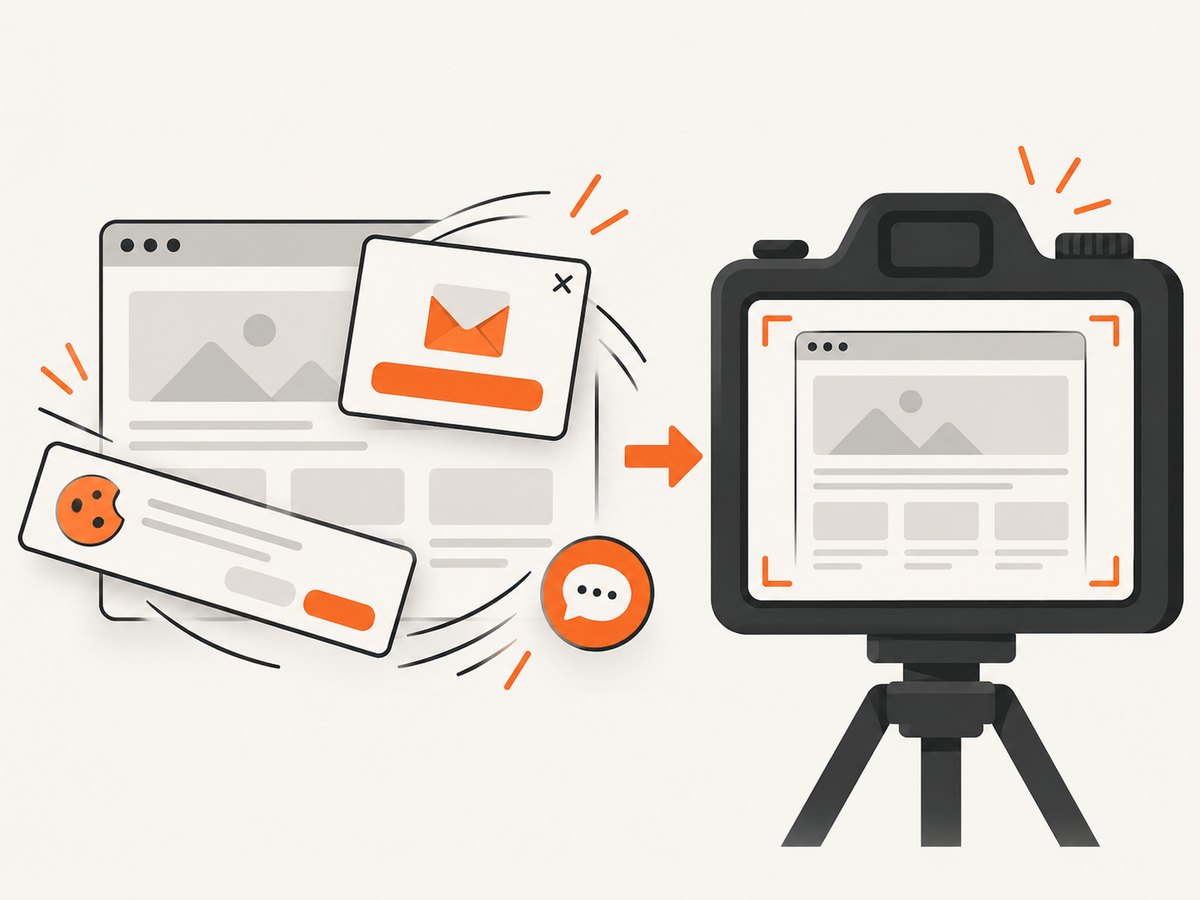
ScreenshotNeo provides a website screenshot API and MCP server. One request returns a PNG, JPEG, WebP, or PDF. Before capture, it accepts cookie and consent banners and removes more than 60 known consent platforms, newsletter popups, and chat widgets; each cleanup step can be turned off.
Only clean shots are billed. Bot checks or CAPTCHAs, blank pages, timeouts, failed loads, and cache hits cost nothing, and the response identifies the result with X-Page-Verdict and X-Billed headers. Its MCP server exposes take_screenshot, get_page_info, and capture_pdf for Claude, Cursor, and other MCP clients.
See the ScreenshotNeo API documentation for all options.
cURL
curl -G "https://api.screenshotneo.com/v1/shot" \
  -d access_key=YOUR_API_KEY \
  --data-urlencode url=https://stripe.com \
  -o shot.webp
Python
import requests

r = requests.get(
    "https://api.screenshotneo.com/v1/shot",
    params={"access_key": "YOUR_API_KEY", "url": "https://stripe.com"},
    timeout=90,
)
r.raise_for_status()
open("shot.webp", "wb").write(r.content)
Node.js
const q = new URLSearchParams({
  access_key: 'YOUR_API_KEY',
  url: 'https://stripe.com'
});

const res = await fetch(`https://api.screenshotneo.com/v1/shot?${q}`);
if (!res.ok) throw new Error(`Screenshot failed: ${res.status}`);
const bytes = Buffer.from(await res.arrayBuffer());
await import('node:fs/promises').then(fs => fs.writeFile('shot.webp', bytes));
ScreenshotNeo also supports full-page capture with lazy images loaded, CSS selector capture, dark mode, device presets or custom viewports, retina scale, custom CSS and JavaScript, clicks, selector or network-idle waits, blocked ads and trackers, headers, cookies, user agents, authorization, timezone, geolocation, transparent backgrounds, resizing, chosen cache TTLs, signed image links, asynchronous jobs with signed webhooks, bulk capture of up to 100 URLs per call, a usage API, and an OpenAPI specification. Parameter names used by other screenshot APIs also work, which can simplify migration.
The Free plan includes 1,000 screenshots per month with no card. Paid plans start at $5 for 3,000 screenshots; yearly billing gives two months free, and every feature is available on every plan. Create a free ScreenshotNeo account.
FAQ
Can browser JavaScript capture the exact pixels already on screen?
Code running in a normal page cannot directly read the browser surface. html2canvas reconstructs a DOM-based image. Use Playwright, Puppeteer, CDP, or a browser extension API when you need browser-level capture.
Should I use Playwright or Puppeteer?
Both automate browsers from Node.js. Choose the API and browser support that fit your existing workflow; Playwright documents page, full-page, and locator screenshots directly.
How do I screenshot only one element?
Use html2canvas(document.querySelector(...)) in the page, page.locator(selector).screenshot() in Playwright, or the equivalent element selection in your automation code.
Can html2canvas capture a cross-origin iframe?
No. Browser security rules prevent page scripts from reading a cross-origin iframe’s contents.
What format should I choose?
Use PNG for lossless UI and text, JPEG for smaller photographic images, and WebP when supported by your downstream tools and you want a compact file.


