How to Capture Screenshots at Each Step and Record a Full Session with Browser-Use
Save viewport screenshots at important Browser-Use checkpoints and record the complete browser session. Learn the recording lifecycle, file handling, troubleshooting, and when to use each capture.

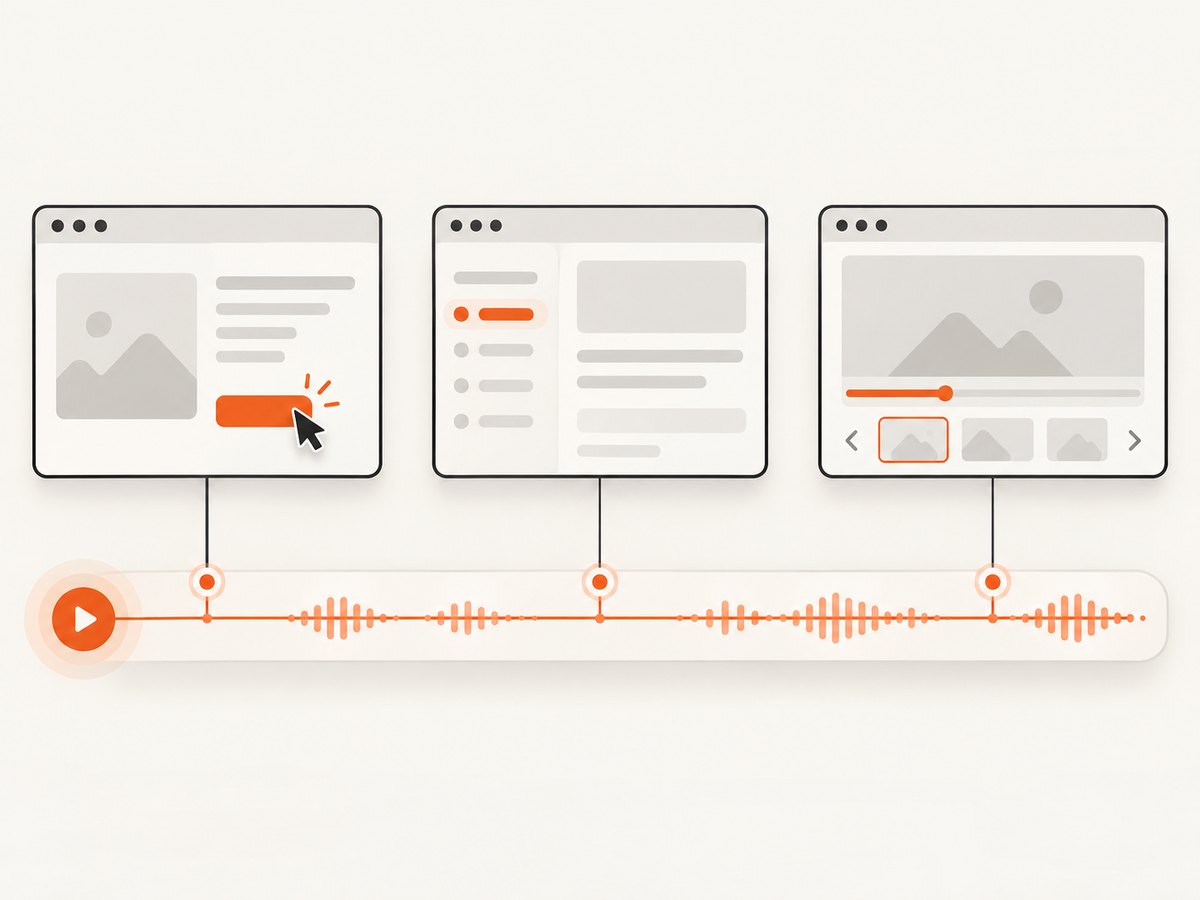
To keep a screenshot of each important state and a record of the broader Browser-Use session, use two capture mechanisms: start session recording before browser work, then call capture_screenshot() after each meaningful step you want to inspect later. Verify the task result and call stop_recording() when finished. Keep the recording directory returned by start_recording(); it identifies where the session artifacts were written.
A screenshot is a still image of a checkpoint. A session recording preserves activity over time. One does not replace the other: use screenshots when you need specific, easy-to-review states, and recording when you need continuity across the workflow. Browser Use recording is opt-in on fresh installs, so explicitly enable it before starting if you need the full session.
1. Choose what to capture
| Capture | What it gives you | Use it for |
|---|---|---|
| Viewport screenshot | A PNG of the currently visible browser viewport | Checkpoints such as a loaded page, an opened menu, a submitted form, or a confirmation state |
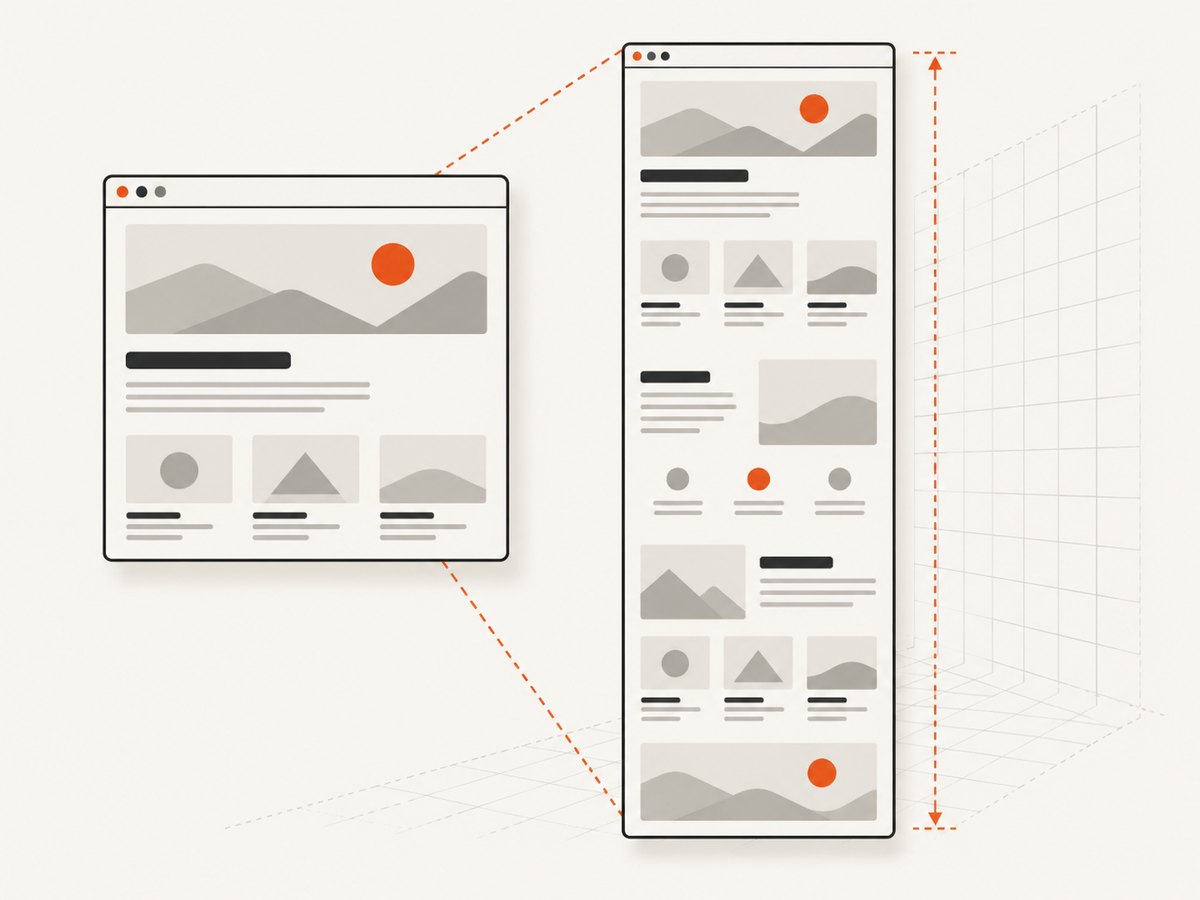
| Full-page screenshot | A taller image that includes content below the viewport | Reviewing a long page or documenting content not visible without scrolling |
| Session recording | A record of the browser activity across the task | Reviewing sequence and continuity, particularly when a still image does not show how a state was reached |
Use a checkpoint after a meaningful action or after verifying that the intended state appeared. Capturing after every tiny operation can create a noisy artifact folder without making the workflow easier to understand. Conversely, a recording alone may make it slower to locate a particular final state. For important workflows, keep both.
2. Start recording before the browser work
Call start_recording() before navigating, clicking, or otherwise interacting with the browser. Give the recording a descriptive name and title, then retain its returned directory. That directory is how you associate the resulting artifacts with the task later.
The project guidance describes the recording lifecycle and the function names below, but does not establish that one exact combination of imports and signatures works across every Browser-Use Python release. Treat this as a workflow sketch: check your installed version’s API and adapt the setup and calls to that version.
# Workflow sketch: check the API for your installed Browser-Use version.
# The recording and screenshot function names shown here are from
# Browser Use project guidance; browser setup is intentionally omitted.

recording_dir = start_recording("checkout-flow", title="Checkout flow")
try:
    # Start browser work only after recording has started.
    # Navigate, interact, and verify each important state.

    capture_screenshot("screenshots/step-01-start.png", max_dim=1800)

    # Perform the next meaningful action, then verify its result.
    capture_screenshot("screenshots/step-02-result.png", max_dim=1800)
finally:
    stop_recording()

print(f"Session artifacts: {recording_dir}")
This is not drop-in Python for every release: it assumes the functions are available in your execution context and that the shown arguments are supported. Consult the current Browser Use project guidance and the API for the version you installed before turning the sketch into application code. The key ordering is stable in the documented workflow: start, perform browser work and take checkpoints, verify, then stop.
3. Capture a screenshot at each useful checkpoint
Call capture_screenshot() after the page has reached the state worth preserving. The documented capture is a PNG of the current viewport. When the workflow accepts a destination path, use explicit filenames with a step number and short description. This keeps images in task order when sorted by name.
capture_screenshot("screenshots/step-01-product-page.png", max_dim=1800)
# Navigate or interact, then confirm the expected state.
capture_screenshot("screenshots/step-02-cart-open.png", max_dim=1800)
# Submit or continue, then confirm the result.
capture_screenshot("screenshots/step-03-confirmation.png", max_dim=1800)
Create the destination directory before capture if your runtime does not create parent directories automatically. Use a separate directory per run, or include a run identifier in the path, so a repeated task does not silently mix old images with new ones. If the installed API does not take a positional path, use the corresponding documented option for that version rather than assuming this example’s signature.
Viewport size and image dimensions
Screenshot dimensions are in device pixels, which can be larger than the browser’s CSS viewport dimensions on a high-density display. Browser Use screenshot guidance gives an example in which a 2296 × 1143 CSS viewport can produce a 4592 × 2286 PNG on a 2× display. That is expected: the image records device-pixel resolution.
Large screenshots take more storage and can be inconvenient to inspect or attach. The documented max_dim=1800 example downsizes large captures. Apply a limit when a smaller image is sufficient for review; preserve full resolution when you need to inspect fine visual details.
When to use full-page capture
Use full=True when the content below the fold matters. A full-page screenshot is larger and slower to capture than a viewport screenshot, so reserve it for pages where the extra height adds useful evidence. If you need to document a sequence of states, several viewport checkpoints may be easier to compare than multiple very tall images.
# Viewport checkpoint
capture_screenshot("screenshots/viewport.png", max_dim=1800)

# Full-page capture when below-the-fold content matters
capture_screenshot("screenshots/full-page.png", full=True, max_dim=1800)
As with the path argument, verify that your installed Browser-Use version supports the arguments shown. Do not assume an option documented for one release is available under another signature.
4. Stop recording and verify the artifacts
Stop the recording after the browser task has reached and verified its intended outcome. Use a finally block in scripted workflows so ordinary exceptions still trigger cleanup. Keep the directory returned when recording started, and inspect the produced artifacts to confirm they belong to the task you just ran.
- Confirm that the expected page or final state appeared.
- Take a final screenshot if that state needs a clear standalone image.
- Call
stop_recording(), including on error paths where possible. - Inspect the returned recording directory and confirm the artifacts correspond to this run.
- Match recording metadata and its event log to the task before using the recording for video production.
Browser Harness guidance says to check the exact recording, metadata, and event log before reviewing and exporting video. Do not reenact a completed task to create substitute footage: verify and use the actual recording associated with the task.
5. Complete workflow sketch
The following combines the recording lifecycle and checkpoint capture. Browser setup and imports are omitted because the documented function availability and signatures vary by execution surface and Browser-Use version. Add your version’s browser initialization and interaction code where indicated.
from pathlib import Path

# Ensure screenshot output has a destination.
Path("screenshots").mkdir(parents=True, exist_ok=True)

recording_dir = start_recording("checkout-flow", title="Checkout flow")
try:
    # Initialize or connect to the browser using your installed version's API.
    # Navigate to the task's starting page and verify it loaded.
    capture_screenshot("screenshots/step-01-start.png", max_dim=1800)

    # Perform one meaningful action. Verify the visible result.
    capture_screenshot("screenshots/step-02-after-action.png", max_dim=1800)

    # Complete the task and verify its final state.
    capture_screenshot("screenshots/step-03-final.png", max_dim=1800)
finally:
    stop_recording()

print("Recording directory:", recording_dir)
Before adopting this in a production automation, check the installed package version, imports, initialization API, recording controls, and screenshot signature against the matching project documentation. This sketch demonstrates the sequence; it does not claim compatibility with every release.
6. Troubleshooting
| Symptom | Likely cause | What to do |
|---|---|---|
| No recording artifacts appear | Recording is opt-in on fresh installs, or recording was started after browser work | Enable recording using the project’s recording controls or process override. Start it before the first browser action, then inspect the returned directory. |
| The recording omits the beginning | start_recording() ran after navigation or interaction began |
Move recording startup to the beginning of the task and rerun the task if a complete new session is required. |
| A screenshot is missing or saved somewhere unexpected | The path argument or working directory differs from the assumption | Check the capture call supported by your installed version, create the destination directory, and use an explicit path under the task’s output directory. |
| The screenshot looks too large | Device-pixel output can exceed CSS viewport dimensions; a full-page image is taller still | Use the documented max_dim=1800 example to downscale, or capture the viewport instead of the full page when below-the-fold content is unnecessary. |
| The screenshot does not show the expected state | Capture happened before navigation, rendering, or the action completed | Wait for the expected page state using your version’s browser controls, verify it is visible, and capture afterward. |
| Unexpected argument or import error | The snippet’s signature does not match the installed release or execution surface | Check the current API for that exact version. The workflow function names are documented, but this combined example is not guaranteed to be drop-in. |
| Recording remains incomplete after an exception | The task exited before the normal stop call | Put cleanup in a finally block and inspect the output directory after the run. |
| Video does not match the task | The wrong recording directory was reviewed, or substitute footage was created | Verify the exact recording’s metadata and event log against the task before review or export. |
7. Performance, reliability, and storage
Each additional checkpoint adds an image to store, move, or review. Capture states that answer a question: did navigation finish, did the menu open, did the form submit, did the confirmation appear? This usually produces a more useful record than taking images after every low-level action.
Full-page capture increases image dimensions and capture time. High-density displays can also produce larger-than-expected PNGs. Use a dimension limit for routine review, and keep full-resolution or full-page images only when they preserve information the smaller capture would lose.
For reliable session evidence, start recording before activity, keep the returned directory, and always stop after verifying the outcome. If the task fails, preserve the failure artifacts when available and record which step failed; do not label a partial session as a completed result. Before sharing screenshots or recordings, inspect them for account data, personal information, or other sensitive page content.
8. Browser Use and Playwright video are separate workflows
Playwright CLI documents video-start and video-stop for its WebM capture workflow. Its documentation distinguishes video, which shows visual activity, from tracing, which can include DOM snapshots, network activity, console information, and actions. Those commands describe Playwright; they are not Browser-Use APIs. For Browser Use, follow its own recording controls and screenshot reference.
Or skip the browser setup
If you need a screenshot of a URL rather than evidence of an interactive Browser-Use session, ScreenshotNeo is a website screenshot API and MCP server. Its API takes a URL and returns an image or PDF. It does not replace session recording or per-action browser checkpoints, but it avoids setting up a browser for a straightforward page capture. See the ScreenshotNeo documentation for request options.
curl -G "https://api.screenshotneo.com/v1/shot" -d access_key=YOUR_API_KEY --data-urlencode url=https://stripe.com -o shot.webpimport requests
r = requests.get(
"https://api.screenshotneo.com/v1/shot",
params={"access_key": "YOUR_API_KEY", "url": "https://stripe.com"},
timeout=90,
)
open("shot.webp", "wb").write(r.content)const q = new URLSearchParams({ access_key: 'YOUR_API_KEY', url: 'https://stripe.com' });
const res = await fetch(`https://api.screenshotneo.com/v1/shot?${q}`);
if (!res.ok) throw new Error(`Screenshot request failed: ${res.status}`);
await Bun.write("shot.webp", res);Replace the example URL with the page you want. The Node.js example uses Bun’s file writer to save the response; in Node.js, write the response bytes with await import('node:fs/promises').then(fs => fs.writeFile('shot.webp', Buffer.from(await res.arrayBuffer()))) inside an async function.
- Cookie and consent banners are accepted like a visitor; more than 60 known consent platforms, newsletter popups, and chat widgets are removed before capture, and each step can be turned off.
- Bot checks, blank pages, timeouts, failed loads, and cache hits are not billed; response headers say which page verdict applied and whether the request was billed.
- An MCP server gives AI agents tools for screenshots, page information, and PDF capture.
- The Free plan includes 1,000 shots per month with no card. Paid plans start at $5 for 3,000 shots; all features are on every plan.
Sign up for 1,000 free screenshots a month, with no card required.
FAQ
Does recording automatically save a screenshot after every action?
No. The documented workflow uses explicit capture_screenshot() calls for the still images you want to keep. Start recording separately to preserve the broader session.
Do I need full-page screenshots for a complete session?
No. Full-page capture includes content below the fold in one image; session recording covers activity over time. Choose each based on whether you need page coverage or sequence.
Can I use the example unchanged with any Browser-Use release?
The project guidance establishes the lifecycle and function names, not universal compatibility for the exact combined Python signature. Check the API for your installed version.
What should I keep if I need to review a task later?
Keep the returned recording directory, the relevant checkpoint PNGs, and enough task context to identify what each run was intended to do.


