Capture Full-Height Screenshots from BrowserStack with Nightwatch
Nightwatch screenshots are viewport captures by default. Learn the reliable BrowserStack and Percy workflow for full-page images, limits, fixes, and a simpler API option.
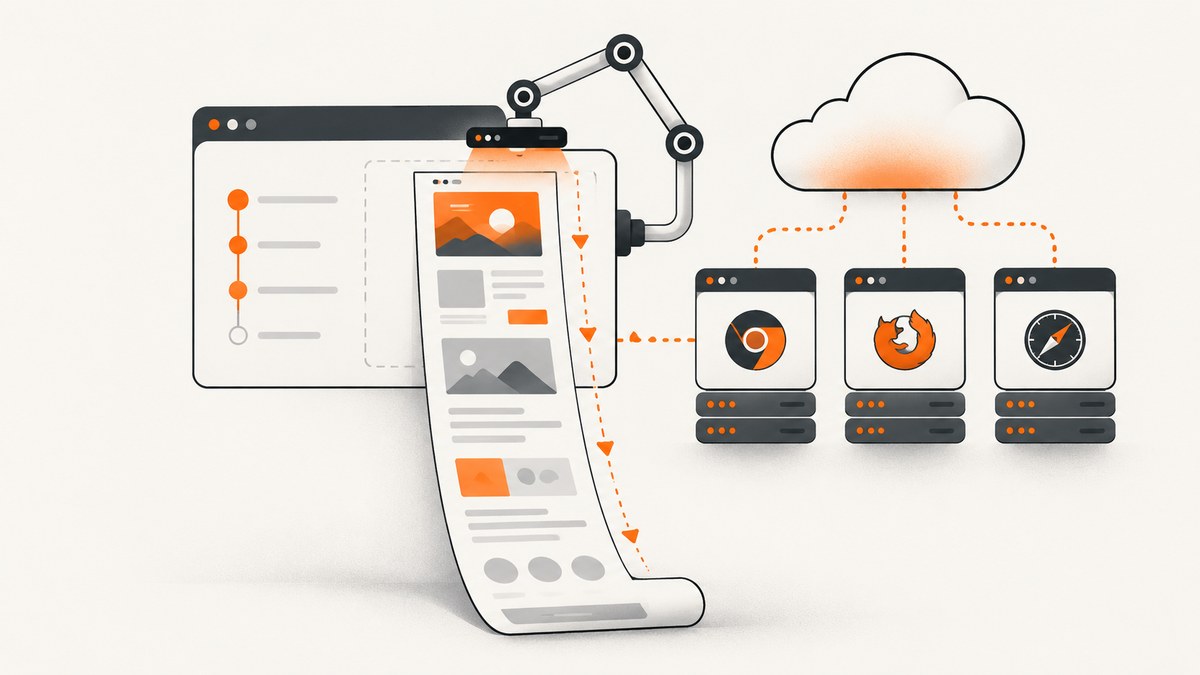
Direct answer: Nightwatch’s documented .screenshot() and .saveScreenshot() commands capture the current page, but they do not document a full-document-height option. Running Nightwatch on BrowserStack Automate does not add one. For a full-page web image, BrowserStack documents a separate Percy workflow whose snapshot call accepts fullPage: true. Treat that as Percy functionality, and verify that the Percy client and your BrowserStack session setup support the exact integration you plan to run.
This guide explains the boundaries between Nightwatch, BrowserStack Automate, Percy, BrowserStack Screenshots, and App Percy; shows a dependable capture workflow; covers lazy loading, animations, popups and overflow clipping; and gives a URL-based alternative with ScreenshotNeo.
What Nightwatch captures by default
Nightwatch’s .screenshot() command takes a screenshot of the current page. .saveScreenshot() writes that current-page capture to a filename. Neither API page documents a full-document-height parameter.
Element screenshots are narrower still. .element(selector).takeScreenshot() captures the visible region inside the element’s bounding rectangle. It is useful for a component assertion, but it is not a command for stitching an entire document.
BrowserStack’s Nightwatch integration runs the suite through remote WebDriver. Its configuration and debugging options help you inspect sessions and visual logs, but the integration documentation does not specify a full-height Nightwatch screenshot mode. Keep the test runner and the image-capture product as separate decisions.
Choose the capture path
| Path | Input | Full-page behavior | Use it when |
|---|---|---|---|
Nightwatch screenshot() or saveScreenshot() |
Active WebDriver page | Current page or viewport as documented | You need a point-in-time test artifact from the session |
| Percy with BrowserStack Automate | Web page in a Percy snapshot | fullPage: true; desktop limit is 10,000 pixels or 10 tiles, whichever is lower; mobile allows 10 tiles |
You need visual review and a documented full-page snapshot path |
| BrowserStack Screenshots API | Authenticated URL request with browser/OS choices | Separate URL-based product; do not assume it captures an active Nightwatch session | You want URL screenshots across configured browsers |
| App Percy | Mobile app session | Scroll-and-stitch, beta, maximum 10 screen lengths | You are testing an Appium mobile app, not a Nightwatch web page |
| ScreenshotNeo | One URL request | Full-page capture with lazy images loaded | You need an API result without maintaining browser infrastructure |
Set up Nightwatch on BrowserStack Automate
Start with BrowserStack’s Nightwatch integration instructions. Create BrowserStack credentials, configure the remote WebDriver endpoint and capabilities, then run a normal Nightwatch test. Keep credentials in environment variables rather than committing them.
Minimal Nightwatch configuration shape
module.exports = {
  src_folders: ['tests'],
  test_settings: {
    default: {
      webdriver: {
        start_process: false,
        host: 'hub-cloud.browserstack.com',
        port: 443
      },
      desiredCapabilities: {
        browserName: 'chrome',
        browserVersion: 'latest',
        platformName: 'Windows 11',
        'bstack:options': {
          userName: process.env.BROWSERSTACK_USERNAME,
          accessKey: process.env.BROWSERSTACK_ACCESS_KEY,
          buildName: 'nightwatch-full-page-check',
          sessionName: 'homepage'
        }
      }
    }
  }
};
Capability names and endpoint details can change with the integration version, so use the current BrowserStack setup page as the source of truth. Confirm that the session actually starts remotely before debugging image height.
Use Nightwatch for a viewport screenshot
This is the supported, simple path when a viewport image is sufficient:
module.exports = {
  'save the current page': async function (browser) {
    await browser
      .url('https://example.com')
      .waitForElementVisible('body', 10000);

    await browser.saveScreenshot('artifacts/example-viewport.png');
    await browser.end();
  }
};
If the file shows only the visible browser area, that is expected for the documented Nightwatch command. Do not “fix” it by assuming BrowserStack has silently enabled full-page stitching.
Use Percy’s documented full-page option
BrowserStack documents full-page snapshots for Percy with Automate. The relevant option is fullPage: true. Percy is a separate capture and visual-review path, not a newly added Nightwatch screenshot argument. Follow the Percy full-page documentation for the client package, authentication and session wiring that match your language.
// Illustrative Percy call: use the Percy client and BrowserStack
// integration version documented for your project.
await percySnapshot(page, 'Homepage', {
  fullPage: true
});
The exact function name and object shape depend on the Percy SDK you install. The stable documented concept is the fullPage option. Validate the resulting snapshot in your Percy dashboard and confirm that it is connected to the intended BrowserStack run.
What the Percy limits mean
- Desktop full-page captures are limited to 10,000 pixels or 10 tiles, whichever is lower.
- Mobile full-page captures allow 10 tiles.
- Very long pages may therefore be truncated or require a different capture strategy.
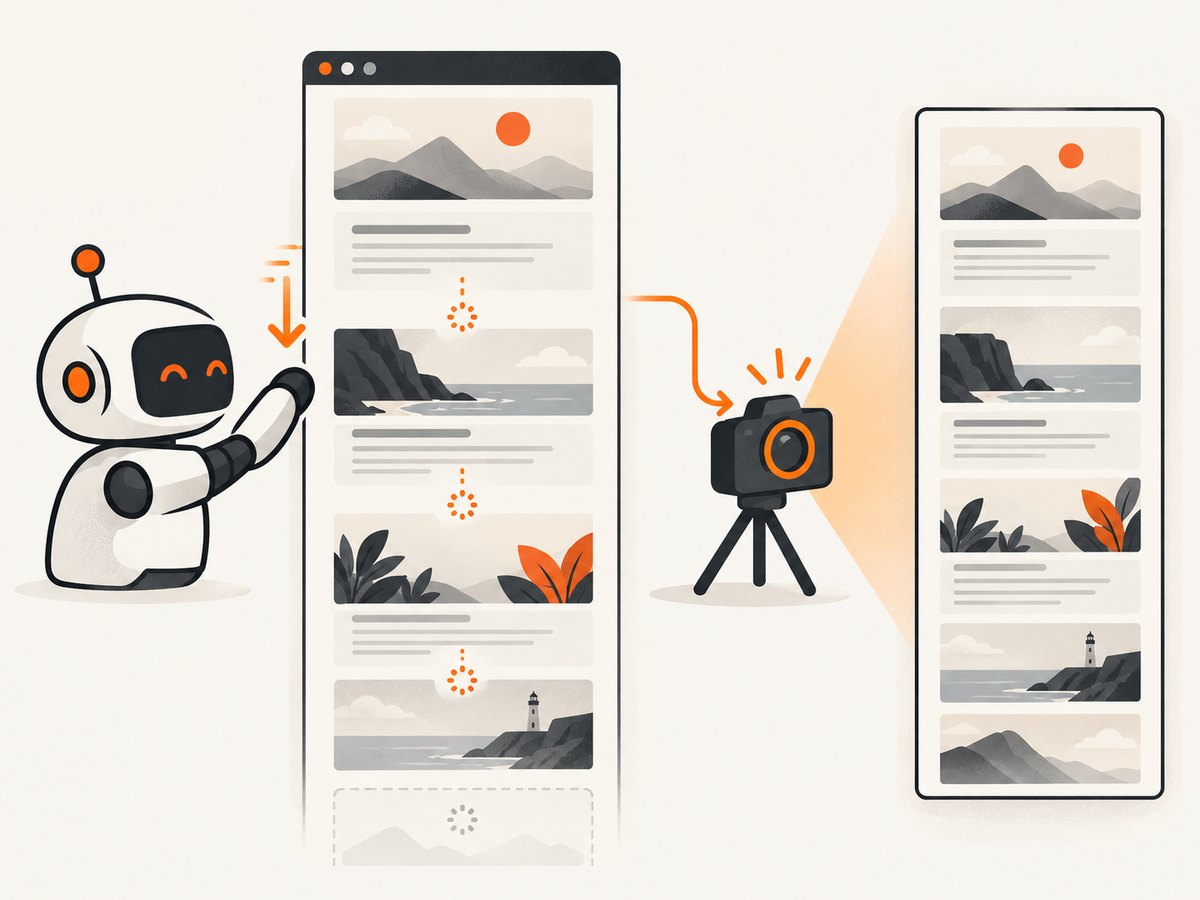
- Lazy-loaded sections may be absent unless they are loaded before the snapshot.
Prepare the page before capture
A “full height” image is only useful when the document has reached a stable state. Build these steps into the test or page fixture.
- Wait for application readiness. Wait for a stable selector that appears after the main request and client rendering complete. Waiting only for
document.readyStatecan miss data fetched afterward. - Load lazy content. Scroll through the document before the snapshot so intersection-observer images and sections render. Return to the top if your visual baseline expects the initial scroll position.
- Stop motion. Pause CSS transitions, animated GIF-like effects, video and carousels. Otherwise two captures of the same build can differ.
- Close overlays. Dismiss cookie banners, newsletters, chat launchers and modal dialogs. A fixed overlay can cover every tile.
- Control fonts and data. Wait for web fonts and deterministic test data. Font swaps can change line wrapping and page height.
- Check overflow. Look for a wrapper with
overflow: hidden,overflow: autoor a fixed height. Percy documents CSS overflow clipping as a reason a snapshot remains viewport-sized.
Scroll to trigger lazy loading in Nightwatch
module.exports = {
  'prepare a long page': async function (browser) {
    await browser
      .url('https://example.com/catalog')
      .waitForElementVisible('main', 15000);

    await browser.execute(function () {
      window.scrollTo(0, document.body.scrollHeight);
    });
    await browser.pause(1500);
    await browser.execute(function () {
      window.scrollTo(0, 0);
    });

    await browser.saveScreenshot('artifacts/catalog-viewport.png');
    await browser.end();
  }
};
This prepares lazy content but does not turn Nightwatch’s saved screenshot into a stitched full-page image. Use Percy’s full-page snapshot path or a dedicated URL screenshot service for that.
Diagnose a viewport-only result
1. Confirm which API produced the file
Check whether the test called Nightwatch saveScreenshot, Percy, BrowserStack Screenshots, or App Percy. These are different products with different limits. BrowserStack’s Screenshots FAQ includes an Opera and Safari 5.1 exception; keep that qualification attached to that product rather than generalizing it to Percy or Nightwatch.
2. Inspect clipping CSS
Find the element that owns the scroll bar. A page shell with a fixed height and overflow: auto can clip the document even when the body is long. Percy’s troubleshooting guidance recommends a Percy CSS adjustment that resets the specific clipping rule. Apply the narrowest override possible so component layout remains representative.
/* Example diagnostic override; scope it to the problematic shell. */
.app-shell {
  height: auto !important;
  max-height: none !important;
  overflow: visible !important;
}
3. Check lazy sections and overlays
If the top and bottom render but the middle is blank, the page likely loaded content only when scrolled or an overlay interrupted the run. Scroll first, wait for the expected selector, then close the overlay and retry.
4. Check height limits
A Percy snapshot that stops near 10,000 pixels or 10 tiles may have reached its documented cap. Split the page into meaningful sections, reduce unnecessary whitespace in the test fixture, or capture selected elements instead of one unbounded document.
Reliability and performance checklist
- Use a deterministic URL and seeded test data.
- Wait on a selector that proves the page is usable, then add a short delay only for known asynchronous widgets.
- Disable animation and video in the test environment.
- Scroll once to load lazy content, not repeatedly in a tight loop.
- Capture at a fixed viewport, browser version and device profile for comparable baselines.
- Save diagnostic artifacts: URL, session ID, viewport dimensions and console/network errors.
- Keep full-page captures out of every test if they are expensive; run them on release or visual-regression suites.
- For very long documents, capture stable sections or use a service with explicit full-page behavior.
Cost and product boundaries
BrowserStack Automate and Percy usage are governed by their own accounts, plans and limits. The research for this article does not establish a Nightwatch-specific Percy price or a guarantee that every Percy client integrates with every Nightwatch session. Verify current pricing and SDK compatibility in the official product documentation before committing to a pipeline.
Or skip the browser setup
ScreenshotNeo provides a URL screenshot API at https://api.screenshotneo.com/v1/shot. It supports full-page capture with lazy images loaded, plus device presets, custom viewports, retina scale, dark mode, element selectors, custom CSS and JavaScript, click and wait actions, request blocking, headers, cookies, user agents, timezone, geolocation, transparent backgrounds, resizing, caching, signed links, asynchronous jobs, webhooks and bulk capture. Every feature is on every plan.
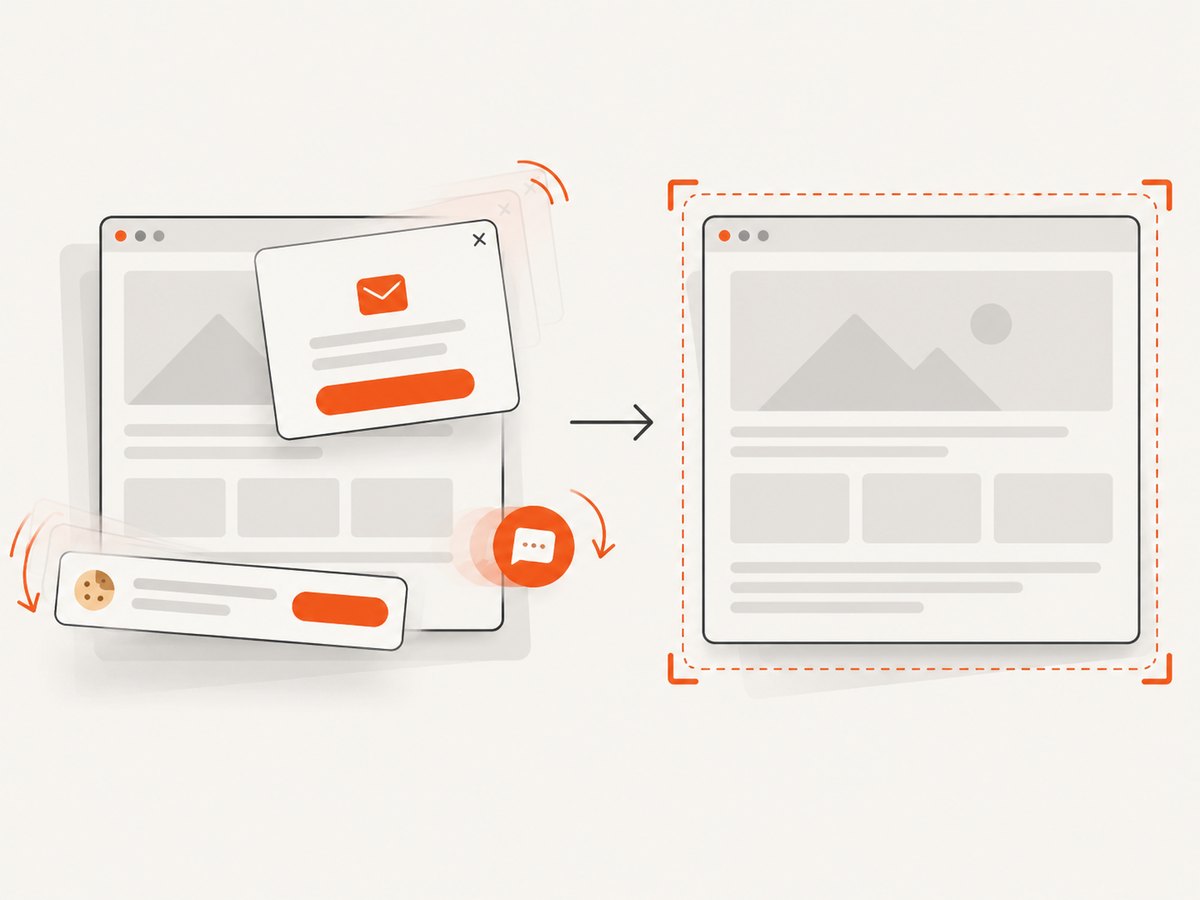
Cookie banners, newsletter popups and chat widgets are removed before the shot. Bot checks, blank pages, timeouts, failed loads and cache hits are never billed, and response headers identify the page verdict and whether the request was billed. ScreenshotNeo also provides an MCP server with take_screenshot, get_page_info and capture_pdf tools for Claude, Cursor and other MCP clients.
See the ScreenshotNeo API documentation for all parameters. A basic full-page request is:
curl -G "https://api.screenshotneo.com/v1/shot" \
  -d access_key=YOUR_API_KEY \
  --data-urlencode url=https://stripe.com \
  -o shot.webp
import requests
r = requests.get(
"https://api.screenshotneo.com/v1/shot",
params={"access_key": "YOUR_API_KEY", "url": "https://stripe.com"},
timeout=90,
)
r.raise_for_status()
open("shot.webp", "wb").write(r.content)const q = new URLSearchParams({
access_key: 'YOUR_API_KEY',
url: 'https://stripe.com'
});
const res = await fetch(`https://api.screenshotneo.com/v1/shot?${q}`);
if (!res.ok) throw new Error(`Screenshot failed: ${res.status}`);
const bytes = new Uint8Array(await res.arrayBuffer());
await Bun.write('shot.webp', bytes);The free plan includes 1,000 screenshots per month with no card. Paid plans start at $5 for 3,000 shots; yearly billing gives two months free. Create a free ScreenshotNeo account and start with the no-card plan.
FAQ
Does BrowserStack Automate make Nightwatch screenshots full page?
No documented Nightwatch option does that. Automate supplies the remote browser session; Percy documents a separate fullPage snapshot path.
Can I use element().takeScreenshot() for the whole document?
No. It captures the visible region within the selected element’s bounding rectangle.
Why is my Percy image shorter than the page?
Check lazy loading, overlays, fixed-height overflow containers and Percy’s 10,000-pixel or 10-tile limits.
Is App Percy the same as Percy for Nightwatch web tests?
No. App Percy is a beta mobile-app scroll-and-stitch feature documented for Appium-oriented workflows.
When should I choose a URL screenshot API?
Choose one when you need repeatable captures without maintaining a remote WebDriver session, especially for scheduled pages, bulk URLs or production monitoring.


