How to Get a Screenshot URL from BrowserStack with Nightwatch
BrowserStack Automate screenshots do not have a documented public URL. Learn when to use visual logs, Nightwatch files, or the separate Screenshots API.
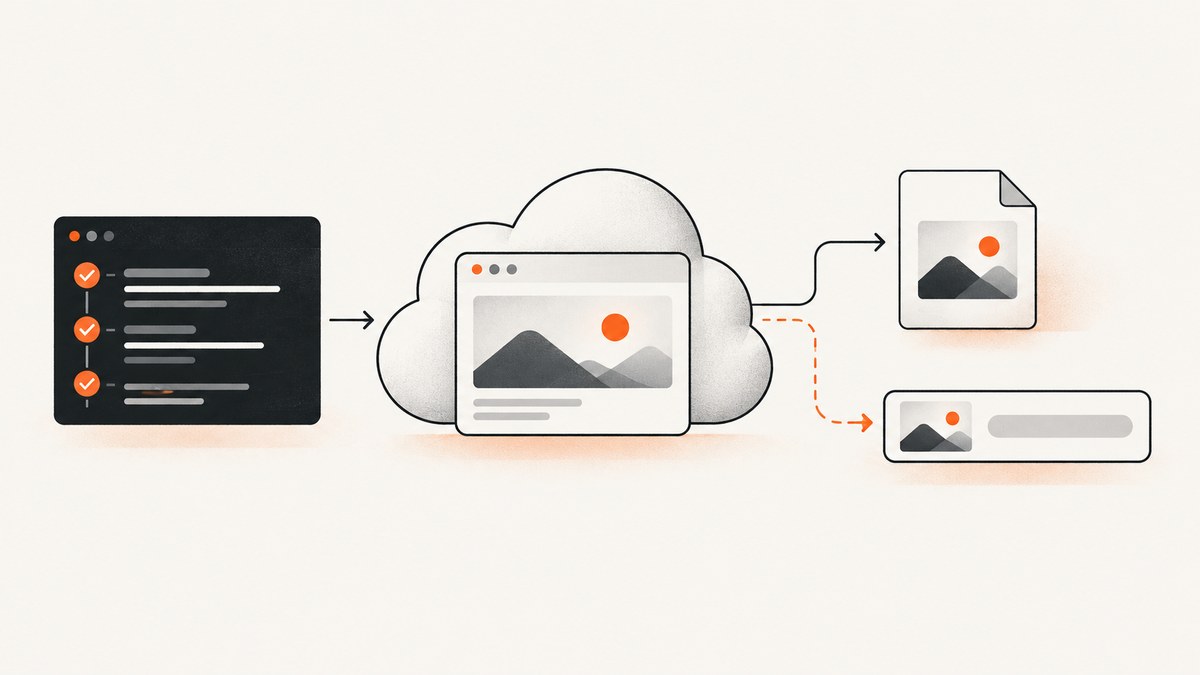
Short answer: A screenshot captured in a BrowserStack Automate session does not have a documented public image URL. With Nightwatch, enable BrowserStack visual logs to view automatic step screenshots in the Automate dashboard, or call Nightwatch’s screenshot API and save the image as a file. If you specifically need a hosted image_url, use BrowserStack’s separate Screenshots API, which creates a screenshot job from a submitted page URL.
Choose the workflow by the result you need:
| Goal | Use | Result |
|---|---|---|
| Inspect screenshots from test steps | Automate visual logs with debug |
Images in the BrowserStack dashboard |
| Capture one exact point in a Nightwatch test | Nightwatch screenshot or saveScreenshot |
Screenshot data or a file on the test machine |
| Receive a hosted image URL | BrowserStack Screenshots API | Job results containing image_url and thumb_url |
1. Enable BrowserStack visual logs for automatic screenshots
BrowserStack visual logs are disabled by default. Turn them on with the debug capability. For a Nightwatch BrowserStack configuration, place it under bstack:options:
module.exports = {
  test_settings: {
    default: {
      webdriver: {
        start_process: false,
        host: 'hub.browserstack.com',
        port: 443
      },
      desiredCapabilities: {
        browserName: 'Chrome',
        'bstack:options': {
          os: 'Windows',
          osVersion: '11',
          buildName: 'nightwatch-build',
          sessionName: 'visual-log-example',
          userName: process.env.BROWSERSTACK_USERNAME,
          accessKey: process.env.BROWSERSTACK_ACCESS_KEY,
          debug: true
        }
      }
    }
  }
};
With the BrowserStack SDK configuration, set debug: true in browserstack.yml instead. The resulting screenshots are for dashboard inspection. BrowserStack’s guide covers the capability and dashboard workflow in Take screenshots when running Selenium tests on BrowserStack Automate.
What visual logs do and do not provide
- They capture screenshots during test steps and show them in the Automate dashboard.
- The researched BrowserStack documentation does not define a public image URL pattern for an Automate session visual log.
- Do not derive an image URL from the session URL, build URL, or page URL. Those identify a session or web page, not an image.
2. Capture a screenshot explicitly with Nightwatch
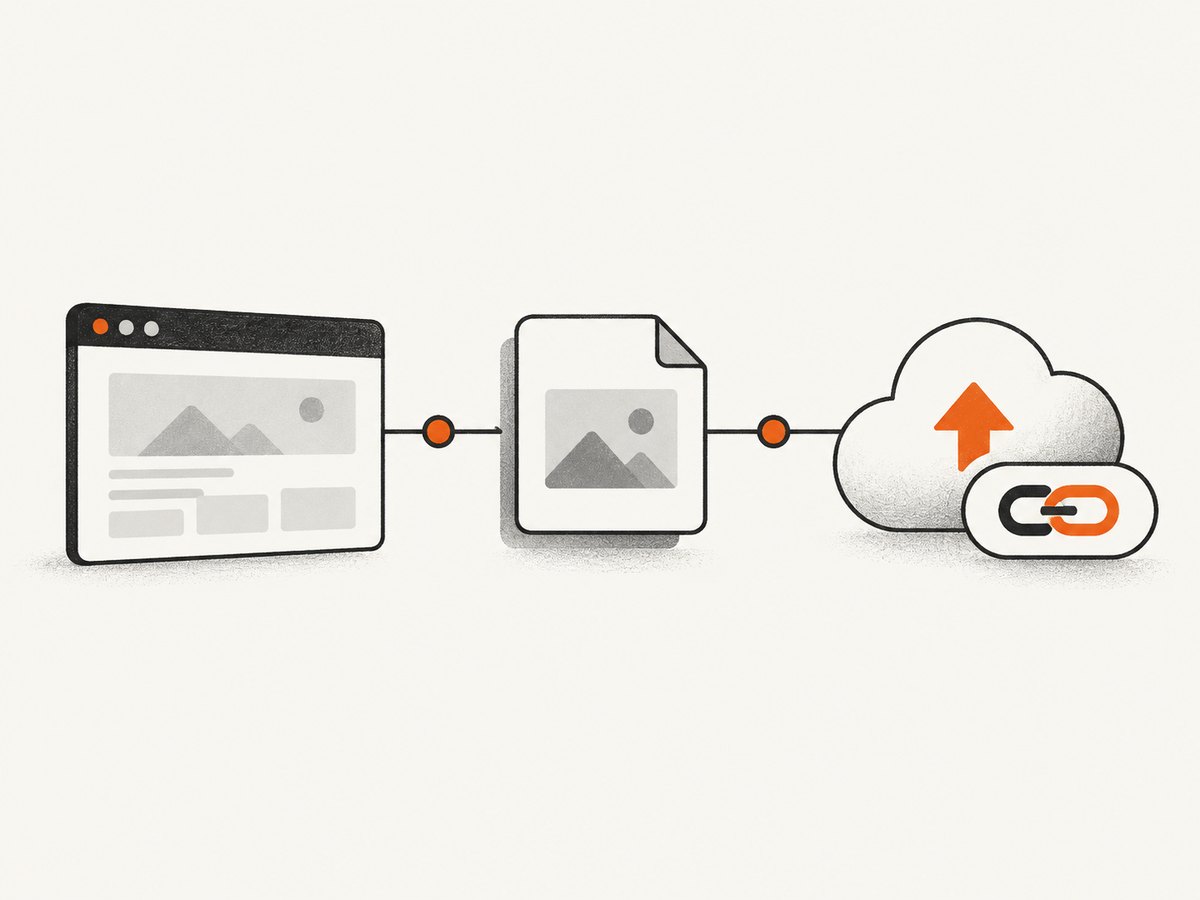
Use an explicit capture when timing matters, such as after a login, navigation, assertion, or modal interaction. Nightwatch’s screenshot API captures the current page; saveScreenshot writes the result to a path on the machine running the test. See the Nightwatch screenshot API and saveScreenshot API references.
Save a screenshot to a file
module.exports = {
  'save checkout state': async function (browser) {
    await browser
      .url('https://example.com/checkout')
      .waitForElementVisible('body');

    await browser.saveScreenshot('artifacts/checkout.png');
    await browser.end();
  }
};
The path is local to the test runner. In CI, copy the file to your artifact store before the job’s workspace is deleted. A local path is not a public URL; publish it through your CI system or object storage if another service must fetch it.
Request screenshot data at a precise point
module.exports = {
  'capture current page': async function (browser) {
    await browser.url('https://example.com');
    const screenshot = await browser.screenshot();

    // The returned value is screenshot data handled by Nightwatch.
    // Persist it with your own artifact workflow when a durable file is needed.
    console.log(typeof screenshot);
    await browser.end();
  }
};
Nightwatch can also show screenshot data in verbose session text logs, depending on the command and logging configuration. This is useful for debugging, but it still is not a stable public image URL.
Keep credentials out of source
export BROWSERSTACK_USERNAME='your-username'
export BROWSERSTACK_ACCESS_KEY='your-access-key'
Use environment variables or your CI secret store. Never commit a real BrowserStack access key to a repository, test output, or public artifact.
3. Turn a retained file into a URL in CI
If the requirement is “a URL my team can open,” the usual Automate workflow is:
- Call
saveScreenshotat the desired test step. - Upload the resulting file to your CI artifact system or approved object storage.
- Expose the artifact’s authenticated or public link according to your retention policy.
- Store that link with the test result before the runner is destroyed.
BrowserStack provides the capture and Nightwatch provides the file. The upload and URL policy belong to your CI or storage platform, so the exact command depends on that platform. Avoid putting short-lived runner paths into test reports.
4. Use BrowserStack’s separate Screenshots API when you need image_url
BrowserStack’s Screenshots API is a different service from an Automate session. You submit a page URL, request one or more browser and operating-system configurations, then poll the job. The result includes fields such as image_url and thumb_url.
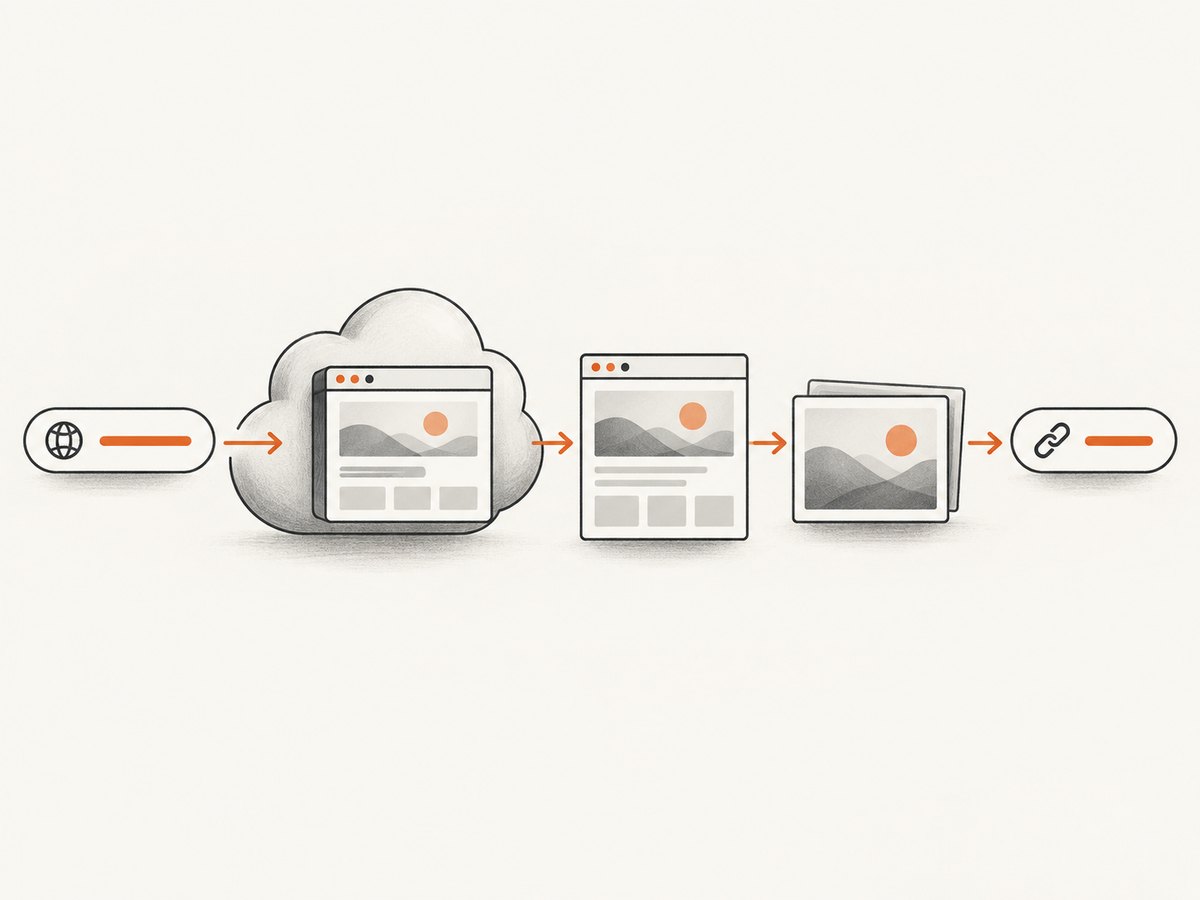
The documented flow is:
- POST to
/screenshotswith HTTP Basic authentication and the URL/configuration. - Read the returned job identifier.
- GET
/screenshots/<JOB-ID>.json. - Read the screenshot result’s
image_url.
Consult the current BrowserStack Screenshots API documentation for the request schema, supported browser matrix, authentication, and plan eligibility. The documentation includes legacy examples, so verify those details before relying on a specific browser or operating-system combination.
Conceptual cURL flow
# Create a screenshot job (check the current API page for the exact JSON schema)
curl -u "$BROWSERSTACK_USERNAME:$BROWSERSTACK_ACCESS_KEY" \
  -X POST "https://www.browserstack.com/screenshots" \
  -H "Content-Type: application/json" \
  -d '{"url":"https://example.com"}'

# Poll the job returned by the create response
curl -u "$BROWSERSTACK_USERNAME:$BROWSERSTACK_ACCESS_KEY" \
  "https://www.browserstack.com/screenshots/JOB-ID.json"
Do not use this endpoint to look up a screenshot taken inside an existing Nightwatch Automate session. It creates a separate URL screenshot job.
5. Complete Nightwatch setup checklist
- Use the BrowserStack Nightwatch integration documented for your project.
- Provide
BROWSERSTACK_USERNAMEandBROWSERSTACK_ACCESS_KEYthrough environment variables. - Confirm the Node.js and Nightwatch versions required by the integration guide you are following.
- Set
debug: truewhen you want visual logs. - Call
saveScreenshotafter the page has reached the intended state. - Wait for a meaningful element instead of relying only on a fixed delay.
- Upload files from ephemeral CI runners before the job ends.
- Use the Screenshots API only when the input is a page URL and the output must contain hosted URL fields.
6. Timing, page state, and screenshot quality
A screenshot captures the browser state at the moment the command runs. For deterministic output:
- Navigate to the target URL first.
- Wait for a stable selector such as the main content container.
- Close cookie banners, dialogs, or test-only overlays before capturing.
- Perform clicks and form actions explicitly, then capture.
- Use a bounded wait for asynchronous content rather than an unbounded sleep.
- Capture after the assertion that proves the page is ready when the screenshot is evidence for that assertion.
Visual logs may contain several step images, while an explicit screenshot gives you control over exactly which state is retained. Full-page behavior, viewport dimensions, and browser support depend on the Nightwatch and BrowserStack configuration in use; check the current framework and provider documentation for those options.
7. Troubleshooting
No screenshots appear in the Automate dashboard
Cause: visual logs are disabled or debug is in the wrong configuration section.
Fix: set debug: true under bstack:options for direct capabilities, or in browserstack.yml for the SDK, then start a new session.
saveScreenshot succeeds but the file disappears
Cause: the CI runner workspace is ephemeral.
Fix: upload the file as a build artifact or to your approved storage before the job exits, and put the resulting link in the test report.
The screenshot shows the previous page state
Cause: capture ran before navigation, rendering, or an interaction completed.
Fix: wait for a URL change or a specific element, then capture. Prefer a state-based wait over a large fixed delay.
The team expects a public URL from an Automate visual log
Cause: dashboard visual logs and hosted screenshot URLs are different outputs.
Fix: save and upload an explicit Nightwatch screenshot, or create a separate job with the BrowserStack Screenshots API.
The Screenshots API request is rejected
Cause: incorrect credentials, unsupported configuration, endpoint changes, or plan eligibility.
Fix: verify Basic authentication, request syntax, supported browser matrix, and current plan requirements in the official API documentation. Do not assume examples from an older page remain current.
Credentials appear in logs
Cause: credentials were hard-coded or echoed by a shell command.
Fix: move them to secret variables, mask them in CI, and rotate any key that was exposed.
8. Performance, reliability, and cost considerations
- Performance: explicit screenshots add capture and file-write work to the test step. Capture only the states needed for diagnosis or evidence.
- Reliability: retain files outside the runner and record the artifact URL while the session metadata is still available.
- Parallel tests: include build, session, browser, and test identifiers in filenames to prevent collisions.
- Retention: choose artifact retention that matches how long failures must be investigated.
- Cost: visual logs and Automate usage follow your BrowserStack plan. The separate Screenshots API has its own availability and entitlement rules; confirm current terms before adopting it at scale.
- Security: screenshot files can contain account data or personal information. Restrict artifact access and avoid public URLs for sensitive pages.
Or skip the browser setup
ScreenshotNeo returns a screenshot from one GET request, so you do not need to configure a Nightwatch session or maintain a browser runner. Read the ScreenshotNeo API documentation for all options.
curl -G "https://api.screenshotneo.com/v1/shot" -d access_key=YOUR_API_KEY --data-urlencode url=https://stripe.com -o shot.webpimport requests
r = requests.get("https://api.screenshotneo.com/v1/shot", params={"access_key": "YOUR_API_KEY", "url": "https://stripe.com"}, timeout=90)
open("shot.webp", "wb").write(r.content)const q = new URLSearchParams({ access_key: 'YOUR_API_KEY', url: 'https://stripe.com' });
const res = await fetch(`https://api.screenshotneo.com/v1/shot?${q}`);Cookie and consent banners, newsletter popups, and chat widgets are removed before the shot. Bot checks, blank pages, failed loads, timeouts, and cache hits are never billed, and response headers identify the page verdict and whether the request was billed. ScreenshotNeo also provides an MCP server so AI agents can take screenshots, inspect pages, and capture PDFs. The free plan includes 1,000 screenshots each month with no card, and paid plans start at $5 for 3,000 screenshots.
Sign up for the free ScreenshotNeo plan.
FAQ
Can I get the current page URL with Nightwatch?
Yes, Nightwatch can report the page URL, but that URL identifies the web page. It is not a URL to screenshot image data.
Are visual logs downloadable?
The documented workflow places them in the Automate dashboard. When you need a durable, independently managed artifact, take an explicit screenshot and upload the file yourself.
Should I use the Screenshots API for every Nightwatch test?
No. Use Nightwatch for screenshots tied to a running test state. Use the Screenshots API when you want a separate job that renders a submitted URL and returns hosted image fields.
What should I store in a test report?
Store the test name, build and session identifiers, capture step, local artifact or hosted URL, and enough page-state information to reproduce the failure without exposing credentials.


