How to Build a Browser Extension for Website Screenshots
Build a Chrome Manifest V3 extension that captures the visible tab, saves the image, and handles permissions, privacy, limits, and store review.
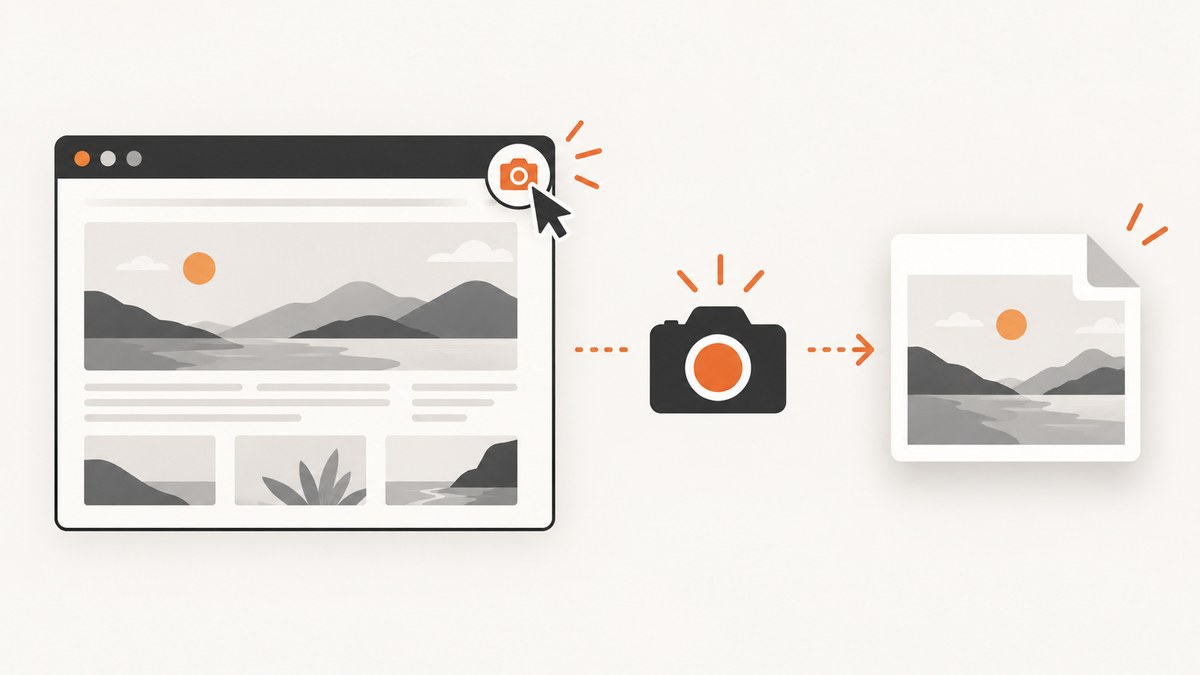
Use chrome.tabs.captureVisibleTab() from a Manifest V3 service worker or extension page after an explicit user action. The API returns an image data URL for the currently visible area of a tab. The smallest practical extension uses the activeTab permission, a toolbar button, and the downloads permission to save a PNG.
This approach captures the viewport that the user can currently see. It does not automatically capture the entire document, hidden content, browser chrome, or restricted browser pages. Full-page capture requires scrolling, taking multiple images, and assembling them yourself.
1. Choose the capture permission
| Permission | Use it when | Trade-off |
|---|---|---|
activeTab |
The user clicks your toolbar button or invokes another explicit action. | Temporary access to the current tab; no install warning for this permission. |
all_urls |
Your product must access matching pages without a user invocation. | Broad host access requires a stronger explanation and may create store-review friction. |
tabs |
You need privileged tab properties such as restricted URL or title data. | It is not required merely to call captureVisibleTab(). |
Chrome documents activeTab as temporary host permission granted after a user invocation. Prefer it when a capture starts from a toolbar click. Sensitive browser pages have additional restrictions, and file URLs require the user to grant file access in the extension details page. See the captureVisibleTab API reference and activeTab documentation.
2. Create the minimal extension
Create a directory with these two files:
manifest.json
{
  "manifest_version": 3,
  "name": "Visible Tab Screenshot",
  "version": "1.0.0",
  "description": "Save a screenshot of the visible browser tab.",
  "permissions": ["activeTab", "downloads"],
  "action": {
    "default_title": "Capture visible tab"
  },
  "background": {
    "service_worker": "service-worker.js"
  }
}
service-worker.js
chrome.action.onClicked.addListener(async (tab) => {
  if (!tab.windowId) {
    console.error("No browser window is associated with this tab");
    return;
  }

  try {
    const dataUrl = await chrome.tabs.captureVisibleTab(tab.windowId, {
      format: "png"
    });

    const safeTitle = (tab.title || "screenshot")
      .replace(/[^a-z0-9-_]+/gi, "-")
      .replace(/^-+|-+$/g, "")
      .slice(0, 80) || "screenshot";

    await chrome.downloads.download({
      url: dataUrl,
      filename: `${safeTitle}.png`,
      saveAs: true
    });
  } catch (error) {
    console.error("Screenshot capture failed", error);
  }
});
Load it in Chrome at chrome://extensions, enable Developer mode, choose Load unpacked, and select the directory. Open a normal website, click the extension button, and choose a destination in the download dialog.
The privileged Tabs API is available in extension service workers and extension pages, not content scripts. Keep the call in the service worker, popup, or another permitted extension context. The downloads permission is only for saving the returned data URL; remove it if your extension sends the image to another extension page or server instead.
3. Understand what the API captures
Visible viewport only
captureVisibleTab() captures the rendered area currently visible in the tab. It does not include the page below the fold. It also does not include Chrome’s address bar, toolbar, or other browser UI.
Restricted pages
Capture can fail on Chrome internal pages, extension pages, the Chrome Web Store, and other browser-controlled surfaces. Some sensitive pages can only be captured when the user has invoked the extension with activeTab. Treat these failures as expected and show a useful message instead of retrying indefinitely.
File URLs
For file:// pages, the user must enable Allow access to file URLs for the extension. Without that setting, the API may reject the request even when the toolbar action was clicked.
Frames, scrolling, and lazy content
The result is a bitmap of the tab’s composited viewport. It is not a DOM export and does not provide separate frame images. A page with lazy-loaded images may show placeholders if those images were never loaded. Scrolling can change sticky headers, animations, and layout between captures.
4. Add a popup with format and quality controls
If users need options, replace the direct toolbar handler with a popup. The capture options are format (png or jpeg) and, for JPEG, quality from 0 to 100.
Manifest additions
"action": {
  "default_title": "Capture visible tab",
  "default_popup": "popup.html"
}
popup.html
<!doctype html>
<html>
  <body>
    <label>
      Format
      <select id="format">
        <option value="png">PNG</option>
        <option value="jpeg">JPEG</option>
      </select>
    </label>
    <label>
      JPEG quality
      <input id="quality" type="number" min="0" max="100" value="90">
    </label>
    <button id="capture">Capture</button>
    <output id="status"></output>
    <script src="popup.js"></script>
  </body>
</html>
popup.js
const status = document.querySelector("#status");

document.querySelector("#capture").addEventListener("click", async () => {
  status.textContent = "Capturing...";
  const [{ id, windowId, title }] = await chrome.tabs.query({
    active: true,
    currentWindow: true
  });

  const format = document.querySelector("#format").value;
  const quality = Number(document.querySelector("#quality").value);
  const options = { format };
  if (format === "jpeg") options.quality = quality;

  try {
    const dataUrl = await chrome.tabs.captureVisibleTab(windowId, options);
    const name = (title || `tab-${id}`)
      .replace(/[^a-z0-9-_]+/gi, "-")
      .slice(0, 80) || "screenshot";
    await chrome.downloads.download({
      url: dataUrl,
      filename: `${name}.${format}`,
      saveAs: true
    });
    status.textContent = "Saved";
  } catch (error) {
    console.error(error);
    status.textContent = "Capture failed; see the extension error log.";
  }
});
Because the popup is opened by a user action, it can use the temporary activeTab grant. Keep the popup open until the capture and download requests complete, or delegate the work to the service worker.
5. Full-page screenshots
There is no single full-page flag on captureVisibleTab(). A full-page implementation generally:
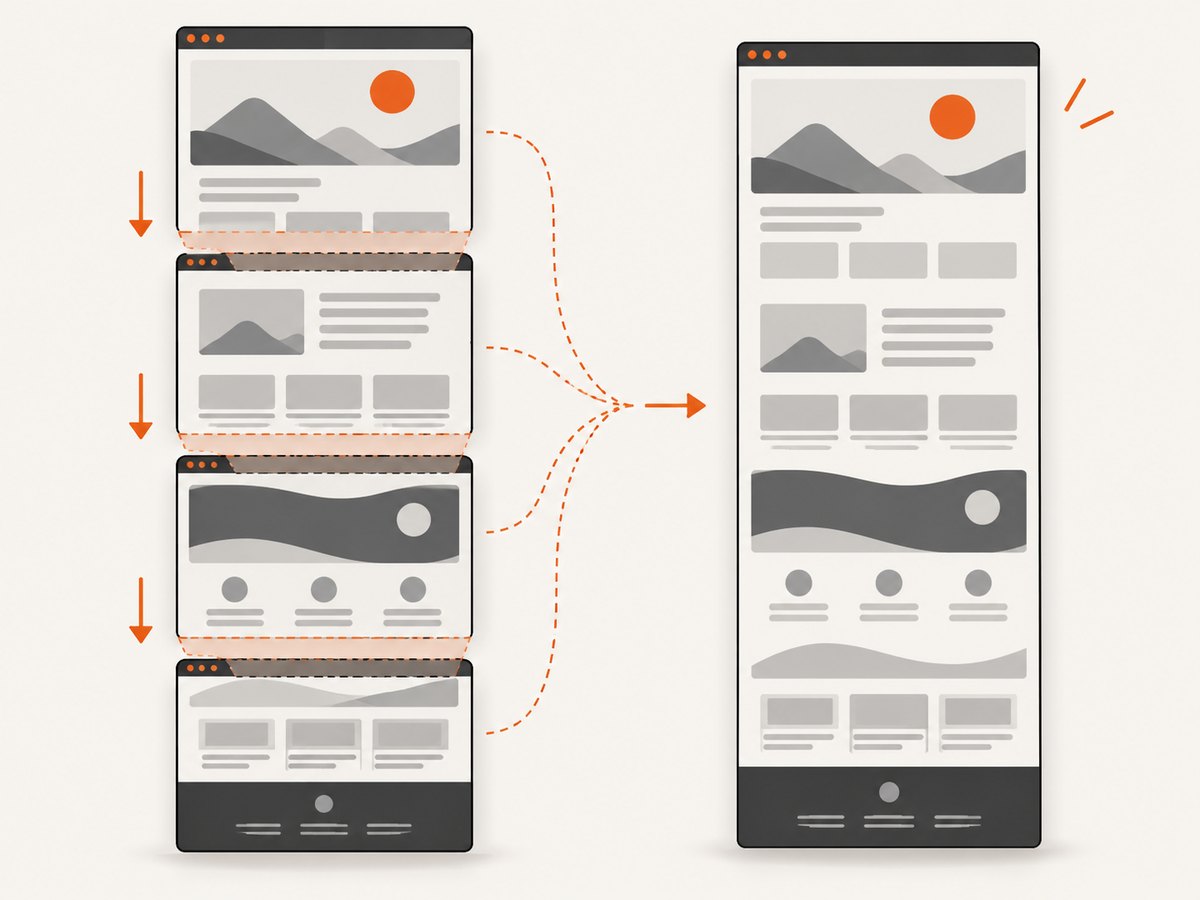
- Measure the document height and viewport height with a content script.
- Scroll to each vertical offset.
- Wait for scrolling and lazy-loaded content to settle.
- Capture each viewport.
- Crop overlapping fixed headers and stitch the bitmaps in an extension page or worker-compatible image pipeline.
- Restore the original scroll position.
This is difficult to make universal. Fixed elements, sticky navigation, zoom, device scale, scroll snapping, animations, cross-origin frames, and pages that change while scrolling all affect the result. A content script cannot call the Tabs API directly, so message it from the service worker or popup. The capture API is also expensive and Chrome documents a ceiling of two calls per second; queue full-page segments and respect that limit.
6. Export and data handling
- Download locally: use
chrome.downloads.download()with the returned data URL. - Preview: send the data URL to an extension page and assign it to an
<img>element. - Upload: send the bytes to your own HTTPS endpoint only when the user has agreed and your privacy notice explains retention and access.
- Reduce size: JPEG is usually smaller for photographic pages; PNG preserves sharp text and transparency.
- Avoid accidental leakage: screenshots can contain account data, tokens displayed in pages, private messages, or personal information.
Mozilla classifies website content and browsing activity as personal data categories. Request only the access your feature needs, explain what is collected, and provide a clear deletion and retention policy. Do not transmit captures by default when local export meets the use case.
7. Store review and Manifest V3 constraints
- Keep all executable extension logic in the submitted package. Chrome Web Store rules generally prohibit remotely loaded executable code, subject to documented exceptions.
- Make the extension’s screenshot purpose clear in the description, listing, and permission justification.
- Do not request
all_urlswhenactiveTabis sufficient. - Explain why
downloads, host permissions, or external network access are needed. - Handle restricted pages without claiming that every tab is capturable.
- Ensure the privacy disclosure matches any screenshot upload, analytics, account, or remote processing behavior.
8. Performance and reliability checklist
- Capture only after a deliberate user action unless background capture is essential.
- Prevent double clicks while a capture is running.
- Throttle full-page segments to no more than two capture calls per second.
- Use PNG for text and transparency; use JPEG when file size matters more than lossless output.
- Record the tab URL, viewport size, format, and error category in local diagnostics, but do not log image data or sensitive URLs unnecessarily.
- Expect pages to navigate or close while the request is running and treat those errors as retryable only when the user asks again.
- Test pages with sticky headers, animations, lazy images, very tall documents, iframes, zoom, and dark mode.
9. Troubleshooting
| Symptom | Likely cause | Fix |
|---|---|---|
Cannot access contents of the page |
The page is restricted or the temporary grant was not created by a user invocation. | Use the toolbar action with activeTab; explain that browser-controlled pages cannot be captured. |
| File URL fails | File access is disabled for the extension. | Enable Allow access to file URLs in the extension details. |
downloads.download is rejected |
The downloads permission is missing or the data URL is invalid. |
Add the permission, reload the extension, and verify the returned string begins with data:image/. |
| Screenshot is only the viewport | captureVisibleTab() is a visible-area API. |
Implement a scroll-and-stitch workflow or use a service that supports full-page capture. |
| Blank or partially loaded image | The page was still loading, content is lazy, or a navigation occurred. | Wait for a known selector or short delay, then capture; avoid unbounded retries. |
| Full-page output has duplicated headers | Sticky elements appear in every segment. | Detect and crop overlap, temporarily change scroll behavior where safe, or document the limitation. |
| Capture is slow or rate limited | Captures are expensive and full-page mode makes many calls. | Queue requests, stay within two calls per second, and avoid unnecessary segments. |
10. Or skip the browser setup
If you need screenshots from a backend, build pipeline, or AI workflow, ScreenshotNeo provides a website screenshot API and MCP server. One GET request returns PNG, JPEG, WebP, or PDF. It accepts the URL and capture options used by common screenshot APIs, so an extension is not required for server-side jobs.

See the ScreenshotNeo API documentation for all options.
cURL
curl -G "https://api.screenshotneo.com/v1/shot" -d access_key=YOUR_API_KEY --data-urlencode url=https://stripe.com -o shot.webpPython
import requests
r = requests.get("https://api.screenshotneo.com/v1/shot", params={"access_key": "YOUR_API_KEY", "url": "https://stripe.com"}, timeout=90)
open("shot.webp", "wb").write(r.content)
Node.js
const q = new URLSearchParams({ access_key: 'YOUR_API_KEY', url: 'https://stripe.com' });
const res = await fetch(`https://api.screenshotneo.com/v1/shot?${q}`);
Cookie and consent banners, newsletter popups, and chat widgets are removed before the shot. Bot checks, blank pages, failed loads, timeouts, and cache hits are not billed, and response headers identify the page verdict and billing result. An MCP server provides take_screenshot, get_page_info, and capture_pdf tools for Claude, Cursor, and other MCP clients. The Free plan includes 1,000 screenshots per month with no card; paid plans start at $5 for 3,000. Create a free ScreenshotNeo account.
FAQ
Does the extension need the tabs permission?
No. The capture call itself works with activeTab or suitable host access. Add tabs only when you need privileged tab metadata.
Can it capture an inactive tab?
The API captures the visible area of a tab. Design around the active, user-visible tab unless your product requirements and permission model support another workflow.
Can a content script call captureVisibleTab()?
No. Send a message to the service worker or extension page, make the privileged call there, and return the result.
What is the simplest way to support JPEG?
Pass { format: "jpeg", quality: 90 } as the second argument, then save the returned data URL with a .jpg filename.
Should screenshots be uploaded?
Only when the feature requires it. Treat every screenshot as potentially sensitive page content, disclose collection and retention, and prefer local export when possible.


