How to Build an HTML Photo Viewer
Build an accessible, responsive HTML photo viewer with native dialog, keyboard controls, responsive images, and a complete working example.
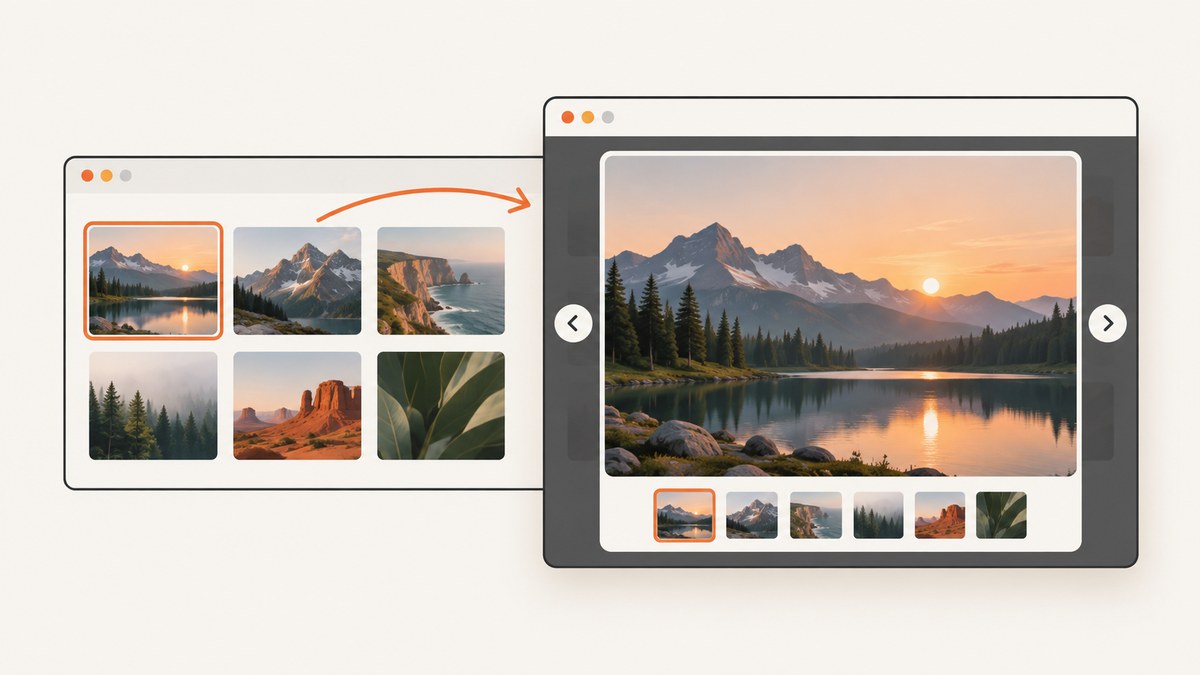
The simplest HTML photo viewer is a gallery of <img> elements activated by buttons, plus a native <dialog> for the enlarged image. Use meaningful alt text, CSS Grid for the thumbnails, srcset/sizes for responsive downloads, and JavaScript to keep the selected image, caption, and keyboard controls in sync.
HTML’s standard way to embed one image resource is the img element with src (WHATWG HTML Standard). The complete example below runs as a single file.
1. Complete working example
<!doctype html>
<html lang="en">
<head>
  <meta charset="utf-8">
  <meta name="viewport" content="width=device-width, initial-scale=1">
  <title>Accessible photo viewer</title>
  <style>
    :root { color-scheme: light dark; }
    * { box-sizing: border-box; }
    body {
      margin: 0;
      padding: 2rem;
      font: 1rem/1.5 system-ui, sans-serif;
      background: Canvas;
      color: CanvasText;
    }
    .gallery {
      display: grid;
      grid-template-columns: repeat(auto-fit, minmax(10rem, 1fr));
      gap: 1rem;
      max-width: 70rem;
      margin: auto;
    }
    .thumb {
      display: block;
      width: 100%;
      padding: 0;
      border: 0;
      border-radius: .5rem;
      overflow: hidden;
      background: transparent;
      cursor: pointer;
    }
    .thumb:focus-visible { outline: .2rem solid Highlight; outline-offset: .2rem; }
    .thumb img {
      display: block;
      width: 100%;
      aspect-ratio: 4 / 3;
      object-fit: cover;
    }
    dialog {
      width: min(92vw, 70rem);
      max-width: none;
      padding: 1rem;
      border: 0;
      border-radius: .75rem;
      background: Canvas;
      color: CanvasText;
    }
    dialog::backdrop { background: rgb(0 0 0 / .78); }
    .viewer-image {
      display: block;
      width: 100%;
      max-height: 75vh;
      object-fit: contain;
    }
    .viewer-bar {
      display: flex;
      align-items: center;
      justify-content: space-between;
      gap: .75rem;
      margin-top: .75rem;
    }
    .viewer-controls { display: flex; gap: .5rem; }
    button { font: inherit; }
  </style>
</head>
<body>
  <main>
    <h1>Mountain photographs</h1>
    <div class="gallery" aria-label="Mountain photographs">
      <button class="thumb" type="button"
        data-full="https://picsum.photos/id/1018/1600/1000"
        data-caption="A mountain range beneath a cloudy sky">
        <img src="https://picsum.photos/id/1018/400/250"
          alt="Mountain range beneath a cloudy sky" width="400" height="250" loading="lazy">
      </button>
      <button class="thumb" type="button"
        data-full="https://picsum.photos/id/1002/1600/1000"
        data-caption="A calm lake surrounded by mountains">
        <img src="https://picsum.photos/id/1002/400/250"
          alt="Calm lake surrounded by mountains" width="400" height="250" loading="lazy">
      </button>
      <button class="thumb" type="button"
        data-full="https://picsum.photos/id/1015/1600/1000"
        data-caption="A river flowing through a green valley">
        <img src="https://picsum.photos/id/1015/400/250"
          alt="River flowing through a green valley" width="400" height="250" loading="lazy">
      </button>
    </div>
  </main>

  <dialog id="viewer" aria-labelledby="viewer-caption">
    <img id="viewer-image" class="viewer-image" alt="">
    <div class="viewer-bar">
      <p id="viewer-caption"></p>
      <div class="viewer-controls">
        <button id="previous" type="button">Previous</button>
        <button id="next" type="button">Next</button>
        <button id="close" type="button" autofocus>Close</button>
      </div>
    </div>
  </dialog>

  <script>
    const buttons = [...document.querySelectorAll('.thumb')];
    const dialog = document.querySelector('#viewer');
    const image = document.querySelector('#viewer-image');
    const caption = document.querySelector('#viewer-caption');
    const previous = document.querySelector('#previous');
    const next = document.querySelector('#next');
    const close = document.querySelector('#close');
    let selected = 0;
    let opener = null;

    function show(index) {
      selected = (index + buttons.length) % buttons.length;
      const button = buttons[selected];
      opener = button;
      image.src = button.dataset.full;
      image.alt = button.querySelector('img').alt;
      caption.textContent = button.dataset.caption;
      previous.disabled = buttons.length < 2;
      next.disabled = buttons.length < 2;
    }

    buttons.forEach((button, index) => {
      button.addEventListener('click', () => {
        show(index);
        dialog.showModal();
      });
    });
    previous.addEventListener('click', () => show(selected - 1));
    next.addEventListener('click', () => show(selected + 1));
    close.addEventListener('click', () => dialog.close());
    dialog.addEventListener('close', () => opener?.focus());
    dialog.addEventListener('click', event => {
      if (event.target === dialog) dialog.close();
    });
    document.addEventListener('keydown', event => {
      if (!dialog.open) return;
      if (event.key === 'ArrowLeft') show(selected - 1);
      if (event.key === 'ArrowRight') show(selected + 1);
    });
  </script>
</body>
</html>
2. Choose the HTML structure
Use a real button or link for every thumbnail. This gives keyboard users a focusable control and lets assistive technology announce an actionable item. Keep the thumbnail’s alt text meaningful when the image conveys information. For a decorative image, use alt=""; MDN describes alt as the textual replacement for an image (MDN: HTMLImageElement.alt).
Store the large-image URL and caption in data-* attributes, or keep them in a JavaScript array when the gallery is generated from a CMS. Give images explicit width and height values to reserve layout space while they load.
3. Build a responsive thumbnail layout
CSS Grid adapts the number of columns without JavaScript. repeat(auto-fit, minmax(10rem, 1fr)) keeps thumbnails usable on narrow screens and fills wider rows. Use object-fit: cover for uniform tiles, or object-fit: contain when cropping would remove important content.
For a fixed number of columns, use media queries instead:
.gallery { display: grid; grid-template-columns: 1fr; gap: 1rem; }
@media (min-width: 40rem) { .gallery { grid-template-columns: repeat(3, 1fr); } }
@media (min-width: 70rem) { .gallery { grid-template-columns: repeat(5, 1fr); } }
4. Add an accessible modal viewer
The native dialog element opened with showModal() creates a modal focus boundary, makes the page behind it inert, supports Escape dismissal, and normally returns focus to the invoking control. WAI and MDN document these behaviors and recommend an explicit close control plus a deliberate initial focus target (WAI dialog pattern, MDN: dialog).
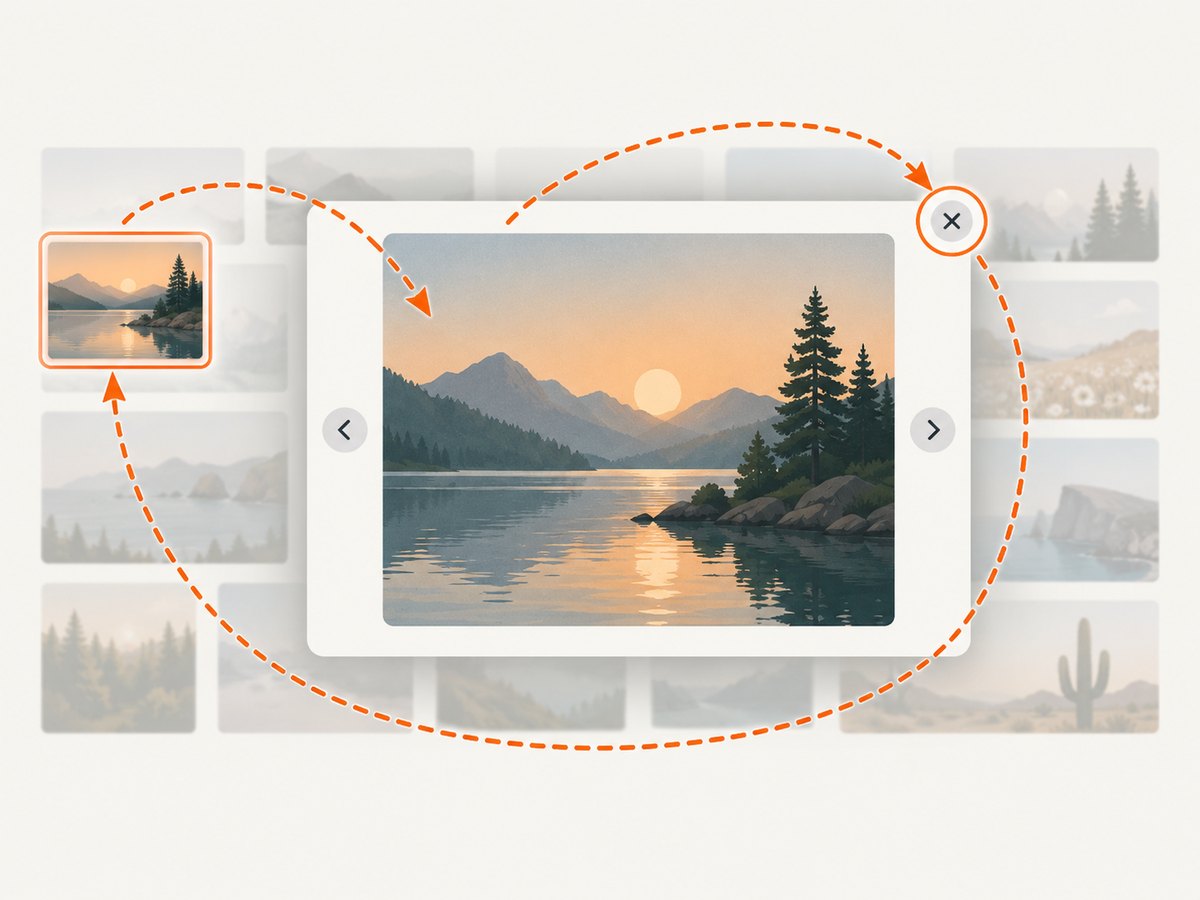
Keep the dialog’s accessible name connected with aria-labelledby. Set the large image’s alt whenever the selected item changes. If the caption is not a heading, use a visually hidden heading or label that remains stable. The example uses autofocus on Close so the first keyboard action has a clear destination.
Allow all expected exits: Close, Escape, clicking the backdrop if that behavior is acceptable for your design, and returning focus to the thumbnail. If you implement a custom overlay instead, you must recreate focus trapping, inert background content, Escape handling, focus restoration, and screen-reader labeling yourself.
5. Serve the right image for each screen
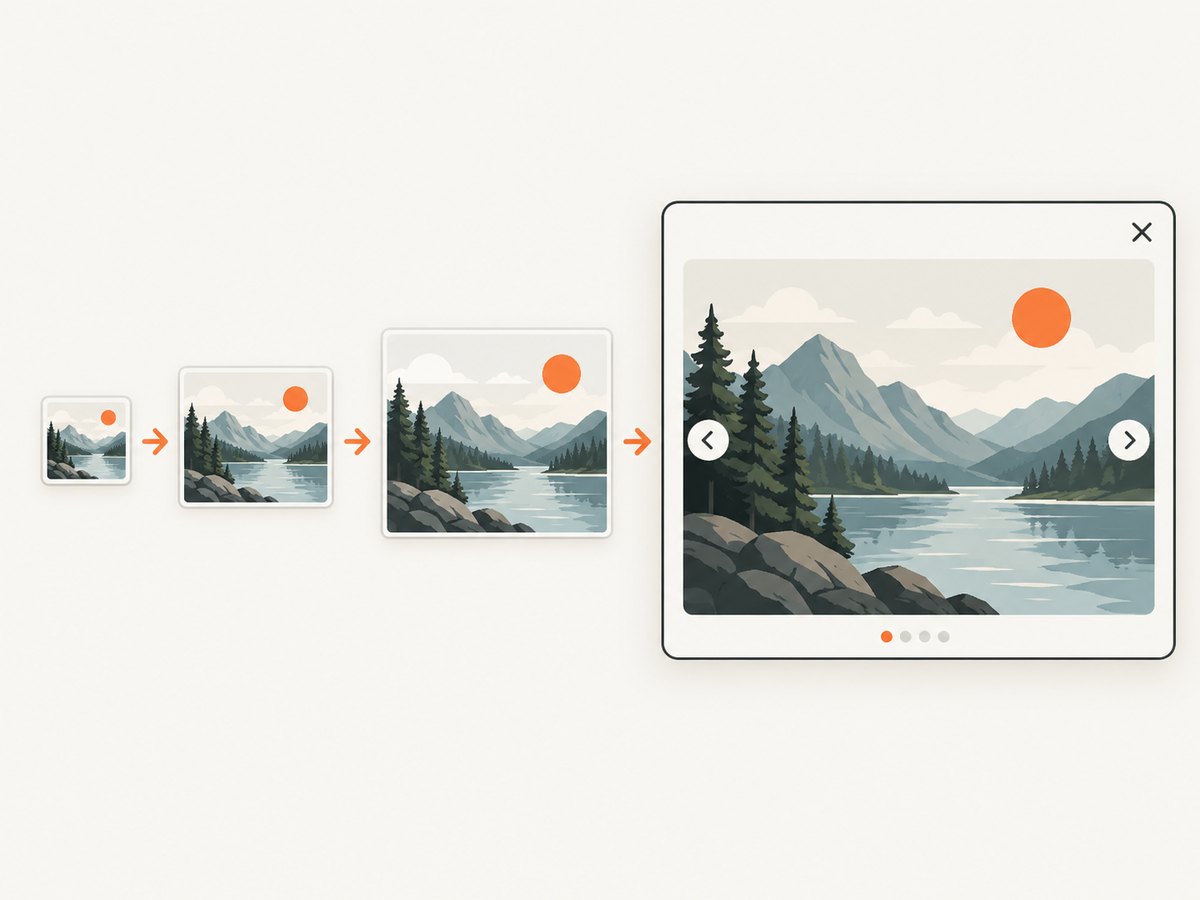
Use srcset and sizes when the same photo is available at multiple resolutions. The browser can choose a resource while parsing the HTML, before JavaScript measures the viewport (MDN: responsive images).
<img
  src="photo-800.jpg"
  srcset="photo-400.jpg 400w, photo-800.jpg 800w, photo-1600.jpg 1600w"
  sizes="(min-width: 60rem) 25vw, (min-width: 35rem) 33vw, 50vw"
  alt="A red boat on a misty lake"
  width="1600" height="1000">
Use picture for art direction or format selection:
<picture>
  <source type="image/avif" srcset="photo.avif">
  <source media="(min-width: 50rem)" srcset="wide-crop.jpg">
  <img src="photo.jpg" alt="A red boat on a misty lake" width="1200" height="800">
</picture>
Use the thumbnail URL for the grid and a larger URL only when the dialog opens. Do not download every full-size image on initial page load unless offline use or instant transitions requires it.
6. Add navigation and edge-case handling
- Wrap previous/next indexes with modulo arithmetic, as in the example, or disable a control at either end if wrapping is not expected.
- For one image, hide or disable Previous and Next.
- For missing images, listen for
image.onerrorand show a useful failure message while keeping Close available. - Clear
image.srcon close if large images should be released quickly. - When captions contain user content, assign
textContent, neverinnerHTML. - If the gallery is dynamically replaced, use event delegation or rebind controls after rendering.
- For very large galleries, virtualize the thumbnail list or paginate it; keep the dialog state independent of the visible grid.
7. Troubleshooting
| Symptom | Likely cause | Fix |
|---|---|---|
| Dialog does not open | Calling show() when modal behavior is required, or a script error stops execution. |
Call dialog.showModal(), inspect the console, and ensure the script runs after the elements exist. |
| Escape does nothing | The overlay is a custom div, or the dialog was not opened modally. |
Use showModal() or implement and test explicit Escape handling. |
| Focus is lost after closing | The opener was removed or focus restoration was omitted. | Save the invoking button and call opener.focus() only when it still exists. |
| Images look stretched | Width and height do not match the source ratio. | Use the correct intrinsic ratio and choose object-fit: cover or contain. |
| Wrong responsive image downloads | sizes describes the rendered width incorrectly. |
Set sizes to the actual CSS width at each breakpoint. |
| Blank large image | Bad data-full URL, CORS restriction, or a failed request. |
Open the URL directly, check the Network panel, and use an image host that permits browser requests. |
| Screen reader repeats unhelpful text | Missing or duplicated alt text. |
Write a concise textual replacement; use empty alt for decorative imagery. |
8. Performance and reliability checklist
- Compress source images and prefer modern formats where your delivery pipeline supports them.
- Lazy-load below-the-fold thumbnails with
loading="lazy"; do not lazy-load the first visible image. - Reserve dimensions to prevent layout shifts.
- Preload only the next likely full-size image; preloading an entire gallery wastes bandwidth.
- Use a CDN with long-lived immutable URLs for versioned assets.
- Provide a visible loading state for slow full-size images and keep the Close button usable while loading.
- Test with keyboard-only navigation, zoomed text, reduced motion, touch input, slow networks, and a screen reader.
- Check that focus never reaches page content behind an open modal and that closing returns focus to the thumbnail.
9. Or skip the browser setup
If you need rendered screenshots of a photo viewer, staging page, or gallery at many viewport sizes, ScreenshotNeo provides a single HTTP request instead of maintaining browser automation. Cookie banners, newsletter popups, and chat widgets are removed before the shot. Bot checks, blank pages, failed loads, timeouts, and cache hits are not billed, and response headers identify the page verdict and billing result.
See the ScreenshotNeo API documentation for all options. A direct WebP capture:
curl -G "https://api.screenshotneo.com/v1/shot" -d access_key=YOUR_API_KEY --data-urlencode url=https://stripe.com -o shot.webpimport requests
r = requests.get("https://api.screenshotneo.com/v1/shot", params={"access_key": "YOUR_API_KEY", "url": "https://stripe.com"}, timeout=90)
open("shot.webp", "wb").write(r.content)const q = new URLSearchParams({ access_key: 'YOUR_API_KEY', url: 'https://stripe.com' });
const res = await fetch(`https://api.screenshotneo.com/v1/shot?${q}`);You can also request full-page captures, a CSS-selected element, dark mode, device presets or custom viewports, retina scale, PDF output, custom CSS and JavaScript, clicks, selector or network-idle waits, blocked resources, headers, cookies, user agents, timezones, geolocation, transparent backgrounds, resizing, caching, signed links, asynchronous webhooks, bulk capture, and usage data. Its MCP server lets Claude, Cursor, and other MCP clients call take_screenshot, get_page_info, and capture_pdf. The free plan includes 1,000 screenshots per month with no card; paid plans start at $5 for 3,000. Create a free ScreenshotNeo account.
10. FAQ
Should I use a library instead of native HTML?
Start with native HTML when you need a small gallery. A library is useful for touch gestures, advanced transitions, zooming, or a prebuilt theme, but verify its focus and screen-reader behavior.
Can I open the image in a new tab instead?
Yes. A link to the full-size resource is a robust fallback, especially when JavaScript is unavailable. Keep the link keyboard accessible and provide descriptive text.
How do I support videos?
Use a separate media type and controls rather than forcing videos into an image-only dialog. Label each item clearly and preserve the same focus and close behavior.
Is a CSS-only lightbox enough?
It can display an enlarged image, but native dialog plus JavaScript gives you predictable focus restoration, keyboard navigation, captions, and error handling.


