How to Build a Website Thumbnail Editor
Build a browser thumbnail editor with Canvas: crop, resize, preview, add text, export images, handle CORS, accessibility, performance, and downloads.
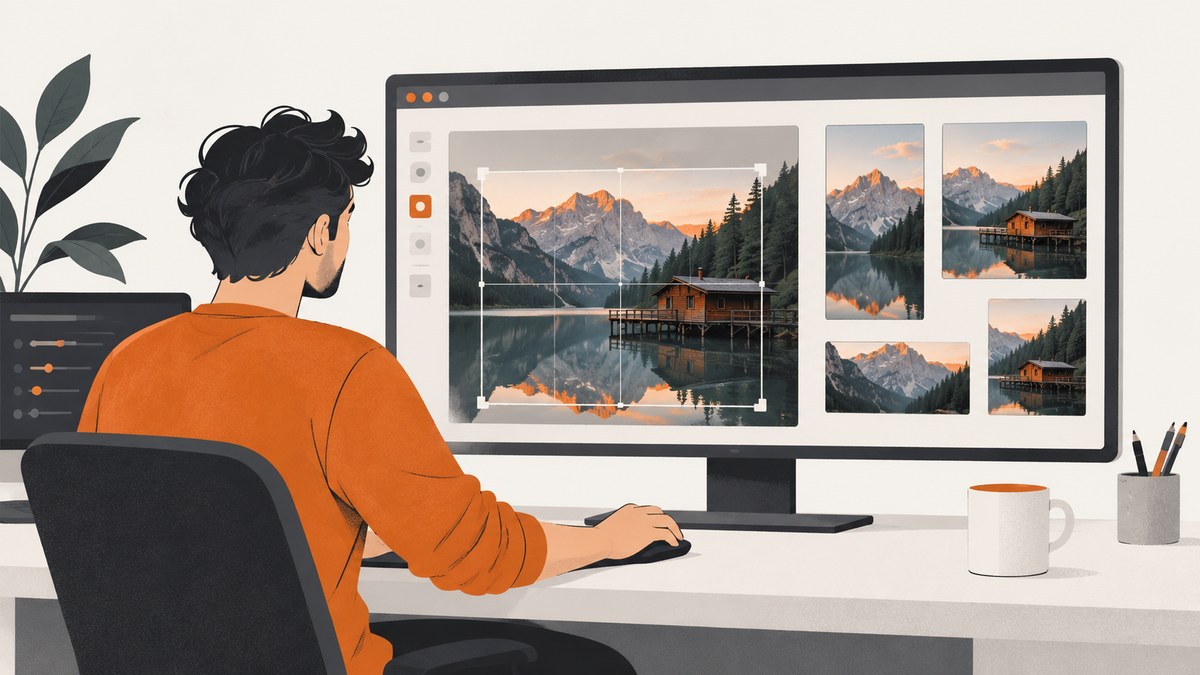
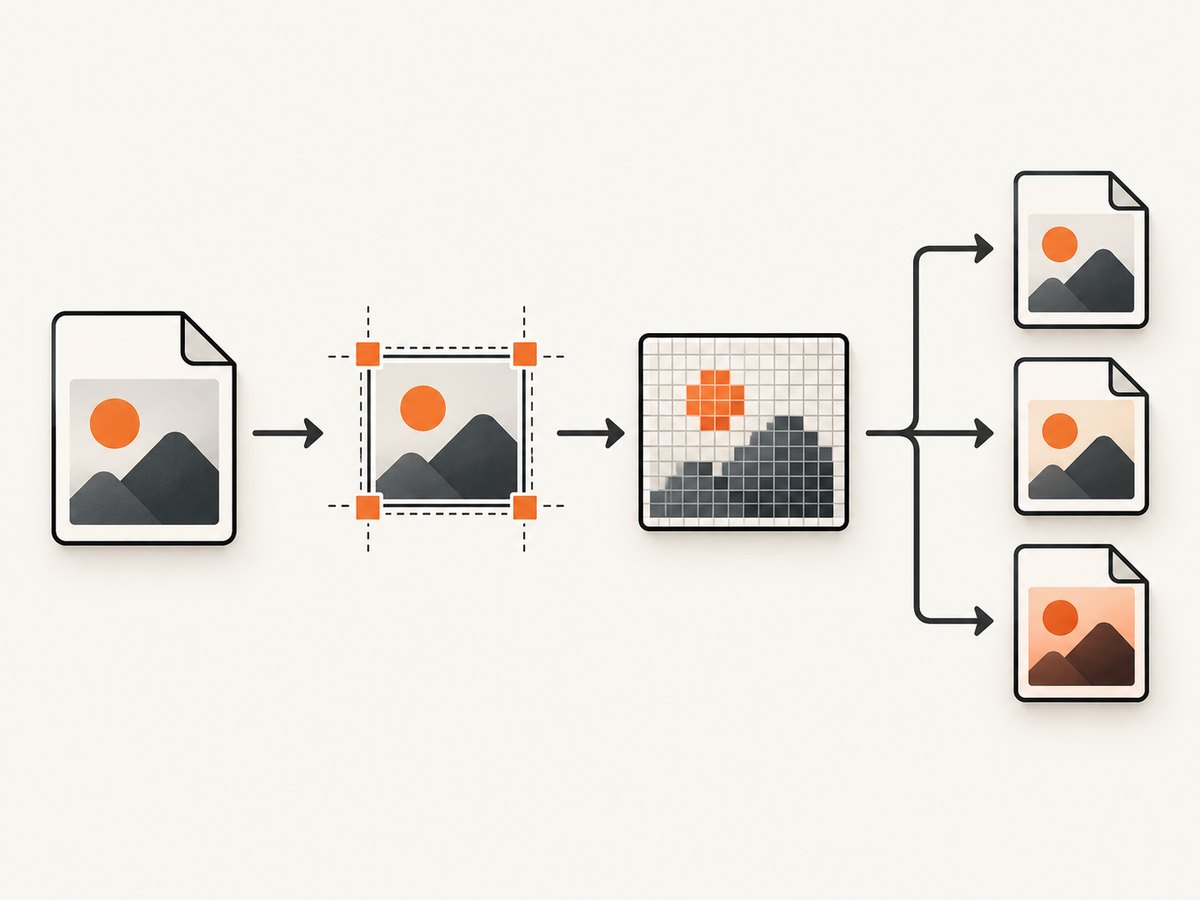
Yes. You can build a useful website thumbnail editor with standard HTML, CSS, JavaScript, and the 2D Canvas API. Use semantic controls for file selection, crop settings, dimensions, text, format, and download. Use Canvas as the raster output surface: load the source image, calculate a crop rectangle, draw that rectangle into the requested output size, and export the result with toBlob().
This design supports local uploads, crop-to-fill behavior, responsive previews, optional overlay text, PNG/JPEG/WebP export, and keyboard-accessible controls. Remote image URLs require additional care because an image host must permit your origin with CORS headers before the canvas can be exported.
1. What you are building
The editor has four layers:
- Semantic editor controls: an image file input, output width and height, crop position, overlay text, format, quality, and an export button.
- Editor state: the selected image, crop rectangle in source-image pixels, output dimensions, text settings, and export settings.
- Canvas renderer: a redraw function that always starts from the original image and uses
drawImage()with source and destination rectangles. - Download lifecycle:
canvas.toBlob(), an object URL, a temporary link, and URL cleanup after the download.
Canvas is appropriate because its bitmap drawing surface can combine and manipulate images. MDN’s Canvas tutorial covers the underlying API. Keep the controls outside the canvas: canvas content is not exposed as semantic HTML to accessibility tools.
2. A complete working editor
Save the following as index.html and open it in a modern browser. It accepts a local image, crops it to fill the selected output rectangle, previews the intrinsic output pixels responsively, adds optional text, and downloads the selected format.
<!doctype html>
<html lang="en">
<head>
  <meta charset="utf-8">
  <meta name="viewport" content="width=device-width, initial-scale=1">
  <title>Thumbnail editor</title>
  <style>
    :root { font-family: system-ui, sans-serif; color-scheme: light dark; }
    body { max-width: 1100px; margin: 2rem auto; padding: 0 1rem; }
    form { display: grid; gap: .8rem; max-width: 32rem; }
    label { display: grid; gap: .25rem; }
    input, select, button { font: inherit; padding: .45rem; }
    canvas { display: block; width: min(100%, 900px); height: auto; margin-top: 1rem; background: #ddd; }
    .row { display: flex; gap: .75rem; flex-wrap: wrap; }
    output { min-height: 1.5rem; }
  </style>
</head>
<body>
  <h1>Thumbnail editor</h1>
  <form id="editor">
    <label>Image
      <input id="file" type="file" accept="image/*" required>
    </label>
    <div class="row">
      <label>Output width (px)
        <input id="outWidth" type="number" min="1" max="4096" value="1280">
      </label>
      <label>Output height (px)
        <input id="outHeight" type="number" min="1" max="4096" value="720">
      </label>
    </div>
    <div class="row">
      <label>Horizontal crop (0–1)
        <input id="cropX" type="range" min="0" max="1" step="0.001" value="0.5">
      </label>
      <label>Vertical crop (0–1)
        <input id="cropY" type="range" min="0" max="1" step="0.001" value="0.5">
      </label>
    </div>
    <label>Overlay text (optional)
      <input id="caption" type="text" maxlength="120" placeholder="New article">
    </label>
    <div class="row">
      <label>Format
        <select id="format">
          <option value="image/webp">WebP</option>
          <option value="image/jpeg">JPEG</option>
          <option value="image/png">PNG</option>
        </select>
      </label>
      <label>Quality (JPEG/WebP)
        <input id="quality" type="range" min="0.1" max="1" step="0.05" value="0.85">
      </label>
    </div>
    <button id="download" type="submit" disabled>Choose an image</button>
    <output id="status" aria-live="polite"></output>
  </form>
  <canvas id="canvas" width="1280" height="720" aria-label="Thumbnail preview">
    Your browser does not support canvas. The controls remain available, but preview and export require canvas support.
  </canvas>

  <script>
    const $ = id => document.getElementById(id);
    const canvas = $('canvas');
    const ctx = canvas.getContext('2d');
    let image = null;
    let objectUrl = null;

    function number(id, fallback) {
      const value = Number($(id).value);
      return Number.isFinite(value) ? value : fallback;
    }

    function render() {
      if (!image) return;
      const outW = Math.max(1, Math.round(number('outWidth', 1280)));
      const outH = Math.max(1, Math.round(number('outHeight', 720)));
      canvas.width = outW;
      canvas.height = outH;

      const targetRatio = outW / outH;
      const sourceRatio = image.naturalWidth / image.naturalHeight;
      let cropW, cropH;
      if (sourceRatio > targetRatio) {
        cropH = image.naturalHeight;
        cropW = cropH * targetRatio;
      } else {
        cropW = image.naturalWidth;
        cropH = cropW / targetRatio;
      }
      const maxX = image.naturalWidth - cropW;
      const maxY = image.naturalHeight - cropH;
      const x = maxX * number('cropX', .5);
      const y = maxY * number('cropY', .5);

      ctx.clearRect(0, 0, outW, outH);
      ctx.drawImage(image, x, y, cropW, cropH, 0, 0, outW, outH);

      const text = $('caption').value.trim();
      if (text) {
        const size = Math.max(18, Math.round(outW / 24));
        ctx.font = `700 ${size}px system-ui, sans-serif`;
        ctx.textBaseline = 'bottom';
        ctx.fillStyle = 'rgba(0,0,0,.65)';
        const pad = Math.round(size * .6);
        const metrics = ctx.measureText(text);
        ctx.fillRect(pad / 2, outH - size - pad * 1.5, metrics.width + pad, size + pad);
        ctx.fillStyle = '#fff';
        ctx.fillText(text, pad, outH - pad);
      }
      $('download').disabled = false;
      $('download').textContent = `Download ${outW}×${outH}`;
      $('status').textContent = `Preview: ${outW}×${outH}px`;
    }

    $('file').addEventListener('change', event => {
      const file = event.target.files[0];
      if (!file) return;
      if (!file.type.startsWith('image/')) {
        $('status').textContent = 'Choose an image file.';
        return;
      }
      if (objectUrl) URL.revokeObjectURL(objectUrl);
      objectUrl = URL.createObjectURL(file);
      image = new Image();
      image.onload = () => { render(); URL.revokeObjectURL(objectUrl); objectUrl = null; };
      image.onerror = () => { $('status').textContent = 'The image could not be decoded.'; };
      image.src = objectUrl;
    });

    ['outWidth','outHeight','cropX','cropY','caption','format','quality']
      .forEach(id => $(id).addEventListener('input', render));

    $('editor').addEventListener('submit', event => {
      event.preventDefault();
      if (!image) return;
      const type = $('format').value;
      const quality = Number($('quality').value);
      canvas.toBlob(blob => {
        if (!blob) { $('status').textContent = 'Export failed.'; return; }
        const url = URL.createObjectURL(blob);
        const link = document.createElement('a');
        link.href = url;
        link.download = `thumbnail.${type === 'image/png' ? 'png' : type === 'image/jpeg' ? 'jpg' : 'webp'}`;
        link.click();
        setTimeout(() => URL.revokeObjectURL(url), 1000);
        $('status').textContent = `Downloaded ${Math.round(blob.size / 1024)} KB.`;
      }, type, type === 'image/png' ? undefined : quality);
    });
  </script>
</body>
</html>
3. How crop-to-fill math works
drawImage(image, sx, sy, sWidth, sHeight, dx, dy, dWidth, dHeight) selects a source rectangle and maps it to a destination rectangle. The code compares the source aspect ratio with the requested output ratio. If the source is wider, it keeps the full source height and trims the sides; if it is taller, it keeps the full width and trims the top and bottom. The crop sliders move that rectangle within the available excess area.
This is a crop-to-fill editor. A fit-within-frame editor uses the complete source image and may add letterboxing. Offer that as a separate mode when users need to preserve every pixel.
4. Keep output pixels separate from the preview
The canvas width and height properties define the bitmap exported by toBlob(). CSS controls only how that bitmap appears in the page. Set both intrinsic dimensions to the final output size, then use width: 100%; height: auto or an equivalent responsive rule for the preview. Styling a small canvas to look larger does not create detail; styling the canvas with mismatched dimensions can distort it. MDN documents this distinction in its canvas element reference.
Canvas limits depend on the browser and device. MDN notes that iOS devices notably limit canvas size to 4,096 × 4,096 pixels, while other environments may allow larger surfaces. Validate the maximum dimensions on the devices you support and reject or downscale oversized requests before allocating a canvas.
5. Local files, remote URLs, and CORS
Local file input is the simplest reliable first version. The browser creates a temporary object URL and the image stays in the user’s device. Revoke that URL after the image loads or fails.
Remote images are different. Set image.crossOrigin = 'anonymous' before assigning src, and the image server must return an Access-Control-Allow-Origin header allowing your site. If it does not, drawing the image taints the canvas; readback and export can then throw a security error. Do not promise arbitrary URL editing unless you control a compliant proxy or the source hosts opt in to CORS. See MDN’s Using images and pixel manipulation guides.
6. Export formats and download behavior
toBlob(callback, type, quality) is the preferred export path for downloads because it avoids building a large data URL string. PNG is lossless and is the default when no supported type is supplied. JPEG and WebP accept a quality value from 0 to 1, but browser support and encoder behavior vary. Inspect blob.type and the blob size if your application must report the actual format or enforce a size limit. An unsupported requested type can fall back to PNG.
Always revoke object URLs after the user has had time to start the download. Reusing an old object URL for every export retains memory. For a gallery editor, release old preview URLs when replacing images.
7. Add real editor features safely
Dragging a crop window
Store the crop rectangle in source-image coordinates. Convert pointer movement from CSS pixels to intrinsic canvas pixels using the ratio between canvas.width and canvas.getBoundingClientRect().width. Clamp the rectangle so it stays inside the source image. Redraw from the original image after every movement rather than transforming the previous preview, which avoids accumulating scaling artifacts.
Text and overlays
Keep text as state and draw it after the image. Measure text with measureText(), reserve padding, and add a contrast background or shadow. Provide controls for text content, size, color, alignment, and position. Limit text length and wrap long strings so they cannot overflow the output.
Undo and redo
Represent every change as a serializable state object: source crop, dimensions, text, format, and quality. Push a copy before a mutation and restore it on undo. Do not store full bitmap snapshots unless you have measured the memory cost.
Accessibility
Use labels, visible focus styles, keyboard-operable sliders, and an aria-live status for output dimensions and errors. If you add pointer dragging, provide arrow-key movement and numeric crop values. The canvas should have a useful label and nearby text describing the current crop and output size. A semantic controls-first design also lets users edit when the preview is unavailable.
8. Performance and reliability
- Decode once and redraw from the original image whenever state changes.
- Debounce expensive redraws if you add filters or high-frequency pointer events.
- Reject impossible dimensions before setting canvas properties.
- Use a lower-resolution preview while dragging, then render at full output size on pointer release if large images make the interface sluggish.
- For complex filters or multi-image compositions, consider
OffscreenCanvasin a worker so rendering does not block the main thread. Start with ordinary Canvas and measure first; no universal speed claim applies. - Test decoded images, transparent PNGs, animated formats, EXIF orientation, very large files, and devices with small canvas limits.
Browser image decoding can also fail for malformed or unsupported files. Handle both onerror and export failures, and show a recoverable message rather than leaving the button permanently disabled.
9. Troubleshooting checklist
| Symptom | Cause | Fix |
|---|---|---|
| Blank canvas | drawImage() ran before image decoding completed. |
Draw from the image’s load event or after a successful decode. |
| Export throws a security error | A remote image tainted the canvas because CORS permission was missing. | Use local files, configure the image host, or proxy the image with correct CORS headers. |
| Output looks stretched | CSS dimensions and intrinsic canvas dimensions have different aspect ratios. | Set canvas properties to output pixels and use proportional CSS sizing. |
| Download is PNG despite selecting JPEG/WebP | The browser did not support the requested encoder or received an invalid type. | Check blob.type; provide a supported fallback and tell the user which format was produced. |
| Mobile export fails at large sizes | The canvas exceeds a device-specific maximum. | Clamp output dimensions, show the limit error, or offer a smaller export. |
| Memory grows after repeated edits | Object URLs were never revoked. | Revoke old source and download URLs when they are no longer needed. |
| Keyboard users cannot adjust the crop | The crop was implemented only as pointer dragging. | Add sliders, numeric fields, or arrow-key movement with a text status. |
10. Or skip the browser setup
If your goal is to generate thumbnails of web pages rather than let people edit uploaded photos, ScreenshotNeo provides a single screenshot request. It can capture full pages, a CSS-selected element, custom viewports and device presets, dark mode, retina scale, custom CSS and JavaScript, clicks, waits, blocked resources, headers, cookies, user agents, timezones, geolocation, transparent backgrounds, resizing, caching, signed links, asynchronous jobs, bulk capture, PDFs, and HTML/CSS to image. Every feature is available on every plan.
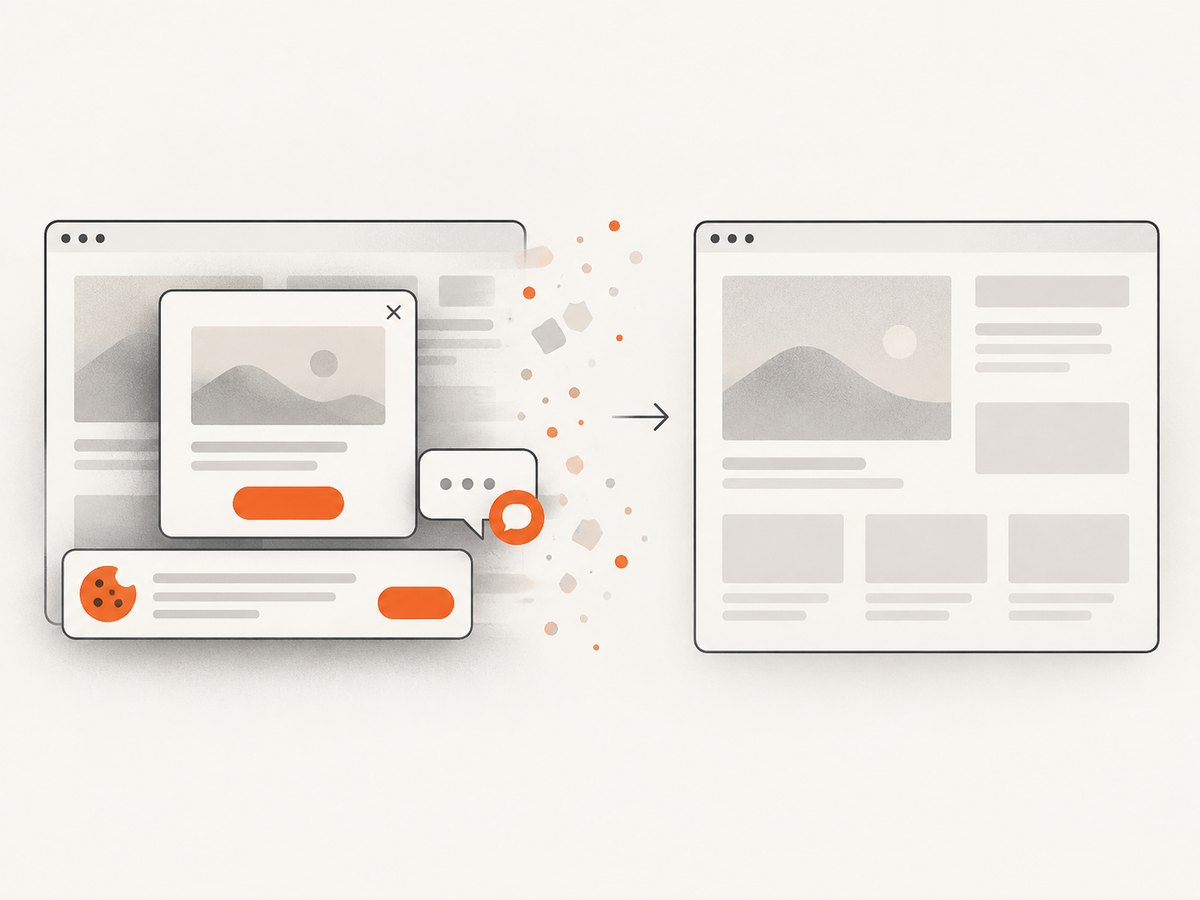
Cookie banners, newsletter popups, and chat widgets are removed before the shot. Bot checks, blank pages, timeouts, failed loads, and cache hits are not billed, and response headers identify the page verdict and billing status. Its MCP server lets Claude, Cursor, and other MCP clients call take_screenshot, get_page_info, and capture_pdf.
See the ScreenshotNeo API documentation for the complete option list. Here are runnable requests:
cURL
curl -G "https://api.screenshotneo.com/v1/shot" \
  -d access_key=YOUR_API_KEY \
  --data-urlencode url=https://stripe.com \
  -o shot.webp
Python
import requests

r = requests.get(
    "https://api.screenshotneo.com/v1/shot",
    params={"access_key": "YOUR_API_KEY", "url": "https://stripe.com"},
    timeout=90,
)
r.raise_for_status()
open("shot.webp", "wb").write(r.content)
Node.js
const q = new URLSearchParams({ access_key: 'YOUR_API_KEY', url: 'https://stripe.com' });
const res = await fetch(`https://api.screenshotneo.com/v1/shot?${q}`);
if (!res.ok) throw new Error(`HTTP ${res.status}`);
const data = Buffer.from(await res.arrayBuffer());
await import('node:fs/promises').then(fs => fs.writeFile('shot.webp', data));
The Free plan includes 1,000 screenshots per month with no card. Paid plans start at $5 for 3,000 screenshots; yearly billing gives two months free. Create a free ScreenshotNeo account.
11. FAQ
Should the crop rectangle use percentages or pixels?
Store it in source-image pixels for precise rendering, but expose percentages or sliders in the UI so it remains easy to control across image sizes.
Can I edit an image from any website URL?
Only when that origin permits CORS or your application uses a compliant proxy. A URL being publicly viewable does not grant canvas readback permission.
When should I use PNG?
Use PNG for lossless output, transparency, or graphics with sharp text. Use JPEG or WebP when smaller files matter and lossy compression is acceptable.
Does CSS resize the exported image?
No. CSS changes the preview size. The exported dimensions come from the canvas’s intrinsic width and height.
Can Canvas make the editor accessible by itself?
No. Keep editing actions in labeled HTML controls and provide keyboard alternatives and text status for any pointer-based crop interaction.


