Bulk Convert HTML to JPG
Render HTML in a real browser, capture JPEGs in batches, and handle timing, sizing, failures, and quality with Puppeteer, Playwright, or an API.
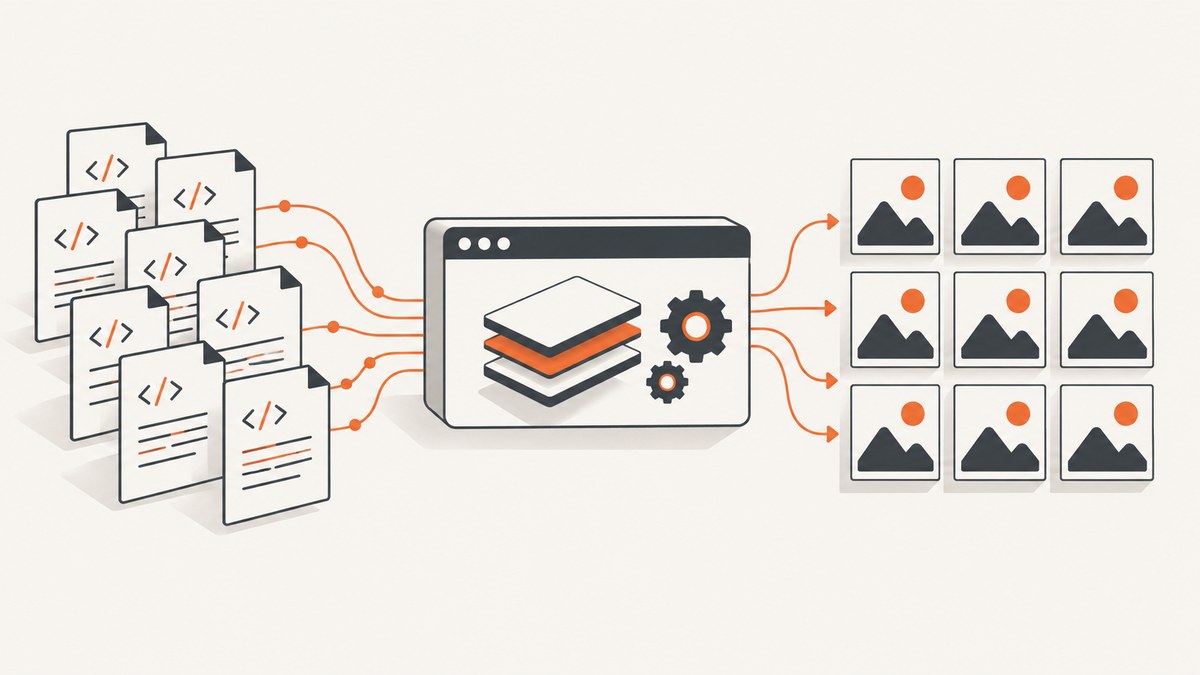
Direct answer: render each HTML file or URL in a browser engine, wait until the required content is ready, then save a screenshot with JPEG output explicitly selected. For repeatable batches, Puppeteer or Playwright gives you control over input files, viewport size, full-page capture, timing, quality, filenames, and retries. Chrome Headless is useful for one-off captures, while an image conversion tool is needed if Chrome produces PNG and you require JPG.
Choose the right workflow
| Use case | Recommended path | Why |
|---|---|---|
| One URL or quick check | Chrome Headless | A single command can render a page and save a screenshot. |
| Many URLs or local files | Puppeteer | Use a loop, explicit JPEG settings, readiness waits, retries, and per-input logs. |
| Teams already using Playwright | Playwright | Its screenshot API supports JPEG output and browser automation controls. |
| PHP application | Spatie Browsershot | It accepts URLs, HTML strings, and local file paths through Puppeteer and Chrome. |
| Hosted capture without browser maintenance | ScreenshotNeo | It handles rendering through one HTTP request and bills only clean captures. |
What “HTML to JPG” actually means
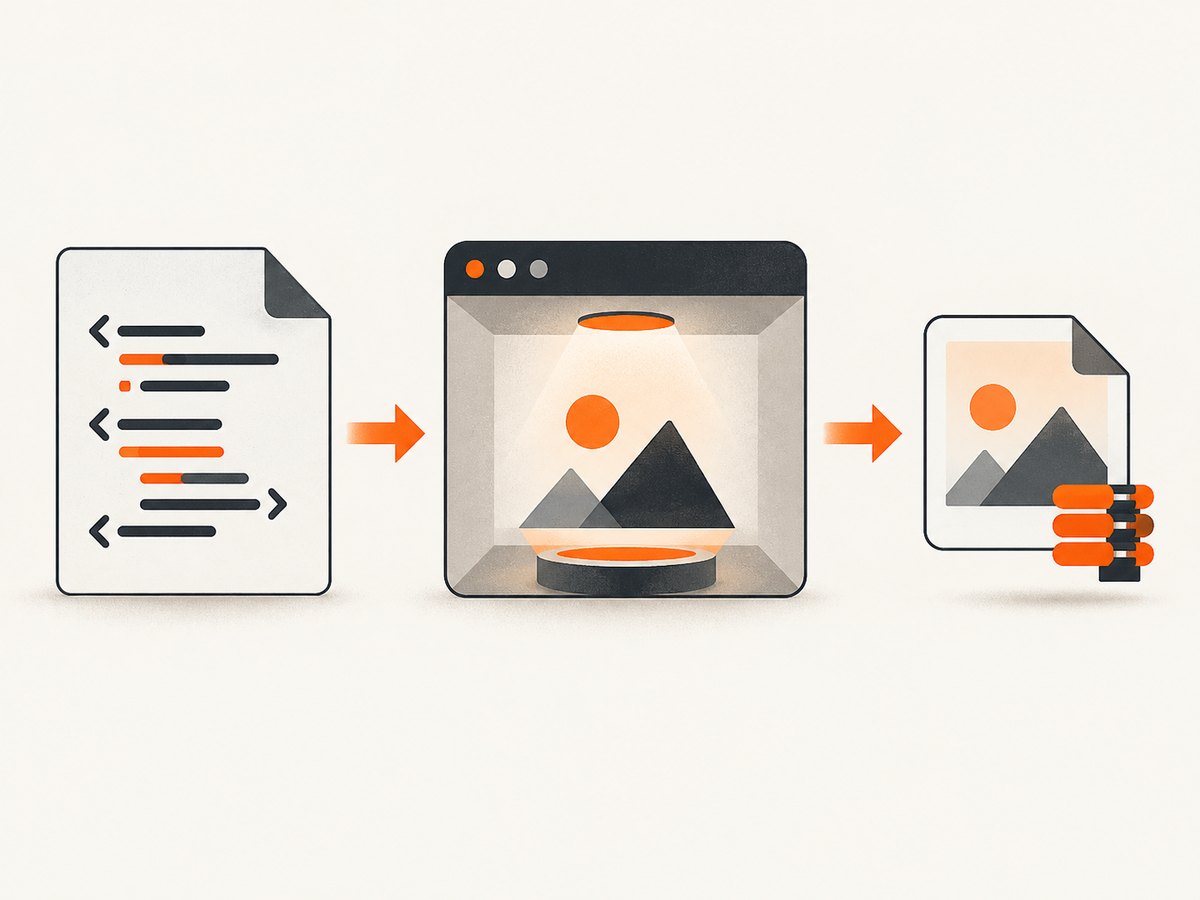
HTML is markup, not a bitmap. CSS, fonts, images, JavaScript, and responsive layout must be rendered by a browser before pixels exist. The browser then encodes those pixels as JPEG. Chrome documents the --screenshot command-line flag and viewport controls in its Headless Chrome documentation. Puppeteer documents screenshot options, including output type, quality, clipping, and full-page capture, in its ScreenshotOptions API.
One-off conversion with Chrome Headless
Install a Chromium or Chrome binary that provides the headless command, then run:
chrome --headless --disable-gpu --screenshot=page.png --window-size=1440,1000 https://example.comThis route is convenient for a quick capture. The documented command-line flow produces PNG; for JPG, either use browser automation with type: 'jpeg' or convert the resulting PNG with an image tool. A fixed timeout can capture a page before late content appears, so use a longer timeout where your Chrome version supports it and verify the output.
Bulk conversion with Puppeteer
The script below accepts URLs and local HTML files, writes one JPEG per input, waits for network activity to settle, and records failures without stopping the whole batch.
import puppeteer from 'puppeteer';
import path from 'node:path';
import { promises as fs } from 'node:fs';

const inputs = [
  'https://example.com',
  './html/invoice-001.html',
  './html/invoice-002.html'
];
const outputDir = './jpg-output';
const width = 1440;
const height = 1000;
const quality = 85; // JPEG quality: 0-100

function safeName(input, index) {
  const base = input.startsWith('http')
    ? new URL(input).hostname
    : path.basename(input, path.extname(input));
  return `${String(index + 1).padStart(4, '0')}-${base.replace(/[^a-z0-9_-]/gi, '-')}.jpg`;
}

async function capture(page, input, outputPath) {
  if (input.startsWith('http://') || input.startsWith('https://')) {
    await page.goto(input, { waitUntil: 'networkidle2', timeout: 90000 });
  } else {
    const absolute = path.resolve(input);
    await page.goto(`file://${absolute}`, { waitUntil: 'networkidle0', timeout: 90000 });
  }

  // Replace this with a page-specific selector when content is asynchronous.
  await page.evaluate(() => document.fonts?.ready);
  await page.screenshot({
    path: outputPath,
    type: 'jpeg',
    quality,
    fullPage: true
  });
}

await fs.mkdir(outputDir, { recursive: true });
const browser = await puppeteer.launch({ headless: true });
const page = await browser.newPage();
await page.setViewport({ width, height, deviceScaleFactor: 1 });

const results = [];
for (let i = 0; i < inputs.length; i += 1) {
  const input = inputs[i];
  const outputPath = path.join(outputDir, safeName(input, i));
  try {
    await capture(page, input, outputPath);
    results.push({ input, outputPath, ok: true });
    console.log(`OK   ${input} -> ${outputPath}`);
  } catch (error) {
    results.push({ input, ok: false, error: String(error) });
    console.error(`FAIL ${input}: ${error.message}`);
  }
}

await browser.close();
const failed = results.filter((result) => !result.ok);
if (failed.length) process.exitCode = 1;
Install and run it with:
npm install puppeteer
node bulk-html-to-jpg.mjs
Use a content-ready selector
networkidle2 is a useful default, but it does not prove that your application finished rendering. If every page has a stable marker, wait for it:
await page.goto(url, { waitUntil: 'domcontentloaded', timeout: 90000 });
await page.waitForSelector('[data-render-complete="true"]', { timeout: 30000 });
await page.screenshot({ path: outputPath, type: 'jpeg', quality: 85, fullPage: true });
Capture only the viewport
Puppeteer’s fullPage option defaults to false. Set it to false to capture only the configured viewport, or true to include the document’s full scrollable height. Full-page output can become extremely tall; check the resulting dimensions before sending it to downstream systems.
Capture one element
const card = await page.locator('.invoice-card');
await card.screenshot({ path: outputPath, type: 'jpeg', quality: 90 });
Playwright alternative
Playwright exposes the same core decisions: browser context, viewport, readiness, JPEG type, quality, and full-page behavior. Its documented screenshot API is at playwright.dev/docs/screenshots.
import { chromium } from 'playwright';

const browser = await chromium.launch();
const page = await browser.newPage({ viewport: { width: 1440, height: 1000 } });
await page.goto('https://example.com', { waitUntil: 'networkidle', timeout: 90000 });
await page.screenshot({
  path: 'example.jpg',
  type: 'jpeg',
  quality: 85,
  fullPage: true
});
await browser.close();
Local files, inline HTML, and PHP
Browsershot documents URL input as well as htmlFromFilePath and inline html input. A minimal PHP example is:
use Spatie\Browsershot\Browsershot;

Browsershot::htmlFromFilePath(__DIR__ . '/html/invoice.html')
    ->windowSize(1440, 1000)
    ->fullPage()
    ->setScreenshotType('jpeg')
    ->setScreenshotQuality(85)
    ->save(__DIR__ . '/jpg-output/invoice.jpg');
See the Browsershot README for installation and environment requirements.
JPEG settings that affect output
| Setting | What it changes | Guidance |
|---|---|---|
type |
Image encoding | Set jpeg explicitly; Puppeteer defaults to PNG. |
quality |
Compression and file size | Use 80–90 for a practical starting point, then inspect text and gradients. |
| viewport | Responsive layout and dimensions | Set width and height deliberately for consistent batches. |
deviceScaleFactor |
Pixel density | Use 1 for smaller files or 2 for denser output when consumers expect retina pixels. |
fullPage |
Viewport versus entire document | Choose per template; long pages may create very large images. |
| clip | Exact rectangle | Useful for fixed-size cards, receipts, or social images. |
JPEG is lossy and has no transparency. If the page has transparent regions, sharp UI text, or line art, PNG may be a better intermediate even when your final delivery format is JPG.

Batch design: naming, retries, and validation
- Normalize each input into a stable record containing source, output path, viewport, and expected selector.
- Use deterministic names and keep a manifest mapping source to output.
- Give each navigation and selector wait its own timeout.
- Retry transient navigation failures with a small limit and a fresh page when necessary.
- Continue after an individual failure, then return a non-zero process status if any item failed.
- Validate that every expected output exists, is non-empty, and begins with a JPEG signature before publishing it.
- Review representative pages from each template, especially pages with custom fonts, lazy images, charts, and responsive breakpoints.
Dynamic content and edge cases
- Lazy-loaded images: scroll the page or wait for a page-specific completion marker before capture.
- Web fonts: wait for
document.fonts.ready; otherwise fallback fonts can change line wrapping. - Animations: disable transitions with injected CSS or wait until the animation reaches a known state.
- Cookie banners and popups: close them with a selector before the screenshot, or hide them with CSS.
- Authenticated pages: create a browser context with the required cookies or headers and never write secrets into logs.
- Cross-origin resources: the browser still needs network access to fonts, images, and scripts; blocked assets change the result.
- Very long pages: capture sections or use a PDF workflow when one giant JPEG is impractical.
- Local paths: resolve absolute paths and use a
file://URL; relative paths depend on the process working directory. - URL characters: pass URLs as data, not shell fragments, and preserve query strings when building input lists.
Troubleshooting
| Symptom | Likely cause | Fix |
|---|---|---|
| Output is PNG | Screenshot type was omitted. | Set type: 'jpeg' or the equivalent API option. |
| Only the top of the page appears | Viewport capture is enabled. | Set fullPage: true or provide an explicit clip. |
| Text or images are missing | Capture happened before rendering completed. | Wait for a selector, fonts, network idle, or a page-specific readiness signal. |
| Cookie dialog covers content | The page requires an interaction. | Click its accept/close control or hide the selector before capture. |
| Navigation timeout | Slow origin, never-ending requests, or blocked network. | Increase timeout carefully, use a meaningful readiness condition, and inspect failed resources. |
| Fonts differ between machines | Font is unavailable or loaded late. | Install or self-host the font and wait for document.fonts.ready. |
| Blank local page | Bad file URL or missing local assets. | Use an absolute path and verify asset paths and permissions. |
| Batch stops on one bad input | Error is uncaught in the loop. | Catch per-item errors, log them, and set the final exit code after processing. |
| JPEG is too large or blurry | Quality and scale do not match the use case. | Adjust quality and device scale together, then inspect text at delivery size. |
Performance, reliability, and cost
Browser startup is expensive relative to reusing one browser process. Launch once, reuse pages or contexts, and limit concurrency so memory usage remains predictable. Parallel pages can improve throughput, but too much concurrency causes CPU, RAM, and origin-rate pressure. Measure your own templates; the cited documentation describes controls, not a universal throughput benchmark.
For reliability, isolate failures per input, record the browser and template configuration, and keep the original HTML or URL alongside the output manifest. Cache unchanged inputs when your content is immutable. Treat rendering as nondeterministic when third-party scripts, ads, clocks, geolocation, or remote fonts can change the page.
Self-hosting costs include compute, browser binaries, storage, bandwidth, and engineering time. A hosted API can make per-image cost easier to predict, but check its billing rules for failed pages, bot checks, and cache hits.
Or skip the browser setup
ScreenshotNeo renders a URL with one request and can return PNG, JPEG, WebP, or PDF. Its capture options include full-page screenshots, CSS element capture, dark mode, device presets or custom viewports, retina scale, custom CSS and JavaScript, click and wait rules, resource blocking, headers, cookies, authentication, timezone, geolocation, resizing, caching, signed links, async webhooks, bulk capture, and a usage API. The ScreenshotNeo API documentation lists the parameters.
curl -G "https://api.screenshotneo.com/v1/shot" -d access_key=YOUR_API_KEY --data-urlencode url=https://stripe.com -o shot.webpimport requests
r = requests.get("https://api.screenshotneo.com/v1/shot", params={"access_key": "YOUR_API_KEY", "url": "https://stripe.com"}, timeout=90)
open("shot.webp", "wb").write(r.content)const q = new URLSearchParams({ access_key: 'YOUR_API_KEY', url: 'https://stripe.com' });
const res = await fetch(`https://api.screenshotneo.com/v1/shot?${q}`);Before capture, cookie and consent banners, newsletter popups, and chat widgets are removed. Bot checks, blank pages, failed loads, timeouts, and cache hits are not billed, and response headers identify the page verdict and billing result. An MCP server provides take_screenshot, get_page_info, and capture_pdf for Claude, Cursor, and other MCP clients. The free plan includes 1,000 screenshots per month with no card; paid plans start at $5 for 3,000.
Create a free ScreenshotNeo account and start with 1,000 screenshots a month at no charge.
FAQ
Can I convert HTML strings without creating files?
Yes. Puppeteer and Playwright can call page.setContent(html) before taking the screenshot. Browsershot also documents inline HTML input.
Does changing JPEG quality change dimensions?
No. Quality changes compression and file size. Viewport, full-page extent, clipping, and device scale determine pixel dimensions.
Should I use JPG or PNG for text-heavy pages?
JPG is smaller and widely supported, but PNG preserves sharp edges and transparency better. Choose based on the consumer and delivery size.
How do I process thousands of pages?
Use a queue, bounded concurrency, deterministic manifests, retries, and validation. A hosted bulk endpoint can remove browser fleet maintenance when that tradeoff fits your workload.


