How to Bulk Generate Images from a Spreadsheet
Create one image per spreadsheet row with Canva, Adobe Express, or code. Learn templates, prompts, batch limits, naming, retries, and QA.
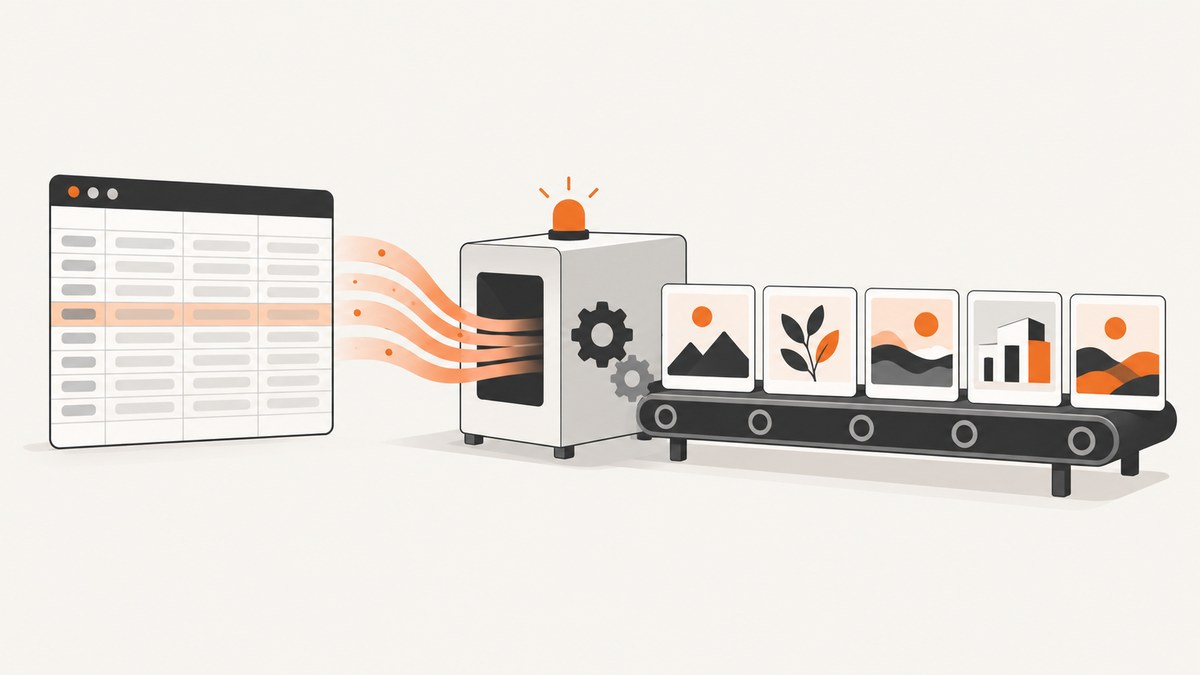
To bulk generate images from a spreadsheet, make each row one output record, give every replaceable value its own column, connect those columns to a template or prompt, test a small sample, and then run the full batch. Canva Bulk Create is the simplest no-code route for Canva Sheets, CSV, or XLSX. Adobe Express is a practical CSV option for up to 99 variations. A scripted API workflow gives you the most control when each row needs custom logic, image files, or a different prompt.
Choose the workflow that fits your spreadsheet
| Workflow | Input | Best for | Limits and trade-offs |
|---|---|---|---|
| Canva Bulk Create | Canva Sheets, CSV, XLSX | Template-based social cards, ads, certificates, and catalog graphics | Canva documents up to 300 selected rows and 150 columns when starting from Canva Sheets. Available on Pro, Teams, Business, Enterprise, Education, and Nonprofits plans. |
| Adobe Express Bulk Create | CSV | Fast template variation with text and visual fields | Adobe documents up to 99 design variations. The Bulk Create and Generate add-on can use local image filenames or image prompts. |
| Image-generation API | Your spreadsheet plus code | Custom prompts, conditional logic, automated pipelines, and large jobs | You must implement authentication, rate limiting, retries, storage, naming, and quality checks. Verify the provider’s current API version, limits, and pricing. |
Use a design tool when every output should share a fixed layout. Use an image-generation API when the image itself should be newly rendered from a prompt for each row. You can also combine them: generate a background or product image by API, then place it into a Canva or Adobe template.
Prepare the spreadsheet correctly
Good spreadsheet structure prevents most batch failures. Keep one output record per row and put the column headers in the first row. Add a stable identifier even if the tool does not require one.

id,title,subtitle,image_prompt,source_image,output_name
sku-001,Trail mug,Insulated for cold mornings,"Studio product photo of a green travel mug on a mountain trail",assets/mug-green.png,trail-mug-green
sku-002,Camp lantern,Light for late nights,"Warm editorial product photo of a brass camp lantern in a tent",assets/lantern-brass.png,camp-lantern-brass- id: A permanent row key used in filenames, logs, and retries.
- title and subtitle: Text that maps to named template fields.
- image_prompt: A complete prompt, or the variables used to build one.
- source_image: A local filename when the tool supports file-based image inputs. Do not assume a cloud URL will be accepted.
- output_name: A filesystem-safe name with no slashes, control characters, or duplicate values.
Spreadsheet checklist
- Use short, unique, descriptive headers such as
title,price,image_prompt, andoutput_name. - Remove merged cells, formulas that have not been recalculated, blank header cells, and accidental trailing columns.
- Decide whether a visual column contains a local file, an image URL, or a prompt. Confirm that your chosen tool accepts that format.
- Keep dates and numbers in a consistent format. Convert currency and decimal separators before import.
- Record the tool version, date, prompt, and row ID with every output so you can reproduce a batch.
Canva: bulk create from Canva Sheets, CSV, or XLSX
Canva’s official Bulk Create workflow links data in rows and columns to placeholder elements. Each row supplies the information for one complete page or design. Build the design first, then import and map the data.
- Create a design at the final size. Add text boxes for every variable text field.
- Add a frame or grid for each replaceable image. A normal background image is not automatically a data placeholder.
- Open Bulk Create and start with Canva Sheets, or upload a CSV or XLSX file.
- Let Canva match fields automatically when names are clear, then inspect every mapping. You can also drag a column onto an element manually.
- Preview representative rows, including the longest title, a missing image, and unusual punctuation.
- Generate the batch as one multi-page design or as separate designs per row, depending on your delivery needs.
Canva documents up to 300 selected rows and 150 columns when starting from Canva Sheets. If your source is larger, split it into numbered batches and preserve the original id column. Previewing is essential: long text can overflow, a portrait image can crop badly in a landscape frame, and a blank cell can leave an unexpected gap.
Adobe Express: create up to 99 variations from CSV
Adobe Express Bulk Create uses a CSV with a header for each text or visual element. Upload the file, connect each design element to a column, preview, and create the pages. Adobe states that Bulk Create can create up to 99 design variations.
- Design one page and create a separate text or visual element for every field you will replace.
- Save the spreadsheet as CSV with a header row. Keep the encoding as UTF-8 if names contain accents or non-Latin characters.
- Upload the CSV in Bulk Create and map each column to its matching element.
- Preview several rows. Check line breaks, image crops, missing values, and characters such as ampersands and quotation marks.
- Create the pages and export them in the format required by your publishing workflow.
The Bulk Create and Generate add-on can create CSV columns for local image filenames or image prompts. Adobe notes that each unique text prompt consumes one generative credit, and that JPEG and PNG are supported. Count distinct prompts before starting so a large spreadsheet does not consume credits unexpectedly.
API workflow: generate one image per row with Python
An API loop is appropriate when prompts depend on several columns, when you need conditional rules, or when outputs must be saved into your own storage. The example below uses a provider-neutral function so you can insert the current SDK call documented by your image provider. OpenAI documents prompt-based generation through the Image API and image generation in the Responses API; its guide says the Image API is the best choice when you only need one image from one prompt. Confirm the current API syntax, authentication, throughput, and pricing before running production jobs.
import csv
import base64
import os
import re
import time
from pathlib import Path

INPUT = "images.csv"
OUTPUT_DIR = Path("generated")
OUTPUT_DIR.mkdir(exist_ok=True)


def safe_name(value: str) -> str:
    value = re.sub(r"[^A-Za-z0-9._-]+", "-", value.strip())
    return value.strip("-") or "untitled"


def build_prompt(row: dict) -> str:
    return (
        f"Create a polished commercial image for {row['title']}. "
        f"Use this direction: {row['image_prompt']}. "
        "Do not add readable text, watermarks, or logos unless the prompt explicitly requires them."
    )


def generate_image(prompt: str) -> bytes:
    # Replace this function with the image provider's current SDK or HTTP call.
    # Return decoded PNG or JPEG bytes.
    raise NotImplementedError("Insert the provider's documented image-generation call")

with open(INPUT, newline="", encoding="utf-8") as file:
    rows = list(csv.DictReader(file))

for row in rows:
    row_id = safe_name(row["id"])
    destination = OUTPUT_DIR / f"{row_id}-{safe_name(row['output_name'])}.png"
    if destination.exists():
        print(f"skip {row_id}: already exists")
        continue

    prompt = build_prompt(row)
    for attempt in range(3):
        try:
            image_bytes = generate_image(prompt)
            destination.write_bytes(image_bytes)
            print(f"saved {destination}")
            break
        except Exception as error:
            if attempt == 2:
                print(f"failed {row_id}: {error}")
                break
            time.sleep(2 ** attempt)
The important parts are independent of the vendor: stable IDs, deterministic filenames, a skip-if-present check, bounded retries, and a log that identifies failed rows. Persist the prompt beside the output if you need an audit trail. For a provider that returns base64, decode the response before writing it; for a provider that returns a temporary URL, download it immediately because such URLs can expire.
cURL pattern for an image API
curl https://api.example.com/v1/images \
  -H "Authorization: Bearer $IMAGE_API_KEY" \
  -H "Content-Type: application/json" \
  -d '{"prompt":"Studio product photo of a green travel mug on a mountain trail","size":"1024x1024"}'
Replace the endpoint and request fields with the provider’s current documentation. Never put a production key in the spreadsheet or browser code.
Node.js orchestration pattern
import fs from 'node:fs/promises';

const rows = [
  { id: 'sku-001', prompt: 'Studio product photo of a green travel mug on a mountain trail' }
];

for (const row of rows) {
  const response = await fetch('https://api.example.com/v1/images', {
    method: 'POST',
    headers: {
      'Authorization': `Bearer ${process.env.IMAGE_API_KEY}`,
      'Content-Type': 'application/json'
    },
    body: JSON.stringify({ prompt: row.prompt, size: '1024x1024' })
  });
  if (!response.ok) throw new Error(`${row.id}: ${response.status}`);
  const result = await response.json();
  // Decode result.data or download result.url according to the provider's response format.
  await fs.writeFile(`generated/${row.id}.json`, JSON.stringify(result, null, 2));
}
Batch design, retries, and reproducibility
Start with five to ten rows. Include the shortest and longest text, every image aspect ratio, a non-ASCII name, and at least one intentionally blank optional field. Approve that sample before spending credits on the full sheet.
- Idempotency: Name outputs with the stable row ID and skip files that already exist. A restarted job then processes only missing rows.
- Retries: Retry temporary network errors and rate limits with exponential backoff. Do not retry invalid prompts or authentication failures.
- Concurrency: Start with low parallelism. Increase it only after observing rate-limit responses, memory use, and provider quotas.
- Checkpoints: Write a status file containing row ID, prompt hash, timestamp, attempt count, output path, and error message.
- Ordering: Do not rely on completion order. Use IDs to restore spreadsheet order when assembling a contact sheet or ZIP file.
- Validation: Verify that each output is a supported image, has nonzero dimensions, and is not an HTML error page saved with a PNG extension.
Common errors and fixes
| Error | Likely cause | Fix |
|---|---|---|
| Columns do not appear in the mapper | Blank, duplicate, or unsupported headers | Use one header row with unique short names; export the file again as CSV or XLSX. |
| Text is clipped | The sample row was shorter than production values | Preview the longest value, enlarge the text area, reduce font size, or impose a character limit before generation. |
| Images are cropped incorrectly | Source and frame aspect ratios differ | Crop or pad source files consistently, or choose a frame behavior that matches the intended composition. |
| Accented characters are corrupted | CSV encoding mismatch | Export as UTF-8 and confirm the import tool’s encoding option. |
| API returns 401 or 403 | Missing, expired, or mis-scoped key | Load the key from an environment variable, check permissions, and rotate it if it was exposed. |
| 429 rate limit | Too many concurrent requests | Reduce concurrency, honor retry-after guidance, and use exponential backoff. |
| Job stops halfway | Process interruption or unhandled exception | Use checkpoint files, skip completed IDs, and catch errors per row so one failure does not terminate the batch. |
| Downloaded file is not an image | Provider returned JSON or an HTML error body | Check HTTP status and content type before writing bytes; save the error body separately for diagnosis. |
Performance, reliability, and cost considerations
Spreadsheet tools are fastest to set up, but their limits and export controls determine the maximum batch size. API workflows add engineering work while giving you queueing, parallelism, caching, and custom validation.
- Estimate cost from the number of unique prompts, not only the number of rows. Some tools charge a credit for each unique generated prompt.
- Separate generation from layout when possible. Reusing a generated asset avoids paying to recreate identical images.
- Keep original rows and generated metadata together. This makes corrections and partial reruns inexpensive.
- Use a queue for large jobs and cap workers to the provider’s published rate limit.
- Store the prompt, model or tool version, source image reference, and output checksum for reproducibility.
- Review licensing, privacy, and retention terms before sending customer data or confidential product images to a third-party service.
Or skip the browser setup
If your spreadsheet workflow publishes each generated image on a web page and you need clean previews or downloadable snapshots, ScreenshotNeo can capture the finished page with one request. It is a screenshot API rather than an image-generation model, so keep generation in Canva, Adobe Express, or your image API, then use ScreenshotNeo for rendering.
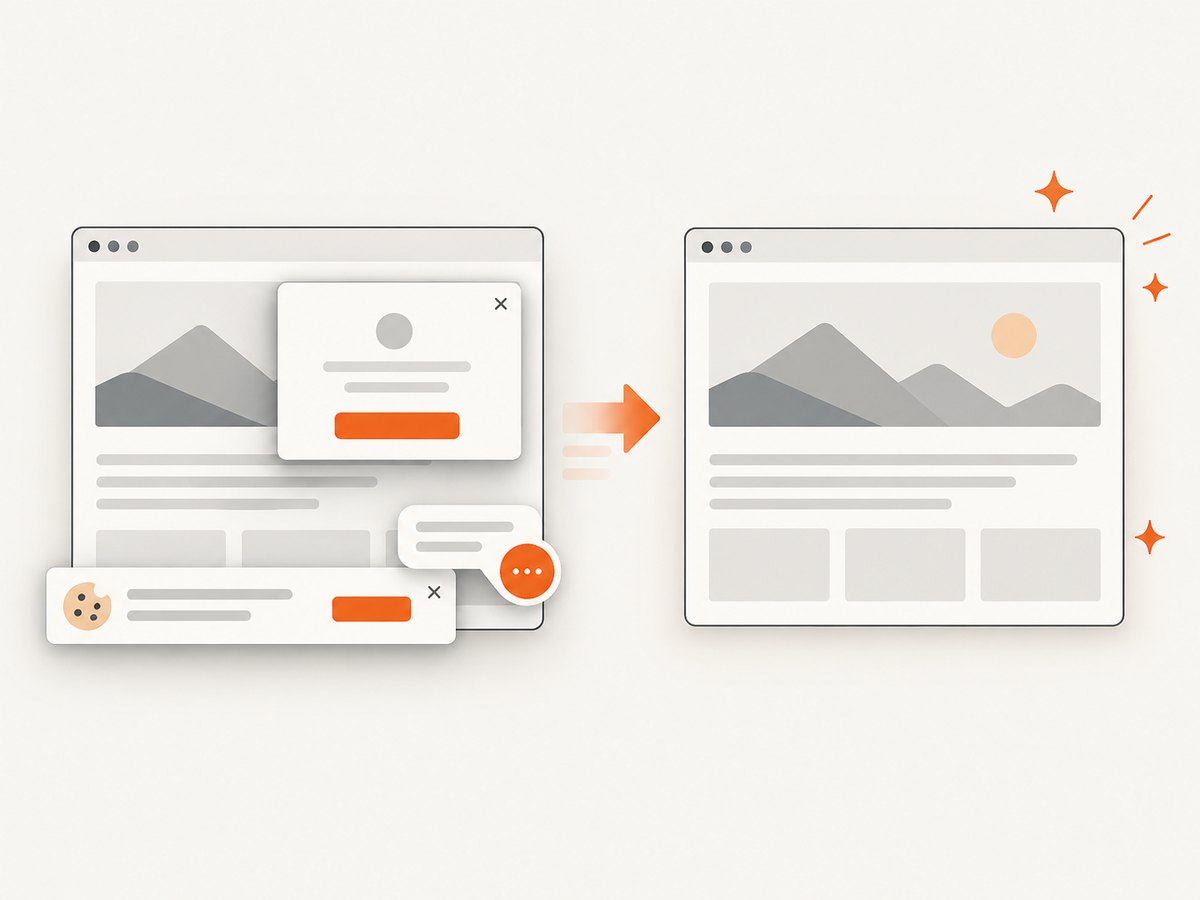
Cookie banners, newsletter popups, and chat widgets are removed before the shot. Bot checks, blank pages, failed loads, timeouts, and cache hits are not billed, and response headers identify the page verdict and billing status. An MCP server lets Claude, Cursor, and other MCP clients call take_screenshot, get_page_info, and capture_pdf. One thousand screenshots per month are free with no card; paid plans start at $5 for 3,000 shots.
See the ScreenshotNeo API documentation for all options. This cURL request captures a page containing your generated asset:
curl -G "https://api.screenshotneo.com/v1/shot" -d access_key=YOUR_API_KEY --data-urlencode url=https://stripe.com -o shot.webpimport requests
r = requests.get("https://api.screenshotneo.com/v1/shot", params={"access_key": "YOUR_API_KEY", "url": "https://stripe.com"}, timeout=90)
open("shot.webp", "wb").write(r.content)const q = new URLSearchParams({ access_key: 'YOUR_API_KEY', url: 'https://stripe.com' }); const res = await fetch(`https://api.screenshotneo.com/v1/shot?${q}`);Sign up for 1,000 free screenshots a month with no card.
Frequently asked questions
Can one row create more than one image?
Yes. Add multiple prompt or asset columns, or run several template passes keyed by the same row ID. Keep output filenames distinct so reruns do not overwrite earlier variants.
Should prompts or image URLs go in the spreadsheet?
Use prompts when the image should be generated. Use local filenames when a template tool expects uploaded assets. Treat cloud URLs as unsupported until the specific tool documents URL ingestion.
How do I rerun only failed rows?
Filter the status log for failures, export those IDs to a new input file, and keep the original IDs and output names. The skip-if-present check protects successful results.
What is the safest first batch size?
Use five to ten representative rows. Include long text, missing optional values, unusual characters, and every image shape before launching the full batch.
Can I generate a PDF or page preview from the results?
Yes. Assemble the generated images into a web page or document, then use the appropriate export function in your design tool or a capture service such as ScreenshotNeo for a clean rendered preview.


