How to Take Bulk Screenshots with Playwright in Java
Capture many URLs reliably with Playwright in Java using bounded concurrency, full-page options, stable filenames, retries and production troubleshooting.
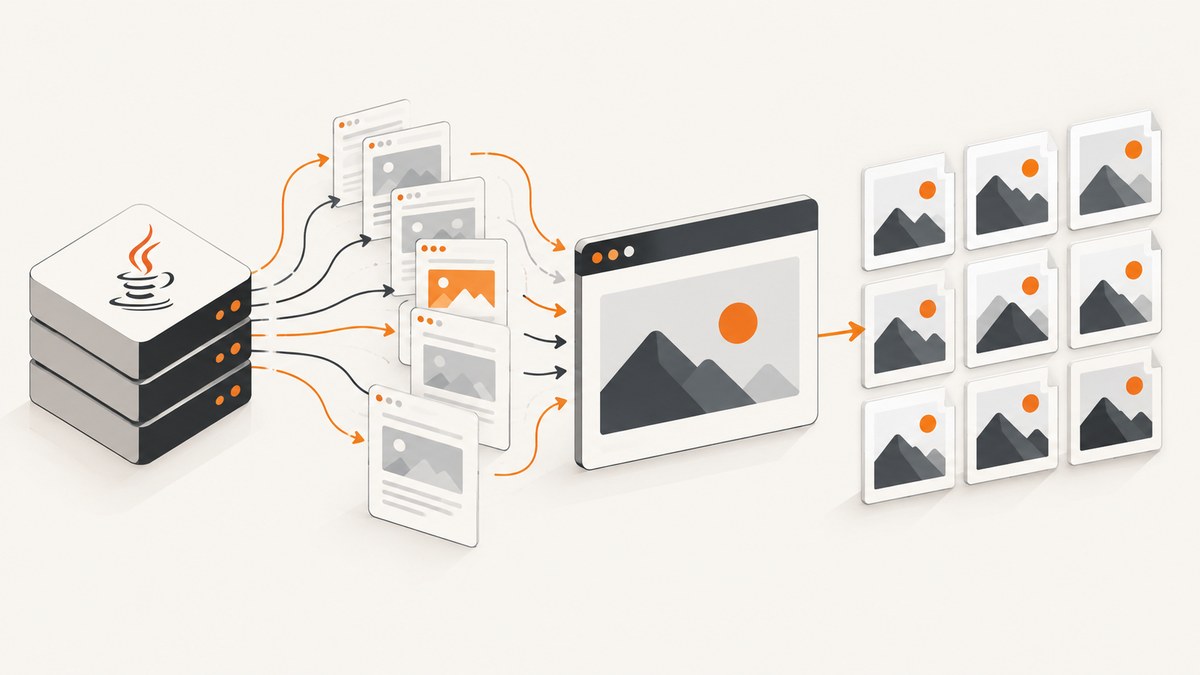
To take bulk screenshots with Playwright in Java, launch one browser, create a reusable BrowserContext, open one Page per URL, and run a bounded number of capture jobs concurrently. Save every result to a unique path, close each page in a finally block, and record failures for retry. Use setFullPage(true) when you need the entire scrollable document; omit it for a viewport capture.
Playwright’s official Pages guide states that “Each BrowserContext can have multiple pages.” A context therefore lets a batch reuse one browser process while isolating tabs. The Java screenshot API supports PNG, JPEG and WebP, CSS or device-pixel scaling, element screenshots, masking, injected styles and byte-array output. See the Pages guide and the official screenshot guide for the API reference.
1. Set up a Java Playwright project
Add the Playwright Java dependency to your build. The version should match the release you have selected for your project, then install the browser binaries with the Playwright CLI.
<dependency>
  <groupId>com.microsoft.playwright</groupId>
  <artifactId>playwright</artifactId>
  <version>1.56.0</version>
</dependency>
mvn exec:java \\
-e -Dexec.mainClass=com.microsoft.playwright.CLI \\
-Dexec.args="install chromium"For CI, install the browser during image creation or in a preparation step. Keep the browser version and the Java dependency version aligned so a change in rendering behavior is deliberate and reviewable.
2. A complete bulk screenshot program
The following example processes several URLs with a fixed thread pool. It uses one Playwright instance, one Chromium process and one context. Every task creates its own page, waits for navigation, captures a full-page PNG at CSS scale, and closes the page even when navigation or capture fails.
import com.microsoft.playwright.*;
import java.nio.file.*;
import java.util.*;
import java.util.concurrent.*;

public class BulkScreenshots {
  public static void main(String[] args) throws Exception {
    List<String> urls = List.of(
        "https://example.com/one",
        "https://example.com/two",
        "https://example.com/three");
    Path outputDir = Paths.get("screenshots");
    Files.createDirectories(outputDir);

    try (Playwright pw = Playwright.create()) {
      Browser browser = pw.chromium().launch();
      BrowserContext context = browser.newContext(
          new Browser.NewContextOptions().setViewportSize(1440, 900));
      ExecutorService pool = Executors.newFixedThreadPool(3);
      List<Future<?>> jobs = new ArrayList<>();

      for (int i = 0; i < urls.size(); i++) {
        final int index = i;
        jobs.add(pool.submit(() -> {
          Page page = context.newPage();
          try {
            page.navigate(urls.get(index));
            page.waitForLoadState();
            Path path = outputDir.resolve(String.format("%03d.png", index));
            page.screenshot(new Page.ScreenshotOptions()
                .setPath(path)
                .setFullPage(true)
                .setScale(ScreenshotScale.CSS));
            System.out.println("saved " + path);
          } finally {
            page.close();
          }
        }));
      }

      for (Future<?> job : jobs) {
        job.get();
      }
      pool.shutdown();
      context.close();
      browser.close();
    }
  }
}
page.screenshot() without setFullPage(true) captures the current viewport. With setFullPage(true), Playwright captures the complete scrollable document, as if it were displayed on a very tall screen. The path is a Path, so the parent directory must exist before the call.
3. Make filenames safe and repeatable
Never derive a path directly from an untrusted URL. Query strings, slashes and characters such as : can create invalid or surprising filenames. Use a stable job identifier, a slug, or a hash of the normalized URL. Include the extension that matches the selected format.
import java.net.URI;
import java.security.MessageDigest;

static String fileStem(String url, int index) throws Exception {
  String host = URI.create(url).getHost();
  if (host == null) host = "page";
  String safeHost = host.replaceAll("[^A-Za-z0-9.-]", "_");
  byte[] digest = MessageDigest.getInstance("SHA-256")
      .digest(url.getBytes(java.nio.charset.StandardCharsets.UTF_8));
  StringBuilder hex = new StringBuilder();
  for (int i = 0; i < 6; i++) hex.append(String.format("%02x", digest[i]));
  return String.format("%03d-%s-%s", index, safeHost, hex);
}
This prevents two URLs with the same host from overwriting one another and makes reruns easy to compare. If a URL is captured more than once, add a run ID or timestamp outside the deterministic stem.
4. Control concurrency without exhausting the host
A browser page consumes memory, network connections and CPU. A fixed executor bounds the number of active pages. Start with a small pool, observe memory and elapsed time, and adjust for your pages and machine. The Playwright documentation does not publish a universal throughput benchmark, so a number that works for one site or host is not a promise for another.
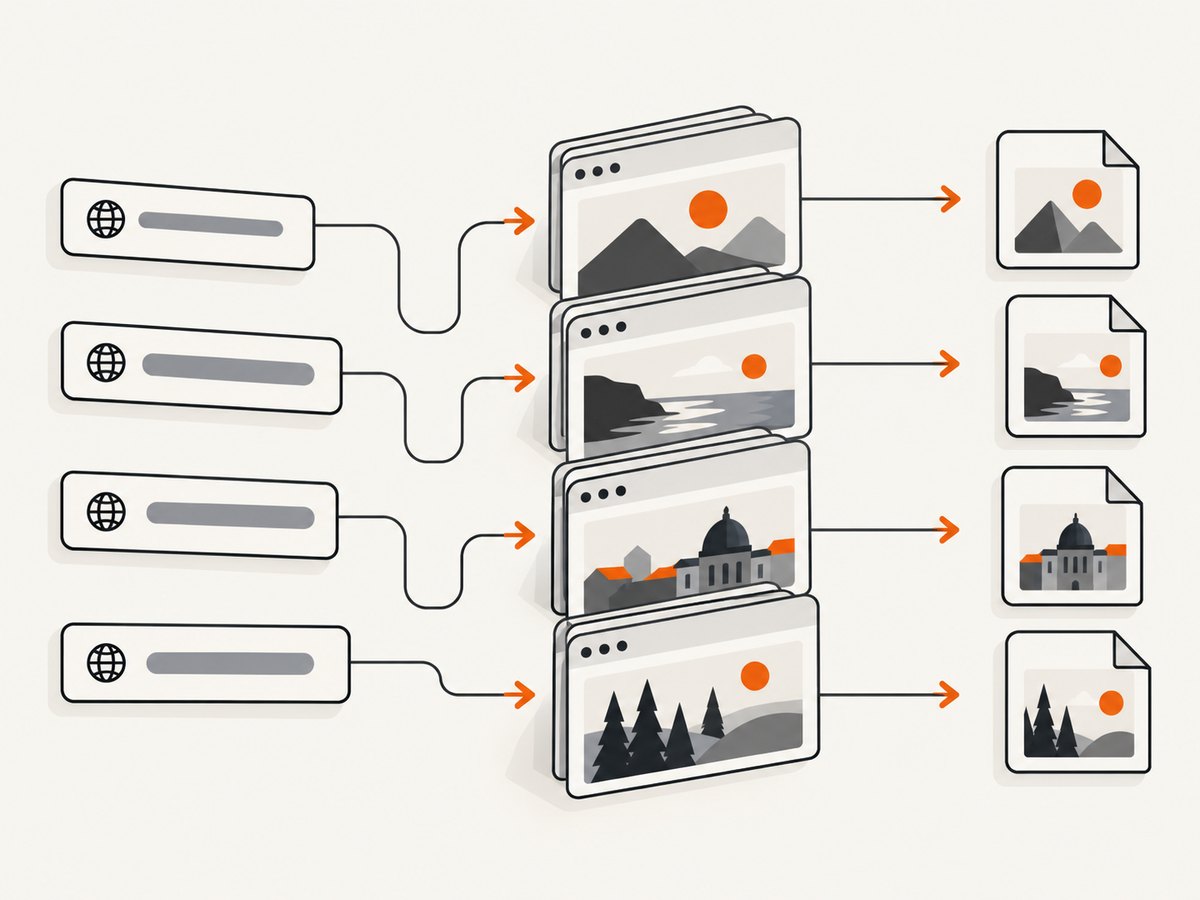
Do not create a new browser process for every URL. Browser startup is expensive and makes failures harder to manage. Reuse the browser and context, while still giving each URL its own page. If your workload contains thousands of URLs, submit work in batches or use a producer-consumer queue instead of placing every future in memory.
5. Wait for the page you actually need
waitForLoadState() waits for the page’s load state, but it does not guarantee that client-rendered content, charts or lazy images are ready. Choose a readiness condition that matches the application:
- Specific component: wait for a locator such as
page.locator("main.dashboard").waitFor(). - Network idle: use
page.waitForLoadState(LoadState.NETWORKIDLE)only when the page eventually becomes quiet. - Known delay: use a short, explicit timeout for animations or delayed widgets when no selector exists.
- Lazy content: use full-page capture and scroll or wait for the relevant content before taking the shot.
page.navigate(url, new Page.NavigateOptions().setWaitUntil(WaitUntilState.DOMCONTENTLOADED));
page.locator("main").waitFor(new Locator.WaitForOptions().setTimeout(15_000));
page.waitForTimeout(500);
Prefer a meaningful selector over a large arbitrary delay. A selector makes the capture fail clearly when the application changes, while a long sleep merely increases cost and batch time.
6. Choose viewport, full-page and element captures
Viewport screenshots
The default screenshot is the visible viewport. Set the context viewport explicitly so every URL is rendered at the same dimensions.
BrowserContext context = browser.newContext(
    new Browser.NewContextOptions().setViewportSize(1280, 800));
page.screenshot(new Page.ScreenshotOptions().setPath(path));
Full-page screenshots
Use setFullPage(true) for documentation pages, landing pages and long reports. Very tall pages can produce large images and consume more memory. If a site has sticky headers or unusual infinite scrolling, validate the output because the page may change while Playwright measures and captures it.
Element screenshots
For a component, use a locator rather than the discouraged ElementHandle screenshot API:
Locator chart = page.locator("[data-testid='chart']");
chart.screenshot(new Locator.ScreenshotOptions()
    .setPath(outputDir.resolve("chart.png"))
    .setAnimations(ScreenshotAnimations.DISABLED));
A locator can wait for the component and captures the matched element’s bounding box. This is usually more repeatable than cropping a full-page image after the fact.
7. Format, scale and visual consistency options
| Choice | Use it when | Trade-off |
|---|---|---|
| PNG | Text, diagrams or pixel-accurate regression checks | Lossless but often larger |
| JPEG | Photos and smaller files | Lossy; configure quality |
| WebP | Modern web delivery with good compression | Check downstream tooling support |
CSS scale |
Stable one-pixel-per-CSS-pixel comparisons | Smaller than device scale |
DEVICE scale |
High-DPI output or retina previews | Larger files and more memory |
page.screenshot(new Page.ScreenshotOptions()
    .setPath(path)
    .setType(ScreenshotType.JPEG)
    .setQuality(82)
    .setScale(ScreenshotScale.CSS)
    .setFullPage(true));
For stable visual comparisons, disable animations, mask changing regions and inject a stylesheet. For example, hide a rotating timestamp or mask an avatar that changes between runs. Set an explicit timeout around waits and navigation so one broken URL cannot hold the whole batch indefinitely.
page.screenshot(new Page.ScreenshotOptions()
    .setPath(path)
    .setFullPage(true)
    .setAnimations(ScreenshotAnimations.DISABLED)
    .setMask(List.of(page.locator(".live-clock")))
    .setStyle("* { caret-color: transparent !important; }")
    .setScale(ScreenshotScale.CSS));
8. Capture bytes instead of writing files
Omit setPath when you want to upload an image, calculate a digest or store it in object storage yourself.
byte[] png = page.screenshot(new Page.ScreenshotOptions()
    .setFullPage(true)
    .setType(ScreenshotType.PNG));
Files.write(outputDir.resolve("latest.png"), png);
Byte-array output gives you control over naming and storage, but the image still occupies memory until it is processed. For large full-page captures, write to disk or stream through a storage client promptly.
9. Handle failures and retries per URL
Wrap each job independently. Record the URL, exception type and attempt number, then retry only transient failures such as navigation timeouts. Do not blindly retry malformed URLs, selector failures or authentication errors.
static void captureWithRetry(BrowserContext context, String url, Path path) {
  for (int attempt = 1; attempt <= 2; attempt++) {
    Page page = context.newPage();
    try {
      page.setDefaultNavigationTimeout(30_000);
      page.navigate(url);
      page.waitForLoadState();
      page.screenshot(new Page.ScreenshotOptions()
          .setPath(path).setFullPage(true));
      return;
    } catch (PlaywrightException ex) {
      if (attempt == 2) {
        System.err.println("failed: " + url + " - " + ex.getMessage());
      }
    } finally {
      page.close();
    }
  }
}
If the batch runs in CI, persist the failure list as an artifact. That lets a later job retry only failed URLs instead of recapturing every successful page.
10. Authentication, headers and browser state
Use a context for shared, non-secret state such as a viewport, locale or timezone. Use a separate context when cookies or authentication must not leak between tenants. Do not print cookies, authorization headers or signed URLs in logs. For authenticated applications, create the context with the required storage state or set cookies before navigation, then verify that the expected signed-in selector appears.
11. Troubleshooting common errors
| Symptom | Likely cause | Fix |
|---|---|---|
| Browser executable missing | Playwright browsers were not installed | Run the Playwright CLI install step in the build or CI image. |
| Screenshot file is blank | Capture happened before client rendering or the page returned a bot check | Wait for a meaningful selector, inspect the response and save a diagnostic HTML snapshot. |
| Timeout during navigation | Slow origin, blocked resource or never-ending requests | Set a bounded navigation timeout, wait for the required selector and retry transient failures. |
| Output files overwrite each other | Filename is based only on hostname or a shared counter | Use a stable index plus URL slug or hash and create the directory before capture. |
| Out-of-memory or host thrashing | Too many pages or very tall full-page images at once | Lower the executor size, process batches and prefer CSS scale or JPEG/WebP where appropriate. |
| Dynamic regions differ every run | Animations, clocks, ads or personalized content | Disable animations, mask selectors, inject CSS and use a controlled context. |
| Element screenshot fails | Locator matches nothing or is not visible | Wait for the locator, confirm the selector and capture after the component is rendered. |
12. Performance, reliability and cost considerations
- Performance: reuse one browser, keep concurrency bounded, avoid unnecessary full-page captures and choose a compressed format when pixel-perfect PNG is not required.
- Reliability: isolate pages, close them in
finally, set timeouts, classify failures and retry only transient errors. - Repeatability: fix viewport and scale, control fonts and locale, disable animations and mask known dynamic regions.
- Storage: estimate output size before selecting a retention period. A large batch of full-page PNGs can fill a CI workspace quickly.
- Security: treat URLs and page content as untrusted. Restrict access to internal targets, protect credentials and avoid logging sensitive page data.

Or skip the browser setup
ScreenshotNeo provides a hosted screenshot API when you do not want to maintain Playwright browsers, concurrency or capture cleanup. Cookie and consent banners, newsletter popups and chat widgets are removed before the shot. Bot checks, blank pages and failed loads are never billed. Its response includes X-Page-Verdict and X-Billed headers so your batch can distinguish a clean capture from a non-billable failure.
Read the ScreenshotNeo API documentation for all options. The same endpoint supports full-page captures, element selectors, dark mode, custom CSS and JavaScript, waits, blocking rules, headers, cookies, user agents, geolocation, caching, async jobs, bulk capture and PDF output.
cURL
curl -G "https://api.screenshotneo.com/v1/shot" \\
  -d access_key=YOUR_API_KEY \\
  --data-urlencode url=https://stripe.com \\
  -o shot.webp
Python
import requests

r = requests.get(
    "https://api.screenshotneo.com/v1/shot",
    params={"access_key": "YOUR_API_KEY", "url": "https://stripe.com"},
    timeout=90,
)
r.raise_for_status()
open("shot.webp", "wb").write(r.content)
Node.js
const q = new URLSearchParams({
  access_key: 'YOUR_API_KEY',
  url: 'https://stripe.com'
});
const res = await fetch(`https://api.screenshotneo.com/v1/shot?${q}`);
if (!res.ok) throw new Error(`HTTP ${res.status}`);
require('fs').writeFileSync('shot.webp', Buffer.from(await res.arrayBuffer()));
ScreenshotNeo includes an MCP server with take_screenshot, get_page_info and capture_pdf tools for Claude, Cursor and other MCP clients. The free plan includes 1,000 screenshots per month with no card; paid plans start at $5 for 3,000 shots. Create a free ScreenshotNeo account.
13. Frequently asked questions
Can one BrowserContext process multiple URLs at once?
Yes. Create multiple pages in the context and bound the number of active tasks with an executor or queue.
Should every URL use a separate browser?
No. Reusing a browser reduces startup overhead. Use separate contexts when cookies, permissions or authenticated state must be isolated.
Which format is best for visual regression tests?
PNG with CSS scale is a practical default for pixel comparisons. JPEG or WebP is usually better for delivery where small files matter more than lossless pixels.
How do I capture only a component?
Locate it with page.locator(...) and call locator.screenshot(). Wait for the locator before capturing.
Is there an official Playwright throughput number?
No universal benchmark is published in the referenced documentation. Measure on your own pages and machine while watching memory, CPU, network limits and output size.