How to Take Bulk Screenshots with Selenium in Go
Capture a list of URLs with Selenium in Go: setup, waits, reliable PNG saving, retries, parallel workers, and full-page options.
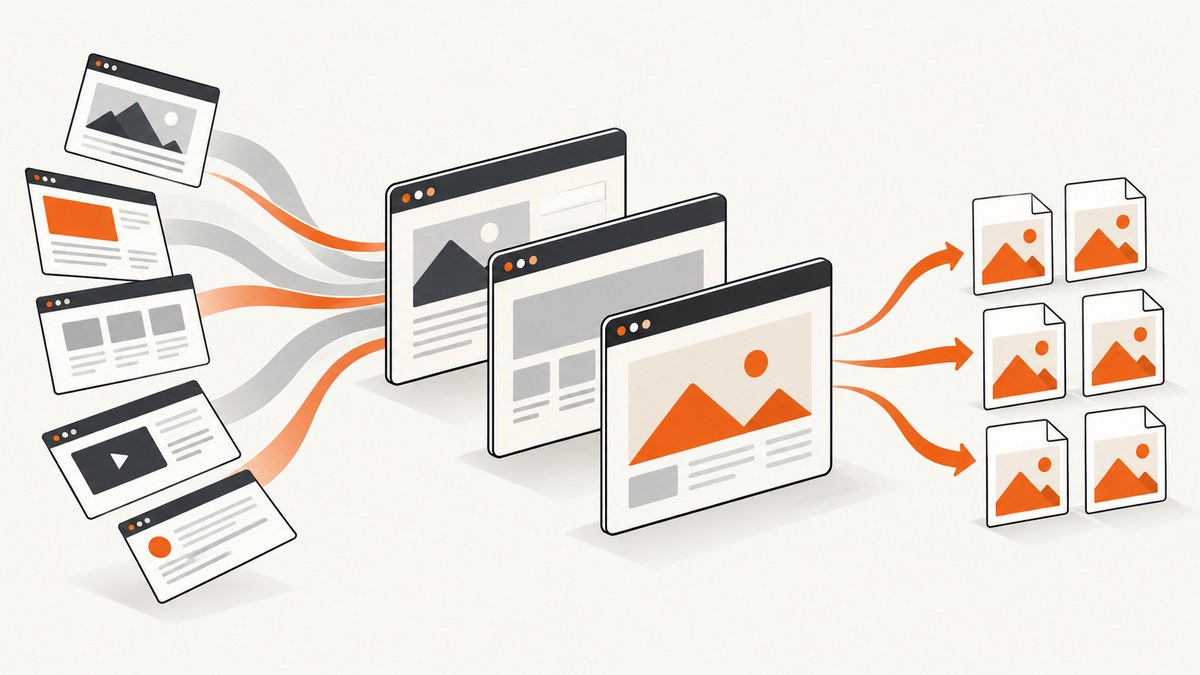
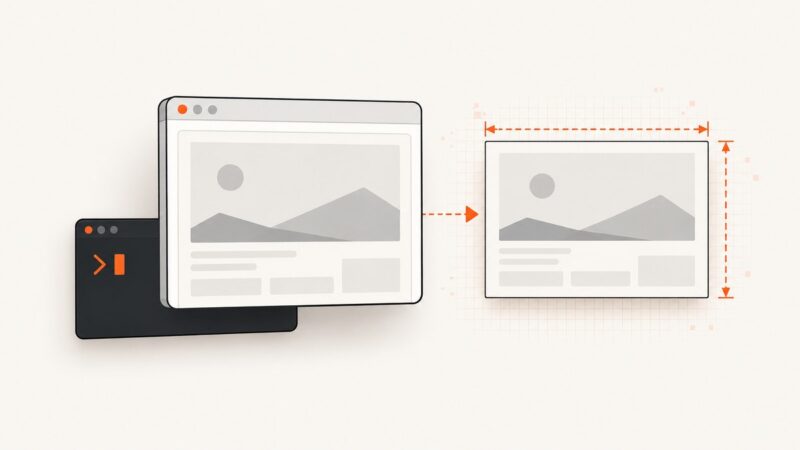
To take bulk screenshots with Selenium in Go, start a WebDriver session, loop over your URLs, navigate to each page, wait for a meaningful ready condition, capture the current browser context as PNG bytes, and save each result under a deterministic filename. Log failures per URL so one broken page does not lose the whole batch. Standard WebDriver screenshots capture the current viewport; full-page capture needs browser-specific support or another approach.
This guide uses the tebeka/selenium Go client. You need a compatible browser and WebDriver installed or a reachable Selenium Grid. See the client documentation for setup and hosted execution details. Selenium’s screenshot command returns Base64-encoded image data at the protocol level; the Go binding exposes screenshot bytes for your program to write.
1. Install Go Selenium and start WebDriver
Install the Go package in your module:
go get github.com/tebeka/seleniumInstall a browser and a compatible WebDriver executable, then start the driver service. The following example assumes ChromeDriver is on your PATH and listens on port 4444. Keep the browser and driver versions compatible. If you already have a Selenium Grid, use its WebDriver URL instead of starting a local service.
chromedriver --port=4444In another terminal, create a Go module and save the program below as main.go. It expects the WebDriver endpoint to be http://localhost:4444/wd/hub. Endpoint conventions can differ between local drivers and hosted Grid providers, so use the URL provided by your installation.
2. Runnable bulk screenshot program
The program takes URLs as command-line arguments, waits for document readiness, writes numbered PNGs, and records a JSON Lines manifest containing each URL, output path, capture time, and error. It continues after navigation or capture failures, but treats inability to create the session as a batch-level error.

package main

import (
	"encoding/json"
	"fmt"
	"log"
	"os"
	"path/filepath"
	"time"

	"github.com/tebeka/selenium"
)

type Result struct {
	Index     int       `json:"index"`
	URL       string    `json:"url"`
	File      string    `json:"file,omitempty"`
	Captured  time.Time `json:"captured_at"`
	Error     string    `json:"error,omitempty"`
}

func main() {
	urls := os.Args[1:]
	if len(urls) == 0 {
		log.Fatal("usage: go run . URL [URL ...]")
	}

	const wdURL = "http://localhost:4444/wd/hub"
	caps := selenium.Capabilities{"browserName": "chrome"}
	driver, err := selenium.NewRemote(caps, wdURL)
	if err != nil {
		log.Fatalf("start WebDriver session: %v", err)
	}
	defer func() {
		if err := driver.Quit(); err != nil {
			log.Printf("quit WebDriver: %v", err)
		}
	}()

	if err := os.MkdirAll("screenshots", 0o755); err != nil {
		log.Fatalf("create output directory: %v", err)
	}
	manifest, err := os.Create("screenshots/manifest.jsonl")
	if err != nil {
		log.Fatalf("create manifest: %v", err)
	}
	defer manifest.Close()
	enc := json.NewEncoder(manifest)

	for i, rawURL := range urls {
		result := Result{Index: i, URL: rawURL, Captured: time.Now().UTC()}
		if err := driver.Get(rawURL); err != nil {
			result.Error = "navigate: " + err.Error()
			writeResult(enc, result)
			log.Printf("[%d] navigation failed for %s: %v", i, rawURL, err)
			continue
		}

		// This confirms document parsing, not that every asynchronous widget is ready.
		if err := waitForReady(driver, 30*time.Second); err != nil {
			result.Error = "wait for document ready: " + err.Error()
			writeResult(enc, result)
			log.Printf("[%d] readiness wait failed for %s: %v", i, rawURL, err)
			continue
		}

		png, err := driver.Screenshot(false)
		if err != nil {
			result.Error = "screenshot: " + err.Error()
			writeResult(enc, result)
			log.Printf("[%d] screenshot failed for %s: %v", i, rawURL, err)
			continue
		}
		name := fmt.Sprintf("%06d.png", i)
		path := filepath.Join("screenshots", name)
		if err := os.WriteFile(path, png, 0o644); err != nil {
			result.Error = "write file: " + err.Error()
			writeResult(enc, result)
			log.Printf("[%d] write failed for %s: %v", i, rawURL, err)
			continue
		}
		result.File = path
		writeResult(enc, result)
		log.Printf("[%d] saved %s", i, path)
	}
}

func waitForReady(driver selenium.WebDriver, timeout time.Duration) error {
	deadline := time.Now().Add(timeout)
	for time.Now().Before(deadline) {
		state, err := driver.ExecuteScript("return document.readyState", nil)
		if err == nil && state == "complete" {
			return nil
		}
		time.Sleep(250 * time.Millisecond)
	}
	return fmt.Errorf("document did not reach complete state within %s", timeout)
}

func writeResult(enc *json.Encoder, result Result) {
	if err := enc.Encode(result); err != nil {
		log.Printf("write manifest record for %s: %v", result.URL, err)
	}
}
Run it with URLs as arguments:
go run . https://example.com https://www.wikipedia.orgThe screenshot method shown is the tebeka/selenium client’s Screenshot(false) form; confirm the method signature against the exact version you install. The Boolean full-page option is binding-specific and does not make standard WebDriver screenshot semantics portable across browsers. With the standard current-context screenshot operation, the returned image is the visible viewport.
Use a target element for readiness
document.readyState == complete only means the document load lifecycle completed. A single-page app may fetch data afterward, and a page may lazy-load images as they enter the viewport. For a known page, wait for a stable selector or disappearance of its loading marker. The client has wait helpers; selector syntax and error behavior depend on the binding version. Conceptually, poll for the target element until a deadline, and record a timeout for that URL. Keep waits bounded so a hung page does not stall the entire batch.
For sites you control, add a stable marker such as [data-screenshot-ready] after the content is rendered. For third-party pages, use a selector that represents the content you need, plus a bounded fallback timeout. Do not treat a fixed sleep as proof that a page is ready: it can waste time on fast pages and still be too short on slow ones.
3. Make filenames and retries safe
Sequential names prevent collisions even when several URLs share a hostname or path. Keep the original URL in the manifest because filenames are not a reliable source of identity. If you prefer readable slugs, sanitize host and path characters and append a short hash of the full URL; truncation alone can collide. Avoid putting query strings or credentials in filenames.
The manifest supports targeted retries. Re-run only records whose error is a navigation timeout, readiness timeout, or transient browser failure. A file-write error is different: the browser may have captured successfully, so fix disk permissions or capacity before repeating the browser work. Write one record per input and flush periodically for large jobs if losing recent manifest entries on process termination matters.
Choose an explicit policy for duplicate URLs: preserve one output per input index when order matters, or deduplicate before capture and map results back to all original rows. If a URL redirects, the manifest still records the requested URL; optionally record the final URL separately if your reporting needs it.
4. Viewport and full-page screenshots
The WebDriver screenshot endpoint captures the current browsing context. For a typical page this means the viewport, not the entire document. Setting a tall window can capture more content, but it is not equivalent to robust full-page capture: browser limits, responsive layouts, sticky elements, and lazy loading can change the result.
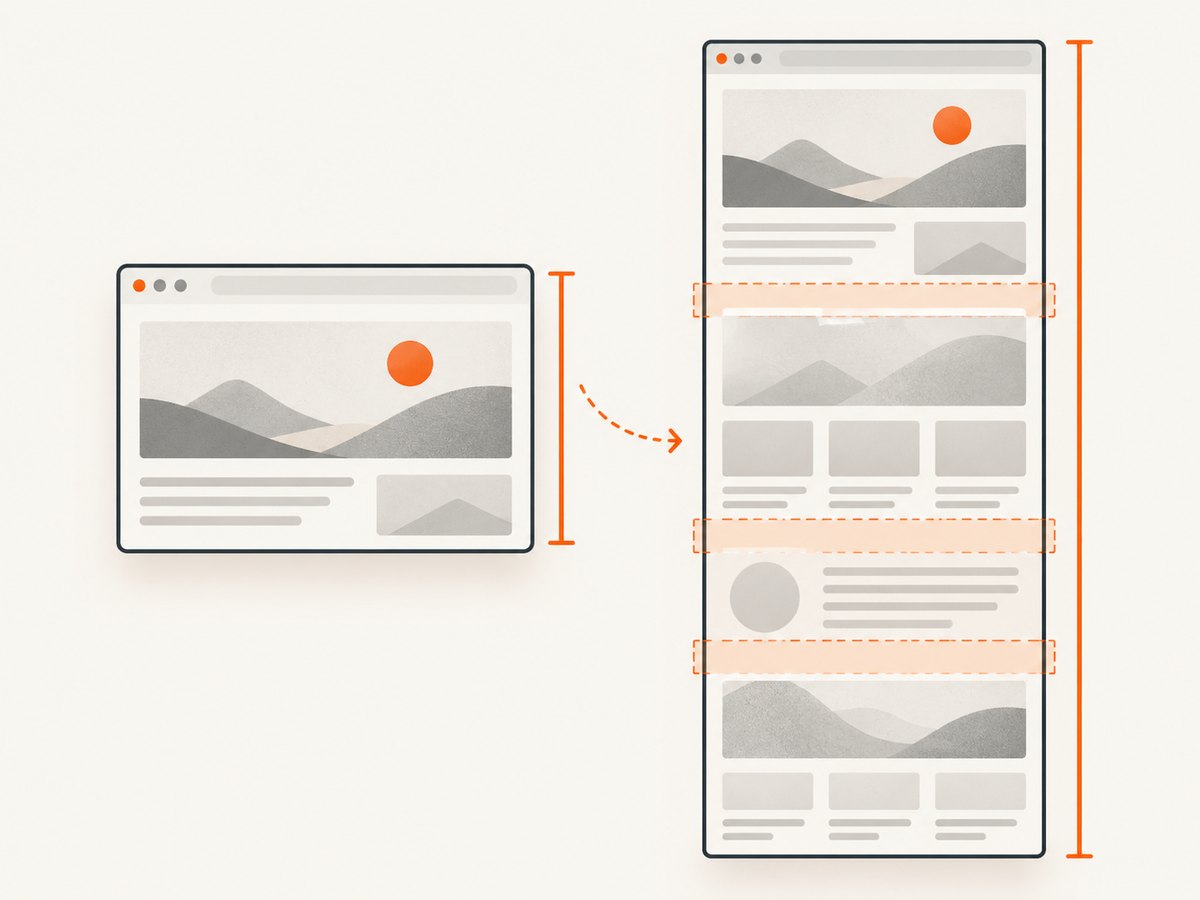
Full-page capture generally requires browser-specific support, scrolling and stitching, or a service designed for it. The Go screenpng project is a concrete Selenium-based reference for serving full-page PNG captures. Check the current project documentation before adopting its API or assumptions. If you implement stitching yourself, scroll in viewport-sized increments, wait for lazy content, capture segments, and overlap them slightly to avoid seams; sticky headers may repeat and need special handling.
For element-only capture, locate the element and use a browser or binding capability that supports element screenshots. This is useful for cards and charts, but elements outside the viewport may need scrolling into view first. Test target browser behavior, especially for transformed, clipped, or cross-origin embedded content.
5. Parallelize without sharing browser state
A single WebDriver session processes URLs sequentially. To increase throughput, partition the input across independent workers, each with its own driver session and browser. Do not concurrently call navigation and screenshot methods on one driver: commands change shared browsing context and can capture the wrong URL. A hosted Selenium Grid can run browser sessions on managed machines; the Go client documentation describes a Sauce Labs execution path.
- Assign each URL a stable input index before partitioning.
- Start a bounded number of workers, each owning one WebDriver session.
- Have workers write distinct output names and append results through a synchronized manifest writer or a single collector goroutine.
- On session-level failure, close that session, start a fresh one, and retry only unfinished inputs.
- Call
Quitfor every session, including when a worker exits early.
Set concurrency according to available memory, CPU, browser limits, and the target sites’ acceptable request rate. More sessions increase load on both your machine and the sites. Use a queue with a fixed worker count instead of starting one goroutine and browser per URL. If URLs require separate accounts or cookies, isolate state by worker or reset it deliberately between jobs.
6. Timeouts, options, and page state
Define page-load and script timeouts that match the job. A navigation timeout should mark one input as failed and let policy decide whether to retry; a script timeout protects against injected JavaScript that never completes. Selenium client method names for setting these limits can vary by release, so consult the installed binding’s API. Keep the outer batch deadline separate from per-page timeouts.
| Need | Approach | Trade-off |
|---|---|---|
| Consistent viewport | Set window dimensions before each capture | Responsive content changes with dimensions |
| Logged-in pages | Set cookies or authenticate per session | Shared sessions can leak state across URLs |
| Dynamic content | Wait for a target selector and loading state | Requires site-specific readiness logic |
| Slower resources | Use bounded waits and classify timeouts | Longer waits lower throughput |
| Repeatability | Fix browser version, viewport, locale, and input data | External content can still change |
For visual comparison jobs, set the viewport consistently and consider fonts, animation, time zone, locale, and authentication state. Disable animations only if that matches the screenshot purpose. A screenshot is a point-in-time rendering; ads, rotating content, geolocation, A/B experiments, and personalized pages can make repeated captures differ.
7. Troubleshooting common errors
| Symptom | Likely cause | Fix |
|---|---|---|
| Cannot connect to WebDriver | Driver is stopped, wrong endpoint, or port mismatch | Start the service, confirm its listening URL, and use the Grid endpoint expected by the provider. |
| Session creation fails | Browser and driver versions conflict or browser is missing | Install a compatible pair and inspect driver startup logs. |
| Navigation times out | Slow site, stalled resource, or restrictive page-load strategy | Set a suitable page-load timeout, capture the failure in the manifest, and retry selectively. |
| Screenshot is blank or incomplete | Capture ran before app content rendered, or a bot check/interstitial appeared | Wait for a meaningful selector, inspect page state, and classify challenge pages rather than assuming a successful capture. |
| Only the top of the page appears | Standard screenshot captures the viewport | Use browser-specific full-page support, scrolling and stitching, or a full-page capture service. |
| PNG write fails | Output directory permissions, disk full, or invalid path | Check the write error separately from capture errors, and verify free space and directory permissions. |
| Repeated URLs overwrite files | Names based only on host or slug collide | Include the stable input index or a URL hash. |
| Batch hangs after several pages | Unbounded waits, dead browser session, or leaked sessions | Bound readiness waits, detect session errors, restart the worker, and always call Quit. |
8. Performance, reliability, and cost
Browser startup is expensive compared with writing a PNG, so reuse a session for a sequence of pages when state isolation permits. A session can also accumulate cookies, storage, and memory; restart workers periodically for long batches if resource usage grows. Measure your own workload across representative sites because load time and page complexity dominate and the research provides no universal benchmark.
Reliability comes from bounded waits, per-URL results, explicit session cleanup, and retries limited to transient failures. Do not retry every failure forever: permanent 404 pages, access-denied pages, invalid URLs, and unwritable output paths need different handling. Keep raw error text and a retry count in the manifest, and make output writes idempotent so a retry does not corrupt unrelated results.
Self-hosted Selenium has no per-screenshot API charge, but it consumes machine time and requires maintaining browser and driver binaries. A hosted Grid shifts some infrastructure work to a provider and can make parallel execution easier; the provider’s current pricing and limits are separate and should be checked directly. For bulk work, estimate total browser minutes and storage, then choose worker count and retention based on that workload.
Or skip the browser setup
ScreenshotNeo is a website screenshot API and MCP server. One GET request takes a URL and returns an image or PDF. It fits bulk jobs when you want to avoid browser and driver installation; it also supports bulk capture of up to 100 URLs per call. See the ScreenshotNeo site and API documentation.
curl -G "https://api.screenshotneo.com/v1/shot" -d access_key=YOUR_API_KEY --data-urlencode url=https://stripe.com -o shot.webpimport requests
r = requests.get("https://api.screenshotneo.com/v1/shot", params={"access_key": "YOUR_API_KEY", "url": "https://stripe.com"}, timeout=90)
open("shot.webp", "wb").write(r.content)const q = new URLSearchParams({ access_key: 'YOUR_API_KEY', url: 'https://stripe.com' });
const res = await fetch(`https://api.screenshotneo.com/v1/shot?${q}`);Cookie banners, popups, and chat widgets are removed before the shot. Bot checks, blank pages, and failed loads are never billed, and response headers identify the page verdict and billing result. An MCP server lets AI agents use take_screenshot, get_page_info, and capture_pdf. The free plan includes 1,000 screenshots a month with no card; paid plans start at $5 for 3,000. Sign up for 1,000 free screenshots a month with no card.
FAQ
Does Selenium save the screenshot as Base64?
The WebDriver protocol response is Base64-encoded. The Go client typically exposes decoded image bytes through its screenshot method, which you can write directly as a PNG.
Can I use one browser for every URL?
Yes, for a sequential batch. Use independent sessions for parallel work, and isolate sessions when cookies or login state must not carry between URLs.
Should I use PNG or another format?
The standard Selenium screenshot is PNG. If storage or transfer size matters, convert after capture with an image library and choose a format that preserves the visual detail your use case needs.
How do I retry only the failed URLs?
Read the JSON Lines manifest, select records with retryable errors, and rerun those URLs with the same stable input identifiers. Preserve the original records so the batch remains auditable.