How to Take Bulk Screenshots with Selenium in Java
Capture one screenshot per URL with Selenium in Java. Get runnable code, safe file handling, page waits, full-page caveats, and batch troubleshooting.

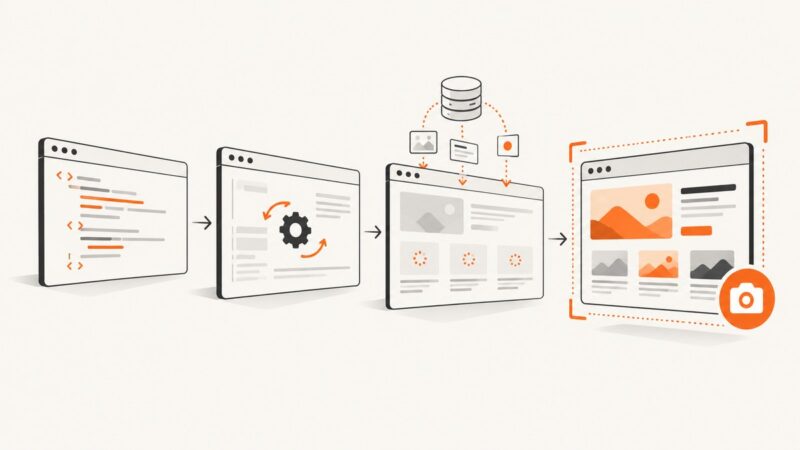
To take bulk screenshots with Selenium in Java, open one URL at a time, wait for the page state your capture needs, call getScreenshotAs on the driver, and immediately copy the temporary screenshot file into a uniquely named output file. The example below captures a list sequentially, records failures per URL, and continues the batch. Selenium screenshots are not guaranteed to include the entire page in every browser and driver combination; by default, plan for a viewport capture unless you have verified full-page behavior for your setup.
This approach is useful when you need browser automation, authenticated sessions, or a repeatable Java workflow. Selenium’s TakesScreenshot API supports screenshots from a driver and a web element. For a service that returns screenshots without managing browsers, see ScreenshotNeo.
1. Set up a Java Selenium project
The code uses Java 17 language features such as List.of and the Selenium 4 Java API. Add Selenium to your Maven project. Selenium Manager can resolve a compatible browser driver when you create a driver, provided the required browser is installed and the environment allows driver management.
<dependencies>
  <dependency>
    <groupId>org.seleniumhq.selenium</groupId>
    <artifactId>selenium-java</artifactId>
    <version>4.27.0</version>
  </dependency>
</dependencies>
Use the version approved for your project; keep the Selenium library and browser/driver environment compatible. The sample writes into a local screenshots directory relative to the working directory. In a build runner, container, or scheduled job, choose a durable mounted directory if the files must outlive the process.
2. Capture a URL list safely
Save this as BulkScreenshots.java. Each URL gets an indexed, filesystem-safe name. A failed navigation or capture is reported and skipped, so one bad page does not discard screenshots already written or prevent later URLs from being attempted.

import java.io.File;
import java.io.IOException;
import java.nio.file.Files;
import java.nio.file.Path;
import java.nio.file.Paths;
import java.nio.file.StandardCopyOption;
import java.time.Duration;
import java.util.List;

import org.openqa.selenium.JavascriptExecutor;
import org.openqa.selenium.OutputType;
import org.openqa.selenium.TakesScreenshot;
import org.openqa.selenium.WebDriver;
import org.openqa.selenium.chrome.ChromeDriver;
import org.openqa.selenium.support.ui.WebDriverWait;

public class BulkScreenshots {
    public static void main(String[] args) throws IOException {
        List<String> urls = List.of(
            "https://example.com/one",
            "https://example.com/two"
        );

        Path outputDir = Paths.get("screenshots").toAbsolutePath();
        Files.createDirectories(outputDir);

        WebDriver driver = new ChromeDriver();
        try {
            WebDriverWait wait = new WebDriverWait(driver, Duration.ofSeconds(15));
            for (int i = 0; i < urls.size(); i++) {
                String url = urls.get(i);
                Path target = outputDir.resolve(String.format("%04d.png", i + 1));
                try {
                    driver.get(url);
                    wait.until(d -> "complete".equals(
                        ((JavascriptExecutor) d)
                            .executeScript("return document.readyState")
                    ));

                    File temporary = ((TakesScreenshot) driver)
                        .getScreenshotAs(OutputType.FILE);
                    Files.copy(temporary.toPath(), target,
                        StandardCopyOption.REPLACE_EXISTING);
                    System.out.println("Saved " + url + " -> " + target);
                } catch (Exception e) {
                    System.err.println("Failed " + url + ": " + e.getMessage());
                }
            }
        } finally {
            driver.quit();
        }
    }
}
The Selenium API call is the key part: cast the driver to TakesScreenshot, then request OutputType.FILE. That file is temporary and may be deleted when the JVM exits, so copy it immediately. The enclosing finally ensures the browser session is closed even if setup or processing fails.
Use names that remain unique across runs
An index keeps names unique within a single ordered batch, but running the same batch again overwrites matching names. If you need to preserve historical captures, include a timestamp, a sanitized hostname/path fragment, or a short hash of the URL in the filename. Do not use an untrusted URL directly as a path: URL characters can be invalid in filenames, and path separators can produce unintended directories. Keep a separate manifest mapping each URL to its output path and capture status.
3. Decide when a page is ready
document.readyState == "complete" means the document load event and its dependent resources have reached the browser’s complete state. It does not guarantee that a single-page app has finished rendering, that a lazy-loaded image is visible, or that an animation has settled. Choose a condition that matches what must appear in the image:
- Known page element: wait for the selector that identifies the content you need with
WebDriverWaitandExpectedConditions.visibilityOfElementLocated. - Known delay: add a short explicit wait only when the page offers no observable readiness condition. Fixed sleeps slow every page and can still be too short.
- Lazy content: scroll the relevant area into view and wait for its image or content element to load before capture.
- Network activity: Selenium’s basic Java API does not make “network idle” a universal page-ready condition. Use an application-specific signal when the page exposes one.
For example, to wait for a page heading rather than only the document state, import By and ExpectedConditions, then use:
wait.until(org.openqa.selenium.support.ui.ExpectedConditions
    .visibilityOfElementLocated(org.openqa.selenium.By.cssSelector("main h1")));
Pick a selector that is stable on every target page, or handle pages with different layouts separately. If it times out, log the URL and continue according to your batch policy.
4. Choose page, element, and image output
Driver screenshot
A screenshot requested from the driver captures the current browser context according to the WebDriver implementation. Use it when the visible browser view is the desired result.
Element screenshot
To capture one element, locate it and call the same screenshot method on the WebElement. Copy its temporary file immediately as well:
var card = driver.findElement(By.cssSelector("article.result"));
File temp = card.getScreenshotAs(OutputType.FILE);
Files.copy(temp.toPath(), outputDir.resolve("result-card.png"),
    StandardCopyOption.REPLACE_EXISTING);
Element screenshots are useful for cards, charts, and components. Make sure the element is displayed and within the supported browser context. A selector that matches multiple elements needs an explicit choice, such as the first match or an indexed result.
FILE, BYTES, and BASE64
| Output type | Use it when | Consideration |
|---|---|---|
OutputType.FILE |
You want to copy a screenshot to a file. | The returned file is temporary; copy it promptly. |
OutputType.BYTES |
You want to write bytes, upload them, or process them in memory. | Memory use grows with image size and concurrent captures. |
OutputType.BASE64 |
An API or data format specifically requires Base64. | Encoding increases the in-memory representation; decode before writing an image file. |
Viewport versus full page
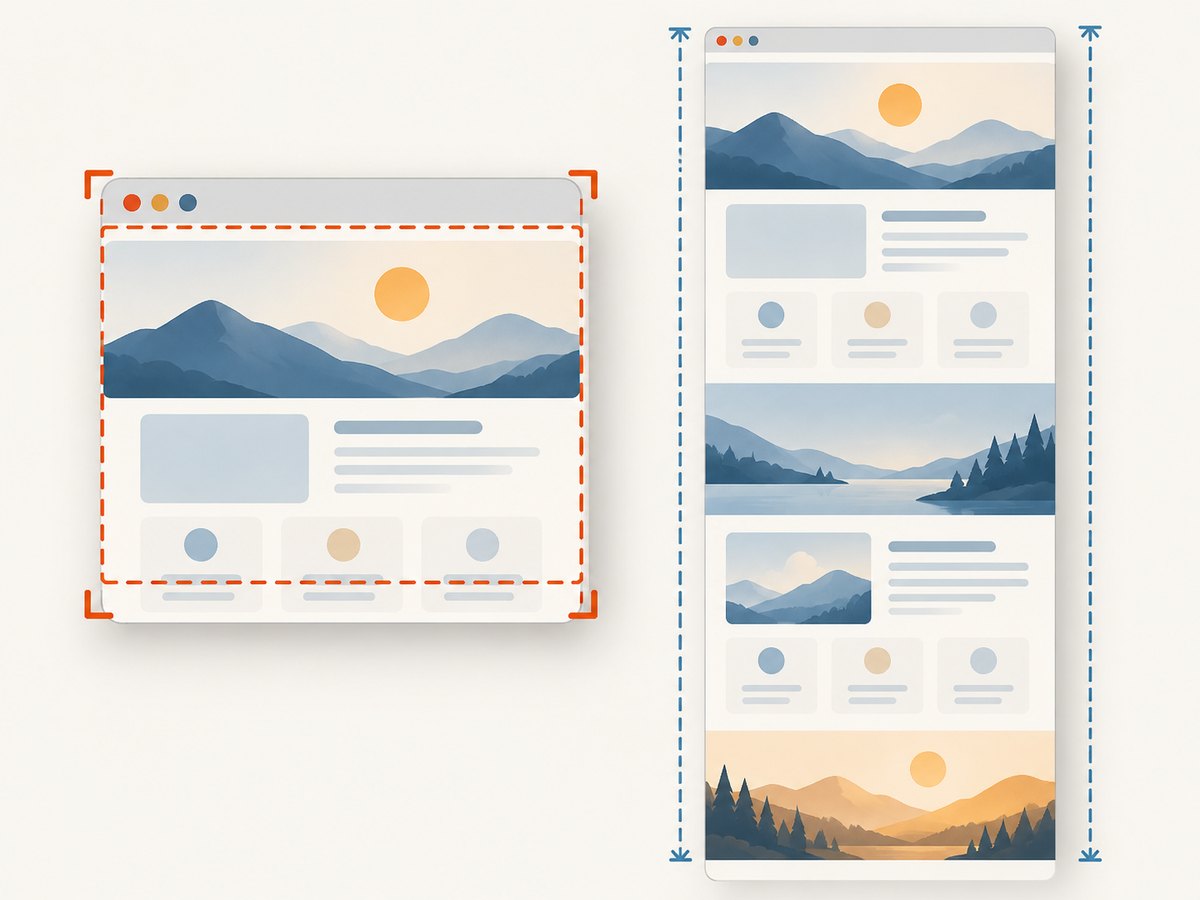
Do not assume getScreenshotAs means full-page capture. The WebDriver specification defines screenshot behavior, and Selenium documents a best-effort fallback order for non-conformant implementations that can result in the whole page, the current window, the visible part of a frame, or the display. Browser and driver support therefore matters. Validate the actual dimensions and content for each browser/version you deploy. If full-page output is a hard requirement, select a browser-specific supported method or a screenshot service that explicitly provides full-page capture.
5. Run large batches reliably
- Validate input. Reject malformed URLs and remove duplicates if duplicate captures are not useful. Preserve the original URL in the manifest.
- Create the output directory first. Confirm the process can write there and that enough disk space is available.
- Use a fresh filename per capture. Include a batch ID or URL hash when reruns must not overwrite previous results.
- Set timeouts. Configure page-load and script timeouts appropriate to your sites. A stalled URL should not hold the entire batch indefinitely.
- Capture per URL in a try/catch. Record status, elapsed time, exception, and output path. Decide whether a failure should be retried or skipped.
- Always quit the driver. Use
finally, and also ensure orchestration can clean up the process if the worker is terminated. - Verify artifacts. Check that output files exist and are non-empty; for critical workflows, decode or inspect the image before marking a capture successful.
A single driver processes the loop sequentially, which is the simplest way to avoid session races and filename collisions. To run in parallel, give every worker its own isolated WebDriver session, separate browser profile, and unique output namespace. Do not share one driver instance across threads. Parallel workers consume more browser and memory resources; increase concurrency gradually and observe failures and resource pressure before scaling up.
6. Troubleshoot common failures
| Symptom | Likely cause | Fix |
|---|---|---|
ClassCastException when taking a screenshot |
The selected driver does not implement TakesScreenshot. |
Use a WebDriver/browser implementation that supports screenshots and verify the driver type. |
| Screenshot file disappears | OutputType.FILE is temporary. |
Copy it to the target path immediately after retrieval; do not store its temporary path for later. |
| Blank, stale, or incomplete capture | The page or client-side content was not ready at capture time. | Wait for a meaningful element or app-specific signal; scroll lazy content into view; check for redirects and error pages. |
| Timeout on one URL blocks the batch | Navigation or readiness condition never completes. | Configure bounded timeouts, catch per-URL exceptions, log the failure, and continue or retry selectively. |
| Output files overwrite each other | Names are derived from a non-unique slug or reused between runs. | Use a batch index plus URL hash or timestamp, and keep a manifest. |
| Capture shows only the top of the page | The browser’s driver screenshot is viewport-limited. | Confirm browser support for full-page capture or use an explicit full-page method/service. |
| Browser process remains after errors | Cleanup did not run after an exception or forced termination. | Keep quit() in finally; arrange worker shutdown and process cleanup in the job runner. |
| Images fail in a headless container | Missing browser libraries, fonts, permissions, or compatible browser/driver. | Install the browser’s runtime dependencies, use a writable profile/output path, and verify browser-driver compatibility in that environment. |
7. Performance, reliability, and cost
For small batches, one browser session and sequential navigation are straightforward and reduce setup overhead. Each page still requires a navigation and render, so slow sites dominate total time. Avoid arbitrary long sleeps, but do wait for the content you need. Reuse a session when that is safe for the target sites; clear cookies or storage between captures if state from one page could affect another.
Parallel browser sessions can increase throughput, but consume additional CPU, memory, browser processes, and disk bandwidth. Bound the worker count, isolate profiles, and use unique filenames. For reliability, retry only transient failures with a limit and backoff; repeated retries against deterministic errors waste time. Persist a manifest so a resumed job can skip completed URLs and revisit only failed entries.
Selenium itself is open-source browser automation software; the costs for a batch typically come from the machines, browser infrastructure, storage, and engineering time used to operate it. Estimate storage from the number and dimensions of images and their format. If you need a managed capture endpoint instead of running browsers, ScreenshotNeo offers 1,000 shots per month free with no card; paid plans start at $5 for 3,000. Its plans include its available features.
Or skip the browser setup
ScreenshotNeo accepts a URL in one GET request and returns an image or PDF. Its API supports full-page capture with lazy images loaded, and offers options such as element selection, viewport/device settings, waits, custom headers and cookies, caching, and bulk capture. See the ScreenshotNeo API documentation for request options.
curl -G "https://api.screenshotneo.com/v1/shot" -d access_key=YOUR_API_KEY --data-urlencode url=https://stripe.com -o shot.webpimport requests
r = requests.get(
"https://api.screenshotneo.com/v1/shot",
params={"access_key": "YOUR_API_KEY", "url": "https://stripe.com"},
timeout=90,
)
open("shot.webp", "wb").write(r.content)const q = new URLSearchParams({ access_key: 'YOUR_API_KEY', url: 'https://stripe.com' });
const res = await fetch(`https://api.screenshotneo.com/v1/shot?${q}`);
if (!res.ok) throw new Error(`Screenshot request failed: ${res.status}`);
await Bun.write('shot.webp', res);Cookie banners are accepted like a visitor and more than 60 known consent platforms, newsletter popups, and chat widgets are removed before the shot; each step can be turned off. Bot checks, blank pages, timeouts, failed loads, and cache hits cost nothing, with response headers identifying the page verdict and billing status. An MCP server lets AI agents use take_screenshot, get_page_info, and capture_pdf. The free plan includes 1,000 screenshots a month with no card, and paid plans start at $5 for 3,000. Create a free ScreenshotNeo account.
FAQ
Can I use the same screenshot loop for test cases?
Yes. Put the capture after the test has reached its intended state, and name the image with a test identifier and run ID so parallel test runs do not overwrite each other.
Can screenshots be saved as JPEG instead of PNG?
The Selenium screenshot output types provide file, bytes, and Base64 representations; they do not by themselves choose an arbitrary encoded format. The browser determines the screenshot format. Convert the image with an image-processing library if a different format is required.
Should I create a new browser for every URL?
Usually one sequential session is simpler for a batch. Use separate sessions when isolation is needed or when running bounded parallel workers, and account for the additional resource use.