How to Calculate Total Resolution for Animated GIFs
Calculate an animated GIF’s total pixel resolution from its canvas, frame count, and per-frame rectangles with ImageMagick commands and scripts.
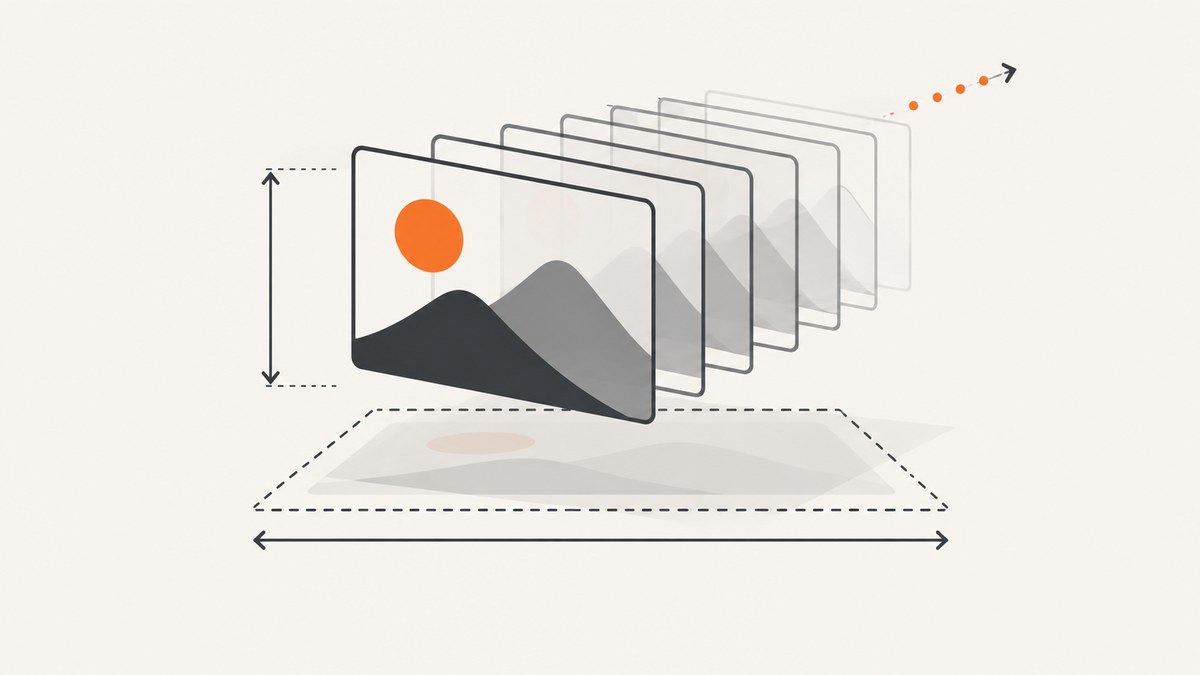
To calculate an animated GIF’s total resolution from the command line, first decide which pixel total you need. For the displayed canvas total, multiply the logical-screen width by the logical-screen height and then by the number of frames:
total canvas pixels = canvas width × canvas height × frame countA 320 × 240 GIF with 12 frames therefore has 320 × 240 × 12 = 921,600 canvas-pixels. This is a normalized display-area total, not a file-size measurement.
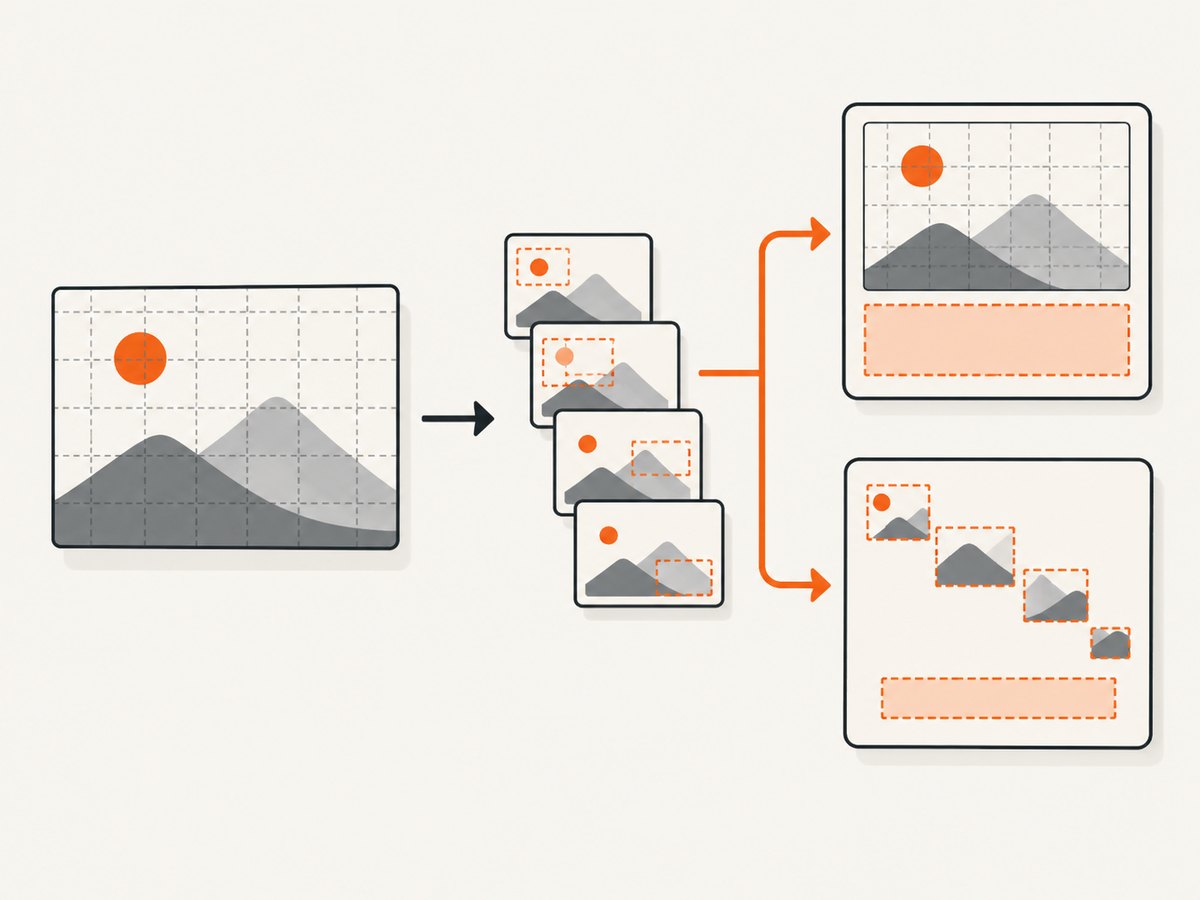
Animated GIFs can use smaller frame rectangles positioned inside a larger logical screen. If you need the number of pixels explicitly stored in those encoded rectangles, sum each frame’s own width × height instead. The two totals can differ substantially.
Choose the resolution metric first
“Total resolution” is not one standardized animation metric. Use the definition that matches your task.
| Metric | Formula | Useful for |
|---|---|---|
| Canvas-pixels across frames | Logical-screen width × logical-screen height × frame count | Estimating the total displayed pixel area over the animation |
| Encoded frame-rectangle pixels | Sum of (frame width × frame height) for every frame | Measuring the explicit image area stored by the encoder |
| Unique changed pixels | Depends on compositing and frame disposal | Content analysis; requires decoding and comparing rendered frames |
| File size | Compressed byte count | Transfer and storage planning |
Do not substitute file bytes for pixels. GIF compression, repeated content, palette choices, frame delays, and disposal methods all affect file size independently of resolution. Likewise, summing rectangle areas does not tell you how many different pixels a viewer sees after compositing.
Install and inspect the GIF with ImageMagick
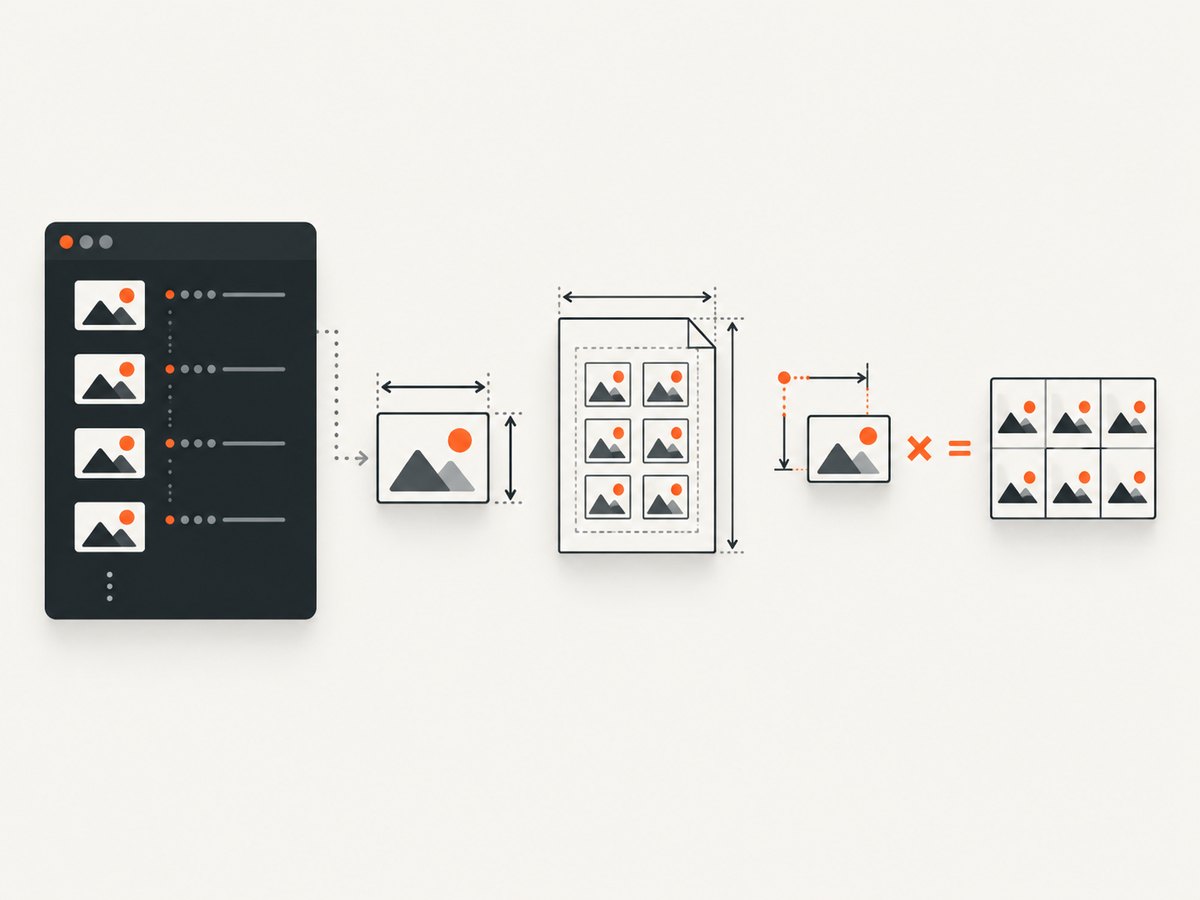
ImageMagick’s identify command reports image dimensions and sequence information. The current command name is usually magick identify; older installations may expose identify directly.
- Check that ImageMagick is available:
magick -version- Inspect the complete sequence:
magick identify -verbose animation.gifVerbose output is useful when frames are optimized, because it exposes page geometry, offsets, disposal information, and per-frame properties. ImageMagick’s animation guide documents how later frames can be smaller than the virtual canvas and placed at offsets within it. See the identify reference and animation guide.
- Get a compact sequence listing:
magick identify -format '%w %h %n\n' animation.gifThe format escapes include current width (%w), current height (%h), and sequence count (%n). Page or canvas geometry is available through %P, and frame offsets through %O. The complete escape reference is in ImageMagick’s format documentation.
Calculate the canvas-pixel total
The canvas method treats every frame as occupying the full logical screen. You need the logical-screen width and height, plus the number of frames.
Read the frame count
magick identify -format '%n\n' animation.gif | head -n 1For most GIF sequences, %n reports the number of images in the sequence. To avoid relying on a single metadata field, you can count records yourself:
frames=$(magick identify -format '%i\n' animation.gif | wc -l)
printf 'frames=%s\n' "$frames"
Find the logical canvas
A GIF’s logical screen is the overall image space defined by the screen descriptor. Individual image descriptors may be smaller and have nonzero offsets. Inspect page geometry and offsets:
magick identify -format 'frame=%p frame=%wx%h page=%P offset=%O\n' animation.gifHere, %p is the image index, %P is the page or virtual-canvas geometry, and %O is the offset. On a well-formed animation, the largest page dimensions normally reveal the logical canvas. Confirm the result with verbose output before automating production calculations.
Multiply the values
canvas_width=320
canvas_height=240
frames=12
canvas_pixels=$((canvas_width * canvas_height * frames))
printf '%s canvas-pixels\n' "$canvas_pixels"
For a real file, replace the example values with the dimensions you verified from identify. If the canvas is 320 × 240 and there are 12 frames, the result is 921,600.
Calculate encoded frame-rectangle pixels
Optimized GIFs often store only the rectangle that changed. To total those encoded areas, calculate width × height for each frame and add the results.
magick identify -format '%w %h\n' animation.gif \
  | awk '{ total += $1 * $2 } END { print total }'
This command intentionally uses each frame’s own dimensions. It does not multiply one frame by the sequence count, because rectangles can vary from frame to frame.
To retain an auditable per-frame report:
magick identify -format 'frame=%p width=%w height=%h area=%[fx:w*h] page=%P offset=%O\n' animation.gifSome ImageMagick builds format expression values differently. If %[fx:w*h] is unavailable, use the two-column output and the awk command above.
Use a portable Python calculation
The following script runs ImageMagick, parses every frame, reports rectangle areas, and calculates both totals. It uses only the standard library.
#!/usr/bin/env python3
import re
import subprocess
import sys

if len(sys.argv) != 2:
    raise SystemExit(f"usage: {sys.argv[0]} animation.gif")

path = sys.argv[1]
format_string = "%p|%w|%h|%P|%O\\n"
result = subprocess.run(
    ["magick", "identify", "-format", format_string, path],
    check=True,
    capture_output=True,
    text=True,
)

rows = []
for line in result.stdout.splitlines():
    index, width, height, page, offset = line.split("|", 4)
    width = int(width)
    height = int(height)
    rows.append({
        "index": int(index),
        "width": width,
        "height": height,
        "area": width * height,
        "page": page,
        "offset": offset,
    })

if not rows:
    raise SystemExit("no frames found")

pages = []
for row in rows:
    match = re.match(r"(\\d+)x(\\d+)", row["page"])
    if match:
        pages.append((int(match.group(1)), int(match.group(2))))

canvas_width, canvas_height = max(pages) if pages else (rows[0]["width"], rows[0]["height"])
frame_count = len(rows)
canvas_total = canvas_width * canvas_height * frame_count
rectangle_total = sum(row["area"] for row in rows)

print(f"frames: {frame_count}")
print(f"canvas: {canvas_width}x{canvas_height}")
print(f"canvas-pixels: {canvas_total}")
print(f"encoded-rectangle-pixels: {rectangle_total}")
for row in rows:
    print(f"frame {row['index']}: {row['width']}x{row['height']} area={row['area']} page={row['page']} offset={row['offset']}")
The script uses the largest page geometry as a practical canvas estimate. For files from an unusual encoder, compare this result with magick identify -verbose and the GIF metadata before treating it as authoritative.
Handle partial frames, offsets, and disposal
GIF image descriptors contain a frame rectangle’s width and height and its offset from the logical screen. The logical screen dimensions define the overall image space. Oracle’s GIF metadata reference describes these fields, and the GIF87a specification defines the screen descriptor.
- Partial rectangles: A frame such as 80 × 40 may be drawn inside a 640 × 480 canvas. Use 640 × 480 for the canvas total and 80 × 40 for that frame’s encoded area.
- Offsets: A nonzero offset changes where a rectangle is composited, not its rectangle area.
- Disposal: “Restore background” or “restore previous” changes how the next displayed frame is formed. It can make decoded, visible pixels differ from the sum of stored rectangles.
- First-frame assumptions: The first frame often establishes the canvas, but do not assume its rectangle equals the logical screen without checking page geometry.
- Malformed metadata: If page sizes are missing or contradictory, decode the animation to full frames and measure the rendered images, documenting that you measured displayed frames rather than encoded rectangles.
Validate results and avoid common mistakes
| Problem | Cause | Fix |
|---|---|---|
| “magick: command not found” | ImageMagick is not installed or is not on PATH. |
Install ImageMagick for your operating system, then rerun magick -version. |
| Only one frame appears | The file is a static GIF, the shell glob selected one image, or the command addressed a particular frame. | Run magick identify animation.gif and count all output records. |
| Canvas total seems too small | You multiplied a partial frame rectangle by the frame count. | Inspect %P and verbose page geometry; use the logical canvas dimensions. |
| Rectangle total seems larger than expected | Every frame rectangle was summed, including unchanged or overlapping regions. | That is expected for encoded area; it is not a unique-pixel count. |
%n gives an unexpected value |
ImageMagick version or sequence parsing differs for the file. | Count %i records and compare with verbose output. |
| Numbers overflow a shell integer | Very large dimensions or frame counts exceed the shell’s integer range. | Use Python integers or another arbitrary-precision implementation. |
| Animated output changes after conversion | Frames were composited, coalesced, or optimized during conversion. | Measure the original file for encoded rectangles; measure the coalesced output only when you want full displayed frames. |
Performance, reliability, and cost notes
identify reads metadata and frame descriptors without requiring you to export every frame, so it is usually much cheaper than rendering a large animation into separate full-size images. Verbose inspection produces more output and can be slower on large files. For batch jobs, use a compact format, stream results into awk or Python, and avoid unnecessary image conversions.
For reliable automation:
- Record the ImageMagick version alongside results.
- Keep both totals labeled in reports.
- Store the source filename, logical canvas, frame count, and per-frame geometry.
- Set process timeouts and memory limits when accepting untrusted GIFs.
- Check exit status; a partial command output is not a valid measurement.
- Test files with full-canvas frames and optimized partial frames.
The arithmetic itself is inexpensive. The expensive operation is decoding or coalescing frames, especially for very large canvases or long sequences. Neither pixel total is a prediction of compressed transfer size.
Or skip the browser setup
If your workflow begins with a web page that contains an animated GIF, you can capture the page or an element through ScreenshotNeo instead of maintaining browser automation. The API returns a PNG, JPEG, WebP, or PDF from one GET request, and the documentation lists all capture options.
curl -G "https://api.screenshotneo.com/v1/shot" -d access_key=YOUR_API_KEY --data-urlencode url=https://stripe.com -o shot.webpimport requests
r = requests.get("https://api.screenshotneo.com/v1/shot", params={"access_key": "YOUR_API_KEY", "url": "https://stripe.com"}, timeout=90)
open("shot.webp", "wb").write(r.content)const q = new URLSearchParams({ access_key: 'YOUR_API_KEY', url: 'https://stripe.com' });
const res = await fetch(`https://api.screenshotneo.com/v1/shot?${q}`);Cookie banners, newsletter popups, and chat widgets are removed before the shot. Bot checks, blank pages, timeouts, failed loads, and cache hits are not billed, and response headers identify the page verdict and billing status. An MCP server provides take_screenshot, get_page_info, and capture_pdf tools for Claude, Cursor, and other MCP clients. The Free plan includes 1,000 screenshots per month with no card; paid plans start at $5 for 3,000 shots. Start with a free ScreenshotNeo account.
Frequently asked questions
Is canvas-pixels the same as total GIF resolution?
No. It is one useful definition: logical-screen area multiplied by frame count. State the definition whenever you publish the number.
Should I count transparent pixels?
For canvas-pixels, yes, because the canvas area is counted regardless of whether a pixel is transparent. Encoded rectangle totals count the stored rectangle area.
Can I derive the total from file size?
No. Compression and palette data prevent a reliable conversion between bytes and pixels.
When should I coalesce frames?
Coalesce when you need to measure or compare fully rendered frames. Do not coalesce when the goal is the original encoded rectangle total.
What should a production report contain?
Include the file identifier, ImageMagick version, logical canvas, frame count, both pixel totals, and a note explaining which metric drives the decision.


