How to Capture 1080p Screenshots in Firefox
Capture Firefox pages at a verified 1920×1080 size, understand visible versus full-page shots, and automate clean captures with ScreenshotNeo.
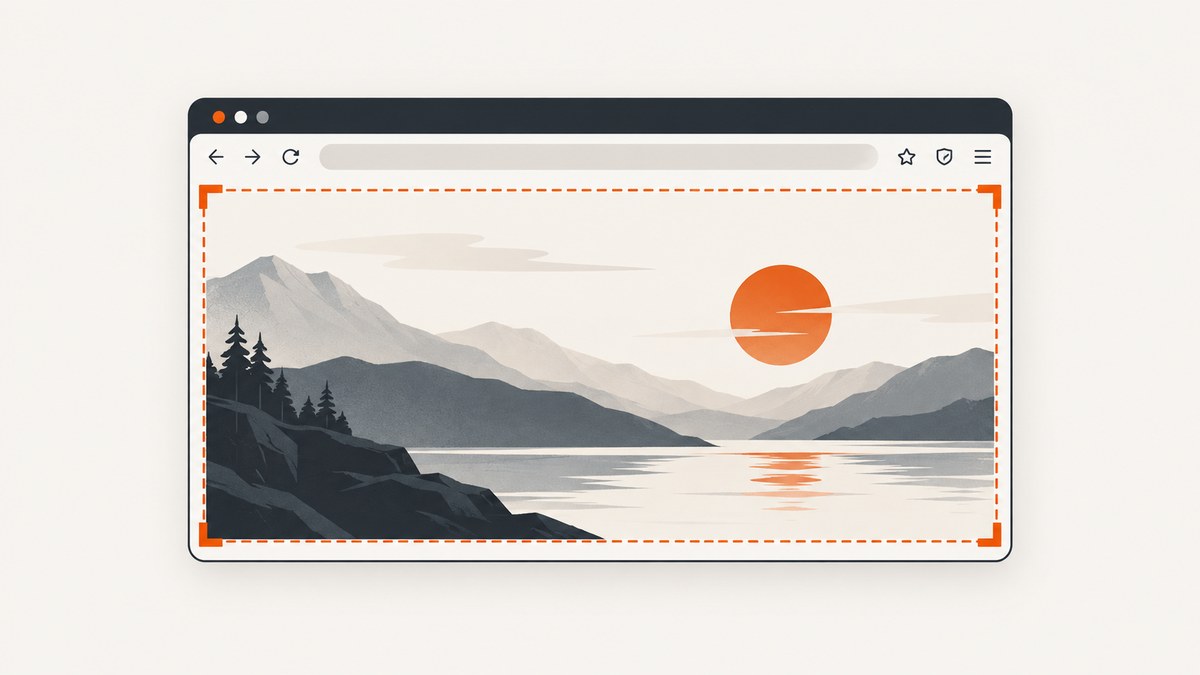
A “1080p screenshot” usually means an image that is exactly 1920×1080 pixels. Firefox’s built-in Screenshots tool can capture a selected region, a detected page element, the visible page, or the entire page, but Mozilla’s current help page does not promise a numeric 1920×1080 export setting. To produce a file with an exact size, choose the right capture scope, account for browser scaling, download the image, and verify its dimensions afterward.
This guide explains the reliable Firefox workflow, why a visible capture is not automatically 1920×1080, how CSS pixels and device pixels affect the result, what to do when the page is taller than 1080 pixels, and how to automate clean screenshots with ScreenshotNeo.
What 1080p means for a Firefox screenshot
In video and display terminology, 1080p refers to 1,920 pixels across and 1,080 pixels down. A screenshot can be taken from a 1080p monitor without being 1920×1080: browser chrome, operating-system scaling, page zoom, device-pixel ratio, and the selected capture area all affect the saved bitmap.
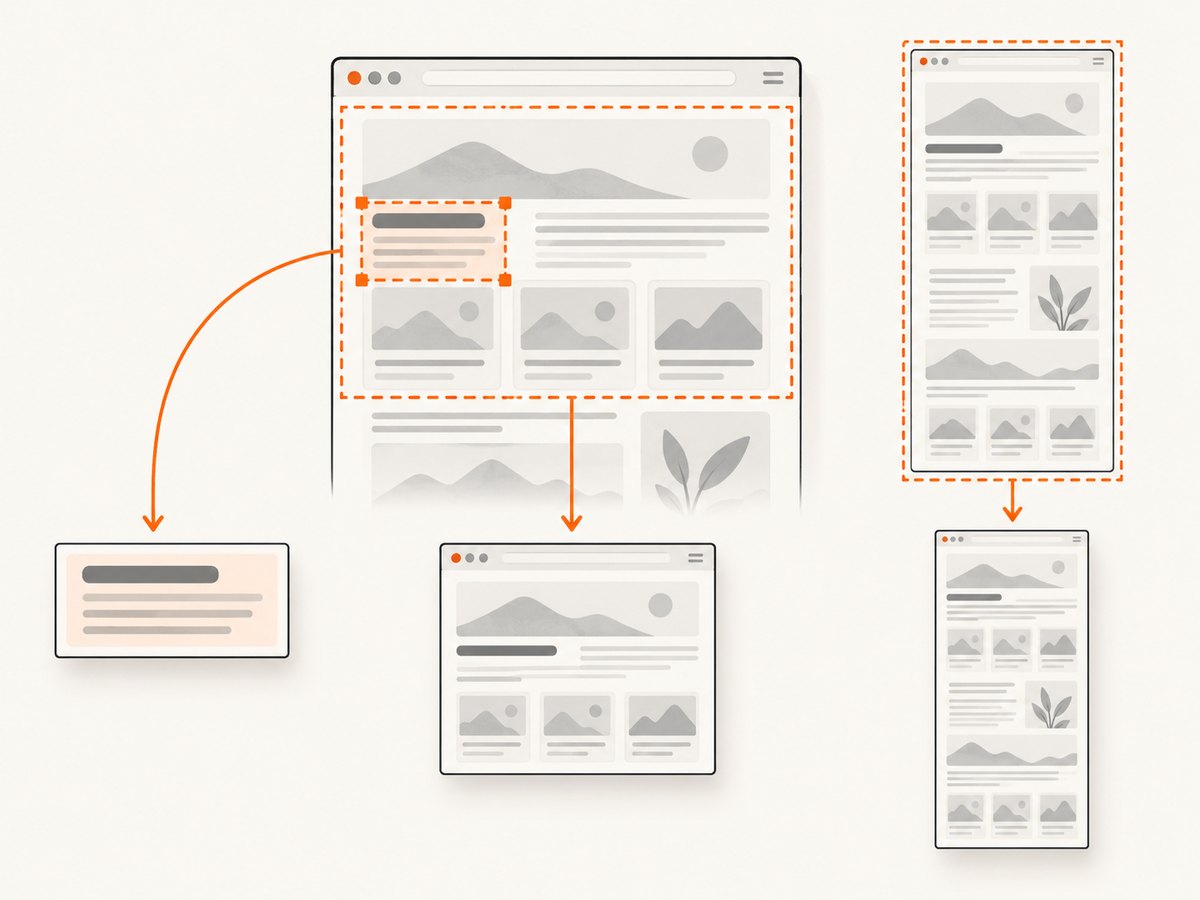
Firefox Screenshots is primarily a content selection tool. You select a region or page mode, and Firefox renders that selection into an image. Mozilla documents four useful targets:
- Selected region: drag a rectangle around the content you want.
- Detected page part: click an automatically highlighted element or section.
- Save visible: capture the currently visible page area.
- Save full page: capture the complete document, which may be much taller than 1,080 pixels.
Because the built-in interface does not expose a guaranteed numeric width and height field, treat “1080p” as a requirement you verify from the downloaded file, not as a promise made by the capture mode.
Capture a screenshot in Firefox
- Open the page you want to capture in Firefox.
- Right-click an empty area of the page and select Take Screenshot. You can also press Ctrl+Shift+S on Windows or Linux, or Command+Shift+S on macOS. Mozilla documents these entry points in its Firefox Screenshots help.
- Choose a target. Drag a custom rectangle, click a highlighted page part, choose Save visible, or choose Save full page.
- Adjust the selection if you chose a region. Firefox lets you move the selection handles with the pointer. Keyboard users can move crosshairs and edges one pixel at a time, or ten pixels when using Shift. Mozilla notes that crosshair movement does not work on Wayland.
- Select Download to save an image in Firefox’s normal download folder, or select Copy to place it on the clipboard. The documented shortcuts are Ctrl+S or Command+S for download and Ctrl+C or Command+C for copy.
- Inspect the downloaded file’s dimensions before using it in a video, design, test fixture, or upload pipeline.
How to get an exact 1920×1080 file
Firefox’s selection controls help you frame content, but they do not provide a documented width and height input. Use this process when the receiving system requires exactly 1920×1080 pixels.
- Decide what the 1,920×1,080 rectangle represents. It could be the viewport, the page content inside the viewport, or a crop centered on a particular component. Write that decision down before capturing.
- Prepare the page. Set the browser window and page zoom consistently. Close panels that should not appear in the image. Remember that changing zoom can change the relationship between CSS pixels and physical pixels.
- Capture the closest useful scope. Use Save visible for a viewport-style image, a selected region for a specific frame, or Save full page when the whole document matters. A full-page capture will normally be taller than 1,080 pixels.
- Check the file dimensions. Use your image viewer or editor’s image-properties panel. Do not infer dimensions from the monitor’s label or from the browser window size.
- Resize or crop when required. If the downloaded image is not 1920×1080, use an image tool that lets you enter the target width and height. Decide whether to crop (preserving scale but removing edges) or resize (preserving the whole image but potentially changing its scale).
- Record the final dimensions. Keep the verified output with the asset or test result so a later workflow does not assume that every Firefox capture is 1080p.
Why browser size and image size differ
The Firefox window is measured in CSS pixels, while a saved image is made of physical pixels. MDN documents that the WebExtension capture API uses CSS-pixel rectangles and that its default rendering scale is devicePixelRatio. MDN also defines devicePixelRatio as the ratio of physical pixels to CSS pixels and notes that page zoom affects it. Consequently, a 1,920-CSS-pixel selection can produce a different bitmap width on a display with a scale factor other than 1.
You can inspect the values in Firefox’s developer console:
console.log({
  viewportCssWidth: window.innerWidth,
  viewportCssHeight: window.innerHeight,
  devicePixelRatio: window.devicePixelRatio,
  zoomAffectsThisValue: 'Page zoom changes devicePixelRatio'
});
This diagnostic tells you how the page is being rendered; it does not replace checking the downloaded image. The relevant references are MDN’s ImageDetails documentation and devicePixelRatio documentation.
Choose the right Firefox capture mode
| Requirement | Firefox mode | Dimension warning |
|---|---|---|
| A screenshot of what is currently on screen | Save visible | The result follows the rendered viewport and scale; verify the file. |
| A fixed composition around one card, chart, or component | Selected region or detected page part | The rectangle is chosen interactively; there is no documented numeric export field. |
| The whole article or landing page | Save full page | The output can be far taller than 1,080 pixels. |
| A file required to be exactly 1920×1080 | Capture, then crop or resize | Confirm both width and height after the final edit. |
Practical edge cases
Full-page captures are not 1080p by default
A document can be 1,080 pixels wide and several thousand pixels tall. That is useful for archival or review work, but it is not a 1920×1080 frame. If a presentation or video pipeline requires 16:9, capture the visible viewport or crop the full-page image into 1920×1080 sections.
Retina and high-density displays
On a high-density display, one CSS pixel can map to multiple physical pixels. The resulting screenshot may therefore be wider or taller than the CSS selection suggests. Keep page zoom and operating-system scaling consistent when comparing captures, and always inspect the output dimensions.
Browser chrome and page content
Firefox Screenshots captures page content rather than the browser’s tab bar and address bar. If your specification includes browser chrome, use an operating-system capture workflow and then verify the resulting bitmap separately.
Dynamic pages
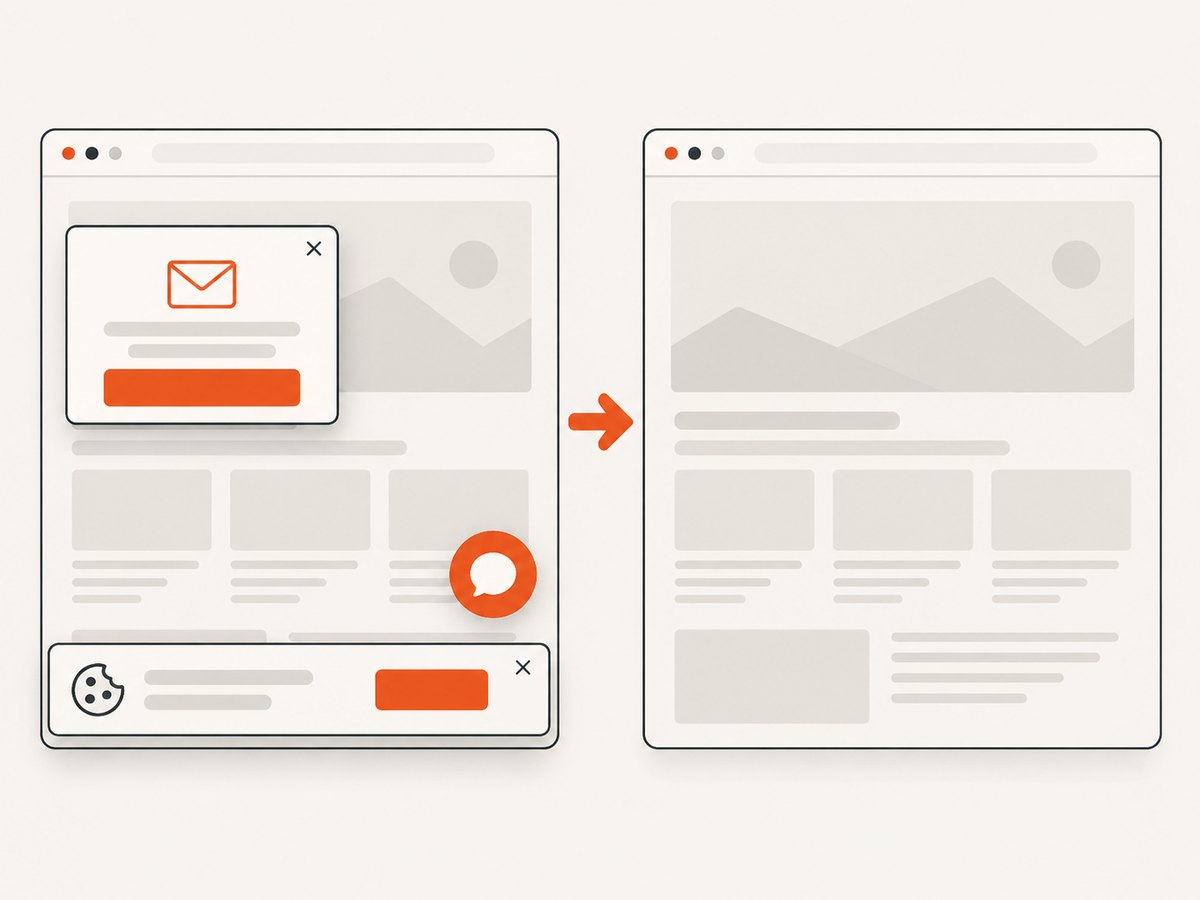
Animations, lazy-loaded images, consent dialogs, chat bubbles, and changing ad slots can alter the page between captures. Wait for the page to settle, dismiss overlays that should not be included, and repeat the capture if the layout shifts while you are selecting it.
Troubleshooting
| Problem | Likely cause | Fix |
|---|---|---|
| The image is not 1920×1080 | The selected region or rendering scale differs from the assumed CSS size. | Check the file properties, then crop or resize to 1920×1080. Keep zoom and display scaling consistent. |
| Save visible is shorter or narrower than expected | The viewport excludes browser chrome and may be smaller than the physical monitor. | Use a selected region or resize the downloaded image after checking its dimensions. |
| The full-page image is extremely tall | Save full page captures the entire document. | Use Save visible for a 16:9 frame, or split the full-page image into 1920×1080 sections. |
| An overlay appears in the capture | A cookie notice, newsletter prompt, or chat widget was active. | Dismiss it before opening Take Screenshot, wait for the layout to settle, and capture again. |
| The selection is hard to position precisely | Interactive handles are being moved by the pointer. | Use Firefox’s keyboard movement controls for one-pixel adjustments. Crosshair movement is unavailable on Wayland according to Mozilla. |
| The page changes while selecting | Lazy loading, animation, or live content is still running. | Wait for the page to stabilize, stop unnecessary animation where possible, and recapture. |
| Copy produces no usable file | The image is on the clipboard rather than saved to disk. | Use Download when a file is required, or paste the clipboard image into an editor that can report dimensions. |
Performance and reliability considerations
- Visible capture is usually the simplest workflow. It limits the amount of content Firefox must render and avoids producing a very tall image.
- Full-page capture depends on page length. Long documents with many images require more rendering and produce larger files. Plan for additional storage and processing time.
- Repeatability requires a stable page. Use the same viewport, zoom, login state, scroll position, and timing when creating a set of screenshots.
- Verify outputs in automated pipelines. A successful download only proves that a file was written. Your pipeline should also check that the image opens and has the expected width and height.
- Keep source conditions with the image. Record the URL, capture mode, browser version, zoom, display scale, and final dimensions when screenshots are used as evidence or visual regression fixtures.
Or skip the browser setup
If you need repeatable screenshots from scripts or CI, ScreenshotNeo provides a website screenshot API. Its API accepts one GET request and returns PNG, JPEG, WebP, or PDF. You can set a viewport and use image options to produce a predictable output, while still verifying the returned file in your own pipeline. See the ScreenshotNeo documentation for the complete parameter list.
cURL
curl -G "https://api.screenshotneo.com/v1/shot" \
  -d access_key=YOUR_API_KEY \
  --data-urlencode url=https://stripe.com \
  -o shot.webp
Python
import requests

r = requests.get(
    "https://api.screenshotneo.com/v1/shot",
    params={"access_key": "YOUR_API_KEY", "url": "https://stripe.com"},
    timeout=90,
)
r.raise_for_status()
open("shot.webp", "wb").write(r.content)
Node.js
const q = new URLSearchParams({
  access_key: 'YOUR_API_KEY',
  url: 'https://stripe.com'
});
const res = await fetch(`https://api.screenshotneo.com/v1/shot?${q}`);
if (!res.ok) throw new Error(`Screenshot failed: ${res.status}`);
const data = Buffer.from(await res.arrayBuffer());
require('fs').writeFileSync('shot.webp', data);
Options useful for a 1080p workflow
- Use a custom viewport or one of 12 device presets, then set retina scale when you need a higher-density render.
- Capture one element with a CSS selector when the desired 16:9 frame is a component rather than the whole page.
- Use full-page capture with lazy images loaded for long pages.
- Apply custom CSS, JavaScript, click actions, selector hiding, a wait-for-selector rule, a delay, or network-idle waiting to make the page stable before capture.
- Block ads, trackers, requests, or resource types that cause layout noise.
- Set cookies, custom headers, a user agent, Authorization, timezone, or geolocation for pages that depend on session or regional state.
- Resize the image, use a transparent background, or choose PNG, JPEG, WebP, or PDF output as required.
- Use caching with a TTL you choose, signed links for public image tags, asynchronous jobs with signed webhooks, or bulk capture for up to 100 URLs per call.
ScreenshotNeo removes cookie and consent banners, newsletter popups, and chat widgets before capture. Bot checks, blank pages, timeouts, failed loads, and cache hits are not billed; the response includes X-Page-Verdict and X-Billed headers so your application can see what happened. An MCP server provides take_screenshot, get_page_info, and capture_pdf tools for Claude, Cursor, and other MCP clients.
The Free plan includes 1,000 screenshots per month with no card. Paid plans start at $5 for 3,000 screenshots; every feature is available on every plan, and yearly billing gives two months free. Create a free ScreenshotNeo account to try the API.
Cost and usage planning
Firefox Screenshots itself does not add an API charge because it runs in the browser. The tradeoff is manual work and less control over repeatability. An API becomes useful when you need scheduled captures, many URLs, consistent device settings, signed public links, or an automated failure signal.
With ScreenshotNeo, only clean shots are billed. A response that is a bot check, blank page, timeout, failed load, or cache hit is not billed, and the verdict headers let you reconcile usage. For larger jobs, use bulk capture or asynchronous jobs rather than keeping a script waiting on every URL. Set timeouts in your client, retry only transient failures, and store the verdict with the resulting asset.
FAQ
Does Firefox have a “1080p” button?
Mozilla’s current help documentation describes capture targets but does not document a button that exports exactly 1920×1080. Capture the desired area and verify or resize the downloaded file.
Is Save visible always 1920×1080?
No. The result depends on the visible page area, CSS pixels, device-pixel ratio, and zoom. Check the image dimensions.
Should I use Save full page for a 1080p screenshot?
Only when you need the entire document. A full-page image is often much taller than 1,080 pixels and must be cropped or split for a 16:9 deliverable.
Can I capture only one element?
In Firefox, click an automatically highlighted page part or drag a region. For scripted element capture, ScreenshotNeo accepts a CSS selector.
How do I make repeated captures consistent?
Fix the viewport, zoom, device scale, session state, timing, and page content. For automation, use explicit waits and record the output dimensions and verdict.
Can an AI agent take these screenshots?
Yes. ScreenshotNeo includes an MCP server with tools named take_screenshot, get_page_info, and capture_pdf.


