How to Capture the Android Home Screen with ADB
Capture your Android home screen as a PNG from a computer with ADB, including setup, troubleshooting, multi-display options, and reliable fallbacks.
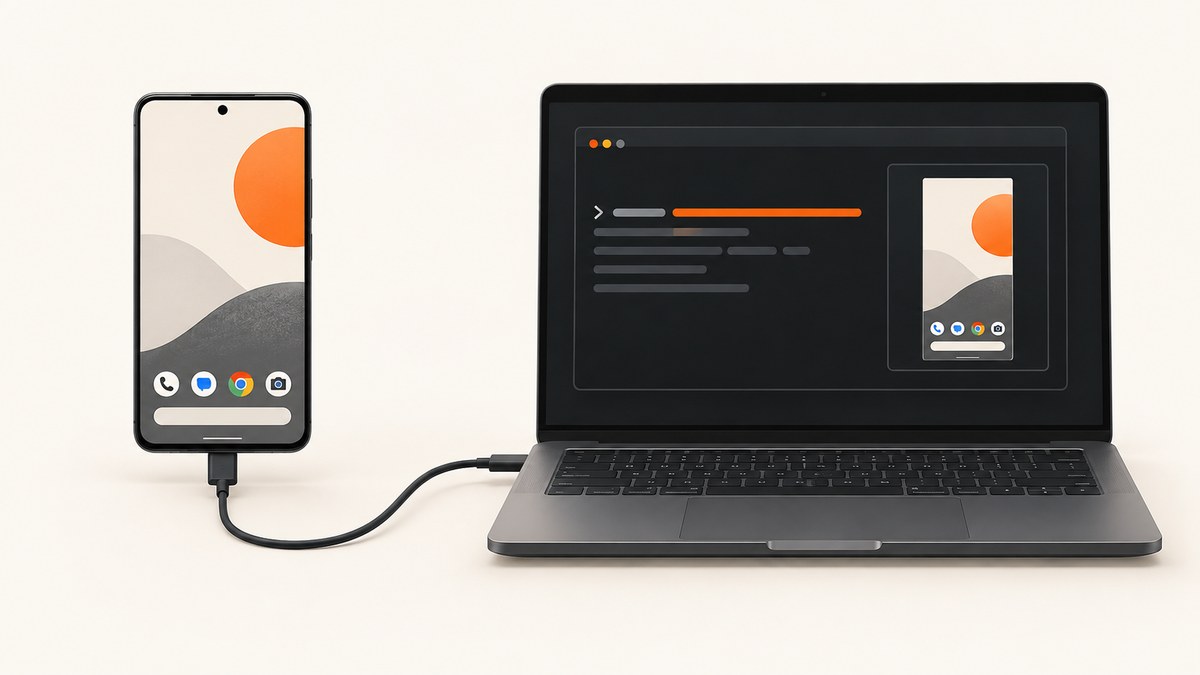
The simplest way to save the Android display currently visible on your phone is:
adb exec-out screencap -p > home-screen.pngReturn the phone to its home screen before running the command. ADB captures the display at the moment the command executes. The result is a local PNG file on your computer.
This method requires Android SDK Platform-Tools, a connected device, USB debugging, and an authorized ADB connection.
Prerequisites
- Install the official Android SDK Platform-Tools package so the
adbexecutable is available. - Enable Developer options and USB debugging on the Android device.
- Use a USB cable that supports data transfer. A charging-only cable cannot establish ADB.
- Unlock the phone when Android displays the USB-debugging authorization prompt.
On Windows, the phone may also need an appropriate USB driver. Connector type varies by phone; USB-C is common, but the important requirement is data capability.
1. Connect and authorize the phone
Open a terminal and check whether ADB sees the device:
adb devicesA working connection shows a device serial followed by device, for example:
List of devices attached
R58M12345AB    device
If the status is unauthorized, unlock the phone, accept the authorization dialog, and run adb devices again.
2. Show the Android home screen
Press the Home button or use the home gesture. Close any notification shade, dialog, app, or permission prompt that you do not want in the image. ADB does not navigate to Home for you; it captures whatever is visible.
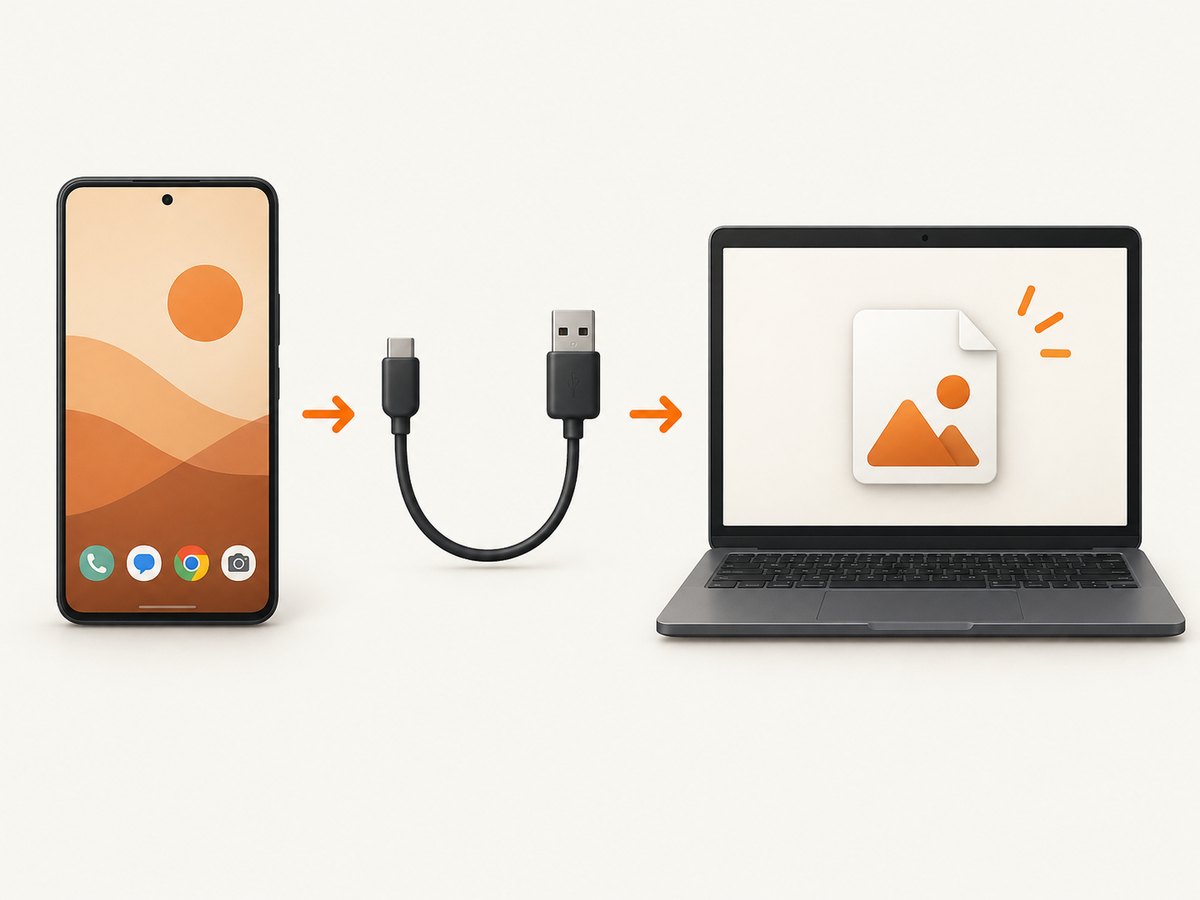
3. Capture a PNG directly to your computer
adb exec-out screencap -p > home-screen.pngscreencap is Android’s shell utility for taking a screenshot of a device display. The -p option requests PNG output. exec-out sends the raw binary result to the host, which avoids text or line-ending transformations that can corrupt a PNG. Android’s official ADB reference documents this pattern and recommends exec-out for raw data: ADB documentation.
Verify that the file exists and is a PNG:
ls -lh home-screen.png
file home-screen.png
On Windows PowerShell, use Get-Item home-screen.png to inspect the file.
Fallback: save on the device, then pull the file
Some device builds or environments behave better with a two-step transfer:
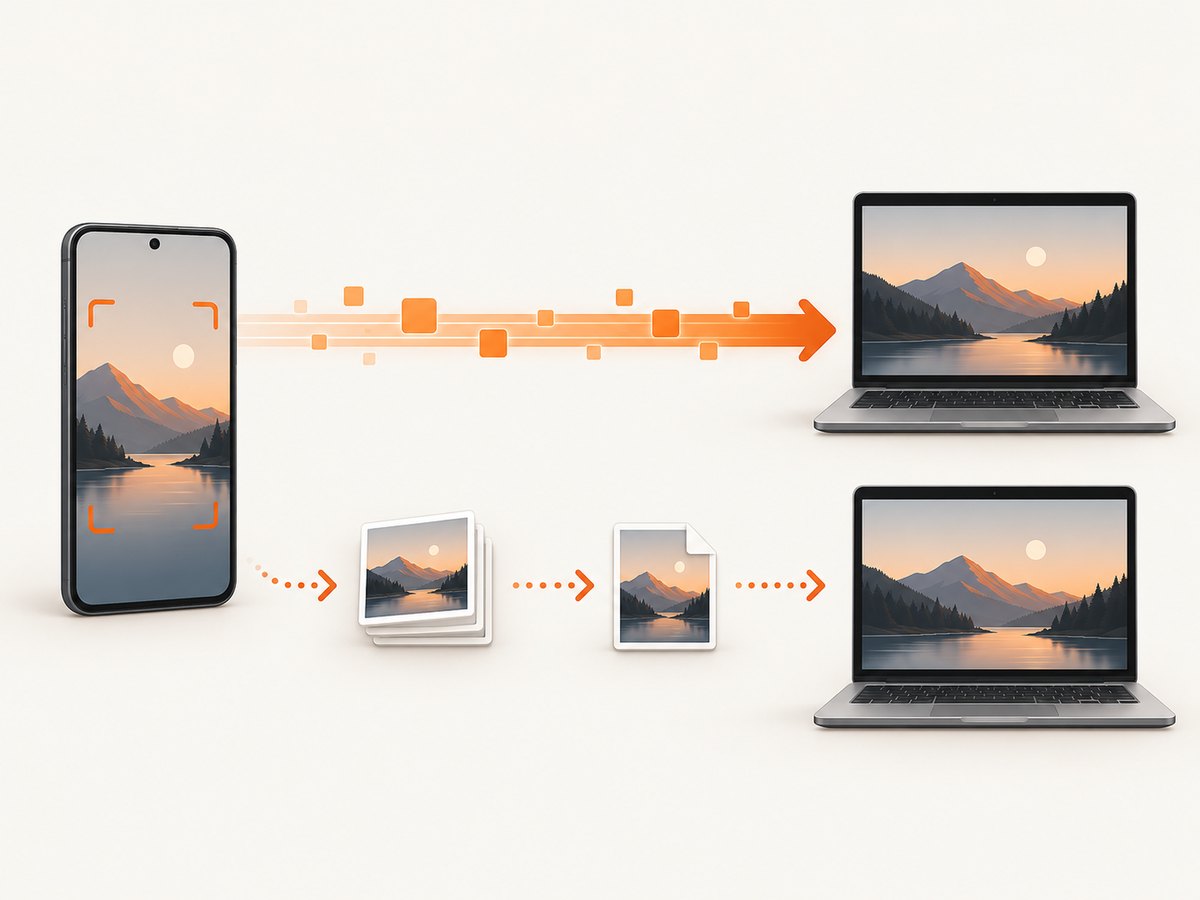
adb shell screencap /sdcard/home-screen.png
adb pull /sdcard/home-screen.png .
The first command writes the screenshot on the device. The second copies it to the current computer directory. If the file already exists, overwrite it only when that is intended. You can remove the temporary device file afterward:
adb shell rm /sdcard/home-screen.pngUseful commands and options
Inspect options on the connected Android build
adb shell screencap --helpAvailable flags differ between Android versions and device builds. Read the help output from the actual device before relying on an advanced option.
Select a display on multi-display hardware
On devices with more than one display, the build may expose a display-selection flag such as -d <display_id>. First inspect the supported syntax:
adb shell screencap --helpThen run the documented form for that device, for example:
adb exec-out screencap -p -d <display_id> > selected-display.pngConfirm the result visually because display IDs and supported flags are device-specific.
Capture repeatedly
For a small number of snapshots, run the command again with a different filename:
adb exec-out screencap -p > home-01.png
sleep 1
adb exec-out screencap -p > home-02.png
For motion or a demonstration, use Android’s separate screenrecord utility. It creates an MPEG-4 video, not a still PNG:
adb shell screenrecord /sdcard/demo.mp4
adb pull /sdcard/demo.mp4 .
What this method cannot do
- It captures one display state, not a scrolling screenshot of a long page.
- It does not remove notifications, dialogs, navigation bars, or other visible UI.
- It does not capture an app that is behind the currently visible screen.
- It does not produce video; use
screenrecordfor that.
For a consumer shortcut without ADB, Google Android Help documents pressing Power + Volume Down (or using the device’s Screenshot control). Scrolling capture is available on Android 12 and newer on most scrollable screens: Take a screenshot on your Android device.
Troubleshooting
| Symptom | Cause | Fix |
|---|---|---|
adb: command not found or not recognized |
Platform-Tools is missing or not on PATH. |
Install Platform-Tools and run ADB from its directory, or add that directory to your PATH. |
No device appears in adb devices |
USB debugging is disabled, the cable is charge-only, the connection is loose, or a driver is missing. | Enable USB debugging, try a known data cable and port, reconnect, and install the applicable driver on Windows. |
Status is unauthorized |
The phone has not approved this computer. | Unlock the phone, accept the USB-debugging prompt, then rerun adb devices. |
| Output is empty or not a valid PNG | Binary output was transformed while passing through adb shell or a terminal pipeline. |
Use adb exec-out screencap -p > home-screen.png. If needed, use the save-and-pull fallback. |
| Screenshot shows the wrong app or a dialog | The command captures the visible display, not a requested app. | Return to Home, dismiss overlays, and run the command again. |
| Wrong display is captured | The device has multiple displays or a non-default display. | Read adb shell screencap --help, use its display-selection flag, and inspect the resulting image. |
| Permission or storage error in the fallback | The selected device path is unavailable or restricted. | Use a writable path such as /sdcard/home-screen.png, then pull it immediately. |
Wired and wireless ADB considerations
Wired ADB is the most predictable setup for a one-off capture because it supplies both the connection and device authorization path. Wireless ADB can work when the phone and computer are configured for it, but pairing, network reachability, and changing IP addresses add setup variables. The screenshot command itself remains the same after adb devices reports an authorized device.
Performance, reliability, and file handling
- Capture time: The command transfers one still image; transfer time depends on the device image size and the connection.
- Reliability: Check the ADB status immediately before capture and verify the resulting file type afterward.
- Repeatability: Keep the phone unlocked on the home screen and use deterministic filenames when generating a sequence.
- Storage: The direct method writes only to the computer. The fallback temporarily uses device storage and should be cleaned up when no longer needed.
- Cost: Android Platform-Tools and the ADB commands do not require a screenshot service or per-image API charge.
Or skip the browser setup
ADB is for an Android display connected to your computer. If you need screenshots of web pages instead, ScreenshotNeo provides a single GET request that returns a PNG, JPEG, WebP, or PDF. Its capture flow removes cookie and consent banners, newsletter popups, and chat widgets before the shot. Bot checks, blank pages, failed loads, timeouts, and cache hits are not billed, and response headers identify the page verdict and billing result.
See the ScreenshotNeo API documentation for all options. Basic calls:
cURL
curl -G "https://api.screenshotneo.com/v1/shot" -d access_key=YOUR_API_KEY --data-urlencode url=https://stripe.com -o shot.webpPython
import requests
r = requests.get("https://api.screenshotneo.com/v1/shot", params={"access_key": "YOUR_API_KEY", "url": "https://stripe.com"}, timeout=90)
open("shot.webp", "wb").write(r.content)
Node.js
const fs = require('node:fs/promises');
const q = new URLSearchParams({ access_key: 'YOUR_API_KEY', url: 'https://stripe.com' });
const res = await fetch(`https://api.screenshotneo.com/v1/shot?${q}`);
if (!res.ok) throw new Error(`HTTP ${res.status}`);
await fs.writeFile('shot.webp', Buffer.from(await res.arrayBuffer()));
ScreenshotNeo also has an MCP server for AI agents, including Claude and Cursor. The Free plan includes 1,000 screenshots each month with no card; paid plans start at $5 for 3,000. Create a free ScreenshotNeo account.
FAQ
Does ADB capture the Android home screen automatically?
No. It captures whatever is visible when the command runs, so navigate to Home first.
Why use exec-out instead of shell?
exec-out is intended for raw output and avoids transformations that can corrupt binary PNG data.
Can I save a JPEG instead?
The documented screencap -p workflow produces PNG. Convert the resulting file afterward if another format is required.
Can I take a scrolling home-screen screenshot?
A home screen is a single display surface, and screencap captures one frame. It does not create scrolling captures.
What if the phone is locked?
Unlock it and make the desired display visible before capturing. A locked or sleeping display will not show the home screen you intended.


