How to Capture Android Screenshots with OpenGL
Choose the right Android capture boundary: OpenGL pixels, a presented SurfaceView, a Window, or the whole screen.
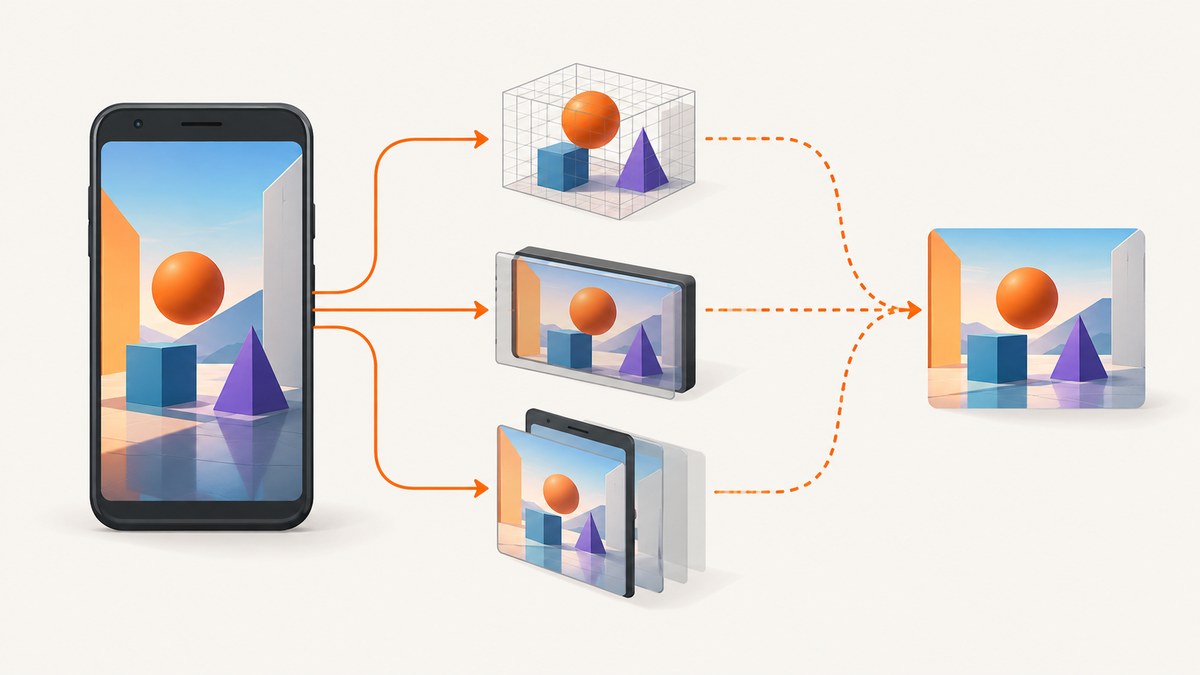
Choose the capture boundary before writing code. In an Android OpenGL app, “screenshot” can mean three different images:
- GL render target: pixels produced by your renderer before Android composes the window.
- Presented surface or window: the latest buffer actually queued by a
GLSurfaceView,SurfaceView, orWindow. - Screen or app-window capture: a user-authorized recording-style session that can include Android UI composition.
Use a GL-thread readback for renderer-owned pixels, PixelCopy for a displayed surface or window, and MediaProjection for a broader screen or app-window capture. The correct choice depends on which pixels you need.
1. Select the right method
| Need | API | What is captured | Main constraint |
|---|---|---|---|
| Only the OpenGL framebuffer | glReadPixels on the GL thread |
Renderer output in the current GL context | Readback, synchronization, orientation, and format are implementation details you must validate |
| What a GLSurfaceView or SurfaceView presents | PixelCopy.request |
Most recently queued surface buffer | Asynchronous callback; source may not have a frame yet |
| A Window image | PixelCopy.request(window, ...) |
Window backing surface | DecorView and backing surface must exist; a draw should have happened |
| The screen or an app-window session | MediaProjection |
Authorized display output through a virtual display | User consent, projection token, lifecycle, and foreground-service requirements |
Android’s OpenGL guide says the system calls GLSurfaceView.Renderer.onDrawFrame() “on each redraw of the GLSurfaceView.” Keep renderer work with that GL context lifecycle. Android lists OpenGL ES 2.0 from API 8, ES 3.0 from API 18, ES 3.1 from API 21, and ES 3.2 from API 24, but each device still depends on its manufacturer’s implementation. See the OpenGL ES guide.
2. Capture the OpenGL render target
Use this route when Android UI overlays, system bars, and other composited content should not be included. The readback must run while the renderer’s GL context is current, normally from onDrawFrame() or a renderer-owned queue.
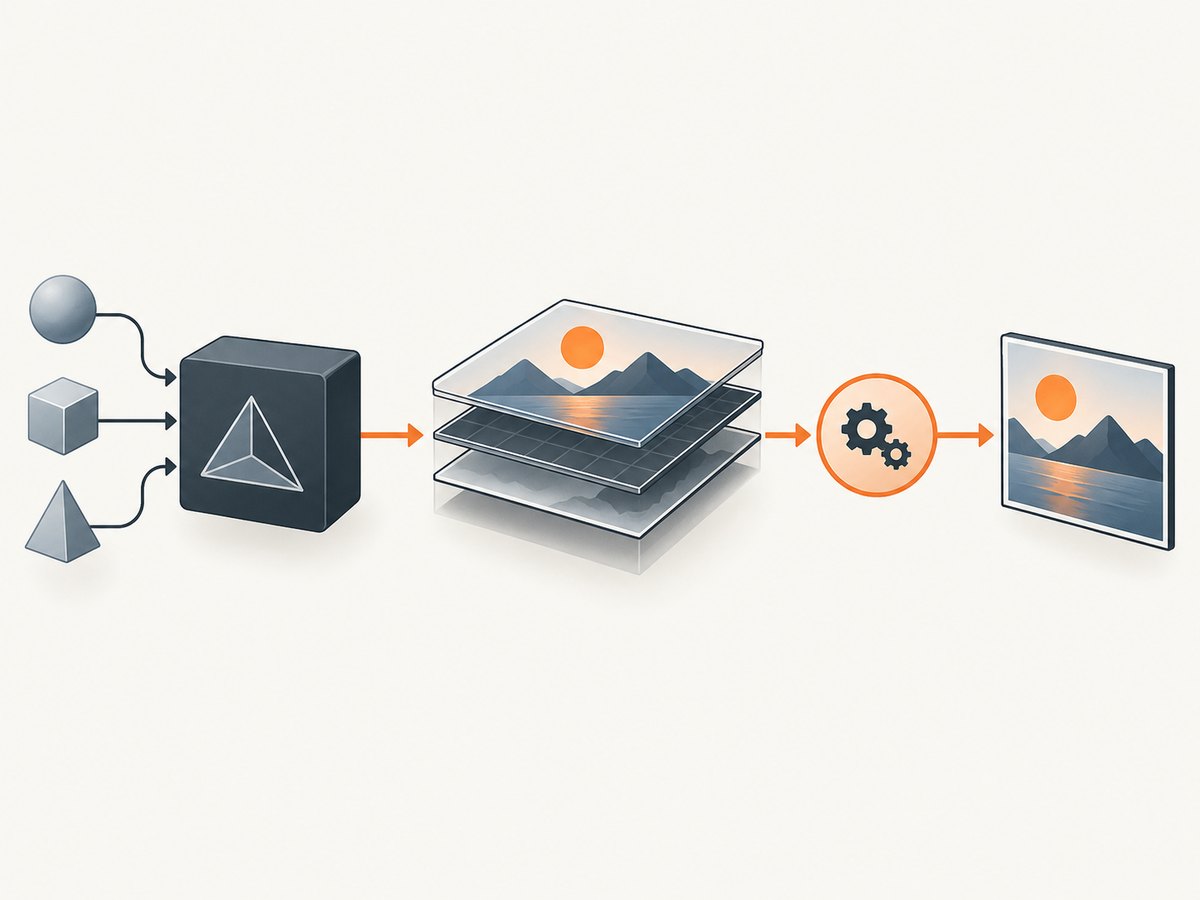
class ScreenshotRenderer : GLSurfaceView.Renderer {
    private var captureRequested = false

    fun requestCapture() {
        // Call this through GLSurfaceView.queueEvent so it executes on the GL thread.
        captureRequested = true
    }

    override fun onSurfaceCreated(gl: GL10?, config: EGLConfig?) {
        // Create shaders, textures, and other GL resources here.
    }

    override fun onSurfaceChanged(gl: GL10?, width: Int, height: Int) {
        GLES20.glViewport(0, 0, width, height)
    }

    override fun onDrawFrame(gl: GL10?) {
        drawScene()

        if (captureRequested) {
            captureRequested = false
            // A real implementation must choose and validate its framebuffer,
            // pixel format, row orientation, synchronization, and buffer lifetime.
            // Read pixels here with the GL context current, then hand the result
            // to a worker thread for encoding or storage.
        }
    }

    private fun drawScene() {
        GLES20.glClear(GLES20.GL_COLOR_BUFFER_BIT or GLES20.GL_DEPTH_BUFFER_BIT)
        // Issue the app's normal drawing commands.
    }
}
Do not move a raw readback to an arbitrary UI or worker thread. The Android documentation used for this guide does not define one universal glReadPixels format, flip rule, or synchronization recipe for every renderer. Verify those choices against your EGL configuration, framebuffer, shaders, and device set.
Practical GL-readback checklist
- Capture only after the frame has been rendered into the framebuffer you intend to read.
- Confirm whether you are reading the default framebuffer or an off-screen framebuffer.
- Handle the renderer’s actual width and height, including rotation and device density decisions.
- Measure the stall caused by GPU-to-CPU transfer; encode PNG or JPEG away from the GL thread.
- Release or reuse buffers deliberately so repeated captures do not trigger garbage-collection pauses.
3. Capture a GLSurfaceView or SurfaceView with PixelCopy
PixelCopy copies the most recently queued buffer into a destination Bitmap and completes asynchronously. SurfaceView and Surface forms are available from API 24; rectangle overloads are available from API 26. The destination bitmap determines output dimensions and format, and the source is scaled to fit it. See the PixelCopy API reference.
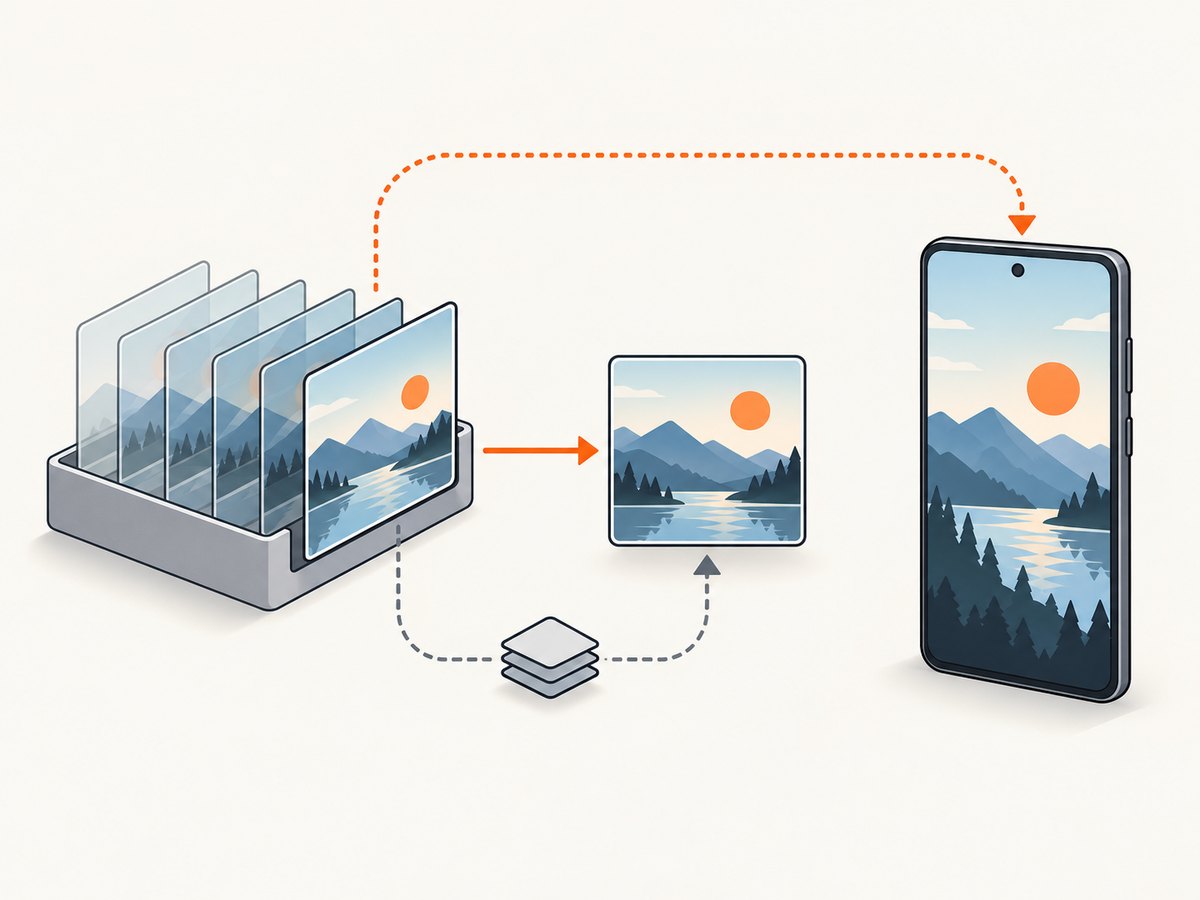
private fun copySurfaceView(surfaceView: SurfaceView, onDone: (Bitmap?, Int) -> Unit) {
    if (Build.VERSION.SDK_INT < Build.VERSION_CODES.N) {
        onDone(null, PixelCopy.ERROR_UNKNOWN)
        return
    }

    val width = surfaceView.width
    val height = surfaceView.height
    if (width <= 0 || height <= 0) {
        onDone(null, PixelCopy.ERROR_SOURCE_NO_DATA)
        return
    }

    val bitmap = Bitmap.createBitmap(
        width,
        height,
        Bitmap.Config.ARGB_8888
    )

    val mainHandler = Handler(Looper.getMainLooper())
    PixelCopy.request(surfaceView, bitmap, { result ->
        if (result == PixelCopy.SUCCESS) {
            onDone(bitmap, result)
        } else {
            bitmap.recycle()
            onDone(null, result)
        }
    }, mainHandler)
}
Call this after the view is attached, laid out, and has rendered at least one frame. Save or encode the returned bitmap after a successful callback; the callback status is the source of truth.
Copy a selected rectangle (API 26+)
if (Build.VERSION.SDK_INT >= Build.VERSION_CODES.O) {
    val source = Rect(0, 0, surfaceView.width, surfaceView.height)
    val destination = Bitmap.createBitmap(800, 450, Bitmap.Config.ARGB_8888)
    PixelCopy.request(
        surfaceView,
        source,
        destination,
        { status ->
            if (status == PixelCopy.SUCCESS) {
                // Encode or display destination.
            }
        },
        Handler(Looper.getMainLooper())
    )
}
The rectangle overload scales the selected source into the destination bitmap. Pick the destination size intentionally to avoid an unexpected aspect ratio or memory cost.
4. Capture a Window
PixelCopy also has Window overloads. The Window must have a non-null DecorView and a backing surface. Wait until the window exists and has drawn before requesting a copy; otherwise the request can fail or return no data.
fun copyWindow(window: Window, onDone: (Bitmap?, Int) -> Unit) {
    if (Build.VERSION.SDK_INT < Build.VERSION_CODES.N) {
        onDone(null, PixelCopy.ERROR_UNKNOWN)
        return
    }

    val view = window.decorView
    val width = view.width
    val height = view.height
    if (width <= 0 || height <= 0) {
        onDone(null, PixelCopy.ERROR_SOURCE_NO_DATA)
        return
    }

    val bitmap = Bitmap.createBitmap(width, height, Bitmap.Config.ARGB_8888)
    PixelCopy.request(
        window,
        bitmap,
        { status ->
            if (status == PixelCopy.SUCCESS) onDone(bitmap, status)
            else {
                bitmap.recycle()
                onDone(null, status)
            }
        },
        Handler(Looper.getMainLooper())
    )
}
Window capture is useful when the desired image includes Android view composition around the OpenGL surface. It is still limited to that Window’s backing surface, not the entire device display.
5. Capture the screen or app window with MediaProjection
Use MediaProjection when the requirement is a broader, user-authorized capture session. The flow is:
- Obtain
MediaProjectionManagerand launchcreateScreenCaptureIntent(). - Receive the user-approved result and projection token in your activity result callback.
- Create an app-owned input
Surfacebacked by an image reader, encoder, or other consumer. - Create a virtual display that sends projection frames to that Surface.
- Handle projection stop, surface destruction, rotation, and resource cleanup.
private val projectionLauncher = registerForActivityResult(
    ActivityResultContracts.StartActivityForResult()
) { result ->
    if (result.resultCode != Activity.RESULT_OK || result.data == null) return@registerForActivityResult

    val manager = getSystemService(MediaProjectionManager::class.java)
    val projection = manager.getMediaProjection(result.resultCode, result.data!!)

    // Create an ImageReader (or encoder) Surface sized for your capture.
    // Then connect it to a virtual display:
    // projection.createVirtualDisplay(
    //     "capture", width, height, density,
    //     DisplayManager.VIRTUAL_DISPLAY_FLAG_AUTO_MIRROR,
    //     inputSurface, callback, handler
    // )

    projection.registerCallback(object : MediaProjection.Callback() {
        override fun onStop() {
            // Release the virtual display, input Surface, and reader.
        }
    }, Handler(Looper.getMainLooper()))
}
MediaProjection requires user consent and has current target-SDK and foreground-service requirements. The API reference describes using a foreground service with the mediaProjection service type as part of the flow. Check the MediaProjection and MediaProjectionManager references for the Android version you target.
6. Performance, reliability, and format decisions
- GL readback: can synchronize GPU and CPU work. Capture on demand, reuse allocations, and move compression off the GL thread.
- PixelCopy: is asynchronous and copies a queued buffer. It avoids manually reading the renderer’s framebuffer, but it can return stale content if a newer frame has not been queued.
- MediaProjection: is intended for a session. Keep the virtual display and consumer alive for the required duration, and stop them when the projection ends.
- Bitmap memory: memory grows with width × height × bytes per pixel. Bound capture dimensions and recycle or release buffers when finished.
- Output: choose PNG for lossless UI or diagnostic pixels, JPEG for smaller photographic output, and an encoder appropriate for video-like projection streams.
- Device coverage: test the renderer and capture path on representative GPU vendors, Android versions, rotations, and display sizes. OpenGL ES version availability is not guaranteed solely by the platform API floor.
7. Troubleshooting
| Symptom or error | Likely cause | Fix |
|---|---|---|
ERROR_SOURCE_NO_DATA or a blank bitmap |
No buffer has been queued yet, or the view/window has not drawn | Wait for layout and the first rendered frame, then retry |
| Stale image | PixelCopy copied the most recently queued buffer, not a future frame | Request after the frame you need is presented; coordinate capture with rendering |
ERROR_SOURCE_INVALID |
Surface or Window is invalid or no longer backed | Check lifecycle state and recreate the request after the surface is available |
ERROR_DESTINATION_INVALID |
Bitmap is recycled, immutable, or otherwise unsuitable | Create a valid mutable destination bitmap with non-zero dimensions |
ERROR_TIMEOUT |
Copy did not complete in the allotted time | Retry when the source is active; avoid requesting during teardown |
| Wrong size or aspect ratio | Destination bitmap dimensions differ from the source rectangle | Allocate the desired dimensions and account for scaling explicitly |
| GL capture has upside-down or unexpected colors | Framebuffer orientation or format handling differs from assumptions | Inspect the actual framebuffer and EGL format, then validate on target devices |
| MediaProjection stops unexpectedly | User revoked capture, service stopped, or the consumer Surface was released | Handle onStop(), release resources, and ask for a new consent session |
PixelCopy also documents invalid-source, invalid-destination, timeout, and unknown-error statuses. Always inspect the callback result instead of assuming a non-null bitmap means success.
8. Or skip the browser setup
If your goal is a URL screenshot rather than pixels inside your own Android renderer, ScreenshotNeo provides a single HTTP endpoint for PNG, JPEG, WebP, or PDF output. The request works with cURL, Python, or Node.js; see the ScreenshotNeo API docs.
curl -G "https://api.screenshotneo.com/v1/shot" -d access_key=YOUR_API_KEY --data-urlencode url=https://stripe.com -o shot.webpimport requests
r = requests.get("https://api.screenshotneo.com/v1/shot", params={"access_key": "YOUR_API_KEY", "url": "https://stripe.com"}, timeout=90)
open("shot.webp", "wb").write(r.content)const q = new URLSearchParams({ access_key: 'YOUR_API_KEY', url: 'https://stripe.com' });
const res = await fetch(`https://api.screenshotneo.com/v1/shot?${q}`);Cookie and consent banners are accepted and removed before capture, along with more than 60 known consent platforms, newsletter popups, and chat widgets. Bot checks, blank pages, timeouts, failed loads, and cache hits are not billed; response headers identify the page verdict and billing result. ScreenshotNeo also offers an MCP server with take_screenshot, get_page_info, and capture_pdf tools for Claude, Cursor, and other MCP clients. The Free plan includes 1,000 screenshots per month with no card, and paid plans start at $5 for 3,000 shots. Create a free ScreenshotNeo account.
9. FAQ
Can PixelCopy capture only the OpenGL content?
It captures the presented SurfaceView or Window buffer. Use a GL-thread readback when you need the renderer’s framebuffer without Android composition.
Does PixelCopy wait for the next frame?
No. It copies the most recently queued buffer available when the request is serviced. Coordinate the request with your render lifecycle if a specific frame matters.
Can MediaProjection run without user permission?
No. The user must approve the projection request, and the app must maintain the projection and its output Surface correctly.
Which method includes system bars?
A broader MediaProjection capture can include screen output according to the authorized session. A SurfaceView or Window PixelCopy request is scoped to that source.
Is GLSurfaceView required for OpenGL screenshots?
No. The GL-thread principle applies to other EGL setups too. GLSurfaceView is a convenient Android container for full-screen or near-full-screen graphics; Android describes it as “a reasonable choice” for that use case.


