How to Capture Application Traffic with Fiddler
Capture clean HTTP and HTTPS traces with Fiddler, decrypt TLS safely, handle apps that ignore proxies, and inspect traffic from remote devices.
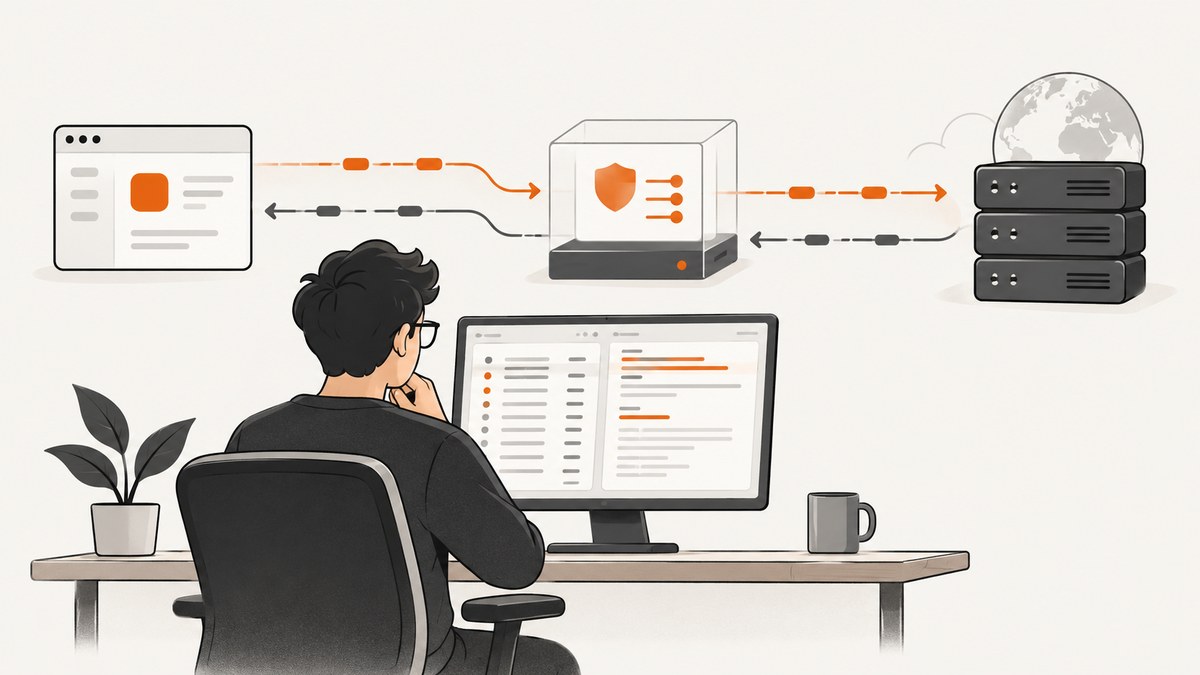
Direct answer: Fiddler captures application traffic when the application sends its requests through Fiddler’s proxy. Start Fiddler on the device running the application, clear old sessions, configure the application or system proxy, enable HTTPS decryption when needed, reproduce the problem once, then stop and inspect the trace. If the application does not honor a proxy, use its explicit proxy setting or a supported network-capturing mode.
1. Choose the Fiddler product and confirm the listening port
Install Fiddler on the same device where you can reproduce the issue. Microsoft describes Fiddler as third-party software, not a Microsoft product, and recommends installing it on the device used for reproduction.
| Product | Capture model | Port guidance | Important limitation |
|---|---|---|---|
| Fiddler Everywhere | HTTP(S) proxy; Windows also has network-capturing mode | Current Windows quickstart lists 8866 as the default. Confirm the value shown in your installation. |
Linux does not yet support network-capturing mode; use proxy capture and manually export and trust the CA. |
| Fiddler Classic | HTTP(S) proxy | Legacy hookup guidance commonly references 8888. Confirm the value in Fiddler Options. |
Applications must use the system or an explicit proxy. |
Do not assume 8866 and 8888 are interchangeable. Read the listening port displayed by the installed product before configuring an app or another device. See the Microsoft Fiddler trace guidance and Fiddler Everywhere capture documentation.
2. Prepare a clean capture
- Close unrelated applications, browser tabs, and background tools. Fiddler records all traffic that passes through it during the capture.
- Start Fiddler.
- Clear existing sessions. In Fiddler Everywhere, use the session-list clear command; in workflows that document the shortcut,
Ctrl+Xclears stale traces. - Verify that capture is enabled.
- Keep the application ready, but do not reproduce the issue yet.
A clean trace makes the target request easier to find and avoids sending unrelated credentials or personal data to reviewers.
3. Configure HTTPS decryption
Without HTTPS decryption, you may see a CONNECT tunnel but not the encrypted request URL, headers, or response body. Decryption makes Fiddler an interception proxy, so the client must trust Fiddler’s generated root certificate.

Fiddler Everywhere
- Open Settings → HTTPS.
- Enable HTTPS capture/decryption.
- Install the Fiddler root CA.
- Trust the certificate in the operating system or application certificate store.
- Restart the application if it cached proxy or certificate state.
Fiddler Classic
- Open Tools → Fiddler Options → HTTPS.
- Select Decrypt HTTPS Traffic.
- Accept the prompt to generate and install the FiddlerRoot certificate.
- Trust the certificate where the application performs validation.
Progress Telerik’s guidance states that capturing and decrypting HTTPS requires installing and trusting the Fiddler root CA through the HTTPS settings. Treat the generated CA as a debugging credential: remove it from test devices when the investigation is complete, and never install it on devices you do not control. See Telerik’s HTTPS decryption documentation.
4. Route the application through Fiddler
Applications that honor the system proxy
Set the operating system proxy to Fiddler’s host and listening port, or enable automatic proxy detection if the product supports it. Start or restart the application after Fiddler is running when automatic detection is required.
Applications with an explicit proxy setting
Set both HTTP and HTTPS proxy values to the Fiddler endpoint. For a local capture, the endpoint is usually 127.0.0.1:<port>. Replace <port> with the value shown by your Fiddler installation.
# Example environment variables for a command-line client
export HTTP_PROXY=http://127.0.0.1:8866
export HTTPS_PROXY=http://127.0.0.1:8866
Some applications ignore these variables, use a separate proxy configuration, or pin server certificates. In those cases, configure the proxy in the application itself, use Fiddler Everywhere’s supported Windows network-capturing mode, or use the application’s diagnostic logging.
5. Reproduce once, then stop capture
- Enable capture immediately before the operation being diagnosed.
- Perform the operation once with the smallest reproducible input.
- Stop capture immediately afterward.
- Filter by host, URL, method, status code, or process where available.
- Inspect request and response headers, timing, redirects, status codes, and response bodies when decrypted and available.
Look for DNS or connection failures, proxy authentication responses, TLS errors, redirects to an unexpected host, missing authorization headers, retries, and slow phases in the timing view. Microsoft notes that requests, responses, headers, response codes, and sometimes payloads provide troubleshooting clues.
6. Save and share the trace safely
Save the session file or export the selected sessions after removing unrelated traffic. Fiddler Everywhere supports saving, sharing, and exporting captured HTTPS sessions. Before sharing, review cookies, authorization headers, API keys, personal data, and request bodies. Redact secrets and capture a fresh trace if the original contains credentials.
7. Test a proxy-routed request with code
These examples verify that a client can reach a URL through Fiddler. Use the actual listening port from your installation; change 8866 to 8888 for a Classic setup when that is the configured port.
cURL
curl --proxy http://127.0.0.1:8866 https://example.com -vPython
import requests

proxies = {
    "http": "http://127.0.0.1:8866",
    "https": "http://127.0.0.1:8866",
}
response = requests.get("https://example.com", proxies=proxies, timeout=30)
print(response.status_code)
print(response.headers)
print(response.text[:200])
Node.js
import { ProxyAgent, fetch } from "undici";

const dispatcher = new ProxyAgent("http://127.0.0.1:8866");
const response = await fetch("https://example.com", { dispatcher });
console.log(response.status, await response.text());
If these requests appear in Fiddler but your application does not, the application is probably bypassing the system proxy, using a separate network stack, or rejecting Fiddler’s certificate.
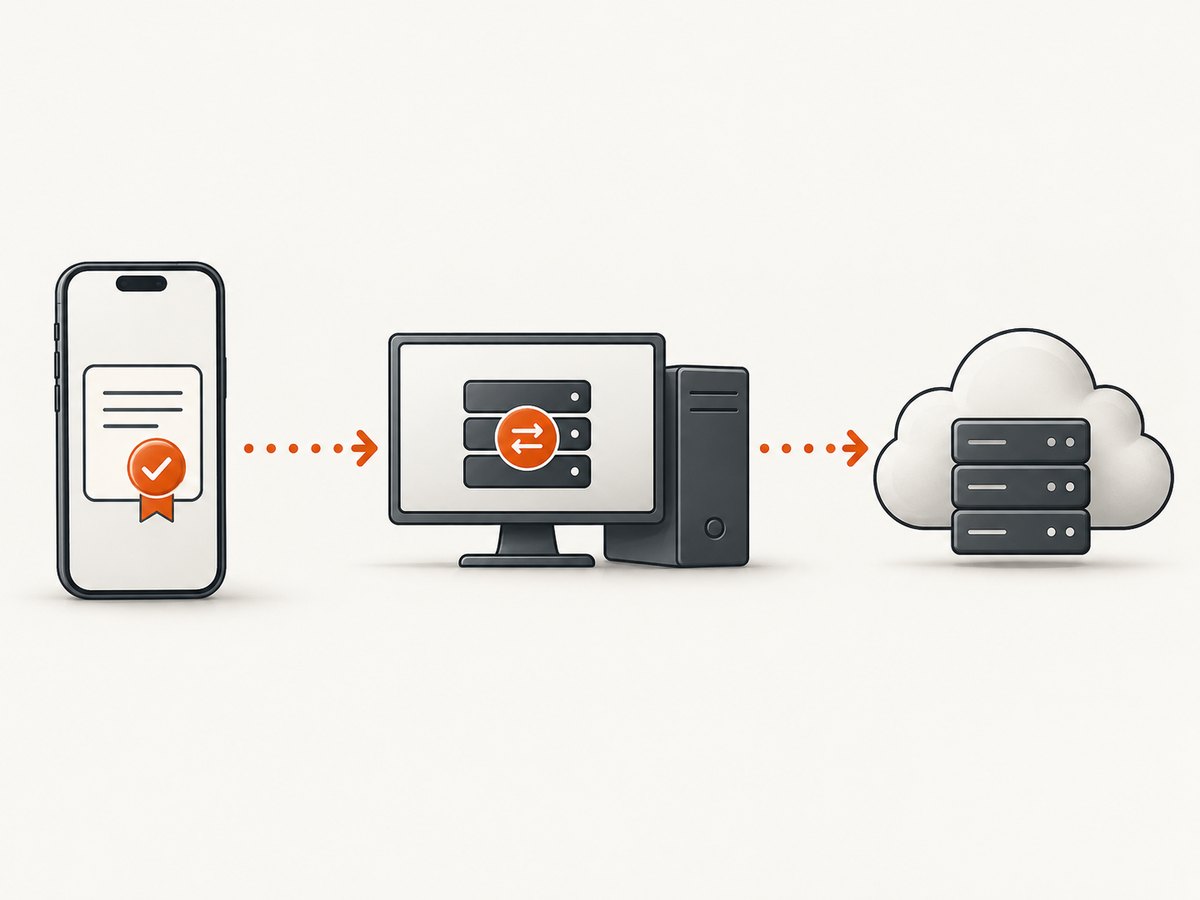
8. Capture traffic from another device
- Run Fiddler on a reachable computer.
- Enable remote-client access in Fiddler’s connection settings.
- Find the host computer’s LAN address and confirm the listening port.
- On the remote device, set its HTTP and HTTPS proxy to the Fiddler host and port.
- Install and trust the FiddlerRoot certificate on the remote device before expecting decrypted HTTPS.
- Start capture, reproduce once, then stop capture.
Firewalls must allow the listening port, and the remote device must be able to route to the host. Never expose the proxy to an untrusted network. If HTTPS still shows only a tunnel, verify that the certificate was installed in the certificate store used by that device or application.
9. Troubleshooting common capture failures
| Symptom | Likely cause | Fix |
|---|---|---|
| No sessions appear | Capture is disabled, the wrong port is configured, or the app bypasses the proxy. | Enable capture, confirm the displayed port, restart the app, and configure its explicit proxy. |
Only CONNECT tunnels appear |
HTTPS decryption is disabled or the root CA is not trusted. | Enable HTTPS decryption, install FiddlerRoot, trust it in the correct certificate store, and restart the app. |
| Certificate or TLS errors | The client rejects the interception certificate, uses certificate pinning, or has a separate trust store. | Install the CA in the application’s store if supported. For pinned clients, use the vendor’s debug build or application logs; do not weaken production TLS checks. |
| Browser works but the app does not | The app ignores system proxy settings or uses its own networking library. | Set an explicit proxy in the app, use supported Windows network-capturing mode, or enable the app’s network diagnostics. |
| Remote device cannot connect | Remote access is disabled, the host/port is wrong, or a firewall blocks the port. | Enable remote clients, verify the LAN address and port, and permit the connection on the private network. |
| Remote HTTPS remains encrypted | FiddlerRoot is missing or untrusted on the remote device. | Install and trust the CA on that device and in the store used by the app. |
| Linux network capture is unavailable | Current Fiddler Everywhere does not support network-capturing mode on Linux. | Use proxy capture and manually export and trust the CA. |
| Trace is noisy or contains secrets | Unrelated applications were open or capture ran too long. | Close unrelated apps, clear sessions, reproduce once, stop immediately, and redact before sharing. |
10. Performance, reliability, and privacy considerations
- Keep captures short: less traffic makes filtering and review faster.
- Use one reproduction: repeated retries can obscure the first failure and inflate the session.
- Expect proxy overhead: interception adds a local hop and HTTPS certificate processing. Compare timings with a direct run when latency matters.
- Separate client failures from server failures: check whether the request left the app, reached the proxy, completed TLS, and received a response.
- Preserve evidence: save the original session before editing or redacting a copy.
- Protect data: cookies, tokens, request bodies, and URLs can contain sensitive information. Share only the sessions needed for diagnosis.
Or skip the browser setup
If your goal is a clean screenshot rather than a network trace, ScreenshotNeo provides a website screenshot API and MCP server. One request returns a PNG, JPEG, WebP, or PDF. The API accepts cookie and consent banners, removes more than 60 known consent platforms plus newsletter popups and chat widgets before capture, and reports whether a response was clean and billable.
See the ScreenshotNeo API documentation for all options.
cURL
curl -G "https://api.screenshotneo.com/v1/shot" -d access_key=YOUR_API_KEY --data-urlencode url=https://stripe.com -o shot.webpPython
import requests
r = requests.get("https://api.screenshotneo.com/v1/shot", params={"access_key": "YOUR_API_KEY", "url": "https://stripe.com"}, timeout=90)
open("shot.webp", "wb").write(r.content)
Node.js
const q = new URLSearchParams({ access_key: 'YOUR_API_KEY', url: 'https://stripe.com' });
const res = await fetch(`https://api.screenshotneo.com/v1/shot?${q}`);
Cookie banners, popups, and chat widgets are removed before the shot. Bot checks, blank pages, failed loads, timeouts, and cache hits are never billed; response headers include X-Page-Verdict and X-Billed. ScreenshotNeo also provides an MCP server so Claude, Cursor, and other MCP clients can take screenshots. The Free plan includes 1,000 screenshots per month with no card, and paid plans start at $5 for 3,000 shots. Create a free ScreenshotNeo account.
FAQ
Why does Fiddler show traffic from other applications?
Fiddler captures traffic from every application using its proxy while capture is enabled. Close unrelated apps and clear sessions before reproducing.
Can Fiddler decrypt traffic from every application?
No. The application must trust FiddlerRoot and must not prevent interception with certificate pinning or a separate certificate store.
Which port should I configure?
Use the port displayed by your installed product. Fiddler Classic documentation references 8888, while the current Fiddler Everywhere Windows quickstart lists 8866.
Can I capture an app on a phone?
Yes, when the phone can reach the Fiddler host, its proxy is set to that host and port, remote access is enabled, and the phone trusts FiddlerRoot for HTTPS.
What should I export for a bug report?
Export only the sessions needed to reproduce the issue, include timestamps and the reproduction steps, and remove credentials and personal data first.


