How to Capture a Specific Area With JavaScript in a Chrome Extension
Capture the visible tab once, let users select a rectangle, and crop it accurately in an MV3 Chrome extension.
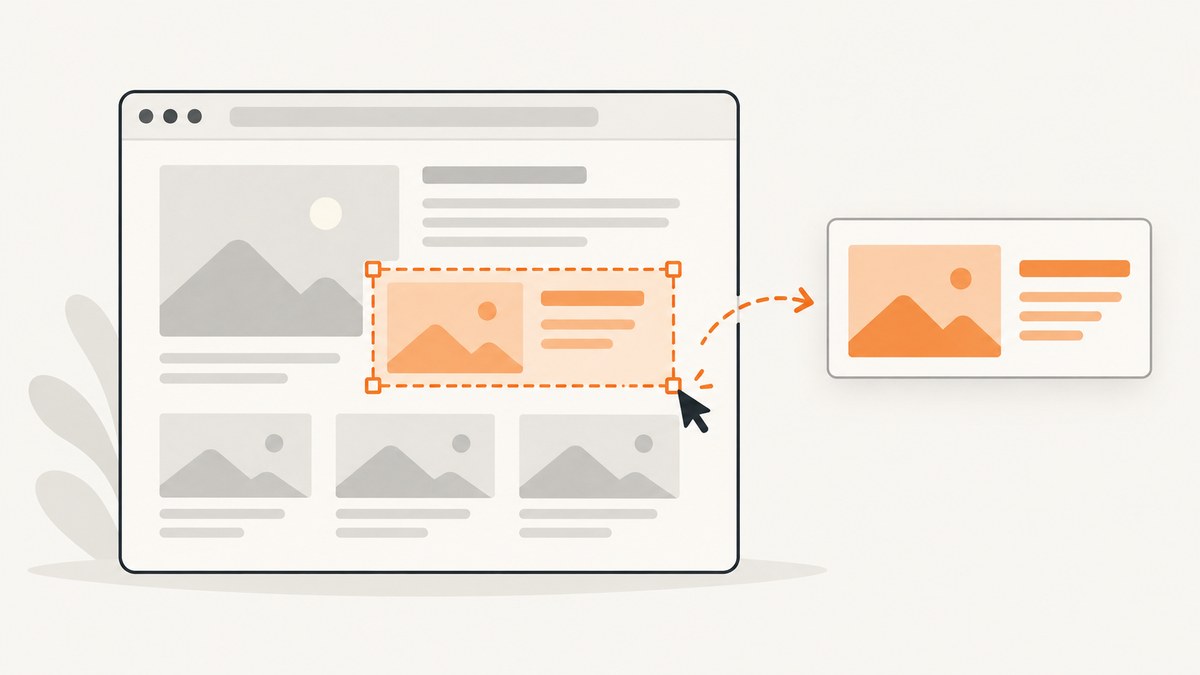
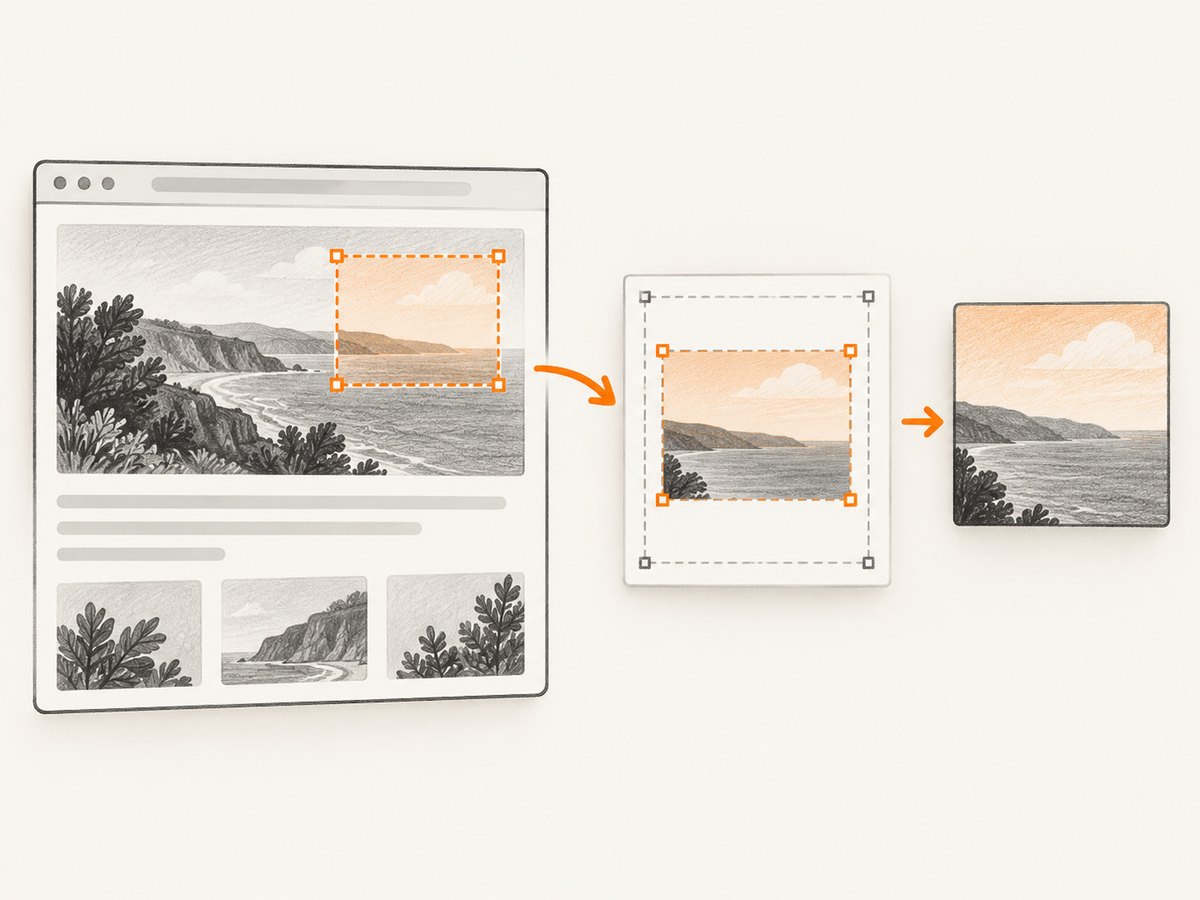
Use chrome.tabs.captureVisibleTab() to capture the active tab, then crop the selected rectangle in extension-side JavaScript. Chrome does not provide a rectangle argument for this API. Capture once, display the bitmap, convert the user’s CSS-pixel selection to bitmap pixels, and crop it with a canvas.
This guide builds a Manifest V3 extension that captures the visible viewport, lets the user drag a selection, and downloads the cropped PNG. The same design works for any image processing step that needs DOM APIs.
How the workflow works
- The user invokes the extension from the active tab.
- The popup calls
chrome.tabs.captureVisibleTab(). - Chrome returns an image data URL for the visible viewport.
- The popup displays that image and records a drag rectangle.
- The rectangle is scaled from displayed-image coordinates to bitmap coordinates.
- A canvas draws only that source rectangle and exports a PNG.
captureVisibleTab() returns an image data URL and captures the visible viewport; it does not capture an arbitrary DOM element or page rectangle. See the Chrome tabs API reference.
Complete Manifest V3 extension
Create a directory containing these three files, then load it at chrome://extensions with Developer mode enabled.
1. manifest.json
{
  "manifest_version": 3,
  "name": "Area Capture",
  "version": "1.0.0",
  "description": "Capture and crop a selected area of the active tab.",
  "permissions": ["activeTab"],
  "action": {
    "default_title": "Capture an area",
    "default_popup": "popup.html"
  }
}
activeTab grants temporary access after the user invokes the extension and avoids a broad host-permission warning. You need <all_urls> instead when your extension must capture arbitrary tabs without a user invocation. Chrome documents that sensitive pages such as chrome: pages can only be captured with activeTab; file URLs also require the user to grant file access.
2. popup.html
<!doctype html>
<html>
<head>
  <meta charset='utf-8'>
  <style>
    body { width: 520px; margin: 12px; font: 13px system-ui, sans-serif; }
    #stage { position: relative; max-height: 520px; overflow: auto; border: 1px solid #bbb; }
    #shot { display: block; max-width: 100%; height: auto; user-select: none; }
    #selection { position: absolute; border: 2px solid #1683ff; background: rgb(22 131 255 / 18%); pointer-events: none; }
    button { margin-top: 10px; }
    #status { margin-left: 8px; }
  </style>
</head>
<body>
  <div id='stage'><img id='shot' alt='Captured tab'><div id='selection' hidden></div></div>
  <button id='save' disabled>Download selection</button>
  <span id='status'>Drag over the image to select an area.</span>
  <script src='popup.js'></script>
</body>
</html>
3. popup.js
const shot = document.querySelector('#shot');
const stage = document.querySelector('#stage');
const selection = document.querySelector('#selection');
const save = document.querySelector('#save');
const status = document.querySelector('#status');
let start = null;
let rect = null;

function point(event) {
  const box = shot.getBoundingClientRect();
  return {
    x: Math.max(0, Math.min(box.width, event.clientX - box.left)),
    y: Math.max(0, Math.min(box.height, event.clientY - box.top))
  };
}

function draw(a, b) {
  const x = Math.min(a.x, b.x);
  const y = Math.min(a.y, b.y);
  const width = Math.abs(a.x - b.x);
  const height = Math.abs(a.y - b.y);
  rect = { x, y, width, height };
  selection.hidden = width < 1 || height < 1;
  selection.style.left = `${x}px`;
  selection.style.top = `${y}px`;
  selection.style.width = `${width}px`;
  selection.style.height = `${height}px`;
  save.disabled = selection.hidden;
  status.textContent = `${Math.round(width)} × ${Math.round(height)} CSS pixels`;
}

stage.addEventListener('pointerdown', event => {
  if (event.target !== shot) return;
  start = point(event);
  stage.setPointerCapture(event.pointerId);
  draw(start, start);
});
stage.addEventListener('pointermove', event => {
  if (start) draw(start, point(event));
});
stage.addEventListener('pointerup', event => {
  if (start) draw(start, point(event));
  start = null;
});

save.addEventListener('click', async () => {
  if (!rect || !shot.naturalWidth || !shot.naturalHeight) return;
  const scaleX = shot.naturalWidth / shot.clientWidth;
  const scaleY = shot.naturalHeight / shot.clientHeight;
  const sx = Math.round(rect.x * scaleX);
  const sy = Math.round(rect.y * scaleY);
  const sw = Math.max(1, Math.round(rect.width * scaleX));
  const sh = Math.max(1, Math.round(rect.height * scaleY));
  const canvas = document.createElement('canvas');
  canvas.width = sw;
  canvas.height = sh;
  canvas.getContext('2d').drawImage(shot, sx, sy, sw, sh, 0, 0, sw, sh);
  const link = document.createElement('a');
  link.download = 'selection.png';
  link.href = canvas.toDataURL('image/png');
  link.click();
});

chrome.tabs.captureVisibleTab(null, { format: 'png' }).then(dataUrl => {
  shot.src = dataUrl;
}).catch(error => {
  status.textContent = `Capture failed: ${error.message}`;
});
Why coordinate scaling matters
The displayed image can be resized by CSS, while the returned bitmap uses device pixels. A Retina display may therefore produce a bitmap that is twice as wide and tall as the image shown in the popup. Calculate naturalWidth / clientWidth and naturalHeight / clientHeight from the actual image. Do not assume that devicePixelRatio is the correct scale.
Use separate horizontal and vertical scale factors. This also handles nonuniform layout constraints and avoids off-by-one errors at the bottom or right edge. Round the source coordinates, clamp the drag rectangle to the image bounds, and ensure the output dimensions are at least one pixel.
Permissions and API choices
| Need | Use | Details |
|---|---|---|
| Still image of the visible tab | chrome.tabs.captureVisibleTab() |
Returns a data URL; crop locally after one capture. |
| Inject code into the page | chrome.scripting.executeScript() |
Requires scripting plus matching host access or activeTab. See the scripting API. |
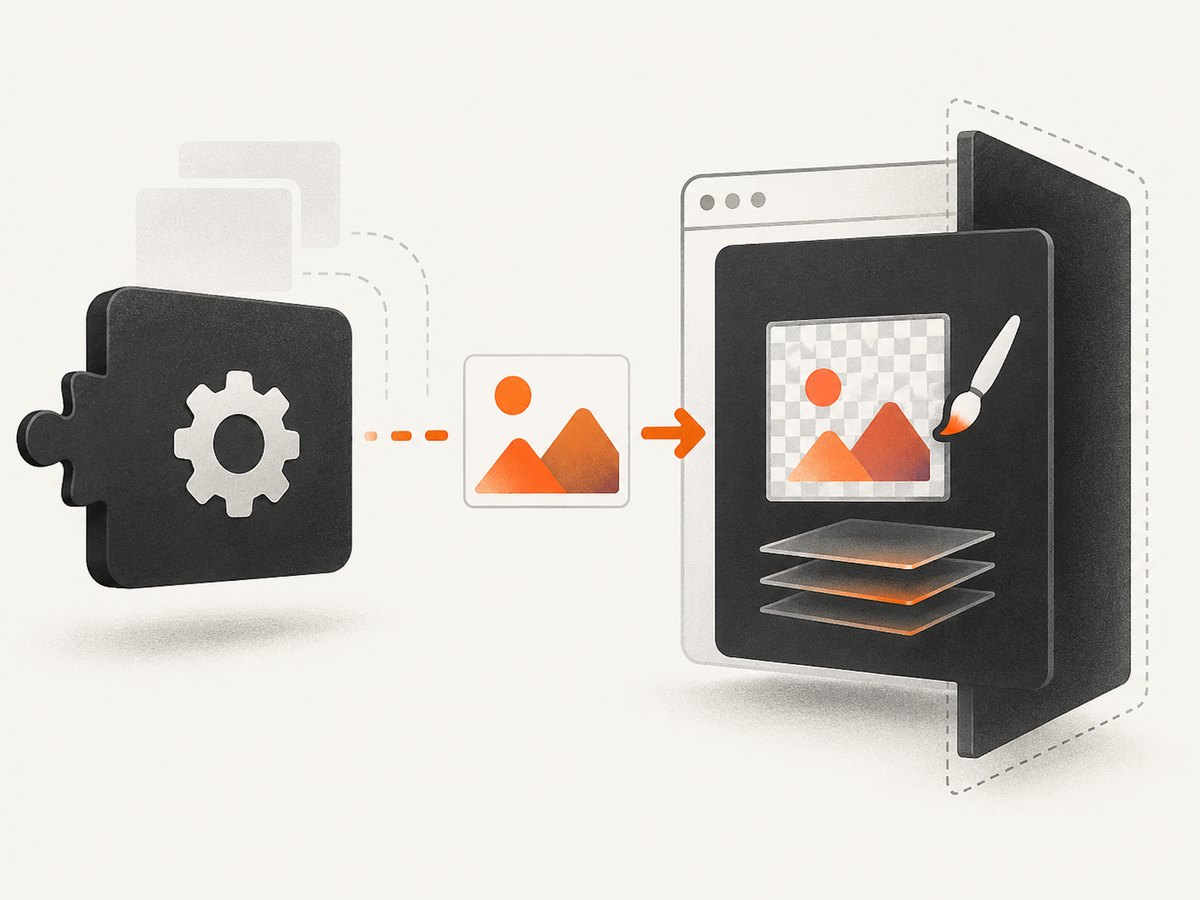
| DOM processing from an MV3 worker | chrome.offscreen |
Service workers have no DOM. An offscreen document provides a hidden extension page; Chrome documents the API for Chrome 109+ MV3. See the offscreen API. |
| Ongoing video or audio | chrome.tabCapture |
Produces a media stream for recording or processing, not a simple cropped still. See the tabCapture API. |
| User-selected tab, window, or screen | getDisplayMedia() |
Shows the browser’s chooser. Chrome’s screen-capture guide covers chooser and offscreen workflows. |
Capturing a particular DOM element
captureVisibleTab() cannot return an element directly. A common approach is to use chrome.scripting.executeScript() to read an element’s getBoundingClientRect(), then capture the viewport and map that rectangle into bitmap coordinates. Account for scroll position and the fact that the element may extend outside the visible viewport. If it is not fully visible, scroll it into view first and wait for layout and images to settle.
Full-page screenshots
This API captures only what is visible. For a full page, scroll through the document and stitch several screenshots, or use a screenshot service that renders the page and loads lazy images. Stitching must account for fixed headers, sticky elements, overlapping content, scrollbars, and pages whose layout changes while scrolling. It also multiplies capture calls and can hit the documented limit.
Rate limits, performance, and reliability
- Chrome documents a maximum of two
captureVisibleTab()calls per second (Chrome 92+), and describes capture as expensive. - Capture once when the selection workflow starts. Do not recapture on every pointer move; crop the existing bitmap locally.
- Large screenshots consume popup memory. Release canvases and avoid retaining multiple data URLs when processing many images.
- Wait for the image’s
loadevent before enabling selection, and usenaturalWidthandnaturalHeightonly after it has loaded. - Pages with animations, changing ads, or lazy content may differ between runs. Pause or wait for a stable state before capture when consistency matters.
- Capture failures should be surfaced to the user. Restricted pages, missing file access, a closed tab, or a lost temporary permission are common causes.
Troubleshooting
| Symptom | Cause | Fix |
|---|---|---|
Cannot access contents of url |
The extension lacks host access or the user did not invoke it on that tab. | Use the toolbar action with activeTab, or request only the host permissions your product needs. |
Capture rejects on a file:// page |
Chrome blocks file access until the user grants it. | Enable “Allow access to file URLs” on the extension details page. |
| Chrome pages cannot be captured | Privileged browser UI is restricted. | Test on a normal web page. Do not design around capturing chrome:// UI. |
| Output is offset or too small | CSS coordinates were used as bitmap coordinates. | Scale with naturalWidth / clientWidth and naturalHeight / clientHeight. |
| Popup closes during processing | Popup lifetime ended or work moved to a service worker without DOM APIs. | Move long-running image work to an extension page or an offscreen document. |
| Too many capture errors | The workflow is calling the expensive API repeatedly. | Capture once, update the selection overlay locally, and stay below two calls per second. |
| Selection is blank | The source rectangle is outside the bitmap or has zero dimensions. | Clamp coordinates, round them, and reject zero-width or zero-height selections. |
Or skip the browser setup
ScreenshotNeo provides a website screenshot API when you need a URL captured without maintaining an extension. It accepts cookie and consent banners before capture and removes more than 60 known consent platforms, newsletter popups, and chat widgets. Bot checks, blank pages, failed loads, timeouts, and cache hits are not billed, and response headers report the page verdict and billing result. Its MCP server provides take_screenshot, get_page_info, and capture_pdf tools for Claude, Cursor, and other MCP clients.
See the ScreenshotNeo API documentation for all options, including element selectors, custom CSS and JavaScript, waits, device presets, full-page capture, headers, cookies, caching, signed links, asynchronous jobs, and bulk capture.
cURL
curl -G "https://api.screenshotneo.com/v1/shot" -d access_key=YOUR_API_KEY --data-urlencode url=https://stripe.com -o shot.webpPython
import requests
r = requests.get("https://api.screenshotneo.com/v1/shot", params={"access_key": "YOUR_API_KEY", "url": "https://stripe.com"}, timeout=90)
open("shot.webp", "wb").write(r.content)
Node.js
const q = new URLSearchParams({ access_key: 'YOUR_API_KEY', url: 'https://stripe.com' });
const res = await fetch(`https://api.screenshotneo.com/v1/shot?${q}`);
The free plan includes 1,000 screenshots each month with no card. Paid plans start at $5 for 3,000 shots, and every feature is available on every plan. Create a free ScreenshotNeo account.
FAQ
Can I pass x, y, width, and height to captureVisibleTab?
No. Capture the visible viewport and crop the returned image.
Should I use tabCapture for a still screenshot?
No. Use tabCapture for a media stream or recording. It adds complexity for a one-time cropped image.
Can a service worker draw on a canvas?
No DOM APIs are available in an MV3 service worker. Use the popup, another extension page, or an offscreen document.
How many screenshots can I take per second?
Chrome documents a maximum of two captureVisibleTab() calls per second. Crop locally to keep the interaction responsive.


