How to Capture an Area Screenshot in Playwright
Capture a DOM element or coordinate rectangle in Playwright with reliable code, options, troubleshooting, and a browser-free API alternative.
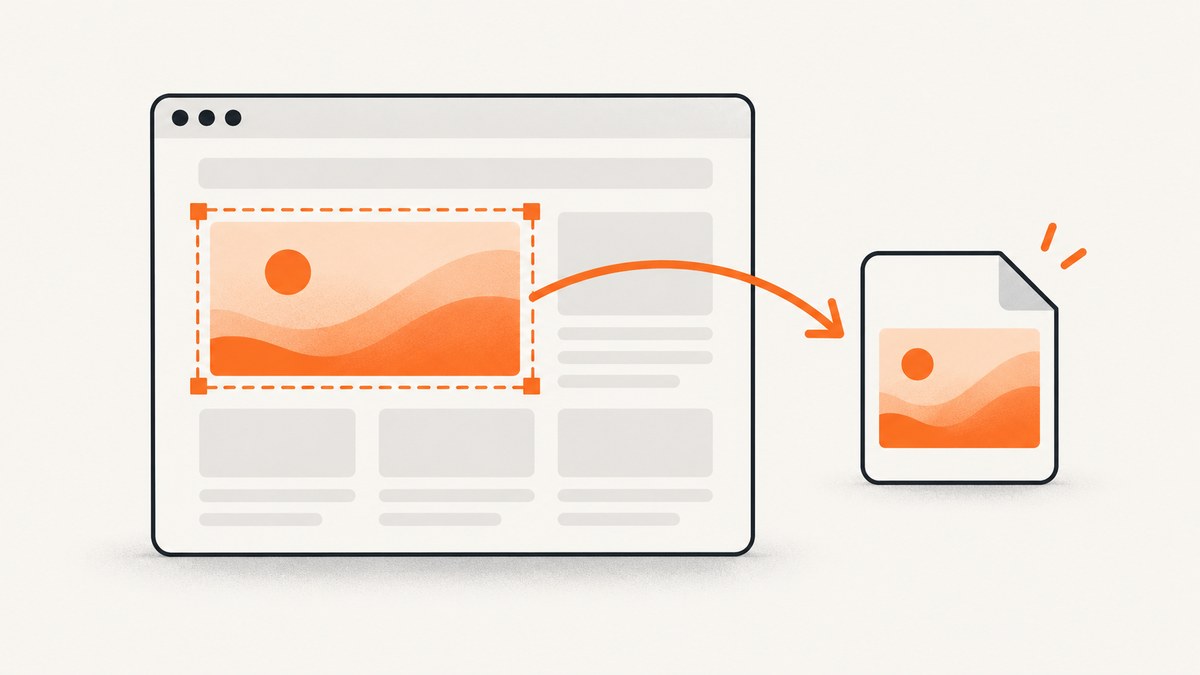
Direct answer: use locator.screenshot() when the area is a rendered DOM element, and use page.screenshot({ clip: { x, y, width, height } }) when the area is an arbitrary rectangle. These methods solve different problems: a locator follows an element as the layout changes, while clip uses fixed page coordinates. The examples below show both approaches, complete setup, image options, edge cases, debugging, and a browser-free alternative.
Playwright’s screenshot API is documented in the official screenshots guide and the Locator API reference. The API can write an image to disk or return image bytes for further processing.
1. Choose the right definition of “area”
| Need | Use | Why |
|---|---|---|
| A card, chart, heading, or other element | locator.screenshot() |
The crop follows the element’s rendered bounds and the locator can survive many layout changes. |
| A fixed region such as x=100, y=120, 400×250 | page.screenshot({ clip }) |
You define the exact rectangle with coordinates. |
| The entire scrollable document | page.screenshot({ fullPage: true }) |
Full-page capture is a separate mode, not an area crop. |
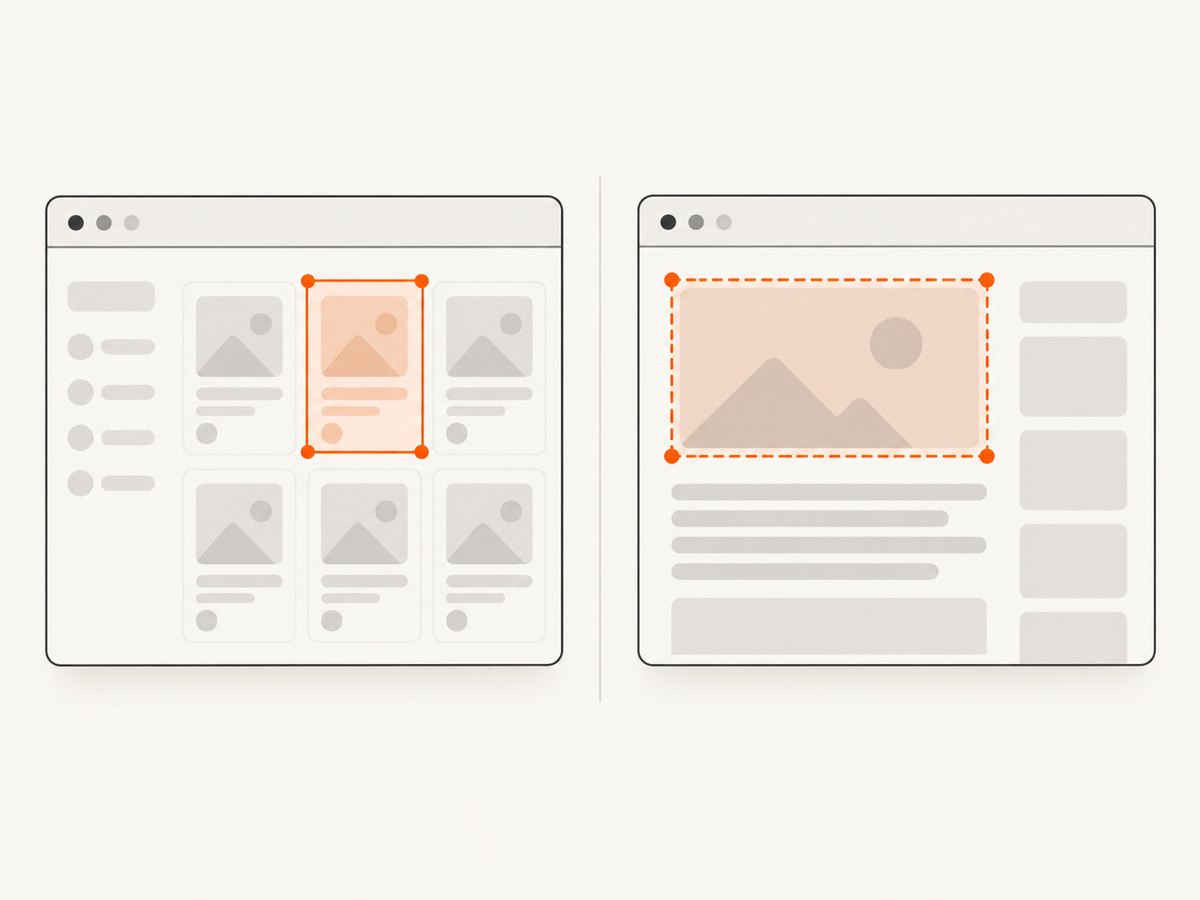
Prefer a locator when the target has a meaningful selector or accessible role. Prefer clip when the region comes from a design specification, a coordinate calculation, or a canvas overlay. A fixed rectangle can become wrong after responsive reflow; a selector can fail when markup changes.
2. Install Playwright and create a minimal script
For Node.js, install Playwright and its browser binaries:
npm init -y
npm install -D playwright
npx playwright install chromium
Create area-screenshot.mjs:
import { chromium } from 'playwright';

const browser = await chromium.launch();
const page = await browser.newPage({ viewport: { width: 1440, height: 900 } });
await page.goto('https://example.com', { waitUntil: 'domcontentloaded' });

await page.locator('h1').screenshot({ path: 'heading.png' });
await page.screenshot({
  path: 'region.png',
  clip: { x: 100, y: 120, width: 400, height: 250 }
});

await browser.close();
Run it with node area-screenshot.mjs. Replace the URL and selector with the page you own or are authorized to automate.
3. Capture a DOM element with locator.screenshot()
The locator method resolves an element, waits for it to be actionable, scrolls it into view, and captures its rendered bounds. A role-based locator is often more stable than a long CSS path:
import { chromium } from 'playwright';

const browser = await chromium.launch();
const page = await browser.newPage({ viewport: { width: 1280, height: 800 } });
await page.goto('https://example.com/account', { waitUntil: 'networkidle' });

const accountHeading = page.getByRole('heading', { name: 'Account details' });
await accountHeading.screenshot({ path: 'account-heading.png' });

const card = page.locator('.profile-card').first();
await card.screenshot({ path: 'profile-card.webp', type: 'webp', quality: 85 });

await browser.close();
The target must be attached to the document. If it detaches during capture, Playwright throws. If another element covers it, the resulting pixels can still show the covering element. For a scrollable container, the screenshot contains the container’s currently visible scroll position rather than every child that exists outside the viewport.
Targeting practical elements
// CSS selector
await page.locator('[data-testid="invoice-summary"]').screenshot({ path: 'invoice.png' });

// Text or role
await page.getByRole('button', { name: 'Download report' }).screenshot({ path: 'button.png' });

// A specific match
await page.locator('.product-card').nth(2).screenshot({ path: 'product-3.png' });
Use locator.count() or a stricter locator when multiple matches are possible. A locator screenshot is preferable to the older ElementHandle.screenshot() API.
4. Capture an arbitrary rectangle with clip
For a coordinate crop, pass a rectangle to page.screenshot(). The origin is the page’s top-left corner in CSS pixels:
await page.screenshot({
  path: 'area.png',
  clip: { x: 100, y: 120, width: 400, height: 250 }
});
x and y identify the top-left corner; width and height define the dimensions. Coordinates outside the visible viewport may require scrolling first, and a rectangle that extends beyond the page can produce an error or an unexpected crop depending on the browser and installed Playwright version. Keep values non-negative and validate them before calling the API.
You can calculate a rectangle from an element while still using the page API:
const box = await page.locator('.target').boundingBox();
if (!box) throw new Error('Target is not visible or attached');
await page.screenshot({
  path: 'calculated-area.png',
  clip: { x: box.x, y: box.y, width: box.width, height: box.height }
});
In most cases, calling locator.screenshot() directly is simpler because it handles scrolling and actionability checks.
5. Screenshot output options
The locator and page screenshot methods share many options. Check the API reference for the Playwright version installed in your project because options evolve.
| Option | Use |
|---|---|
path |
Writes the image to a file. Parent directories must already exist unless your own code creates them. |
type |
png, jpeg, or webp where supported. A path extension can infer the type. |
quality |
Controls JPEG or WebP quality; it has no effect on PNG. |
scale |
Use 'css' for CSS-pixel dimensions or 'device' for device-pixel output. |
animations |
Disable or fast-forward supported animations for repeatable captures. |
caret |
Hide or show a text caret when capturing editable content. |
mask |
Overlay locator matches to hide sensitive or unstable regions. |
style |
Apply a stylesheet during capture, useful for hiding dynamic elements. |
omitBackground |
Capture transparency where the selected format and browser support it. |
When no path is supplied, the method returns image data. In Node.js that value is a Buffer, which you can upload, hash, or send to another service:
const buffer = await page.locator('.chart').screenshot({ type: 'png' });
console.log(`Captured ${buffer.length} bytes`);
6. Make captures deterministic
Dynamic pages can change between runs. Wait for the state that matters rather than relying on an arbitrary delay:
await page.goto(url, { waitUntil: 'domcontentloaded' });
await page.locator('.chart').waitFor({ state: 'visible' });
await page.waitForLoadState('networkidle');
await page.locator('.chart').screenshot({ path: 'chart.png' });
Disable motion and hide volatile content with a capture-only stylesheet:
await page.locator('.chart').screenshot({
  path: 'stable-chart.png',
  animations: 'disabled',
  style: `* { animation: none !important; transition: none !important; }
          .live-clock, .rotating-ad { visibility: hidden !important; }`
});
Use masking for values that should not appear in visual comparisons. Set a fixed viewport, locale, timezone, color scheme, and device scale factor when those variables affect layout. Avoid screenshots while a cookie banner, modal, or chat widget covers the target unless that overlay is intentionally part of the test.
7. Full-page screenshots versus an area
fullPage: true captures the full scrollable page. It does not mean “capture the full contents of a scrollable element.” For a long element inside a panel, scroll that element and capture portions, or use a page design that exposes the content you need. A locator screenshot captures the element’s bounds as rendered at its current scroll position.
await page.screenshot({ path: 'document.png', fullPage: true });8. Python Playwright equivalent
If your test suite is Python-based, the same distinction applies:
from playwright.sync_api import sync_playwright

with sync_playwright() as p:
    browser = p.chromium.launch()
    page = browser.new_page(viewport={"width": 1280, "height": 800})
    page.goto("https://example.com", wait_until="domcontentloaded")

    page.locator("h1").screenshot(path="heading.png")
    page.screenshot(
        path="region.png",
        clip={"x": 100, "y": 120, "width": 400, "height": 250},
    )
    browser.close()
Install the package and browser with pip install playwright followed by playwright install chromium.
9. Troubleshooting common failures
| Symptom | Likely cause | Fix |
|---|---|---|
| Locator timeout | The selector never matches, the element is hidden, or the page is still loading. | Check the selector, wait for the expected state, and inspect the page with tracing or a headed run. |
| Element is detached | A framework re-rendered the target during capture. | Locate it again immediately before the screenshot and wait for the UI to settle. |
| Wrong portion of a panel | The target is inside a scrollable container. | Scroll the container to the required position or capture visible segments. |
| Overlay appears in the image | A consent banner, modal, tooltip, or chat widget covers the target. | Dismiss it, hide it with style, or mask it deliberately. |
| Blank or partially rendered image | Fonts, images, or client-side data have not finished loading. | Wait for a selector, a specific network response, or a meaningful ready state. |
| Clip has unexpected dimensions | CSS pixels and device pixels were mixed, or the viewport changed. | Keep coordinates in CSS pixels and set a fixed viewport and scale. |
| Browser executable missing | Playwright package is installed without its browser binaries. | Run the matching playwright install command in the deployment image. |
| Permission error writing the file | The output directory is absent or read-only. | Create a writable directory and pass an absolute or verified path. |
For difficult cases, run Chromium headed, pause after navigation, and inspect the target visually. Playwright tracing can also show locator resolution and timing. Keep screenshots from failures as artifacts so a test report includes the actual pixels that caused the mismatch.
10. Performance, reliability, and cost considerations
Launching a browser is expensive compared with reusing one. In a test worker, launch once, create isolated contexts or pages, and close them after the batch. Capture only the region needed for visual assertions; smaller images reduce disk and upload work. WebP or JPEG can reduce output size when lossless PNG is unnecessary.
Wait conditions affect runtime. networkidle can be slow or never settle on applications with polling or analytics requests, so a selector or application-specific readiness signal is often more reliable. Disable animations and use fixed settings to reduce flaky diffs. Retries can help with transient navigation failures, but do not hide deterministic selector bugs by retrying indefinitely.
Self-hosted Playwright costs include the machine running the browser, bandwidth, storage, and maintenance of browser binaries. A remote screenshot service shifts that setup and charges according to its plan, so compare the number of captures, required controls, and whether failed requests are billable.
11. Or skip the browser setup
If you need an image from a URL rather than a test running inside your own browser, ScreenshotNeo provides a single GET request. See the ScreenshotNeo API documentation for all parameters.
curl -G "https://api.screenshotneo.com/v1/shot" -d access_key=YOUR_API_KEY --data-urlencode url=https://stripe.com -o shot.webpimport requests
r = requests.get("https://api.screenshotneo.com/v1/shot", params={"access_key": "YOUR_API_KEY", "url": "https://stripe.com"}, timeout=90)
open("shot.webp", "wb").write(r.content)const q = new URLSearchParams({ access_key: 'YOUR_API_KEY', url: 'https://stripe.com' });
const res = await fetch(`https://api.screenshotneo.com/v1/shot?${q}`);ScreenshotNeo can capture full pages with lazy images loaded, a single element by CSS selector, dark mode, custom viewports and device presets, retina output, PDFs, custom CSS and JavaScript, clicks, waits, blocked resource types, headers, cookies, user agents, authorization, timezone, geolocation, transparent backgrounds, resizing, caching, signed links, asynchronous jobs, webhooks, bulk capture of up to 100 URLs per call, usage data, and an OpenAPI specification. Parameters used by other screenshot APIs also work, which can simplify migration.
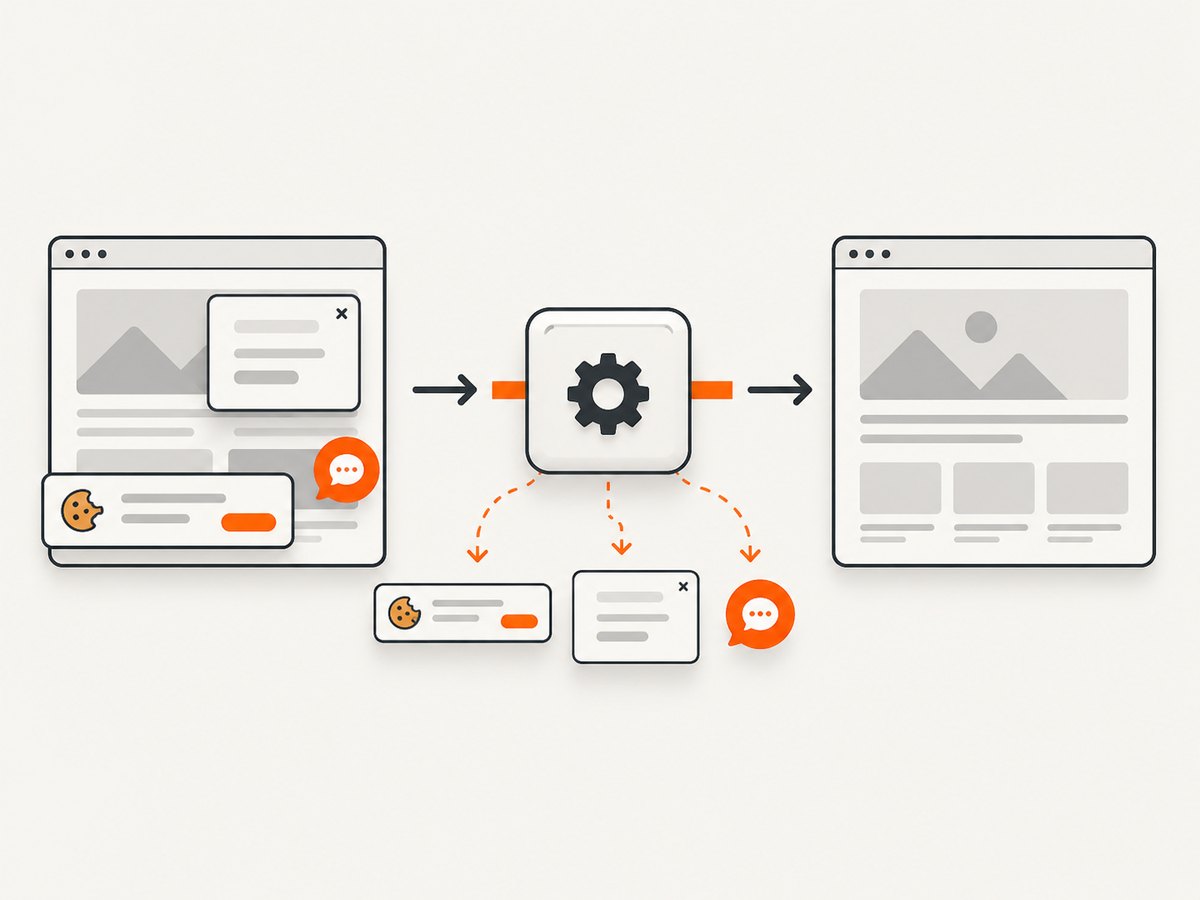
Cookie banners, newsletter popups, and chat widgets are removed before the shot, with each cleanup step configurable. Bot checks, blank pages, timeouts, failed loads, and cache hits are not billed; response headers identify the page verdict and whether the request was billed. An MCP server exposes take_screenshot, get_page_info, and capture_pdf to Claude, Cursor, and other MCP clients. The free plan includes 1,000 screenshots per month without a card; paid plans start at $5 for 3,000 shots. Create a free ScreenshotNeo account.
12. FAQ
Should I use a locator or clip for visual regression tests?
Use a locator when the assertion concerns a component or element. Use clip when the test specification defines a fixed coordinate region.
Can an element screenshot include content below a scrollable panel?
No. It captures the element as rendered at its current scroll position. Scroll the panel and capture additional regions if you need all content.
Which image format should I choose?
Use PNG for lossless test comparisons, WebP for smaller modern assets, and JPEG when photographic compression is acceptable.
Why does my crop change on CI?
Differences in viewport, device scale factor, fonts, browser version, locale, timezone, or dynamic content can change geometry. Pin those settings and wait for a stable ready state.
Can I return screenshot bytes instead of saving a file?
Yes. Omit path; Playwright returns a buffer in Node.js (and bytes through the corresponding language API).


