How to Capture Browser Content Programmatically with ASP.NET
Choose HttpClient for server HTML and Playwright for JavaScript-rendered pages, screenshots, interaction, and network inspection in ASP.NET.
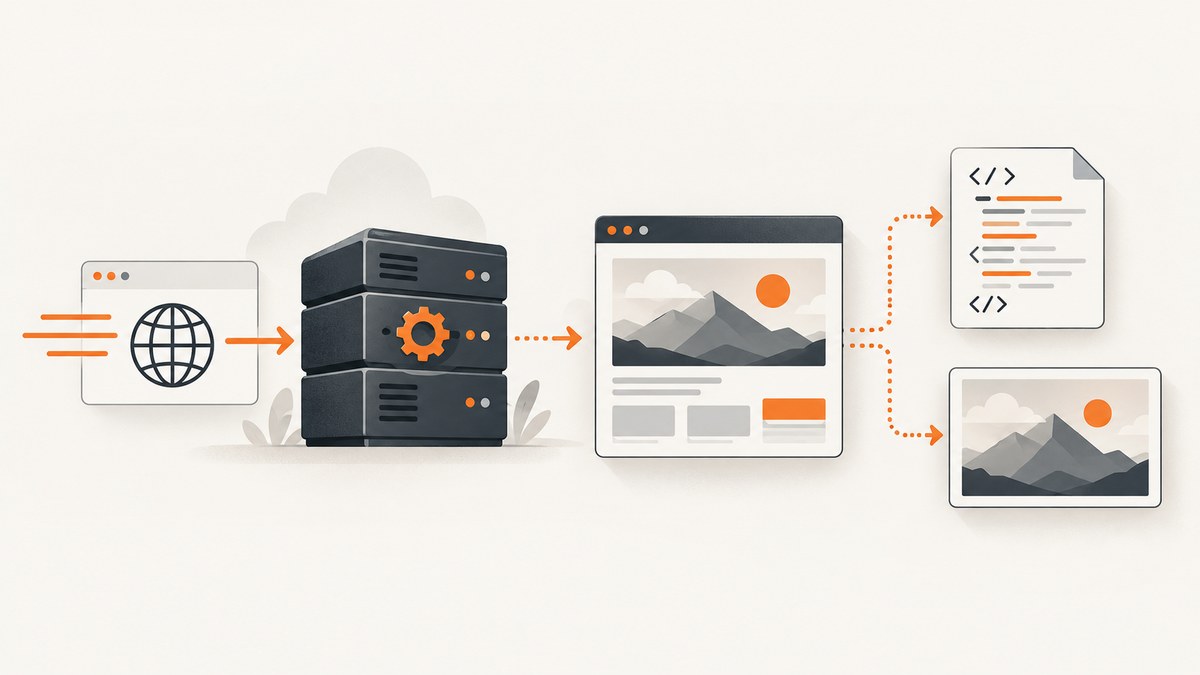
Use HttpClient when the content is already in the server response. Use Playwright for .NET when the page needs JavaScript, browser state, clicks, authentication, screenshots, or network inspection. An HTML parser can analyze downloaded markup, but it does not execute the page like a browser.
This guide shows both approaches in ASP.NET Core, including complete C# examples, deployment setup, session isolation, network capture, troubleshooting, performance, and a managed screenshot option.
1. Choose the right capture method
| Requirement | Use | Reason |
|---|---|---|
| Static HTML or JSON | IHttpClientFactory and HttpClient |
Receives the server response directly with low overhead. |
| Select elements from downloaded HTML | HttpClient plus an HTML parser such as AngleSharp |
Parsing is separate from browser execution. |
| JavaScript-rendered DOM | Playwright for .NET | Runs a real browser engine before extraction. |
| Clicks, forms, popups, authentication, or screenshots | Playwright for .NET | Provides browser and page interaction APIs. |
Inspect XHR or fetch responses |
Playwright network APIs | Lets you observe, modify, or replay page traffic. |
| Independent sessions | One Playwright BrowserContext per job |
Contexts isolate cookies, storage, and other browsing data. |
Microsoft documents the IHttpClientFactory and response-content pattern in its ASP.NET Core HTTP requests guidance. Playwright’s .NET documentation covers the browser lifecycle and page operations in its official getting-started guide.
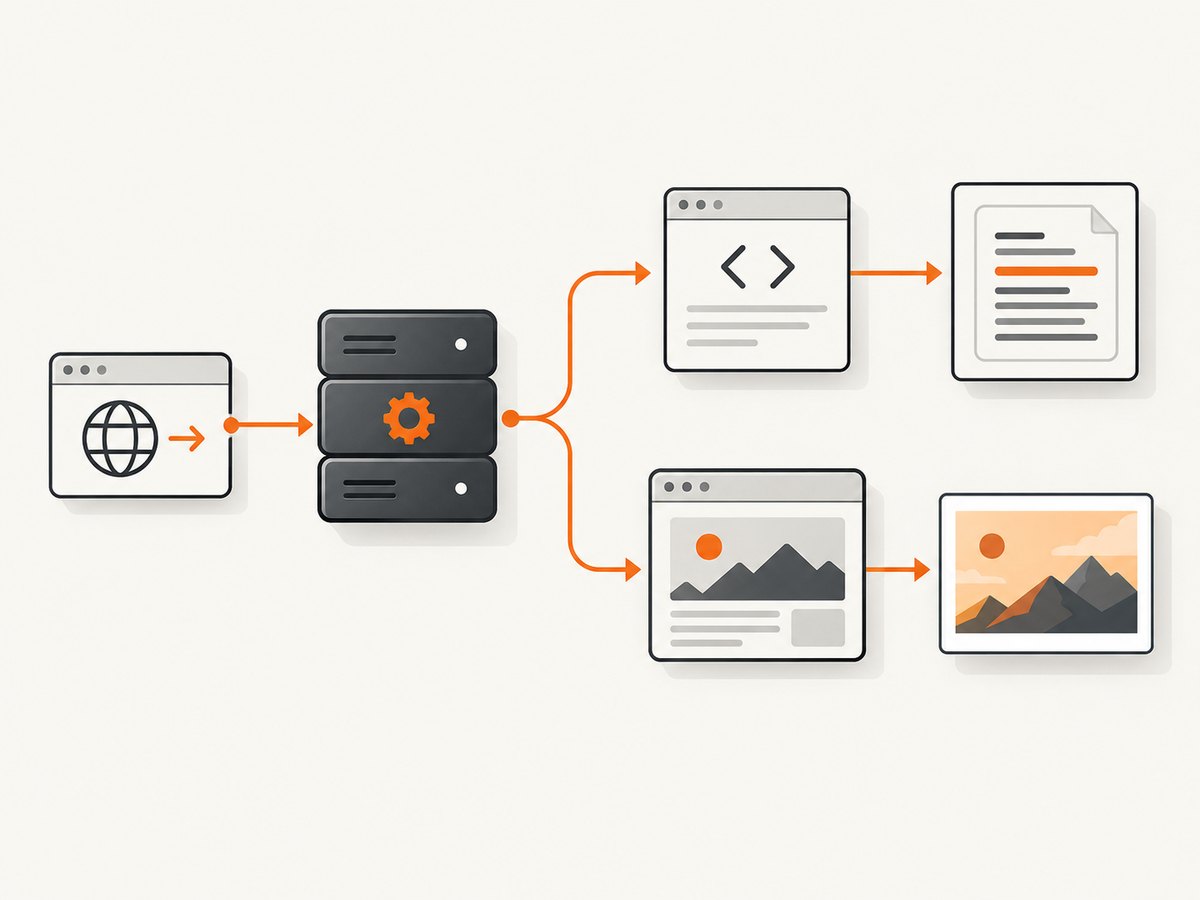
2. Capture server-delivered HTML with HttpClient
Register a client
var builder = WebApplication.CreateBuilder(args);

builder.Services.AddHttpClient("content", client =>
{
    client.Timeout = TimeSpan.FromSeconds(30);
    client.DefaultRequestHeaders.UserAgent.ParseAdd("MyAspNetCapture/1.0");
});

var app = builder.Build();
Fetch HTML in a service
public sealed class PageFetcher(IHttpClientFactory factory)
{
    public async Task<string> FetchAsync(string url, CancellationToken cancellationToken)
    {
        var client = factory.CreateClient("content");

        using var response = await client.GetAsync(
            url,
            HttpCompletionOption.ResponseHeadersRead,
            cancellationToken);

        response.EnsureSuccessStatusCode();
        return await response.Content.ReadAsStringAsync(cancellationToken);
    }
}
Expose it through a minimal API
app.MapGet("/capture-html", async (
    string url,
    PageFetcher fetcher,
    CancellationToken cancellationToken) =>
{
    var html = await fetcher.FetchAsync(url, cancellationToken);
    return Results.Content(html, "text/html; charset=utf-8");
});

app.Run();
HttpClient receives the HTTP response. It does not run page JavaScript. A server-rendered page may contain the data you need, while a single-page application may return only a shell until JavaScript calls an API.
Useful HTTP options
- Timeout: Set a finite timeout and pass the request cancellation token through every call.
- Redirects: Configure a named client with a primary handler when redirect behavior must be controlled.
- Headers: Add an explicit user agent and only the headers the target permits.
- Streaming: Use
ResponseHeadersReadandReadAsStreamAsyncfor large responses. - Status handling: Check
IsSuccessStatusCodeor callEnsureSuccessStatusCodebefore parsing. - Cancellation: Cancel work when the request disconnects or a background job exceeds its deadline.
3. Parse the downloaded markup
An HTML parser can select nodes and read attributes from the response you downloaded. It cannot reveal content that exists only after browser JavaScript runs. The AngleSharp project describes parsing HTML and hosting a full browser execution environment as separate problems.
using AngleSharp;

public static async Task<string?> ReadTitleAsync(string html)
{
    var context = BrowsingContext.New(Configuration.Default);
    var document = await context.OpenAsync(request => request.Content(html));
    return document.Title;
}
Keep parsing separate from transport: fetch with HttpClient, then pass the resulting string or stream to the parser. This makes failures easier to classify and avoids launching a browser for pages that do not need one.
4. Capture JavaScript-rendered content with Playwright
Install the package and browsers
dotnet add package Microsoft.Playwright
dotnet build
pwsh bin/Debug/net8.0/playwright.ps1 install
# On Linux, install required operating-system dependencies too:
pwsh bin/Debug/net8.0/playwright.ps1 install --with-deps
The generated Playwright install script path follows your target framework and build configuration. Browser binaries must match the Playwright package version; run the install step again after upgrading the package. The official browser installation documentation describes install, install-deps, and --with-deps.
Extract rendered HTML
using Microsoft.Playwright;

public static async Task<string> CaptureRenderedHtmlAsync(
    string url,
    CancellationToken cancellationToken = default)
{
    using var playwright = await Playwright.CreateAsync();
    await using var browser = await playwright.Chromium.LaunchAsync(new BrowserTypeLaunchOptions
    {
        Headless = true
    });

    await using var context = await browser.NewContextAsync();
    var page = await context.NewPageAsync();

    await page.GotoAsync(url, new PageGotoOptions
    {
        WaitUntil = WaitUntilState.DOMContentLoaded,
        Timeout = 30_000
    });

    return await page.ContentAsync();
}
Wait for application state
Navigation completion does not guarantee that an application has finished rendering. Prefer a known selector or a specific response over an arbitrary delay.
await page.GotoAsync(url, new PageGotoOptions
{
    WaitUntil = WaitUntilState.DOMContentLoaded,
    Timeout = 30_000
});

await page.Locator("main[data-ready='true']").WaitForAsync(new LocatorWaitForOptions
{
    State = WaitForSelectorState.Visible,
    Timeout = 15_000
});

var renderedText = await page.Locator("body").InnerTextAsync();
Run JavaScript and capture a screenshot
var value = await page.EvaluateAsync<string>("() => document.querySelector('[data-total]')?.textContent ?? ''");

await page.ScreenshotAsync(new PageScreenshotOptions
{
    Path = "page.png",
    FullPage = true,
    Type = ScreenshotType.Png
});
5. Interact with pages before capture
await page.GetByRole(AriaRole.Button, new() { Name = "Load more" }).ClickAsync();
await page.Locator("form").FillAsync("input[name='q']", "ASP.NET");
await page.Locator("form").PressAsync("input[name='q']", "Enter");
await page.Locator("text=Results").WaitForAsync();
Use stable roles, labels, test IDs, or data attributes where possible. CSS selectors tied to layout classes are more likely to break when the site changes.
6. Authentication, cookies, proxies, and network responses
Isolate each job with a BrowserContext
await using var context = await browser.NewContextAsync(new BrowserNewContextOptions
{
    Locale = "en-US",
    TimezoneId = "UTC",
    ViewportSize = new() { Width = 1440, Height = 900 }
});
Non-persistent contexts are isolated and do not write browsing data to disk. Create a fresh context for independent jobs. Dispose the context after the job so cookies and storage do not leak between users.
HTTP authentication and extra headers
await using var context = await browser.NewContextAsync(new BrowserNewContextOptions
{
    HttpCredentials = new HttpCredentials
    {
        Username = Environment.GetEnvironmentVariable("SITE_USER")!,
        Password = Environment.GetEnvironmentVariable("SITE_PASSWORD")!
    },
    ExtraHTTPHeaders = new Dictionary<string, string>
    {
        ["X-Capture-Job"] = "internal"
    }
});
Cookies
await context.AddCookiesAsync(new[]
{
    new Cookie
    {
        Name = "session",
        Value = sessionValue,
        Domain = "example.com",
        Path = "/",
        Secure = true,
        HttpOnly = true
    }
});
Handle credentials and cookies according to the target site’s rules. Microsoft notes that pooled HttpClient handlers can share cookies and that handler recycling can lose them; use explicit session boundaries when cookie state matters.
Observe responses and API data
page.Response += (_, response) =>
{
    if (response.Request.ResourceType is ResourceType.Xhr or ResourceType.Fetch)
    {
        Console.WriteLine($"{response.Status} {response.Url}");
    }
};

var apiResponse = await page.WaitForResponseAsync(
    response => response.Url.Contains("/api/products") && response.Ok,
    new PageWaitForResponseOptions { Timeout = 15_000 });

var json = await apiResponse.TextAsync();
Route or block requests
await page.RouteAsync("**/*", async route =>
{
    var resourceType = route.Request.ResourceType;
    if (resourceType is "image" or "font" or "media")
    {
        await route.AbortAsync();
        return;
    }

    await route.ContinueAsync();
});
Blocking resources can reduce work, but do not block assets required for the content or layout you intend to capture. Playwright also supports proxy configuration and request modification through its browser and network APIs.
7. Save screenshots and PDFs reliably
await page.ScreenshotAsync(new PageScreenshotOptions
{
    Path = "capture.webp",
    FullPage = true,
    Type = ScreenshotType.Webp,
    Quality = 85
});

await page.PdfAsync(new PagePdfOptions
{
    Path = "capture.pdf",
    Format = "A4",
    PrintBackground = true,
    Landscape = false,
    Margin = new() { Top = "12mm", Right = "12mm", Bottom = "12mm", Left = "12mm" }
});
Use a fixed viewport, wait for the relevant selector, and set the page’s media mode when print and screen styles differ. For long pages, full-page screenshots can consume substantial memory; capture a specific element when that is all the user needs.
8. Dispose browser resources
public static async Task RunCaptureAsync(string url)
{
    using var playwright = await Playwright.CreateAsync();
    await using var browser = await playwright.Chromium.LaunchAsync(new() { Headless = true });
    await using var context = await browser.NewContextAsync();
    var page = await context.NewPageAsync();

    try
    {
        await page.GotoAsync(url);
        await page.ScreenshotAsync(new() { Path = "capture.png", FullPage = true });
    }
    finally
    {
        await context.CloseAsync();
        await browser.CloseAsync();
    }
}
In a worker, you can reuse a browser process while creating a new context per job. Always close pages, contexts, browsers, and the Playwright instance deterministically so failed jobs do not accumulate browser processes.
9. Run Playwright in an ASP.NET background worker
public sealed class CaptureWorker : BackgroundService
{
    protected override async Task ExecuteAsync(CancellationToken stoppingToken)
    {
        using var playwright = await Playwright.CreateAsync();
        await using var browser = await playwright.Chromium.LaunchAsync(new() { Headless = true });

        while (!stoppingToken.IsCancellationRequested)
        {
            await using var context = await browser.NewContextAsync();
            var page = await context.NewPageAsync();
            await page.GotoAsync("https://example.com", new() { Timeout = 30_000 });
            await page.ScreenshotAsync(new() { Path = $"capture-{DateTime.UtcNow:yyyyMMddHHmmss}.png" });
            await Task.Delay(TimeSpan.FromMinutes(1), stoppingToken);
        }
    }
}
Bound concurrency to the memory available on the host. A browser context is cheaper to isolate than launching a new browser for every request, but contexts still consume resources when many pages run at once.
10. Or skip the browser setup
ScreenshotNeo provides a website screenshot API and MCP server. It accepts one GET request and returns PNG, JPEG, WebP, or PDF. The API handles browser setup while keeping the same basic URL-to-capture workflow.
See the ScreenshotNeo documentation for all options. This is a complete request using the API’s documented endpoint:
curl -G "https://api.screenshotneo.com/v1/shot" -d access_key=YOUR_API_KEY --data-urlencode url=https://stripe.com -o shot.webpimport requests
r = requests.get(
"https://api.screenshotneo.com/v1/shot",
params={"access_key": "YOUR_API_KEY", "url": "https://stripe.com"},
timeout=90,
)
r.raise_for_status()
open("shot.webp", "wb").write(r.content)const q = new URLSearchParams({ access_key: 'YOUR_API_KEY', url: 'https://stripe.com' });
const res = await fetch(`https://api.screenshotneo.com/v1/shot?${q}`);
if (!res.ok) throw new Error(`HTTP ${res.status}`);
const bytes = new Uint8Array(await res.arrayBuffer());From ASP.NET, call the same endpoint with an injected HttpClient:
public sealed class ScreenshotNeoClient(HttpClient http)
{
    public async Task<byte[]> CaptureAsync(string url, string accessKey, CancellationToken ct)
    {
        var endpoint = "https://api.screenshotneo.com/v1/shot" +
            "?access_key=" + Uri.EscapeDataString(accessKey) +
            "&url=" + Uri.EscapeDataString(url);

        using var response = await http.GetAsync(endpoint, ct);
        response.EnsureSuccessStatusCode();
        return await response.Content.ReadAsByteArrayAsync(ct);
    }
}
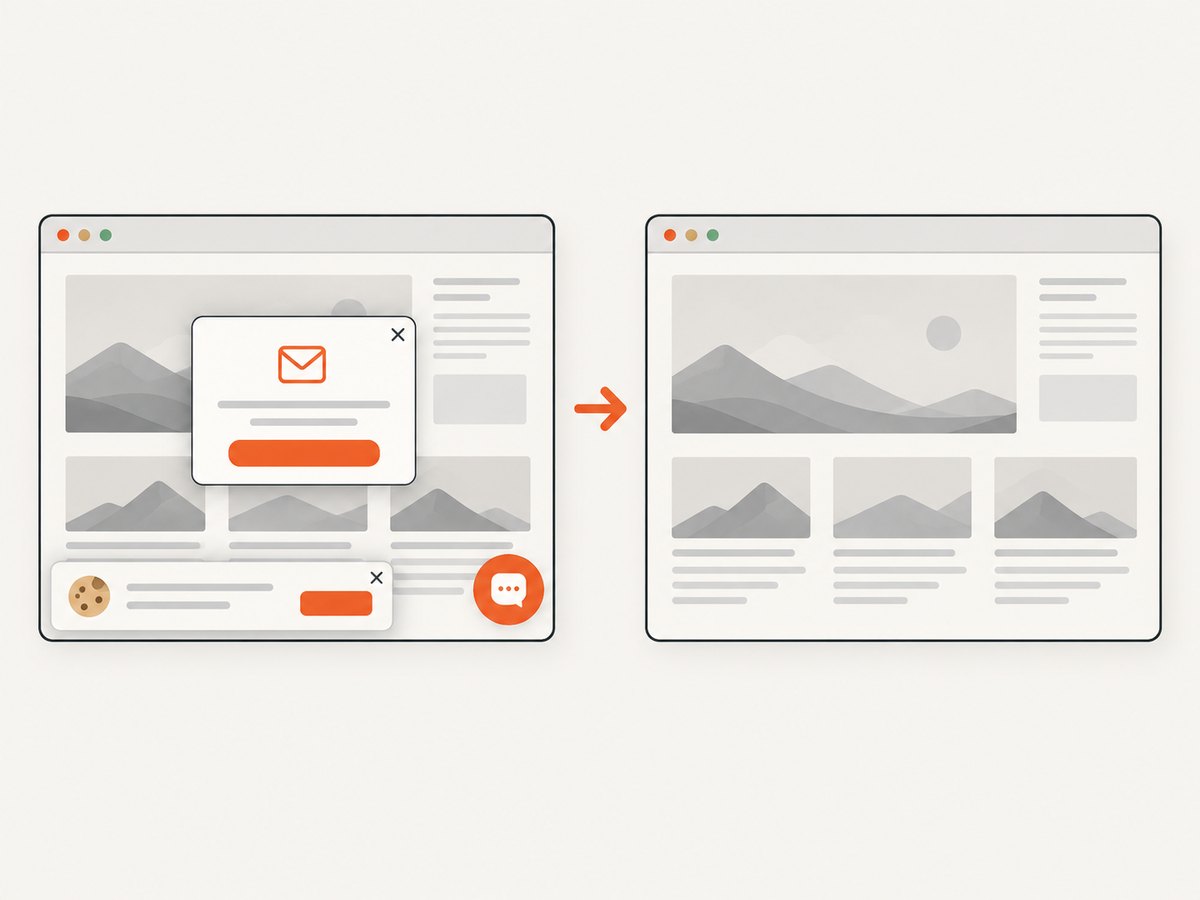
ScreenshotNeo removes cookie and consent banners, newsletter popups, and chat widgets before capture. Bot checks, blank pages, timeouts, failed loads, and cache hits are not billed, and response headers identify the page verdict and whether the request was billed. Its MCP server provides take_screenshot, get_page_info, and capture_pdf for Claude, Cursor, and other MCP clients. It also supports full-page and element captures, dark mode, device presets, retina scale, PDF settings, custom CSS and JavaScript, clicks, waits, blocked resources, headers, cookies, user agents, authorization, timezone, geolocation, transparent backgrounds, resizing, TTL caching, signed links, asynchronous jobs, webhooks, bulk capture, usage reporting, and an OpenAPI specification.
The Free plan includes 1,000 screenshots each month without a card. Paid plans start at $5 for 3,000 shots; every feature is available on every plan. Create a free ScreenshotNeo account.
11. Troubleshooting
| Symptom | Likely cause | Fix |
|---|---|---|
| HTML contains no visible data | The page renders data with JavaScript. | Use Playwright, wait for a page-specific selector, or call the underlying API directly. |
Executable doesn't exist |
Playwright browser binaries are missing or do not match the package. | Run the generated Playwright install script after building and after package upgrades. |
| Browser fails to start on Linux | OS libraries are unavailable. | Install dependencies with the documented --with-deps option or provision equivalent packages in the container. |
| Timeout during navigation | Slow origin, blocked request, redirect loop, or a page waiting forever. | Set a finite timeout, inspect redirects and network events, wait for a specific selector, and cancel the job. |
| Content is present but screenshot is incomplete | Capture happened before lazy content or fonts finished loading. | Wait for the relevant element, response, or application-ready state before taking the screenshot. |
| Sessions leak into one another | Cookies or storage are shared. | Create a new non-persistent BrowserContext for each independent job and close it afterward. |
| HTTP request returns 403 | The target rejected the request’s headers, identity, rate, or permissions. | Verify authorization, user-agent policy, robots and terms, then apply an allowed retry and rate limit. |
| Selector is not found | The selector is unstable, inside an iframe, or not rendered yet. | Use a role or data attribute, wait for visibility, and access the correct frame when necessary. |
| High memory usage | Too many pages, very large full-page captures, or unclosed browsers. | Limit concurrency, capture an element where possible, reuse a browser carefully, and dispose resources in finally. |
12. Performance, reliability, and cost notes
- Start with HTTP: Direct requests avoid browser startup and rendering overhead when the response already contains the required data.
- Use browser contexts for isolation: Reusing a browser process can reduce startup work while preserving separate cookies and storage per job.
- Wait on facts: A selector or expected response is usually more reliable than a fixed sleep.
- Bound concurrency: Browser pages use CPU and memory; queue jobs instead of launching unlimited concurrent captures.
- Cache deliberately: Cache only when stale content is acceptable and include the relevant URL, headers, and session in the cache key.
- Retry carefully: Retry transient network failures with a limit and backoff, but do not blindly retry authentication failures or deterministic selector errors.
- Log classification: Record URL, duration, status, browser version, wait condition, and failure stage without logging secrets or sensitive page data.
- Respect access rules: Follow the target’s permissions, terms, rate limits, robots guidance, and personal-data obligations.
13. FAQ
Can HttpClient capture what I see in Chrome?
Only if that content is included in the HTTP response. HttpClient does not execute JavaScript, apply browser layout, or perform clicks.
Should I use Selenium instead of Playwright?
This guide uses Playwright for .NET because its documented APIs cover browser launch, contexts, page actions, screenshots, and network events in one workflow. Choose a different tool when your existing platform or team standard requires it.
Can I capture an authenticated page?
Yes. Playwright contexts can receive cookies, HTTP credentials, and extra headers. Keep each user’s session isolated and dispose of it after capture.
How do I capture only one component?
Locate the element with a stable selector and call Locator.ScreenshotAsync instead of taking a full-page screenshot.
When is ScreenshotNeo a better fit?
Use it when you want a hosted screenshot endpoint, automatic removal of common consent and popup elements, billing only for clean shots, or MCP tools for AI agents without maintaining browser binaries in your ASP.NET deployment.


