How to Capture Browser Screenshots with Selenium
Capture the current browser view or a single element with Selenium. Get runnable examples, binding differences, troubleshooting tips, and ways to handle full-page capture.
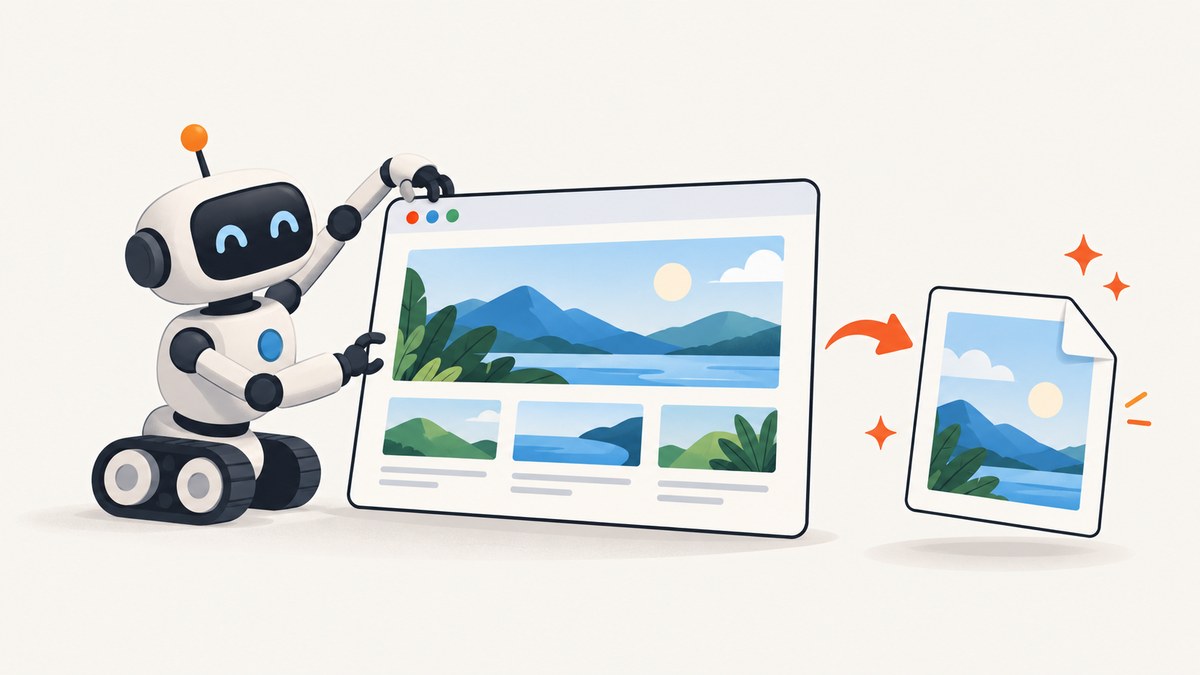
Selenium captures the current browser context with a driver screenshot method, or a single element with that element’s screenshot method. In Python, the direct call is driver.save_screenshot("screenshot.png"). The exact method and how image data is saved depend on the Selenium language binding. The examples below show Python, JavaScript, Java, and C#, plus setup, scope, troubleshooting, and a hosted alternative.
1. Capture a browser screenshot with Python
Install Selenium, make sure a supported browser is available, then create a WebDriver, open the page, save the screenshot, and close the driver. Selenium’s current Python API documents this driver-level pattern. See the official Selenium screenshot documentation and Python API reference.
from selenium import webdriver

# Selenium Manager can locate or manage a compatible driver in supported setups.
driver = webdriver.Chrome()
try:
    driver.get("https://www.example.com")
    saved = driver.save_screenshot("screenshot.png")
    if not saved:
        raise RuntimeError("WebDriver did not save screenshot.png")
finally:
    driver.quit()
The output is a PNG file at the path supplied. A relative path is resolved against the process’s current working directory. Use an absolute path when a CI job, container, or scheduled process needs a predictable output location. The return value indicates success in Python; check it if the capture is part of an automated pipeline.
Wait for the page state you need
driver.get() navigates to a URL, but a page can continue changing after navigation. For a screenshot of a particular page state, wait for a specific element or condition instead of adding an arbitrary long sleep. This keeps the capture tied to something meaningful, such as the page heading appearing.
from selenium import webdriver
from selenium.webdriver.common.by import By
from selenium.webdriver.support import expected_conditions as EC
from selenium.webdriver.support.ui import WebDriverWait

 driver = webdriver.Chrome()
try:
    driver.get("https://www.example.com")
    WebDriverWait(driver, 15).until(
        EC.visibility_of_element_located((By.CSS_SELECTOR, "h1"))
    )
    driver.save_screenshot("ready.png")
finally:
    driver.quit()
Remove the accidental leading space before driver = webdriver.Chrome() if copying this snippet into a file; Python does not allow an unexpected indent at top level.
2. Capture one element
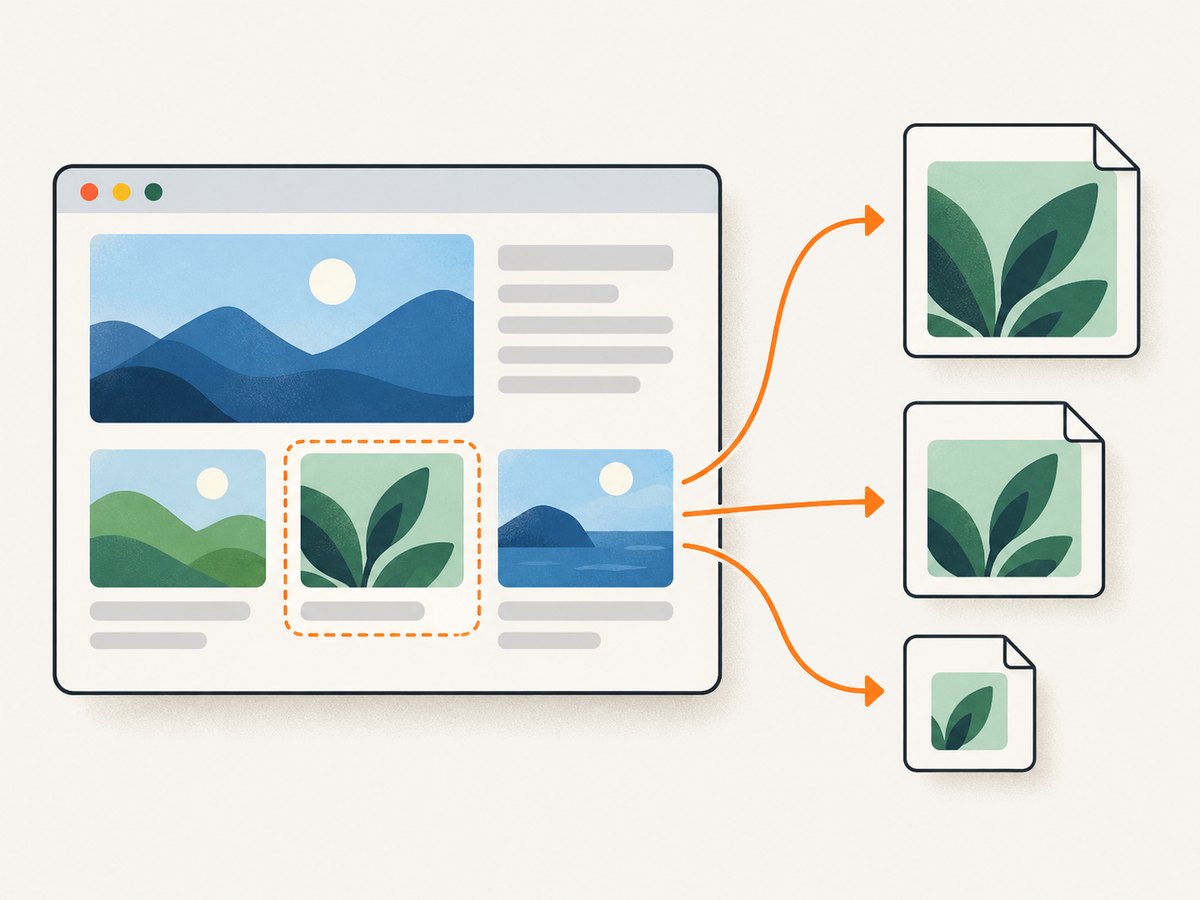
Use an element screenshot when you need a chart, card, heading, or other specific component rather than the browser’s current context. Find the element after navigation and call screenshot() on it.
from selenium import webdriver
from selenium.webdriver.common.by import By
from selenium.webdriver.support import expected_conditions as EC
from selenium.webdriver.support.ui import WebDriverWait

 driver = webdriver.Chrome()
try:
    driver.get("https://www.example.com")
    heading = WebDriverWait(driver, 15).until(
        EC.visibility_of_element_located((By.CSS_SELECTOR, "h1"))
    )
    if not heading.screenshot("heading.png"):
        raise RuntimeError("Element screenshot failed")
finally:
    driver.quit()
As above, remove the extra leading space before the top-level driver assignment. An element must be present and suitable for capture. A selector that matches nothing raises a lookup error; an element that disappears or becomes stale between lookup and capture can also fail. Wait for the element’s final visible state and locate it again after page navigation or a rerender.
3. Choose the right capture scope
| Need | Use | Keep in mind |
|---|---|---|
| Current browser view | driver.save_screenshot(path) in Python |
Captures the current browsing context; viewport and browser configuration affect the result. |
| One component | element.screenshot(path) |
Locate and wait for the specific element first. |
| Entire long page | Verify browser and driver support for the chosen full-page method | The basic driver screenshot call should not be assumed to capture the full document in every setup. |
Selenium’s documentation describes the driver operation as capturing the “current browsing context” and separately demonstrates element capture. Do not treat the ordinary driver screenshot call as a universal full-page screenshot. If a workflow requires the entire document, verify the exact Selenium version, browser, driver, and supported method, then inspect the resulting dimensions and content.
4. Use the equivalent call in other Selenium bindings
Selenium provides screenshot support across its language bindings, but method names and output handling differ. The WebDriver screenshot endpoint returns Base64-encoded image data; a binding may save it to a file or expose the encoded value.
JavaScript
The JavaScript binding returns Base64 data from takeScreenshot(). This Node.js example writes it to a PNG file. Install the binding with npm install selenium-webdriver, and arrange a compatible browser and driver for your environment.
const { Builder } = require('selenium-webdriver');
const fs = require('node:fs/promises');

(async () => {
  const driver = await new Builder().forBrowser('chrome').build();
  try {
    await driver.get('https://www.example.com');
    const base64 = await driver.takeScreenshot();
    await fs.writeFile('screenshot.png', base64, 'base64');
  } finally {
    await driver.quit();
  }
})();
Java
In Java, cast the driver to TakesScreenshot, request a file output, and copy it to the destination. Add Selenium Java and a compatible browser driver through your project’s dependency setup.
import java.io.File;
import java.nio.file.Files;
import java.nio.file.Path;
import org.openqa.selenium.OutputType;
import org.openqa.selenium.TakesScreenshot;
import org.openqa.selenium.WebDriver;
import org.openqa.selenium.chrome.ChromeDriver;

public class Capture {
    public static void main(String[] args) throws Exception {
        WebDriver driver = new ChromeDriver();
        try {
            driver.get("https://www.example.com");
            File source = ((TakesScreenshot) driver)
                .getScreenshotAs(OutputType.FILE);
            Files.copy(source.toPath(), Path.of("screenshot.png"));
        } finally {
            driver.quit();
        }
    }
}
If the destination already exists, Files.copy fails. Choose a fresh name or explicitly handle replacement according to your application’s needs.
C#
The C# binding provides ITakesScreenshot and a screenshot object with SaveAsFile. The following illustrates the capture call; include the Selenium WebDriver package and browser driver in your project.
using OpenQA.Selenium;
using OpenQA.Selenium.Chrome;

using IWebDriver driver = new ChromeDriver();
try
{
    driver.Navigate().GoToUrl("https://www.example.com");
    var screenshot = ((ITakesScreenshot)driver).GetScreenshot();
    screenshot.SaveAsFile("screenshot.png");
}
finally
{
    driver.Quit();
}
Check the method signature for your installed binding version if the save call differs. Selenium’s API documentation and examples are versioned, and details can change.
5. Configure the browser and capture workflow
Screenshot output depends on the current browser context. For repeatable captures, configure and record the conditions that determine that context:
- Browser and driver: use compatible versions and pin them in repeatable build environments where practical.
- Window size: set the browser window dimensions before navigation or capture when responsive layout matters. A different viewport can change line wrapping, menus, and page content.
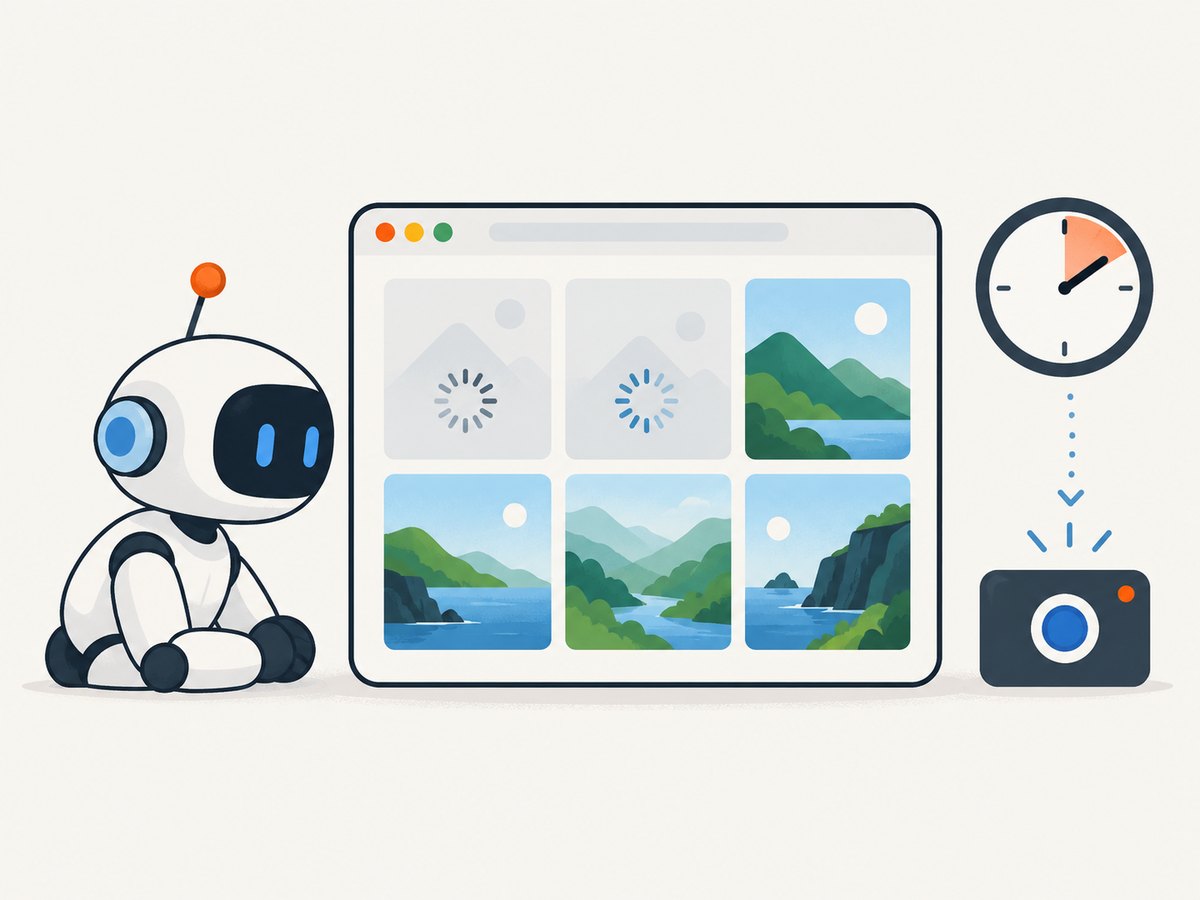
- Page state: wait for the element or condition that means the page is ready. If images or client-rendered content load later, the readiness condition should account for them.
- Output path: use a writable directory and a unique or intentionally replaceable filename for each run.
- Cleanup: call
quit()in afinallyblock so failures do not leave browser processes running.
Headless mode is available in Selenium examples, including a documented JavaScript Chrome example. It is a browser configuration choice for screenshots, not a universal requirement for taking them. Selenium’s documentation separately states that its page-to-PDF feature requires Chromium browsers to run headless; that PDF requirement should not be applied to ordinary image screenshots.
6. Troubleshoot common failures
| Symptom | Likely cause | What to do |
|---|---|---|
| Driver creation fails | Browser or driver is missing, incompatible, or not discoverable. | Confirm the browser is installed, update Selenium, and check driver management or the configured driver path. |
| Screenshot file is missing | Relative path points to an unexpected working directory, directory is absent, or process lacks write access. | Use an absolute path, create the destination directory, and verify write permissions. |
| Image is blank or incomplete | Capture happened before the relevant page state or content was rendered. | Wait for a meaningful element or condition; inspect the page and browser logs if rendering still fails. |
| Element lookup fails | Selector is wrong, the element is not yet present, or content is inside a frame. | Validate the selector, wait for presence or visibility, and switch to the correct frame when applicable. |
| Element screenshot throws | The element disappeared, became stale, or is not capturable in its current state. | Wait for a stable visible element, re-find it after rerenders, and capture again. |
| Different machines produce different images | Viewport, browser version, fonts, timing, or page data differ. | Standardize browser setup and window size, use explicit waits, and control test data where possible. |
| Expected full page, got viewport | The basic screenshot method captures the current context and may not provide universal full-page behavior. | Verify the browser-specific full-page capability and inspect the method’s documented constraints. |
7. Performance, reliability, and cost
A Selenium screenshot requires browser automation: a browser must start, navigate, render the target state, and write image data. Reusing a WebDriver session across related captures can avoid repeated startup overhead, but isolate sessions when pages or authentication state must not leak between tasks. Always close the driver, and use explicit waits so captures do not spend unnecessary time sleeping after the page is already ready.
For reliable batch jobs, make output names deterministic or unique, check the save result, and treat navigation, wait, and screenshot failures as separate error stages. A retry can help with transient navigation or rendering failures, but blindly retrying a bad selector or unsupported full-page assumption will repeat the same failure. Record the browser, driver, viewport, target URL, and failure stage with each run.
Selenium itself is an open-source browser automation framework rather than a per-screenshot API plan. Your operational cost comes from running the browser and the compute environment, plus engineering time for browser setup, updates, and failure handling. For a small local task, that setup may be appropriate; for a service that needs many captures, account for browser startup, concurrency limits, storage, and maintenance.
Or skip the browser setup
If you only need a screenshot file and do not need to control a local Selenium session, ScreenshotNeo provides a one-request website screenshot API. See the ScreenshotNeo API documentation for parameters.
curl -G "https://api.screenshotneo.com/v1/shot" \
  -d access_key=YOUR_API_KEY \
  --data-urlencode url=https://www.example.com \
  -o shot.webp
Cookie banners are accepted and removed before the shot, along with supported newsletter popups and chat widgets. Bot checks, blank pages, timeouts, failed loads, and cache hits cost nothing; response headers identify the page verdict and billing status. An MCP server gives AI agents tools to take screenshots, get page information, and capture PDFs. The Free plan includes 1,000 screenshots a month with no card; paid plans start at $5 for 3,000 shots. Other available controls include image format, full-page capture, CSS selectors, viewport and device presets, custom headers and cookies, waits, caching, and bulk capture.
Sign up free for 1,000 screenshots a month with no card.
8. Frequently asked questions
What file format does Selenium save?
The documented save examples use PNG paths. JavaScript returns Base64 image data, which the example writes as PNG. Use the binding’s documented output handling and choose an extension that matches the actual data.
Can I capture a screenshot without opening a visible browser window?
Yes, Selenium examples demonstrate Chrome headless configuration. Configure headless mode for the browser you use and verify that the result matches your target environment.
Does Selenium screenshot capture create a PDF?
The screenshot methods discussed here produce image data. Selenium documents a separate page-to-PDF feature for Chromium browsers in headless mode.
Why is my screenshot different from what I see manually?
The automated browser may have a different viewport, page state, fonts, browser version, or timing. Make those conditions explicit and wait for the content your capture depends on.


