How to Capture a Specific Browser Tab with Python as It Loads
Use Playwright’s Page object and the right loading milestone to capture one Python-controlled tab reliably as content appears.
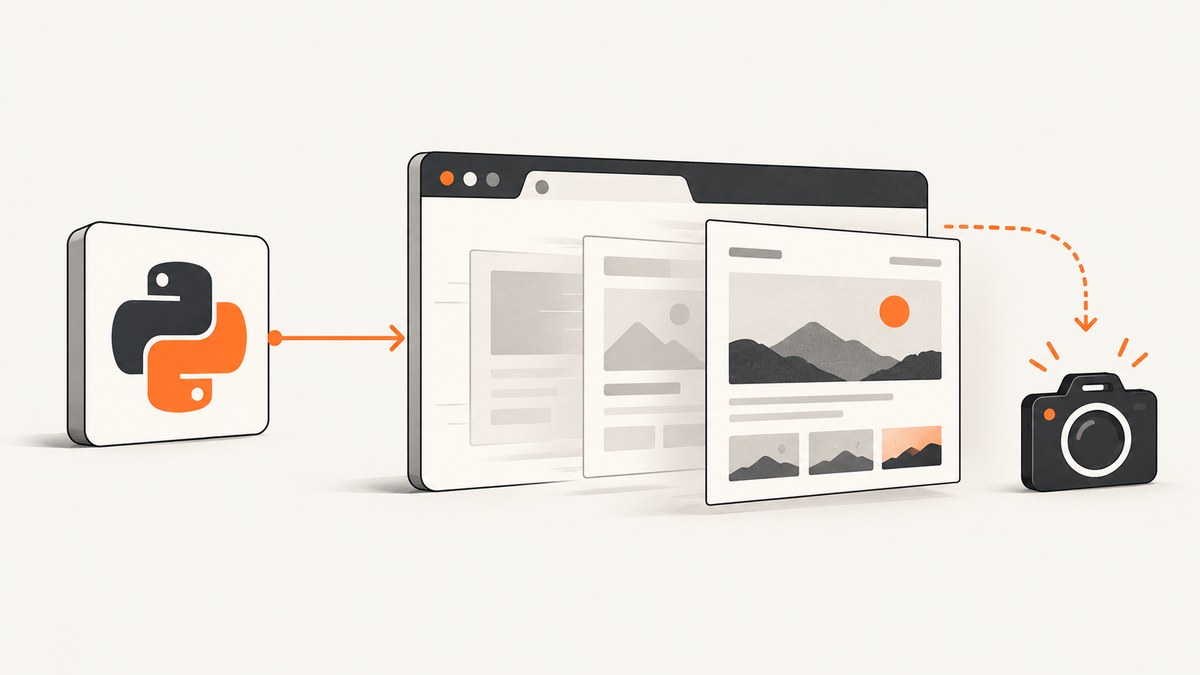
Direct answer: in Playwright, a Page object represents one browser tab. Keep the Page object for the tab you want, navigate it, wait for the loading milestone or page-specific condition that matches your target, then call page.screenshot().
from playwright.sync_api import sync_playwright

with sync_playwright() as p:
    browser = p.chromium.launch()
    page = browser.new_page()
    page.goto("https://example.com", wait_until="domcontentloaded")
    page.screenshot(path="capture.png")
    browser.close()
This captures the viewport after DOMContentLoaded. Use commit for an early capture, load when page resources should finish, or a locator assertion when a particular piece of dynamic content is the real readiness signal. Playwright documents the Page model, navigation states and screenshot method in its Python Page API.
1. Install Playwright and run the first capture
Install the Python package and the browser binaries in your project environment:
python -m pip install playwright
python -m playwright install chromium
Save this as capture_tab.py:
from pathlib import Path
from playwright.sync_api import sync_playwright

URL = "https://example.com"
OUTPUT = Path("capture.png")

with sync_playwright() as p:
    browser = p.chromium.launch()
    page = browser.new_page(viewport={"width": 1440, "height": 900})
    page.goto(URL, wait_until="domcontentloaded", timeout=60_000)
    page.screenshot(path=str(OUTPUT), type="png")
    browser.close()

print(f"Saved {OUTPUT}")
Run it with python capture_tab.py. The browser created by the script has a known set of pages, so the variable page unambiguously identifies the tab being captured.
2. Choose when the loading screenshot is taken
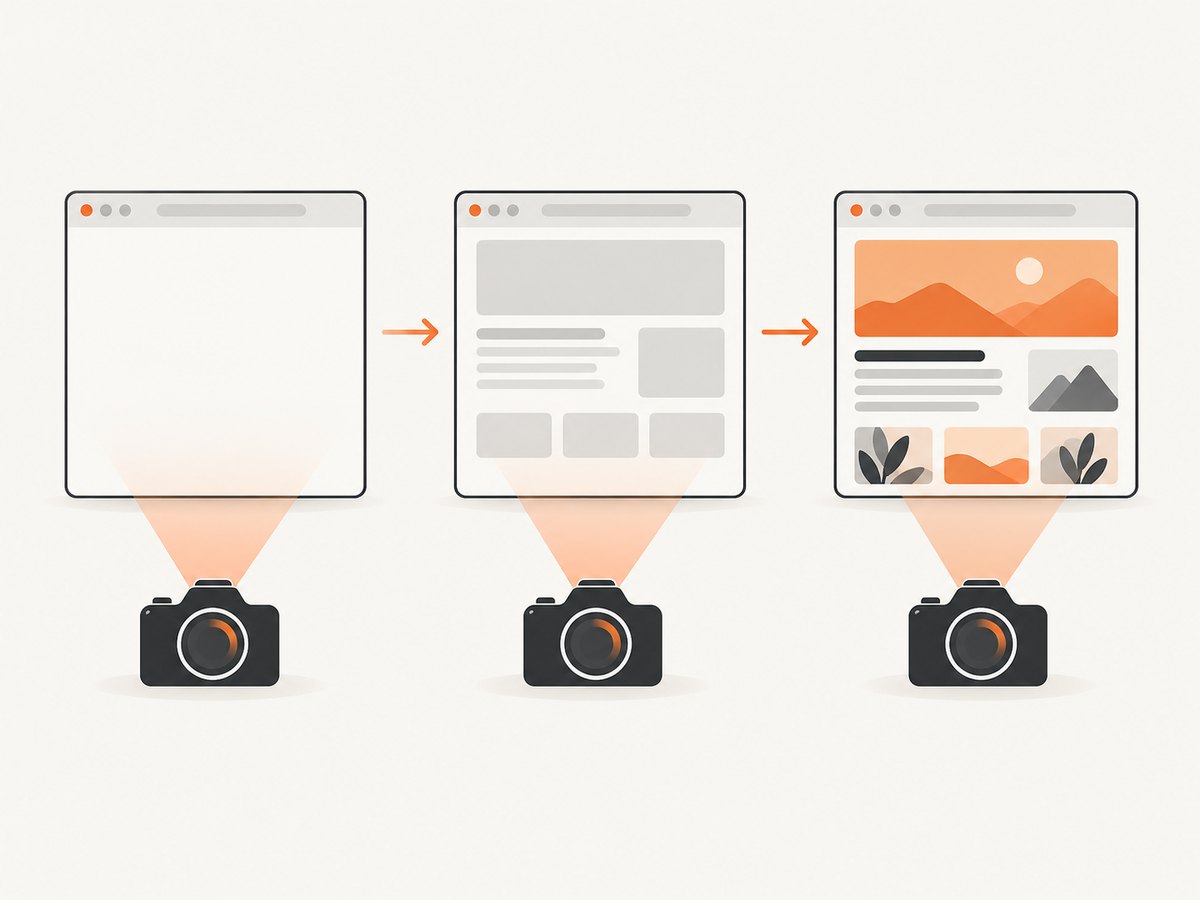
The correct wait point depends on what the screenshot must prove. A loading screenshot is evidence of a particular state, not simply “whatever appears after a delay.”
| Option | What it means | Use it when |
|---|---|---|
commit |
The response has arrived and document loading has started. | You need the earliest visual after navigation begins. |
domcontentloaded |
The document is parsed and the DOMContentLoaded event fired. | The relevant structure exists before every resource finishes. |
load |
The load event fired. This is the documented default for page.goto(). |
Images and other load-blocking resources should be complete. |
networkidle |
Playwright observes 500 ms with no network connections. | Only when it matches your page’s behavior; Playwright discourages it as a generic testing readiness signal. |
page.goto(URL, wait_until="commit")
page.screenshot(path="early.png")

page.goto(URL, wait_until="load")
page.screenshot(path="after-load.png")
Navigation already waits for the state you select, so a separate wait_for_load_state() is usually unnecessary. If you do call it, navigation must have committed first. For client-rendered pages, wait for the element that defines readiness instead of sleeping an arbitrary number of seconds:
page.goto(URL, wait_until="domcontentloaded")
page.locator("[data-testid='dashboard-ready']").wait_for(state="visible", timeout=30_000)
page.screenshot(path="dashboard.png")
3. Capture one tab when several tabs exist
A browser context can contain multiple Page objects. Keep an explicit reference when you create a tab, or select a newly opened page from the context.
from playwright.sync_api import sync_playwright

with sync_playwright() as p:
    browser = p.chromium.launch()
    context = browser.new_context()
    first_tab = context.new_page()
    second_tab = context.new_page()

    first_tab.goto("https://example.com", wait_until="domcontentloaded")
    second_tab.goto("https://example.org", wait_until="domcontentloaded")

    # Capture only the tab represented by second_tab.
    second_tab.screenshot(path="second-tab.png")
    browser.close()
For a link that opens a new tab, wait for the popup event and capture the returned Page:
with page.expect_popup() as popup_info:
    page.locator("a[target='_blank']").click()
new_tab = popup_info.value
new_tab.wait_for_load_state("domcontentloaded")
new_tab.screenshot(path="popup-tab.png")
This workflow controls the browser launched by your script. It does not automatically select a tab already open in a separately launched desktop browser. Attaching to an external browser is a separate connection setup and should be configured from the current browser connection documentation.
4. Capture the viewport, full page, an element, or bytes
Choose the output shape explicitly. The default is the visible viewport.
# Visible viewport
page.screenshot(path="viewport.png")

# Entire scrollable page
page.screenshot(path="full-page.png", full_page=True)

# One element
page.locator("header").screenshot(path="header.png")

# Return image bytes instead of writing a file
image_bytes = page.screenshot(type="png")
with open("capture-from-bytes.png", "wb") as output:
    output.write(image_bytes)
Playwright also supports screenshot format, clipping and quality controls. Check the installed version’s screenshots guide and API reference for the exact options available to your release.
5. A robust loading-state pattern
For dynamic applications, combine a navigation milestone with a meaningful locator and a bounded timeout. This avoids treating an idle network as proof that the visual content is ready.
from playwright.sync_api import sync_playwright, TimeoutError as PlaywrightTimeoutError

URL = "https://example.com/app"

with sync_playwright() as p:
    browser = p.chromium.launch()
    page = browser.new_page(viewport={"width": 1365, "height": 768})
    try:
        page.goto(URL, wait_until="domcontentloaded", timeout=60_000)
        page.locator("main").wait_for(state="visible", timeout=30_000)
        page.screenshot(path="app.png", full_page=False)
    except PlaywrightTimeoutError:
        page.screenshot(path="timeout-state.png")
        raise
    finally:
        browser.close()
If the page intentionally keeps connections open, networkidle may never occur. If content appears after an API call, wait for the rendered result, such as a table row, chart container or “ready” marker.
6. Loading screenshots at different moments
When you need a visual sequence, use the same Page and capture after each milestone:
page.goto(URL, wait_until="commit")
page.screenshot(path="01-commit.png")

page.wait_for_load_state("domcontentloaded")
page.screenshot(path="02-domcontentloaded.png")

page.wait_for_load_state("load")
page.screenshot(path="03-load.png")
For application states that change after navigation, capture after the relevant locator becomes visible or after a known interaction. Avoid fixed sleeps unless the delay itself is what you are documenting.
7. Troubleshooting
| Symptom | Likely cause | Fix |
|---|---|---|
Executable doesn't exist |
Browser binaries were not installed. | Run python -m playwright install chromium. |
| Screenshot shows a blank or partial page | The capture happened before client rendering or before the target element appeared. | Wait for a specific locator or application-ready marker. |
TimeoutError during navigation |
The URL is slow, blocked, or waiting for a lifecycle state that never occurs. | Set a bounded timeout, try an earlier state such as domcontentloaded, and inspect the page response and logs. |
networkidle never completes |
Analytics, WebSockets or polling keep the page active. | Use domcontentloaded, load, or a locator tied to the content you need. |
| Wrong tab is captured | The script selected a page by position after tabs changed. | Retain the Page returned by new_page() or expect_popup(). |
| Element screenshot fails | The locator matches nothing, is hidden, or is outside a usable state. | Verify the selector and wait for visibility before calling locator.screenshot(). |
| Full-page image is unexpectedly tall | full_page=True captures the entire scrollable document. |
Use the default viewport capture or a clip when only one region is required. |
| External desktop tab is unavailable | The script launched its own browser and cannot see a separately launched browser tab. | Use a browser connection method designed for that external instance and configure it explicitly. |
8. Performance, reliability and cost considerations
- Lifecycle choice: earlier states reduce waiting but may capture incomplete content. Locator-based readiness usually gives a more repeatable result for dynamic pages.
- Browser reuse: when taking many screenshots, reuse a browser and context where isolation permits; creating a fresh browser for every URL adds startup work.
- Viewport consistency: set the viewport explicitly so responsive layouts do not change between runs.
- Timeouts: keep navigation and readiness timeouts finite, record failures, and save a diagnostic screenshot when useful.
- Output size: viewport screenshots use less memory than full-page images. Use bytes when another component will upload or process the image directly.
- Local cost: Playwright itself is an automation workflow that runs on infrastructure you provide, so account for browser CPU, memory, storage and maintenance.
9. Or skip the browser setup
ScreenshotNeo provides a single-request website screenshot API. The API can wait for page conditions and return PNG, JPEG, WebP or PDF without you managing Playwright, Chromium or tab lifecycle code. See the ScreenshotNeo documentation for the complete option list.
cURL
curl -G "https://api.screenshotneo.com/v1/shot" -d access_key=YOUR_API_KEY --data-urlencode url=https://example.com -o shot.webpPython
import requests

r = requests.get(
    "https://api.screenshotneo.com/v1/shot",
    params={"access_key": "YOUR_API_KEY", "url": "https://example.com"},
    timeout=90,
)
r.raise_for_status()
open("shot.webp", "wb").write(r.content)
Node.js
const q = new URLSearchParams({ access_key: 'YOUR_API_KEY', url: 'https://example.com' });
const res = await fetch(`https://api.screenshotneo.com/v1/shot?${q}`);
if (!res.ok) throw new Error(`HTTP ${res.status}`);
const fs = await import('node:fs/promises');
await fs.writeFile('shot.webp', Buffer.from(await res.arrayBuffer()));
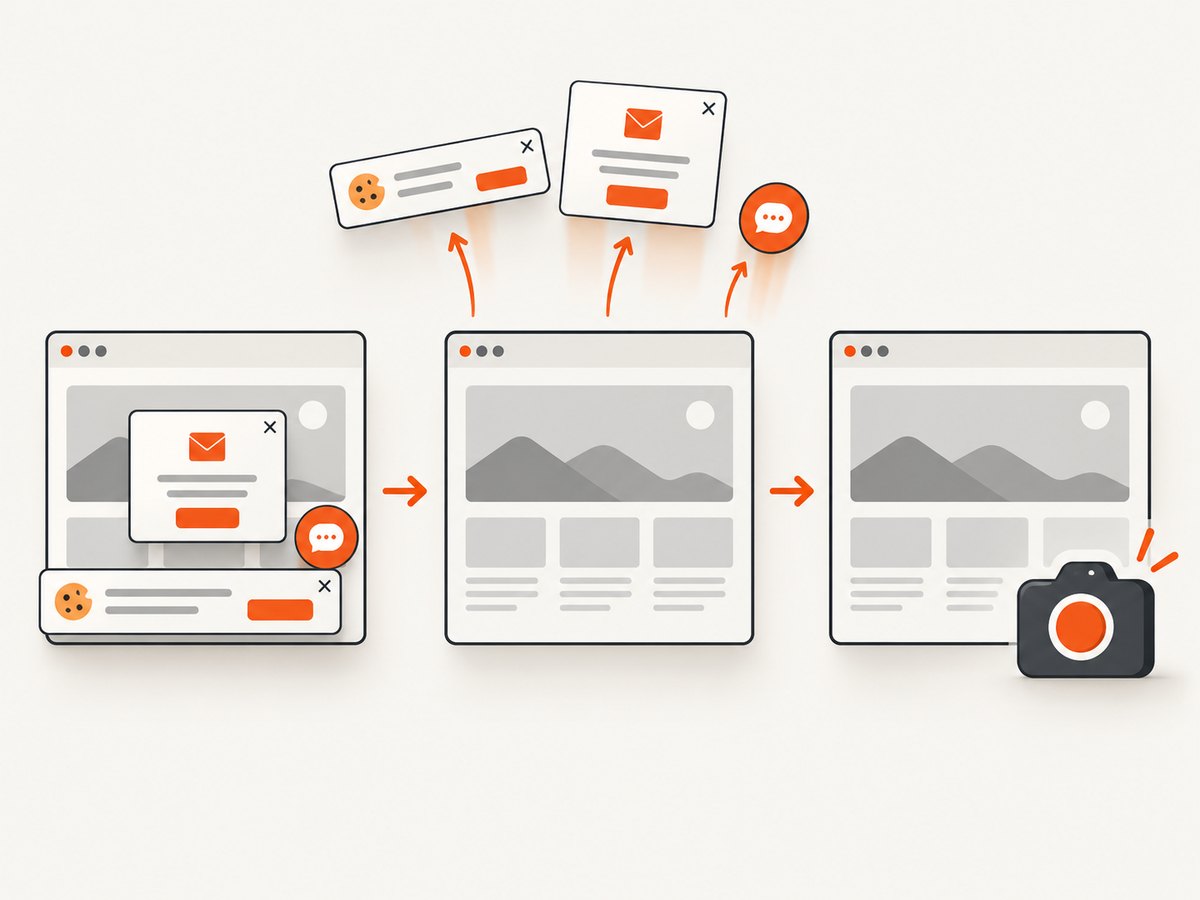
ScreenshotNeo removes cookie and consent banners, newsletter popups and chat widgets before capture. Bot checks, blank pages, failed loads, timeouts and cache hits are not billed, and response headers report the page verdict and whether the request was billed. Its MCP server includes take_screenshot, get_page_info and capture_pdf tools for Claude, Cursor and other MCP clients. The free plan includes 1,000 shots per month without a card; paid plans start at $5 for 3,000 shots. Create a free ScreenshotNeo account.
10. FAQ
Can Playwright capture a tab that a person already has open?
Not with the basic launch example. That code controls the browser it starts. An independently launched browser requires a separate browser connection configuration.
Should I always use networkidle?
No. Playwright documents it but discourages it as a generic testing signal. Prefer the element or application condition that proves the content you need is ready.
How do I capture only the visible browser area?
Call page.screenshot(path="capture.png") without full_page=True.
How do I capture a single component?
Use page.locator("your-selector").screenshot(path="component.png") after waiting for that locator to be visible.
What does “specific tab” mean in Playwright?
It means the particular Page object you retained. A browser context can contain several Page instances, each representing a separate tab.


