How to Open and Capture a Calendar Picker With Puppeteer
Learn how to open an HTML date picker with showPicker(), capture it with Puppeteer, and handle native popup limits across browsers.
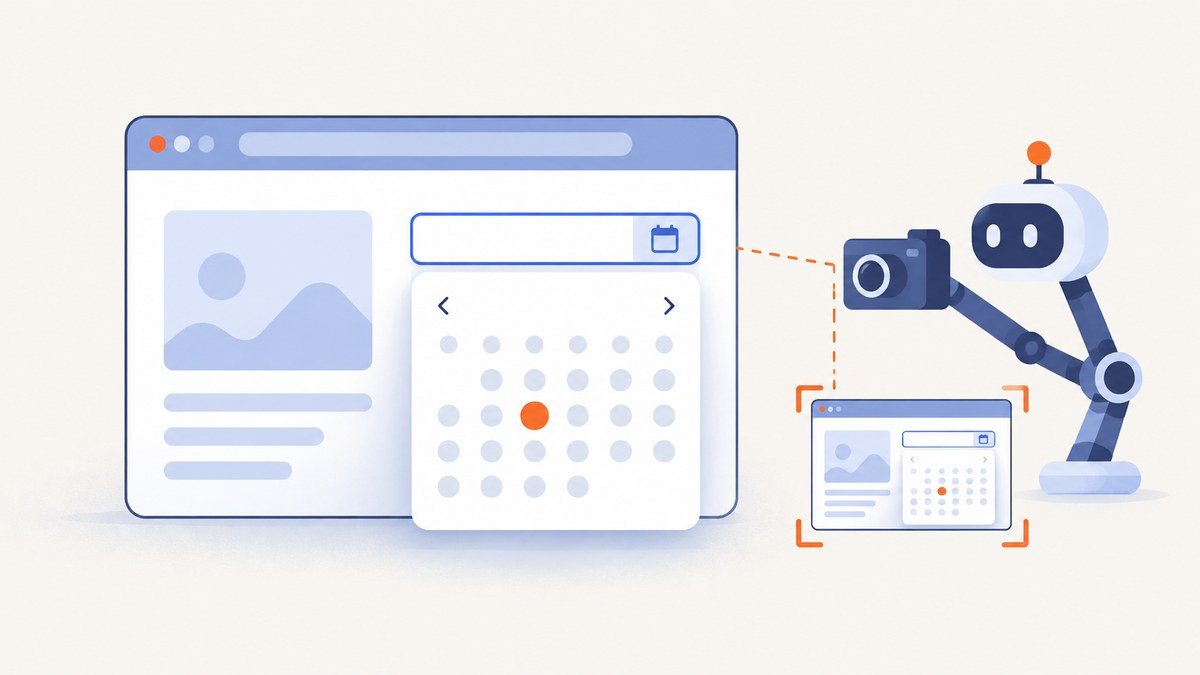
Short answer: use the browser’s HTMLInputElement.showPicker() method to request that a date input open its native calendar, then use Puppeteer’s page.screenshot() to capture the page. The two APIs solve different problems: showPicker() belongs to the web platform, while Puppeteer controls the browser and takes the screenshot. Native picker visibility in the resulting image is not guaranteed across browsers, operating systems, headless modes, or browser builds, so validate the exact environment you intend to publish or test.
For a repeatable tutorial image, render the calendar as ordinary HTML and CSS inside the page. A page-rendered calendar is under your control and is much more deterministic than an operating-system popup. If you specifically need the native control, drive the opening action as a real click and inspect the output file.
What you are actually capturing
There are two layers involved:
- Web-page content: the DOM, CSS, images, and other content that Puppeteer renders.
page.screenshot()captures this page output. - Native browser UI: the calendar popup supplied by the browser and operating system for an
<input type="date">. The page does not own this surface, and Puppeteer’s screenshot documentation does not promise that it will appear in every configuration.
showPicker() is the browser API for asking the user agent to display a picker. MDN documents it for date, month, week, time, datetime-local, color, and file controls, with support details that can vary by browser. It also requires transient user activation: a call that is not associated with a qualifying user action can throw NotAllowedError. A call from a cross-origin iframe can throw SecurityError. See the MDN showPicker() reference and Chrome’s showPicker() article.
Minimal working example
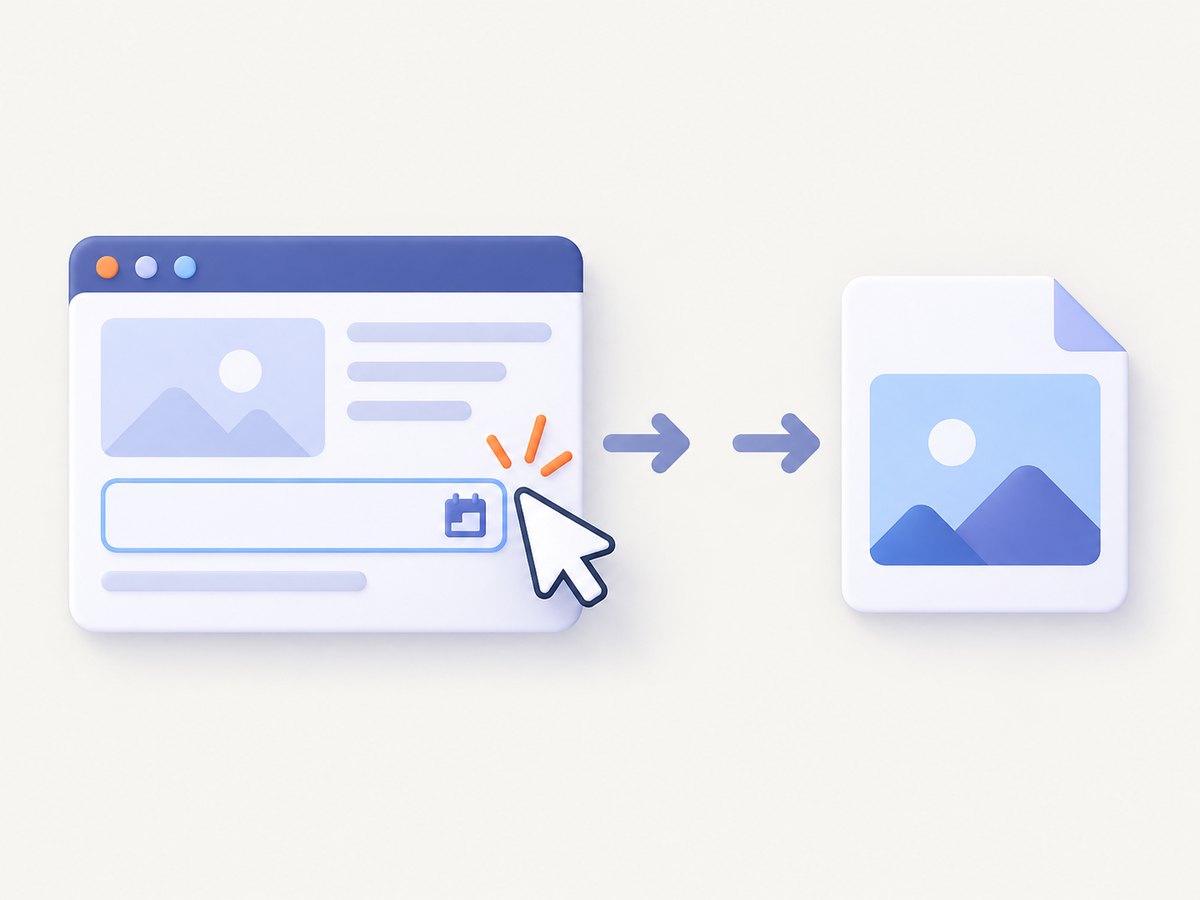
This example creates an enabled, mutable date input and a button whose click handler calls showPicker(). The browser action is initiated by a real click, which satisfies the activation requirement in supported environments.
<!doctype html>
<html lang="en">
<head>
  <meta charset="utf-8">
  <title>Calendar picker capture</title>
  <style>
    body { font: 16px system-ui, sans-serif; padding: 3rem; }
    label, button { display: block; margin: .75rem 0; }
    input, button { font: inherit; padding: .5rem .7rem; }
  </style>
</head>
<body>
  <label for="date">Choose a date</label>
  <input id="date" type="date">
  <button id="open" type="button">Open calendar</button>

  <script>
    const input = document.querySelector('#date');
    document.querySelector('#open').addEventListener('click', () => {
      if (typeof input.showPicker === 'function') {
        input.showPicker();
      } else {
        input.focus();
      }
    });
  </script>
</body>
</html>
Capture the picker with Puppeteer
Puppeteer is a JavaScript library for controlling Chrome or Firefox; it runs headless by default. Its documented screenshot call is await page.screenshot({ path: 'screenshot.png' }). The call captures page output and can return binary bytes when no path is supplied. The Page.screenshot() documentation describes options including path, type, fullPage, and clip.
Complete runnable script
Save the HTML above as calendar.html, then install Puppeteer with npm install puppeteer. This script opens the file, clicks the button, waits briefly for the browser to paint, and saves a PNG. The delay is only a synchronization aid; it does not make native popup capture portable.
import puppeteer from 'puppeteer';
import path from 'node:path';
import { pathToFileURL } from 'node:url';

const browser = await puppeteer.launch({
  headless: true
});

try {
  const page = await browser.newPage();
  await page.setViewport({ width: 1280, height: 900, deviceScaleFactor: 1 });

  const fileUrl = pathToFileURL(path.resolve('calendar.html')).href;
  await page.goto(fileUrl, { waitUntil: 'load' });

  await page.locator('#open').click();
  await page.waitForTimeout(300);

  await page.screenshot({
    path: 'calendar-picker.png',
    type: 'png',
    fullPage: false
  });
} finally {
  await browser.close();
}
Inspect calendar-picker.png instead of assuming that the native popup was included. A screenshot can contain the input and button while omitting a browser-owned popup. Try the same script with the exact browser version, operating system, viewport, and headless or headful mode used by your application.
Why a direct evaluate() call can fail
This code is tempting:
await page.evaluate(() => document.querySelector('#date').showPicker());It is not universally reliable because showPicker() requires transient user activation. A script evaluation that is not part of a qualifying click, key press, or comparable user gesture may throw NotAllowedError. Prefer a real interaction:
await page.locator('#open').click();When you cannot use a button, another option is to dispatch the interaction through Puppeteer’s mouse or keyboard APIs, then have the page’s event handler call showPicker(). Keep the call in the event handler so the browser can associate it with the user action.
Screenshot options that matter
| Option | Use | Practical note |
|---|---|---|
path |
Write the image to disk. | Use an absolute or project-relative path that your process can write. |
type |
Select png, jpeg, or another supported output type. |
PNG is the documented default; JPEG requires a quality value when you need compression control. |
fullPage |
Capture the full scrollable page. | The default is false. It captures page content, not a promise of native browser chrome. |
clip |
Capture a rectangle with x, y, width, and height. |
Useful for isolating a rendered calendar or input region. |
omitBackground |
Request transparency where supported. | It affects the page background; it does not turn a native popup into page content. |
encoding |
Return binary data or base64. | Use the default binary bytes for files, or base64 when embedding in another payload. |
Set the viewport before opening the picker. Browser calendars can reposition when there is not enough room below the input, so a different viewport can produce a different composition. Also set a stable device scale factor when comparing screenshots in visual tests.
Native picker versus a page-rendered calendar
Choose the approach based on what the image needs to communicate:
| Goal | Recommended approach | Reason |
|---|---|---|
| Teach the browser’s native date control | Use showPicker() and a real click |
It exercises the platform control, but output may vary by runtime. |
| Produce a stable documentation image | Render a calendar in HTML/CSS | The calendar is part of the page and can be captured consistently. |
| Run cross-platform visual regression tests | Use a page-rendered component or standardize one browser/OS image | Native popup styling is controlled outside your page. |
| Verify accessibility or form behavior | Test the real date input separately | A decorative calendar does not replace native input behavior. |
For a deterministic page-rendered calendar, place the month grid in normal DOM content, give it a fixed width, and use clip or a selector bounding box for the screenshot. This teaches the visual state without depending on whether the browser compositor exposes its native popup to Page.screenshot().
Waiting and timing strategies
There is no universal “picker is open” selector for a native popup because it is not necessarily represented in the page DOM. You can still make the page portion deterministic:
- Wait for the page navigation condition you need, such as
domcontentloadedorload. - Wait for the input and button to exist with
page.waitForSelector()or a locator. - Perform the click.
- Use a short delay only when you have confirmed that the target runtime paints the expected state asynchronously.
- Save the file and inspect it in CI or locally.
If the calendar belongs to a page-rendered widget, wait for its visible selector instead of guessing with a delay. For example:
await page.locator('[data-calendar="open"]').wait();
await page.screenshot({ path: 'rendered-calendar.png', clip: await page.locator('[data-calendar]').boundingBox() });
Common errors and fixes
NotAllowedError from showPicker()
Cause: the method was called without transient user activation, often from arbitrary page.evaluate() code.
Fix: wire showPicker() to a button’s click handler and trigger that button with page.locator(...).click().
SecurityError in an iframe
Cause: the input is in a cross-origin iframe. MDN documents this restriction, with historical exceptions for file and color pickers.
Fix: navigate directly to the page when possible, interact with a same-origin frame, or test the iframe’s browser behavior explicitly. Do not assume that changing Puppeteer’s selector will remove the browser security boundary.
showPicker is not a function
Cause: the control is being run in a browser or build without the method, or the selected element is not the expected input.
Fix: check typeof input.showPicker, confirm that the element is an enabled input, and provide a fallback such as focusing the control. A fallback does not guarantee that a calendar opens.
The input is disabled, readonly, or detached
Cause: picker controls require a usable input. Framework rerenders can also replace the node between lookup and click.
Fix: wait for the final form state, remove disabled or readonly when appropriate, and use a locator that resolves the current element at interaction time.
The screenshot contains the page but not the calendar
Cause: the native popup is browser or operating-system UI outside the page surface captured by Puppeteer.
Fix: verify the exact headless/headful mode and target browser. If the image must be portable, capture a calendar implemented in the page itself. The Puppeteer and browser API references do not promise native popup inclusion.
The screenshot is clipped or the calendar moves
Cause: the popup is positioned based on available viewport space, scroll position, and device scale.
Fix: set the viewport before interaction, scroll the input into view, and use a larger viewport. For page-rendered content, calculate a selector bounding box after it becomes visible and pass that rectangle to clip.
The output file is missing or empty
Cause: the process lacks permission for the destination, the browser closed early, or an exception skipped the screenshot.
Fix: use a writable directory, await page.screenshot(), wrap the browser lifecycle in try/finally, and log the error before closing the browser.
Reliability, performance, and cost considerations
Launching a browser is usually more expensive than taking another screenshot in an existing browser session. For a test suite, reuse one browser process and create isolated pages, but close each page after the test to avoid memory growth. Keep viewport, browser version, fonts, locale, timezone, and device scale factor consistent when screenshot diffs matter.

Use waitUntil: 'domcontentloaded' when the calendar is available early and you do not need every network request to finish. Use load or an explicit application-ready selector when late JavaScript changes the layout. Avoid unbounded waits: set a navigation timeout and fail with a useful diagnostic. Save failures with a screenshot and page console logs so you can distinguish a missing picker from a page-load problem.
Native picker rendering is environment-dependent. A passing screenshot on a developer laptop does not establish identical output in Linux CI, another Chrome build, or headful mode. Pin the browser version for visual tests, and treat a change in native UI as an environment change rather than a page regression.
Or skip the browser setup
If you need an image of a URL rather than a test of a native browser control, ScreenshotNeo provides a single HTTP request for PNG, JPEG, WebP, or PDF output. Its cleanup steps accept cookie and consent banners before capture and remove more than 60 known consent platforms, newsletter popups, and chat widgets. Each step can be turned off. Bot checks, blank pages, timeouts, failed loads, and cache hits are not billed, and response headers identify the page verdict and whether the request was billed.
Here is the direct call. The parameter names commonly used by other screenshot APIs also work, which makes switching straightforward. See the ScreenshotNeo API documentation for the complete option list.
curl -G "https://api.screenshotneo.com/v1/shot" -d access_key=YOUR_API_KEY --data-urlencode url=https://stripe.com -o shot.webpimport requests
r = requests.get(
"https://api.screenshotneo.com/v1/shot",
params={"access_key": "YOUR_API_KEY", "url": "https://stripe.com"},
timeout=90,
)
r.raise_for_status()
open("shot.webp", "wb").write(r.content)const q = new URLSearchParams({ access_key: 'YOUR_API_KEY', url: 'https://stripe.com' });
const res = await fetch(`https://api.screenshotneo.com/v1/shot?${q}`);
if (!res.ok) throw new Error(`Screenshot failed: ${res.status}`);
const buffer = Buffer.from(await res.arrayBuffer());
await Bun.write('shot.webp', buffer);ScreenshotNeo also supports full-page captures with lazy images loaded, CSS element capture, dark mode, device presets or custom viewports, retina scale, custom CSS and JavaScript, clicks, selector or network-idle waits, blocked requests and resource types, custom headers, cookies, user agents, authorization, timezone and geolocation, transparent backgrounds, resizing, chosen cache TTLs, signed links, asynchronous jobs with signed webhooks, bulk capture of up to 100 URLs per call, a usage API, and an OpenAPI specification. An MCP server exposes take_screenshot, get_page_info, and capture_pdf for Claude, Cursor, and other MCP clients.
The Free plan includes 1,000 shots each month with no card. Paid plans start at $5 for 3,000 shots; yearly billing provides two months free, and every feature is available on every plan. Create a free ScreenshotNeo account to get started.
FAQ
Is showPicker() a Puppeteer method?
No. It is an HTMLInputElement browser API. Puppeteer supplies the navigation, interaction, and screenshot controls.
Can I force the native calendar into a screenshot?
No documented Puppeteer option guarantees that. Test the exact browser and launch mode, or use a calendar rendered in the page for deterministic output.
Does fullPage: true capture browser chrome?
No. It changes the page capture to include the full scrollable document. It does not promise browser or operating-system UI.
Why does the calendar look different on another machine?
Native picker appearance depends on browser, operating system, build, viewport, scale, locale, and launch mode. Standardize those inputs or capture a page-rendered calendar.
Should I use a native picker in a visual regression test?
Use it only when testing the native control itself. For stable cross-platform image comparisons, a page-rendered calendar is easier to control.


