How to Capture a Chrome Page from Another Webpage Without Puppeteer
Capture Chrome pages without Puppeteer using an extension, getDisplayMedia, or the DevTools Protocol—and know which permissions each route needs.
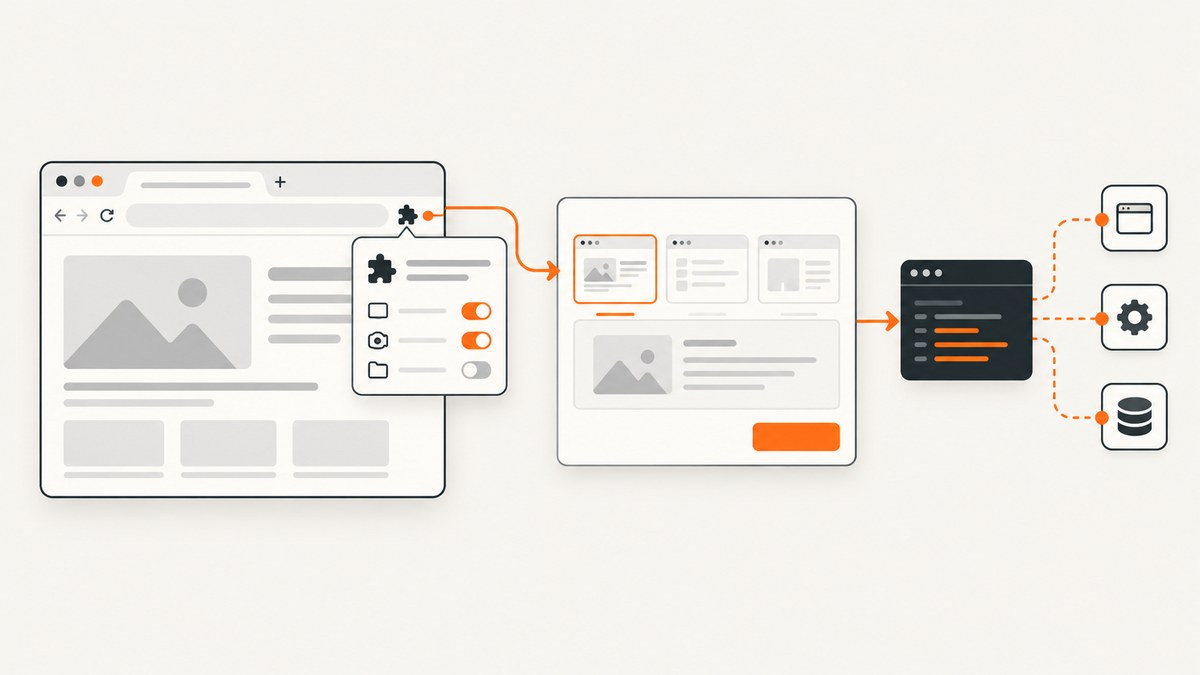
Short answer: an ordinary webpage cannot silently call Chrome extension APIs or the DevTools Protocol. Choose a route based on where your code runs:
- Chrome extension: call
chrome.tabs.captureVisibleTab()to capture the visible area of the active tab. The extension needsactiveTabor<all_urls>, and Chrome documents a maximum of two calls per second. - User-mediated webpage capture: call
getDisplayMedia(); Chrome opens a sharing dialog where the user selects a screen, window, or tab. - Developer tooling: connect a privileged client to Chrome DevTools Protocol and send
Page.captureScreenshot. This works without Puppeteer, but it still requires a protocol connection.
A normal page cannot capture an unrelated tab in the background. Browser permission, a user gesture, a sharing prompt, or a privileged protocol connection is always involved.
Choose the capture route
| Route | What it captures | Access required | Best fit |
|---|---|---|---|
captureVisibleTab() |
Visible area of the active tab | activeTab or <all_urls>; max two calls/second |
Extension action that captures the tab a user is viewing |
getDisplayMedia() |
User-selected screen, window, or tab | Browser sharing prompt | Web app where explicit user selection is acceptable |
Page.captureScreenshot |
Page screenshot, including clipping and beyond-viewport options | Privileged Chrome DevTools Protocol client | Developer tooling and automation |
Chrome documents the extension behavior in the Tabs API reference. The official screenshot sample shows a user clicking an extension action, capturing the current tab, and opening the result.
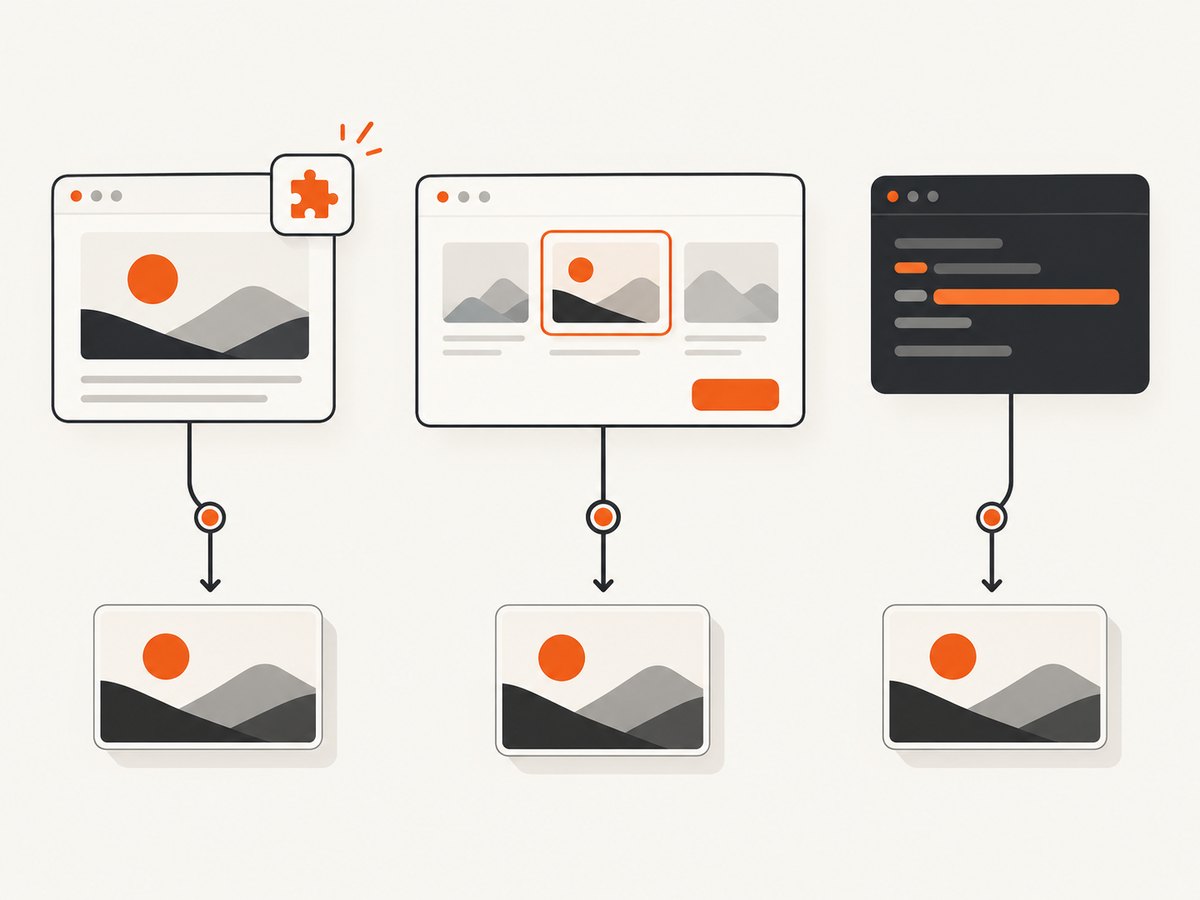
Route 1: build a Chrome extension
1. Create the manifest
Use activeTab when a user explicitly invokes the extension and you only need temporary access to that tab. Request <all_urls> only when the extension genuinely needs broad host access.
{
  "manifest_version": 3,
  "name": "Visible Tab Screenshot",
  "version": "1.0.0",
  "permissions": ["activeTab", "scripting"],
  "action": {
    "default_title": "Capture visible tab"
  },
  "background": {
    "service_worker": "service-worker.js"
  }
}
2. Capture after the extension action
chrome.action.onClicked.addListener(async (tab) => {
  if (!tab.windowId) return;

  try {
    const dataUrl = await chrome.tabs.captureVisibleTab(tab.windowId, {
      format: "png"
    });

    // Send the data URL to your own page, storage, or upload endpoint.
    await chrome.tabs.create({ url: dataUrl });
  } catch (error) {
    console.error("Screenshot failed", error);
  }
});
The returned value is a data URL. This call captures only the currently active tab’s visible viewport; it is not a full-page capture method. Do not describe it as capturing content below the fold.
3. Save or upload the image instead of opening it
chrome.action.onClicked.addListener(async (tab) => {
  const dataUrl = await chrome.tabs.captureVisibleTab(tab.windowId, {
    format: "jpeg",
    quality: 85
  });

  const base64 = dataUrl.split(",", 2)[1];
  const bytes = Uint8Array.from(atob(base64), (c) => c.charCodeAt(0));
  const blob = new Blob([bytes], { type: "image/jpeg" });

  const form = new FormData();
  form.append("file", blob, "tab.jpg");
  await fetch("https://your-upload-service.example/upload", {
    method: "POST",
    body: form
  });
});
For PNG, omit quality. For JPEG, Chrome accepts a quality value from 0 to 100. Keep uploads on an endpoint you control and authenticate them; the data URL contains the captured page.
Permissions and user experience
activeTabgrants temporary access after a user gesture and keeps the install warning narrower.<all_urls>is appropriate only for extensions that must work across sites without a click-specific grant.- Restricted browser pages such as extension pages and some internal Chrome URLs may not be capturable.
- Capture the tab identified by the click event rather than assuming the currently focused window has not changed.
- Chrome documents a maximum of two
captureVisibleTab()calls per second. Queue requests and back off instead of polling.
Route 2: ask the user with getDisplayMedia()
A webpage can request a display stream, but Chrome must show a picker. The user chooses a screen, window, or tab; your code cannot silently select an unrelated tab.
async function captureSelectedSurface() {
  const stream = await navigator.mediaDevices.getDisplayMedia({
    video: { displaySurface: "browser" },
    audio: false
  });

  const video = document.createElement("video");
  video.srcObject = stream;
  await video.play();

  await new Promise((resolve) => {
    if (video.videoWidth) resolve();
    else video.onloadedmetadata = resolve;
  });

  const canvas = document.createElement("canvas");
  canvas.width = video.videoWidth;
  canvas.height = video.videoHeight;
  canvas.getContext("2d").drawImage(video, 0, 0);

  const pngBlob = await new Promise((resolve) =>
    canvas.toBlob(resolve, "image/png")
  );

  stream.getTracks().forEach((track) => track.stop());
  return pngBlob;
}

button.addEventListener("click", async () => {
  try {
    const blob = await captureSelectedSurface();
    const url = URL.createObjectURL(blob);
    window.open(url, "_blank");
  } catch (error) {
    console.error("The user cancelled or capture failed", error);
  }
});
Start this from a user action such as a button click. Handle cancellation as a normal outcome. The Chrome screen-capture guide explains the prompt-based model and related extension workflows.
Route 3: use Chrome DevTools Protocol directly
DevTools Protocol (CDP) exposes Page.captureScreenshot without requiring Puppeteer. You still need Chrome launched with remote debugging and a client that speaks the protocol. The protocol reference lists image format, quality, clipping, and beyond-viewport options.
Start Chrome with a debugging port
google-chrome --remote-debugging-port=9222 --user-data-dir=/tmp/chrome-cdpUse a separate profile for automation. Never expose a debugging port to an untrusted network.
Call CDP with Python and websockets
import asyncio
import base64
import json
import requests
import websockets

async def main():
    tabs = requests.get("http://127.0.0.1:9222/json").json()
    page = next(tab for tab in tabs if tab["type"] == "page")

    async with websockets.connect(page["webSocketDebuggerUrl"]) as ws:
        message_id = 0

        async def call(method, params=None):
            nonlocal message_id
            message_id += 1
            await ws.send(json.dumps({
                "id": message_id,
                "method": method,
                "params": params or {}
            }))
            while True:
                response = json.loads(await ws.recv())
                if response.get("id") == message_id:
                    return response

        await call("Page.enable")
        result = await call("Page.captureScreenshot", {
            "format": "png",
            "captureBeyondViewport": True
        })

        image = base64.b64decode(result["result"]["data"])
        with open("page.png", "wb") as file:
            file.write(image)

asyncio.run(main())
Important CDP options
format:png,jpeg, orwebpwhere supported by the protocol version.quality: relevant to lossy formats.clip: an object containingx,y,width,height, andscale.captureBeyondViewport: request content beyond the current viewport when the page and protocol version support it.- The response image is base64 encoded under
result.data.
See the Page domain reference and the protocol overview for the connection and command model.
Full-page capture: what changes
captureVisibleTab() is viewport-only. For a full page, use CDP’s beyond-viewport support, or implement a verified scroll-and-stitch workflow:
- Measure document dimensions.
- Scroll in viewport-sized increments.
- Wait for layout and lazy images after each scroll.
- Capture each viewport.
- Stitch images while accounting for fixed headers and device scale.
Scroll stitching is sensitive to sticky elements, animations, responsive breakpoints, and pages that load content while scrolling. CDP is usually simpler when you control the browser process.
Reliability, performance, and cost considerations
- Rate limits: keep extension calls at or below two per second and queue bursts.
- Readiness: wait for fonts, images, and application data before capture; a visible tab can still be mid-render.
- Memory: large PNG data URLs and full-page images consume memory. Prefer JPEG or WebP for photographic pages and stream uploads where possible.
- Determinism: fix viewport, device scale, timezone, and network conditions in automated CDP runs.
- Security: protect CDP’s debugging endpoint, validate upload origins, and avoid placing secrets in captured URLs.
- Cost: browser automation costs compute and operational time. A hosted screenshot API can remove browser setup and provide usage accounting.
Troubleshooting
| Symptom | Likely cause | Fix |
|---|---|---|
chrome is not defined |
Code is running in a normal webpage | Move it into an extension context, use getDisplayMedia(), or connect through CDP. |
Permission error from captureVisibleTab() |
Missing host permission or user grant | Add activeTab for click-triggered use, or the required host permissions. |
| Only the visible portion is returned | The API is viewport capture | Use CDP beyond-viewport capture or a scroll-and-stitch implementation. |
| Sharing prompt is cancelled | User denied or closed the picker | Catch the exception and let the user retry from a deliberate button click. |
| Blank or partially rendered image | Capture happened before page readiness | Wait for a selector, fonts, images, and network activity before capture. |
| CDP connection refused | Chrome was not started with remote debugging, or the port is wrong | Start a dedicated Chrome profile with --remote-debugging-port and verify /json. |
| CDP returns an error for options | Protocol version mismatch | Check the protocol version exposed by that Chrome build and adjust parameters. |
| Too many extension failures | Calls exceed the documented rate | Throttle to two calls per second and add exponential backoff. |
Or skip the browser setup
ScreenshotNeo provides a hosted screenshot API and MCP server. One GET request returns PNG, JPEG, WebP, or PDF, so your application does not need to manage Chrome, extension permissions, or a CDP process.
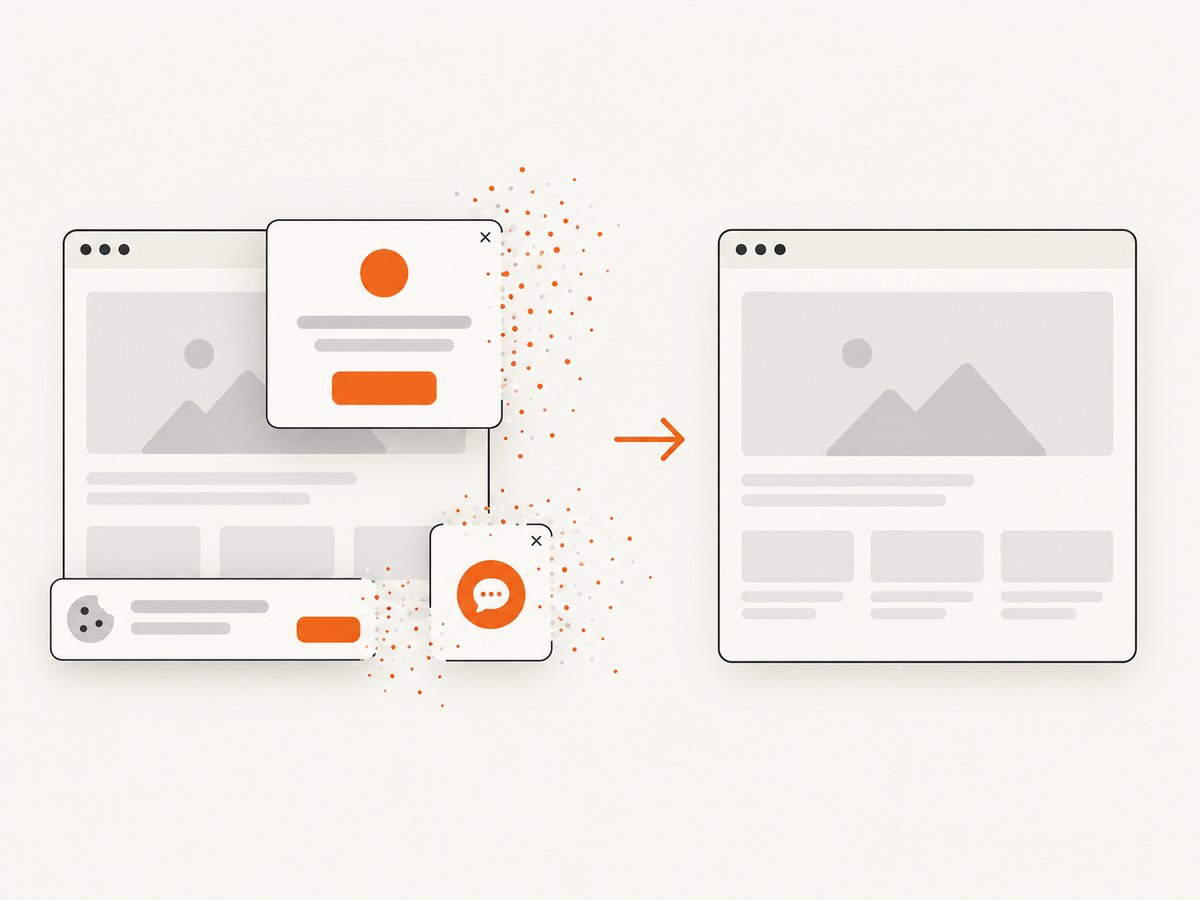
See the ScreenshotNeo API documentation for the complete option list. This example captures a URL directly:
curl -G "https://api.screenshotneo.com/v1/shot" -d access_key=YOUR_API_KEY --data-urlencode url=https://stripe.com -o shot.webpimport requests
r = requests.get("https://api.screenshotneo.com/v1/shot", params={"access_key": "YOUR_API_KEY", "url": "https://stripe.com"}, timeout=90)
open("shot.webp", "wb").write(r.content)const q = new URLSearchParams({ access_key: 'YOUR_API_KEY', url: 'https://stripe.com' });
const res = await fetch(`https://api.screenshotneo.com/v1/shot?${q}`);ScreenshotNeo removes cookie banners, newsletter popups, and chat widgets before capture. Bot checks, blank pages, failed loads, timeouts, and cache hits are not billed, and response headers identify the page verdict and billing result. Its MCP server lets Claude, Cursor, and other MCP clients call take_screenshot, get_page_info, and capture_pdf. The free plan includes 1,000 screenshots per month with no card; paid plans start at $5 for 3,000.
Create a free ScreenshotNeo account and start with 1,000 screenshots a month at no charge.
FAQ
Can JavaScript on one webpage screenshot another tab?
Not silently. Use an extension permission, a user-approved getDisplayMedia() selection, or a privileged CDP connection.
Does captureVisibleTab() capture the whole page?
No. It captures the active tab’s visible area. Full-page output requires a different workflow.
Is Puppeteer required for DevTools Protocol screenshots?
No. Puppeteer is a client library; you can send CDP messages directly with another language or WebSocket client.
When should I choose getDisplayMedia()?
Use it when the user should explicitly choose the screen, window, or tab and a browser prompt is acceptable.
Which approach works for unattended server jobs?
A controlled CDP browser or a hosted screenshot API is more suitable than an extension or a user-mediated picker.


