How to Capture Chrome SSL Error Pages with Puppeteer Headless Mode
Capture Chrome’s “Your connection is not private” page with Puppeteer by keeping certificate checks enabled, catching navigation errors, and saving the committed error document.
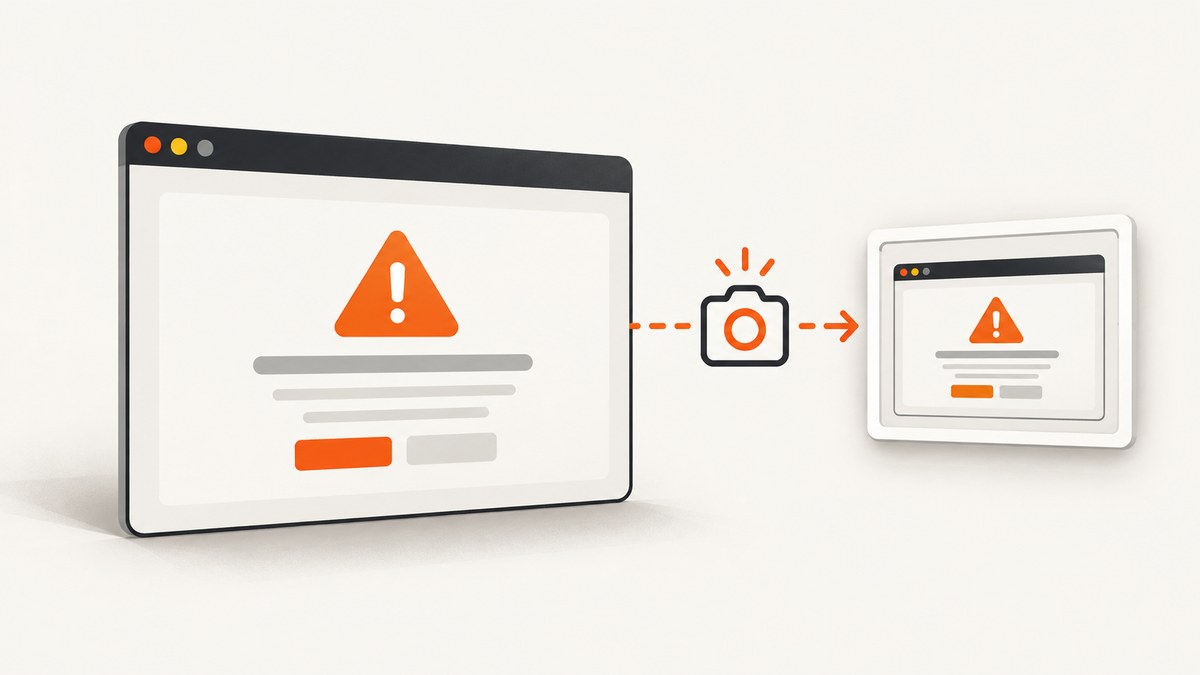
To capture Chrome’s SSL warning page with Puppeteer, launch regular headless Chrome with certificate validation enabled, navigate inside a try/catch, inspect the page after navigation fails, and call page.screenshot(). Do not set ignoreHTTPSErrors: true or an equivalent option. Those settings bypass the certificate failure and can remove the interstitial you are trying to record.
import puppeteer from 'puppeteer';

const target = process.argv[2] || 'https://expired.badssl.com/';
const browser = await puppeteer.launch({
  headless: true
  // Keep certificate validation strict.
});

const page = await browser.newPage();
page.setDefaultNavigationTimeout(30_000);

let navigationError = null;
try {
  await page.goto(target, { waitUntil: 'domcontentloaded' });
} catch (error) {
  navigationError = error;
  console.error('Navigation failed:', error.message);
}

// Chromium commits a failed navigation as an internal error document.
const currentUrl = page.url();
const html = await page.content();
const isChromeError =
  currentUrl.startsWith('chrome-error://') ||
  /ERR_CERT_|SSL certificate error|Your connection is not private/i.test(html);

await page.screenshot({ path: 'ssl-error.png', fullPage: true });

console.log(JSON.stringify({
  target,
  currentUrl,
  isChromeError,
  navigationError: navigationError?.message || null
}, null, 2));

await browser.close();
Run it with:
npm install puppeteer
node capture-ssl-error.mjs https://expired.badssl.com/
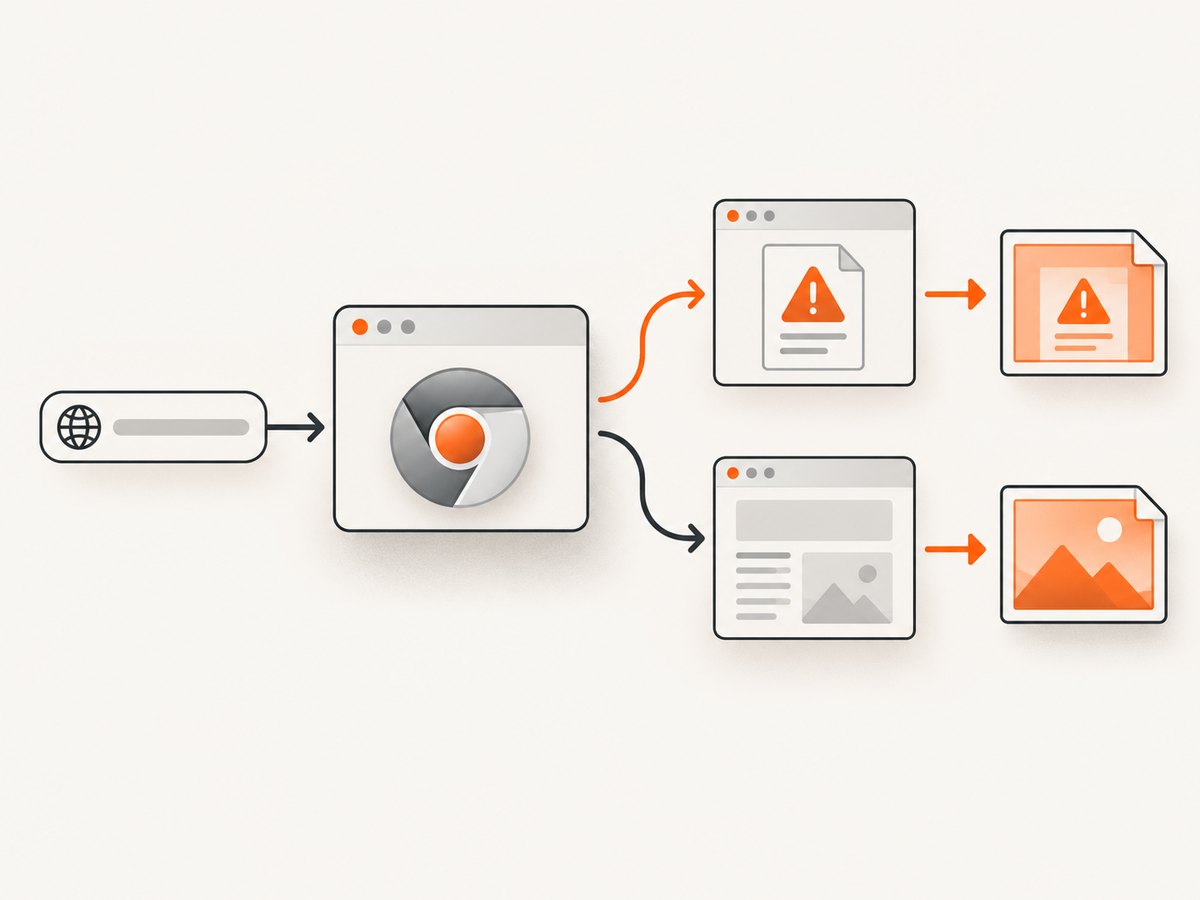
Puppeteer’s page.goto() rejects when Chrome cannot complete a navigation because of a transport or certificate failure. That rejection is expected here; catching it lets the script continue and capture the error document. Chromium documents that a failed navigation commits an internal page at chrome-error://chromewebdata, even though Chrome’s visible warning refers to the URL you requested. See the Puppeteer navigation API, Puppeteer screenshot API, and Chromium’s special-case URL documentation.
What Chrome is actually rendering
An SSL failure is different from an ordinary HTTP error. A server response with status 404 or 500 is still an HTTP response, so Puppeteer can return an HTTPResponse. A certificate failure happens before Chrome receives a usable response from the origin. Chromium then commits an internal error document and renders the interstitial in the tab.
That distinction explains two observations that often surprise developers:
page.goto()can throw even though there is a visible page to screenshot.page.url()may returnchrome-error://chromewebdatawhile the screenshot shows a warning naming the original host.
Use both the URL and the DOM text when classifying the result. Keep the requested URL in your own metadata because the internal URL alone does not identify the failed host.
Complete capture script with metadata
A production capture should save the image and structured evidence together. The following version records the requested URL, committed URL, error text, browser version, Puppeteer version, and capture time. It also waits briefly after the failed navigation so the interstitial has time to finish rendering in slower environments.
import fs from 'node:fs/promises';
import puppeteer from 'puppeteer';

const target = process.argv[2];
if (!target) throw new Error('Usage: node capture.mjs https://host.example/');

const startedAt = new Date().toISOString();
const browser = await puppeteer.launch({ headless: true });
const page = await browser.newPage();
page.setDefaultNavigationTimeout(30_000);

let navigationError = null;
try {
  await page.goto(target, {
    waitUntil: 'domcontentloaded',
    timeout: 30_000
  });
} catch (error) {
  navigationError = {
    name: error.name,
    message: error.message,
    stack: error.stack
  };
}

// A short delay is useful when the error document paints after navigation rejects.
await new Promise(resolve => setTimeout(resolve, 500));

const currentUrl = page.url();
const content = await page.content();
const text = await page.evaluate(() => document.body?.innerText || '');
const certCode = text.match(/(?:NET::)?ERR_CERT_[A-Z0-9_]+/i)?.[0] || null;
const isChromeError =
  currentUrl.startsWith('chrome-error://') ||
  /SSL certificate error|Your connection is not private|ERR_CERT_/i.test(
    `${content}\n${text}`
  );

await page.screenshot({
  path: 'ssl-error.png',
  fullPage: true
});

const metadata = {
  requestedUrl: target,
  committedUrl: currentUrl,
  isChromeError,
  certificateCode: certCode,
  navigationError,
  chromeVersion: await browser.version(),
  capturedAt: startedAt,
  certificateErrorsIgnored: false
};
await fs.writeFile('ssl-error.json', JSON.stringify(metadata, null, 2));
console.log(metadata);
await browser.close();
Do not depend on one exact sentence in the interstitial. Chrome’s wording can vary by certificate condition and browser version. Detect a combination of signals: the chrome-error:// URL, an ERR_CERT_* token, or recognizable certificate-warning text.
Launch settings that preserve the interstitial
Use regular headless Chrome
Current Puppeteer uses Chrome’s newer headless mode by default. Set headless: true explicitly when you want that behavior documented in your code. Puppeteer also supports headless: 'shell', which uses the separate chrome-headless-shell binary. The shell does not completely match regular Chrome, so use regular headless mode when fidelity to the user-facing SSL interstitial matters. Set headless: false temporarily when you need to watch the result during debugging.
const browser = await puppeteer.launch({
  headless: true,
  args: [
    '--window-size=1280,900'
  ]
});
A fixed window size makes screenshots reproducible, but it does not change certificate validation. Avoid adding flags that disable security checks unless you are deliberately testing a different scenario.
Do not ignore certificate errors
Keep Puppeteer’s defaults. In particular, do not use:
await puppeteer.launch({ ignoreHTTPSErrors: true });Do not configure an automation stack with acceptInsecureCerts: true either. These options are designed to let a browser proceed to the origin despite an invalid certificate. If the warning page is the artifact, bypassing the error defeats the capture.
Choose a useful navigation wait condition
waitUntil: 'domcontentloaded' is a practical starting point. There may be no normal page load event for an interstitial, so waiting for 'networkidle0' can add unnecessary delay or time out. If the screenshot is occasionally incomplete, catch the navigation error, then add a short bounded delay before reading the DOM and taking the screenshot.
Certificate failures you can and cannot bypass
Chrome may show a full-screen warning that a user can bypass for some certificate problems. Other failures are fatal. HSTS sites treat certificate errors as fatal, and certificate-pinning failures can also prevent an ordinary “proceed” action. Chromium’s TLS and SSL guidance describes this distinction.
| Situation | Expected Puppeteer behavior | Capture implication |
|---|---|---|
| Invalid authority or self-signed certificate | page.goto() may reject and Chrome may render an interstitial |
Catch the error and screenshot the committed document |
| Hostname does not match certificate | Usually an ERR_CERT_COMMON_NAME_INVALID-style warning |
Record the certificate code and requested host |
| Expired certificate | Navigation can fail with an ERR_CERT_* error |
Use the same error-page workflow |
| HSTS or certificate pinning | Failure may be fatal with no bypass action | Capture the fatal error page if Chrome commits one; do not expect an origin page |
| HTTP 404 or 500 | Puppeteer can return an HTTP response | Handle as an HTTP-status test, not a TLS interstitial |
Capturing a consistent viewport and full page
The SSL interstitial is usually short, but a full-page screenshot is useful when Chrome renders additional explanatory content. Set the viewport before navigation:
await page.setViewport({
  width: 1440,
  height: 900,
  deviceScaleFactor: 1
});

await page.screenshot({
  path: 'ssl-error.png',
  fullPage: true,
  type: 'png'
});
Use PNG when the screenshot is evidence that may be inspected pixel by pixel. JPEG is smaller but introduces compression artifacts around text. For a reproducible test suite, keep the viewport, device scale factor, Chrome channel, and Puppeteer version fixed.
Command-line, Python, and Node.js alternatives
Puppeteer itself is Node.js software, so the main implementation is JavaScript. If another service needs to fetch a screenshot, expose your Node process as a small command or API. A basic cURL invocation for a local wrapper might look like this:
curl -X POST http://localhost:3000/capture \
  -H 'content-type: application/json' \
  -d '{"url":"https://expired.badssl.com/"}' \
  -o ssl-error.png
The wrapper should run the same strict-validation flow and return metadata separately from the binary image. For Python callers, invoke the Node script as a subprocess and preserve its exit status:
import json
import subprocess

result = subprocess.run(
    ['node', 'capture-ssl-error.mjs', 'https://expired.badssl.com/'],
    text=True,
    capture_output=True,
    check=False,
)
print(result.stdout)
if result.returncode != 0:
    print(result.stderr)
with open('ssl-error.png', 'rb') as image:
    data = image.read()
If you build an HTTP service in Node, return a clear verdict such as ssl_interstitial, http_response, timeout, or unknown. That makes downstream automation safer than guessing from an image alone.
Or skip the browser setup
ScreenshotNeo provides a website screenshot API and MCP server. For ordinary website captures, one GET request returns PNG, JPEG, WebP, or PDF. The API accepts custom headers, cookies, user agents, authorization, wait conditions, JavaScript, and other capture controls documented at the ScreenshotNeo docs.
curl -G "https://api.screenshotneo.com/v1/shot" -d access_key=YOUR_API_KEY --data-urlencode url=https://expired.badssl.com/ -o shot.webpimport requests
r = requests.get("https://api.screenshotneo.com/v1/shot", params={"access_key": "YOUR_API_KEY", "url": "https://expired.badssl.com/"}, timeout=90)
open("shot.webp", "wb").write(r.content)const q = new URLSearchParams({ access_key: 'YOUR_API_KEY', url: 'https://expired.badssl.com/' });
const res = await fetch(`https://api.screenshotneo.com/v1/shot?${q}`);ScreenshotNeo removes cookie and consent banners, newsletter popups, and chat widgets before the shot. Bot checks, blank pages, failed loads, timeouts, and cache hits are not billed, and response headers identify the page verdict and whether it was billed. Its MCP server gives AI agents tools named take_screenshot, get_page_info, and capture_pdf. The free plan includes 1,000 screenshots a month with no card; paid plans start at $5 for 3,000. Create a free ScreenshotNeo account.
Troubleshooting
“Navigation failed” and no screenshot
Cause: The exception was allowed to terminate the script, or the browser was closed in a finally block before capture.
Fix: Catch the error, inspect page.url() and page.content(), take the screenshot, then close the browser.
The screenshot shows the real site
Cause: Certificate validation was disabled with ignoreHTTPSErrors, acceptInsecureCerts, or a browser flag that bypasses errors.
Fix: Remove those settings and retry with a clean browser profile.
The page is blank
Cause: The error document had not painted when the screenshot ran, the target was not consistently presenting a certificate error, or the selected headless shell behaves differently.
Fix: Confirm the target is HTTPS, add a bounded delay after the caught error, compare regular headless: true with headless: false for debugging, and avoid assuming headless: 'shell' is identical to Chrome.
page.url() is not the requested URL
Cause: Chromium committed chrome-error://chromewebdata.
Fix: Treat that value as evidence of an internal error document and store the original target URL in your metadata.
The warning cannot be bypassed
Cause: HSTS or certificate pinning can make the certificate failure fatal.
Fix: Capture the fatal error page and report the certificate condition. Do not design the test around a “Proceed” button that may not exist.
Timeouts are inconsistent
Cause: Waiting for network idle is a poor fit for a failed navigation, or the timeout is too short for the environment to start Chrome.
Fix: Use domcontentloaded, set an explicit navigation timeout, and keep the post-error delay short and bounded.
Performance and reliability
- Reuse browsers carefully. A persistent browser process avoids startup overhead, but create a fresh page and close it after each job so state does not leak between targets.
- Bound every wait. Set navigation and browser-operation timeouts. A certificate failure should not leave a worker waiting indefinitely.
- Record versions. Interstitial wording and rendering can change with Chrome and Puppeteer versions. Save both versions with the image.
- Separate image capture from classification. The screenshot is useful evidence, while URL and DOM metadata provide a machine-readable verdict.
- Retry selectively. A retry can distinguish a transient network problem from a reproducible certificate error, but repeated retries will not repair an invalid certificate.
- Control concurrency. Launching too many Chrome processes at once increases memory pressure and makes timing less predictable. Use a bounded worker pool.
There is no authoritative success-rate or latency figure for this workflow. Measure it in your own deployment using the same Chrome build, machine size, network path, and target set that production uses.
Cost and operational notes
Self-hosting Puppeteer means operating Chrome processes, fonts, sandbox permissions, upgrades, concurrency limits, and storage for screenshots and metadata. The main cost is usually compute and engineering time rather than the image file itself. If you use ScreenshotNeo instead, usage is metered by clean shots: the free tier includes 1,000 per month, then plans range from $5 for 3,000 to $249 for 1,000,000; yearly billing gives two months free. Cache hits and failed or unusable captures are not billed, according to the product’s response verdict and billing headers.
FAQ
Can Puppeteer screenshot a browser error page?
Yes. Once Chromium commits the error document, page.screenshot() captures the current tab just like other browser-rendered content.
Should I use ignoreHTTPSErrors for testing?
Only when your test goal is to load the origin despite its certificate. Leave it disabled when the SSL warning itself is the artifact.
Why does Chrome display the failed host while Puppeteer reports chrome-error://chromewebdata?
The internal committed URL identifies Chromium’s error document; the interstitial preserves the failed URL in its displayed content.
Is an HTTP 500 the same as an SSL error?
No. A 500 is an HTTP response from the origin. An SSL failure prevents a usable response and produces a browser error document.
Can I always click through the warning?
No. HSTS and certificate-pinning failures can be fatal and may provide no bypass action.


