How to Capture a Chrome Tab When a New Tab Opens
Capture the right Chrome tab when a new tab opens with screenshots, recording, permissions, troubleshooting, and a hosted API option.
Direct answer: for a still image, use chrome.tabs.captureVisibleTab while the target tab is active and visible. For live audio or video from a known tab, invoke the extension on that tab and use chrome.tabCapture. If the user must choose a tab, window, or screen, use navigator.mediaDevices.getDisplayMedia().
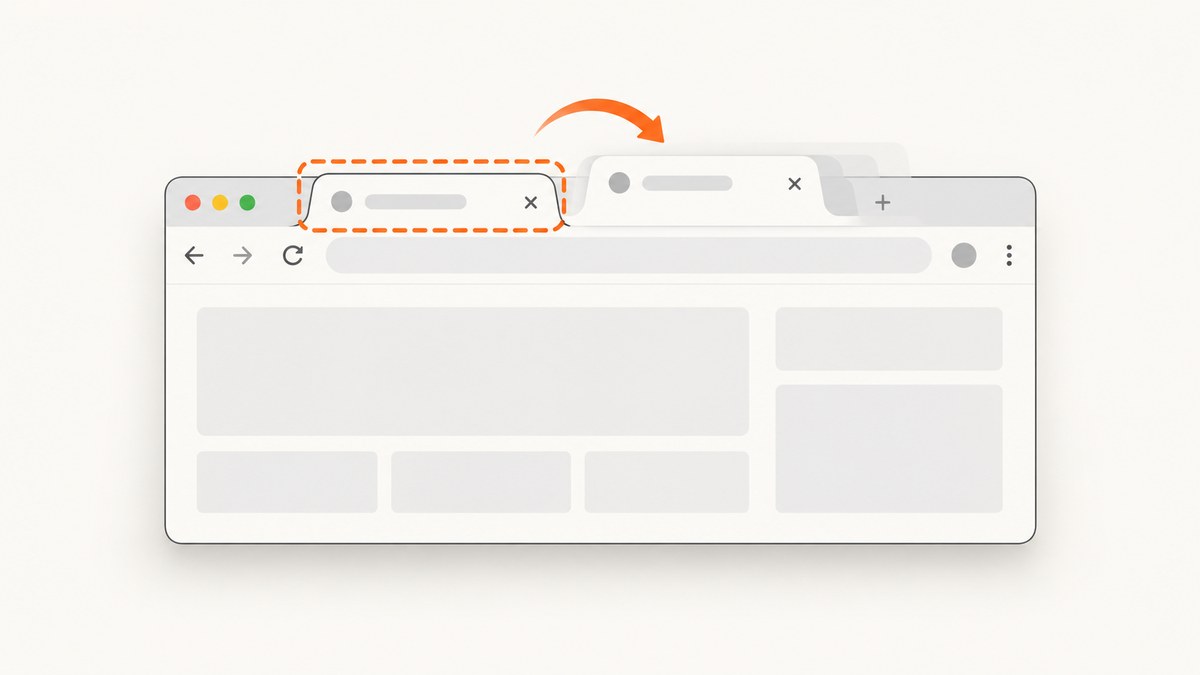
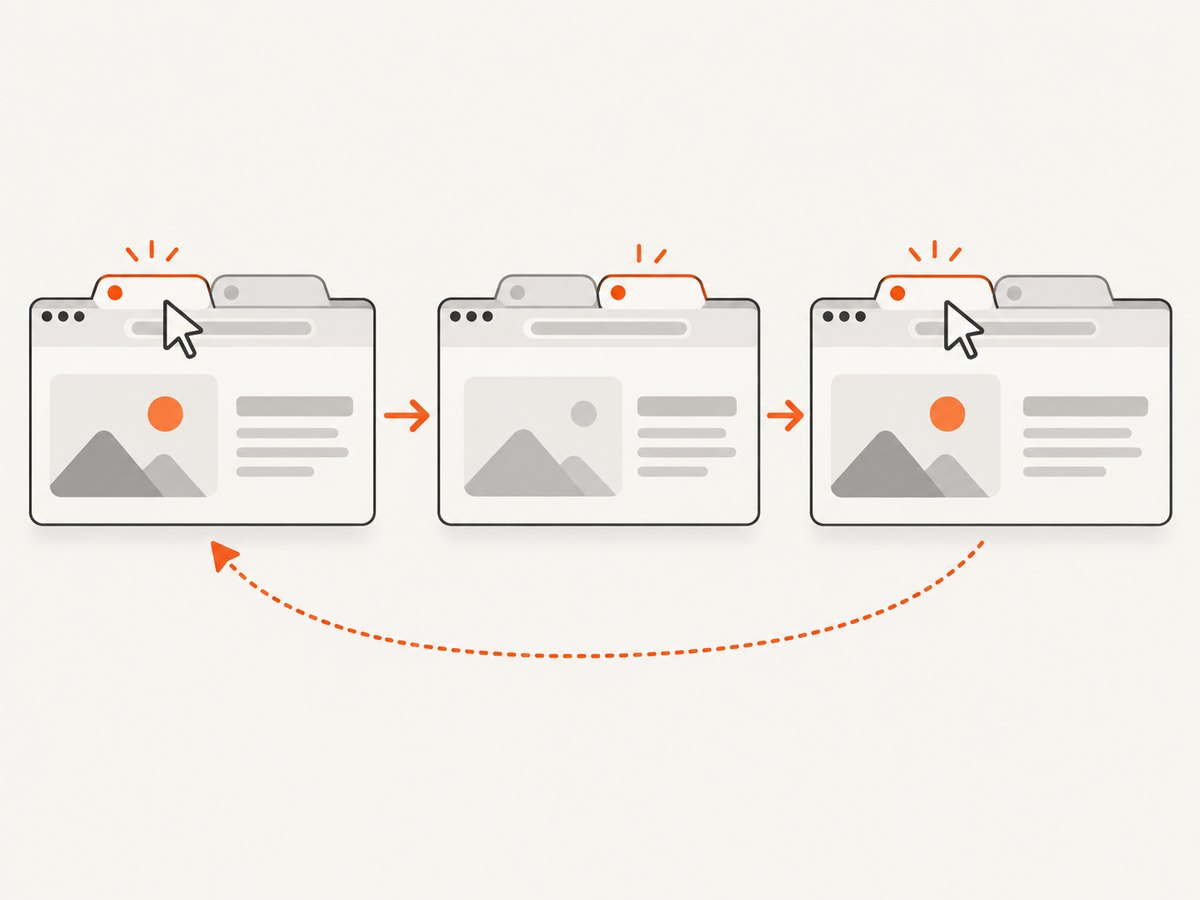
Opening a new tab does not grant permission to capture the tab you just left. Save the original tab ID, start from a user gesture, and explicitly target that ID. A new tab is separate from a navigation in the original tab.
Choose the right API
| Goal | API | Constraint |
|---|---|---|
| Still screenshot | chrome.tabs.captureVisibleTab |
The target must be the active, visible tab. |
| Known tab audio/video | chrome.tabCapture |
Requires extension invocation and access to the target tab. |
| User chooses a source | getDisplayMedia() |
Chrome displays a chooser. |
| Manifest V3 background recording | tabCapture.getMediaStreamId() plus an offscreen document |
Available for this pattern in Chrome 116+; IDs are short-lived and single-use. |
See Chrome’s tabCapture reference, screen-capture guide, and official screenshot sample.
Capture the active tab on extension click
This is the simplest screenshot workflow: the user focuses a tab, clicks your extension, and you capture the visible page.
Manifest V3 files
{
  "manifest_version": 3,
  "name": "Active Tab Shot",
  "version": "1.0.0",
  "permissions": ["activeTab", "tabs"],
  "action": { "default_title": "Capture this tab" },
  "background": { "service_worker": "service-worker.js" }
}
chrome.action.onClicked.addListener(async (tab) => {
if (!tab.id || !tab.windowId) return;
try {
const dataUrl = await chrome.tabs.captureVisibleTab(tab.windowId, {
format: 'png'
});
console.log('Screenshot data URL:', dataUrl);
// Send dataUrl to an extension page or popup for downloading.
} catch (error) {
console.error('Capture failed:', error);
}
});- Open
chrome://extensions. - Enable Developer mode.
- Choose Load unpacked and select the extension directory.
- Open a normal web page and click the extension icon.
A service worker has no normal page DOM. To download the result, send the data URL to a popup or extension page and use an anchor element or the Downloads API there. Restricted browser pages such as chrome://settings may be inaccessible.
Capture the tab that was open before a new tab
Store the original tab ID when the extension is invoked. When a new tab appears, activate the saved tab before calling captureVisibleTab, because that API captures the active tab.
let sourceTabId = null;
let sourceWindowId = null;
let waitingForNewTab = false;

chrome.action.onClicked.addListener((tab) => {
  if (!tab.id || !tab.windowId) return;
  sourceTabId = tab.id;
  sourceWindowId = tab.windowId;
  waitingForNewTab = true;
});

chrome.tabs.onCreated.addListener(async (newTab) => {
  if (!waitingForNewTab || !sourceTabId || !sourceWindowId) return;
  waitingForNewTab = false;
  try {
    await chrome.tabs.update(sourceTabId, { active: true });
    const image = await chrome.tabs.captureVisibleTab(sourceWindowId, {
      format: 'png'
    });
    console.log({ newTabId: newTab.id, sourceTabId, image });
  } catch (error) {
    console.error('Could not capture previous tab:', error);
  }
});

chrome.tabs.onRemoved.addListener((tabId) => {
  if (tabId === sourceTabId) {
    sourceTabId = null;
    waitingForNewTab = false;
  }
});
This temporarily switches the visible tab. If that is undesirable, capture before creating the new tab: handle your own button, call captureVisibleTab, then call chrome.tabs.create. Do not assume the newly active blank tab is the intended source.
Record a known tab with tabCapture
Use tabCapture for a live MediaStream, not a one-off PNG. Add activeTab and tabCapture permissions and start from the extension action.
chrome.action.onClicked.addListener(async (tab) => {
  if (!tab.id) return;
  try {
    const streamId = await chrome.tabCapture.getMediaStreamId({
      targetTabId: tab.id
    });
    console.log('Pass this short-lived ID to an offscreen document:', streamId);
  } catch (error) {
    console.error('tabCapture failed:', error);
  }
});
In the consuming extension page or offscreen document:
const stream = await navigator.mediaDevices.getUserMedia({
  audio: { mandatory: { chromeMediaSource: 'tab', chromeMediaSourceId: streamId } },
  video: { mandatory: { chromeMediaSource: 'tab', chromeMediaSourceId: streamId } }
});
const recorder = new MediaRecorder(stream, { mimeType: 'video/webm' });
const chunks = [];
recorder.ondataavailable = (event) => chunks.push(event.data);
recorder.onstop = () => {
  const file = new Blob(chunks, { type: 'video/webm' });
  console.log('Recorded bytes:', file.size);
};
recorder.start();
// Later: recorder.stop();
// stream.getTracks().forEach((track) => track.stop());
Acquiring a tab stream changes local audio behavior: Chrome does not play the tab’s audio to the user by default. Implement the documented local-playback preservation path if required. Capture persists through navigations in that tab, but ends when the tab closes or tracks are stopped.
Let the user choose with getDisplayMedia()
const stream = await navigator.mediaDevices.getDisplayMedia({
  video: { displaySurface: 'browser' },
  audio: true
});
const recorder = new MediaRecorder(stream);
const chunks = [];
recorder.ondataavailable = (event) => chunks.push(event.data);
recorder.onstop = () => {
  const blob = new Blob(chunks, { type: 'video/webm' });
  console.log(URL.createObjectURL(blob));
};
recorder.start();
// Stop from your UI: recorder.stop();
// stream.getTracks().forEach((track) => track.stop());
Chrome shows a dialog where the person chooses a tab, window, or screen. Use this when source selection matters. Capture started from a content script ends when the user navigates; background capture across navigations requires an offscreen document.
Permissions and lifecycle checklist
- Request
activeTaband begin from a user gesture. - Add
tabCaptureonly for MediaStream recording. - Keep the target tab ID; do not substitute whichever tab is active later.
- Handle
tabs.onRemovedand stale IDs. - Stop tracks when recording ends.
- For Chrome 116+ Manifest V3 background recording, pass the stream ID promptly to an offscreen document.
Common errors and fixes
| Symptom | Cause | Fix |
|---|---|---|
| Cannot access URL | Restricted page or missing temporary access. | Capture a normal web page after the action click, or use getDisplayMedia(). |
| Blank new-tab screenshot | The new tab became active first. | Store the original ID and activate it before capture. |
captureVisibleTab fails |
Invalid window, closed tab, or overlapping calls. | Use the source window ID, verify existence, and serialize captures. |
getMediaStreamId fails |
No invocation, missing permission, or wrong target ID. | Start from the action click and declare activeTab and tabCapture. |
| No recording audio | Tab capture changes local audio routing. | Implement local-playback preservation and verify the tab has audio. |
| Stream works once | Stream IDs are short-lived and single-use. | Request a new ID for every recording. |
| Capture stops after navigation | Content-script display capture is page-bound. | Move consumption to an offscreen document. |
Performance, reliability, and privacy
- Latency: activating the previous tab adds a visible switch. Capturing before opening the tab avoids it.
- Memory: PNG data URLs and recorded chunks use memory. Stream long recordings incrementally.
- Reliability: serialize calls, re-check tab existence, and treat tab closure and permission expiry as normal outcomes.
- Privacy: request capture after a clear user action and identify which tab is being captured.
Or skip the browser setup
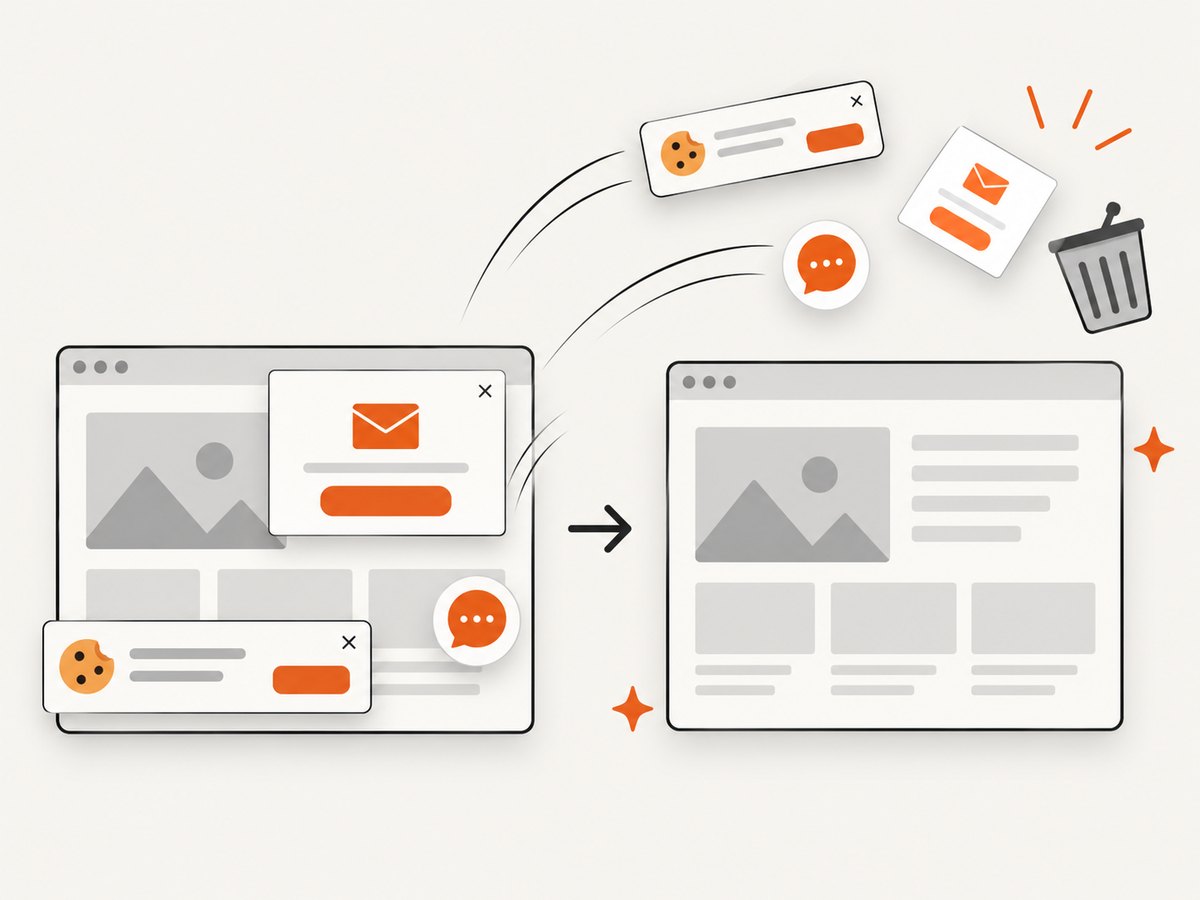
If you need an image or PDF of a URL, ScreenshotNeo provides a one-request screenshot API and an MCP server for Claude, Cursor, and other MCP clients. Cookie and consent banners, newsletter popups, and chat widgets are removed before capture. Bot checks, blank pages, failed loads, timeouts, and cache hits are not billed, and response headers identify the page verdict and billing status.
See the ScreenshotNeo API documentation. cURL:
curl -G "https://api.screenshotneo.com/v1/shot" -d access_key=YOUR_API_KEY --data-urlencode url=https://stripe.com -o shot.webpPython:
import requests
r = requests.get("https://api.screenshotneo.com/v1/shot", params={"access_key": "YOUR_API_KEY", "url": "https://stripe.com"}, timeout=90)
open("shot.webp", "wb").write(r.content)
Node.js:
const q = new URLSearchParams({ access_key: 'YOUR_API_KEY', url: 'https://stripe.com' });
const res = await fetch(`https://api.screenshotneo.com/v1/shot?${q}`);
The free plan includes 1,000 screenshots a month with no card. Paid plans start at $5 for 3,000. Create a free ScreenshotNeo account.
FAQ
Can I capture the previous tab without making it active?
No. captureVisibleTab captures the active visible tab. Activate the saved tab first or capture before opening the new tab.
Does opening a new tab preserve permission?
No. It does not authorize the new tab or silently grant access to the old one.
Which API captures a still image?
chrome.tabs.captureVisibleTab. Use tabCapture for live audio and video.
When should I use getDisplayMedia()?
Use it when the user must choose a tab, window, or screen.
Can a Manifest V3 service worker record in the background?
In Chrome 116 and later, it can obtain a stream ID and hand it to an offscreen document, subject to invocation and permission requirements.