How to Capture a Client-Side Screenshot with JavaScript
Learn when to use html2canvas or getDisplayMedia(), with complete JavaScript code, permissions, cross-origin fixes, troubleshooting, and a server-side option.
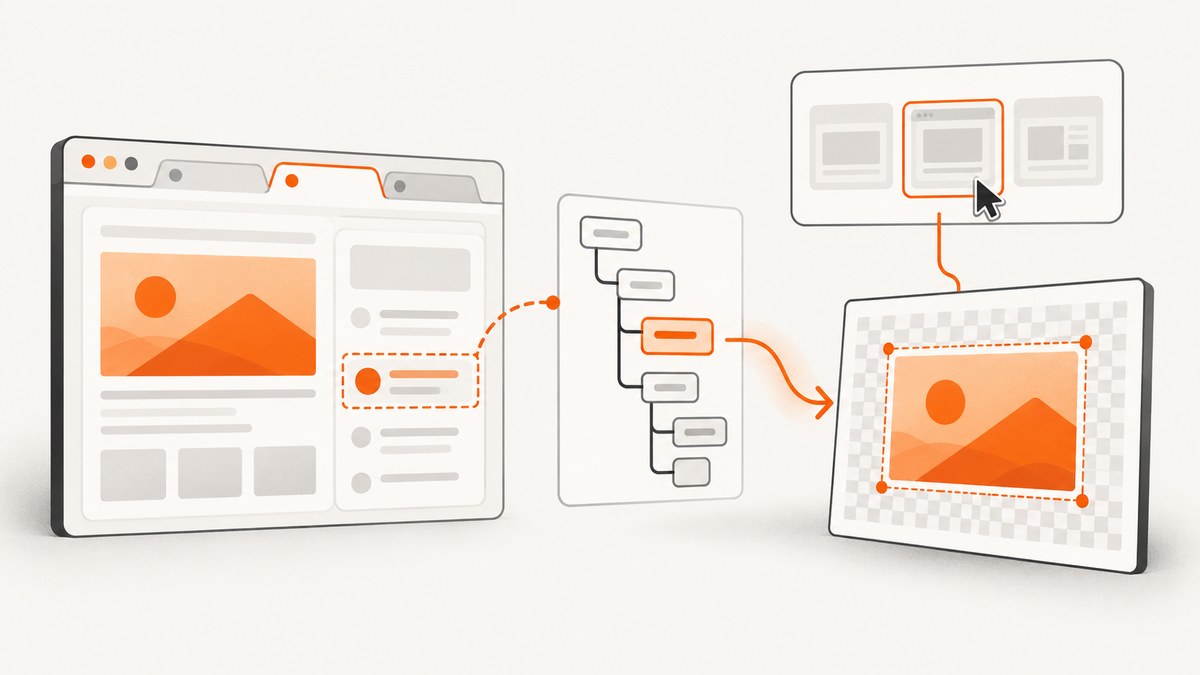
Use html2canvas when you need an image of an element your page controls. Use navigator.mediaDevices.getDisplayMedia() when the user must choose a tab, window, or monitor. They solve different problems: html2canvas reconstructs a view from DOM information, while the Screen Capture API returns a live stream of the selected display surface.
This distinction determines image fidelity, permissions, cross-origin behavior, browser support, and whether your application can run without user interaction. The examples below show both approaches, how to save or upload the result, and how to handle the failures developers commonly encounter.
1. Choose the right screenshot method
| Requirement | Start with | Main trade-off |
|---|---|---|
| Capture an app-owned card, chart, or page section | html2canvas | It rebuilds pixels from readable DOM and supported styles; it is not a literal browser screenshot. |
| Capture a user-selected tab, window, or monitor | getDisplayMedia() |
The browser prompts for permission and selection, then returns a stream. |
| Capture from a browser extension | Extension screenshot APIs | They can be more reliable for browser chrome and avoid some canvas limits. |
| Generate screenshots without a user present | Headless Chromium with Puppeteer or Playwright | This runs on a server, not in the client browser. |
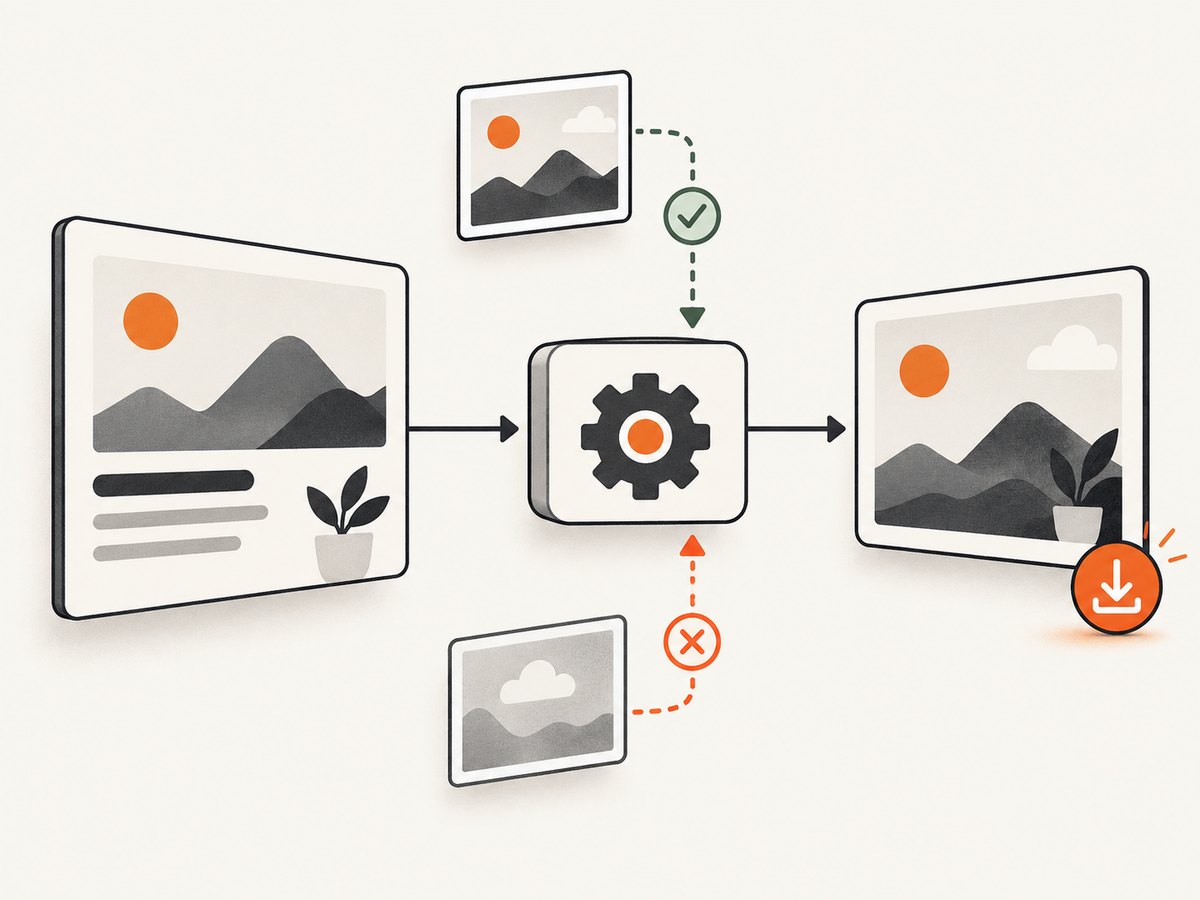
The html2canvas documentation describes its output as a reconstruction based on DOM information, so CSS that the library cannot read will not be reproduced faithfully. The MDN getDisplayMedia reference documents the browser-native route for user-selected display surfaces.
2. Capture an HTML element with html2canvas
Install or load the library
For a small client-rendered page, load the browser bundle from your package build or a script tag. With npm:
npm install html2canvasimport html2canvas from 'html2canvas';Then give the element a stable reference. The following example captures a card, previews the PNG, and downloads it when the user clicks a button.
<article id="invoice" class="invoice-card">
  <h1>Invoice 1042</h1>
  <p>Total: $240.00</p>
</article>
<button id="download" type="button">Download screenshot</button>
<img id="preview" alt="Invoice screenshot preview" />

<script type="module">
  import html2canvas from 'html2canvas';

  const button = document.querySelector('#download');
  const target = document.querySelector('#invoice');
  const preview = document.querySelector('#preview');

  button.addEventListener('click', async () => {
    button.disabled = true;
    try {
      const canvas = await html2canvas(target, {
        backgroundColor: '#ffffff',
        scale: Math.min(window.devicePixelRatio || 1, 2),
        useCORS: true,
        logging: false
      });

      if (!canvas.width || !canvas.height) {
        throw new Error('The screenshot canvas is empty.');
      }

      const pngUrl = canvas.toDataURL('image/png');
      preview.src = pngUrl;

      const link = document.createElement('a');
      link.download = 'invoice-1042.png';
      link.href = pngUrl;
      link.click();
    } catch (error) {
      console.error('Could not capture element', error);
      alert('The element could not be captured. Check cross-origin assets and browser limits.');
    } finally {
      button.disabled = false;
    }
  });
</script>
scale controls output density. A value of 2 is useful for retina previews, but it also quadruples the number of pixels and memory required. Capture after fonts, images, and data have finished rendering; otherwise the canvas can contain placeholders or incomplete content.
Useful html2canvas options
| Option | Why you might use it |
|---|---|
backgroundColor |
Set a solid background, or use null when transparency is appropriate. |
scale |
Increase or reduce output resolution. Keep it bounded for large elements. |
useCORS |
Requests images with CORS mode, but the image server must send an appropriate Access-Control-Allow-Origin header. |
allowTaint |
Controls whether cross-origin images may taint the canvas. A tainted canvas cannot be exported safely. |
imageTimeout |
Sets how long html2canvas waits for images before continuing. |
windowWidth and windowHeight |
Define the layout viewport used while rendering. |
onclone |
Modify the cloned document, such as hiding a button, without changing the live page. |
ignoreElements |
Skip dynamic or sensitive nodes that should not appear in the output. |
Remote images must be same-origin unless the remote server permits CORS or you provide a proxy. Existing canvases that contain cross-origin pixels may already be tainted. Cross-origin iframes cannot be traversed because the page cannot access their contentDocument. These are documented limitations in the html2canvas FAQ.
Capture a full page or a modified clone
const canvas = await html2canvas(document.body, {
  windowWidth: document.documentElement.scrollWidth,
  windowHeight: document.documentElement.scrollHeight,
  scrollX: 0,
  scrollY: 0,
  onclone: (clonedDocument) => {
    clonedDocument.querySelectorAll('.cookie-banner, .chat-widget')
      .forEach((node) => node.remove());
  }
});

const blob = await new Promise((resolve) => canvas.toBlob(resolve, 'image/webp', 0.9));
if (!blob) throw new Error('Could not encode the canvas.');
const file = new File([blob], 'page.webp', { type: 'image/webp' });
Full-page captures can exceed browser canvas dimensions or memory limits. The FAQ warns that limits vary by browser and platform; an oversized canvas may be blank or partial without throwing an exception. Check dimensions, inspect the image, and test on the browsers and devices you support.
3. Capture the user’s tab, window, or screen
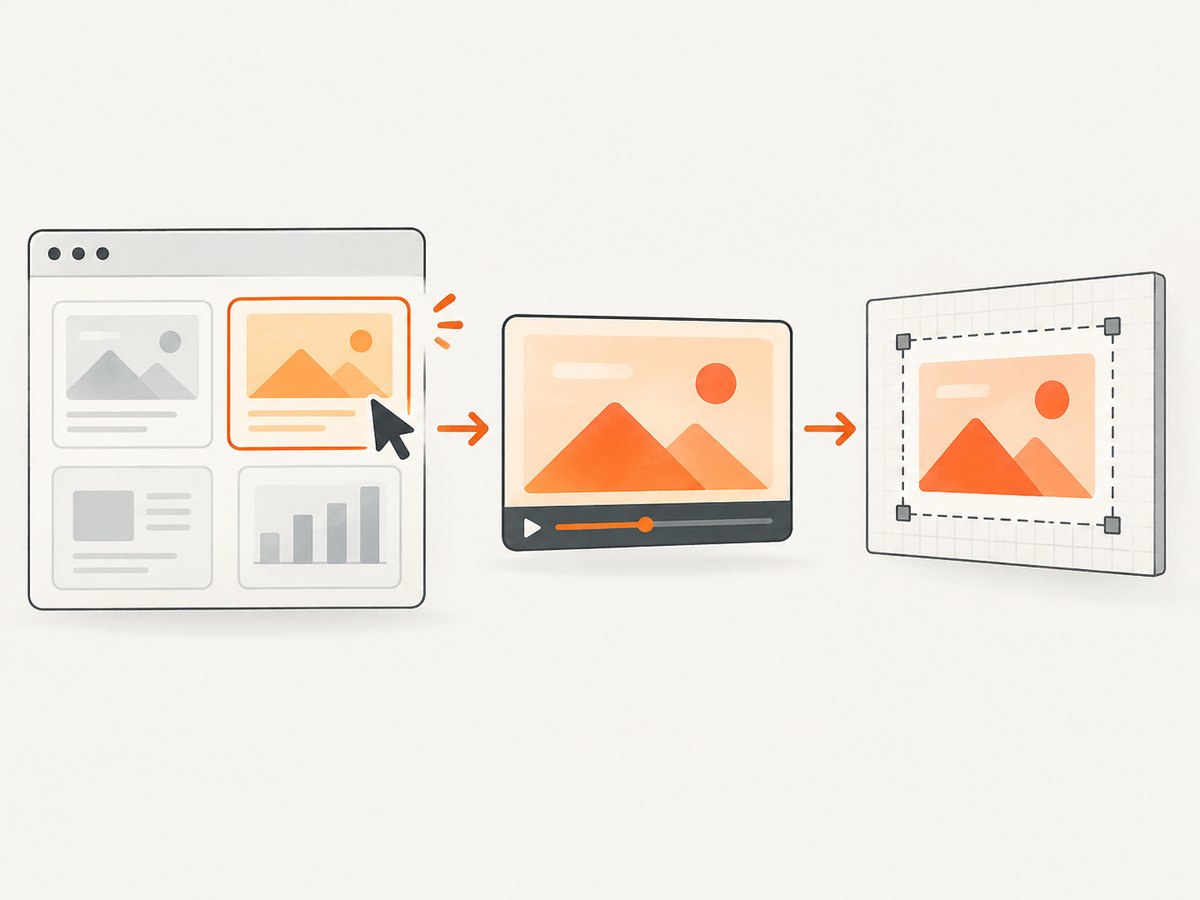
getDisplayMedia() must be called from a transient user action such as a click. It requires a secure context (HTTPS, or localhost during development), browser support, and explicit user permission. The browser owns the picker: your page cannot silently force a particular tab or monitor.
<button id="share-screen" type="button">Choose a surface</button>
<video id="surface-preview" autoplay muted playsinline></video>
<a id="save-frame" hidden>Download frame</a>

<script>
  const button = document.querySelector('#share-screen');
  const video = document.querySelector('#surface-preview');
  const save = document.querySelector('#save-frame');

  button.addEventListener('click', async () => {
    if (!navigator.mediaDevices?.getDisplayMedia) {
      alert('This browser does not support display capture.');
      return;
    }

    let stream;
    try {
      stream = await navigator.mediaDevices.getDisplayMedia({
        video: { cursor: 'include' },
        audio: false
      });
      video.srcObject = stream;

      await new Promise((resolve) => {
        video.addEventListener('loadedmetadata', resolve, { once: true });
      });
      await video.play();

      const canvas = document.createElement('canvas');
      canvas.width = video.videoWidth;
      canvas.height = video.videoHeight;
      const context = canvas.getContext('2d');
      context.drawImage(video, 0, 0, canvas.width, canvas.height);

      const blob = await new Promise((resolve) => canvas.toBlob(resolve, 'image/png'));
      if (!blob) throw new Error('The selected frame could not be encoded.');

      const url = URL.createObjectURL(blob);
      save.href = url;
      save.download = 'display-capture.png';
      save.hidden = false;

      const track = stream.getVideoTracks()[0];
      track.addEventListener('ended', () => {
        URL.revokeObjectURL(url);
        save.hidden = true;
      }, { once: true });
    } catch (error) {
      if (error.name === 'NotAllowedError') {
        alert('Capture was denied or cancelled.');
      } else if (error.name === 'NotFoundError') {
        alert('No display surface was selected.');
      } else {
        console.error('Display capture failed', error);
      }
    }
  });
</script>
The API returns a MediaStream, not an image. Drawing a video frame to a canvas is the step that creates a still image. Keep the preview visible so users can confirm that they selected the intended surface before saving or uploading it.
Stop capture and handle lifecycle events
function stopStream(stream) {
  stream?.getTracks().forEach((track) => track.stop());
  video.srcObject = null;
}

const track = stream.getVideoTracks()[0];
track.addEventListener('ended', () => {
  // The user clicked the browser's stop-sharing control.
  stopStream(stream);
});
Handle cancellation, denial, unsupported browsers, and the user ending capture from browser controls. If the capture UI is inside an iframe, the embedding document may need a Permissions Policy that allows display-capture. Never upload a frame automatically without giving the user a clear preview and destination; a mistaken selection can expose private information.
4. Cross-origin, CSS, and content edge cases
- Images from another origin: use a same-origin asset, configure CORS on the image host, or proxy the asset through your own origin.
useCORS: truecannot override a server that sends no CORS header. - Cross-origin iframes: html2canvas cannot inspect their DOM. Ask the framed application to render its own image, use a server-side browser, or capture the whole display with
getDisplayMedia(). - Unsupported CSS: complex filters, blend modes, some SVG features, video frames, and browser chrome may differ from what users see. Compare the result against the live page.
- Web fonts: wait for
document.fonts.readybefore capturing. - Animations: pause them or capture at a known state to avoid inconsistent frames.
- Huge pages: reduce
scale, capture sections, or generate the image on a server. Canvas limits are platform-dependent. - Privacy: redact secrets in the DOM and tell users exactly what a display capture can include.
await document.fonts.ready;
document.querySelectorAll('*').forEach((node) => {
  node.style.animationPlayState = 'paused';
});
5. Performance and reliability checklist
- Capture only the required element when possible.
- Wait for fonts, images, and application data before rendering.
- Keep retina scale bounded, usually at 1 or 2.
- Use
toBlob()instead of a very large base64 data URL when uploading. - Release object URLs with
URL.revokeObjectURL(). - Measure canvas width and height before encoding.
- Test low-memory phones and every target browser.
- For display capture, stop tracks as soon as the still frame is obtained.
- For sensitive screens, show a preview and require an explicit upload action.
Client-side capture consumes the user’s CPU and memory and depends on what the browser can access. A headless browser is usually a better fit for scheduled jobs, many URLs, repeatable viewport settings, or content that must be captured without a person present.
6. Troubleshooting common failures
| Symptom | Likely cause | Fix |
|---|---|---|
SecurityError when calling toDataURL() |
The canvas is tainted by a cross-origin image. | Serve the image with CORS, proxy it, or remove it from the capture. |
| Remote images are missing | The image request failed or lacks CORS headers. | Verify the URL in DevTools, enable useCORS, and configure the asset server. |
| An iframe is blank | It is cross-origin and inaccessible to the page. | Capture inside the iframe’s origin or use display/server capture. |
| The output is blank or clipped | Canvas dimensions exceed a browser or platform limit. | Capture smaller sections, lower scale, and validate dimensions. |
getDisplayMedia is not a function |
Unsupported browser or insecure context. | Use HTTPS, check feature detection, and provide an alternate flow. |
NotAllowedError |
The user denied or cancelled the picker, or the call lacked activation. | Call it directly from a click and explain why permission is needed. |
| The wrong screen was shared | The user selected a different surface. | Show the live preview and ask the user to stop and choose again. |
| Text or layout differs | Unsupported CSS, missing fonts, or a different viewport. | Wait for fonts, set viewport options, simplify unsupported styles, and compare on target browsers. |
7. Or skip the browser setup
When you need repeatable screenshots of URLs, a server-side capture API avoids shipping browser automation and permission prompts to every user. ScreenshotNeo returns a PNG, JPEG, WebP, or PDF from one GET request. Before capture it accepts the cookie or consent banner and removes more than 60 known consent platforms, newsletter popups, and chat widgets; each step can be disabled.
Only clean shots are billed. Bot checks and CAPTCHAs, blank pages, timeouts, failed loads, and cache hits cost nothing, and every response reports the result in X-Page-Verdict and X-Billed headers. It also provides an MCP server for Claude, Cursor, and other MCP clients, with take_screenshot, get_page_info, and capture_pdf tools.
cURL
curl -G "https://api.screenshotneo.com/v1/shot" \
  -d access_key=YOUR_API_KEY \
  --data-urlencode url=https://stripe.com \
  -o shot.webp
Python
import requests

r = requests.get(
    "https://api.screenshotneo.com/v1/shot",
    params={"access_key": "YOUR_API_KEY", "url": "https://stripe.com"},
    timeout=90,
)
r.raise_for_status()
open("shot.webp", "wb").write(r.content)
Node.js
const q = new URLSearchParams({
  access_key: 'YOUR_API_KEY',
  url: 'https://stripe.com'
});
const res = await fetch(`https://api.screenshotneo.com/v1/shot?${q}`);
if (!res.ok) throw new Error(`Screenshot failed: ${res.status}`);
const fs = await import('node:fs/promises');
await fs.writeFile('shot.webp', Buffer.from(await res.arrayBuffer()));
See the ScreenshotNeo API documentation for the complete option list. You can choose full-page capture with lazy images loaded, an element by CSS selector, dark mode, 12 device presets or any viewport, retina scale, PDF paper size and page ranges, custom CSS and JavaScript, clicks, selector or network-idle waits, blocked ads and resource types, headers, cookies, user agents, authorization, timezone, geolocation, transparent backgrounds, resizing, a chosen cache TTL, signed links, asynchronous jobs with signed webhooks, bulk capture of up to 100 URLs per call, usage data, and the OpenAPI specification. Common parameter names used by other screenshot APIs also work.
Plans include 1,000 shots per month free with no card. Paid plans start at $5 for 3,000 shots; yearly billing gives two months free, and every feature is available on every plan. Create a free ScreenshotNeo account and start with the included monthly shots.
8. FAQ
Can JavaScript take a screenshot without asking the user?
Not of an arbitrary tab, window, or monitor. Display capture requires a secure context, transient user activation, permission, and a user-selected surface. An app can render its own DOM element with html2canvas without a display-picker prompt, subject to DOM and cross-origin limits.
Is html2canvas pixel-perfect?
No. It reconstructs an image from DOM information and supported styles. It does not read the browser’s final composited pixels, so some CSS, fonts, videos, iframes, and browser UI will differ.
How do I capture a single element?
Pass that element to html2canvas(element, options). Wait for its content to finish loading, then export the returned canvas with toBlob() or toDataURL().
Can I capture a cross-origin iframe?
The parent page cannot traverse a cross-origin iframe’s DOM. Coordinate with the framed origin, capture it on a server, or ask the user to select the visible tab or window with getDisplayMedia().
When should I use a server-side API?
Use one for scheduled or bulk URL capture, consistent output, PDFs, authenticated headers, or pages that users should not have to open and approve. A client-side method is better when the user is already viewing an app-owned element or explicitly selecting a display surface.


