How to Capture Screenshots of Cloudflare-Protected Websites
Capture Cloudflare-protected pages correctly: complete the challenge in a stable browser, use Browser Rendering when authorized, and avoid unsupported bypasses.
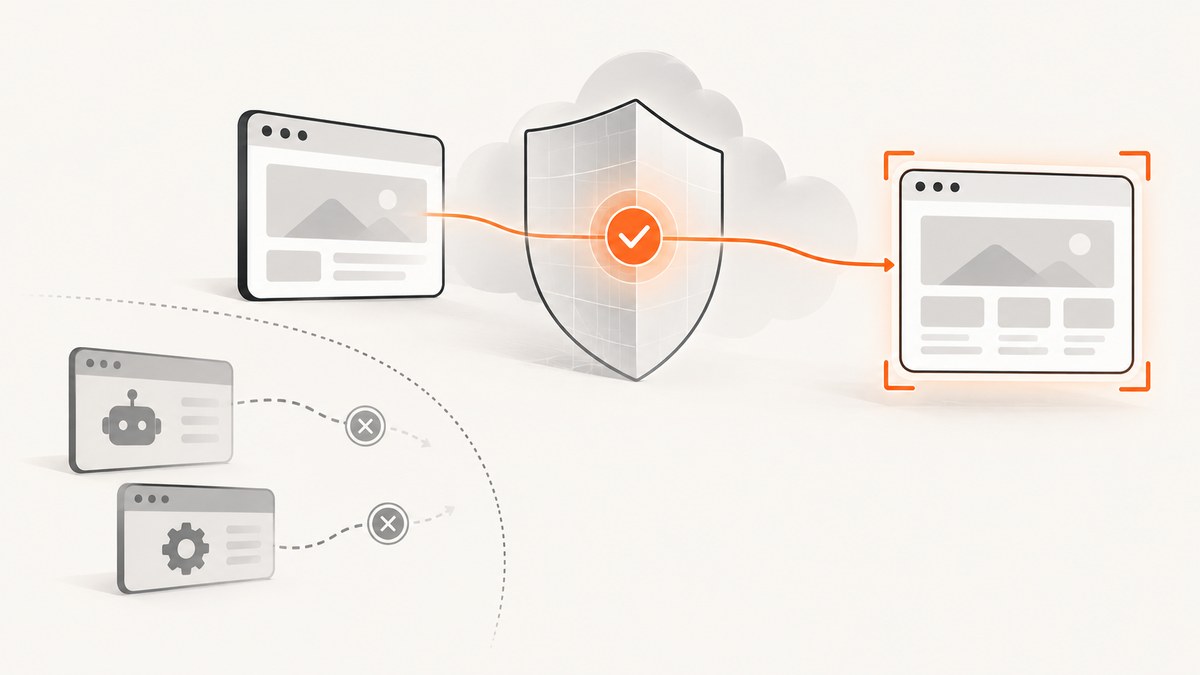
Short answer: Open the URL in a current, JavaScript-enabled browser, complete Cloudflare’s Challenge Page as the legitimate visitor, keep the same browser session and network path, wait for the real page to render, then use the browser’s native screenshot command. For an authorized, repeatable workflow that you own, Cloudflare Browser Rendering provides a /screenshot endpoint that executes the page’s HTML and JavaScript before capturing it.
A Cloudflare challenge is an access gate, not the page you requested. If you capture too early, your image will show the interstitial instead of the destination. This guide explains the supported workflow, what can and cannot be automated, the first-party API route, and production checks.
1. What Cloudflare protection changes
An interstitial Challenge Page is a full-page screen shown before the visitor reaches the destination while Cloudflare evaluates browser and network signals. Managed Challenge chooses an appropriate challenge dynamically and is Cloudflare’s recommended default for most WAF rules. The browser may pass automatically, or it may ask for an interaction.
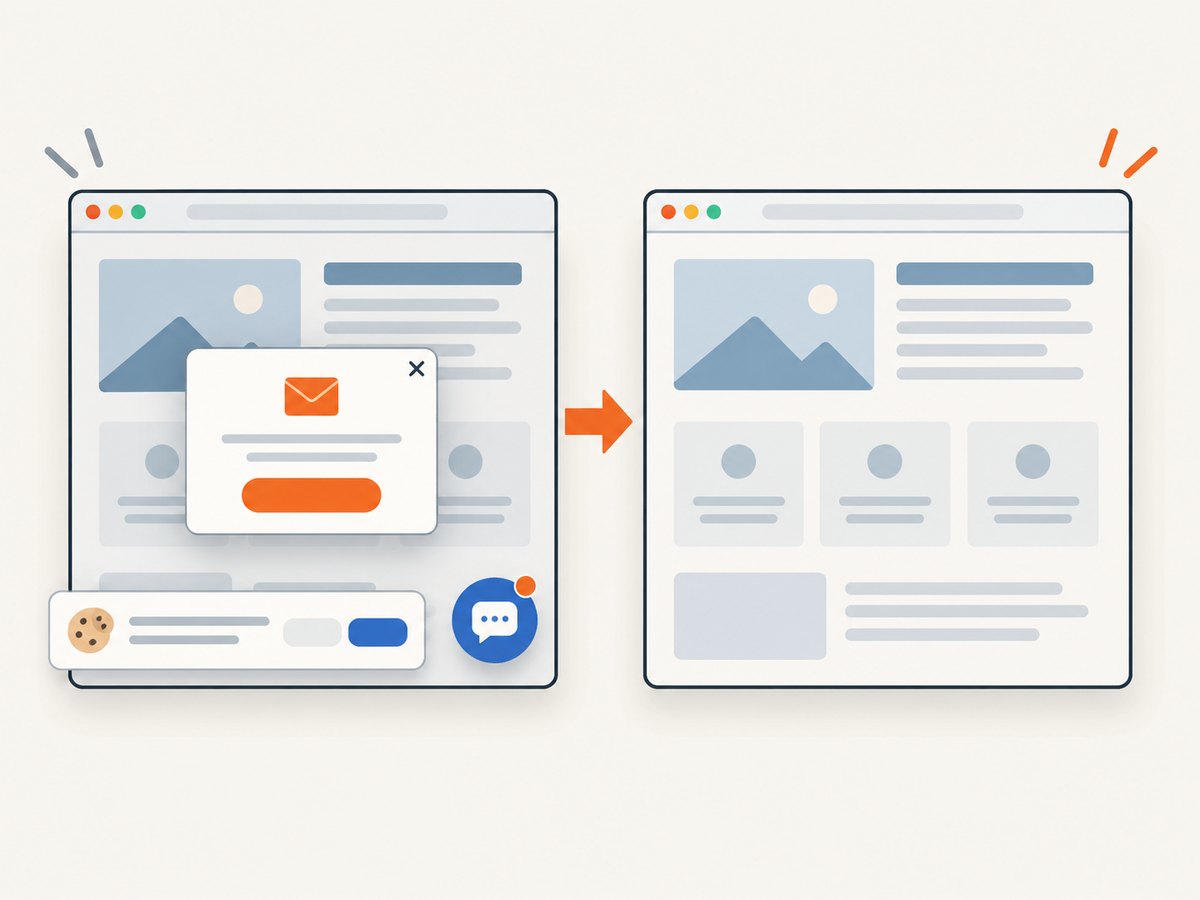
Turnstile is different: it is normally embedded in the destination page. It can run invisibly, run in the background, or display a checkbox when risk signals require one. The site must validate the token with Turnstile Siteverify before trusting it. A screenshot can therefore contain a Turnstile widget even after the interstitial is gone.
Cloudflare challenges are tied to the session and network path. A solve request from a different IP can be invalid and produce a loop. Keep one tab, one browser profile, and one stable connection from challenge through capture.
See Cloudflare’s Challenge Pages, Turnstile, and Browser Rendering screenshot endpoint documentation.
2. The supported manual method
- Use an up-to-date mainstream browser. Enable JavaScript and allow the site to set cookies. Private browsing, script blockers, and aggressive privacy extensions can prevent a legitimate check from completing.
- Open the exact URL. Do not start with a separate API client or a second tab. The challenge decision is made for this browser session.
- Complete the interstitial. Wait for automatic verification. If a checkbox or other interaction appears, complete it yourself. Never attempt to defeat or evade a challenge on a site you do not own or have permission to access.
- Keep the network unchanged. Do not switch VPN exit nodes, proxies, Wi-Fi, or cellular networks. Cloudflare documents that an IP change can invalidate the solve.
- Confirm the destination. Check the address bar and visible content. The page title, navigation, and main content should be those of the target, not a challenge screen.
- Wait for rendering. Let images, fonts, client-side data, and lazy sections finish. Scroll through a long page once if you need below-the-fold lazy content to load.
- Capture natively. Use your browser’s built-in full-page screenshot, or a viewport screenshot for a specific frame. Save PNG for lossless text, JPEG for smaller photographic files, or WebP when your downstream system supports it.
- Review before sharing. Crop or redact account data, tokens, email addresses, and other sensitive information.
3. Browser screenshot examples
Chrome and Chromium
Open DevTools, press Ctrl/Cmd+Shift+P, type Capture full size screenshot, and press Enter. Choose Capture screenshot for the current viewport.
Firefox
Open the page menu, choose Take Screenshot, then select Save full page or a selected region.
Safari
Use Web Inspector’s screenshot command for a viewport, or print the fully loaded page to PDF when a PDF is the required artifact. Verify that the printed output includes the content you need.
These commands capture what the current, verified session can see. They do not solve a challenge for another session and do not turn an unauthorized request into an authorized one.
4. Why common automation attempts fail
Cloudflare’s supported-browsers reference explicitly says that Selenium, Puppeteer, Playwright, and Cypress are not supported for solving production challenges. A script may open the interstitial, but that does not make it a supported challenge-solving workflow. Repeated retries can also trigger more checks.
If you control the protected site, use an approved integration instead. If you are an authorized consumer, use the interactive browser process above or ask the site owner for an integration that grants access to the rendered content you need. Do not present browser automation as a bypass.
5. Authorized Cloudflare Browser Rendering screenshot API
Cloudflare Browser Run’s /screenshot quick action accepts a URL or HTML, processes its HTML and JavaScript, and captures the fully rendered result. It is designed for previews, dashboards, reports, automated testing, and visual regression of content you are authorized to access.
REST request
REST calls require a custom Cloudflare API token with Browser Rendering – Edit permission. Keep the token on your server; never place it in browser JavaScript or a public repository. The exact account endpoint and request schema are maintained in Cloudflare’s current API reference.
curl -X POST "https://api.cloudflare.com/client/v4/accounts/ACCOUNT_ID/browser-rendering/screenshot" \
  -H "Authorization: Bearer $CLOUDFLARE_API_TOKEN" \
  -H "Content-Type: application/json" \
  --data '{"url":"https://example.com"}' \
  --output page.png
Replace ACCOUNT_ID and the token with values from your Cloudflare account. Treat the response as image binary. For HTML you own, send the documented HTML input instead of a URL. A Worker can call Browser Rendering through its Workers binding, avoiding a long-lived API token in application code.
cURL with HTML
curl -X POST "https://api.cloudflare.com/client/v4/accounts/ACCOUNT_ID/browser-rendering/screenshot" \
  -H "Authorization: Bearer $CLOUDFLARE_API_TOKEN" \
  -H "Content-Type: application/json" \
  --data '{"html":"<html><body><h1>Owned preview</h1></body></html>"}' \
  --output preview.png
Use the current Cloudflare schema for options such as viewport, full-page capture, and image format. Keep rendering jobs bounded: wait for the page’s own data to settle, then capture once.
6. Choosing the right approach
| Need | Best fit | Reason |
|---|---|---|
| One occasional capture | Interactive browser | A human completes the challenge and captures the verified page. |
| Previews or visual regression for a site you operate | Cloudflare Browser Rendering | It executes HTML and JavaScript in a repeatable, authorized API workflow. |
| Capture many unrelated public URLs | Obtain permission first | A challenge is an access control; a screenshot service is not a permission grant. |
| AI agent needs a screenshot tool | ScreenshotNeo | Its MCP server exposes screenshot, page-info, and PDF tools to MCP clients. |
Compare solutions on authorization, rendering fidelity, challenge handling, repeatability, and operational requirements. No documented success-rate or timing statistic exists for this workflow, so plan capacity from your own pages and traffic.
7. Or skip the browser setup
ScreenshotNeo is a website screenshot API and MCP server. It is useful when you are authorized to capture a URL and want a clean, repeatable request without maintaining a browser. It cannot and should not be used to defeat a Cloudflare challenge or access a page you are not allowed to see.

One GET request returns PNG, JPEG, WebP, or PDF. Before capture, ScreenshotNeo accepts the cookie/consent banner like a visitor and removes more than 60 known consent platforms, newsletter popups, and chat widgets; each step can be turned off. Bot checks/CAPTCHAs, blank pages, timeouts, failed loads, and cache hits cost nothing, and the response identifies the result with X-Page-Verdict and X-Billed headers.
Read the complete option list in the ScreenshotNeo API documentation. Relevant controls include full-page capture with lazy images loaded, a CSS element selector, dark mode, 12 device presets or any viewport, retina scale, PDF paper size/margins/landscape/page ranges, custom CSS and JavaScript, clicks, selector or delay or network-idle waits, ad/tracker/request/resource blocking, headers/cookies/user agent/Authorization, timezone and geolocation, transparent backgrounds, resizing, selectable-TTL caching, signed public image links, asynchronous jobs with signed webhooks, bulk capture of up to 100 URLs per call, usage reporting, and an OpenAPI spec. Parameter names used by other screenshot APIs also work.
cURL
curl -G "https://api.screenshotneo.com/v1/shot" -d access_key=YOUR_API_KEY --data-urlencode url=https://stripe.com -o shot.webpPython
import requests
r = requests.get("https://api.screenshotneo.com/v1/shot", params={"access_key": "YOUR_API_KEY", "url": "https://stripe.com"}, timeout=90)
r.raise_for_status()
open("shot.webp", "wb").write(r.content)
Node.js
const q = new URLSearchParams({ access_key: 'YOUR_API_KEY', url: 'https://stripe.com' });
const res = await fetch(`https://api.screenshotneo.com/v1/shot?${q}`);
if (!res.ok) throw new Error(`HTTP ${res.status}`);
const fs = await import('node:fs/promises');
await fs.writeFile('shot.webp', Buffer.from(await res.arrayBuffer()));
These examples target a public URL. For a Cloudflare-protected site, use them only where the owner has authorized the capture and the page is accessible to the service; a response that shows a challenge is evidence that access was not granted.
ScreenshotNeo also provides an MCP server for Claude, Cursor, and other MCP clients. AI agents can call take_screenshot, get_page_info, and capture_pdf. Plans include 1,000 shots per month free with no card; paid plans start at $5 for 3,000 shots. Create a free ScreenshotNeo account.
8. Troubleshooting
| Symptom | Cause | Fix |
|---|---|---|
| Challenge loop | IP, VPN, proxy, or session changed during verification. | Return to one stable browser session and network path; start again. |
| Screenshot is the challenge | The interstitial is still the visible document. | Wait for verification, confirm destination content, then capture. |
| Automation gets blocked | Production challenge solving by Selenium, Puppeteer, Playwright, or Cypress is unsupported. | Use an interactive browser or an owner-approved integration. |
| Turnstile remains visible | It is an embedded widget and may require a risk-based checkbox. | Let the page finish and follow the site’s legitimate flow; do not script token fabrication. |
| AJAX/API calls fail | An interstitial interrupts non-HTML requests such as XHR. | If you operate the site, implement documented Turnstile pre-clearance; otherwise request an approved API. |
| Browser Rendering returns 401/403 | Missing token or insufficient permission. | Create a custom token with Browser Rendering – Edit and keep the account ID correct. |
| Image is blank or incomplete | Capture happened before client rendering or lazy loading finished. | Wait for network/data completion, scroll lazy sections, and capture once settled. |
9. Reliability, performance, and cost checklist
- Reliability: Keep challenge and capture on one session and IP path. Record the final URL, timestamp, and whether the image is the destination or an interstitial.
- Performance: Avoid repeated retries. Wait for a meaningful selector or application-ready state, and disable unnecessary resources only when your authorized workflow permits it.
- Security: Store API tokens in server-side secrets, redact sensitive pixels, and restrict screenshot access and signed-link TTLs.
- Cost: Cloudflare account charges depend on your account and current plan. ScreenshotNeo bills only clean shots; bot checks/CAPTCHAs, blank pages, timeouts, failed loads, and cache hits are free. Check
X-Billedand usage data when budgeting. - Repeatability: Fix viewport, timezone, locale, user agent, and wait conditions for visual regression. Cache only when a stale image is acceptable.
10. FAQ
Can I screenshot a Cloudflare page without solving the challenge?
No supported method turns an access challenge into permission. Complete it as the legitimate user or use an integration provided by the site owner.
Why does changing my VPN cause a loop?
Cloudflare can bind the solve to the original network path. A different IP can invalidate it, so keep the connection stable.
Does Turnstile always show a checkbox?
No. It can be invisible or managed in the background; a checkbox appears only when risk signals require interaction.
Can I use Cloudflare’s screenshot endpoint on a third-party site?
Only when you are authorized and the required credentials and access are available. The endpoint is a rendering tool, not a bypass.
What should I do when a screenshot service returns the challenge?
Treat it as an access result. Verify authorization, use the owner’s approved integration, or capture manually after completing the challenge.


