How to Capture the Correct Element with AShot
Capture a specific Selenium element with AShot, diagnose incorrect crops, and account for coordinate providers, scrolling, and device pixel ratio.
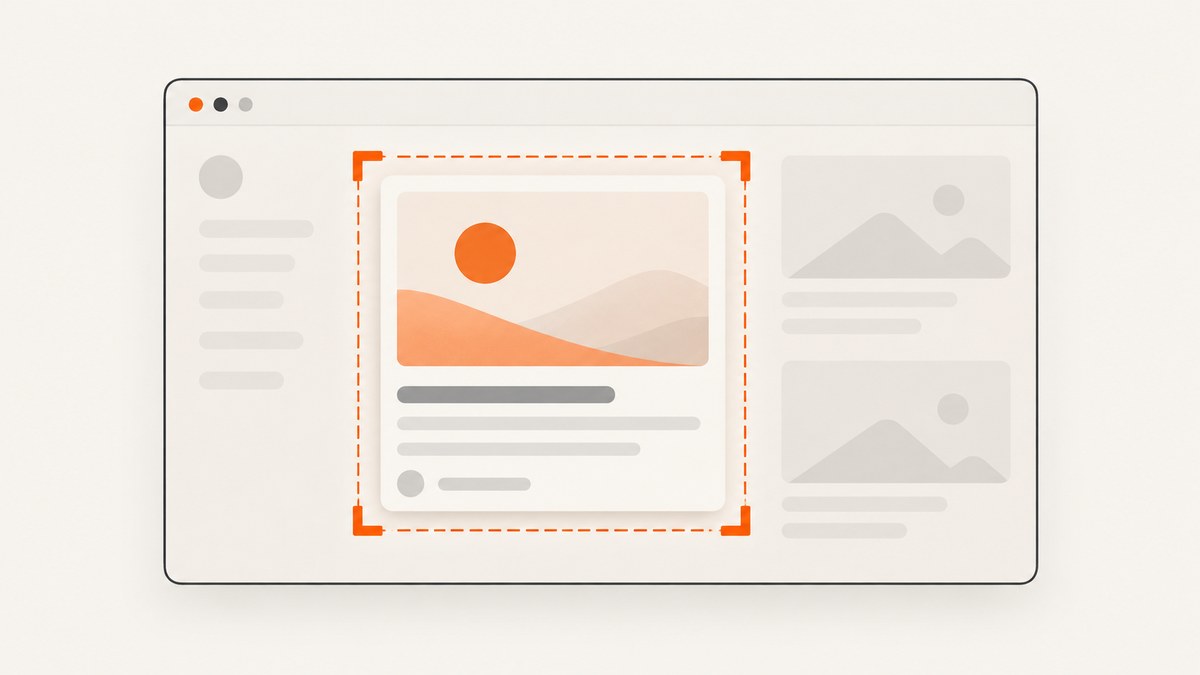
To capture a particular element with AShot, locate it as a Selenium WebElement and pass it to takeScreenshot along with the driver:
WebElement element = driver.findElement(By.cssSelector("#my_element"));
Screenshot screenshot = new AShot().takeScreenshot(driver, element);
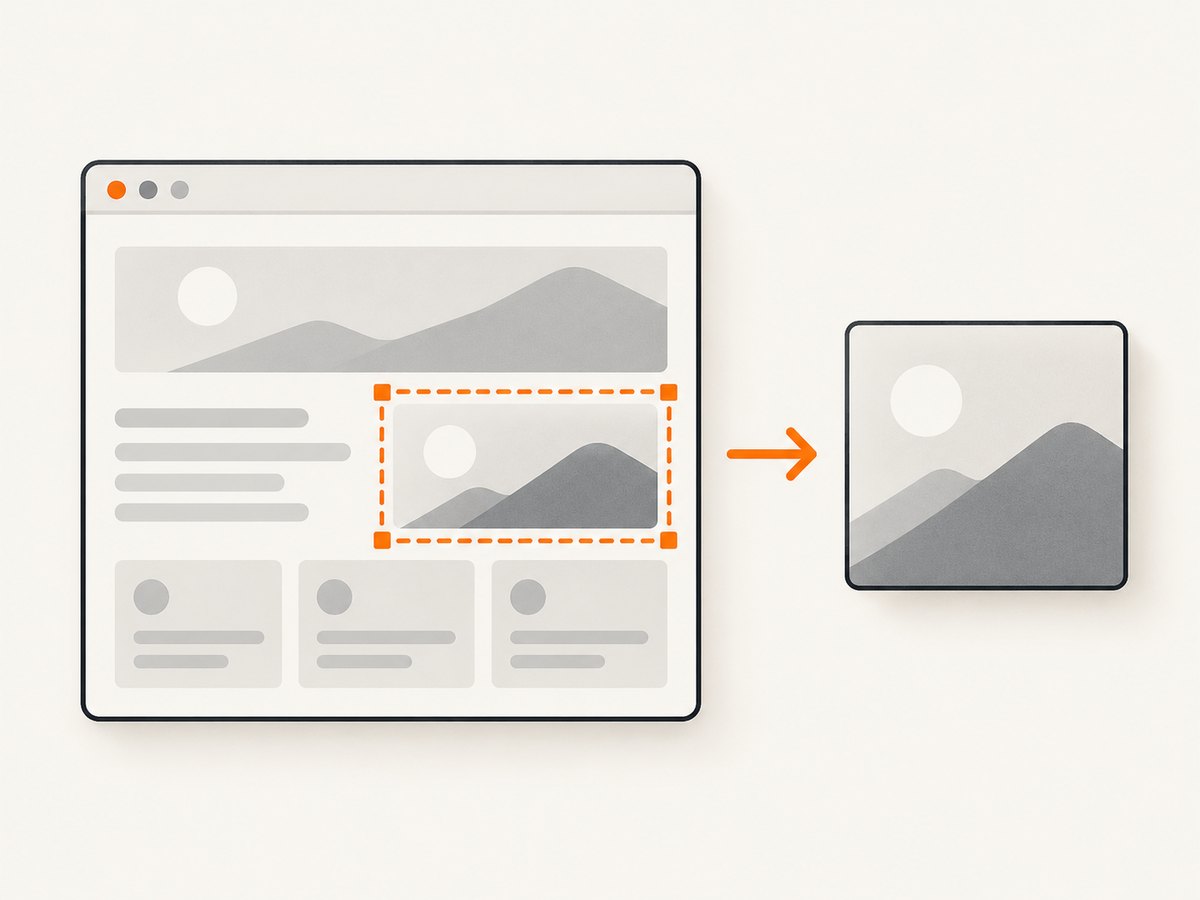
AShot captures the page, determines the element’s position and size, then crops the screenshot to that rectangle. That means the crop depends on both successful element lookup and accurate coordinate calculation. If the right element is found but the resulting image is shifted, clipped, or scaled, investigate the coordinate provider, scrolling, browser behavior, and device pixel ratio.
The AShot repository documents Maven coordinates for version 1.5.4. Treat this as the version in its README example, not as a compatibility guarantee for your current Selenium, browser, or driver. See the AShot repository for the documented API and dependency information.
1. Add AShot and capture an element
For Maven, the repository README’s dependency example is:
<dependency>
    <groupId>ru.yandex.qatools.ashot</groupId>
    <artifactId>ashot</artifactId>
    <version>1.5.4</version>
</dependency>
Check the project repository and your dependency resolution setup before choosing a version. The cited README example alone does not establish that version 1.5.4 is compatible with every recent Selenium or browser release.
A minimal Java example, including saving the crop to disk:
import java.io.File;
import javax.imageio.ImageIO;

import org.openqa.selenium.By;
import org.openqa.selenium.WebDriver;
import org.openqa.selenium.WebElement;
import ru.yandex.qatools.ashot.AShot;
import ru.yandex.qatools.ashot.Screenshot;

public class ElementCapture {
    public static void capture(WebDriver driver) throws Exception {
        driver.get("https://example.com");

        WebElement element = driver.findElement(By.cssSelector("#my_element"));
        Screenshot screenshot = new AShot().takeScreenshot(driver, element);
        ImageIO.write(screenshot.getImage(), "PNG", new File("element.png"));
    }
}
This assumes your WebDriver is already configured and the page contains an element matching #my_element. Replace the URL and selector with values from your application. For an element whose ID is summary, for example, use By.id("summary"); for a class, use a CSS selector such as .product-card.
Run the capture reliably
- Navigate to the target page.
- Wait for the target element to exist and become visible if the page loads it asynchronously.
- Locate the intended element with a stable selector.
- Call
takeScreenshot(driver, element). - Save or inspect the image, including its pixel dimensions, before relying on it in a visual test.
For pages that render content after navigation, an explicit wait can prevent a lookup from racing page initialization:
import java.time.Duration;
import org.openqa.selenium.support.ui.ExpectedConditions;
import org.openqa.selenium.support.ui.WebDriverWait;

WebDriverWait wait = new WebDriverWait(driver, Duration.ofSeconds(10));
WebElement element = wait.until(
    ExpectedConditions.visibilityOfElementLocated(By.cssSelector("#my_element"))
);
Screenshot screenshot = new AShot().takeScreenshot(driver, element);
The wait duration is an example. Choose a limit that matches your application and test environment. A timeout should be reported as a test failure with the URL and selector so it is clear whether the issue was loading or capture.
2. Understand how AShot finds the crop
AShot’s element workflow needs a rectangle: the target’s coordinates and dimensions. Its README says the default coordinate lookup uses jQuery. Once that rectangle is calculated, AShot crops the page screenshot. Therefore these are separate questions:
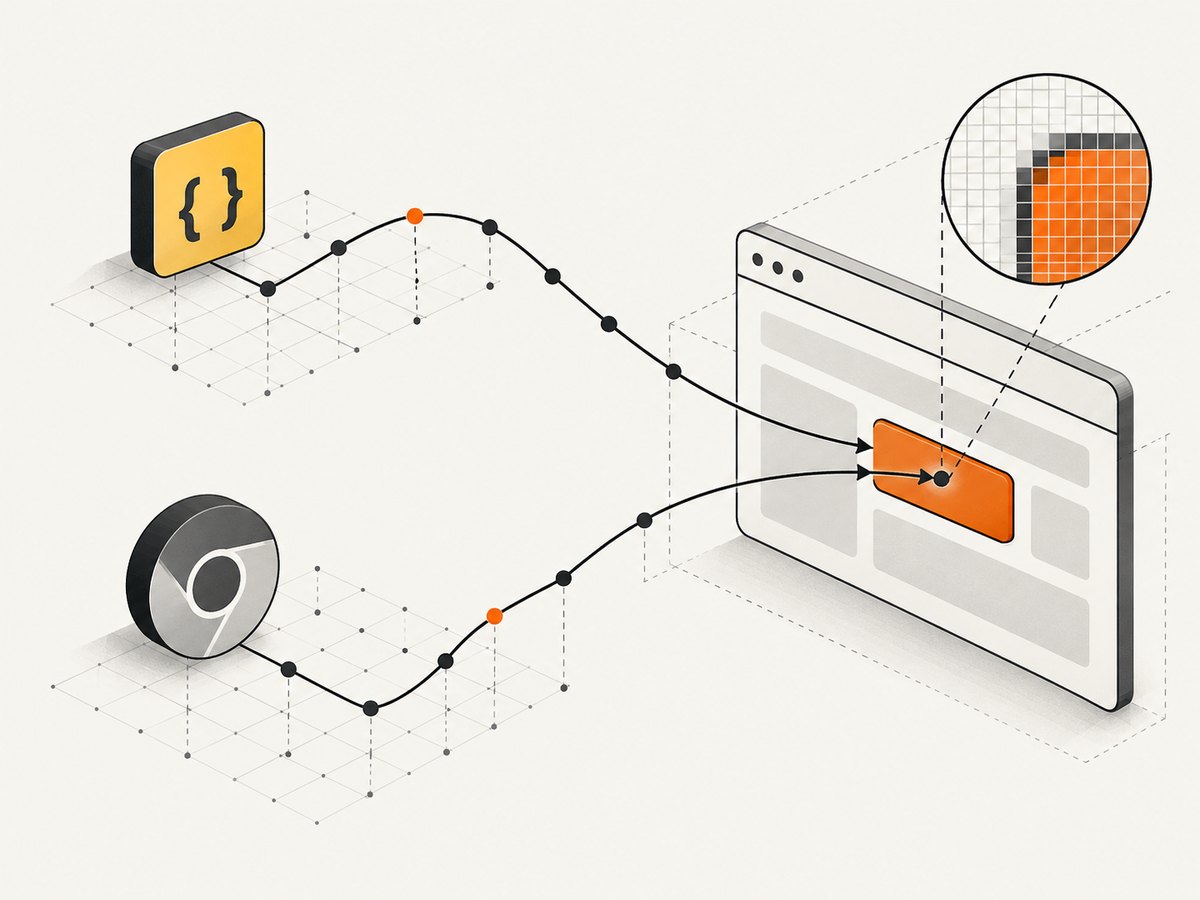
- Did Selenium find the correct node? Confirm the selector matches the intended element, not a hidden duplicate or a similarly named container.
- Did the coordinate provider report the correct rectangle? A mismatch here can produce a wrong crop even when Selenium found the correct node.
The documented alternative is WebDriverCoordsProvider. Use it when the default jQuery-based coordinate calculation has problems executing in your driver environment:
import ru.yandex.qatools.ashot.AShot;
import ru.yandex.qatools.ashot.coordinates.WebDriverCoordsProvider;

AShot ashot = new AShot()
    .coordsProvider(new WebDriverCoordsProvider());
Screenshot screenshot = ashot.takeScreenshot(driver, element);
Imports and API names above follow the AShot documented workflow; confirm them against the version resolved in your build. AShot also permits a custom CoordsProvider if neither built-in approach gives the coordinates your environment needs. The repository documentation is the reference for the provider interface and available version details.
Choose and compare coordinate providers
| Approach | What it does | When to try it |
|---|---|---|
| Default | Uses jQuery to find the element coordinates, according to the AShot README. | Start here for the documented default workflow. |
WebDriverCoordsProvider |
Uses the WebDriver-based coordinate provider. | Try it if the default JavaScript-based lookup has trouble in your driver. |
Custom CoordsProvider |
Lets an application provide its own coordinate calculation. | Consider it when the built-in providers do not match your browser or capture setup. |
Change one variable at a time when diagnosing a crop. Keep the same page, selector, browser, viewport, and device scale while comparing providers; otherwise a changed result will not identify which factor mattered.
3. Diagnose incorrect element screenshots
Confirm the target before changing capture settings
- Check that the selector is unique in the rendered page.
- Wait for visibility, not just document navigation, if client-side rendering inserts the element later.
- Verify the element’s displayed dimensions are nonzero.
- Check whether a sticky header, animation, or late-loading content changes its position around capture time.
- Save a full-page or viewport screenshot temporarily to see whether the target appears where expected.
A reported Stack Overflow question used the wording “Ashot is not taking screenshot of correct element.” A 2019 AShot issue also reports incorrect selected-element screenshots with Chrome 74 on a MacBook Pro. These are reports tied to particular setups, not proof of a universal AShot bug or a confirmed fix. The available source material does not establish a current Selenium/browser compatibility matrix.
Check scrolling and coordinate space
Element position can be affected by scrolling and by the coordinate conventions used by the browser, driver, and screenshot image. If a crop is vertically offset, compare the target’s visible position before capture with the output crop. Try the documented WebDriver coordinate provider, then inspect dimensions and scale. Keep the browser window size and page state consistent while reproducing the issue.
Check device pixel ratio
A historical issue discussion describes a Retina display with device pixel ratio 2 where the resulting image was four times larger than expected. The reporter said ShootingStrategies.viewportRetina(100, 0, 0, 2) worked in that case. This is a setup-specific report, not a universal setting. Inspect the actual browser environment and resulting pixel dimensions before applying a Retina strategy. Verify both crop position and width/height after any change.
4. Troubleshooting common failures
| Symptom | Likely cause | What to do |
|---|---|---|
NoSuchElementException |
The selector is wrong, the element has not loaded, or it is in a different browsing context. | Check the selector in the rendered DOM, wait for the element, and switch into the correct frame or window if applicable. |
| The right element is found but the crop is shifted | Coordinate calculation does not match the page’s rendered position, or scale/scroll state differs. | Try WebDriverCoordsProvider; compare scroll position and output dimensions; reproduce with a stable viewport. |
| JavaScript execution fails during coordinate lookup | The default jQuery-based provider is not working with that driver setup. | Try the documented WebDriverCoordsProvider. If needed, investigate a custom CoordsProvider. |
| Image is unexpectedly larger or smaller | Device pixel ratio or Retina scaling may affect the output. | Measure the output and inspect the environment’s scale. Treat the historical Retina workaround as a case to evaluate, not a default. |
| Element crop is blank or incomplete | The element may be hidden, zero-sized, not yet rendered, or covered by an overlay. | Wait for visibility, inspect dimensions and overlays, and ensure the page has settled before capture. |
| Result varies between runs | Animations, dynamic content, asynchronous loading, or different viewport state may change the rectangle. | Wait for a stable page condition, use consistent browser dimensions, and capture after the target reaches its final state. |
When filing an internal bug or debugging locally, record the browser and driver versions, Selenium and AShot versions, operating system, viewport size, device scale, selector, scroll position, and whether each coordinate provider reproduces the problem. This information narrows down whether the cause is lookup, layout, driver behavior, or scaling.
5. Reliability, performance, and cost
An element screenshot depends on browser automation plus image capture and cropping. A flaky page state can be more expensive in engineering time than the crop operation itself, so make the page deterministic: wait for the actual target, avoid capturing during animation, and hold viewport and scale constant across runs.
Do not assume that changing coordinate providers improves speed; the dossier documents their roles but provides no comparative benchmark. Prefer the provider that produces correct, repeatable coordinates in your supported environment. If screenshots are used in a test suite, make failures diagnosable by retaining the browser, selector, and image dimensions with the test output.
The library runs as part of your Selenium setup, so account for the infrastructure you use to run browsers and store artifacts. The research dossier contains no AShot pricing or performance measurements. Compatibility also remains a verification item: the repository’s 1.5.4 dependency example does not certify behavior on current browser and Selenium combinations.
6. Or skip the browser setup
If you need a clean website capture without wiring up Selenium and AShot, ScreenshotNeo is a website screenshot API and MCP server. One GET request takes a URL and returns an image or PDF. See the ScreenshotNeo API documentation for request options.
curl -G "https://api.screenshotneo.com/v1/shot" -d access_key=YOUR_API_KEY --data-urlencode url=https://stripe.com -o shot.webpPython:
import requests

r = requests.get(
    "https://api.screenshotneo.com/v1/shot",
    params={"access_key": "YOUR_API_KEY", "url": "https://stripe.com"},
    timeout=90,
)
open("shot.webp", "wb").write(r.content)
Node.js:
const q = new URLSearchParams({ access_key: 'YOUR_API_KEY', url: 'https://stripe.com' });
const res = await fetch(`https://api.screenshotneo.com/v1/shot?${q}`);
if (!res.ok) throw new Error(`Screenshot request failed: ${res.status}`);
await Bun.write('shot.webp', new Uint8Array(await res.arrayBuffer()));
The API supports full-page captures, element selection by CSS selector, viewport and device presets, dark mode, custom CSS and JavaScript, waits, headers and cookies, PDF output, caching, async jobs, bulk capture, and more. Cookie and consent banners, newsletter popups, and chat widgets are removed before capture; each removal step can be disabled. Bot checks, blank pages, failed loads, timeouts, and cache hits are not billed, and the response identifies page verdict and billing status in headers. Its MCP server provides take_screenshot, get_page_info, and capture_pdf for AI agents.
The free plan includes 1,000 screenshots a month with no card. Paid plans start at $5 for 3,000 shots; yearly billing gives two months free, and every feature is available on every plan. Create a free ScreenshotNeo account and get 1,000 screenshots a month with no card.
7. Short FAQ
Can AShot capture a nested element?
Yes. Locate the nested node with an appropriate Selenium selector and pass that WebElement to takeScreenshot(driver, element).
Does the AShot example guarantee support for my current Chrome and Selenium versions?
No. The repository documents its API and a 1.5.4 dependency example, but the available research does not establish a current compatibility matrix.
Should I always use the Retina strategy?
No. The cited report concerns one Retina setup. Check the actual device scale and output dimensions first.
What if both built-in coordinate approaches are wrong?
Capture a reproducible case with environment details, then consider implementing a custom CoordsProvider suited to that setup.


