How to Capture CSS Animations in PhantomJS Screenshots
Capture an approximate animation frame with a delay, or set the page to a chosen state before rendering for more repeatable PhantomJS screenshots.

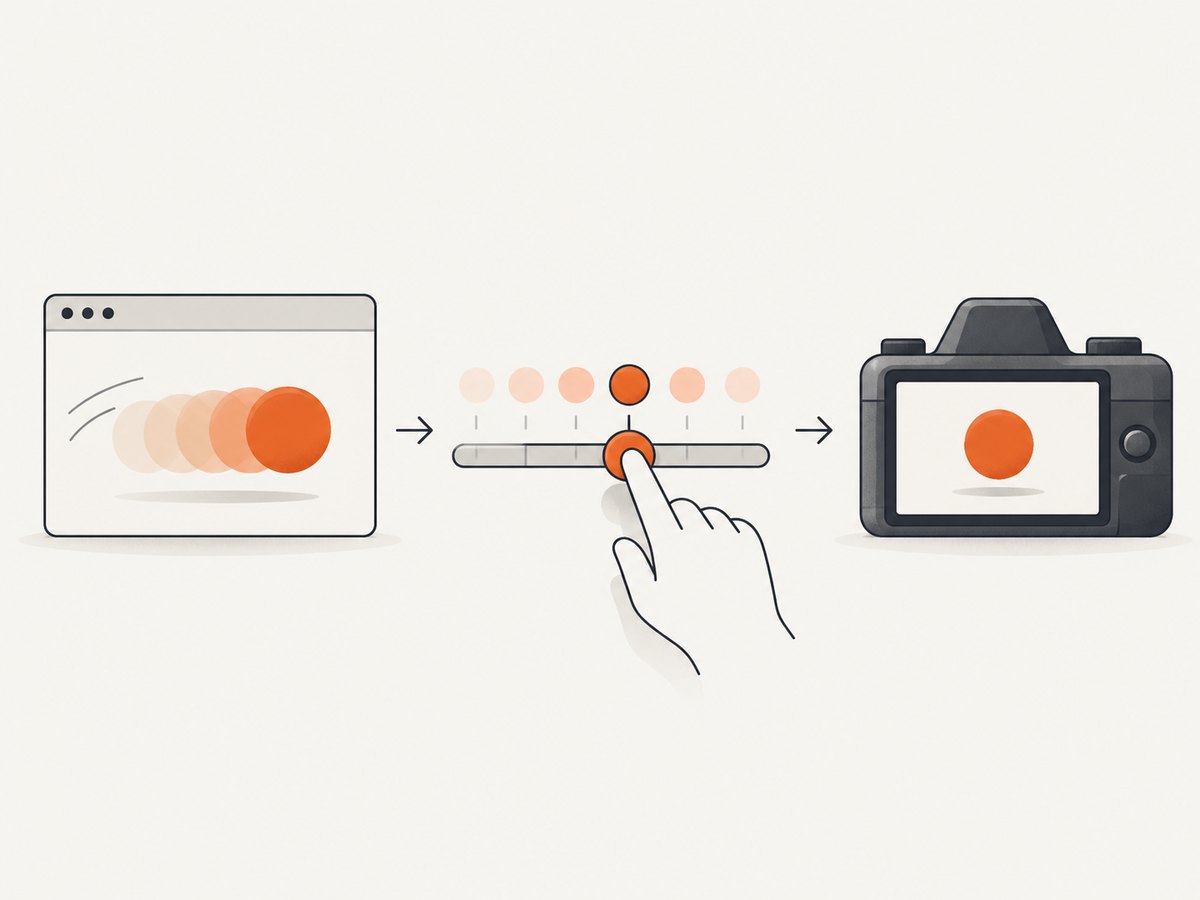
To capture a CSS animation in PhantomJS, open the page, wait until the animation has advanced to the point you want, then call page.render(). A timer is the simplest way to capture an approximate moment. If you need repeatable output, use page.evaluate() to set the page into a chosen state before rendering, and verify that the technique works in the exact PhantomJS build you run.
PhantomJS does not document a CSS-animation-specific frame selection API or guarantee that a given animation property behaves identically across builds. Treat this as a page-specific capture workflow: page.render() records the page state when it runs. The official project says PhantomJS development is suspended, so check the result on your actual runtime before depending on it. PhantomJS project status.
1. Capture an approximate animation moment
This complete command-line script sets the viewport, opens a URL, checks for successful loading, waits one second, renders a PNG, and exits. Save it as capture.js, then run it with your installed PhantomJS executable:
var page = require('webpage').create();
page.viewportSize = { width: 1024, height: 768 };

page.open('https://example.com/', function (status) {
  if (status !== 'success') {
    console.log('Unable to load page');
    phantom.exit(1);
    return;
  }

  // Example only: tune this for the target page and animation.
  setTimeout(function () {
    page.render('capture.png');
    phantom.exit();
  }, 1000);
});
The delay starts after the page.open() callback reports success. One second is only an example, not a universal setting. The animation may have begun before the callback, or the page may still be waiting for fonts, images, application data, or other resources. The official screen-capture guide shows the basic open-then-render flow and viewport configuration: Screen Capture with PhantomJS. The quick start also shows rendering after successful loading and exiting after the capture: PhantomJS Quick Start.
Adjust the viewport and capture region
Set page.viewportSize before navigation when the page layout or animation depends on viewport dimensions. To save just a rectangle within the viewport, configure clipRect before calling render():
page.clipRect = { top: 120, left: 80, width: 640, height: 360 };
page.render('animation-region.png');
Coordinates are in page viewport pixels. A clip rectangle is useful for a specific component, but it does not change the page’s layout viewport. The documented automation guide describes clipRect as the screenshot region: Page Automation.
2. Make the captured state more repeatable
A timer selects elapsed time, not an exact animation frame. For more control, pause or otherwise change the target animation in the page context, then render. The example below applies a style to a known selector and captures after the evaluation callback returns. It illustrates the control flow; the CSS property and its effect must be verified on the target page and PhantomJS/QtWebKit build.
var page = require('webpage').create();
page.viewportSize = { width: 1024, height: 768 };

page.open('https://example.com/', function (status) {
  if (status !== 'success') {
    console.log('Unable to load page');
    phantom.exit(1);
    return;
  }

  var result = page.evaluate(function () {
    var target = document.querySelector('.animated-card');
    if (!target) return 'target-not-found';

    // Example state override. Confirm browser support and page behavior.
    target.style.animationPlayState = 'paused';
    return 'animation-paused';
  });

  if (result === 'target-not-found') {
    console.log('Animation target not found');
    phantom.exit(1);
    return;
  }

  page.render('capture.png');
  phantom.exit();
});
page.evaluate() executes its function in the page context. Its arguments and return value must be simple JSON-serializable values; DOM objects and closures do not cross the boundary. Keep DOM lookup and style changes inside the evaluated function, and return a simple status value for the outer script. See the evaluate API documentation.
Setting a play state to paused does not by itself select an arbitrary frame. To target a particular visual state, the page may need to expose a class, state variable, or animation control that can be set deterministically. Any CSS properties or timing interfaces you rely on must be validated with your specific runtime. PhantomJS documentation does not promise universal support for modern animation features.
3. Choose the right capture approach
| Need | Approach | Trade-off |
|---|---|---|
| One-off image at roughly the right time | Wait with setTimeout(), then render |
Simple, but load timing and animation start can vary. |
| Repeatable page state | Use page.evaluate() to change the target’s state, then render |
Requires a controllable page and build-specific verification. |
| Only a component or region | Set clipRect and render |
Captures a viewport rectangle; it does not select an animation frame. |
| Required animation behavior fails in PhantomJS | Move capture to a maintained browser automation runtime with the CSS support the page needs | Requires a different runtime and workflow. |
Pick the timing method based on the tolerance for variation. A delay is usually enough for visual inspection or a single approximate frame. For snapshots that must match across runs, control the underlying page state and compare output from the exact runtime used in production.

4. Output formats and rendering options
page.render() accepts a filename. The PhantomJS screen-capture guide lists PNG, JPEG, GIF, and PDF outputs; the render API documents output format and quality options. Use a filename extension appropriate to the desired output and consult the render API for the options supported by your version. PNG is a practical default for sharp UI details. JPEG can be useful where a smaller lossy image is acceptable. Choose PDF when the desired output is a document capture rather than an animation frame.
Keep the output path explicit and ensure the process can write there. For a clipped region, configure clipRect; for a full viewport, omit it. A viewport screenshot is not the same as a full-document capture. The documented guide demonstrates viewport sizing and clipping; check its examples against the behavior you need.
5. Troubleshooting
| Symptom | Likely cause | Fix |
|---|---|---|
| The screenshot shows the initial frame | The render happened before the animation visibly advanced, or the animation starts later. | Increase or tune the delay for that page, or set the intended state with page-context code. |
| Different runs show different frames | A timer measures elapsed time after load, while resource timing and animation start can vary. | Control page state, reduce uncontrolled loading differences, and compare results on the same PhantomJS build. |
| The animation does not pause | The selector may be wrong, the page may use a different animation mechanism, or the property may not behave as expected in that legacy engine. | Check the target exists, inspect the page’s implementation, and verify the chosen style on the exact runtime. Do not assume a CSS feature is universally supported. |
| The page is blank or incomplete | The load callback does not ensure all application data, fonts, or late assets are ready. | Wait for a page-specific condition or a carefully chosen delay before capturing. Confirm the page itself loads in the runtime. |
| The script exits before writing the file | phantom.exit() was called before the timer or render completed. |
Call exit only after rendering, as in the examples. |
| The capture has the wrong size or region | The viewport was set too late, or the clip rectangle coordinates do not match the desired area. | Set viewportSize before opening the URL and verify clipRect dimensions and offsets. |
| Evaluation returns an unexpected value or fails | A DOM node, closure, or other non-serializable value crossed the page boundary. | Do the DOM work inside page.evaluate() and return a string, number, boolean, or other simple JSON value. |
6. Performance, reliability, and cost
The main cost in this script is keeping a browser process alive while the page loads and the timer runs. A longer wait adds latency to every capture. Use the shortest delay that produces the intended result on the target page, but do not treat a short delay as proof that assets or data are ready. If you capture many URLs, account for browser startup, page load, and output time in your job design; reuse or parallelism decisions depend on the specific PhantomJS wrapper and environment.
For reliability, fail clearly when page.open() does not succeed, check that the target element exists, and exit with an error code on expected failures. Keep captures tied to a known runtime and page version when comparing snapshots. PhantomJS uses WebKit and its official project page states that development is suspended, so compatibility with current websites is a material operational constraint. See the official project page.
There is no meaningful universal cost or timing figure for a PhantomJS screenshot in the sources used here. Your cost depends on the machine or service running the process, its runtime, and how many pages and retries your workflow uses. Measure those in your own environment before estimating production throughput.
7. Or skip the browser setup
If the goal is a clean screenshot of a page rather than a specific animation frame, ScreenshotNeo can return an image or PDF from one GET request. It does not provide a documented PhantomJS animation-frame control, so use the DIY method above when a particular animated state is the requirement. See the ScreenshotNeo API docs.
curl -G "https://api.screenshotneo.com/v1/shot" -d access_key=YOUR_API_KEY --data-urlencode url=https://stripe.com -o shot.webpScreenshotNeo accepts cookie and consent banners before capture and removes more than 60 known consent platforms, newsletter popups, and chat widgets; each step can be turned off. Bot checks and CAPTCHAs, blank pages, timeouts, failed loads, and cache hits are not billed, and response headers say which page verdict applied and whether it was billed. Its MCP server offers take_screenshot, get_page_info, and capture_pdf for Claude, Cursor, and other MCP clients. The free plan includes 1,000 shots a month with no card; paid plans start at $5 for 3,000 shots. Sign up for 1,000 free screenshots a month, with no card.
8. FAQ
Can I guarantee the same CSS animation frame using only a delay?
No. A delay targets elapsed time, not an exact frame. Control the page’s state and verify that behavior on the target build for better repeatability.
Does page.open() mean all animation assets are ready?
It gives a load completion callback, but it does not choose a frame or guarantee that application data and every late asset have settled. Wait for a condition specific to the page when needed.
Can I capture just one animated element?
You can set a viewport clip rectangle around its location. The documented clipRect is a rectangular capture region, not an element selector, so position and size the viewport region accordingly.
Should I keep using PhantomJS for a new capture pipeline?
Only if its behavior fits your target pages and you can validate the exact build. The project states that development is suspended; when required CSS behavior is unreliable, use a maintained automation runtime that supports the page’s needs.


