How to Capture CSS Background Images in Website Screenshots
Learn why CSS backgrounds disappear in screenshots and how to capture them reliably with Playwright, Puppeteer, DevTools, PDFs, and ScreenshotNeo.
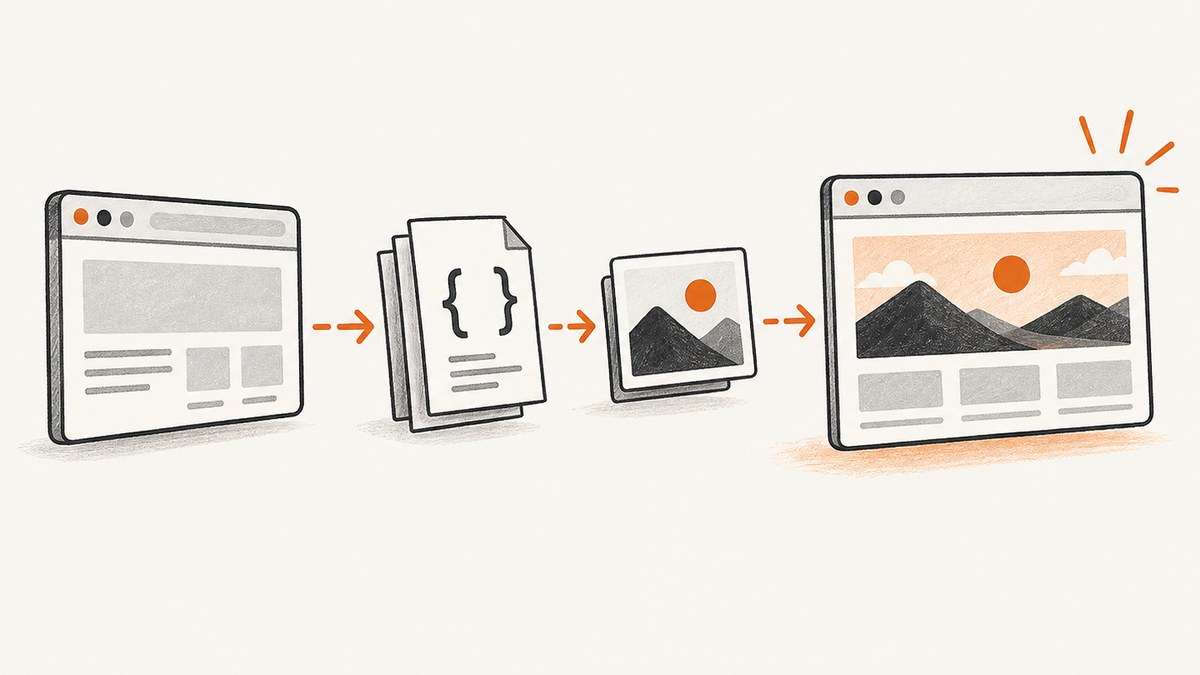
Direct answer: capture the page after the browser has rendered its styles and background-image resources. With Playwright or Puppeteer, navigate to the page, wait for the relevant content or network activity, then call the screenshot API. If the output is a PDF, explicitly enable background printing because Playwright’s printBackground option is false by default. Also check whether print CSS, transparency settings, timing, or a failed image request changed what the browser rendered.
CSS backgrounds are part of the browser’s rendered result. They are not separate HTML elements that a screenshot tool must discover. A reliable workflow therefore has four parts: use the intended media type, wait until styles and image resources are ready, capture the correct viewport or page region, and keep the browser environment consistent when comparing images.
1. Capture a rendered page with Playwright
Install Playwright and its browser binaries:

npm install --save-dev playwright
npx playwright install chromium
This complete Node.js example captures a page after navigation, waits for the browser to finish loading, and writes a PNG. waitUntil: 'networkidle' can help on pages whose background images load late, although pages with analytics or live connections may never become truly idle.
import { chromium } from 'playwright';

const browser = await chromium.launch({ headless: true });
const page = await browser.newPage({
  viewport: { width: 1440, height: 900 },
  deviceScaleFactor: 1
});

await page.goto('https://example.com', {
  waitUntil: 'networkidle',
  timeout: 90000
});

await page.screenshot({
  path: 'page-with-backgrounds.png',
  fullPage: true,
  animations: 'disabled',
  scale: 'css'
});

await browser.close();
Playwright documents page navigation followed by page.screenshot() in its screenshot API documentation. The fullPage option captures the complete scrollable page; omit it for the current viewport only. The scale option chooses CSS-pixel output or device-pixel output. Use CSS scale for predictable dimensions, and device scale when you need a higher-resolution raster.
Wait for the actual background image
Network idle is only a heuristic. A CSS background may be applied after JavaScript runs, after a class changes, or after an intersection observer reveals a section. Wait for the element that owns the background, then verify its computed style and image completion:
await page.goto('https://example.com', { waitUntil: 'domcontentloaded' });

await page.waitForSelector('.hero', { state: 'visible', timeout: 30000 });
await page.waitForFunction(() => {
  const el = document.querySelector('.hero');
  if (!el) return false;
  const style = getComputedStyle(el);
  return style.backgroundImage !== 'none';
});

await page.screenshot({ path: 'hero.png' });
If you control the page, add a stable readiness marker such as data-render-ready="true" after your image and fonts have loaded, then wait for that marker. For lazy-loaded sections, scroll through the document before capturing:
await page.evaluate(async () => {
  await new Promise(resolve => {
    let y = 0;
    const step = 600;
    const timer = setInterval(() => {
      window.scrollBy(0, step);
      y += step;
      if (y >= document.body.scrollHeight) {
        clearInterval(timer);
        window.scrollTo(0, 0);
        resolve();
      }
    }, 100);
  });
});
await page.waitForTimeout(500);
Prefer a selector or application-level readiness signal over an arbitrary long delay. A delay is useful for diagnosing a race, but it makes a capture slower and still may not cover variable network conditions.
2. Make sure the browser is using the intended CSS
CSS can produce different backgrounds for screen and print media. A rule inside @media print may remove a background, replace it, or change its position. Inspect the page in Chrome DevTools with the Rendering panel’s emulated media type set to print or screen. The result you see there should match the result you intend to automate.
@media print {
  .hero {
    background-image: url('/print-hero.jpg');
    color-adjust: exact;
    print-color-adjust: exact;
  }
}
For ordinary screenshots, Playwright uses screen rendering unless you change the page’s media emulation. To deliberately capture print styling, use:
await page.emulateMedia({ media: 'print' });
await page.screenshot({ path: 'print-styled-page.png', fullPage: true });
Use the Sources panel to confirm that the stylesheet and image resource you expect were actually loaded. Open the stylesheet, inspect the rule, and preview the image request. This separates a screenshot timing problem from a CSS or asset problem.
3. Capture a CSS background in a PDF
A PDF follows print behavior and is not interchangeable with a pixel screenshot. Playwright’s PDF option printBackground defaults to false. Set it to true whenever background colors or images must appear:
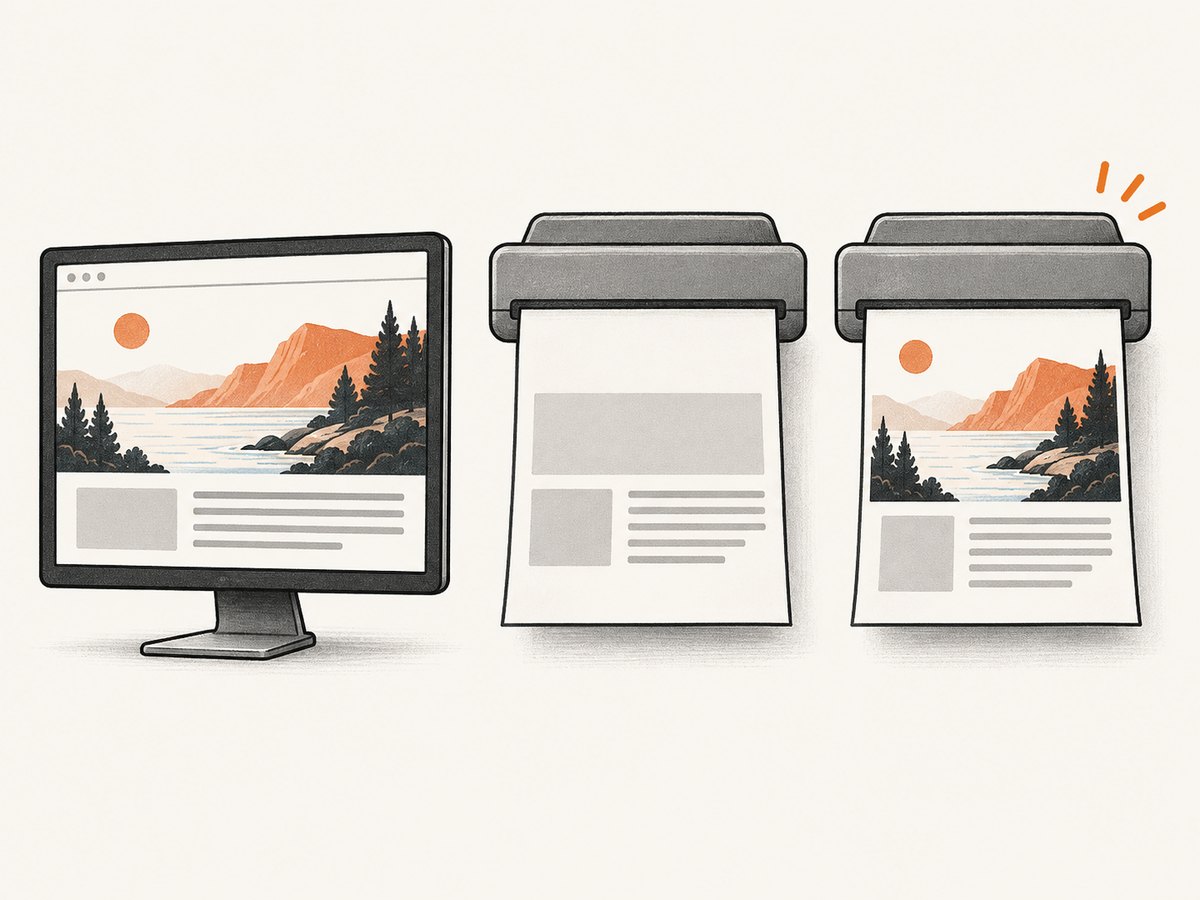
await page.emulateMedia({ media: 'print' });
await page.pdf({
  path: 'page-with-backgrounds.pdf',
  format: 'A4',
  printBackground: true,
  margin: {
    top: '12mm',
    right: '12mm',
    bottom: '12mm',
    left: '12mm'
  },
  landscape: false
});
Other useful PDF choices include format or explicit width and height, margins, landscape orientation, and page ranges. Keep in mind that print CSS may hide a section even when the same section is visible in a screen screenshot. Test both media modes when a document must match a web page closely.
4. CSS backgrounds, transparency, and resolution
Playwright’s omitBackground option removes the browser’s default page background to allow transparency in supported image formats. It does not force a CSS background-image to load, and it does not turn a missing asset into a transparent version of that asset.
await page.screenshot({
  path: 'transparent-overlay.png',
  omitBackground: true,
  type: 'png'
});
Use omitBackground: false when the page’s painted background should be included. Remember that a CSS background can belong to body, a wrapper, or a pseudo-element such as ::before; hiding the wrong selector or omitting the default background may make the output look empty.
Resolution is controlled by the viewport and device scale factor. A 1440-pixel CSS viewport with deviceScaleFactor: 2 produces a 2880-pixel-wide raster when using device scale. Keep these values fixed for visual regression tests.
5. Capture one background section or element
When a full page is unnecessary, locate the element whose computed style contains the background and capture its bounding box:
const hero = page.locator('.hero');
await hero.waitFor({ state: 'visible' });
await hero.screenshot({
  path: 'hero-background.png',
  animations: 'disabled',
  scale: 'css'
});
Element capture includes the element’s painted background. If the image is on a pseudo-element, capture the owning element rather than querying the pseudo-element directly. If a background is clipped by overflow: hidden, the screenshot will preserve that clipping.
For a diagnostic view, read the computed values in the page:
const details = await page.locator('.hero').evaluate(el => {
  const s = getComputedStyle(el);
  return {
    backgroundImage: s.backgroundImage,
    backgroundPosition: s.backgroundPosition,
    backgroundSize: s.backgroundSize,
    backgroundRepeat: s.backgroundRepeat,
    opacity: s.opacity
  };
});
console.log(details);
6. Puppeteer equivalent
Puppeteer follows the same browser-rendering model. The key steps are navigation, readiness, and screenshot options:
import puppeteer from 'puppeteer';

const browser = await puppeteer.launch({ headless: true });
const page = await browser.newPage();
await page.setViewport({ width: 1440, height: 900, deviceScaleFactor: 1 });
await page.goto('https://example.com', {
  waitUntil: 'networkidle0',
  timeout: 90000
});
await page.waitForSelector('.hero', { visible: true });
await page.screenshot({
  path: 'puppeteer-background.png',
  fullPage: true
});
await browser.close();
Puppeteer and Playwright still depend on the browser version, operating system, fonts, hardware, power settings, and headless mode. Keep those factors stable when comparing a baseline with a new capture.
7. Or skip the browser setup
ScreenshotNeo provides a website screenshot API when you want a rendered image without maintaining Playwright or Puppeteer infrastructure. It captures PNG, JPEG, or WebP output and supports full-page capture, lazy-image loading, CSS-selector element capture, custom CSS and JavaScript, waits, device presets, arbitrary viewports, retina scale, resource blocking, headers, cookies, user agents, geolocation, time zones, caching, signed links, asynchronous jobs, bulk capture, and PDFs.
Its clean-shot pipeline accepts cookie and consent banners like a visitor, then removes more than 60 known consent platforms along with newsletter popups and chat widgets. Each cleanup step can be disabled. Bot checks, blank pages, timeouts, failed loads, and cache hits are not billed; response headers identify the page verdict and whether the request was billed.
See the ScreenshotNeo API documentation for all parameters. A minimal request is:
cURL
curl -G "https://api.screenshotneo.com/v1/shot" \
  -d access_key=YOUR_API_KEY \
  --data-urlencode url=https://stripe.com \
  -o shot.webp
Python
import requests

r = requests.get(
    "https://api.screenshotneo.com/v1/shot",
    params={"access_key": "YOUR_API_KEY", "url": "https://stripe.com"},
    timeout=90
)
r.raise_for_status()
open("shot.webp", "wb").write(r.content)
Node.js
const q = new URLSearchParams({
  access_key: 'YOUR_API_KEY',
  url: 'https://stripe.com'
});
const res = await fetch(`https://api.screenshotneo.com/v1/shot?${q}`);
if (!res.ok) throw new Error(`Screenshot failed: ${res.status}`);
await Bun.write('shot.webp', res);
ScreenshotNeo includes an MCP server with take_screenshot, get_page_info, and capture_pdf tools for Claude, Cursor, and other MCP clients. It offers 1,000 screenshots per month free with no card; paid plans start at $5 for 3,000 shots. Create a free ScreenshotNeo account.
8. Troubleshooting missing backgrounds
| Symptom | Likely cause | Fix |
|---|---|---|
| Background is absent in a PDF | Print backgrounds are disabled | Set printBackground: true and inspect print media rules. |
| Image appears intermittently | Capture runs before CSS or the asset is ready | Wait for a selector, computed backgroundImage, an image request, or an application readiness marker. |
| Screen screenshot differs from DevTools | Different viewport, device scale, browser, or media type | Match viewport, browser version, scale, fonts, and emulateMedia. |
| Only lazy sections are blank | Intersection observers have not run | Scroll through the page, wait, then return to the top before capture. |
Computed style says none |
Selector, cascade, or class state is wrong | Inspect the loaded stylesheet and verify the class is present at capture time. |
| Computed style has a URL but pixels are missing | Request failed, was blocked, or is inaccessible | Inspect the resource in DevTools, check response status and console errors, and review CSP or authentication. |
| Background is cropped | background-size, positioning, or element bounds |
Capture the correct owner element and verify background-size, background-position, and overflow. |
| Transparent output looks empty | Default background was omitted | Use omitBackground: false when the painted page background is required. |
9. Performance, reliability, and cost
Full-page screenshots use more memory and take longer than viewport or element captures, especially on pages with large images. Set a sensible viewport, avoid unnecessary animations, and block irrelevant resources only when doing so cannot change the visual result. Reuse a browser process for batches rather than launching a new process per URL.
For reliable automation, use explicit timeouts, record the final URL, save console and request failures, and retry transient navigation errors with a limit. Do not treat a successful HTTP response as proof that the background rendered: the CSS may still be invalid, the image may be blocked, or JavaScript may replace the class later.
Visual regression systems should pin browser and operating-system environments and use identical fonts, viewport dimensions, device scale, media type, and color settings. A change in any of these can create pixel differences even when the page code is unchanged.
With ScreenshotNeo, cache hits and failed or unusable captures are not billed, and the response includes verdict and billing headers. Its plans include every feature: Free offers 1,000 shots monthly, followed by Starter at $5 for 3,000, Growth at $15 for 15,000, Pro at $39 for 60,000, Scale at $99 for 250,000, and Business at $249 for 1,000,000. Yearly billing provides two months free.
10. FAQ
Does background-image work with screenshots?
Yes. A browser screenshot captures the painted result after CSS has been applied and the resource has loaded. The usual problem is timing, media rules, or a failed request.
Why does the background show in Chrome but not in a PDF?
PDF generation uses print behavior. Enable printBackground: true and inspect the page with print media emulation.
Should I convert a CSS background into an <img>?
Only when the design or accessibility model requires an image element. Browser screenshot APIs can capture CSS backgrounds directly.
What is the best wait condition?
Use an application-specific readiness marker or the owning element’s computed style when possible. Network idle is useful but unreliable on pages with long-lived connections.
Can I capture backgrounds at high resolution?
Yes. Set the viewport and device scale factor deliberately, then choose device-pixel output when the larger raster is needed.


