How to Capture CSS Gradients in Website Screenshots
Capture CSS gradients accurately with Chrome, Playwright, and ScreenshotNeo. Fix sizing, timing, color, transparency, and visual-diff problems.

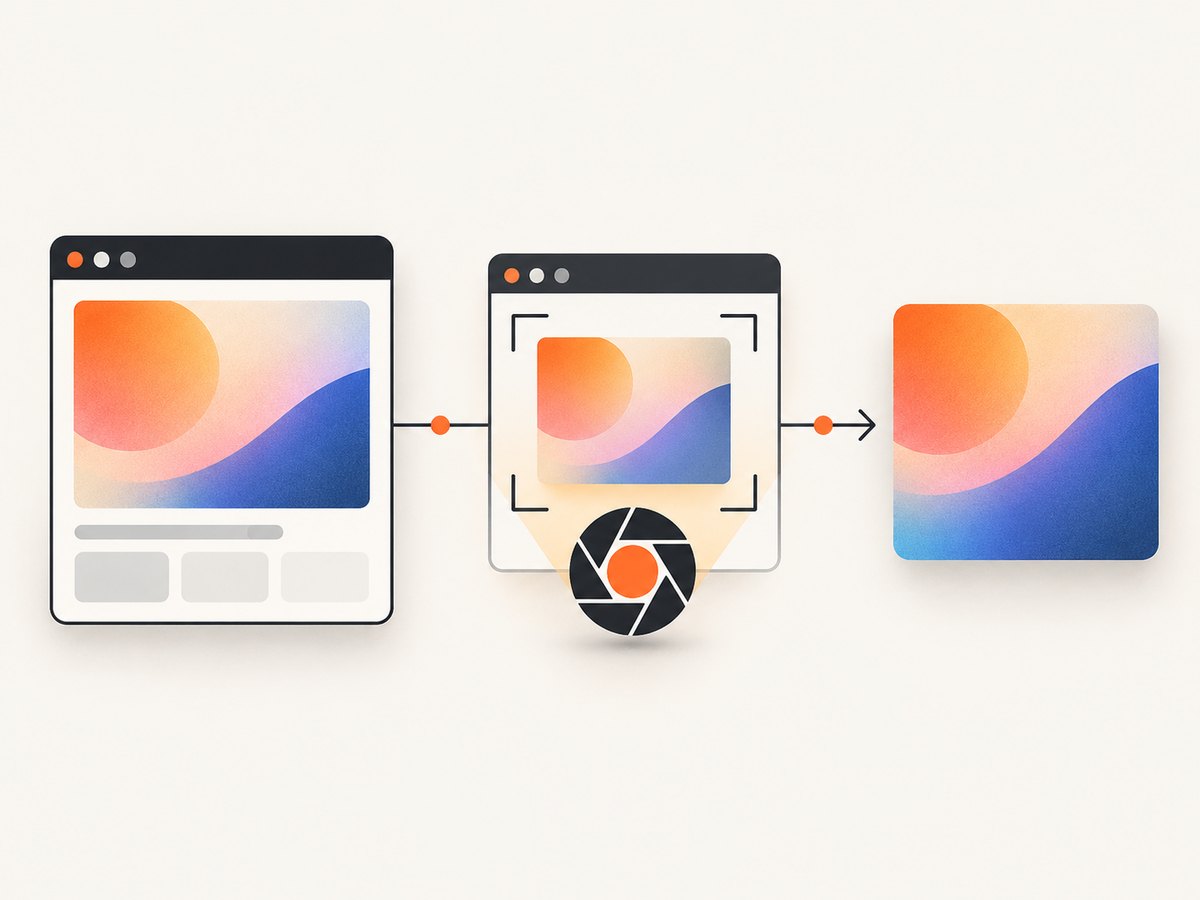
To capture a CSS gradient accurately, wait until the page has settled, capture the element at a known viewport and scale, and save a lossless format such as PNG. A gradient is generated by the browser as a CSS <image> value; it has no intrinsic width or height, so its color-stop geometry depends on the rendered box, viewport, writing mode, zoom, and device scale.
For a one-off image, Chrome DevTools is enough. For repeatable captures, Playwright lets you control the browser, timing, element scope, and pixel scale. If you want an API call without maintaining a browser, ScreenshotNeo can render the page and return PNG, JPEG, WebP, or PDF.
How CSS gradients affect screenshots
A gradient is painted inside an element’s box. It is not an image file with fixed dimensions. A linear-gradient() interpolates colors along an axis; a radial-gradient() radiates from an origin and may be circular or elliptical. Changing the element’s width, height, aspect ratio, writing mode, viewport, or zoom changes the rendered gradient.
Backgrounds can contain multiple comma-separated layers, for example:
.hero {
  background-image:
    linear-gradient(120deg, rgba(12, 20, 50, .1), rgba(12, 20, 50, .9)),
    radial-gradient(circle at 20% 20%, #ff8a00, transparent 45%),
    url('/noise.png');
  background-size: cover, 100% 100%, 240px 240px;
  background-position: center, center, top left;
  background-repeat: no-repeat, no-repeat, repeat;
  background-clip: padding-box;
}
The first listed background image is painted above the later layers. Inspect every layer before assuming the gradient is missing.
Capture a gradient manually in Chrome
- Open the page in Chrome and wait for fonts, images, transitions, and layout shifts to finish.
- Open DevTools with Inspect, then select the element containing the gradient.
- In Computed, record
background,background-image,background-size,background-position,background-repeat, andbackground-clip. Expand comma-separated values individually. - Record the element’s rendered width and height from the box model. Also record viewport size, browser zoom, and device pixel ratio.
- Right-click the node in the Elements panel and choose the screenshot command for the selected node. Use the Command Menu (
Ctrl/Cmd+Shift+P) and search for “screenshot” if the context menu does not show it. - For a viewport or full-page image, use the corresponding DevTools screenshot command. Save PNG when comparing pixels or checking banding.
Chrome’s Rendering panel is useful for testing media features and other rendering conditions. If you need a sequence of loading states rather than the final page, enable Network > Settings > Capture screenshots, reload, and inspect the thumbnails tied to the loading timeline. This is different from a settled-state screenshot.
Capture one gradient element with Playwright
Install Playwright, choose a fixed viewport, wait for navigation and fonts, then capture the locator. The following script is runnable with Node.js.
import { chromium } from 'playwright';

const browser = await chromium.launch();
const page = await browser.newPage({
  viewport: { width: 1440, height: 900 },
  deviceScaleFactor: 1
});

await page.goto('https://example.com', { waitUntil: 'networkidle' });
await page.evaluate(() => document.fonts.ready);
await page.locator('.gradient').screenshot({
  path: 'gradient.png',
  scale: 'css'
});

await browser.close();
Replace .gradient with the element’s CSS selector. scale: "css" produces one output pixel per CSS pixel, which is usually the clearest choice for visual comparisons and documentation. scale: "device" uses device pixels and creates a higher-resolution file on a high-DPI context.
Viewport and full-page captures
// The visible viewport
await page.screenshot({ path: 'viewport.png', scale: 'css' });

// The complete scrollable page
await page.screenshot({
  path: 'page.png',
  fullPage: true,
  scale: 'css'
});
Use an element screenshot when the question is “what does this gradient look like?” Use a viewport screenshot when surrounding layout matters. Use fullPage for a page archive or documentation image, but remember that a full-page image can include content far below the target and may trigger lazy loading.
Make the capture deterministic
Animations and responsive layout are common causes of different pixels between runs. Disable motion and hide volatile regions before capture:
await page.addStyleTag({ content: `
  *, *::before, *::after {
    animation: none !important;
    transition: none !important;
    caret-color: transparent !important;
  }
  .live-clock, .rotating-ad { visibility: hidden !important; }
`});

await page.locator('.gradient').screenshot({
  path: 'gradient-stable.png',
  scale: 'css'
});
For an application with a readiness flag, wait for that flag instead of relying only on a timeout:
await page.waitForFunction(() => window.appReady === true);
await page.locator('.gradient').screenshot({ path: 'ready.png', scale: 'css' });
Control gradient geometry
Linear gradients
Angles and directions are resolved against the element’s box. A square test fixture can therefore differ from a production banner with a wide aspect ratio. Pin both dimensions when comparing images.
const box = page.locator('.gradient');
await box.evaluate(el => {
  el.style.width = '800px';
  el.style.height = '300px';
});
await box.screenshot({ path: 'linear-fixed.png', scale: 'css' });
Radial gradients
The default radial shape can be an ellipse that follows the box’s aspect ratio. If the design requires a circle, specify circle and verify the element’s dimensions:
.orb {
  background: radial-gradient(circle at 50% 40%, #fff 0%, #8b5cf6 35%, #111827 100%);
}
If the screenshot looks stretched, check whether the source uses an ellipse, whether the element is non-square, and whether responsive CSS changed its size.
Background layers and clipping
A gradient can be clipped to border-box, padding-box, or text. Borders, masks, pseudo-elements, and overlays can obscure it. Inspect ::before and ::after separately when the visible gradient is not on the main node.
Output format, transparency, and color
Use PNG for lossless pixel inspection and visual regression. WebP is useful when you need smaller files and your pipeline supports it. JPEG is lossy and can introduce ringing or banding around smooth transitions, so validate it before using it for gradient comparisons.
Transparent backgrounds require both the page and capture method to preserve alpha. In Playwright, omitBackground can produce transparency where supported, but it is unavailable for JPEG. A screenshot service may apply a default background unless you request transparency, so check the service’s option and choose PNG or WebP.
ScreenshotNeo: capture without browser setup
Or skip the browser setup: ScreenshotNeo’s API documentation covers the request parameters and output options. One GET request captures a URL; this example returns WebP:
curl -G "https://api.screenshotneo.com/v1/shot" -d access_key=YOUR_API_KEY --data-urlencode url=https://stripe.com -o shot.webpimport requests
r = requests.get(
"https://api.screenshotneo.com/v1/shot",
params={"access_key": "YOUR_API_KEY", "url": "https://stripe.com"},
timeout=90,
)
r.raise_for_status()
open("shot.webp", "wb").write(r.content)const q = new URLSearchParams({ access_key: 'YOUR_API_KEY', url: 'https://stripe.com' });
const res = await fetch(`https://api.screenshotneo.com/v1/shot?${q}`);
if (!res.ok) throw new Error(`Screenshot failed: ${res.status}`);
const buffer = Buffer.from(await res.arrayBuffer());
require('node:fs').writeFileSync('shot.webp', buffer);ScreenshotNeo supports full-page captures with lazy images loaded, CSS-selector element captures, dark mode, device presets or custom viewports, retina scale, custom CSS and JavaScript, click actions, selector or network-idle waits, request blocking, custom headers and cookies, user agents, authorization, timezone, geolocation, transparent backgrounds, resizing, caching with a chosen TTL, signed image links, asynchronous jobs with signed webhooks, bulk capture for up to 100 URLs per call, PDF output, HTML/CSS-to-image, usage reporting, and an OpenAPI specification. Parameter names used by other screenshot APIs also work, which can simplify migration.
Consent banners, newsletter popups, and chat widgets are accepted or removed before capture, with each cleanup step configurable. Bot checks or CAPTCHAs, blank pages, timeouts, failed loads, and cache hits are not billed; response headers identify the page verdict and whether the shot was billed. An MCP server provides take_screenshot, get_page_info, and capture_pdf tools for Claude, Cursor, and other MCP clients.
Plans include 1,000 shots per month free with no card, Starter at $5 for 3,000, Growth at $15 for 15,000, Pro at $39 for 60,000, Scale at $99 for 250,000, and Business at $249 for 1,000,000. Yearly billing gives two months free, and every feature is available on every plan. Start with 1,000 free screenshots a month.
Troubleshooting gradient screenshots
| Symptom | Likely cause | Fix |
|---|---|---|
| Gradient direction or stops look different | Element dimensions, viewport, writing mode, zoom, or device scale changed | Pin viewport and element size; compare computed styles and use scale: "css". |
| Radial gradient is stretched | An ellipse follows a non-square box | Check the source shape; use circle when required and verify width and height. |
| One gradient layer is missing | Another background layer or pseudo-element is painted above it | Inspect the full comma-separated background-image list and stacking order. |
| Screenshot shows a skeleton or blank area | Capture ran before fonts, images, or app data settled | Wait for navigation, document.fonts.ready, images, and an application readiness signal. |
| Visual diff has noise around text or edges | Animations, caret blinking, browser or OS differences | Disable motion, hide volatile regions, pin browser and OS, and compare CSS-scale images. |
| Transparent area becomes white | Capture method applied a default background or format lacks alpha | Request transparent background and use PNG or WebP; JPEG cannot preserve alpha. |
| File is unexpectedly large | Device-pixel scale or full-page dimensions are high | Use CSS scale, capture the element, resize output, or choose WebP. |
Performance, reliability, and cost notes
- Reduce work: capture the target element instead of a full page, use CSS scale for regression images, and block analytics or advertising requests when they are irrelevant.
- Control timing: network-idle waits are useful for static pages, while a selector wait or application readiness flag is safer for single-page apps.
- Keep baselines stable: browser version, operating system, fonts, viewport, device scale, color settings, and headless mode can all affect pixels.
- Use caching deliberately: a chosen TTL reduces repeated rendering when the URL is unchanged; disable or shorten it when gradients depend on frequently changing data.
- Plan retries: distinguish navigation failures from valid bot-check or blank-page verdicts. With ScreenshotNeo, inspect
X-Page-VerdictandX-Billedbefore retrying. - Estimate spend: local Playwright uses your own browser infrastructure. An API adds a per-shot service cost, but ScreenshotNeo does not bill failed loads, bot checks, blank pages, timeouts, or cache hits.
FAQ
Can I screenshot a gradient without an image URL?
Yes. CSS gradients are rendered by the browser, so capture the element or page after its styles load. There is no separate gradient file to download.

Should I use PNG or JPEG?
Use PNG for pixel inspection and visual tests. Choose JPEG only when a smaller lossy image is acceptable and you have checked for banding.
Why does the same CSS produce different colors on two machines?
Rendering can vary with browser and operating-system versions, fonts, hardware, power state, color settings, and headless mode. Pin the environment for comparisons.
How do I capture only the gradient background?
Capture the element that owns the background. If the gradient is on a pseudo-element, capture the parent or temporarily expose the pseudo-element as a normal test node.
Can an AI agent capture gradient screenshots?
Yes. ScreenshotNeo’s MCP server exposes screenshot, page-info, and PDF tools to MCP clients such as Claude and Cursor.


