How to Capture CSS Transforms With html2canvas
html2canvas can render some 2D CSS transforms, but it reconstructs the page and does not fully support 3D transforms. Learn how to capture, crop, troubleshoot, and choose a browser screenshot when accuracy matters.
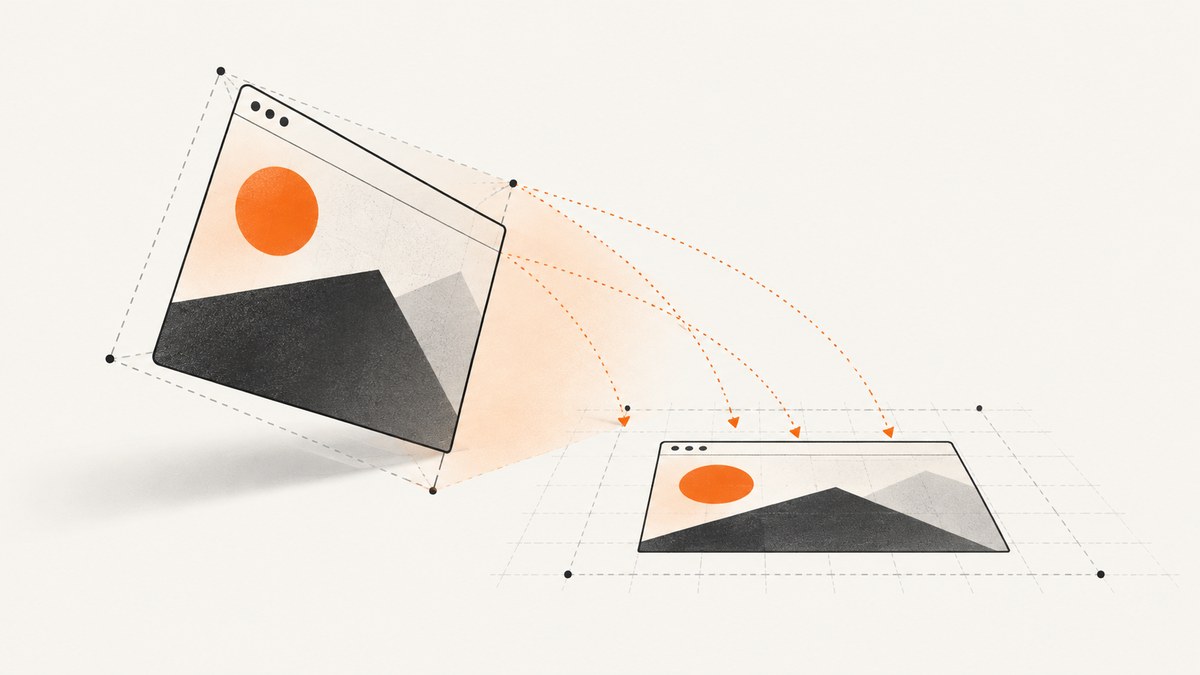
Direct answer: html2canvas can capture some transformed elements, especially 2D transforms, but its support is limited. It reads the DOM and CSS and paints a canvas representation; it does not capture the browser’s final composited pixels. Its source handles matrix() and extracts a 2D subset from matrix3d(), while stating that 3D transforms are not supported. If the exact rendered pixels matter, use a real browser screenshot workflow and compare its output with the page.
This guide shows how to capture a transformed element, configure the output, identify transform-related mismatches, and decide when a browser screenshot is the better fit.
1. What html2canvas does with CSS transforms
html2canvas traverses the DOM, reads styles it understands, and draws an approximation onto a canvas. The project warns that the result may not be 100% accurate to the real page because it is built from available DOM and style information rather than taken as an actual screenshot. Each CSS property needs its own implementation, so browser support for a CSS feature does not guarantee that html2canvas will reproduce it. See the project documentation and FAQ.
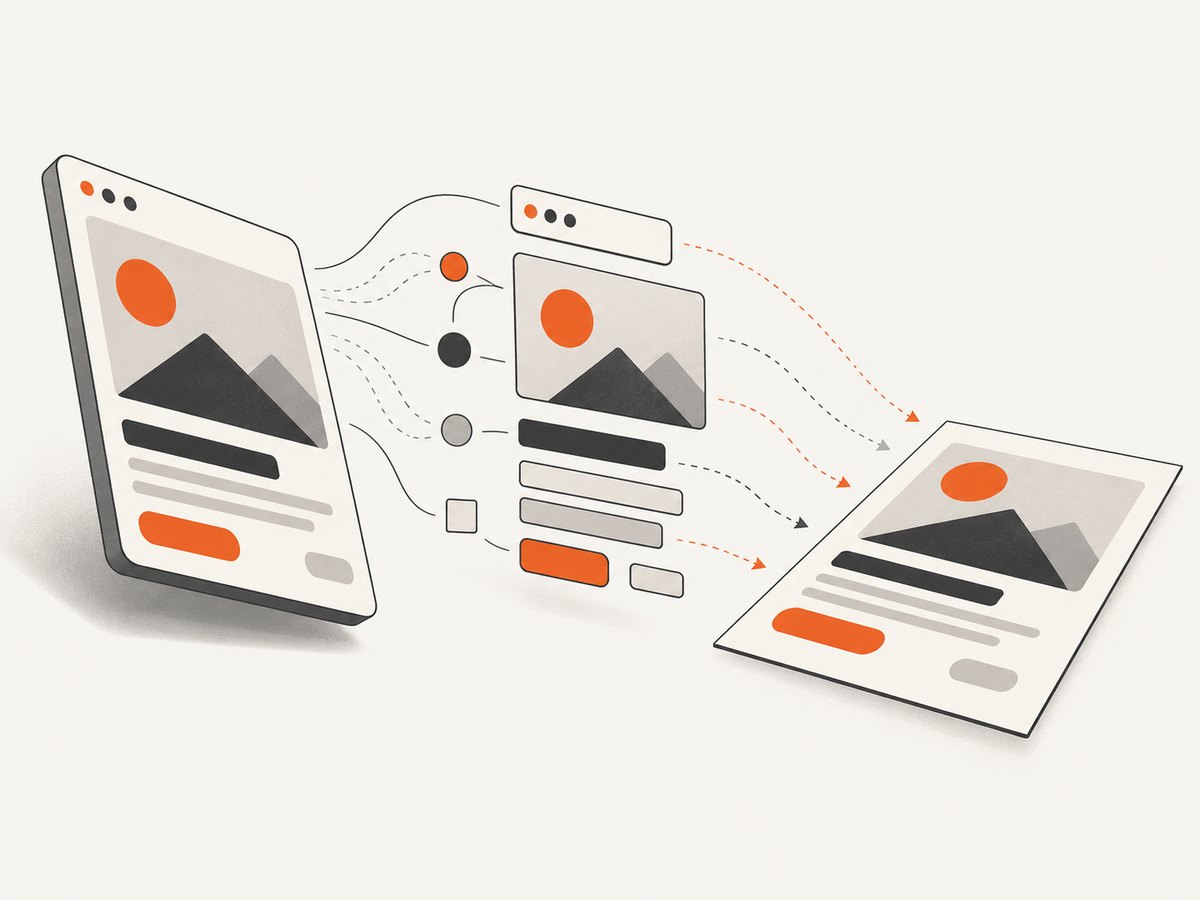
The transform implementation parses matrix data. A 2D matrix(a, b, c, d, e, f) maps naturally to the six values used by the canvas 2D transform operation. For matrix3d(), the implementation extracts selected values to form a 2D matrix; perspective and the full 3D scene are not reproduced. See the transform parser source and the feature list, which describes transform support as limited.
In practical terms, simple translation, rotation, scaling, and skewing may render acceptably, but validate the actual transform and browser combination. A transform that depends on depth, perspective, 3D rotation, or compositor behavior can differ materially. Even for a 2D transform, the complete appearance can be affected by other CSS that html2canvas does not fully support.
2. Install and capture a transformed element
Install html2canvas with your project’s package manager, then import it into the page code that can access the target element. The following example is a complete browser-side pattern: it waits for the DOM, looks up an element, captures it, and adds a download link for the generated PNG.
import html2canvas from 'html2canvas';

async function captureCard() {
  const element = document.querySelector('#card');
  if (!(element instanceof HTMLElement)) {
    throw new Error('Could not find #card');
  }

  // Optional: wait for web fonts before measuring and painting text.
  if (document.fonts?.ready) {
    await document.fonts.ready;
  }

  const canvas = await html2canvas(element, {
    backgroundColor: null,
    scale: window.devicePixelRatio || 1,
    logging: true
  });

  const link = document.createElement('a');
  link.download = 'card.png';
  link.href = canvas.toDataURL('image/png');
  link.click();
}

captureCard().catch((error) => {
  console.error('Capture failed:', error);
});
For a quick browser demonstration without a bundler, load the library from the project’s documented installation method or include a hosted build you manage, then call html2canvas(document.querySelector('#card')). The API returns a promise that resolves to an HTMLCanvasElement; handle rejection rather than assuming capture always succeeds.
Here is a minimal target whose 2D transform is explicit:
<div id="card">Rotated card</div>

<style>
  #card {
    width: 240px;
    min-height: 120px;
    padding: 24px;
    background: #e8f0ff;
    transform: rotate(-8deg) translateX(12px);
    transform-origin: center;
  }
</style>
Capture the element that owns the transform if you want the transformed element itself. Capture a suitable ancestor if you also need surrounding content. The output bounds and clipping depend on the chosen element and its layout; a transformed element can visually extend outside its untransformed box, so inspect whether the resulting canvas includes the full visible area.
3. Configure crop, scale, and cloned content
Options can adjust capture geometry and rendering conditions, but they do not expand CSS transform support. The full option list is in the configuration reference.
| Option | What it controls | When to use it |
|---|---|---|
scale |
Canvas pixel density; defaults to the device pixel ratio. | Use a larger value for sharper output when memory permits, or 1 for smaller output. |
x, y |
Capture offset in CSS pixels. | Position the canvas capture region when you need a crop. |
width, height |
Output capture dimensions. | Limit the captured region or set explicit dimensions. |
windowWidth, windowHeight |
Viewport dimensions used for the cloned page. | Reproduce responsive layout or media-query conditions. |
scrollX, scrollY |
Scroll position used while rendering, relevant to fixed positioning. | Control page state for fixed elements. |
backgroundColor |
Canvas background; set to null for transparency. |
Choose a solid background or preserve transparency where possible. |
useCORS |
Attempt to load cross-origin images with CORS. | Use only when the image host sends suitable CORS headers. |
onclone |
Callback on the cloned document before rendering. | Adjust cloned markup or styles without mutating the live page. |
ignoreElements |
Predicate that can exclude elements. | Skip transient content that should not appear in the capture. |
logging |
Enable diagnostic logging. | Turn on while investigating render problems. |
foreignObjectRendering |
Choose the foreign-object rendering path where supported. | Compare its output for a specific page; it is not a guarantee of native screenshot accuracy. |
Example: set explicit dimensions and scale while keeping a transparent background. These values are CSS-pixel geometry and output density, not a transform fix.
const canvas = await html2canvas(element, {
  x: 0,
  y: 0,
  width: element.scrollWidth,
  height: element.scrollHeight,
  scale: 2,
  backgroundColor: null,
  useCORS: true,
  logging: true
});
For cloned-page edits, use onclone rather than briefly changing the live page and hoping the capture begins at the right moment:
const canvas = await html2canvas(element, {
  onclone(clonedDocument) {
    const target = clonedDocument.querySelector('#card');
    if (target instanceof HTMLElement) {
      target.classList.add('capture-state');
    }
  }
});
Make sure any styles needed by capture-state are available in the cloned document. A change to the clone can help stabilize a capture, but changing or removing the transform changes what is being represented; it should not be mistaken for capturing the original transform more accurately.
4. Validate the transform and diagnose mismatches
- Wait for stable page state. Finish animations, transitions, image loading, and font loading before capture. An element changing between layout and rendering can produce inconsistent results.
- Capture a small target first. Use the element with the transform and a simple background. This helps distinguish transform behavior from unrelated layout or asset issues.
- Compare against the browser. Inspect the DOM rendering and the generated canvas at the same viewport and scroll position. Repeat in the browser versions that matter to your application.
- Reduce the CSS. Temporarily remove effects and descendants one at a time: perspective, 3D rotations, filters, clipping, nested transforms, overflow, and animation. This identifies which feature causes divergence.
- Try a native browser screenshot if fidelity is a requirement. The html2canvas FAQ points to Puppeteer or Playwright for server-side screenshots and native tab screenshot APIs for browser extensions.
Use a minimal reproduction when reporting or investigating a missing property. The project FAQ explains that CSS properties need to be manually implemented and recommends creating a test case for incomplete support. A compact example makes it easier to determine whether the issue is the transform parser, layout, clipping, or a separate unsupported style.
5. Edge cases that change the result
3D transforms and perspective
Do not treat successful parsing of matrix3d() as full 3D support. The current parser reduces the 16-value matrix to a 2D subset. Perspective, depth ordering, and rotations that move content through 3D space can therefore be flattened or rendered incorrectly. For predictable output, simplify to a 2D transform if that meets the use case, or capture browser-rendered pixels.
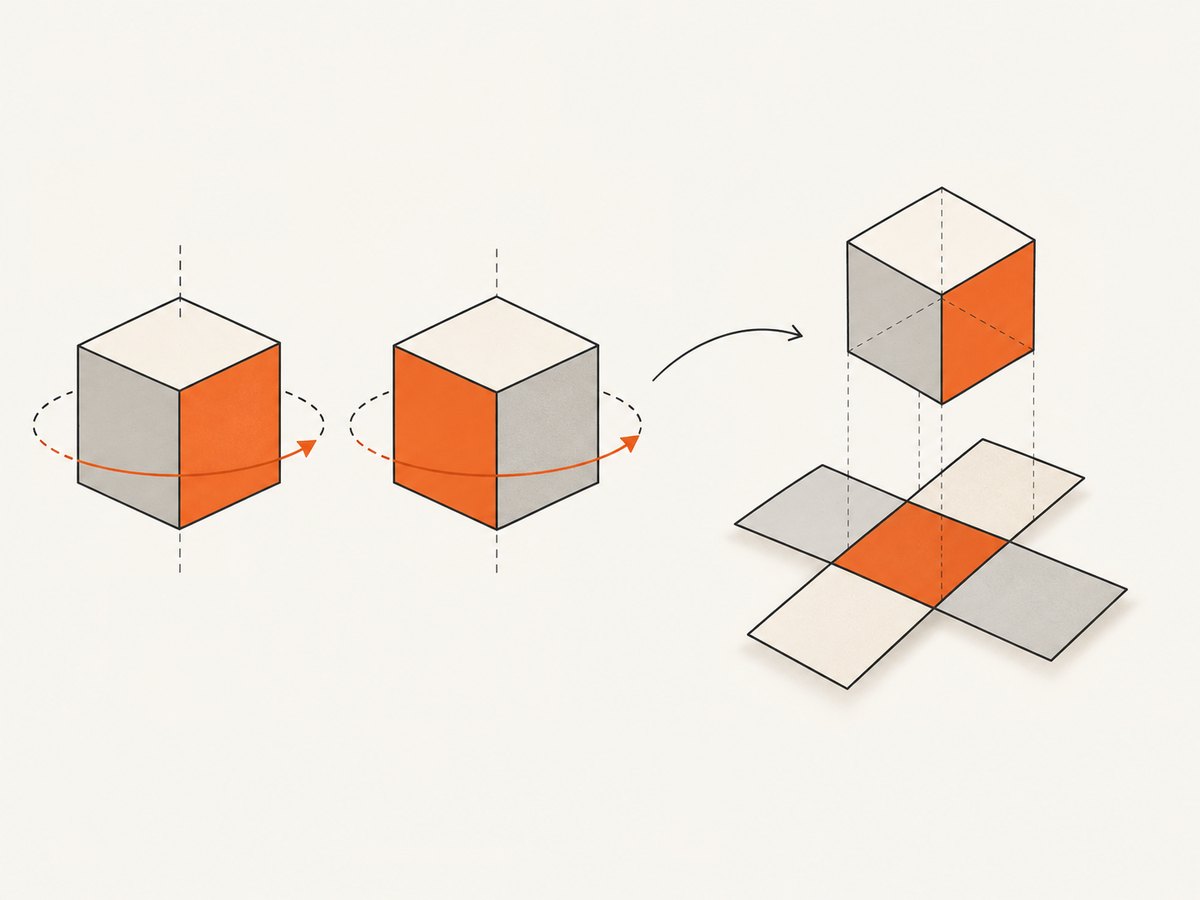
Transform origin and nested transforms
transform-origin changes the pivot around which a transform acts. Parent and child transforms combine, and transformed elements participate in stacking behavior. If the position or clipping differs, test the origin and each ancestor separately. A child-only capture may omit context that affects the child’s visible bounds.
Clipping, overflow, and off-screen elements
Ancestors with overflow: hidden or clipping paths can limit visible content. The optional cullOffscreen setting is disabled by default. If enabled, transformed elements, including those with inherited transforms, are conservatively retained for painting. This avoids some false culling but can reduce the performance benefit for those nodes. Only change it when diagnosing a specific large-capture issue.
Images, iframes, and canvas content
Cross-origin images may be unavailable unless their server permits CORS and useCORS is enabled. A cross-origin iframe document cannot be read by html2canvas; same-origin iframe content is recursively rendered. Existing canvases tainted by cross-origin content can also prevent reading or exporting pixel data. These are browser security boundaries, not transform settings.
Animations and responsive styles
CSS animations, transitions, media queries, and viewport-relative sizing can make output vary with timing and viewport dimensions. Pause or settle animation for a deterministic capture, and set windowWidth and windowHeight when you need a particular responsive state. This controls the cloned viewport; it does not make the renderer identical to the live browser compositor.
6. Troubleshooting common problems
| Symptom | Likely cause | Fix |
|---|---|---|
| Element appears untransformed or is positioned unexpectedly | Unsupported transform function, 3D/perspective behavior, nested transform, or origin mismatch. | Reduce to 2D matrix()-equivalent behavior, inspect ancestors and transform-origin, then compare a browser screenshot. |
| Rotated element is clipped at the edges | Capture dimensions or an ancestor’s overflow clip do not include the transformed visual bounds. | Capture a larger ancestor or explicit region; inspect overflow and clipping styles. |
| Capture promise rejects or target is missing | Selector ran before the DOM was ready, the element was removed, or rendering raised an error. | Run after the element mounts, check the selected element, and catch/log the promise rejection. |
| Images disappear or export throws a security error | Cross-origin image lacks CORS permission, or a canvas is tainted. | Serve assets with appropriate CORS headers, use useCORS, or keep assets same-origin. A client option cannot bypass browser origin policy. |
| Text differs or wraps differently | Fonts were not loaded, viewport differs, or a CSS feature is not reproduced. | Await document.fonts.ready, fix viewport dimensions, and isolate styles in a minimal case. |
| Output is blurry | Canvas scale is too low for the display size. | Increase scale (often to the device pixel ratio or higher) while checking memory use and output dimensions. |
| Capture is slow or the browser runs out of memory | Large page area multiplied by a high scale, many decoded images, or a large DOM. | Capture a smaller target, reduce scale, avoid unnecessary full-page capture, and release canvas references when done. |
| Transformed node goes missing in a large render | Off-screen culling behavior or bounds interaction. | Check whether cullOffscreen is enabled; it is off by default. Test the transformed element in isolation and compare with culling disabled. |
7. Performance, reliability, and cost
html2canvas runs in the browser and allocates a canvas whose pixel count grows with both width and height and with the square of the scale factor. Doubling scale roughly quadruples the number of output pixels, so high-density full-page captures can use substantial memory. Prefer a focused element capture, set only the resolution you need, and avoid retaining large canvas objects after exporting.
For reliability, wait for fonts and relevant images, use a stable viewport, disable or settle animation, and catch rejected promises. The result remains a reconstruction: a successful promise means the renderer produced a canvas, not that every browser effect matches. Treat visual comparisons as part of a release workflow if screenshots are used for evidence, previews, or regression checks.
html2canvas itself is a client-side library, so the project’s capture call does not imply a per-request screenshot service charge. Your costs instead depend on the browser and infrastructure that run the page, plus storage or delivery of the resulting file if your application adds those services. A hosted browser screenshot API has a different pricing and operational model; compare the exact output and billing behavior for your workload.
8. Or skip the browser setup
If the goal is a screenshot of a public page rather than a canvas built from your own DOM, ScreenshotNeo provides a website screenshot API and MCP server. It returns PNG, JPEG, WebP, or PDF from one GET request. It captures pages in a browser and handles cookie banners, popups, and chat widgets before the shot. Bot checks, blank pages, failed loads, timeouts, and cache hits are not billed; response headers report the page verdict and billing status. Its MCP server provides take_screenshot, get_page_info, and capture_pdf for Claude, Cursor, and other MCP clients.
See the ScreenshotNeo API documentation. Example cURL request:
curl -G "https://api.screenshotneo.com/v1/shot" \
  -d access_key=YOUR_API_KEY \
  --data-urlencode url=https://stripe.com \
  -o shot.webp
Python:
import requests

r = requests.get(
    "https://api.screenshotneo.com/v1/shot",
    params={"access_key": "YOUR_API_KEY", "url": "https://stripe.com"},
    timeout=90,
)
r.raise_for_status()
open("shot.webp", "wb").write(r.content)
Node.js:
const q = new URLSearchParams({
  access_key: 'YOUR_API_KEY',
  url: 'https://stripe.com'
});
const res = await fetch(`https://api.screenshotneo.com/v1/shot?${q}`);
if (!res.ok) throw new Error(`Screenshot request failed: ${res.status}`);
await Bun.write('shot.webp', res);
ScreenshotNeo also supports element capture, full-page capture with lazy images loaded, custom viewport and device presets, retina scale, custom CSS and JavaScript, selectors to wait for or hide, request blocking, headers and cookies, caching, async jobs, bulk requests, and more. For public-page screenshots, it avoids setting up browser automation in your own runtime. It does not replace html2canvas when the input is a specific in-page DOM state that only your application can access.
There are 1,000 screenshots a month free with no card; paid plans start at $5 for 3,000. Sign up and capture your first screenshots free.
9. FAQ
Does html2canvas support rotate()?
It supports transforms through parsed matrix values, so a simple 2D rotation may render. Validate the result for your styles and browser; support is limited and other CSS can also affect the image.
Can I capture rotateY() or perspective() accurately?
Do not rely on it for full 3D output. The implementation does not support 3D rendering and reduces matrix3d() to a 2D subset.
Does increasing scale improve transform support?
No. Scale changes output resolution. It can make edges sharper, but it does not change which CSS transforms the renderer understands.
Can html2canvas capture a page from another domain?
It can render content available to the current document subject to browser security rules, but it cannot read cross-origin iframe documents. Cross-origin images require appropriate server CORS permissions.
What should I use when I need the browser’s actual pixels?
Use a browser screenshot workflow. The html2canvas FAQ names Puppeteer or Playwright for server-side capture and native tab screenshot APIs for browser extensions.


