How to Capture the Current Window in a Java Web Application
Capture a browser page, full document, DOM element, or desktop region in Java with Playwright, Selenium, or Robot—and choose the right scope.
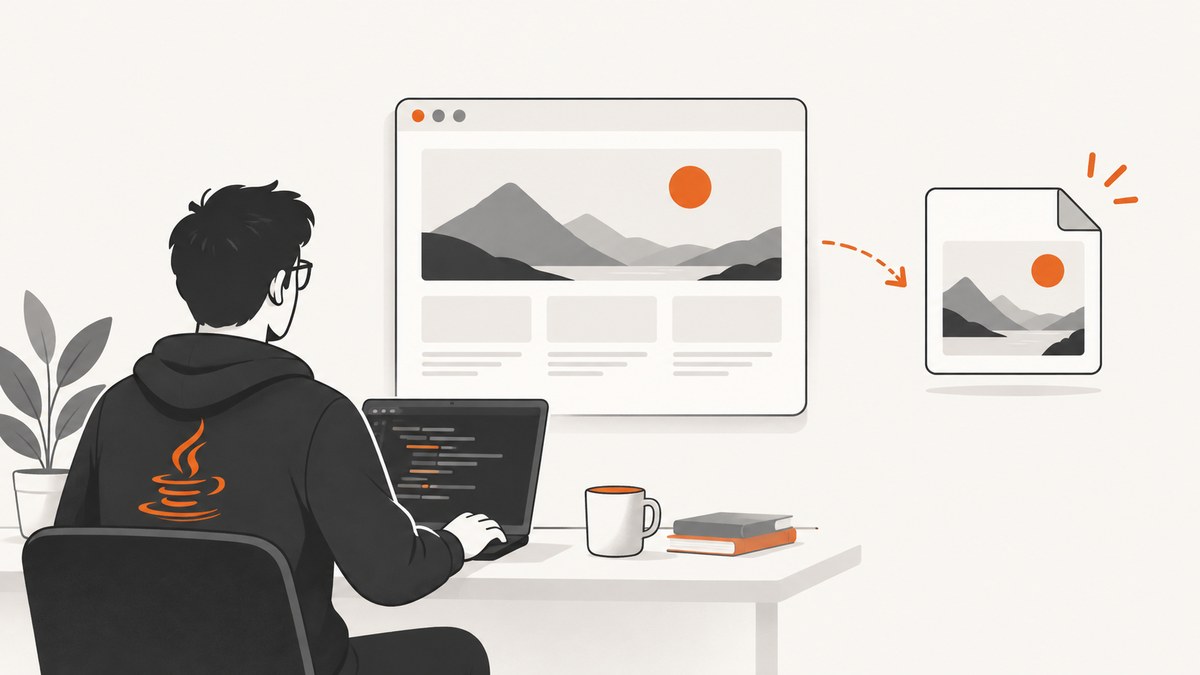
First decide what “current window” means. In a Java web application, it usually means the page rendered in a browser session that your code controls. Use Playwright Java or Selenium for that. If you mean the actual pixels of an operating-system desktop, use java.awt.Robot; that requires an accessible display and desktop permissions.
Automation screenshots do not capture a remote visitor’s local desktop. They capture the browser page or display available to the Java process running the code.
Choose the capture method
| Goal | Recommended API | Scope and constraints |
|---|---|---|
| Current browser viewport | Playwright Page.screenshot or Selenium TakesScreenshot |
Requires a browser session controlled by your Java process. |
| Entire scrollable web page | Playwright with setFullPage(true) |
Captures page content, not browser chrome. |
| One DOM element | Playwright locator screenshot or Selenium element screenshot | The element must exist in the controlled page. |
| Desktop pixels or browser chrome | java.awt.Robot |
Needs a display, screen coordinates, and capture permissions. |
Capture a browser page with Playwright Java
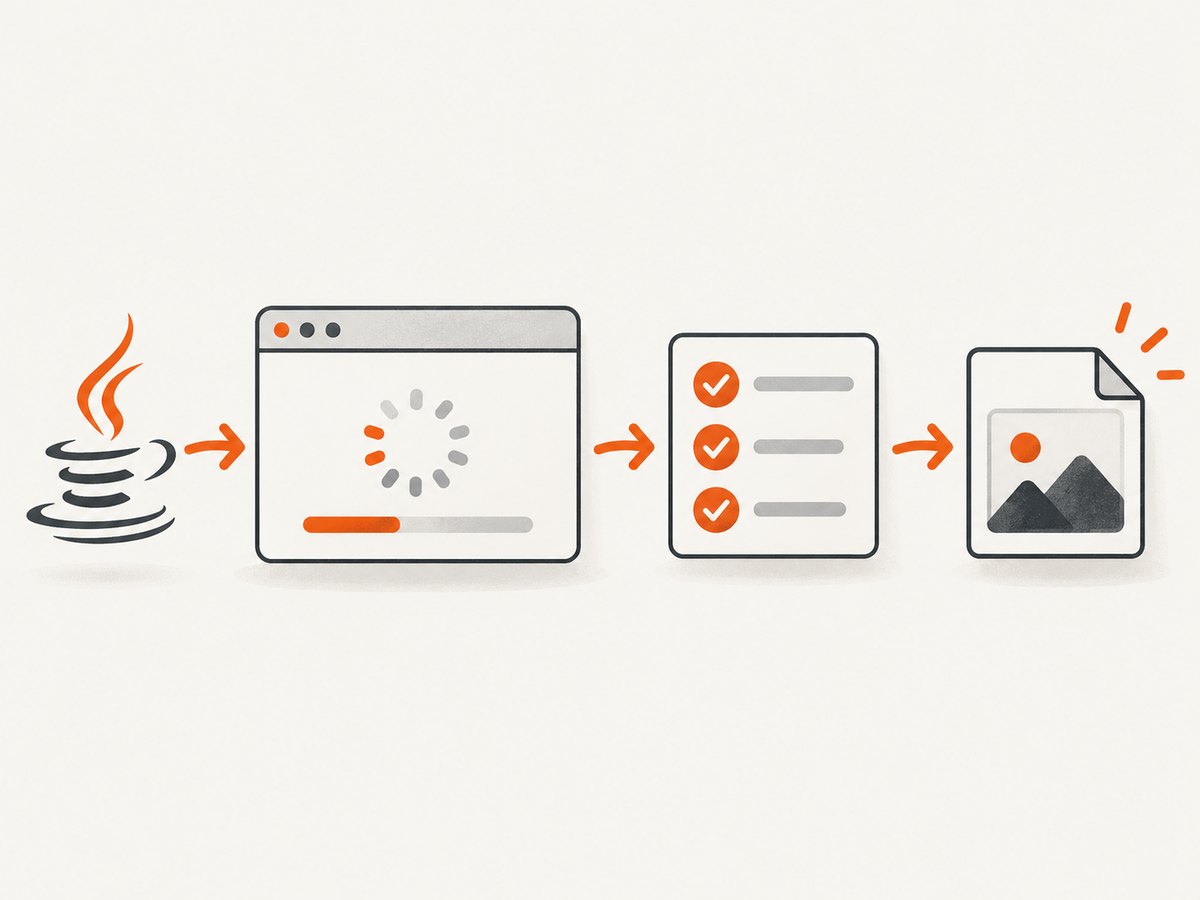
Playwright is the most explicit option when you need viewport, full-page, element, or in-memory screenshots. Its browser launches headless by default; set setHeadless(false) when you need a visible browser window. See the official Playwright Java screenshot documentation.
Complete runnable example
import com.microsoft.playwright.Browser;
import com.microsoft.playwright.BrowserType;
import com.microsoft.playwright.Page;
import com.microsoft.playwright.Playwright;
import java.nio.file.Paths;

public class CapturePage {
  public static void main(String[] args) {
    try (Playwright playwright = Playwright.create()) {
      Browser browser = playwright.chromium().launch(
          new BrowserType.LaunchOptions().setHeadless(true));
      Page page = browser.newPage(new Browser.NewPageOptions()
          .setViewportSize(1440, 900));

      page.navigate("https://example.com");
      page.waitForLoadState();

      // Current viewport.
      page.screenshot(new Page.ScreenshotOptions()
          .setPath(Paths.get("viewport.png")));

      // Entire scrollable page.
      page.screenshot(new Page.ScreenshotOptions()
          .setPath(Paths.get("full-page.png"))
          .setFullPage(true));

      // A single DOM element.
      page.locator("h1").screenshot(new com.microsoft.playwright.Locator.ScreenshotOptions()
          .setPath(Paths.get("heading.png")));

      // Keep the image in memory instead of writing a file.
      byte[] bytes = page.screenshot();
      System.out.println("Captured " + bytes.length + " bytes");

      browser.close();
    }
  }
}
Wait for the page state you actually need
navigate returning does not guarantee that client-rendered content, fonts, images, or charts are ready. Wait for a selector, a load state, or a deliberate delay:
page.navigate("https://example.com/dashboard");
page.waitForSelector("[data-testid='dashboard-ready']");
page.waitForTimeout(500); // Use only when the site has no reliable readiness signal.
page.screenshot(new Page.ScreenshotOptions().setPath(Paths.get("dashboard.png")));
Useful Playwright options
setFullPage(true)captures the full scrollable document.setPath(Paths.get(...))writes a file; omitting it returns a byte array.- Set the viewport when layout depends on width or height.
- Use a locator screenshot for a component instead of cropping a full-page image.
- Launch headed mode with
setHeadless(false)when debugging. Headed mode still captures the page, not necessarily the operating-system window frame.
Capture with Selenium Java
Selenium exposes screenshots through TakesScreenshot. W3C-conformant drivers follow the WebDriver specification. The Selenium API documents that a nonconformant driver may return best-effort scope such as the page, current window, visible frame, or entire display, so do not assume identical results across every browser and driver combination. See the Selenium Java API reference.
import org.openqa.selenium.By;
import org.openqa.selenium.OutputType;
import org.openqa.selenium.WebDriver;
import org.openqa.selenium.chrome.ChromeDriver;
import org.openqa.selenium.io.FileHandler;
import java.io.File;

public class SeleniumCapture {
  public static void main(String[] args) throws Exception {
    WebDriver driver = new ChromeDriver();
    try {
      driver.get("https://example.com");

      File viewport = ((org.openqa.selenium.TakesScreenshot) driver)
          .getScreenshotAs(OutputType.FILE);
      FileHandler.copy(viewport, new File("selenium-viewport.png"));

      File element = driver.findElement(By.cssSelector("h1"))
          .getScreenshotAs(OutputType.FILE);
      FileHandler.copy(element, new File("selenium-heading.png"));
    } finally {
      driver.quit();
    }
  }
}
You can request other output types, such as a Base64 string or raw bytes:
byte[] png = ((org.openqa.selenium.TakesScreenshot) driver)
    .getScreenshotAs(OutputType.BYTES);
String base64 = ((org.openqa.selenium.TakesScreenshot) driver)
    .getScreenshotAs(OutputType.BASE64);
For a full page in Selenium, support depends on the browser and driver. A common fallback is to collect the document dimensions with JavaScript, resize the window, and capture, but this can change responsive layout and still may omit content loaded only during scrolling. Playwright’s setFullPage(true) is the clearer API when full-page output is a requirement.
Capture literal desktop pixels with java.awt.Robot
Use Robot when the requirement is a rectangle of the desktop, including visible browser chrome or other applications. It works in screen coordinates and is separate from browser automation.
import java.awt.AWTException;
import java.awt.Rectangle;
import java.awt.Robot;
import java.awt.Toolkit;
import java.awt.image.BufferedImage;
import javax.imageio.ImageIO;
import java.io.File;
import java.io.IOException;

public class DesktopCapture {
  public static void main(String[] args) throws AWTException, IOException {
    Robot robot = new Robot();
    Rectangle screen = new Rectangle(Toolkit.getDefaultToolkit().getScreenSize());
    BufferedImage image = robot.createScreenCapture(screen);
    ImageIO.write(image, "png", new File("desktop.png"));
  }
}
For a specific region, construct a rectangle with screen coordinates:
Rectangle region = new Rectangle(100, 100, 1280, 800);
BufferedImage image = new Robot().createScreenCapture(region);
Oracle’s Robot documentation notes that desktop permissions may be required; without them, a SecurityException may be thrown or the image may be undefined. Screen capture can take time, so do not run it on the AWT event dispatch thread.
Running in servers, containers, and CI
- Headless Playwright and Selenium runs do not need a physical monitor. Install the browser and its dependencies in the image.
Robotgenerally needs a display server. Linux CI often requires an X11 display or another supported desktop session; a normal HTTP request cannot create a visitor’s desktop display.- Use fixed viewport dimensions and device scale settings when image comparisons must be repeatable.
- Fonts, animations, time zones, locale, and network responses can change pixels between runs. Disable animations with injected CSS when visual stability matters.
- Always close
Browser,Playwright, andWebDriverinstances infinallyor try-with-resources blocks.
Or skip the browser setup
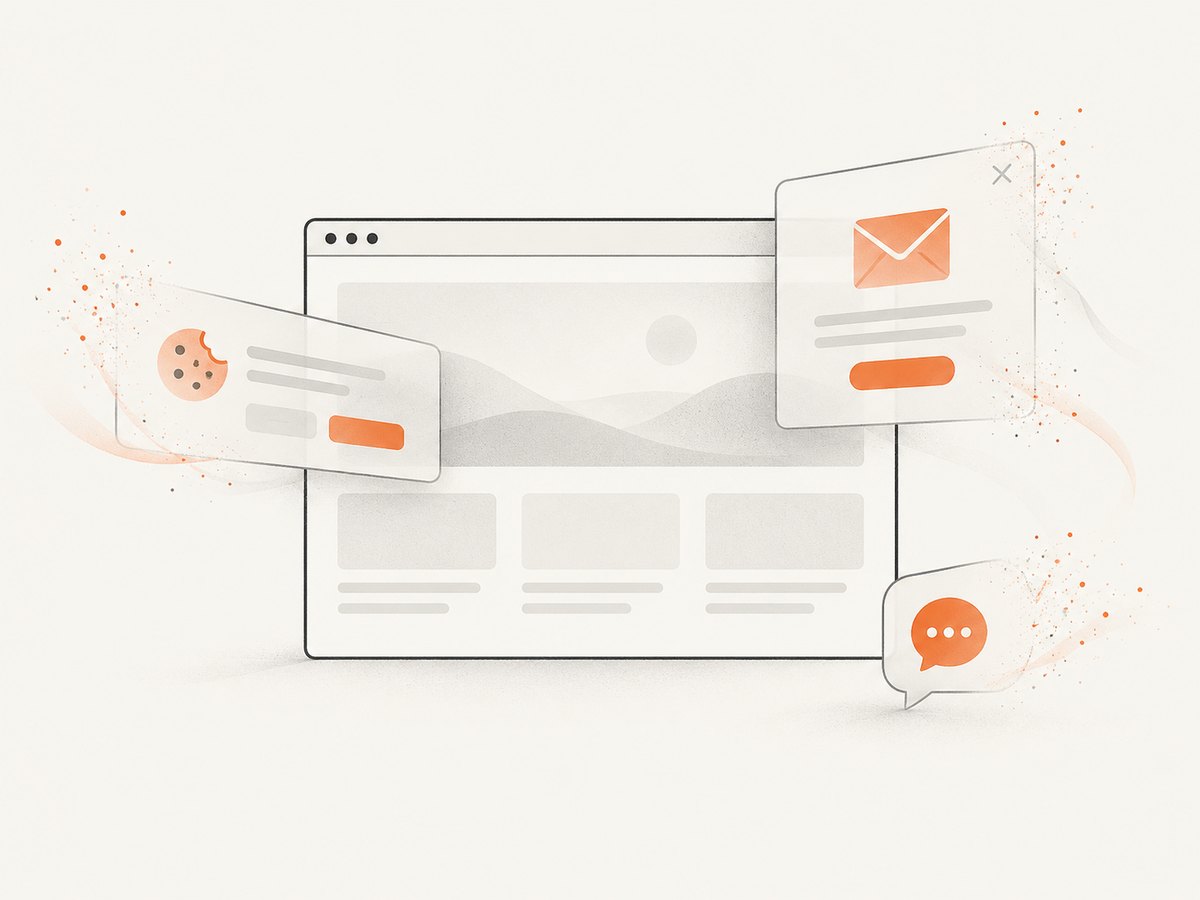
ScreenshotNeo provides a website screenshot API. One GET request returns PNG, JPEG, WebP, or PDF. It removes cookie and consent banners, newsletter popups, and chat widgets before capture; bot checks, blank pages, timeouts, failed loads, and cache hits are not billed. Responses identify the page verdict and billing result with X-Page-Verdict and X-Billed headers. An MCP server also lets Claude, Cursor, and other MCP clients call take_screenshot, get_page_info, and capture_pdf.
See the ScreenshotNeo API documentation for all options.
cURL
curl -G "https://api.screenshotneo.com/v1/shot" \
  -d access_key=YOUR_API_KEY \
  --data-urlencode url=https://stripe.com \
  -o shot.webp
Python
import requests

r = requests.get(
    "https://api.screenshotneo.com/v1/shot",
    params={"access_key": "YOUR_API_KEY", "url": "https://stripe.com"},
    timeout=90,
)
r.raise_for_status()
open("shot.webp", "wb").write(r.content)
Node.js
const q = new URLSearchParams({
  access_key: 'YOUR_API_KEY',
  url: 'https://stripe.com'
});
const res = await fetch(`https://api.screenshotneo.com/v1/shot?${q}`);
if (!res.ok) throw new Error(`HTTP ${res.status}`);
const image = Buffer.from(await res.arrayBuffer());
require('fs').writeFileSync('shot.webp', image);
ScreenshotNeo supports full-page and element capture, dark mode, device presets or custom viewports, retina scale, PDF paper and margin settings, custom CSS and JavaScript, clicks, selector waits, delays, network-idle waits, request blocking, headers, cookies, user agents, authorization, time zone, geolocation, transparent backgrounds, resizing, configurable caching, signed image links, asynchronous jobs with signed webhooks, bulk capture for up to 100 URLs per call, usage reporting, and an OpenAPI specification. Existing parameter names used by other screenshot APIs also work, which can simplify migration.
The Free plan includes 1,000 screenshots per month with no card. Paid plans start at $5 for 3,000 screenshots; yearly billing gives two months free, and every feature is available on every plan. Create a free ScreenshotNeo account.
Troubleshooting
The screenshot is blank
Check the URL, wait for a meaningful selector, and inspect network or browser console errors. For desktop capture, verify that a display exists and that the process has permission to capture it.
Dynamic content is missing
Wait for an application-specific readiness element instead of relying only on the initial load event. If content appears after scrolling, use full-page capture or scroll the page before taking a viewport screenshot.
The capture is cut off
A viewport screenshot intentionally captures only the visible viewport. Use Playwright’s setFullPage(true) for the full scrollable document. In Selenium, full-page behavior is driver-dependent.
Element screenshots fail
The selector may match nothing, the element may be hidden, or it may be outside an iframe. Wait for the element, switch to the correct frame, and verify visibility before capture.
Robot throws SecurityException
Grant the operating system’s screen-recording or desktop-capture permission to the Java process. On a server, confirm that a supported display session is available.
Playwright or Selenium cannot start
Install the matching browser and driver dependencies, verify the Java library version, and read the first startup error rather than the later screenshot exception. In containers, missing shared libraries are a common cause.
Images differ between runs
Pin viewport size, browser version, fonts, locale, time zone, and data. Disable animations, wait for network-dependent components, and avoid capturing while transitions are active.
Performance, reliability, and cost
- Performance: Reuse a browser process for multiple pages, keep pages isolated, and avoid launching a new browser for every screenshot. Full-page captures and large device scale factors use more memory.
- Reliability: Add explicit waits, bounded timeouts, retries for transient navigation failures, and cleanup in all exit paths. Record the URL, viewport, browser version, and failure message with each job.
- Desktop capture: It is sensitive to display resolution, window position, focus, permissions, and concurrent UI changes. Prefer page-level automation for deterministic web screenshots.
- Cost: Playwright, Selenium, and Robot run on infrastructure you manage, so account for browser processes, CPU, memory, and CI minutes. ScreenshotNeo charges only for clean shots; failed loads, bot checks, blank pages, timeouts, and cache hits are not billed.
FAQ
Can Java capture the browser’s address bar and tabs?
Only a desktop capture such as Robot can include browser chrome. Playwright and Selenium capture web content in the controlled page.
Can a Java web endpoint screenshot the user’s computer?
No. Server-side Java can capture its own browser session or display. Capturing a user’s local desktop requires code running on that device with explicit permissions.
Should I use Playwright or Selenium?
Use Playwright when you want a direct full-page and locator screenshot API. Use Selenium when your project already uses WebDriver and its driver ecosystem.
What format should I store?
PNG is lossless and useful for tests. JPEG is smaller for photographic pages. WebP often reduces transfer size. Choose PDF when the output is intended for printing or document workflows.


