How to Capture Displayed HTML as an Image in Java
Render HTML in a real browser, then capture the viewport, full page, or one element with Playwright or Selenium in Java.
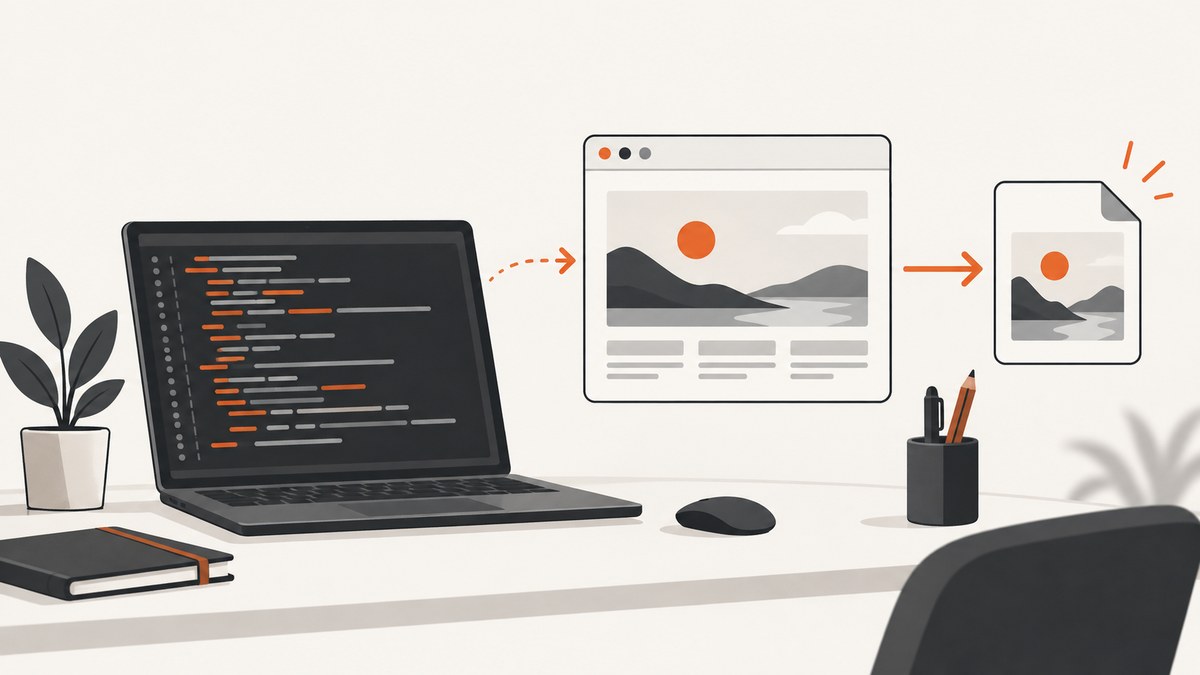
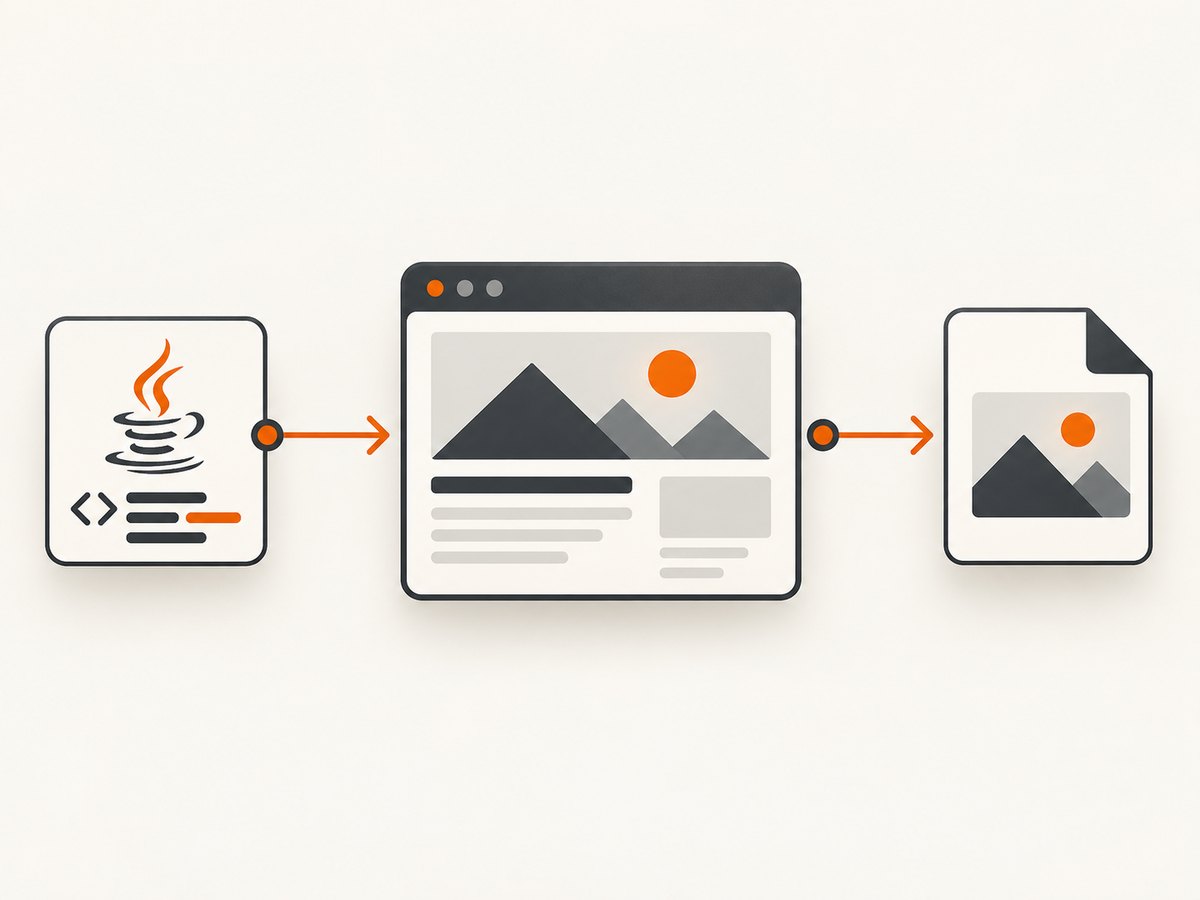
To capture displayed HTML as an image in Java, render the page in a browser with Playwright or Selenium, then call the browser’s screenshot API. This captures the layout, CSS, fonts, images, and JavaScript output that a user sees instead of converting the HTML source directly.
Playwright is the most direct option when you need viewport, full-page, byte-array, and element screenshots from one API. Selenium is a good fit when your project already uses WebDriver.
Choose the capture method
| Requirement | Recommended API |
|---|---|
| Visible browser viewport | Playwright page.screenshot() or Selenium TakesScreenshot |
| Entire scrollable page | Playwright with setFullPage(true) |
| One rendered element | Playwright locator screenshot or Selenium WebElement.getScreenshotAs() |
| Image bytes for storage or processing | Playwright byte[] or Selenium OutputType.BYTES |
| Existing WebDriver test suite | Selenium |
Capture displayed HTML with Playwright for Java
Playwright’s Java API provides page screenshots, full-page screenshots, locator screenshots, and byte-array output. See the Playwright Java screenshot guide and the Page API reference.
Minimal viewport screenshot
import com.microsoft.playwright.Browser;
import com.microsoft.playwright.BrowserType;
import com.microsoft.playwright.Page;
import com.microsoft.playwright.Playwright;
import java.nio.file.Paths;

public class ViewportScreenshot {
  public static void main(String[] args) {
    try (Playwright playwright = Playwright.create()) {
      Browser browser = playwright.chromium().launch(
          new BrowserType.LaunchOptions().setHeadless(true));
      Page page = browser.newPage();
      page.navigate("https://example.com");
      page.screenshot(new Page.ScreenshotOptions()
          .setPath(Paths.get("screenshot.png")));
      browser.close();
    }
  }
}
The screenshot is written after navigation returns. For pages that render important content asynchronously, wait for a selector, a state, or a deliberate delay before capturing.
Full-page screenshot
page.screenshot(new Page.ScreenshotOptions()
    .setPath(Paths.get("full-page.png"))
    .setFullPage(true));
setFullPage(true) captures the full scrollable page as one tall image. Very long pages can produce large files or exceed image-dimension limits in downstream systems.
Capture one element
page.locator(".header").screenshot(
    new Locator.ScreenshotOptions()
        .setPath(Paths.get("header.png"))
);
Use a stable selector and wait until the element is visible. Locator screenshots are useful for cards, invoices, charts, and component previews.
Return image bytes
byte[] imageBytes = page.screenshot();
java.nio.file.Files.write(Paths.get("screenshot.png"), imageBytes);
Control format, quality, scale, and clipping
page.screenshot(new Page.ScreenshotOptions()
    .setPath(Paths.get("card.webp"))
    .setType(Page.ScreenshotType.WEBP)
    .setQuality(85)
    .setScale("css")
    .setClip(new Page clipped));
Use the exact option types exposed by the Playwright version in your project. The screenshot API documents image type, quality, scale, clipping, animation handling, masking, and related options. Use PNG for lossless output, JPEG or WebP when smaller files matter, and CSS scale when you want dimensions based on CSS pixels.
Wait for rendered content
page.navigate("https://example.com/dashboard");
page.waitForSelector("main.dashboard");
page.screenshot(new Page.ScreenshotOptions()
    .setPath(Paths.get("dashboard.png")));
For applications that fetch data after the initial load, waiting for the final content selector is usually more reliable than taking a screenshot immediately after navigation.
Capture displayed HTML with Selenium WebDriver
Selenium exposes screenshots through the TakesScreenshot interface. Its Java API supports files, Base64 text, and raw bytes; element screenshots are available through WebElement. See the Selenium TakesScreenshot API and OutputType API.
Save the browser viewport to a file
import java.io.File;
import java.nio.file.Files;
import java.nio.file.Path;
import java.nio.file.StandardCopyOption;
import org.openqa.selenium.By;
import org.openqa.selenium.WebDriver;
import org.openqa.selenium.chrome.ChromeDriver;
import org.openqa.selenium.chrome.ChromeOptions;
import org.openqa.selenium.OutputType;
import org.openqa.selenium.TakesScreenshot;

public class SeleniumScreenshot {
  public static void main(String[] args) throws Exception {
    ChromeOptions options = new ChromeOptions();
    options.addArguments("--headless=new");

    WebDriver driver = new ChromeDriver(options);
    try {
      driver.get("https://example.com");
      File temporary = ((TakesScreenshot) driver)
          .getScreenshotAs(OutputType.FILE);
      Files.copy(temporary.toPath(), Path.of("screenshot.png"),
          StandardCopyOption.REPLACE_EXISTING);
    } finally {
      driver.quit();
    }
  }
}
Capture an element
File elementFile = driver.findElement(By.cssSelector(".header"))
    .getScreenshotAs(OutputType.FILE);
Files.copy(elementFile.toPath(), Path.of("header.png"),
    StandardCopyOption.REPLACE_EXISTING);
Get Base64 or bytes
String base64 = ((TakesScreenshot) driver)
    .getScreenshotAs(OutputType.BASE64);
byte[] bytes = ((TakesScreenshot) driver)
    .getScreenshotAs(OutputType.BYTES);
Selenium’s screenshot extent follows the WebDriver implementation. With a W3C-conformant driver, the extent follows the WebDriver specification; with nonconformant drivers, the result is best effort and can vary. Verify the output when you require whole-page behavior.
How do I take a full-page screenshot in Java?
With Playwright, use setFullPage(true):
page.screenshot(new Page.ScreenshotOptions()
    .setPath(Paths.get("page.png"))
    .setFullPage(true));
Selenium’s basic screenshot API normally captures the current viewport. Full-page capture may require browser-specific support or a scrolling and stitching strategy. If you implement stitching, divide the page into viewport-sized captures, scroll between captures, and assemble them while accounting for fixed headers, sticky elements, device scale, and the final partial viewport. Test pages with lazy-loaded images and animations because scrolling can change the rendered state.
Make the rendered result deterministic
- Set a fixed viewport size and device scale when your output must be reproducible.
- Wait for a meaningful selector after navigation and after data requests.
- Use a stable browser locale, timezone, and user agent when those values affect layout.
- Disable or freeze animations if a moving element makes captures inconsistent.
- Ensure web fonts have loaded before capture; otherwise fallback fonts can change line breaks.
- For full-page output, trigger lazy-loaded content before taking the screenshot.
- Use authenticated browser state or cookies for pages that require a login, while keeping credentials out of source control.
Common errors and fixes
| Error or symptom | Cause | Fix |
|---|---|---|
| Blank or partially rendered image | Capture occurred before asynchronous content finished. | Wait for a content selector, network completion condition, or application-ready marker. |
| Element not found | Selector is wrong, the element is inside an iframe, or it has not appeared yet. | Check the selector, wait for it, and switch to the correct frame before locating it. |
| Fonts differ from the browser | Web fonts were still loading or were unavailable in the runtime. | Wait for font loading, package required fonts, and verify network access. |
| Full page is cut off | Driver does not implement full-page screenshots or the page uses unusual scroll containers. | Use Playwright full-page capture or implement tested scrolling and stitching. |
| Images are missing | Lazy loading, blocked requests, or capture before image decode. | Scroll through the page, wait for image completion, and inspect browser logs and network access. |
| Cookie banner covers content | The page requires an interaction before the content is unobstructed. | Locate and click the consent control, or hide the banner only when that matches your capture requirement. |
| Timeout during navigation | Slow server, blocked resource, redirect loop, or bot protection. | Set a suitable timeout, inspect the final URL and response, and handle the page as unavailable when it cannot render reliably. |
| Out-of-memory or oversized image | A very tall page or high device scale created a huge bitmap. | Capture a viewport or element, reduce scale, use JPEG/WebP, or split the page into sections. |
| Selenium output varies by machine | Different browser, driver, viewport, fonts, or operating-system rendering. | Pin the browser environment used by your deployment and set explicit window dimensions. |
Performance, reliability, and cost considerations
- Browser startup: Reuse one browser process and create isolated pages or contexts for multiple captures when your security model permits it.
- Concurrency: Limit parallel pages according to available CPU and memory. Too much concurrency causes slow rendering and timeouts.
- Image size: PNG preserves pixels but can be large. JPEG and WebP reduce transfer and storage size when lossy output is acceptable.
- Waiting: A precise readiness selector is usually faster and more predictable than a long fixed delay.
- Retries: Retry transient navigation or network failures with a bounded backoff. Do not blindly retry deterministic selector or authentication errors.
- Isolation: Use a fresh browser context for unrelated users or credentials so cookies and local storage do not leak between captures.
- Observability: Record URL, viewport, browser version, wait condition, duration, final response status, and output dimensions.
- Cost: Self-hosted Playwright or Selenium consumes compute, storage, and operational time. A hosted screenshot API replaces browser lifecycle management with per-capture usage pricing.
Or skip the browser setup
ScreenshotNeo is a website screenshot API and MCP server. One GET request returns a PNG, JPEG, WebP, or PDF. It removes cookie and consent banners, newsletter popups, and chat widgets before capture; bot checks, blank pages, timeouts, failed loads, and cache hits are not billed; and response headers identify the page verdict and billing result.

It supports full-page capture with lazy images loaded, CSS-selector element capture, dark mode, device presets or custom viewports, retina scale, custom CSS and JavaScript, clicks, waits, blocked requests, custom headers and cookies, timezone and geolocation, transparent backgrounds, resizing, caching, signed links, asynchronous jobs, webhooks, bulk capture, usage reporting, and PDF options. Its MCP server provides take_screenshot, get_page_info, and capture_pdf tools for Claude, Cursor, and other MCP clients.
See the ScreenshotNeo documentation for the complete parameter list. This Java example uses the same HTTP endpoint from any language:
import java.net.URI;
import java.net.http.HttpClient;
import java.net.http.HttpRequest;
import java.net.http.HttpResponse;
import java.nio.file.Files;
import java.nio.file.Path;

public class ScreenshotNeoJava {
  public static void main(String[] args) throws Exception {
    String endpoint = "https://api.screenshotneo.com/v1/shot"
        + "?access_key=YOUR_API_KEY"
        + "&url=https%3A%2F%2Fstripe.com";
    HttpClient client = HttpClient.newHttpClient();
    HttpRequest request = HttpRequest.newBuilder(URI.create(endpoint)).GET().build();
    HttpResponse response = client.send(request,
        HttpResponse.BodyHandlers.ofByteArray());
    if (response.statusCode() / 100 != 2) {
      throw new IllegalStateException("Screenshot failed: " + response.statusCode());
    }
    Files.write(Path.of("shot.webp"), response.body());
  }
}
Equivalent requests:
curl -G "https://api.screenshotneo.com/v1/shot" -d access_key=YOUR_API_KEY --data-urlencode url=https://stripe.com -o shot.webpimport requests
r = requests.get("https://api.screenshotneo.com/v1/shot", params={"access_key": "YOUR_API_KEY", "url": "https://stripe.com"}, timeout=90)
open("shot.webp", "wb").write(r.content)const q = new URLSearchParams({ access_key: 'YOUR_API_KEY', url: 'https://stripe.com' });
const res = await fetch(`https://api.screenshotneo.com/v1/shot?${q}`);The Free plan includes 1,000 screenshots per month with no card. Paid plans start at $5 for 3,000 screenshots, and every feature is available on every plan. Create a free ScreenshotNeo account.
FAQ
Does a screenshot capture HTML source or the displayed page?
Browser screenshot APIs capture the rendered page after HTML, CSS, fonts, images, and JavaScript have been processed.
Can I capture HTML that is already stored as a string?
Yes. Create a page, call page.setContent(html) in Playwright, wait for required resources, and then call screenshot(). External fonts, images, and scripts still need reachable URLs.
Which library should a new Java project use?
Use Playwright when full-page and locator capture are central requirements. Use Selenium when your application already has WebDriver infrastructure and tests.
Can I return the image without writing a file?
Yes. Playwright returns byte[], and Selenium supports OutputType.BYTES or OutputType.BASE64.
Why does my full-page image differ between runs?
Dynamic data, animations, lazy loading, fonts, viewport dimensions, browser versions, and timezone or locale settings can all change layout. Make those inputs explicit and wait for a deterministic ready state.


