How to Capture Images Inside a Div With html2canvas
Capture a div with html2canvas, download it as PNG, handle cross-origin images, sizing, CSS limits, and server-side alternatives.
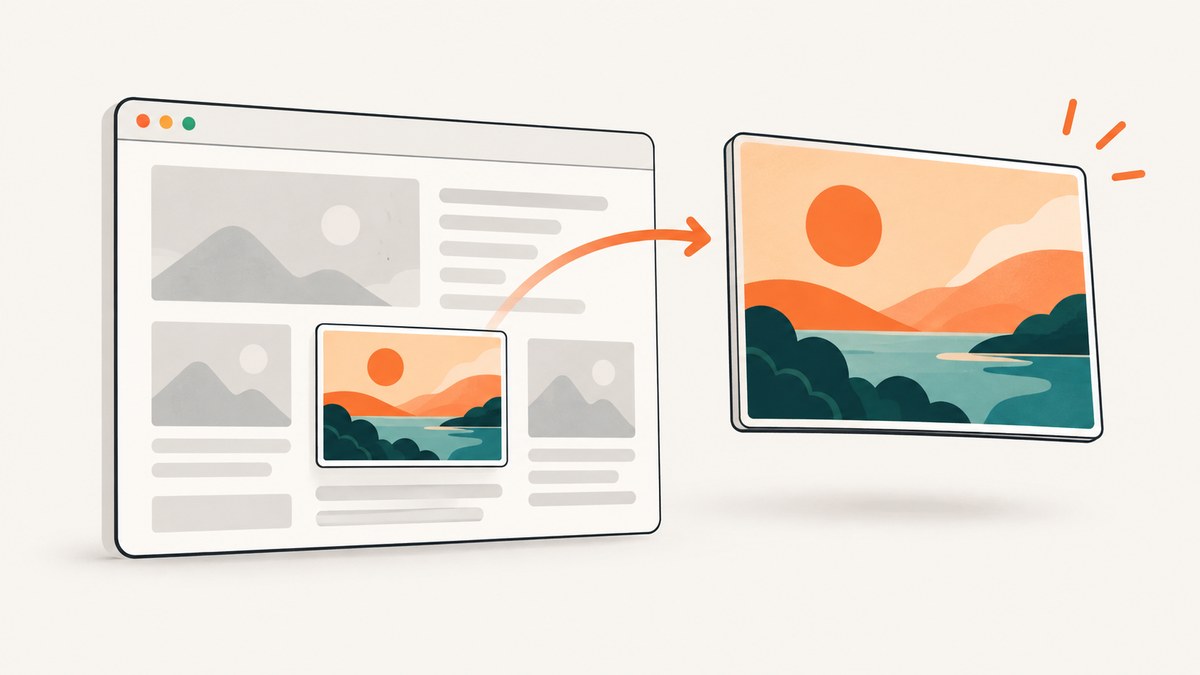
Pass the actual DOM element to html2canvas. It returns a Promise that resolves to a <canvas>, which you can display or export as an image.
const element = document.querySelector('#capture');
const canvas = await html2canvas(element);
document.body.appendChild(canvas);
This is a client-side DOM and CSS reconstruction, not a photograph of the browser window. Unsupported CSS, cross-origin assets, oversized canvases, and iframe security rules can change the result. The official html2canvas documentation describes the supported approach and limitations.
1. Complete working example
Save this as index.html, open it in a browser, and click the button. The example selects one <div>, renders it, shows the canvas, and downloads a PNG.
<!doctype html>
<html lang="en">
<head>
  <meta charset="utf-8">
  <meta name="viewport" content="width=device-width, initial-scale=1">
  <title>Capture a div with html2canvas</title>
  <script src="https://cdn.jsdelivr.net/npm/html2canvas@1.4.1/dist/html2canvas.min.js"></script>
  <style>
    body {
      font-family: system-ui, sans-serif;
      margin: 2rem;
      background: #f3f4f6;
    }
    #capture {
      width: 520px;
      padding: 2rem;
      color: #172033;
      background: linear-gradient(135deg, #dbeafe, #fef3c7);
      border: 1px solid #cbd5e1;
      border-radius: 16px;
      box-shadow: 0 12px 30px rgb(15 23 42 / 15%);
    }
    #capture h1 { margin-top: 0; }
    #result { margin-top: 1rem; max-width: 100%; }
    button { margin-top: 1rem; padding: .7rem 1rem; cursor: pointer; }
  </style>
</head>
<body>
  <div id="capture">
    <h1>A shareable card</h1>
    <p>This entire div will become a PNG image.</p>
  </div>
  <button id="save" type="button">Capture and download</button>
  <div id="result"></div>

  <script>
    document.querySelector('#save').addEventListener('click', async () => {
      const element = document.querySelector('#capture');
      const canvas = await html2canvas(element, {
        backgroundColor: null,
        scale: window.devicePixelRatio
      });

      document.querySelector('#result').replaceChildren(canvas);

      const link = document.createElement('a');
      link.download = 'screenshot.png';
      link.href = canvas.toDataURL('image/png');
      link.click();
    });
  </script>
</body>
</html>
2. The minimal JavaScript pattern
Use an element reference, not a selector string. Wait for the returned Promise before reading or exporting the canvas.
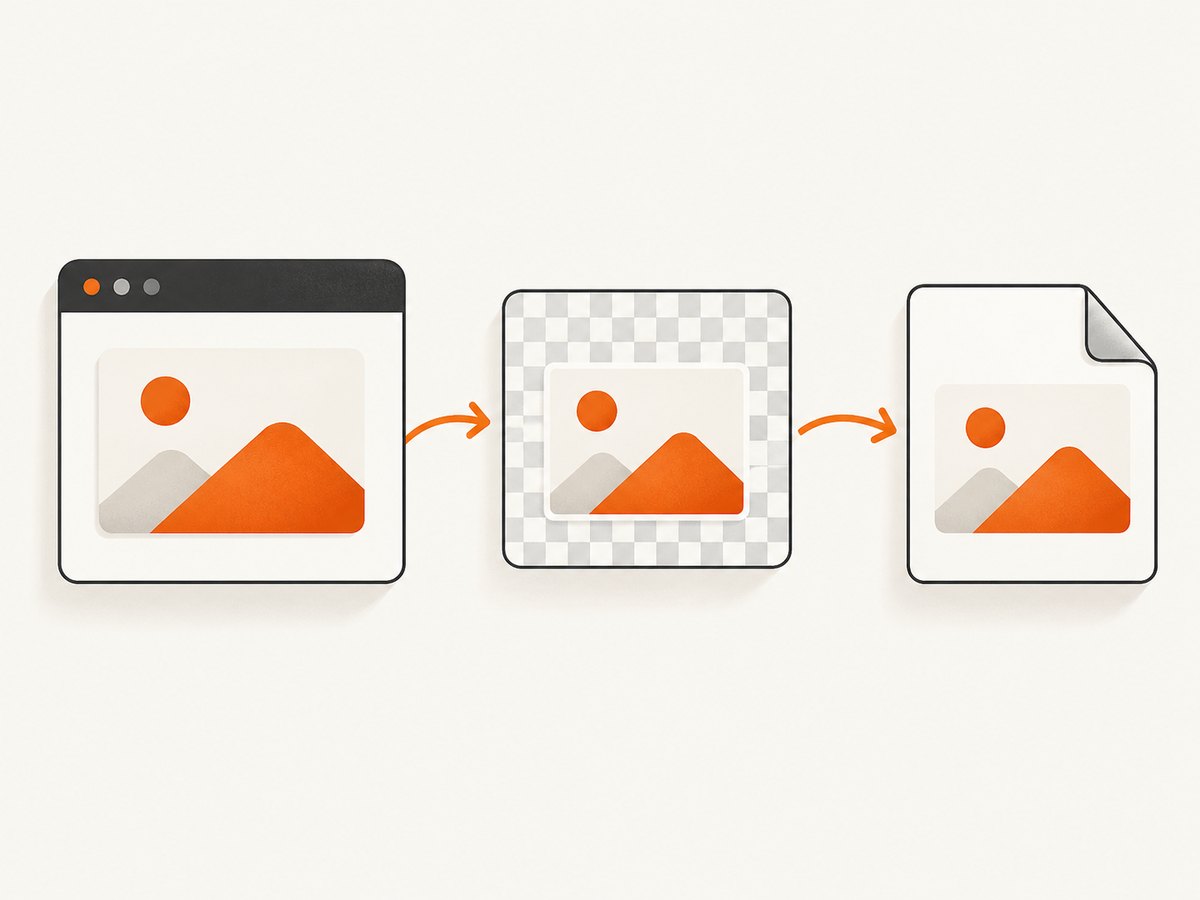
const element = document.querySelector('#capture');
if (!element) throw new Error('Could not find #capture');

const canvas = await html2canvas(element);
document.body.appendChild(canvas);
Without async/await:
html2canvas(document.querySelector('#capture')).then(canvas => {
  document.body.appendChild(canvas);
});
3. Download the result as a PNG
The canvas API can turn the rendered result into a data URL. The documented html2canvas example uses an anchor element for the download.
const canvas = await html2canvas(document.querySelector('#capture'));
const link = document.createElement('a');
link.download = 'screenshot.png';
link.href = canvas.toDataURL('image/png');
link.click();
For larger outputs, prefer a Blob so the browser does not need to keep a very large base64 string in memory:
const canvas = await html2canvas(document.querySelector('#capture'));

canvas.toBlob(blob => {
  if (!blob) throw new Error('The browser could not create an image blob');
  const url = URL.createObjectURL(blob);
  const link = document.createElement('a');
  link.download = 'screenshot.png';
  link.href = url;
  link.click();
  URL.revokeObjectURL(url);
}, 'image/png');
4. Options that matter for a div capture
| Option | Use | Example |
|---|---|---|
scale |
Controls output pixel density. It defaults to window.devicePixelRatio. |
scale: 2 |
backgroundColor |
Sets the canvas background. The default is white when no DOM background is available; use null for transparency. |
backgroundColor: null |
width, height |
Sets the rendered output dimensions. | width: 800, height: 400 |
x, y |
Offsets the capture region. | x: 20, y: 10 |
windowWidth, windowHeight |
Changes the virtual viewport and can change responsive CSS. | windowWidth: 1280 |
useCORS |
Attempts to load cross-origin images when the remote server supplies suitable CORS headers. | useCORS: true |
proxy |
Provides a proxy for resources that cannot be loaded directly under browser security rules. | proxy: '/image-proxy' |
ignoreElements |
Returns true for nodes that should be omitted. |
ignoreElements: el => el.matches('.no-export') |
data-html2canvas-ignore |
Add this attribute to an element that should not appear in the output. | data-html2canvas-ignore |
High-resolution output
const element = document.querySelector('#capture');
const canvas = await html2canvas(element, {
  scale: 2,
  backgroundColor: '#ffffff'
});
Increasing scale multiplies both dimensions and therefore increases memory use. A four-times increase in each dimension can require roughly sixteen times as many pixels. Reduce the element size or scale when a device cannot allocate the canvas.
Transparent backgrounds
const canvas = await html2canvas(document.querySelector('#capture'), {
  backgroundColor: null
});
Transparency only works where the underlying DOM is transparent. An element with an opaque background color will still render that color.
Omitting controls or private details
const canvas = await html2canvas(document.querySelector('#capture'), {
  ignoreElements: element => element.matches('.no-export')
});
<button class="no-export" data-html2canvas-ignore>Delete</button>5. Capturing the element after it is ready
Call html2canvas after the target is mounted and its content has finished changing. For an image or font loaded asynchronously, wait for that resource before rendering.
async function waitForImages(root) {
  const images = [...root.querySelectorAll('img')];
  await Promise.all(images.map(image => {
    if (image.complete) return Promise.resolve();
    return new Promise(resolve => {
      image.addEventListener('load', resolve, { once: true });
      image.addEventListener('error', resolve, { once: true });
    });
  }));
}

const element = document.querySelector('#capture');
await waitForImages(element);
const canvas = await html2canvas(element);
If an animation changes the layout during capture, pause it first or capture a stable state. A short delay can help with application rendering, but it does not bypass browser security restrictions.
6. Why images disappear: CORS and canvas security
html2canvas follows the browser’s same-origin rules. An image hosted on another origin needs appropriate CORS headers from that server. Setting useCORS: true only requests a CORS-enabled load; it cannot grant permission that the server does not provide.
const canvas = await html2canvas(document.querySelector('#capture'), {
  useCORS: true
});
If the remote server cannot provide CORS headers, configure a server-side proxy using the documented proxy option, or move the asset to the same origin. Do not expect html2canvas to defeat the browser’s policy. A canvas affected by cross-origin content may be tainted and unusable for export, so html2canvas skips content when necessary to keep the result readable.
7. Iframes and embedded content
Same-origin iframe contents can be recursively rendered. Cross-origin frames cannot be read because the browser does not expose their contentDocument to the parent page. A sandboxed frame without allow-same-origin has the same practical limitation.
If you control the embedded page, render the needed content in the same origin or provide a separate capture endpoint. If you do not control it, capture the outer frame only; the protected inner document cannot be reconstructed by client-side JavaScript.
8. Capturing a full or unusually large div
Very large canvases can render blank or partially. The html2canvas FAQ gives rough, platform-dependent guidance of about 32,767 pixels in one dimension for Chrome/Chromium and Firefox, with approximate maximum areas of 268 megapixels and 472 megapixels respectively. Desktop Safari is also around 32,767 pixels in one dimension; iOS Safari limits are lower and depend on device memory. These are not guaranteed thresholds.
When a large capture fails:
- Lower
scale. - Capture smaller sections and combine them outside the browser.
- Use the element’s actual scroll dimensions for
windowWidthandwindowHeightwhen responsive layout is cutting content off. - Remove unnecessary shadows, images, and hidden content before capture.
- Test on the least capable target device, especially iOS.
9. CSS differences from a real screenshot
html2canvas reads the DOM and supported CSS properties, then paints a new canvas. It does not capture the browser’s composited pixels. A page can therefore look different in the result when it uses CSS features html2canvas does not fully support.
For predictable output, use simple layout primitives, explicit dimensions, ordinary backgrounds and borders, and a stable font stack. Compare the result on the browsers you support, and isolate unsupported styles when a particular component is essential.
10. Client-side, server-side, and extension choices
| Requirement | Approach |
|---|---|
| Capture one visible div in the current page | html2canvas in the browser |
| Capture a page on a server with browser APIs | Use a full browser tool such as Puppeteer or Playwright; html2canvas itself is client-side only. |
| Capture a browser tab from an extension | Use the browser’s native extension screenshot APIs. |
| Capture a public URL without maintaining browser infrastructure | Use a screenshot API such as ScreenshotNeo. |
11. Troubleshooting
The result is blank
- Cause: The canvas is beyond a browser or device size limit. Fix: Lower
scale, reduce dimensions, or split the capture. - Cause: The selector returned
null. Fix: Check that the element exists when the capture runs. - Cause: The element is not painted or is still being replaced by application code. Fix: Capture after rendering has settled.
Images are missing
- Cause: Cross-origin images lack suitable CORS headers. Fix: Enable server CORS, use a permitted proxy, or serve the images from your origin.
- Cause: The image has not loaded yet. Fix: Wait for its
loadevent before calling html2canvas.
The output is cut off
- Cause: The virtual viewport is smaller than the content or the canvas hit a platform limit. Fix: Set suitable
windowWidth/windowHeight, use the element’s scroll dimensions, or capture in sections.
The output differs from the page
- Cause: html2canvas reconstructs supported DOM and CSS rather than taking a literal screenshot. Fix: simplify unsupported styles and test the exact components you need.
An iframe is empty
- Cause: The iframe is cross-origin or sandboxed without same-origin access. Fix: make the content same-origin or capture it separately with a server-side browser.
toDataURL throws a security error
- Cause: The canvas was tainted by a cross-origin resource. Fix: correct the resource’s CORS policy or use a permitted proxy before exporting.
12. Performance and reliability checklist
- Capture only the required element instead of the whole document.
- Use an explicit, justified
scale; higher density costs memory and time. - Wait for images, fonts, data, and layout changes to settle.
- Disable animations while capturing.
- Exclude controls and hidden content with
ignoreElementsordata-html2canvas-ignore. - Handle rejected Promises and null selectors in production code.
- Exercise the capture on every supported browser and on low-memory mobile devices.
- Use Blob export for large images where a data URL would create excessive memory pressure.
13. Or skip the browser setup
For a public page or a service-side workflow, ScreenshotNeo provides a website screenshot API and MCP server. It supports full-page captures and capturing one element by CSS selector, so you can keep the capture outside the user’s browser. See the ScreenshotNeo API documentation for the available options.

cURL
curl -G "https://api.screenshotneo.com/v1/shot" -d access_key=YOUR_API_KEY --data-urlencode url=https://stripe.com -o shot.webpPython
import requests
r = requests.get("https://api.screenshotneo.com/v1/shot", params={"access_key": "YOUR_API_KEY", "url": "https://stripe.com"}, timeout=90)
open("shot.webp", "wb").write(r.content)
Node.js
const q = new URLSearchParams({ access_key: 'YOUR_API_KEY', url: 'https://stripe.com' });
const res = await fetch(`https://api.screenshotneo.com/v1/shot?${q}`);
ScreenshotNeo removes cookie banners, newsletter popups and chat widgets before the shot. Bot checks, blank pages and failed loads are never billed, and response headers identify the page verdict and whether it was billed. Its MCP server lets AI agents take screenshots, and 1,000 screenshots each month are free with no card; paid plans start at $5 for 3,000 screenshots. Create a free ScreenshotNeo account.
14. FAQ
Can html2canvas capture a selector directly?
No. Resolve the selector with document.querySelector and pass the resulting element object to html2canvas.
Can I run html2canvas in Node.js?
It depends on browser APIs such as window, document, and computed styles, so the project FAQ describes it as client-side only. For server-side screenshots, use a browser automation tool such as Puppeteer or Playwright, or a screenshot API.
Does it create JPEG or WebP?
The canvas can be exported with another MIME type supported by the browser, for example canvas.toDataURL('image/jpeg', 0.9). PNG is the documented default example and preserves transparency.
Why does a browser screenshot look more accurate?
A browser screenshot records composited pixels. html2canvas paints a new canvas from the DOM and the CSS it supports, so the two methods have different fidelity and security characteristics.
Can it capture content behind a cross-origin iframe?
No. Same-origin policy prevents the parent page from reading a cross-origin frame’s document.


