How to Capture a Specific Div with Python imgkit
Use Python imgkit and wkhtmltoimage to render one HTML div, with selector, crop, JavaScript, CSS, headless-server and troubleshooting guidance.
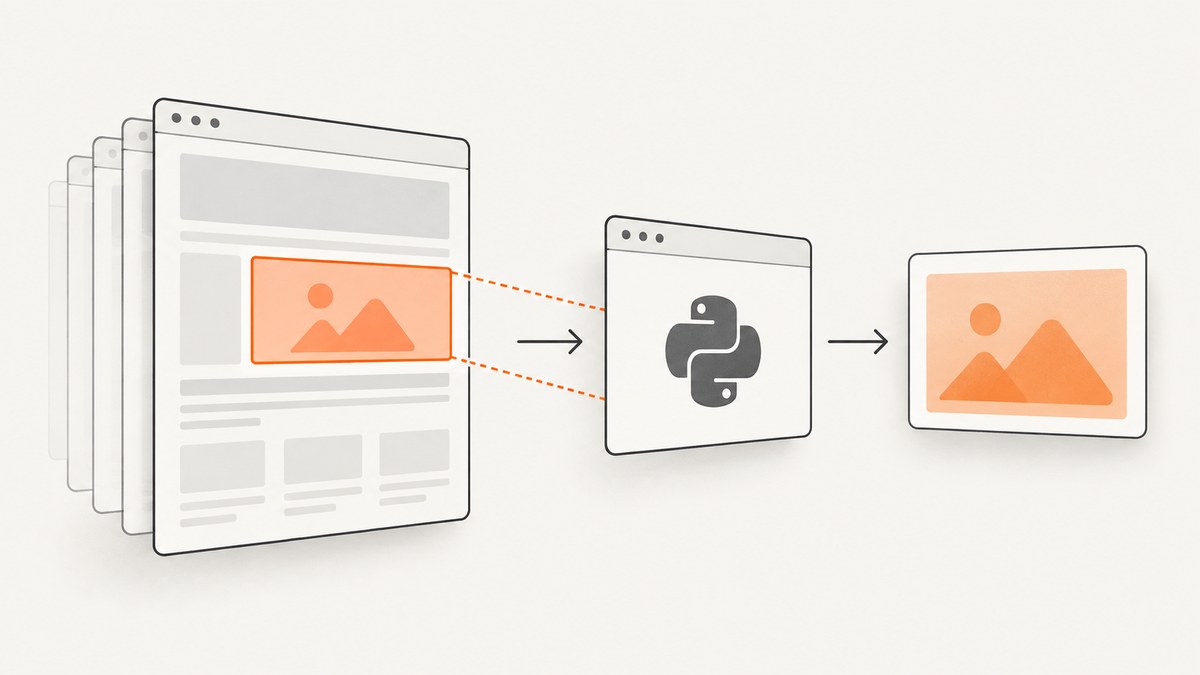
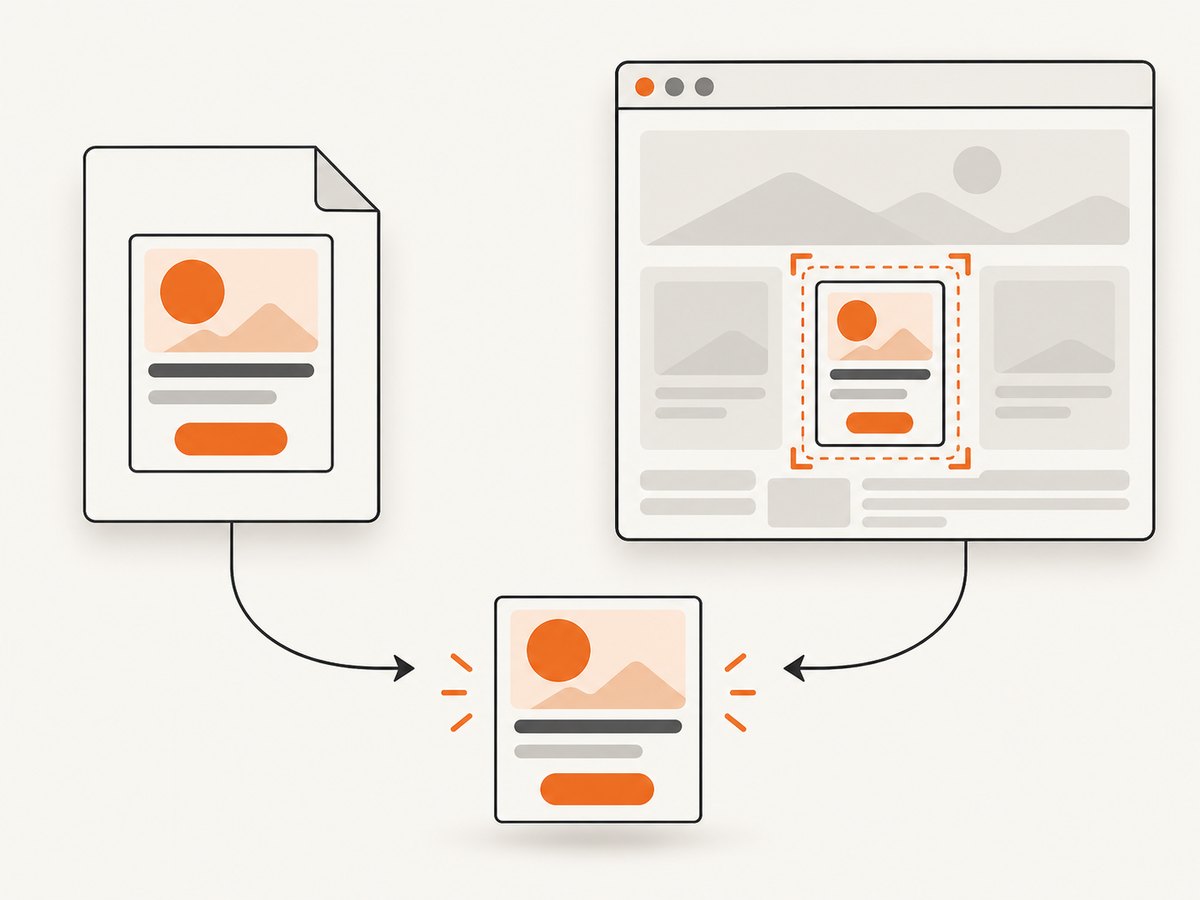
Direct answer: Python imgkit does not document a CSS-selector capture option. To capture one div, either render a small HTML document containing only that element, hide every sibling with CSS, or render the full page and crop the element’s known pixel rectangle with crop-x, crop-y, crop-w, and crop-h. Isolation is usually easier to keep stable; coordinate cropping is useful when the element already exists at a predictable position.
1. Install imgkit and wkhtmltoimage
IMGKit is a Python 2 and 3 wrapper around the wkhtmltoimage command-line utility. Install the Python package and make sure the executable is installed separately and available on your PATH.
python -m pip install imgkit
wkhtmltoimage --version
If the executable is in a non-standard location, configure it explicitly:
import imgkit

config = imgkit.config(wkhtmltoimage="/usr/local/bin/wkhtmltoimage")
On a headless Linux server, install and run an X virtual framebuffer when your wkhtmltoimage build needs a display. IMGKit's documented pattern is to pass an xvfb configuration value.
2. Recommended method: isolate the div in an HTML string
Build a complete, minimal document containing the target markup. Copy the styles the div needs, reset page margins, and render the string with from_string. This avoids guessing where the element lands after responsive layout.
import imgkit

html = """
<!doctype html>
<html>
<head>
  <meta charset="utf-8">
  <style>
    html, body {
      margin: 0;
      padding: 0;
      background: #ffffff;
    }
    #capture {
      display: block;
      width: 640px;
      padding: 24px;
      box-sizing: border-box;
      font-family: Arial, sans-serif;
      color: #111827;
      background: #f3f4f6;
      border: 1px solid #d1d5db;
      border-radius: 12px;
    }
    #capture h2 { margin: 0 0 8px; }
    #capture p { margin: 0; line-height: 1.5; }
  </style>
</head>
<body>
  <div id="capture">
    <h2>Release notes</h2>
    <p>This is the only element rendered into the image.</p>
  </div>
</body>
</html>
"""

options = {
    "format": "png",
    "quiet": "",
}

imgkit.from_string(html, "div.png", options=options)
Use from_url when the source page is already public, from_file for a local HTML file, and from_string when your application generates the markup.
imgkit.from_url("https://example.test/page", "page.png", options={"format": "png", "quiet": ""})
imgkit.from_file("page.html", "page.png", options={"format": "png", "quiet": ""})
3. Keep the original page and hide its siblings
If rebuilding the component is inconvenient, add capture-only CSS that hides everything except the target. The element must remain in normal layout so its descendants retain their styles.
html = """
<style>
  body > * { display: none !important; }
  #capture { display: block !important; }
  html, body { margin: 0; padding: 0; }
</style>
<div id="capture">Target content</div>
<div>Other page content</div>
"""
imgkit.from_string(html, "div.png", options={"format": "png", "quiet": ""})
When the target is nested, hide the outer siblings with a more specific rule. Be careful with display:none: it can change inherited dimensions or remove assets that the target relies on.
4. Coordinate cropping with wkhtmltoimage options
When the rendered rectangle is known, crop the full page using pixel coordinates. The four options mean:
| Option | Meaning |
|---|---|
crop-x |
Left coordinate of the capture window |
crop-y |
Top coordinate of the capture window |
crop-w |
Capture width |
crop-h |
Capture height |
import imgkit

options = {
    "format": "png",
    "crop-x": "120",
    "crop-y": "80",
    "crop-w": "640",
    "crop-h": "360",
    "screenWidth": "1280",
    "smartWidth": False,
    "quiet": "",
}

imgkit.from_url("https://example.test/page", "div.png", options=options)
Coordinates refer to the rendered page. Responsive breakpoints, browser width, zoom, default margins, fonts and late-loading content can move the div. Set a stable screenWidth, reset html and body margins, and keep the layout deterministic before relying on a crop.
5. CSS, dimensions and output formats
Pass external stylesheets through IMGKit's css argument, or embed the required CSS in the HTML. Include the same fonts and component styles used on the real page whenever visual fidelity matters.
import imgkit

imgkit.from_string(
    html,
    "card.jpg",
    css=["styles/reset.css", "styles/card.css"],
    options={
        "format": "jpg",
        "quality": "92",
        "screenWidth": "900",
        "quiet": "",
    },
)
Documented image settings include PNG, JPG, BMP and SVG output. JPEG quality applies to JPG output. PNG and SVG support transparency; remove the page background when you need a transparent result.
options = {
    "format": "png",
    "transparent": "",
    "quiet": "",
}
imgkit.from_string(html, "transparent.png", options=options)
6. JavaScript and asynchronous content
wkhtmltoimage exposes JavaScript enablement and the load.jsdelay setting, which waits a specified number of milliseconds after page load before printing. Use a delay when JavaScript inserts the target's content or dimensions.
options = {
    "format": "png",
    "javascript-delay": "1500",
    "quiet": "",
}
imgkit.from_url("https://example.test/dashboard", "div.png", options=options)
Choose a delay based on the page's actual work; no universal value is published. Keep the target's final dimensions stable during the delay. If possible, render a server-generated version of the component so the capture does not depend on timing.
7. A repeatable capture checklist
- Decide between isolation and coordinate cropping. Prefer isolation when the layout is responsive.
- Reset
htmlandbodymargins for pixel-tight output. - Include the target's real CSS, fonts and images.
- Set
formattopngwhile diagnosing layout or transparency. - Set a stable
screenWidthfor coordinate crops. - Add
load.jsdelayonly when asynchronous content needs it. - Run the same command in the deployment environment, including Xvfb if required.
- Compare output dimensions and inspect stderr before changing several options at once.
8. Troubleshooting
| Symptom | Likely cause | Fix |
|---|---|---|
OSError: No wkhtmltoimage executable found |
The binary is missing or not on PATH. |
Install wkhtmltoimage, verify with wkhtmltoimage --version, or pass its absolute path to imgkit.config. |
| Blank or incomplete div | JavaScript or assets have not finished loading. | Add javascript-delay, verify asset URLs, and render a minimal HTML string. |
| Crop is shifted | Responsive width, margins, zoom or fonts changed the page geometry. | Set screenWidth, reset margins, fix fonts, and recalculate the four crop coordinates. |
| Unexpected white border | Browser default body margin. | Use html, body { margin: 0; padding: 0; }. |
| Missing styles | Relative CSS paths or external resources are unavailable to the renderer. | Use absolute paths or URLs, pass CSS explicitly, and verify the file is readable from the capture process. |
| Display or X-server error | Headless Linux environment lacks a display. | Run through Xvfb and provide IMGKit's xvfb configuration. |
| Segmentation fault | Some wkhtmltoimage versions can fail during conversion. | Run the command reported by IMGKit, inspect stderr, isolate the HTML, and try a supported wkhtmltoimage build. |
9. Performance, reliability and cost considerations
Isolation reduces layout work and removes uncertainty from unrelated page content. Coordinate crops can avoid rebuilding markup but are sensitive to every change that affects page geometry. PNG is useful for diagnostics and sharp text; JPEG is smaller for photographic content but introduces compression. A fixed viewport, local assets and deterministic HTML improve repeatability. The inspected sources publish no benchmark comparing IMGKit cropping with browser-native screenshot tools, so choose based on your page and measure your own workload.
IMGKit itself has no hosted capture charge: your costs are the machine, process time and any browser or Xvfb operations you run. For many URLs or pages that require modern browser behavior, a hosted API can remove installation and server-maintenance work.
10. Or skip the browser setup
ScreenshotNeo provides a website screenshot API and MCP server. Its element capture accepts a CSS selector, so you can request the div directly while keeping the page's browser-rendered styles.

curl -G "https://api.screenshotneo.com/v1/shot" \
  -d access_key=YOUR_API_KEY \
  --data-urlencode url=https://example.test/page \
  -d selector="#capture" \
  -o div.webp
See the ScreenshotNeo API documentation for the complete option list. The same request from Python:
import requests

r = requests.get(
    "https://api.screenshotneo.com/v1/shot",
    params={
        "access_key": "YOUR_API_KEY",
        "url": "https://example.test/page",
        "selector": "#capture",
    },
    timeout=90,
)
r.raise_for_status()
open("div.webp", "wb").write(r.content)
And Node.js:
const q = new URLSearchParams({
  access_key: 'YOUR_API_KEY',
  url: 'https://example.test/page',
  selector: '#capture'
});
const res = await fetch(`https://api.screenshotneo.com/v1/shot?${q}`);
if (!res.ok) throw new Error(`${res.status} ${await res.text()}`);
const fs = await import('node:fs/promises');
await fs.writeFile('div.webp', Buffer.from(await res.arrayBuffer()));
Before capture, cookie and consent banners, newsletter popups and chat widgets are removed. Bot checks, blank pages, failed loads and cache hits are not billed, and response headers identify the page verdict and whether the shot was billed. The MCP server lets Claude, Cursor and other MCP clients call take_screenshot, get_page_info and capture_pdf. One thousand screenshots per month are free with no card; paid plans start at $5 for 3,000 shots. Create a free ScreenshotNeo account.
11. FAQ
Can imgkit select a div by CSS selector?
There is no documented selector argument. Isolate the div in HTML/CSS or use the four pixel crop options.
Which method works best for responsive pages?
Isolation is generally more stable because it does not depend on the div's position in a changing page layout.
Why does my crop include extra whitespace?
Check default HTML and body margins, padding on ancestors, and the exact rendered coordinates.
How do I capture content added after page load?
Enable JavaScript and add an appropriate javascript-delay; keep the final component size stable.
Does imgkit provide a performance guarantee?
No inspected source publishes a benchmark. Measure conversion time and output size on your own pages and deployment hardware.


